How to Add Page Breaks Between Content With PDFMake in Angular 8
Use pageBreak, pageBreakBefore, and table settings to control PDFMake pagination in Angular 8, with runnable TypeScript examples and fixes.

Put pageBreak: 'before' on the node that must start a new page. Use pageBreak: 'after' when the current node must end the page. Angular 8 does not change this PDFMake syntax; your component or service builds the normal document definition and calls pdfMake.createPdf().
const docDefinition = {
  content: [
    { text: 'Customer summary', style: 'header' },
    { text: 'Invoice details', pageBreak: 'before' },
    { text: 'Terms and conditions', pageBreak: 'before' }
  ]
};

pdfMake.createPdf(docDefinition).download('report.pdf');
The result places “Invoice details” on a new page and starts “Terms and conditions” on the page after that.
1. Set up PDFMake in an Angular 8 project
Install PDFMake and its font definitions:
npm install pdfmake
npm install --save-dev @types/pdfmake
A browser-side Angular 8 service can configure the virtual file system and expose a method that creates the PDF:
import { Injectable } from '@angular/core';
import pdfMake from 'pdfmake/build/pdfmake';
import pdfFonts from 'pdfmake/build/vfs_fonts';

(pdfMake as any).vfs = (pdfFonts as any).pdfMake.vfs;

@Injectable({ providedIn: 'root' })
export class ReportPdfService {
  download(): void {
    const docDefinition = {
      content: [
        { text: 'Customer summary', style: 'header' },
        { text: 'Invoice details', pageBreak: 'before' },
        { text: 'Terms and conditions', pageBreak: 'before' }
      ],
      styles: {
        header: { fontSize: 18, bold: true }
      }
    };

    pdfMake.createPdf(docDefinition).download('report.pdf');
  }
}
If your TypeScript configuration reports an import or type error, keep the runtime imports used by your installed PDFMake version and cast them to any as shown. The pagination properties themselves are part of the PDFMake document definition, not an Angular directive.
2. Choose the correct page-break property
| Property | Put it on | Use it when |
|---|---|---|
pageBreak: 'before' |
The following node | That node must begin on a new page |
pageBreak: 'after' |
The current node | The next node must begin on a new page |
pageBreakBefore |
The document definition | The break depends on the current pagination context |
Start a section on a new page
const docDefinition = {
  content: [
    { text: 'Summary', style: 'heading' },
    { text: 'Summary content goes here.' },
    { text: 'Details', style: 'heading', pageBreak: 'before' },
    { text: 'Detail content goes here.' }
  ],
  styles: {
    heading: { fontSize: 16, bold: true }
  }
};
Attach the property to the heading or to the first node in the section. Every node after that heading flows normally until another break is requested.
End the current section before the next node
const docDefinition = {
  content: [
    { text: 'Summary', style: 'heading', pageBreak: 'after' },
    { text: 'Details', style: 'heading' }
  ]
};
This is equivalent for most simple layouts, but pageBreak: 'before' communicates section ownership more clearly when sections are generated independently.
3. Add conditional breaks with pageBreakBefore
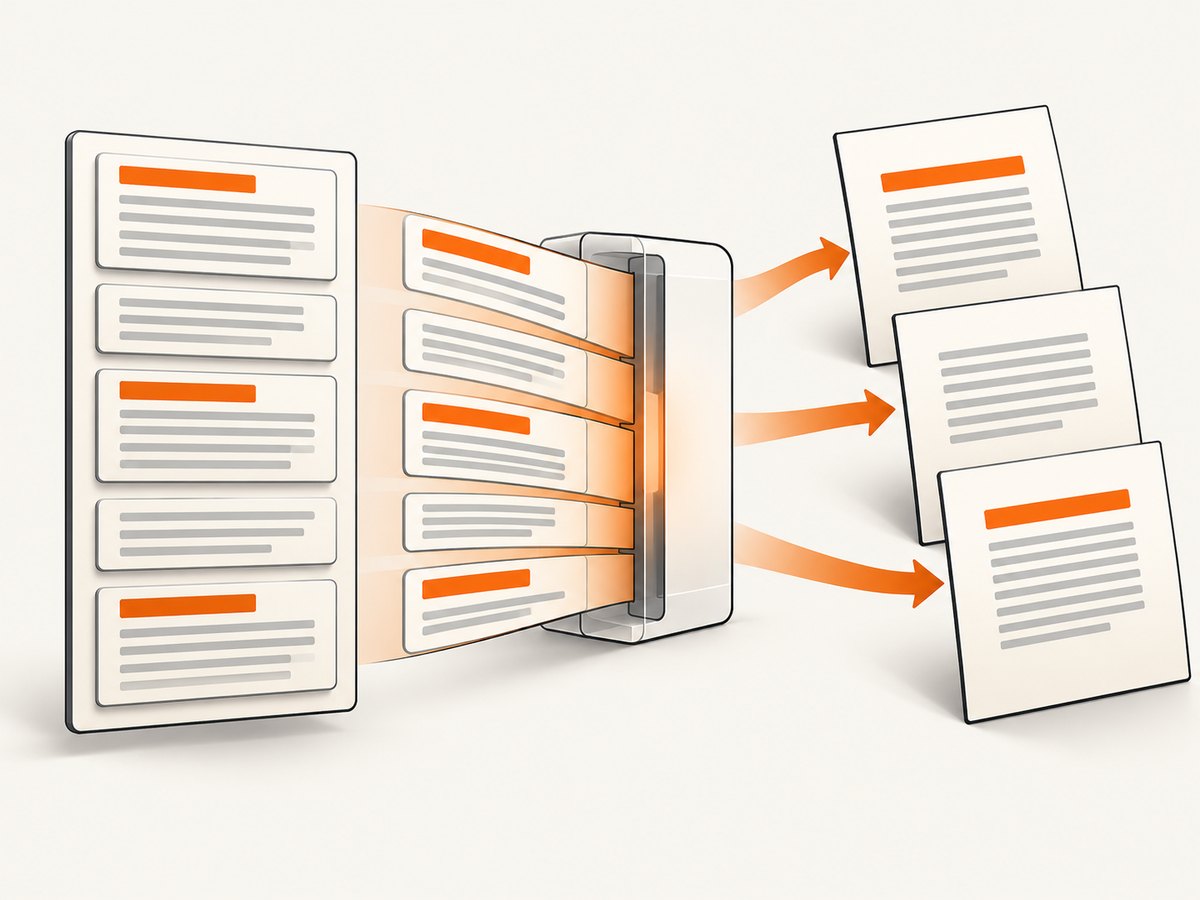
For generated content, a fixed break on one known node is often insufficient. PDFMake provides the document-level pageBreakBefore callback. Return true to insert a break before the current node.
const sections = reportSections.map(section => ({
  headlineLevel: 1,
  text: section.title,
  style: 'sectionHeading'
}));

const docDefinition = {
  content: sections,
  pageBreakBefore: (
    currentNode,
    followingNodesOnPage,
    nodesOnNextPage,
    previousNodesOnPage
  ) => {
    return currentNode.headlineLevel === 1 &&
           followingNodesOnPage.length === 0;
  },
  styles: {
    sectionHeading: { fontSize: 16, bold: true }
  }
};

pdfMake.createPdf(docDefinition).download('sections.pdf');
The callback receives the current node and pagination context, including nodes that follow it on the current page. A common rule is to move a level-one heading when it would otherwise be stranded at the bottom of a page.
Keep a heading with its first content
const docDefinition = {
  content: reportSections,
  pageBreakBefore: (currentNode, followingNodesOnPage) => {
    const isSectionHeading = currentNode.headlineLevel === 1;
    const hasNoFollowingContent = followingNodesOnPage.length === 0;
    return isSectionHeading && hasNoFollowingContent;
  }
};
Do not use a callback when every section has a known fixed boundary; a node-level pageBreak is easier to inspect and maintain.
4. Page breaks in tables
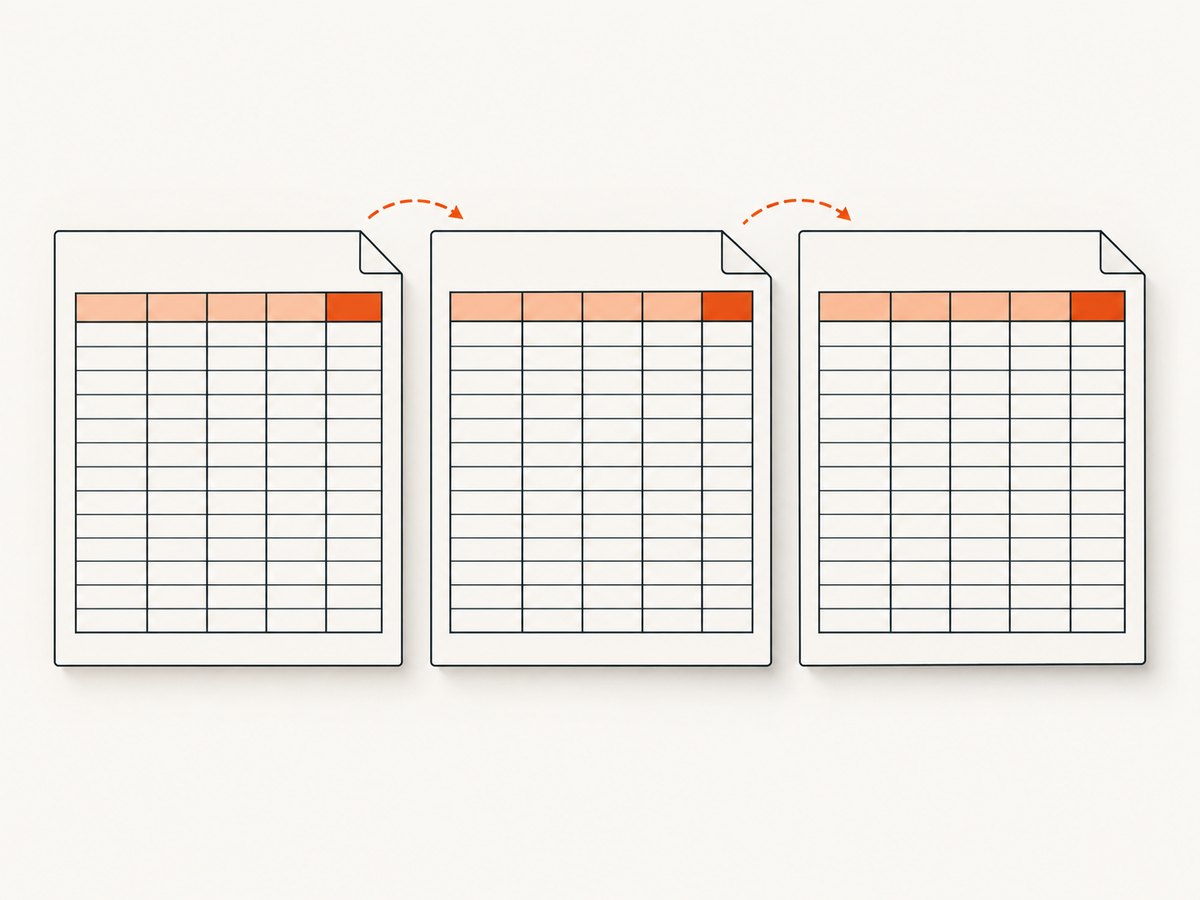
Put pageBreak: 'before' on the heading or table node that starts a table section:
const docDefinition = {
  content: [
    { text: 'Previous section' },
    {
      pageBreak: 'before',
      table: {
        headerRows: 1,
        widths: ['*', 'auto'],
        body: [
          ['Item', 'Amount'],
          ['Hosting', '$20'],
          ['Support', '$10']
        ]
      },
      layout: 'lightHorizontalLines'
    }
  ]
};
headerRows: 1 marks the first row as a header so it can repeat when the table continues onto later pages. Use keepWithHeaderRows when a table header should stay with following rows instead of being left alone at the bottom of a page:
const docDefinition = {
  content: [{
    table: {
      headerRows: 1,
      keepWithHeaderRows: 1,
      body: [
        ['Item', 'Amount'],
        ['Hosting', '$20'],
        ['Support', '$10']
      ]
    }
  }]
};
Use a section-level break for the first page of a table, then let PDFMake paginate the table rows. A break on every row produces fragmented output and makes the document harder to read.
5. Angular 8 implementation patterns
Build the definition in a component
export class InvoiceComponent {
  downloadInvoice(): void {
    const docDefinition = {
      content: [
        { text: 'Invoice #1042', style: 'title' },
        { text: 'Line items', style: 'heading', pageBreak: 'before' },
        this.buildItemsTable(),
        { text: 'Terms', style: 'heading', pageBreak: 'before' },
        { text: 'Payment is due within 30 days.' }
      ],
      styles: {
        title: { fontSize: 20, bold: true },
        heading: { fontSize: 15, bold: true }
      }
    };

    pdfMake.createPdf(docDefinition).download('invoice-1042.pdf');
  }

  private buildItemsTable() {
    return {
      table: {
        headerRows: 1,
        body: [
          ['Description', 'Quantity'],
          ['Design work', '2'],
          ['Development', '5']
        ]
      }
    };
  }
}
Generate sections from data
const content = sections.reduce((nodes, section) => {
  nodes.push({ text: section.title, style: 'heading', pageBreak: 'before' });
  nodes.push({ text: section.body });
  return nodes;
}, []);

const docDefinition = { content };
If the first generated section should remain on the first page, add the break only when index > 0.
6. Troubleshooting
| Symptom | Cause | Fix |
|---|---|---|
| The break is ignored | pageBreak is outside the node object |
Place pageBreak: 'before' or 'after' beside text, table, or the other node properties. |
| Everything after a heading starts on a new page | The break was applied to every generated node | Apply it only to the first node of each section. |
| A table header is not repeated | The table has no header row count | Set headerRows: 1 and put header cells in the first body row. |
| A heading appears alone at the bottom | The heading fits, but its content does not | Use pageBreakBefore to move the heading when the following-node list is empty, or place a fixed break before the section. |
| PDFMake is undefined | The browser bundle or virtual font file was not configured | Import pdfmake/build/pdfmake, import vfs_fonts, and assign pdfMake.vfs before calling createPdf. |
| The callback never breaks | The predicate never returns a boolean true |
Inspect currentNode and the pagination arrays, then return true only for the nodes that need a break. |
| A blank-looking page appears | A forced break follows content that already reached a page boundary | Remove the redundant break or make the break conditional for generated content. |
7. Performance, reliability, and document size
- Prefer one document definition with generated content over repeatedly creating PDFs for individual sections.
- Use fixed breaks for predictable reports and callbacks only where pagination depends on content.
- Large tables and many embedded images require more browser memory. Generate only the rows and assets required for the report.
- Do not infer a page count from the number of nodes: PDFMake may split a node across pages according to available space.
- Download after the definition is complete. If your application builds data asynchronously, wait for all data before calling
createPdf. - Validate long tables, empty sections, headings near a page boundary, and the final page in the browsers your Angular application supports.
8. Or skip the browser setup
If your goal is to capture a rendered web page or produce a PDF from a URL rather than assemble a PDFMake document, ScreenshotNeo provides a website screenshot API. It accepts one GET request and can return PNG, JPEG, WebP, or PDF. Cookie banners, newsletter popups, and chat widgets are removed before capture; bot checks, blank pages, timeouts, failed loads, and cache hits are not billed.
See the ScreenshotNeo API documentation for request options.
curl -G "https://api.screenshotneo.com/v1/shot" -d access_key=YOUR_API_KEY --data-urlencode url=https://stripe.com -o shot.webpimport requests
r = requests.get(
"https://api.screenshotneo.com/v1/shot",
params={"access_key": "YOUR_API_KEY", "url": "https://stripe.com"},
timeout=90,
)
open("shot.webp", "wb").write(r.content)const q = new URLSearchParams({ access_key: 'YOUR_API_KEY', url: 'https://stripe.com' });
const res = await fetch(`https://api.screenshotneo.com/v1/shot?${q}`);It also has an MCP server with take_screenshot, get_page_info, and capture_pdf tools for Claude, Cursor, and other MCP clients. The Free plan includes 1,000 screenshots each month with no card; paid plans start at $5 for 3,000 shots. Create a free ScreenshotNeo account.
9. FAQ
Should I use pageBreak before or after?
Use before on the node that must start the next page. Use after on the node that must finish the current page. Both express the same boundary from opposite sides.
Can Angular 8 add page breaks with a template directive?
The break belongs in the PDFMake document definition. Angular supplies the component or service that creates that definition.
How do I break before only some generated sections?
Add pageBreak: 'before' while mapping the selected sections, or return true from pageBreakBefore when the current node meets your rule.
How do I keep a table heading from being separated from rows?
Set headerRows so the header repeats, and use keepWithHeaderRows when the header must stay with following rows.
Does pageBreakBefore run before or after layout?
It is evaluated for the current node during pagination. Returning true inserts the break before that node.


