How to Perform Browser Actions Programmatically
Learn how to automate clicks, forms, navigation, waits and verification with Playwright, Selenium, CDP and WebDriver BiDi.
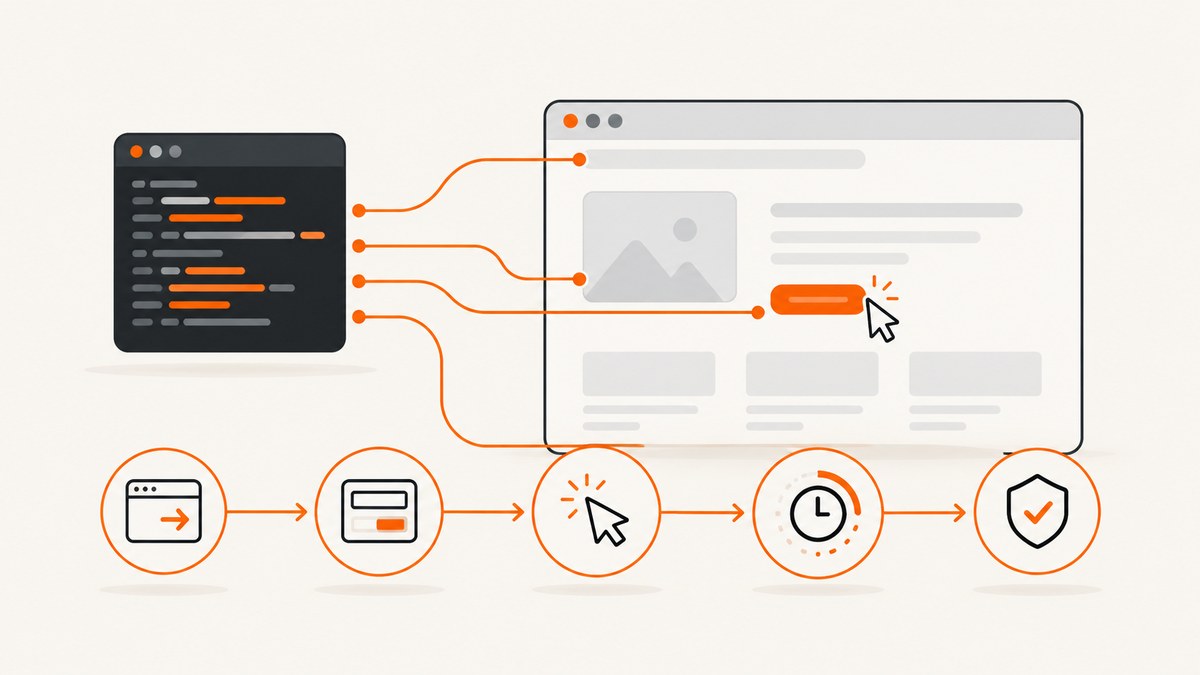
Programmatic browser interaction means controlling a real browser session from code: start or connect to a browser, navigate to a URL, locate an element, perform an action, wait for the resulting state, verify the outcome, and close the session. For most application work, use Playwright or Selenium WebDriver. Use Chrome DevTools Protocol (CDP) for Chromium-specific low-level instrumentation, and WebDriver BiDi when its event-driven capabilities match your browser and binding support.
1. Choose the control layer
| Need | Good fit | Reason |
|---|---|---|
| Application interaction, testing and screenshots | Playwright | Integrated page and locator APIs with actionability checks. |
| Language-neutral automation or remote browser sessions | Selenium WebDriver | Bindings communicate through browser-specific drivers and can run locally or remotely. |
| Chromium debugging, profiling or low-level commands | CDP | Direct access to Chromium/Blink instrumentation. |
| Browser events over a bidirectional WebSocket | WebDriver BiDi | Designed for events such as network, console and JavaScript errors; implementation support is still evolving. |
CDP’s tip-of-tree protocol can change without backward-compatibility guarantees. Check current browser, binding and protocol support before selecting it for a long-lived integration.
2. The reliable automation lifecycle
- Start or connect to a session. Launch a managed browser or connect to a local or remote endpoint.
- Navigate. Open the target URL and wait for the state your task needs.
- Locate. Prefer accessible roles and labels, then stable test IDs or durable CSS selectors.
- Act. Click, fill, select, check, hover, drag or send keyboard input.
- Wait and verify. Wait for a specific element, URL, message or control state, then assert it.
- Clean up. Close the page and browser, even when the task fails.
Use an element-based wait instead of a fixed sleep whenever possible. A delay can be too short on a slow run and waste time on a fast run.

3. Playwright: click, fill and verify (Node.js)
Install the package and browser binaries:
npm install -D playwright
npx playwright install chromium
This complete script opens a page, fills a search field, submits it, waits for a result and saves a screenshot:
const { chromium } = require('playwright');

(async () => {
  const browser = await chromium.launch({ headless: true });
  const page = await browser.newPage({ viewport: { width: 1440, height: 900 } });

  try {
    await page.goto('https://example.com', { waitUntil: 'domcontentloaded', timeout: 30000 });
    await page.getByRole('textbox', { name: /search/i }).fill('browser automation');
    await page.getByRole('button', { name: /search/i }).click();
    await page.getByRole('heading', { name: /results/i }).waitFor({ state: 'visible', timeout: 10000 });
    console.log('Result URL:', page.url());
    await page.screenshot({ path: 'result.png', fullPage: true });
  } finally {
    await browser.close();
  }
})();
Locator actions are self-contained: they resolve the current element and perform actionability checks. This reduces failures caused by a page changing between separate “find” and “act” calls.
Useful Playwright interactions
// Semantic locators
await page.getByRole('button', { name: 'Save' }).click();
await page.getByLabel('Email').fill('dev@example.com');
await page.getByTestId('confirm').check();

// Select, hover, keyboard and drag
await page.getByLabel('Country').selectOption('US');
await page.getByText('Account').hover();
await page.getByLabel('Search').press('Enter');
await page.locator('#source').dragTo(page.locator('#target'));

// Explicit state and URL checks
await page.locator('.toast').waitFor({ state: 'visible' });
await page.waitForURL('**/dashboard');
await page.getByRole('button', { name: 'Save' }).isEnabled();
Frames and new pages
const payment = page.frameLocator('iframe[title="Payment"]');
await payment.getByLabel('Card number').fill('4242424242424242');

const popupPromise = page.waitForEvent('popup');
await page.getByRole('link', { name: 'Open report' }).click();
const popup = await popupPromise;
await popup.waitForLoadState('domcontentloaded');
4. Playwright in Python
from playwright.sync_api import sync_playwright

with sync_playwright() as p:
    browser = p.chromium.launch(headless=True)
    page = browser.new_page(viewport={"width": 1440, "height": 900})
    try:
        page.goto("https://example.com", wait_until="domcontentloaded", timeout=30_000)
        page.get_by_role("textbox", name="Search").fill("browser automation")
        page.get_by_role("button", name="Search").click()
        page.get_by_role("heading", name="Results").wait_for(state="visible", timeout=10_000)
        print(page.url)
        page.screenshot(path="result.png", full_page=True)
    finally:
        browser.close()
5. Selenium WebDriver: a browser-neutral option
Selenium WebDriver drives a browser natively through a browser-specific driver and can use local or remote sessions. This Python example follows the full lifecycle:
from selenium import webdriver
from selenium.webdriver.common.by import By
from selenium.webdriver.support.ui import WebDriverWait
from selenium.webdriver.support import expected_conditions as EC

options = webdriver.ChromeOptions()
options.add_argument("--headless=new")
driver = webdriver.Chrome(options=options)
wait = WebDriverWait(driver, 20)

try:
    driver.get("https://example.com")
    search = wait.until(EC.visibility_of_element_located((By.NAME, "q")))
    search.clear()
    search.send_keys("browser automation")
    driver.find_element(By.CSS_SELECTOR, "button[type='submit']").click()
    wait.until(EC.visibility_of_element_located((By.CSS_SELECTOR, "h1.results")))
    print(driver.current_url)
    driver.save_screenshot("result.png")
finally:
    driver.quit()
For a remote browser, configure the driver’s remote command executor and capabilities supplied by your grid or cloud provider. Keep the same locate, act, wait and verify structure.
6. Direct Chrome DevTools Protocol
CDP is useful when you need Chromium-level network interception, performance tracing, console events or debugging commands. It is tied to Chromium-family browsers and its tip-of-tree API changes frequently, so pin compatible browser and client versions.
const { chromium } = require('playwright');

(async () => {
  const browser = await chromium.launch();
  const page = await browser.newPage();
  const client = await page.context().newCDPSession(page);
  await client.send('Network.enable');
  client.on('Network.responseReceived', event => {
    if (event.response.url.includes('/api/')) console.log(event.response.status, event.response.url);
  });
  await page.goto('https://example.com');
  await browser.close();
})();
7. WebDriver BiDi and browser events
WebDriver BiDi adds bidirectional communication so a client can subscribe to browser events such as network activity, console output and JavaScript errors. Support depends on the browser, driver and language binding. Verify the current support matrix before relying on a specific event or command, and keep a fallback path for environments that only expose classic WebDriver.
8. Locators that survive UI changes
- Use accessible role plus accessible name for buttons, links, headings and controls.
- Use labels for form fields.
- Use a stable test ID when the application provides one.
- Use CSS selectors for structural details that have no semantic alternative.
- Avoid long XPath chains, generated class names and screen coordinates.
- Scope selectors to a component or frame so duplicate text elsewhere cannot match.
If a target is inside an iframe, select the frame first. If a list contains repeated controls, locate the row by its text and then find the button within that row.
9. Waiting, verification and retries
Wait for the condition that proves the action completed: an element becomes visible or enabled, a URL changes, a network-backed message appears, or a control changes state. Set explicit navigation and action timeouts. Retry only transient operations, and make the action idempotent where possible; blindly retrying a purchase or form submission can duplicate side effects.
async function retry(operation, attempts = 3) {
  let lastError;
  for (let i = 0; i < attempts; i++) {
    try { return await operation(); }
    catch (error) {
      lastError = error;
      if (i + 1 < attempts) await new Promise(r => setTimeout(r, 500 * 2 ** i));
    }
  }
  throw lastError;
}
10. Authentication, permissions and state
- Use a dedicated test account and least-privilege credentials.
- Persist an authenticated browser state when supported, instead of logging in for every test.
- Keep secrets outside source code and redact them from logs.
- Grant only the permissions required by the workflow.
- Reset data between runs so one failed session does not contaminate the next.
11. Troubleshooting common failures
| Symptom | Likely cause | Fix |
|---|---|---|
| Element not found | Wrong selector, delayed render or wrong frame | Use a role or label locator, wait for the target, and enter the correct iframe. |
| Element is not clickable | Overlay, animation, disabled state or off-screen target | Wait for visibility and enabled state; dismiss the overlay; inspect the page before forcing a click. |
| Timeout during navigation | Slow server, blocked request or waiting for an event that never occurs | Capture console and network diagnostics, choose the appropriate load condition, and set a deliberate timeout. |
| Stale element reference | Framework re-rendered the node | Locate the element immediately before acting instead of caching an old handle. |
| Text differs from expectation | Locale, whitespace or asynchronous content | Assert a stable role, attribute or normalized state; set the intended locale and timezone. |
| Works headed but fails headless | Viewport, timing, permissions or environment differences | Set viewport and permissions explicitly, collect a trace or screenshot, and remove timing assumptions. |
| Driver or browser version error | Incompatible browser, driver or binding | Pin compatible versions and follow the current Selenium or browser documentation. |
| CAPTCHA or bot block | Site protection detected automation | Respect the site’s terms, use an authorized test environment, and do not attempt to bypass protections. |
12. Performance and reliability
- Reuse a browser process when running many independent pages, while isolating data with separate contexts or profiles.
- Block unnecessary third-party resources only when doing so cannot change the behavior under test.
- Prefer locator waits and event-based synchronization over long sleeps.
- Capture a screenshot, DOM snapshot, console log and relevant network errors when a run fails.
- Run independent, read-only flows in parallel; serialize flows that share accounts or mutate the same records.
- Keep browser and driver versions pinned in CI, and update them deliberately.
- Use a remote grid when you need many browser/OS combinations, and account for network latency in timeouts.
13. Legal and operational boundaries
Browser automation can support testing, accessibility checks and authorized data workflows. A site’s terms may prohibit automated collection, and sites may block it. Check permission and terms before automating a third-party site, protect personal data, and rate-limit requests.
14. Or skip the browser setup
If your goal is a clean page image or PDF rather than interaction with a live session, ScreenshotNeo provides a single HTTP request. Its capture pipeline accepts cookie or consent banners, removes more than 60 known consent platforms plus newsletter popups and chat widgets, and lets you turn each cleanup step off. Only clean shots are billed: bot checks, blank pages, timeouts, failed loads and cache hits cost nothing, with the result identified by X-Page-Verdict and X-Billed headers.

See the ScreenshotNeo API documentation for all options, including full-page and element capture, device presets, custom viewports, retina scale, dark mode, custom CSS and JavaScript, clicks, waits, request blocking, headers, cookies, user agents, authorization, timezone, geolocation, transparent backgrounds, resizing, caching, signed links, asynchronous jobs, bulk capture, usage and the OpenAPI specification.
curl -G "https://api.screenshotneo.com/v1/shot" -d access_key=YOUR_API_KEY --data-urlencode url=https://stripe.com -o shot.webpimport requests
r = requests.get("https://api.screenshotneo.com/v1/shot", params={"access_key": "YOUR_API_KEY", "url": "https://stripe.com"}, timeout=90)
open("shot.webp", "wb").write(r.content)const q = new URLSearchParams({ access_key: 'YOUR_API_KEY', url: 'https://stripe.com' });
const res = await fetch(`https://api.screenshotneo.com/v1/shot?${q}`);ScreenshotNeo also has an MCP server with take_screenshot, get_page_info and capture_pdf tools for Claude, Cursor and other MCP clients. The Free plan includes 1,000 screenshots each month with no card; paid plans start at $5 for 3,000 shots. Create a free ScreenshotNeo account.
15. FAQ
Can browser automation run without a visible window?
Yes. Playwright and Selenium support headless sessions. Set the viewport, permissions and timing explicitly because headless and headed environments can differ.
Should I use Playwright or Selenium?
Choose Playwright for an integrated page and locator API. Choose Selenium when its language bindings, browser drivers or remote-grid setup fit your existing stack. The sources do not establish a universal speed or reliability winner.
When is CDP the right choice?
Use CDP for Chromium-specific inspection, profiling, debugging or low-level commands. Its changing tip-of-tree API makes version pinning important.
How do I automate an iframe?
Locate the frame first, then query elements within that frame. A selector for the parent document cannot directly target iframe contents.
How do I make runs reproducible?
Pin browser and driver versions, set locale/timezone/viewport, use stable test data, replace sleeps with state waits, and retain failure diagnostics.


