Performing Math in PDF Templates
Learn how to make PDF forms calculate totals, averages, taxes, and dependent values in Acrobat and Acrobat Sign, with scripts, testing, and fixes.
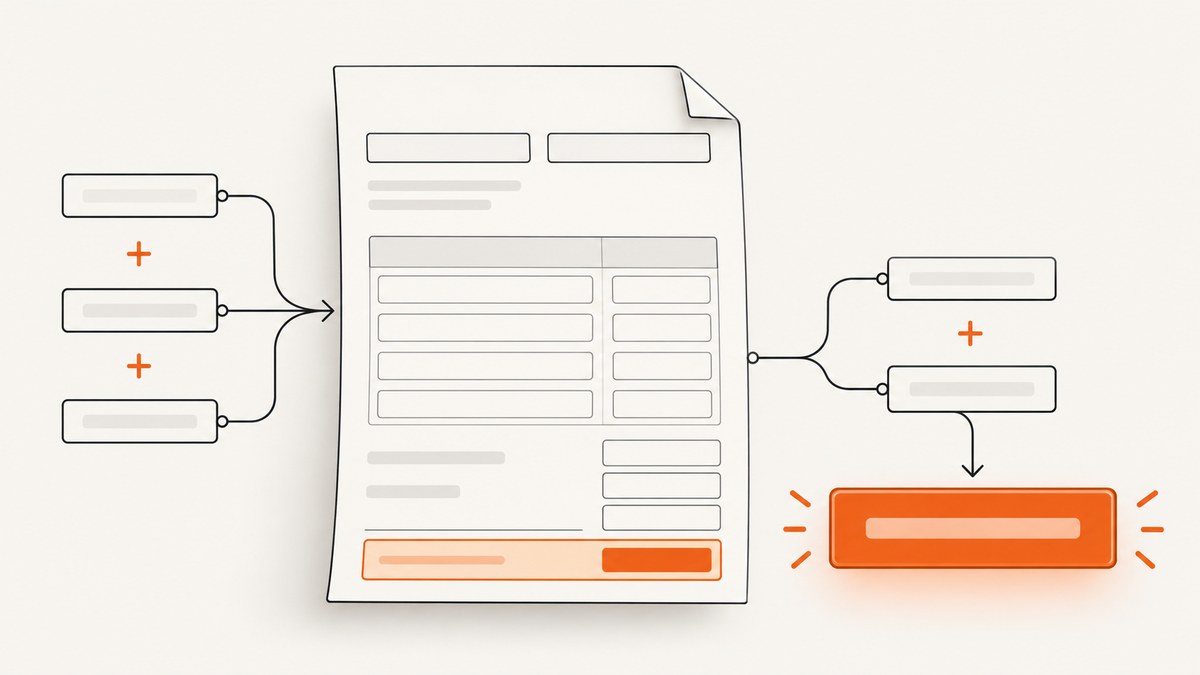
Yes, a PDF form can calculate automatically. In Adobe Acrobat, select a form field, open Properties, choose the Calculate tab, and then choose a predefined operation, simplified field notation, or a custom calculation script. For dependent fields, set the calculation order so prerequisite values are evaluated before fields that use them.
The exact workflow depends on whether you are building an Acrobat form or an Acrobat Sign agreement. Acrobat desktop forms use field properties and Acrobat JavaScript. Acrobat Sign has its own formula editor and syntax. Treat them as separate authoring environments and test the finished file in the viewer your recipients will actually use.
1. Choose the right calculation method
Start by classifying the calculation. The simplest method that expresses the rule is usually easiest to maintain.
| Need | Best method | Example |
|---|---|---|
| One common operation over several fields | Predefined calculation | Sum, product, average, minimum, or maximum |
| Basic arithmetic with named fields | Simplified field notation | Quantity * UnitPrice |
| Conditional logic, rounding, validation, or multiple rules | Custom calculation script | Apply a discount only above a threshold |
| Fields in an Acrobat Sign agreement | Acrobat Sign formula | Reference fields, literals, operators, and supported functions |
Adobe documents these three Acrobat approaches—predefined calculations, simplified field notation, and custom calculation scripts—in its form calculation guidance. Read Adobe’s calculation documentation before distributing a template.
2. Build a basic calculated field in Acrobat
- Open the PDF in Adobe Acrobat and enter Prepare a form mode.
- Create or select the fields that supply values. Give them stable, descriptive names such as
Quantity,UnitPrice, andLineTotal. - Double-click the result field, such as
LineTotal, to open Text Field Properties. - Open the Calculate tab.
- Choose a predefined calculation when it fits. For a total, select the option that sums selected fields and add the input fields.
- For direct arithmetic, choose simplified field notation and enter the expression using your field names and operators.
- Close the properties dialog, save the PDF, and test with empty, zero, decimal, and large values.
Use field names rather than captions. A label such as “Price ($)” may be visible to a person but is a poor identifier for an expression. Names such as Subtotal and TaxRate are clearer and less likely to break when you change the visible wording.
Example: line total, subtotal, tax, and grand total
Create these fields:
Qty1,Price1,Line1Qty2,Price2,Line2Subtotal,TaxRate,Tax,GrandTotal
With simplified notation, the expressions can be:
Line1      = Qty1 * Price1
Line2      = Qty2 * Price2
Subtotal   = Line1 + Line2
Tax        = Subtotal * TaxRate
GrandTotal = Subtotal + Tax
Set the number format for money fields to two decimal places and choose the intended currency display. Keep TaxRate consistent: enter 0.2 for 20 percent if the expression multiplies directly, or enter 20 and divide by 100 in the formula.
3. Use custom calculation scripts for real business rules
Simplified notation is deliberately limited. Use a custom calculation script when the result depends on conditions, multiple branches, explicit rounding, or values that need cleaning before arithmetic.
In a result field’s Calculate tab, choose Custom calculation script. Acrobat exposes the current field through event.value. Read other fields with this.getField("FieldName").value.
// Discounted total with a minimum order rule
var subtotal = Number(this.getField("Subtotal").value) || 0;
var discountRate = Number(this.getField("DiscountRate").value) || 0;
var discount = subtotal >= 500 ? subtotal * discountRate : 0;
event.value = subtotal - discount;
A script that rounds to cents can use:
var amount = Number(this.getField("Amount").value) || 0;
event.value = Math.round((amount + Number.EPSILON) * 100) / 100;
For a required input, decide what an empty field means. The examples above treat empty or nonnumeric input as zero. If that would hide an error, leave the result blank and show a validation message instead:
var raw = this.getField("Hours").value;
if (raw === "") {
  event.value = "";
} else {
  var hours = Number(raw);
  event.value = isFinite(hours) ? hours * 75 : "";
}
Keep scripts short and document assumptions in the field name or form instructions. Avoid relying on browser-only JavaScript APIs; PDF viewers implement a constrained Acrobat JavaScript environment.
4. Set calculation order for dependent fields
When one calculated field uses another, Acrobat must evaluate them in sequence. For example, GrandTotal depends on Subtotal and Tax, while Tax depends on Subtotal. The order should therefore be:
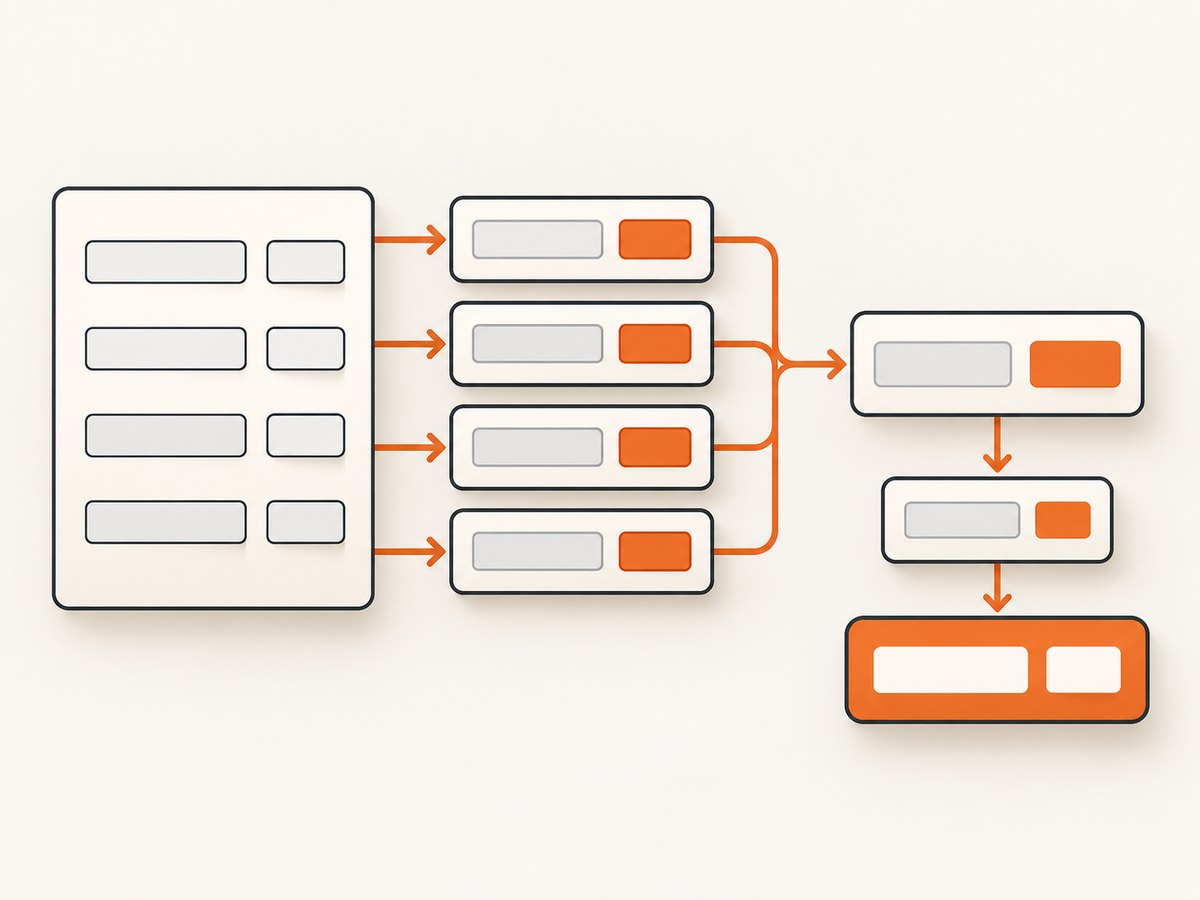
- Line totals
- Subtotal
- Tax
- Grand total
Adobe warns that calculation order is essential when calculated fields depend on one another. Review the Calculate tab guidance, then inspect the form’s calculation order and move prerequisite fields above dependent fields. The Acrobat JavaScript developer documentation describes changing a field’s calculation index when you need explicit precedence. See the Acrobat JavaScript API reference.
A wrong order often looks like a stale total: changing a quantity updates a line but leaves the grand total unchanged until another field is edited. Fix the order before adding more script.
5. Handle averages, percentages, and optional rows
Average only completed fields
A predefined average may treat blank fields differently across authoring contexts. For predictable behavior, count populated numeric fields yourself:
var names = ["Score1", "Score2", "Score3", "Score4"];
var total = 0;
var count = 0;
for (var i = 0; i < names.length; i++) {
  var value = this.getField(names[i]).value;
  if (value !== "") {
    var number = Number(value);
    if (isFinite(number)) {
      total += number;
      count++;
    }
  }
}
event.value = count ? total / count : "";
Percentages
Choose one representation and use it everywhere. If a user enters 15 for 15 percent, calculate Base * Rate / 100. If the field stores 0.15, calculate Base * Rate. Add helper text so the input convention is visible.
Optional invoice rows
For rows that may be empty, either calculate empty rows as zero or leave their line totals blank. The second approach can make incomplete forms easier to spot, but it requires a custom script and a clear completion rule before submission.
6. Acrobat Sign formulas are a separate workflow
Acrobat Sign calculated fields are configured inside an agreement’s authoring experience, not through the Acrobat desktop field-properties dialog. Adobe describes formulas that can reference fields, literals, operators, and supported functions; formulas can also reference other calculated fields. Use Adobe’s Acrobat Sign calculated-field documentation for the current syntax and editor steps.
Use descriptive field names and keep related formulas understandable. Do not copy an Acrobat JavaScript event script into an Acrobat Sign formula field or assume that a simplified-notation expression has identical behavior in both products.
7. Validate the finished PDF in the recipient’s viewer
The strongest documentation covers Adobe’s own tools. The sources do not establish a universal compatibility matrix for third-party PDF viewers or prove that every viewer executes every Acrobat JavaScript calculation identically. Test the final file in the software and version your recipients will use.
| Test | Expected result |
|---|---|
| Enter ordinary integers | All dependent fields update immediately or after the documented trigger |
| Enter decimals and negative values | Formatting and arithmetic remain correct |
| Delete an input | Result follows your blank-field rule |
| Change an upstream value repeatedly | No stale dependent values remain |
| Open in the target viewer | Fields, scripts, and displayed results behave as intended |
| Print or flatten a copy | Displayed values remain visible; understand that flattening removes interactivity |
8. Troubleshooting common calculation errors
The total stays blank
Cause: The result field has no calculation rule, a referenced name is misspelled, or the script returns an empty value. Fix: reopen Properties → Calculate, verify every field name exactly, and add temporary test values to each input.
The total is one edit behind
Cause: Calculation order is wrong. Fix: put prerequisite fields before dependent fields in the calculation order and retest from a freshly opened copy.
Numbers concatenate instead of adding
Cause: Values are being treated as text. Fix: use numeric field formatting and convert script inputs with Number(...). In simplified notation, check that the expression uses arithmetic operators rather than string operations.
Tax is 100 times too high or too low
Cause: The rate convention is inconsistent. Fix: decide whether 20 percent is stored as 20 or 0.20, then make the formula match.
The script works in Acrobat but not elsewhere
Cause: Viewer support for PDF JavaScript varies. Fix: test in the recipient’s actual viewer, provide a compatibility requirement, or generate a final noninteractive PDF after calculations are complete.
A formula works until a field is renamed
Cause: Expressions reference the old internal name. Fix: rename fields before writing formulas, then search every calculation and script for the old identifier.
9. Reliability, performance, and cost considerations
PDF calculations run locally when the viewer supports them, so a small form normally needs no server request. Reliability depends more on field naming, calculation order, script simplicity, and viewer compatibility than on computational speed. Keep formulas deterministic and avoid unnecessary document-level scripts.
For sensitive workflows, decide whether a calculated value is authoritative. A recipient can alter a PDF or use a viewer that does not execute scripts. Recalculate and validate submitted values on your server when the total affects payment, eligibility, accounting, or compliance. Store the original inputs and the rule version used to derive the result.
There is no universal cost for Acrobat calculations themselves; costs depend on the authoring, signing, storage, or processing service you choose. If you render a completed PDF to an image for review or publishing, use a screenshot service that reports whether a capture was clean and billable.
10. Or skip the browser setup
If your next step is producing a visual preview of a completed PDF or web form, ScreenshotNeo can return a screenshot with one GET request. Its cleanup step accepts cookie or consent banners and removes more than 60 known consent platforms, newsletter popups, and chat widgets before capture. Bot checks, blank pages, timeouts, failed loads, and cache hits are not billed, and the response identifies the page verdict and billing status.

See the ScreenshotNeo API documentation for all options. A minimal request is:
curl -G "https://api.screenshotneo.com/v1/shot" \
  -d access_key=YOUR_API_KEY \
  --data-urlencode url=https://stripe.com \
  -o shot.webp
import requests
r = requests.get(
"https://api.screenshotneo.com/v1/shot",
params={"access_key": "YOUR_API_KEY", "url": "https://stripe.com"},
timeout=90,
)
open("shot.webp", "wb").write(r.content)const q = new URLSearchParams({ access_key: 'YOUR_API_KEY', url: 'https://stripe.com' });
const res = await fetch(`https://api.screenshotneo.com/v1/shot?${q}`);You can choose full-page capture, an element by CSS selector, a device preset or custom viewport, retina scale, custom CSS and JavaScript, waits, blocking rules, headers, cookies, authentication, timezone, geolocation, transparency, resizing, caching, signed links, asynchronous jobs, webhooks, bulk capture, and PDF output. ScreenshotNeo also provides an MCP server with take_screenshot, get_page_info, and capture_pdf tools for AI agents.
There is a free tier of 1,000 screenshots per month with no card. Paid plans start at $5 for 3,000 shots, and every feature is available on every plan. Create a free ScreenshotNeo account to try it.
11. FAQ
Can I calculate a total without JavaScript?
Yes. Use a predefined calculation or simplified field notation when the rule is basic arithmetic. Use a custom script for conditions or data cleaning.
Why does a calculated field show a stale value?
Check calculation order first. A dependent field must be evaluated after every field it references.
Will calculations work in every PDF viewer?
Do not assume so. Validate the finished template in the viewer and version your recipients use.
Should I round each line or only the final total?
Choose the accounting rule your process requires, document it, and apply it consistently. Rounding each line can produce a different result from rounding only the grand total.
Are Acrobat and Acrobat Sign formulas interchangeable?
No. They are separate workflows with different authoring interfaces and formula capabilities. Follow the documentation for the product where the form is created.


