How to Capture Web Page Screenshots Periodically on a Remote Server
Build a reliable scheduled screenshot job with Playwright, cron or systemd, retention, troubleshooting, and a managed ScreenshotNeo option.
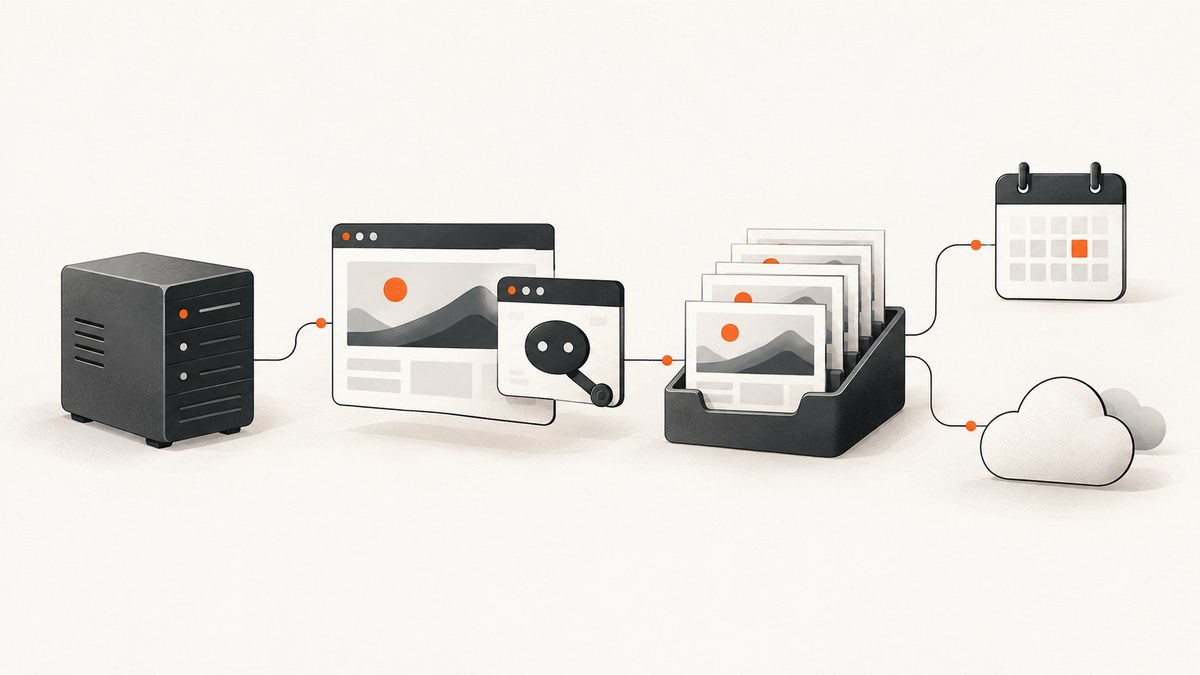
Direct answer: run a browser automation script on the remote server, navigate to the page, save a screenshot with a timestamped filename, and invoke that script with the server’s scheduler. Playwright provides the capture API; cron or systemd provides the schedule.
This guide builds a repeatable Node.js implementation, shows equivalent cURL and Python approaches where they apply, and covers timing, full-page output, formats, authentication, retention, logging, failures, and cost decisions.
1. Choose the capture architecture
A periodic capture system has five separate responsibilities:
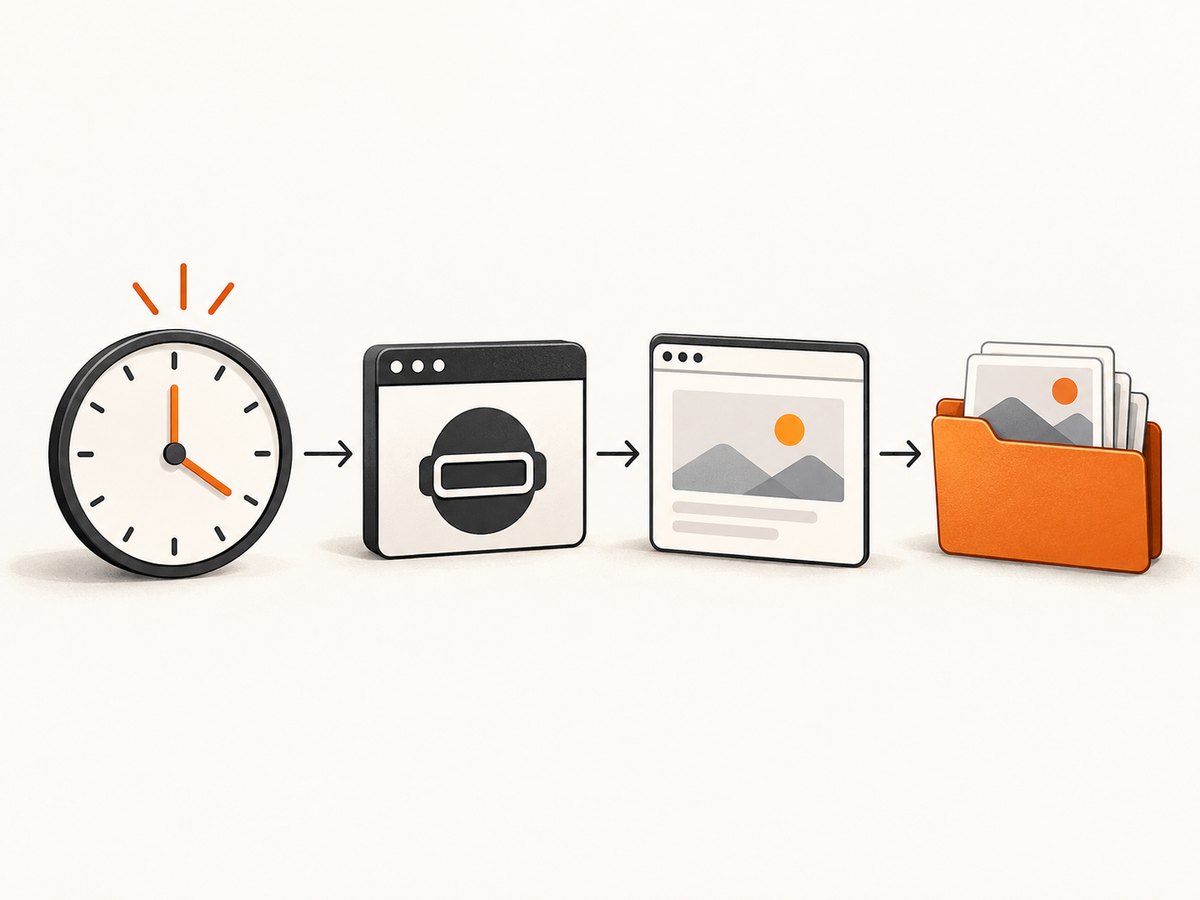
- Browser runtime: Playwright launches Chromium (or another supported browser).
- Capture script: opens the URL, waits for the state you need, and writes an image.
- Scheduler: cron, a systemd timer, or another host scheduler starts the script.
- Storage policy: filenames, retention, and optional upload to remote object storage.
- Observability: logs record start time, URL, output path, and errors.
Scheduling is separate from Playwright’s screenshot API. Pick the scheduler that matches the operating system and deployment process.
2. Install Playwright on the server
Use the official installation instructions for your operating system and language: Playwright installation documentation. The browser executable must be installed for the same user that runs the scheduled job.
mkdir -p /opt/web-capture
cd /opt/web-capture
npm init -y
npm install playwright
npx playwright install chromium
Run the installation and later capture command as the same operating-system user. This avoids a common mismatch where a browser exists for an interactive account but not for the scheduler’s account.
3. Build a complete Node.js capture script
Create /opt/web-capture/capture.mjs. This example preserves every run, captures the full scrollable page, waits for network activity to settle, and logs useful diagnostics.
import { chromium } from 'playwright';
import fs from 'node:fs/promises';
import path from 'node:path';

const targetUrl = process.env.TARGET_URL || 'https://example.com';
const outputDir = process.env.OUTPUT_DIR || '/opt/web-capture/shots';
const viewportWidth = Number(process.env.VIEWPORT_WIDTH || 1440);
const viewportHeight = Number(process.env.VIEWPORT_HEIGHT || 900);

function timestamp() {
  return new Date().toISOString().replace(/[:.]/g, '-');
}

await fs.mkdir(outputDir, { recursive: true });
const outputPath = path.join(outputDir, `page-${timestamp()}.png`);
const browser = await chromium.launch({ headless: true });

try {
  const page = await browser.newPage({
    viewport: { width: viewportWidth, height: viewportHeight },
    deviceScaleFactor: 1
  });

  console.log(JSON.stringify({ event: 'capture_start', targetUrl, outputPath }));
  await page.goto(targetUrl, { waitUntil: 'domcontentloaded', timeout: 60000 });
  await page.waitForLoadState('networkidle', { timeout: 30000 }).catch(() => {
    console.warn('networkidle timeout; saving the current rendered page');
  });

  await page.screenshot({
    path: outputPath,
    fullPage: true,
    type: 'png'
  });

  console.log(JSON.stringify({ event: 'capture_success', outputPath }));
} catch (error) {
  console.error(JSON.stringify({
    event: 'capture_failure',
    targetUrl,
    message: error instanceof Error ? error.message : String(error)
  }));
  process.exitCode = 1;
} finally {
  await browser.close();
}
The documented Playwright sequence is navigation followed by page.screenshot(); the Page API describes this flow and its options.
4. Run it manually before scheduling
cd /opt/web-capture
TARGET_URL=https://example.com node capture.mjs
ls -lh /opt/web-capture/shots
Manual execution catches browser-runtime, path, permission, DNS, and environment problems before a scheduler hides them in a service log. Verify that the output is readable and that the image contains the content you expect.
5. Schedule recurring captures with cron
Edit the crontab for the same user that owns the Playwright installation:
crontab -eFor a capture every 15 minutes:
SHELL=/bin/bash
PATH=/usr/local/bin:/usr/bin:/bin
*/15 * * * * cd /opt/web-capture && TARGET_URL=https://example.com OUTPUT_DIR=/opt/web-capture/shots /usr/bin/node capture.mjs >> /var/log/web-capture.log 2>&1
Use an absolute path for Node and the script. Cron’s environment is smaller than an interactive shell, so do not rely on shell profiles for PATH, secrets, or the working directory.
6. Use a systemd timer when you need service controls
Systemd gives you a service unit, timer, status output, and journal logs. Create /etc/systemd/system/web-capture.service:
[Unit]
Description=Capture a web page screenshot

[Service]
Type=oneshot
WorkingDirectory=/opt/web-capture
Environment=TARGET_URL=https://example.com
Environment=OUTPUT_DIR=/opt/web-capture/shots
ExecStart=/usr/bin/node /opt/web-capture/capture.mjs
Create /etc/systemd/system/web-capture.timer:
[Unit]
Description=Run the web screenshot capture periodically

[Timer]
OnBootSec=5min
OnUnitActiveSec=15min
Persistent=true

[Install]
WantedBy=timers.target
sudo systemctl daemon-reload
sudo systemctl enable --now web-capture.timer
systemctl list-timers web-capture.timer
journalctl -u web-capture.servicePersistent=true allows a missed run to be started after the host returns, subject to systemd’s timer behavior. Confirm the exact policy you want before relying on it for compliance or monitoring.
7. Select viewport, full-page, format, and scale
| Requirement | Setting | Effect |
|---|---|---|
| Visible viewport only | fullPage: false (default) |
Captures the current viewport. |
| Entire scrollable page | fullPage: true |
Produces a taller image and can increase file size. |
| Lossless output | type: 'png' |
PNG does not use a quality option. |
| Smaller output | type: 'jpeg', quality: 80 |
JPEG quality trades file size against visual fidelity. |
| Modern compressed output | type: 'webp', quality: 80 |
WebP quality controls output size and fidelity. |
| One pixel per CSS pixel | deviceScaleFactor: 1 |
CSS scale keeps dimensions tied to CSS pixels. |
| High-DPI capture | deviceScaleFactor: 2 |
Creates substantially larger pixel dimensions and files. |
Playwright documents the screenshot format, quality, full-page, and scale options in its screenshot API. Keep browser version, operating system, viewport, scale, and settings stable when comparing captures over time.
8. Wait for the page state that matters
domcontentloaded means the initial document was parsed. Client-rendered dashboards may need a stronger condition. Prefer a page-specific signal over an arbitrary long sleep:
await page.goto(targetUrl, { waitUntil: 'domcontentloaded' });
await page.locator('[data-report-ready="true"]').waitFor({ state: 'visible', timeout: 30000 });
await page.screenshot({ path: outputPath, fullPage: true });
Other useful choices include waiting for a known heading, table, chart container, or application status element. networkidle can be useful for pages that finish loading requests, but analytics, polling, and advertisements may keep the network active. If it times out, log the condition and decide whether the current rendered page is acceptable.
9. Handle dynamic content and authentication
- Keep the environment stable when image differences matter. Browser rendering can vary with browser version, operating system, settings, hardware, power source, and headless mode.
- For timestamps, rotating banners, animations, or ads, decide whether the changing content is evidence. Playwright supports injected screenshot styles and locator masks when you intentionally need to hide or cover selected areas.
- For protected pages, provide the required session or authentication in the browser context. Store credentials outside the script and restrict their permissions.
- If a page depends on geolocation, timezone, cookies, custom headers, or a user agent, configure those values explicitly so scheduled runs match manual runs.
10. Keep files, names, and retention under control
Timestamped names prevent one run from overwriting another. A simple daily retention command keeps the last 30 days:
find /opt/web-capture/shots -type f -name 'page-*.png' -mtime +30 -deleteRun retention after a successful capture or as a separate scheduled task. For larger archives, upload each file to storage and retain a small local working set. The screenshot API writes a file path; it does not define your archive policy.
11. Python implementation
Install Playwright for Python and its browser runtime using the Python documentation:
python -m pip install playwright
python -m playwright install chromium
import asyncio
import os
from datetime import datetime, timezone
from pathlib import Path
from playwright.async_api import async_playwright
async def main():
url = os.environ.get("TARGET_URL", "https://example.com")
output_dir = Path(os.environ.get("OUTPUT_DIR", "/opt/web-capture/shots"))
output_dir.mkdir(parents=True, exist_ok=True)
stamp = datetime.now(timezone.utc).isoformat().replace(":", "-").replace(".", "-")
output = output_dir / f"page-{stamp}.png"
async with async_playwright() as playwright:
browser = await playwright.chromium.launch(headless=True)
page = await browser.new_page(viewport={"width": 1440, "height": 900})
try:
await page.goto(url, wait_until="domcontentloaded", timeout=60000)
try:
await page.wait_for_load_state("networkidle", timeout=30000)
except Exception:
print("networkidle timeout; saving the current rendered page")
await page.screenshot(path=str(output), full_page=True, type="png")
print(output)
finally:
await browser.close()
asyncio.run(main())12. cURL and API-based scheduling
cURL cannot render a JavaScript page by itself, so it is suitable for a screenshot service or an endpoint that returns an image. For a managed capture, see the ScreenshotNeo option below.
13. Or skip the browser setup
ScreenshotNeo provides a website screenshot API and MCP server. One GET request returns PNG, JPEG, WebP, or PDF. Cookie and consent banners, newsletter popups, and chat widgets are removed before the shot; bot checks, blank pages, failed loads, timeouts, and cache hits are not billed, and the response identifies the result with X-Page-Verdict and X-Billed headers. Its MCP server lets Claude, Cursor, and other MCP clients use take_screenshot, get_page_info, and capture_pdf.

See the ScreenshotNeo API documentation for all options. A scheduler can invoke this request at the same intervals as the Playwright script.
curl -G "https://api.screenshotneo.com/v1/shot" -d access_key=YOUR_API_KEY --data-urlencode url=https://stripe.com -o shot.webpimport requests
r = requests.get("https://api.screenshotneo.com/v1/shot", params={"access_key": "YOUR_API_KEY", "url": "https://stripe.com"}, timeout=90)
open("shot.webp", "wb").write(r.content)const q = new URLSearchParams({ access_key: 'YOUR_API_KEY', url: 'https://stripe.com' }); const res = await fetch(`https://api.screenshotneo.com/v1/shot?${q}`);For recurring jobs, ScreenshotNeo also supports full-page capture, CSS element selection, dark mode, device presets or custom viewports, retina scale, custom CSS and JavaScript, clicks, selector or delay waits, request blocking, headers, cookies, user agents, authorization, timezone, geolocation, transparent backgrounds, resizing, chosen cache TTLs, signed links, asynchronous jobs with signed webhooks, bulk capture of up to 100 URLs per call, usage reporting, and an OpenAPI specification. Every feature is on every plan. The free plan includes 1,000 shots per month with no card; paid plans start at $5 for 3,000 shots. Create a free ScreenshotNeo account.
14. Troubleshooting
| Symptom | Likely cause | Fix |
|---|---|---|
Executable doesn't exist |
Browser runtime was not installed for this environment or user. | Run the Playwright browser install command as the scheduled user. |
| Works manually, fails in cron | Different PATH, working directory, permissions, or environment variables. |
Use absolute paths, set WorkingDirectory, and log stdout and stderr. |
| Blank or partial image | Navigation failed or client-side rendering had not finished. | Check navigation errors, access controls, and a page-specific readiness selector. |
| Login page appears | The scheduled context has no session. | Provide an authenticated context or the required cookies and headers securely. |
| Images differ between runs | Dynamic content or changed rendering environment. | Stabilize browser, OS, viewport, scale, and timing; mask or hide known dynamic areas only when appropriate. |
| Disk fills up | Every run is retained indefinitely. | Add age-based retention or upload files and remove local copies. |
Timeout at networkidle |
Polling, analytics, or advertisements keep requests active. | Wait for the application element that proves the page is ready, or accept the current page after a bounded timeout. |
15. Performance, reliability, and cost considerations
- Browser startup: launching a browser for every run is simple and isolated. If you need many URLs per interval, reuse one browser process and create separate pages, while controlling concurrency.
- Full-page size: long pages produce taller images and more disk and transfer usage. Use viewport captures when only the above-the-fold state matters.
- Format: PNG is lossless; JPEG and WebP can reduce storage when their quality is acceptable.
- Repeatability: pin the runtime and keep capture settings constant for visual comparisons.
- Failure handling: return a non-zero exit code on failure, write structured logs, and alert on consecutive misses rather than treating a missing file as success.
- Scheduling overlap: ensure a run cannot overlap the next one, or add a lock around the script when navigation can exceed the interval.
- Cost: self-hosting consumes server CPU, memory, storage, and maintenance time. ScreenshotNeo bills only clean shots; failed loads, bot checks, blank pages, timeouts, and cache hits cost nothing.
16. Operational checklist
- Install the browser runtime for the scheduler’s user.
- Use an absolute Node or Python path.
- Set a fixed viewport, scale, browser version, and output format.
- Wait for a meaningful application state.
- Use timestamped filenames.
- Define retention and storage limits.
- Log URL, start time, result path, and failure reason.
- Test authentication, permissions, DNS, and outbound access from the scheduled environment.
- Prevent overlapping runs when capture duration can exceed the interval.
- Review a sample of images rather than assuming a successful process means a useful capture.
17. FAQ
Can Playwright schedule screenshots by itself?
No. Playwright captures pages; the host scheduler starts the script at the desired interval.
Should I use a viewport or full-page screenshot?
Use a viewport for a fixed visual region and full-page capture for the entire scrollable document. Full-page output can be much taller and larger.
Why is a long fixed delay a poor readiness check?
It may still be too short for a slow run and wastes time on a fast run. A selector or application state usually expresses readiness more precisely.
How do I compare screenshots fairly?
Keep the browser, operating system, viewport, scale, timing, and capture settings stable, and account for intentionally dynamic content.
When is a screenshot API preferable?
Use one when you do not want to maintain browser binaries, scheduling infrastructure, cleanup rules, and failure handling yourself. ScreenshotNeo adds managed capture, clean-page processing, usage reporting, and an MCP server.


