Persistent Browser Sessions and Profiles
Learn when to persist a browser profile, restore Playwright authentication state, isolate accounts, and keep saved sessions safe.
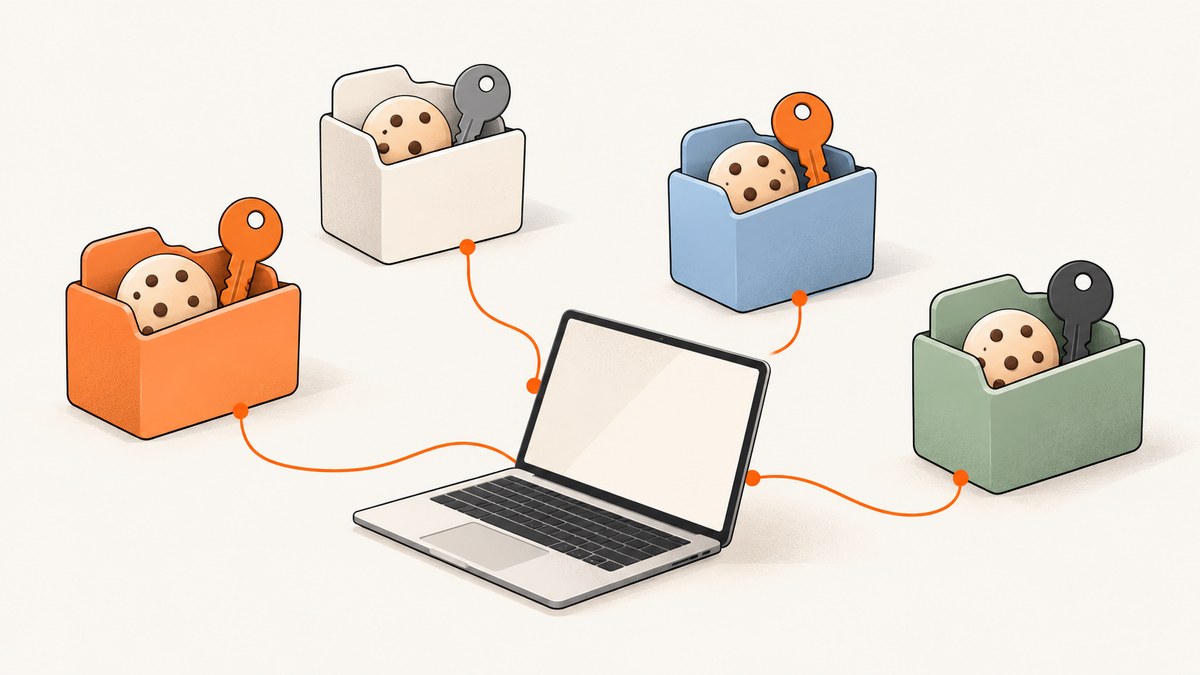
A persistent browser session keeps cookies and other browser state available across commands or browser restarts. In Playwright, use launchPersistentContext(userDataDir) when you need a durable browser profile; use a saved storageState file when you need a reproducible authenticated starting point; use a fresh context when each run should start clean. Give each concurrent browser its own profile directory. Never point automation at your personal Chrome profile, and treat saved authentication files as credentials.
1. Choose the right kind of persistence
“Persistent session” can mean browser data survives a command, survives a restart, or is deliberately restored into a new context. Those are different lifetimes and have different isolation and security tradeoffs.
| Approach | Lifetime | Best for | Watch out for |
|---|---|---|---|
| Fresh browser context | One run | Clean tests and independent jobs | Log in again or load saved state each run |
| Persistent context | Across browser restarts | A long-lived dedicated automation profile | One browser process at a time per user-data directory |
storageState |
Until the state file is refreshed or expires | Repeatable authenticated test setup | It is a sensitive file; sessionStorage needs separate handling |
| CLI named session | Across commands; disk persistence is opt-in | Interactive browser workflows | Default in-memory profile disappears when browser closes |
Choose a dedicated user-data directory for durable browsing behavior, including profile data beyond authentication. Choose saved storage state when you want a controlled snapshot you can load into a fresh context. Choose isolated contexts or separate profiles for different accounts or tests that must not share cookies or caches. Playwright documents that persistent contexts store session data in the user-data directory and that only one browser instance can use that directory at a time. Playwright: launchPersistentContext.
2. Create a persistent Playwright profile
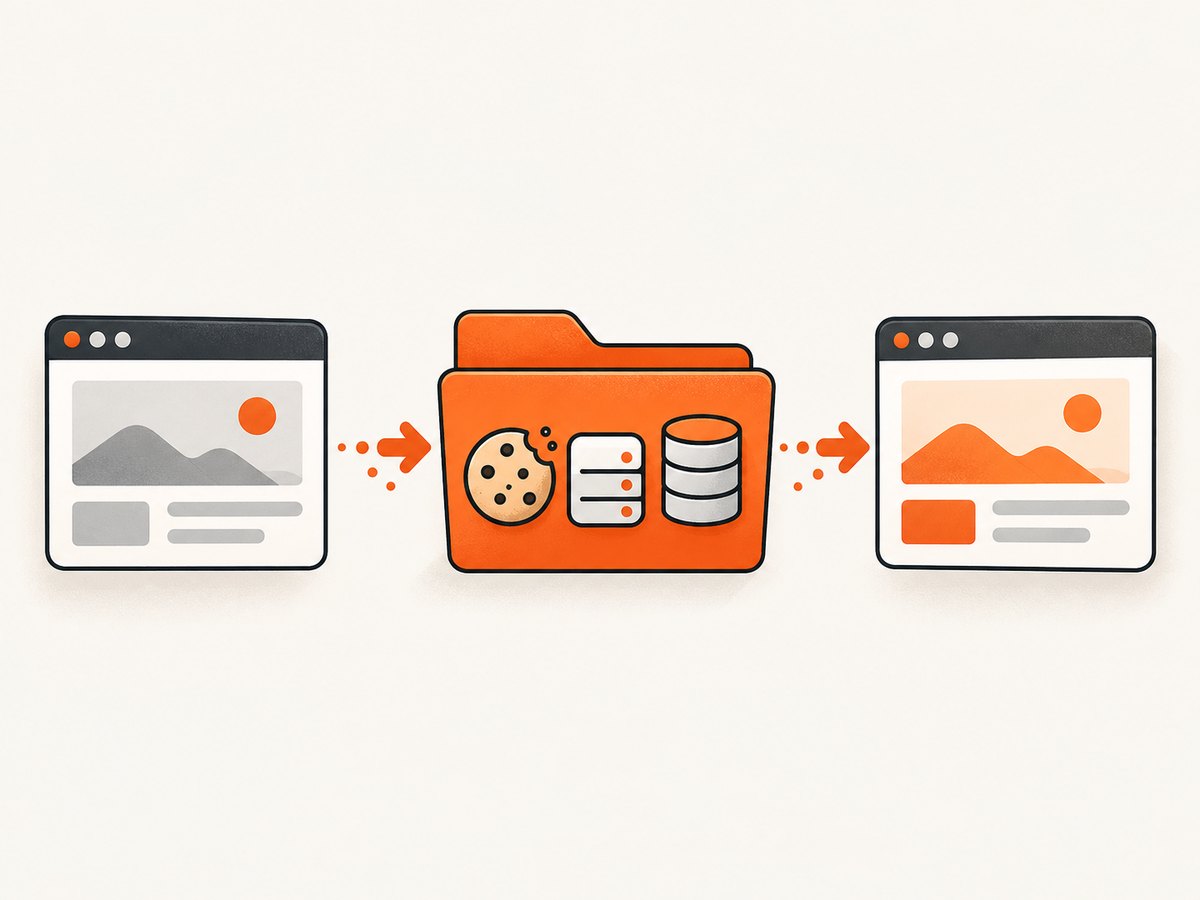
Install Playwright and its browser binaries, then use a dedicated directory. This runnable Node.js example opens a persistent Chromium context, lets you log in manually on the first run, and leaves the browser open until you close it.
npm init -y
npm install playwright
npx playwright install chromium
// persistent.mjs
import { chromium } from 'playwright';
const userDataDir = './.pw-profile-account-a';
const context = await chromium.launchPersistentContext(userDataDir, {
headless: false,
viewport: { width: 1280, height: 800 }
});
const page = context.pages()[0] ?? await context.newPage();
await page.goto('https://example.com');
console.log('Profile directory:', userDataDir);
console.log('Close the browser window when finished.');
// Keep this process alive while you interact with the browser.
await new Promise(resolve => context.once('close', resolve));Run it with node persistent.mjs. Navigate to your application and sign in. Close the browser normally; the profile data remains in the directory. On later runs, launch with the same directory to reuse the available browser state. The actual site can still expire, revoke, or challenge a login, so persistence is not a guarantee of indefinite authentication.
Keep the profile path stable and private. A profile is not a portable, clean authentication snapshot: it may hold cookies, local storage, caches, history, and other browser data. Use a separate path for each account and job. Do not launch two browser processes using the same path; serialize access or give each worker its own profile.
3. Save and restore authentication state
For tests, a saved state file often makes the starting point easier to reproduce. Playwright storage state can capture cookies, local storage, IndexedDB, and passkeys. Session storage is domain-specific and is not saved automatically. See Playwright: Authentication.
// save-state.mjs
import { chromium } from 'playwright';

const browser = await chromium.launch();
const context = await browser.newContext();
const page = await context.newPage();
await page.goto('https://example.com/login');

// Replace these steps with the application's login flow.
await page.getByLabel('Email').fill(process.env.TEST_EMAIL ?? '');
await page.getByLabel('Password').fill(process.env.TEST_PASSWORD ?? '');
await page.getByRole('button', { name: 'Sign in' }).click();
await page.waitForURL('**/account');

await context.storageState({ path: '.auth/account-a.json', indexedDB: true });
await browser.close();
Keep credentials in environment variables or a secret manager; do not put real passwords in committed scripts. Ensure the output directory exists before running the example, and add the state file to .gitignore.
// restore-state.mjs
import { chromium } from 'playwright';

const browser = await chromium.launch();
const context = await browser.newContext({
  storageState: '.auth/account-a.json'
});
const page = await context.newPage();
await page.goto('https://example.com/account');
console.log('Current URL:', page.url());
await browser.close();
Authentication state can expire or be bound to a device, IP, or server-side session. Refresh the state through the normal login flow when the application redirects to sign-in. Do not use one account’s state file as another account’s fixture.
Session storage requires explicit handling
Because Playwright does not automatically include sessionStorage in storage state, save it in the page for the relevant origin and restore it before the application code reads it. A simple pattern is to collect it after login and inject it with an initialization script on the next context. Limit the script to the intended origin, since sessionStorage is origin-scoped.
// Save while the authenticated page is open:
const sessionValues = await page.evaluate(() => {
  const values = {};
  for (let i = 0; i < sessionStorage.length; i++) {
    const key = sessionStorage.key(i);
    values[key] = sessionStorage.getItem(key);
  }
  return values;
});
// Store sessionValues in a protected file alongside the auth state.

// Restore before navigating to the application route:
await context.addInitScript(({ origin, values }) => {
  if (location.origin === origin) {
    for (const [key, value] of Object.entries(values)) {
      sessionStorage.setItem(key, value);
    }
  }
}, { origin: 'https://example.com', values: sessionValues });
Adapt the persistence format to your application, and avoid logging token values. Some applications rotate or invalidate session data, so restoring an old value may not work even when the code runs.
4. Persist state with the Playwright CLI or MCP
The Playwright CLI keeps cookies and storage between commands in a session. Its default in-memory profile is lost when the browser closes. Use --persistent to save the profile on disk, and use named sessions to keep browser data and logs isolated across workflows. The CLI documentation describes its flags and session behavior: Playwright CLI.
# Example shape; check the installed CLI's help for exact command syntax.
playwright-cli --help
Playwright MCP uses persistent profiles by default, supports an explicit --user-data-dir, and also offers isolated mode and saved storage-state files. Configure a different profile directory for each parallel worker; a directory is single-owner while its browser is running. See Playwright MCP documentation.
For unattended runs, decide how the profile is provisioned, who can read it, how long it is retained, and how it is rotated or deleted. A persistent profile is operational state, not a harmless cache.
5. Isolate accounts and parallel work safely
- Assign one directory per account. Use distinct paths such as
.pw-profile-account-aand.pw-profile-account-b. - Assign one directory per concurrent worker. Never let two browser processes write to the same profile directory at the same time.
- Use fresh contexts for independent tests. A context can start from a stored state file without sharing the entire profile and its history.
- Make cleanup deliberate. Keep authentication state only as long as needed, then delete or rotate it using your environment’s retention policy.
- Record the browser setup. Document browser channel, profile path, state-file source, and retention expectations so a run is reproducible.
Firefox uses profiles as complete data boundaries: bookmarks, passwords, settings, add-ons, history, cookies, and logins are separate between profiles. Containers separate a narrower set of browsing data, including cookies and logins, within one profile. Mozilla’s overview is at Firefox profiles. Firefox Total Cookie Protection partitions cookies by site, and Enhanced Tracking Protection blocks trackers; privacy partitioning can alter cross-site behavior, so test it separately from persistence. See Total Cookie Protection and Enhanced Tracking Protection.

6. Security and privacy checklist
- Use an automation-only profile directory, never your everyday browser profile.
- Ignore authentication state files in version control and check that existing files have not already been committed.
- Restrict filesystem permissions and access to CI artifacts or caches containing profile data.
- Keep secrets and state out of logs, screenshots, bug reports, and support bundles.
- Rotate or delete profiles when an account is deauthorized, a test ends, or a state file may have leaked.
- Understand what data is persisted: cookies can hold login status and preferences, and Firefox stores cookies within the profile folder. Mozilla explains cookie data and storage at Cookies.
Playwright warns that an authentication state file can contain sensitive cookies and headers that could impersonate a test account. Handle it with the same care as a password or API token. The convenience of avoiding repeated login increases the impact if the file is exposed.
7. Troubleshooting persistent sessions
| Symptom | Likely cause | Fix |
|---|---|---|
| Login disappears after restart | The run used an in-memory context or a different directory | Use the same persistent user-data directory, or explicitly load the same storage-state file. |
| Browser reports the profile is in use or cannot launch | Another process owns the directory, or a prior browser did not exit cleanly | Close the owning browser before reuse. Give parallel jobs distinct directories. |
| Cookies restore but app still redirects to login | Session expired, server revoked it, or the app depends on local/session storage or device checks | Refresh state via login; verify the origin and required storage layers. Handle sessionStorage separately. |
| Storage file seems empty or incomplete | Saved before authentication finished, or IndexedDB was omitted where required | Wait for a reliable post-login condition, then save with IndexedDB enabled if the app uses it. |
| Works locally but fails in CI | Different browser version, channel, network, IP, timezone, or privacy behavior | Align browser setup where practical and investigate the app’s session policy and cross-site cookie behavior. |
| One test is logged into the wrong account | Shared profile/state file or concurrent writes | Separate state per account and worker; do not share a writable profile. |
| Session storage is missing | It is not automatically captured by Playwright storageState | Save and restore it explicitly for the correct origin before application code runs. |
8. Performance, reliability, and cost
Persistent profiles avoid repeating some setup and login work, but they add disk state, cleanup, locking, and debugging costs. A fresh context is easier to reason about for independent test cases; a persistent profile is useful when the workflow itself depends on continuity. Storage-state files provide a middle ground: reuse authentication while creating a new context per run.
Do not assume a saved login remains valid. Expiry, revocation, one-time challenges, device checks, and privacy partitioning can change behavior. Make automation detect the expected authenticated page and fail clearly or refresh state through an approved login path. Avoid aggressive parallelism against one profile; separate workers and account state to prevent contention and cross-test leakage.
There is no central per-profile price in the cited browser documentation. The practical costs are browser runtime, storage, setup, and maintenance, plus the engineering time required to protect and refresh state. For screenshot-only tasks, a managed screenshot API can avoid maintaining browser profiles and automation infrastructure; evaluate it against the need for an authenticated, interactive session.
9. Capture a page without managing a browser profile
If the task is simply to capture a public page, you may not need a persistent browser at all. ScreenshotNeo is a website screenshot API and MCP server; one GET request returns a PNG, JPEG, WebP, or PDF. Its API accepts URL and capture options, and its parameter names are compatible with those used by other screenshot APIs, which can make switching easier. See the ScreenshotNeo API documentation.
curl -G "https://api.screenshotneo.com/v1/shot" -d access_key=YOUR_API_KEY --data-urlencode url=https://stripe.com -o shot.webpimport requests
r = requests.get(
"https://api.screenshotneo.com/v1/shot",
params={"access_key": "YOUR_API_KEY", "url": "https://stripe.com"},
timeout=90,
)
open("shot.webp", "wb").write(r.content)const q = new URLSearchParams({ access_key: 'YOUR_API_KEY', url: 'https://stripe.com' });
const res = await fetch(`https://api.screenshotneo.com/v1/shot?${q}`);ScreenshotNeo can remove known consent banners, newsletter popups, and chat widgets before capture; those steps can be disabled. Bot checks, blank pages, failed loads, timeouts, and cache hits are not billed, and response headers identify the page verdict and billing status. It provides an MCP server with screenshot, page-info, and PDF tools for AI agents. Free includes 1,000 shots per month with no card; paid plans start at $5 for 3,000 shots. Its API captures pages; it is not a replacement for a persistent authenticated browser profile when you need a logged-in session.
Sign up free for 1,000 screenshots a month with no card.
10. FAQ
Does a persistent context preserve tabs?
The profile directory persists browser data, but design automation to navigate to the required page explicitly rather than relying on a previously open tab or window.
Can I share one profile between workers if they use different pages?
No. The browser profile is a shared writable data directory; use one browser owner per profile and separate directories for concurrent jobs.
Should I save storage state in source control for convenience?
No. State may contain cookies or headers that can impersonate an account. Provision it securely at runtime or through protected CI secrets and artifacts.
Why do privacy settings change whether a session works?
Cookie partitioning and tracker blocking affect cross-site storage and requests. Test the intended browser privacy configuration as part of the workflow rather than assuming all profiles behave alike.


