How to Send Personalized Welcome Images to Form Respondents
Generate a welcome image from each form response and email it automatically. Choose a workflow, map fields, and handle delivery failures safely.
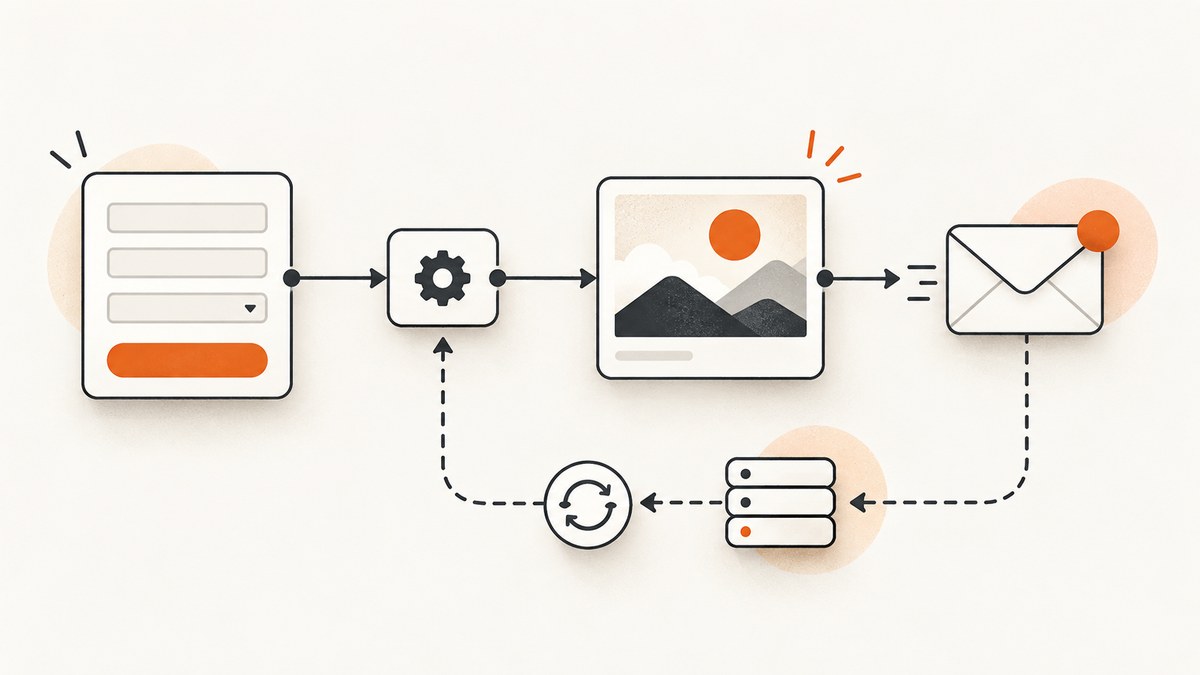
A practical way to send a personalized welcome image is to connect a form response to an automation, fill a reusable image template with the respondent’s answers, then email the generated image or a link to it. The core workflow is response trigger → image generation → email delivery. Your form tool may handle the trigger, but image creation and email delivery can require separate services.
For a useful, reliable setup, collect a destination email and only the response fields needed for the image. Test the entire chain—including image access and what happens when generation fails—before sending it to real respondents. The exact actions, plan limits, and timing depend on the tools and account you choose.
1. Choose the form and automation route
Start with the form platform you already use. Compare the options by whether they expose respondent email and response values to an automation, support the response event and conditions you need, and can pass the generated image to an email action.
| Form setup | What the documented route supports | What to check |
|---|---|---|
| Typeform | Respondent email automations can be triggered by full responses, partial submissions, or selected endings, with optional conditions. The documented respondent-email path requires an Email question or an email URL parameter. | Typeform says it is experimenting with Messages and Automations. Messages is a legacy feature for accounts signed up before May 20, 2026; check the current interface and your account before following older instructions. Typeform Help Center |
| Microsoft Forms | Microsoft documents custom email to a form responder using Power Automate, including customization of the email body. | Microsoft Forms distribution options such as links, Outlook or Teams invitations, QR codes, and embeds describe how to share a form; they do not themselves establish a personalized-image response workflow. Confirm the trigger and available response fields in your flow. Microsoft Forms support · Power Automate documentation |
| Google Forms or another form with Zapier | Zapier lists an example workflow connecting a new Google Forms response to Bannerbear image creation and Gmail delivery. Its listings also show form-to-Bannerbear integrations. | Confirm the trigger, available fields, actions, and plan requirements for your specific accounts. A listed integration is an example, not a guarantee of identical configuration or delivery behavior. Google Forms integrations on Zapier · Bannerbear integrations on Zapier |
| Typeform with Wafrow | A separate listing describes image generation from Typeform data followed by an HTML email. | The listing describes free-plan polling that may check every 15 minutes. That is specific to the listing and plan, not a general timing promise. Check current behavior and account limits. Typeform integrations |
Template-based image generation lets you keep a consistent layout while changing selected content for each response. Bannerbear is one example described in Zapier listings as a way to generate variations from graphic templates. These sources describe available product paths; they are not independent tests of reliability or evidence that personalized welcome images improve conversion or retention.
2. Design the form and image template
Collect only the fields the image needs
Add an email field and the response fields that make the image personally relevant, such as a name, chosen category, event, or result. Keep the image’s fixed design—colors, background, layout, and standard copy—in a reusable template. Reserve variable fields for data that your selected image service can insert.
- Give each answer a clear destination in the template.
- Decide how blank, long, or unexpected values should appear. For example, use a neutral greeting if a name is missing.
- Use conditions for genuinely different response paths, such as a different welcome design for each selected category.
- Review the output at the email size and on the devices your audience uses.
Form validation can reduce missing or malformed input, but it cannot ensure that a recipient typed an address they can access. Avoid asking for extra personal details just to decorate the image.
Keep sensitive responses out of exposed image links
A generated image may be delivered as an attachment, embedded image, or link. The cited integration examples do not establish that every combination supports all three, or that every returned URL is private. Check how the service exposes its output and who can access it. Do not put sensitive response data in an image reachable through a public URL; if access controls or expiration are important, confirm those exact options with the provider.
3. Build the automation
- Choose a trigger. Select the supported event that matches the intended recipient experience: a completed response, a partial submission, or a particular ending when available. For respondent email in Typeform, provide an Email question or an email URL parameter.
- Add conditions where needed. Route only the answer paths that should receive a particular design. Check that a condition’s unmatched path does not accidentally send an inappropriate image.
- Map response values. Connect each response field to its intended template variable. Check that the form’s field names and the image template’s variable names correspond.
- Create the image. Add the image-generation action after the trigger and field mapping. Configure the template and any supported variable content in the provider’s current interface.
- Wait for the result before emailing. Use the generated image output from the preceding action. If generation is asynchronous or delayed in your chosen service, follow its documented completion or polling mechanism instead of assuming the next step already has a usable image.
- Send the email. Address it to the submitted email. Include the image in the format supported by the chosen email action, or include an accessible link. Set a clear subject and concise message so the image is understandable without relying on image rendering.
- Run a complete test submission. Verify the trigger, mapped content, generated result, recipient, image accessibility, and email appearance from start to finish.
Zapier’s listed Google Forms → Bannerbear → Gmail workflow and Typeform → Wafrow → email listing illustrate this sequence. They are concrete examples, not a promise that your account has the same trigger, action, delivery format, plan access, or polling interval. Review Google Forms integration listings and confirm the actual steps in your connected accounts.

4. Test edge cases before launch
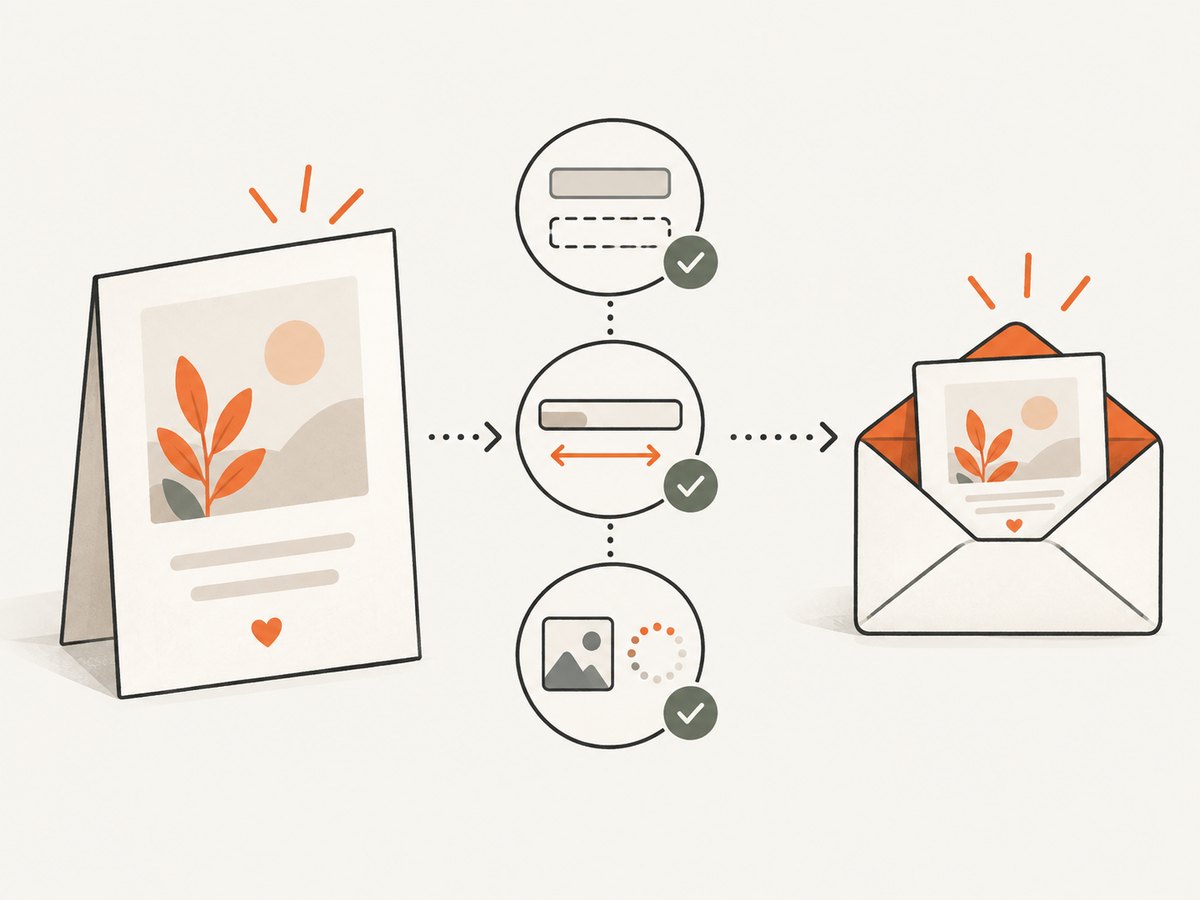
- Missing values: Submit a response with an optional field blank. Confirm the template does not show a placeholder token or awkward empty space.
- Long text: Try a long name or answer. Confirm text fits, wraps, or has an intentional fallback.
- Conditional paths: Submit at least one example for every branch, including the default branch.
- Generation delay or failure: Check whether the workflow waits, retries, reports an error, or stops. Decide whether to send a fallback email or handle the case manually.
- Duplicate submissions: Check whether submitting twice sends two images. If duplicates are undesirable, determine how your automation can recognize or prevent them.
- Bad destination address: Confirm how email delivery failures surface to the workflow owner.
- Image access: Open the delivered image as a recipient, including in a private browser session if it is a link. Confirm it loads without relying on your logged-in provider session.
- Email rendering: Inspect the message in the mail clients available to your test recipients. Some email actions or clients may not handle inline images, attachments, or links the same way.
These checks are implementation safeguards. Vendor workflow listings establish example integrations, not universal delivery, rendering, privacy, or retention guarantees.
5. Monitor timing, reliability, and cost
There is no universal response-to-email time for this pattern. Each trigger, polling schedule, image-generation step, and email action contributes to the delay. A Typeform–Wafrow listing, for example, says free-plan polling may check every 15 minutes; do not treat that as a timing estimate for another integration. Check current account limits and observe the end-to-end delay in your own workflow before promising immediate delivery.
Reliability depends on the full chain, so identify where a failed run can be seen and whether the tools retry it. Keep a record of the form submission or automation run identifier if your platform exposes one. Make sure the user receives a useful outcome if the image step fails—for example, a plain welcome email or a clear follow-up process—rather than silently losing the response.
Costs may come from the form service, automation tasks, image generation, and email service. The research materials do not establish current prices or limits for those products. Check each vendor’s current plan, task or operation counting rules, polling behavior, and image-generation limits; estimate against expected responses and any branches that use multiple actions. Recheck these details when changing plans or workflow volume.
Or skip the browser setup
If your welcome image should show a webpage, ScreenshotNeo can capture it with one API request rather than requiring you to configure a browser. It is a website screenshot API and MCP server for developers from ScreenshotNeo. See the API documentation for the available parameters.
curl -G "https://api.screenshotneo.com/v1/shot" -d access_key=YOUR_API_KEY --data-urlencode url=https://stripe.com -o shot.webpimport requests
r = requests.get(
"https://api.screenshotneo.com/v1/shot",
params={"access_key": "YOUR_API_KEY", "url": "https://stripe.com"},
timeout=90,
)
open("shot.webp", "wb").write(r.content)const q = new URLSearchParams({ access_key: 'YOUR_API_KEY', url: 'https://stripe.com' });
const res = await fetch(`https://api.screenshotneo.com/v1/shot?${q}`);Replace the example URL with the page you want to capture. ScreenshotNeo removes cookie and consent banners, newsletter popups, and chat widgets before the shot; each cleanup step can be turned off. Bot checks, blank pages, failed loads, timeouts, and cache hits are not billed, and response headers report the page verdict and billing status. Its MCP server provides take_screenshot, get_page_info, and capture_pdf for AI agents. Free includes 1,000 screenshots per month with no card; paid plans start at $5 for 3,000 shots. Every feature is available on every plan. ScreenshotNeo captures webpages; it does not replace a form trigger, personalized image-template workflow, or email sender.
Sign up free for 1,000 screenshots a month with no card.
6. Troubleshooting
| Symptom | Likely cause | What to check or fix |
|---|---|---|
| No automation run appears | The chosen event did not fire, the response was partial, a condition filtered it out, or the integration connection is unavailable. | Submit a new test response, inspect the trigger’s event type and conditions, and reconnect or refresh the integration if the platform reports an authorization problem. |
| Email step has no recipient | The form email question or URL parameter is missing, or the mapped field is wrong. | Confirm the address is present in the trigger data and map that exact value to the recipient field. Typeform’s documented respondent email path requires an Email question or email URL parameter. |
| Image shows blank or placeholder content | A field mapping is missing, names differ, or the response value was empty. | Inspect the trigger payload and template variables; test both populated and blank values and add a deliberate fallback. |
| Email arrives before image is ready | The workflow moved on before generation completed, or the selected action did not return the image in the form expected by the email step. | Use the provider’s documented completion or wait mechanism and pass the correct output field. Confirm whether the email action expects a file, inline image, or URL. |
| Image link works for you but not the recipient | The URL may require a logged-in session or may not be publicly accessible. | Test the link without the provider session. Choose a supported delivery or access method and avoid putting sensitive answers in a public image URL. |
| Some respondents get two messages | Duplicate events, repeat submissions, or retries may have caused multiple runs. | Inspect the run history and determine whether your platform supports a stable submission identifier or duplicate-handling rule. |
| Delivery is slower than expected | Polling or processing time in one of the connected services. | Check current plan behavior and the run history at each step. A timing detail in one integration listing does not guarantee timing in another workflow. |
| HTML email looks different across clients | Image rendering or email-client behavior differs from the automation preview. | Test a real delivery in the mail clients your recipients use. Keep a plain-text explanation and a usable link where appropriate. |
7. A launch checklist
- The form collects a usable recipient email and only necessary personalization fields.
- Every intended response path maps to the right design and has a defined fallback.
- The workflow waits for a usable generated image before sending.
- The recipient can access the image, and sensitive answers are not exposed through an uncontrolled link.
- Blank values, long content, duplicate submissions, delays, generation failures, and invalid email addresses have been checked.
- Current plan limits and expected workflow costs have been reviewed for each service.
- A real test email has been checked in the recipient experience, not only in an automation preview.
FAQ
Can Microsoft Forms send a personalized image automatically by itself?
Microsoft documents customizing responder email with Power Automate. For a personalized image, verify how your flow will generate or retrieve the image and pass it to the email action; ordinary form sharing options are not that workflow.
Does a form integration guarantee the image will be embedded in the email?
No such universal guarantee is established by the cited listings. Check whether your selected image-generation and email actions support an attachment, inline image, or accessible link, then test the delivered result.
Can I promise an immediate welcome email?
Only after checking the timing of every step in your specific setup. Triggers, polling, generation, and email delivery can add delay, and plan behavior can differ.
Do personalized welcome images improve results?
The reviewed sources provide no qualifying effectiveness statistics. Treat the image as a design choice and measure outcomes in your own workflow if that claim matters to your project.


