Why PhantomJS Cannot Open Certain URLs and How to Fix It
PhantomJS URL failures usually come from TLS, proxies, access policies, timeouts, or failed subresources. Learn how to identify and fix each cause.
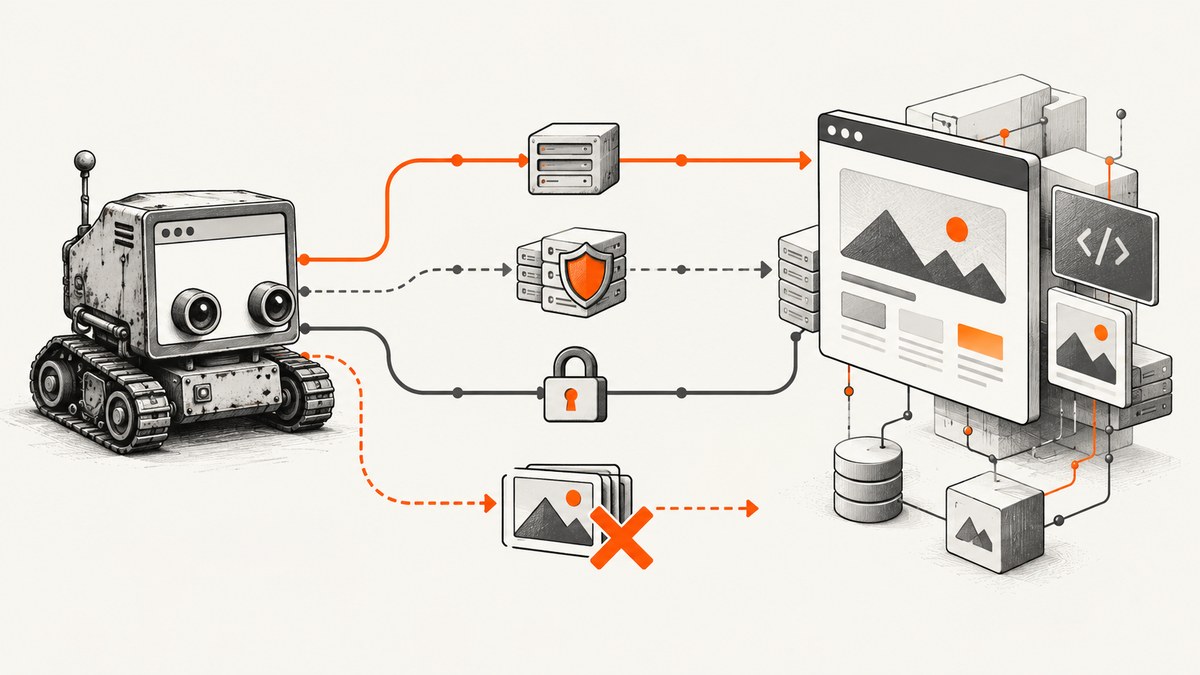
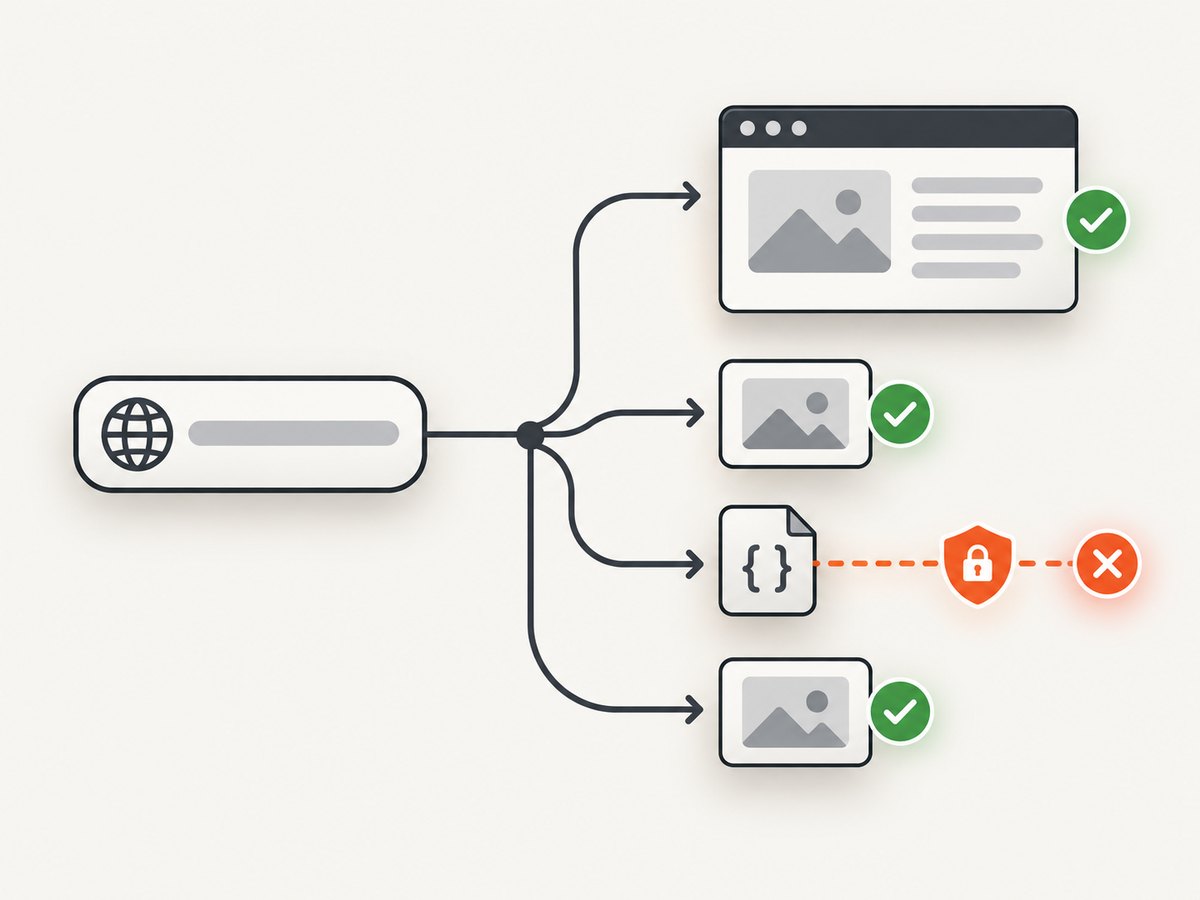
Direct answer: PhantomJS cannot open some URLs because the failure can happen at several different layers: the main navigation, an HTTPS/TLS handshake, a proxy, a local-file access rule, a resource timeout, or a script, stylesheet, image, or other subresource. A page.open callback only tells you whether the navigation finished with success or fail; it does not explain which request failed. Log every request and resource error first, then change only the setting that matches the evidence.
PhantomJS is also an archived project. Its documentation describes an older browser and web platform, so a configuration change cannot guarantee compatibility with a modern site that requires newer JavaScript, TLS behavior, browser APIs, or bot-check handling.
1. Confirm which PhantomJS binary is running
Before changing code, verify the executable and version. Multiple installations are common on build machines and developer laptops.
phantomjs --version
which phantomjs
where phantomjs
On Windows, use where phantomjs. On macOS or Linux, use which phantomjs and inspect the resolved path. Make sure the process running your script uses the same binary you are inspecting. The official troubleshooting guide recommends version and installation checks as an early diagnostic step (PhantomJS troubleshooting).
2. Build a diagnostic script before applying fixes
Use request and error callbacks to distinguish a failed document from a failed asset. The following script records the navigation result, every requested URL, resource errors, and resource timeouts.
var system = require('system');
var page = require('webpage').create();

var target = system.args[1] || 'https://example.com';

page.settings.resourceTimeout = 30000;
page.onResourceRequested = function (requestData) {
  console.log('[request] ' + requestData.method + ' ' + requestData.url);
};
page.onResourceReceived = function (response) {
  if (response.stage === 'end') {
    console.log('[response] ' + response.status + ' ' + response.url);
  }
};
page.onResourceError = function (error) {
  console.log('[resource-error] ' + error.errorCode + ': ' + error.errorString);
  console.log('  URL: ' + error.url);
};
page.onResourceTimeout = function (request) {
  console.log('[resource-timeout] ' + request.url);
};
page.onError = function (message, trace) {
  console.log('[page-error] ' + message);
  trace.forEach(function (item) {
    console.log('  at ' + item.file + ':' + item.line);
  });
};

page.open(target, function (status) {
  console.log('[open] ' + status + ' ' + target);
  console.log('[title] ' + page.title);
  phantom.exit(status === 'success' ? 0 : 1);
});
Run it with:
phantomjs diagnose.js https://example.comThe success or fail value is the navigation callback status documented by the page.open API. A successful callback does not mean every stylesheet, script, image, font, or API request succeeded.
3. Separate the common failure layers
| Observed symptom | Likely layer | First check |
|---|---|---|
fail immediately |
DNS, connection, proxy, TLS, or server rejection | Resource error logs and a direct command-line request |
| HTTP works, HTTPS fails | SSL library, certificate bundle, protocol negotiation, or SNI | Binary version and SSL support |
| Main page loads but layout is broken | Failed CSS, JavaScript, fonts, or images | onResourceError and response status logs |
Only file:// pages fail to load remote content |
Local-to-remote access policy | localToRemoteUrlAccessEnabled |
| Some pages hang until the process exits | Resource timeout or application timeout | resourceTimeout and process lifetime |
| Works on one network but not another | Proxy, firewall, DNS, or certificate interception | Proxy settings and environment comparison |
4. Fix HTTPS, certificates, and TLS failures
If HTTP succeeds while HTTPS fails, inspect the SSL libraries used by the PhantomJS build and the certificate bundle available to it. The official troubleshooting documentation specifically recommends checking SSL libraries, usually OpenSSL, for this pattern (official troubleshooting guidance).
The command-line interface exposes SSL-related options. Exact protocol values depend on the SSL library in the installed build:
phantomjs --ssl-protocol=any diagnose.js https://example.com
phantomjs --ssl-certificates-path=/path/to/certs diagnose.js https://example.com
Use the certificate-path option when the binary cannot find a usable CA bundle. Confirm that the directory contains the certificates expected by that build. Do not assume a current operating-system trust store is automatically used by an old PhantomJS binary.
--ignore-ssl-errors=true can help identify certificate-validation problems during diagnosis, but it is not a universal solution. It does not repair protocol negotiation, unsupported ciphers, SNI behavior, a broken SSL library, or a server that rejects the client. It also weakens verification and should not be treated as a production security setting.
phantomjs --ignore-ssl-errors=true diagnose.js https://example.comIf the request still fails with a handshake error, compare the result with a current browser or command-line TLS client. A historical PhantomJS issue documented SNI-hosted assets failing even when SSL errors were ignored; the useful lesson is to inspect the individual failing resource instead of assuming the top-level URL has one certificate problem.
5. Handle local files that request remote URLs
PhantomJS restricts a file:// document from requesting remote URLs by default. If your HTML is loaded from disk and it needs remote scripts, stylesheets, images, or API calls, enable local-to-remote access before the initial page.open. The WebPage setting defaults to false and settings only affect the initial navigation (WebPage settings API).
var page = require('webpage').create();
page.settings.localToRemoteUrlAccessEnabled = true;
page.open('file:///absolute/path/index.html', function (status) {
  console.log(status);
  phantom.exit();
});
The equivalent command-line option is documented in the CLI reference:
phantomjs --local-to-remote-url-access=true capture.jsSet this before calling page.open. Changing it after navigation has started will not retroactively change the security context.
6. Diagnose proxy and network behavior
A proxy can add latency, rewrite certificates, block domains, or reject an old user agent. Test the same URL with and without the proxy and record the exact address format expected by your PhantomJS version.
phantomjs --proxy=proxy.example.net:8080 diagnose.js https://example.com
phantomjs --proxy-type=none diagnose.js https://example.com
The official troubleshooting guide records a Windows case where the default system proxy caused major latency; --proxy-type=none was the documented workaround. That is an environment-specific fix, so do not disable a required corporate proxy without checking network policy.
A separate historical report for PhantomJS 1.8.1 described a proxy URL scheme behaving differently from a host-and-port value in one setup. Treat that as a narrow, version-specific report. Verify the syntax accepted by your installed binary and proxy server rather than copying it as a general rule.
7. Increase resource timeouts without hiding failures
page.settings.resourceTimeout is measured in milliseconds. When a resource reaches that limit, PhantomJS stops trying and invokes onResourceTimeout. Set it before the initial page.open.
var page = require('webpage').create();
page.settings.resourceTimeout = 60000;
page.onResourceTimeout = function (request) {
  console.log('Timed out: ' + request.url);
};
page.open('https://example.com', function (status) {
  console.log(status);
  phantom.exit();
});
Do not confuse a resource timeout with your own application exiting too early. Keep the process alive until the callback fires, and add an explicit overall timer if you need a hard upper bound.
8. When navigation succeeds but the page is incomplete
A page can return success while one or more dependent requests fail. Common examples include a stylesheet blocked by a proxy, a font rejected by TLS, a JavaScript bundle served from a different host, or an image endpoint that times out. Compare the logged request URLs with the page’s expected origins.
Useful checks include:
- Look for non-2xx responses in
onResourceReceived. - Group errors by hostname to find a blocked CDN or API domain.
- Check whether failures occur only on HTTPS subresources.
- Inspect whether the page depends on browser APIs PhantomJS does not implement.
- Confirm that your script waits for the application’s own ready condition instead of assuming network completion means rendering is finished.
Changing the user agent can help with simple server-side branching, but it cannot add missing browser capabilities:
page.settings.userAgent = 'Mozilla/5.0 (compatible; PhantomJS diagnostic)';9. A repeatable troubleshooting checklist
- Run
phantomjs --versionand identify the exact executable. - Reproduce with a minimal URL and the diagnostic callbacks.
- Decide whether the document or a subresource failed.
- Compare HTTP and HTTPS results.
- For HTTPS, inspect SSL libraries, CA certificates, protocol options, and SNI-related errors.
- For
file://, enable local-to-remote access before navigation. - Test proxy settings explicitly, including a no-proxy run where permitted.
- Set a measured resource timeout and keep the process alive until completion.
- Check whether the target requires modern browser behavior PhantomJS cannot provide.
- Record the URL, error code, operating system, PhantomJS version, proxy mode, and failing resource when escalating.
10. Performance, reliability, and security considerations
More generous timeouts improve tolerance for slow assets but increase the time a worker can remain occupied. Logging every request is valuable during diagnosis and noisy in a high-volume job, so make verbose logging configurable. Reusing a process may reduce startup overhead, but isolate jobs when page state, cookies, or crashes make cross-request contamination a concern.
Certificate verification should remain enabled in production. Use --ignore-ssl-errors only as a temporary diagnostic experiment. A successful screenshot is not proof that all resources were trustworthy or that the page behaved like it would in a current browser.
Because PhantomJS is archived and read-only, treat compatibility as a risk factor in maintenance planning. If a target depends on current TLS, JavaScript, consent flows, or anti-bot systems, fixing one flag may not be enough.
11. Or skip the browser setup
If your goal is a reliable screenshot rather than maintaining an old headless browser, ScreenshotNeo provides a single HTTP request that returns PNG, JPEG, WebP, or PDF. It accepts consent banners before capture and removes more than 60 known consent platforms, newsletter popups, and chat widgets; each step can be disabled. Bot checks, blank pages, timeouts, failed loads, and cache hits are not billed, and the response identifies the result with X-Page-Verdict and X-Billed headers. Its MCP server includes take_screenshot, get_page_info, and capture_pdf for Claude, Cursor, and other MCP clients.

See the ScreenshotNeo API documentation for all options.
cURL
curl -G "https://api.screenshotneo.com/v1/shot" \
  -d access_key=YOUR_API_KEY \
  --data-urlencode url=https://stripe.com \
  -o shot.webp
Python
import requests

r = requests.get(
    "https://api.screenshotneo.com/v1/shot",
    params={"access_key": "YOUR_API_KEY", "url": "https://stripe.com"},
    timeout=90,
)
r.raise_for_status()
open("shot.webp", "wb").write(r.content)
Node.js
const q = new URLSearchParams({ access_key: 'YOUR_API_KEY', url: 'https://stripe.com' });
const res = await fetch(`https://api.screenshotneo.com/v1/shot?${q}`);
if (!res.ok) throw new Error(`HTTP ${res.status}`);
const buffer = Buffer.from(await res.arrayBuffer());
require('fs').writeFileSync('shot.webp', buffer);
You can configure full-page capture with lazy images loaded, CSS-selector element capture, dark mode, device presets or custom viewports, retina scale, PDFs with paper size, margins, landscape, and page ranges, custom CSS and JavaScript, clicks, selector or network-idle waits, blocked ads and resource types, headers, cookies, user agents, authorization, timezone, geolocation, transparent backgrounds, resizing, TTL caching, signed image links, asynchronous jobs with signed webhooks, bulk capture for up to 100 URLs, and usage reporting.
Free accounts include 1,000 screenshots per month with no card. Paid plans start at $5 for 3,000 shots, and every feature is available on every plan. Create a free ScreenshotNeo account.
12. FAQ
Why does PhantomJS open the homepage but not an image or stylesheet?
The main document and its assets are separate requests. Log onResourceError and response statuses to find the failing hostname, TLS handshake, proxy rule, or timeout.
Should I always use --ignore-ssl-errors=true?
No. It only bypasses some certificate checks and can weaken security. It does not fix unsupported TLS negotiation, SNI behavior, or a broken SSL library.
What does resourceTimeout control?
It controls how long PhantomJS retries an individual resource, in milliseconds. It does not replace keeping your process alive until page.open completes.
Can a newer CA bundle make every HTTPS site work?
No. It can fix trust-chain problems, but protocol support, ciphers, SNI, server policy, and browser compatibility can still prevent loading.
Is PhantomJS still a good choice for new capture systems?
Its repository is archived, so evaluate the maintenance and compatibility risk. For a managed screenshot endpoint, ScreenshotNeo removes the browser setup and reports whether a response was clean and billable.


