How to Access and Click a Button with PhantomJS
Use PhantomJS page.open and page.evaluate to find and click buttons, wait for async updates, troubleshoot selectors, and capture the result reliably.
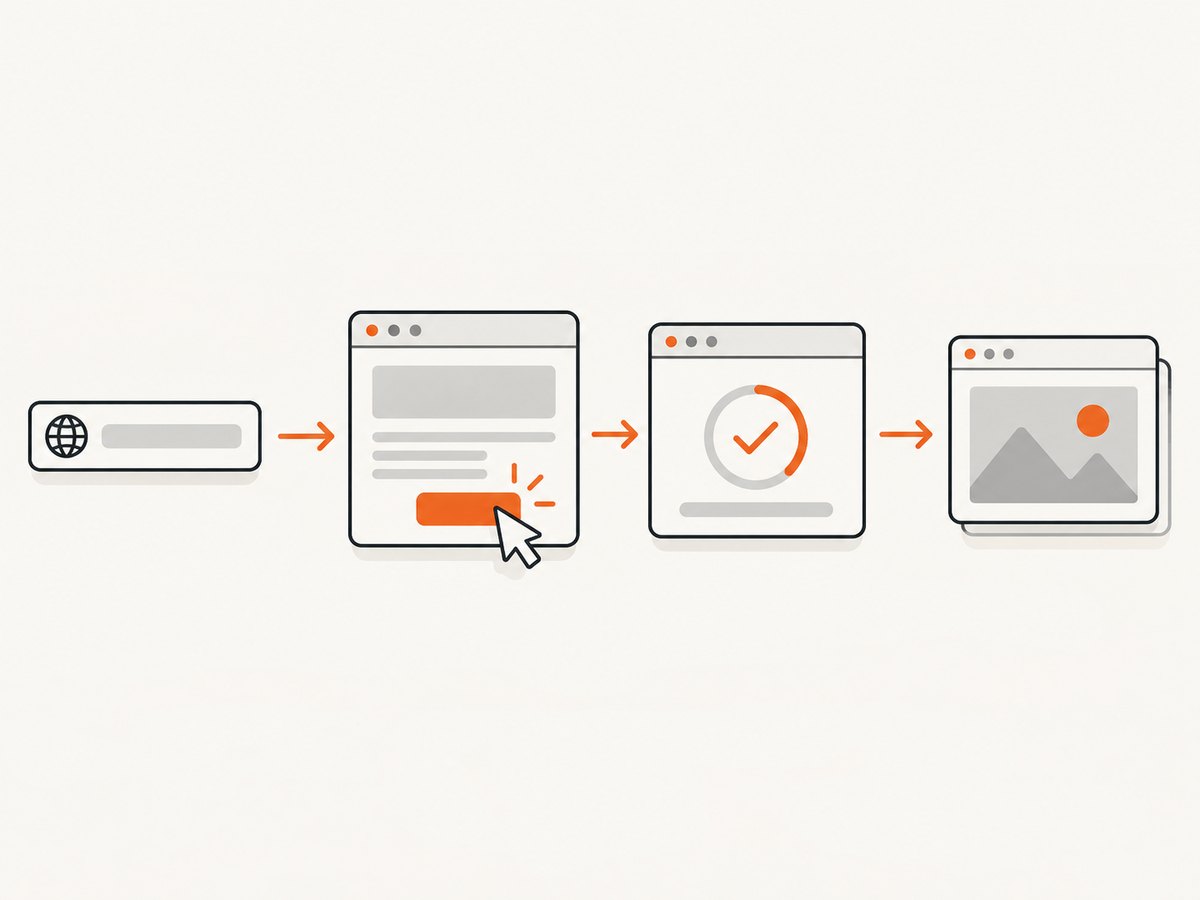
Direct answer: create a WebPage object, call page.open, check that the callback status is success, then call page.evaluate to run document.querySelector(...).click() inside the page. The selector and the click run in the webpage context, where normal DOM APIs are available.
That basic pattern handles ordinary HTML buttons and JavaScript click handlers. A click that starts navigation, an XHR request, animation, or lazy rendering needs a second step: wait for the resulting page state before reading data or taking a screenshot. PhantomJS does not make an asynchronous operation complete merely because click() returned.
1. Minimal working example
Save this as click.js and run it with the PhantomJS executable installed on your system:
var page = require('webpage').create();

page.open('https://example.com', function (status) {
  if (status !== 'success') {
    console.log('Unable to access network');
    phantom.exit(1);
    return;
  }

  var clicked = page.evaluate(function () {
    var button = document.querySelector('button#submit');
    if (!button) {
      return false;
    }
    button.click();
    return true;
  });

  console.log(clicked ? 'Button found and clicked' : 'Button not found');
  phantom.exit();
});
page.open loads the URL and supplies a status string to its callback. Only inspect the DOM after a successful load. page.evaluate evaluates the supplied function in the webpage context, so document.querySelector and the element’s DOM methods are available there. The return value crosses back to the PhantomJS script and should be a simple, JSON-serializable value. See the open API and evaluate API.
2. Choose a selector that identifies one button
A reliable click starts with a reliable selector. Prefer a stable ID, a unique data attribute, or a form relationship over a positional selector:
var clicked = page.evaluate(function () {
  var selectors = [
    'button#submit',
    '[data-action="save"]',
    'form#checkout button[type="submit"]'
  ];

  for (var i = 0; i < selectors.length; i += 1) {
    var button = document.querySelector(selectors[i]);
    if (button) {
      button.click();
      return { clicked: true, selector: selectors[i] };
    }
  }

  return { clicked: false, selector: null };
});

console.log(JSON.stringify(clicked));
querySelector returns the first matching element. If several buttons match, narrow the selector instead of accidentally activating the first one. For a collection, use document.querySelectorAll deliberately and iterate it; do not assume that a broad selector means the intended control.
Checking state before clicking
Disabled controls, hidden controls, and controls covered by an overlay may not behave as expected. You can inspect simple state in the page context:
var result = page.evaluate(function () {
  var button = document.querySelector('button#submit');
  if (!button) return { ok: false, reason: 'missing' };
  if (button.disabled) return { ok: false, reason: 'disabled' };
  if (button.offsetParent === null) return { ok: false, reason: 'hidden' };
  button.click();
  return { ok: true, reason: 'clicked' };
});
This check is diagnostic, not a guarantee that the application’s event handler accepted the action. Frameworks may change the DOM after the check, and application code may reject the action for validation or authorization reasons.
3. Wait for navigation or asynchronous updates
Many buttons submit a form, fetch data, or replace part of the DOM. Treat the click as a trigger and wait for an observable result.
Navigation triggered by a click
Poll for the URL or a destination element after the click. Keep a deadline so a failed navigation cannot leave the script running forever:
var system = require('system');
var page = require('webpage').create();
var deadline = Date.now() + 15000;

page.open('https://example.com/start', function (status) {
  if (status !== 'success') {
    console.log('Initial page failed to load');
    phantom.exit(1);
    return;
  }

  page.evaluate(function () {
    var button = document.querySelector('button#continue');
    if (button) button.click();
  });

  function waitForDestination() {
    var ready = page.evaluate(function () {
      return !!document.querySelector('#destination');
    });

    if (ready) {
      console.log('Destination is ready');
      phantom.exit();
      return;
    }

    if (Date.now() > deadline) {
      console.log('Timed out waiting for destination');
      phantom.exit(1);
      return;
    }

    setTimeout(waitForDestination, 250);
  }

  waitForDestination();
});
The exact readiness condition belongs to the target page: a URL change, a known heading, a table row, or an application-specific status element. A fixed delay can be useful for a small animation, but a state check is usually more reliable.
Asynchronous work in page context
PhantomJS provides evaluateAsync for asynchronous page-context execution. Consult the API reference for the version installed, and still expose a concrete completion condition to the outer script. Do not confuse this with a selector-wait helper from a separate hosted service; those APIs are not PhantomJS package APIs.
4. The jQuery alternative
The official PhantomJS automation guide demonstrates loading jQuery with page.includeJs, then calling a jQuery click inside page.evaluate:
var page = require('webpage').create();

page.open('https://example.com', function (status) {
  if (status !== 'success') {
    phantom.exit(1);
    return;
  }

  page.includeJs('https://example.com/jquery.js', function () {
    var clicked = page.evaluate(function () {
      var button = $('button#submit');
      if (!button.length) return false;
      button.click();
      return true;
    });

    console.log(clicked ? 'Clicked' : 'Button not found');
    phantom.exit();
  });
});
includeJs invokes its callback after the external script has loaded. Do not call phantom.exit() before that callback if the script is required for the click. The broad $('button').click() form clicks every matching button, so use a narrow selector when more than one control exists. See the includeJs documentation.
5. DOM clicks versus real pointer events
element.click() is concise and works for handlers attached to the element’s normal click event. It does not promise to reproduce every browser interaction. Some widgets depend on pointer coordinates, mouse movement, focus order, modifier keys, or a particular sequence of mouse events. For those cases, investigate page.sendEvent and verify its exact arguments against the PhantomJS version you have installed. The sendEvent reference documents the available event API.
When a component is built around keyboard focus, you may also need to focus the element in page context before sending a key event. When it is protected by a consent dialog, dismiss that dialog first or select the underlying control only after the overlay has gone.
6. Arguments and return values across evaluate
The function passed to evaluate runs across a sandbox boundary. Pass primitives or simple objects, and return strings, numbers, booleans, arrays, or plain objects. DOM nodes, functions, and closures cannot be transferred as values.
var selector = 'button#submit';
var outcome = page.evaluate(function (css) {
  var button = document.querySelector(css);
  if (!button) return { found: false };
  button.click();
  return { found: true, text: button.textContent.trim() };
}, selector);

console.log(JSON.stringify(outcome));
Define page-side helpers inside the function or pass their data explicitly. A variable from the outer PhantomJS script is not automatically available inside page context.
7. Screenshots after the click
Once the expected state is present, capture the page with page.render:
page.viewportSize = { width: 1365, height: 900 };
page.clipRect = { top: 0, left: 0, width: 1365, height: 900 };
page.render('after-click.png');
Render only after your readiness check. Otherwise you may save the pre-click page, a loading spinner, or a partially updated view. For a full-page result, determine the document dimensions and adjust the viewport or clip rectangle to match the page you need.
8. Common errors and fixes
| Error or symptom | Likely cause | Fix |
|---|---|---|
Unable to access network |
page.open returned a status other than success. |
Check the URL, DNS, TLS compatibility, proxy settings, and network access. Stop before calling evaluate. |
Button not found |
The selector is wrong, the button is rendered later, or it is inside a frame. | Inspect the loaded markup, wait for the relevant element, and handle the frame document separately. |
| Click returns true but nothing changes | The handler is asynchronous, the control is disabled by application state, or the widget requires pointer events. | Check disabled state, wait for a result element, and consider sendEvent for pointer-driven widgets. |
| Several controls activate | The selector is too broad, such as button or $('.button'). |
Use a unique ID, data attribute, form scope, or an explicit index. |
| jQuery is undefined | includeJs has not finished or the script URL failed. |
Run the click inside the includeJs callback and verify that the script URL is reachable. |
| Screenshot shows the old page | Rendering happened immediately after the click. | Wait for navigation, a DOM marker, or another page-specific completion signal. |
Values disappear inside evaluate |
An outer closure or non-serializable value was used. | Pass plain arguments and return plain data; define functions in page context. |
9. Frames, shadow DOM, and modern applications
Frames
A selector in the top document cannot find a button inside an iframe’s document. Identify the frame and inspect its content using the PhantomJS frame APIs available in your installed version. Treat frame navigation and frame readiness as separate conditions.
Shadow DOM
A normal document query may not cross a shadow root. If the target page exposes an open shadow root, query from that root in page context. Closed roots cannot be inspected through ordinary DOM selectors.
Single-page applications
React, Vue, Angular, and similar applications can replace nodes after initial load. Select after the component is mounted, and wait for a stable result after clicking. Avoid relying only on a timer; a visible status change or URL state is a stronger signal.
10. Reliability, performance, and cost considerations
- Reliability: use explicit load and completion checks, bounded polling, and clear exit codes. Log the URL, selector, status, and final readiness condition.
- Performance: avoid loading jQuery when a native selector and
click()are sufficient. Reuse a page only when its state is reset between jobs; otherwise create isolated pages to prevent cookies and DOM state from leaking. - Timeouts: apply a maximum time to initial loading and post-click waits. A script that waits forever is harder to operate than one that reports a controlled failure.
- Repeatability: pin the PhantomJS version, viewport, user agent, and target URL assumptions. Record redirects and page errors when diagnosing differences.
- Cost: PhantomJS itself does not provide a hosted capture bill. Your operational cost comes from the machine, network, storage, and maintenance required to run the browser.
11. Or skip the browser setup
If your goal is a clean screenshot after a page interaction rather than maintaining a PhantomJS worker, ScreenshotNeo provides a website screenshot API and MCP server. Its capture options include clicking an element before capture, waiting for a selector, delay, or network idle, custom JavaScript and CSS, hidden selectors, full-page capture, device presets, and PDF output. Cookie banners, newsletter popups, and chat widgets are removed before the shot. Bot checks, blank pages, timeouts, failed loads, and cache hits are not billed, and response headers identify the page verdict and billing result.

For a direct screenshot request, see the ScreenshotNeo API documentation:
curl -G "https://api.screenshotneo.com/v1/shot" \
  -d access_key=YOUR_API_KEY \
  --data-urlencode url=https://stripe.com \
  -o shot.webp
import requests
r = requests.get(
"https://api.screenshotneo.com/v1/shot",
params={"access_key": "YOUR_API_KEY", "url": "https://stripe.com"},
timeout=90,
)
r.raise_for_status()
open("shot.webp", "wb").write(r.content)const q = new URLSearchParams({
access_key: 'YOUR_API_KEY',
url: 'https://stripe.com'
});
const res = await fetch(`https://api.screenshotneo.com/v1/shot?${q}`);ScreenshotNeo also offers an MCP server with take_screenshot, get_page_info, and capture_pdf tools for Claude, Cursor, and other MCP clients. One thousand screenshots per month are free with no card; paid plans start at $5 for 3,000 shots. Create a free ScreenshotNeo account.
12. Practical checklist
- Confirm the URL and wait for
page.opento reportsuccess. - Choose a selector that identifies the intended button once.
- Run the selector and click inside
page.evaluate. - Return a simple result such as
trueor a plain object. - Wait for a destination URL, DOM marker, or application status.
- Use
sendEventonly when a DOM click does not match the required interaction. - Render or extract data after the completion condition, with a timeout.
- Log failures with enough context to reproduce the selector and state.
13. FAQ
Can I call document.querySelector directly from the PhantomJS script?
No. DOM objects live in the webpage context. Put the selector and click inside page.evaluate.
Does page.evaluate wait for the click handler?
No. It invokes the handler and returns. Add a page-specific wait for navigation or the resulting DOM state.
Should I always load jQuery?
No. Native DOM methods are enough for ordinary buttons. Use includeJs only when the page or your script specifically benefits from jQuery.
Why does a click work manually but fail in PhantomJS?
The widget may require pointer coordinates, focus, a particular event sequence, a frame context, or state that your script has not established. Inspect those requirements before changing the selector.
Can I pass a DOM node into evaluate?
No. Pass a selector or serializable data, then locate the node inside the evaluated function.


