What PhantomJS Error Code 1 Means and How to Fix It
PhantomJS exit code 1 is usually a caller-selected failure status. Find the layer that emitted it, then fix the script, page, npm install, or CI launcher.

PhantomJS error code 1 is usually not a built-in diagnosis. It is a nonzero process status selected by your script, test harness, installer, or wrapper. The phantom.exit(returnValue) API lets a script choose its return value; the official example uses phantom.exit(1) for an error branch. Start with the log line immediately before “exit code 1” and identify which layer emitted it.
Find the failure layer first
| Layer | Typical evidence | First action |
|---|---|---|
| PhantomJS script | Your script calls phantom.exit(1) or a test runner reports a failed assertion |
Search the script and harness for phantom.exit(1); log the condition that leads there |
| Page JavaScript | Syntax error, uncaught exception, filename and line number | Install page.onError and inspect its output |
| URL loading | page.open returns a status other than success |
Log the callback status and verify the URL, TLS, proxy and network access |
| npm installer | npm ERR! ... Exit status 1 while installing PhantomJS |
Check PATH, permissions, cache, antivirus and binary download connectivity |
| CI or wrapper launcher | “Process could not start”, missing binary, or a shell-level exit summary | Capture the exact command, stderr, working directory and environment |
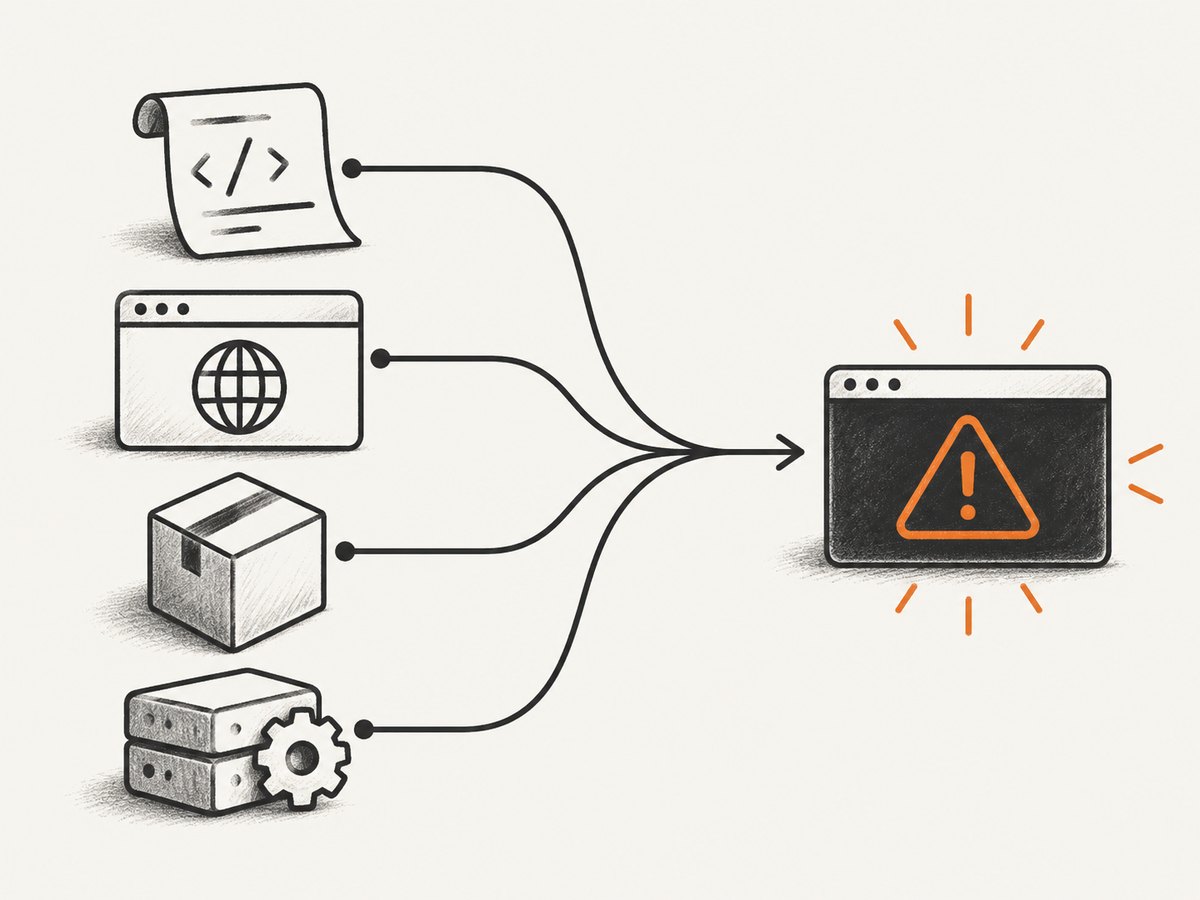
1. Diagnose a script-selected exit code
PhantomJS returns 0 when no value is supplied to phantom.exit; a script can deliberately return 1 when a condition fails. The API documentation explains this behavior in the phantom.exit reference.

var system = require('system');

if (system.args.length < 2) {
  console.error('Usage: phantomjs capture.js URL');
  phantom.exit(1);
}

var page = require('webpage').create();
var url = system.args[1];

page.open(url, function (status) {
  console.log('page.open status:', status);
  if (status !== 'success') {
    console.error('FAIL to load the address:', url);
    phantom.exit(1);
  }

  page.render('shot.png');
  phantom.exit(0);
});
In this example, code 1 means either that no URL was supplied or that page.open did not report success. Change the failing condition or its handling only after confirming that the condition is the real problem. Always call phantom.exit; otherwise PhantomJS may never terminate, as described in the quick-start guide.
Make the first error visible
var page = require('webpage').create();

page.onError = function (message, trace) {
  console.error('PAGE ERROR:', message);
  trace.forEach(function (item) {
    console.error('  at', item.file, 'line', item.line,
      'function', item.function || '<anonymous>');
  });
};

page.open('https://example.com', function (status) {
  console.log('OPEN STATUS:', status);
  if (status !== 'success') {
    phantom.exit(1);
    return;
  }
  page.render('example.png');
  phantom.exit(0);
});
page.onError separates page-side syntax errors and thrown exceptions from transport or loading failures. Keep stdout and stderr unfiltered so you do not lose the original message before the final exit summary. PhantomJS’s troubleshooting guidance recommends this diagnostic path.
2. Check URL loading separately
A failed page.open callback does not identify the underlying cause. Check these conditions in order:
- Confirm the URL is complete, including
https://, and reproduce it with a normal browser or command-line request. - Run
phantomjs --versionand verify which binary is being executed. - Check DNS, outbound firewall rules, proxy variables and TLS certificate behavior in the same account that runs PhantomJS.
- Log the callback status before calling
phantom.exit(1). - Reduce the script to one URL and one
page.opencall.
phantomjs --version
which phantomjs
phantomjs capture.js https://example.com 1>stdout.log 2>stderr.log
tail -n 50 stdout.log
tail -n 50 stderr.log
3. Fix npm “Exit status 1” during installation
When the message starts with npm ERR! and appears while installing a package, it is an installer failure rather than evidence that a webpage failed. Work through this checklist:
- PATH: Run
node --version,npm --versionandtar --versionas the same user that runs npm. - Write access: Ensure the project directory, npm cache and temporary directory are writable.
- Cache ownership: Check for files in the npm cache owned by another user; repair ownership or use a clean cache location.
- Download access: Test the configured registry and the PhantomJS binary download through your proxy or firewall.
- TLS and SSL: Inspect certificate and proxy settings instead of disabling verification globally.
- Antivirus or endpoint controls: Check whether the downloaded archive or extracted binary was quarantined.
node --version
npm --version
tar --version
npm config get cache
npm config get registry
npm install --verbose
Save the complete verbose log. The first network, permission or extraction error is more useful than npm’s final status line. Do not assume that reinstalling repeatedly will fix a blocked download or unwritable cache.
4. Fix PhantomJS exit code 1 in CI, Karma or a wrapper
CI adds another failure layer: the launcher may fail before PhantomJS starts. Record the operating system, PhantomJS version, launcher command, working directory and relevant environment variables. Confirm the binary exists and is executable inside the job, then run the smallest reproducer directly.
set -eux
pwd
uname -a
which phantomjs
phantomjs --version
ls -l "$(which phantomjs)"
phantomjs capture.js https://example.com
If the direct command succeeds but Karma or another wrapper returns 1, inspect its configuration for the binary path, browser name, timeout and process arguments. Preserve the wrapper’s stderr. An archived PhantomJS issue documents a launcher reporting that the process could not start; that message points to the binary or environment, not necessarily the page.
5. Decide whether Xvfb is required
Do not add Xvfb automatically. The PhantomJS FAQ says PhantomJS 1.4 and earlier needed an X server, while PhantomJS 1.5 and later were pure headless and did not require X11/Xvfb. Check the version first, then follow the FAQ guidance.
6. Minimal reproduction and bug report
- Print
phantomjs --versionand the operating system. - Keep the original stdout and stderr.
- Reduce the script to one URL or one failing assertion.
- State the command, expected result and actual result.
- Include whether it fails locally, in CI, or in both environments.
PhantomJS upstream is archived and read-only, so its historical repository and reporting guidance are reference material rather than an active support channel.
Or skip the browser setup
If your goal is a clean website image rather than maintaining a PhantomJS runtime, ScreenshotNeo provides a single HTTP request. It accepts cookie and consent banners before capture and removes more than 60 known consent platforms, newsletter popups and chat widgets. Bot checks, blank pages, failed loads, timeouts and cache hits are not billed, and response headers identify the page verdict and billing status.
See the ScreenshotNeo API documentation for options such as full-page capture, CSS-element capture, device and viewport settings, dark mode, retina scale, custom JavaScript and CSS, waits, request blocking, cookies, headers, geolocation, PDF output, caching, signed links, async jobs and bulk capture.
curl -G "https://api.screenshotneo.com/v1/shot" -d access_key=YOUR_API_KEY --data-urlencode url=https://stripe.com -o shot.webpimport requests
r = requests.get(
"https://api.screenshotneo.com/v1/shot",
params={"access_key": "YOUR_API_KEY", "url": "https://stripe.com"},
timeout=90,
)
r.raise_for_status()
open("shot.webp", "wb").write(r.content)const q = new URLSearchParams({ access_key: 'YOUR_API_KEY', url: 'https://stripe.com' });
const res = await fetch(`https://api.screenshotneo.com/v1/shot?${q}`);
if (!res.ok) throw new Error(`HTTP ${res.status}`);
const bytes = new Uint8Array(await res.arrayBuffer());
await Bun.write('shot.webp', bytes);An MCP server also provides take_screenshot, get_page_info and capture_pdf tools for Claude, Cursor and other MCP clients. The free plan includes 1,000 screenshots per month with no card; paid plans start at $5 for 3,000. Create a free ScreenshotNeo account.
Performance, reliability and cost notes
- Log once per page and avoid repeated retries that hide the first failure.
- Use a minimal reproducer before increasing CI timeouts.
- Pin the PhantomJS binary version and verify its path in CI.
- For ScreenshotNeo, choose caching with a TTL when the same URL is captured repeatedly; cache hits are not billed.
- Inspect
X-Page-VerdictandX-Billedwhen auditing failures or usage.
FAQ
Is error code 1 always a PhantomJS bug?
No. It is commonly a status deliberately returned by your script, test runner, installer or launcher.
Should I ignore a nonzero code if an image was produced?
No. Treat the code as a failed contract until you know which condition selected it and whether the output is valid.
Can page JavaScript errors cause code 1?
They can if your script observes or converts them into a failure. Use page.onError to expose the original exception.
Does every CI job need Xvfb?
No. The requirement depends on the PhantomJS version; 1.5 and later are pure headless.
What should replace PhantomJS for a new screenshot workflow?
For a managed API, ScreenshotNeo removes browser setup and provides clean-shot billing, an MCP server and a free monthly tier.


