How to Get the Full HTML Page Height in PhantomJS
Measure a page’s complete rendered height in PhantomJS with scrollHeight, diagnose responsive and nested scrolling layouts, and avoid viewport traps.
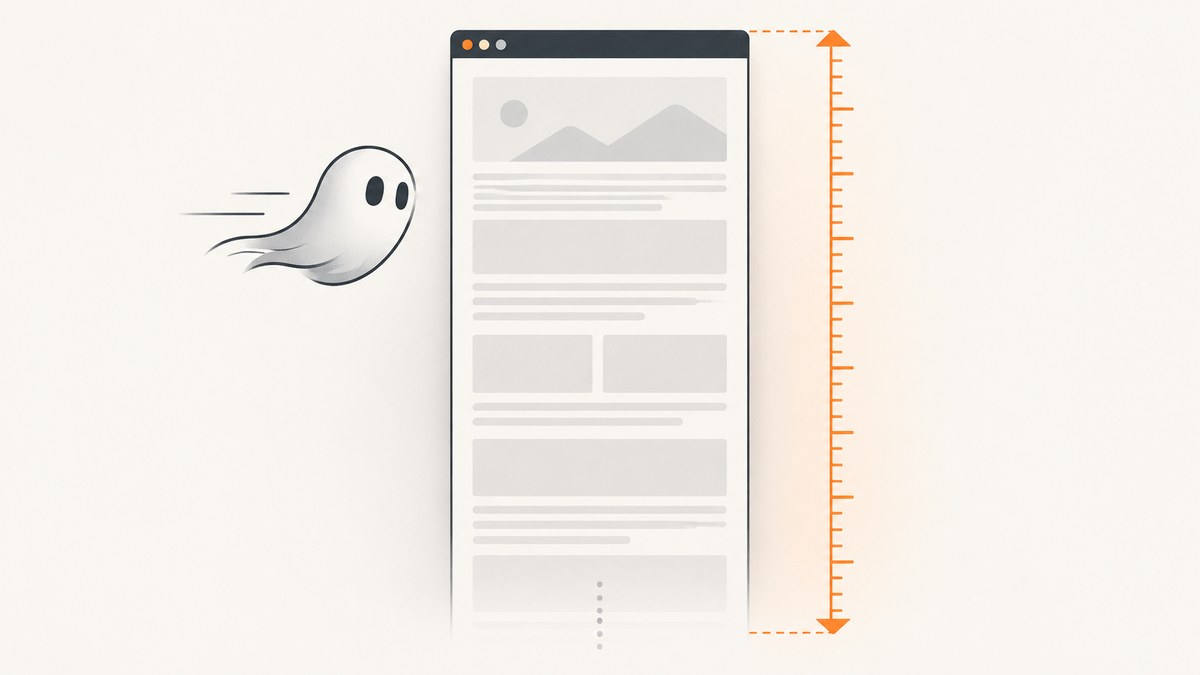
To get the full rendered HTML page height in PhantomJS, run JavaScript inside the loaded page with page.evaluate and return document.documentElement.scrollHeight. That value represents the document’s complete scrollable height, while clientHeight represents only the visible client area.
var page = require('webpage').create();

page.open('https://example.com/', function (status) {
    if (status !== 'success') {
        console.log('Unable to load the page');
        phantom.exit(1);
        return;
    }

    var height = page.evaluate(function () {
        return document.documentElement.scrollHeight;
    });

    console.log(height);
    phantom.exit();
});
page.evaluate evaluates the supplied function in the web page context, so it can access document and the DOM. Values crossing back to PhantomJS must be simple JSON-serializable data; DOM nodes, functions, and closures do not cross that boundary. See the PhantomJS evaluate API.
What the height values mean
A web page has several related dimensions. Choosing the wrong one is the most common reason a script reports only the viewport height.
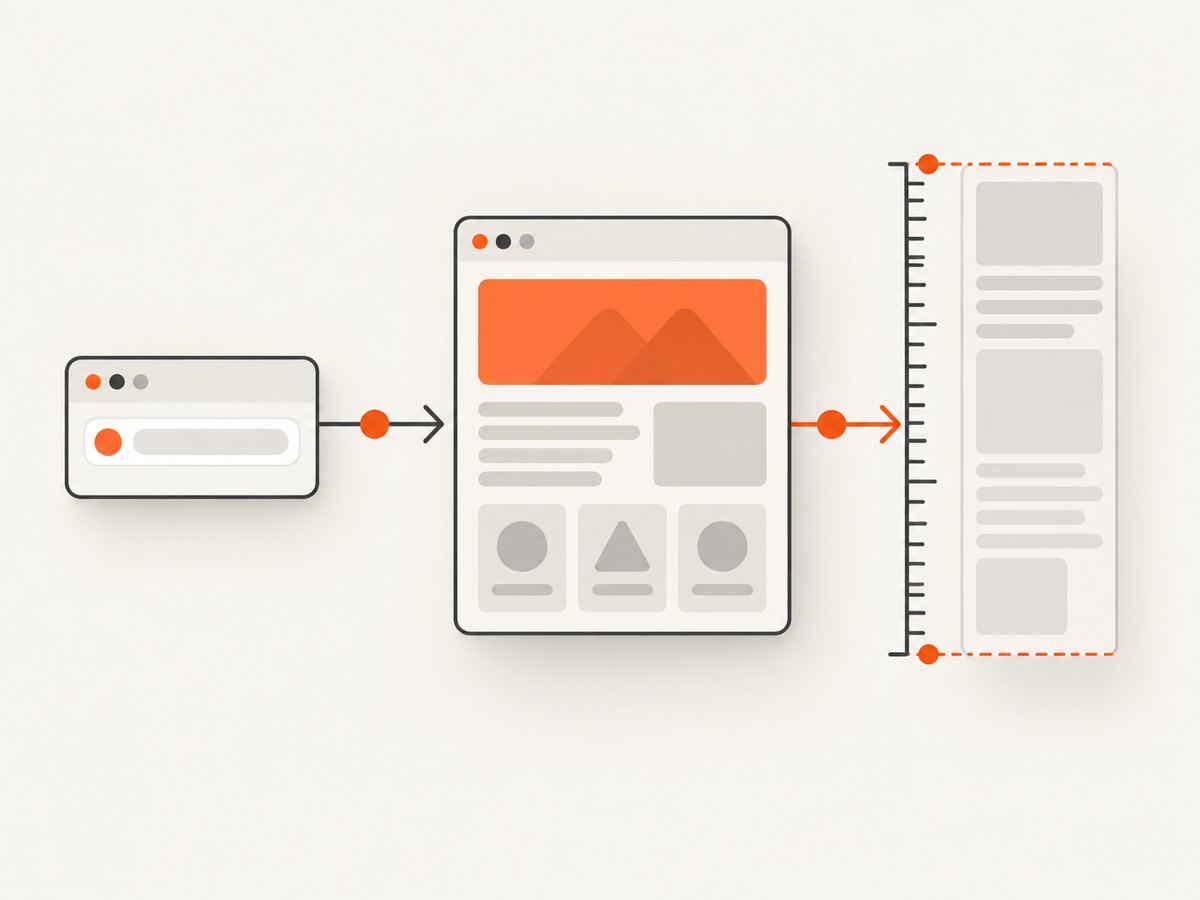
| Property | What it measures | Typical use |
|---|---|---|
document.documentElement.scrollHeight |
The full scrollable height of the document element | First choice for total page height |
document.body.scrollHeight |
The body’s scrollable height | Comparison when a page uses body-based layout rules |
document.documentElement.clientHeight |
The visible viewport area inside the document element | Viewport diagnostics, not full height |
document.body.offsetHeight |
The body’s layout height, including borders | Finding differences between layout and scrolling |
In a straightforward document, document.documentElement.scrollHeight and document.body.scrollHeight are close. Pages with unusual CSS, a fixed body, or a browser-specific scrolling convention can make them differ. Return several values together before changing your capture code.
Build a reliable measurement script
1. Set the viewport before opening the page
Responsive pages can render a different amount of content at different widths. PhantomJS’s default viewport is small enough to trigger mobile or tablet breakpoints on many sites. Set dimensions that match the layout you intend to measure before calling page.open.
var page = require('webpage').create();
page.viewportSize = { width: 1280, height: 800 };

page.open('https://example.com/', function (status) {
    if (status !== 'success') {
        console.log('Unable to load the page');
        phantom.exit(1);
        return;
    }

    var height = page.evaluate(function () {
        return document.documentElement.scrollHeight;
    });

    console.log('height=' + height);
    phantom.exit();
});
viewportSize controls the browser dimensions used for layout and rendering. The PhantomJS viewport documentation describes the property and its width and height fields.
2. Wait for content that is added after the initial load
page.open reports that the navigation completed, but a page may still append content through timers, XHR requests, lazy rendering, or a client-side framework. If the first measurement is suspiciously close to the viewport, wait briefly or poll for a selector that identifies the content you need.
var page = require('webpage').create();
page.viewportSize = { width: 1280, height: 800 };

page.open('https://example.com/', function (status) {
    if (status !== 'success') {
        console.log('Unable to load the page');
        phantom.exit(1);
        return;
    }

    window.setTimeout(function () {
        var result = page.evaluate(function () {
            return {
                documentHeight: document.documentElement.scrollHeight,
                bodyHeight: document.body.scrollHeight,
                viewportHeight: document.documentElement.clientHeight
            };
        });

        console.log(JSON.stringify(result));
        phantom.exit();
    }, 1000);
});
A fixed delay is simple but page-specific. For repeatable automation, use a condition such as the presence of a known content selector, and keep a maximum timeout so a broken page cannot hold the process forever.
3. Return a diagnostic set when values look wrong
var measurements = page.evaluate(function () {
    return {
        bodyScrollHeight: document.body.scrollHeight,
        bodyOffsetHeight: document.body.offsetHeight,
        documentClientHeight: document.documentElement.clientHeight,
        documentScrollHeight: document.documentElement.scrollHeight
    };
});
Compare the two scroll heights. If both are near the client height, first check that the intended content loaded and that your viewport did not activate a compact responsive layout. If body and document values differ substantially, inspect the page’s CSS and scrolling containers.
Nested scrolling containers
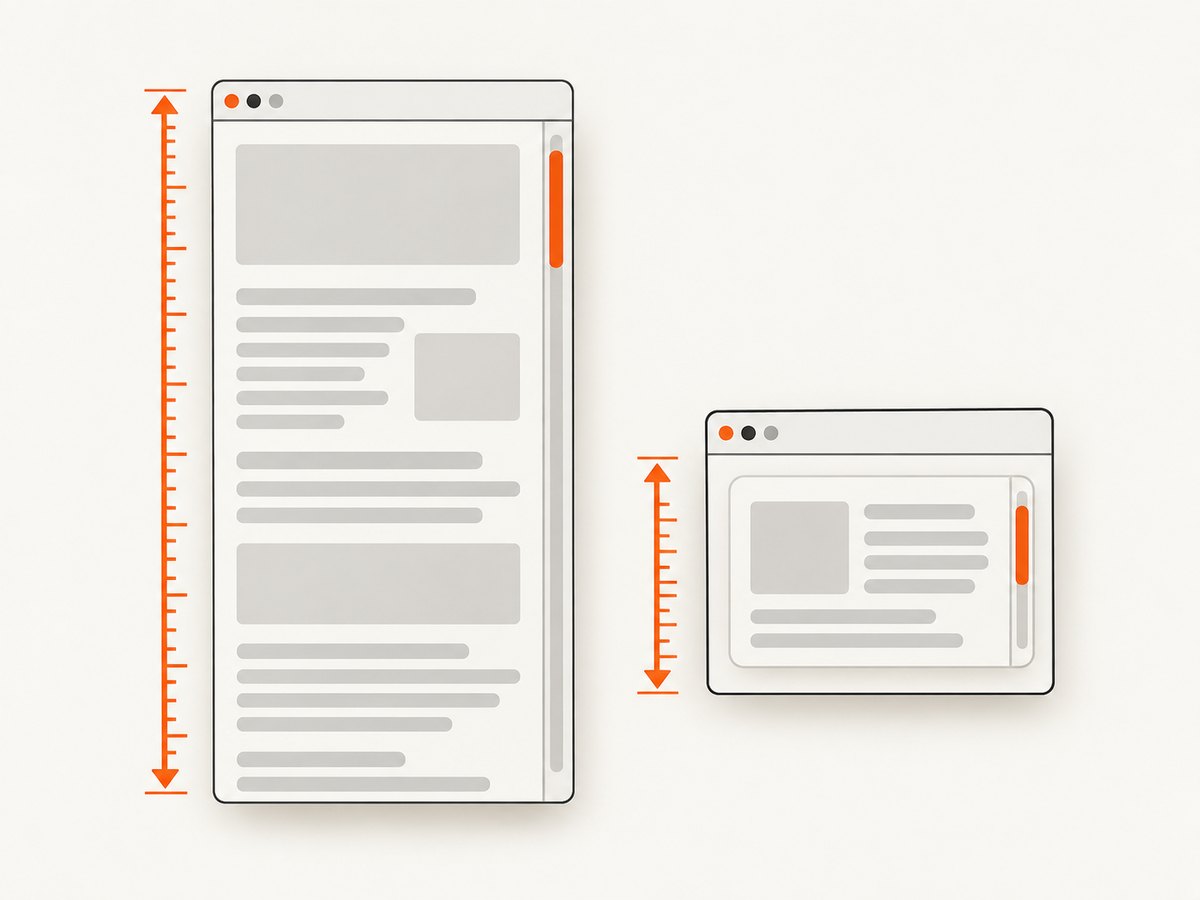
Not every long-looking page scrolls at the document level. A layout may set overflow: auto on a panel while the document itself remains viewport-sized. In that case, the panel owns the content height and you must measure that element.
var panelHeight = page.evaluate(function () {
    var panel = document.querySelector('.results-panel');
    return panel ? panel.scrollHeight : null;
});

console.log('panel height=' + panelHeight);
Use the element’s scrollHeight rather than adding its position and visible height. If the selector is absent, return null and handle that result explicitly. This prevents a missing component from being mistaken for a zero-height page.
Full height versus screenshot dimensions
Reading a DOM height and rendering an image are separate operations. page.evaluate gives you a number from the page’s DOM. page.render produces an image, and clipRect controls the region rendered. Rendering settings do not replace DOM measurement. PhantomJS documents this distinction in its render API.
var height = page.evaluate(function () {
    return document.documentElement.scrollHeight;
});

page.clipRect = {
    top: 0,
    left: 0,
    width: 1280,
    height: height
};
page.render('full-page.png');
Very tall pages can exceed practical image dimensions or memory limits in a particular PhantomJS build. If the goal is measurement, keep the numeric result and avoid rendering. If the goal is an image, consider capturing sections or using a service that handles full-page capture directly.
Common errors and fixes
| Symptom | Likely cause | Fix |
|---|---|---|
| Height equals about 300 pixels | The page is measured at a small default viewport or content has not loaded | Set page.viewportSize, then wait for the required selector or content. |
| Height equals the viewport on a long page | Content is inside a child scrolling element | Find the element with overflow: auto or scroll and read its scrollHeight. |
document is undefined |
The function was executed in PhantomJS’s outer context | Put DOM code inside the callback passed to page.evaluate. |
evaluate returns an object with missing fields |
The return value contains DOM nodes, functions, or other non-serializable values | Return numbers, strings, booleans, arrays, or plain objects containing those types. |
| Different runs report different heights | Fonts, images, asynchronous requests, or lazy content finish at different times | Wait for a deterministic readiness condition and use a bounded timeout. |
| Desktop content is missing | The viewport triggered a mobile media query | Set a representative width before page.open and rerun the measurement. |
| Navigation fails | The URL could not be loaded | Check status, log the URL, and exit with a nonzero code instead of measuring an error page. |
Practical measurement checklist
- Set
page.viewportSizebefore navigation. - Open the page and verify
status === 'success'. - Wait for the content that defines the page’s final state.
- Read
document.documentElement.scrollHeight. - Compare it with
document.body.scrollHeight. - Inspect nested scrolling elements when both document values look too small.
- Return plain JSON values from
page.evaluate. - Keep DOM measurement separate from
page.renderandclipRect.
Performance and reliability considerations
A single height read is inexpensive compared with page navigation, script execution, image loading, and layout. The work that affects runtime is usually waiting for the page to settle. Prefer a specific readiness selector over a long unconditional delay, but retain a maximum wait so automation remains bounded.
For batch jobs, reuse a consistent viewport and readiness rule so results are comparable. Record the URL, viewport, wait condition, measured document height, body height, and whether a nested container was used. When a value changes unexpectedly, those fields make the difference diagnosable without rerunning the entire job.
When reliability matters more than maintaining a PhantomJS process, a screenshot API can perform navigation and full-page capture for you. ScreenshotNeo is a website screenshot API with full-page capture, lazy-image loading, custom waits, CSS selectors, and many browser controls. It removes known cookie banners, newsletter popups, and chat widgets before capture; bot checks, blank pages, timeouts, failed loads, and cache hits are not billed.
Or skip the browser setup
Use ScreenshotNeo when you need the resulting capture rather than a PhantomJS DOM measurement. The API accepts one GET request and returns PNG, JPEG, WebP, or PDF. Full-page capture loads lazy images, and you can combine it with a selector, wait condition, custom CSS or JavaScript, headers, cookies, a user agent, timezone, geolocation, blocking rules, caching, or a device preset. See the ScreenshotNeo API documentation.
cURL
curl -G 'https://api.screenshotneo.com/v1/shot' \
  -d access_key=YOUR_API_KEY \
  --data-urlencode url=https://stripe.com \
  -o shot.webp
Python
import requests

r = requests.get(
    'https://api.screenshotneo.com/v1/shot',
    params={'access_key': 'YOUR_API_KEY', 'url': 'https://stripe.com'},
    timeout=90,
)
r.raise_for_status()
open('shot.webp', 'wb').write(r.content)
Node.js
const q = new URLSearchParams({
  access_key: 'YOUR_API_KEY',
  url: 'https://stripe.com'
});
const res = await fetch(`https://api.screenshotneo.com/v1/shot?${q}`);
if (!res.ok) throw new Error(`HTTP ${res.status}`);
const buffer = Buffer.from(await res.arrayBuffer());
require('fs').writeFileSync('shot.webp', buffer);
Each response includes X-Page-Verdict and X-Billed headers, so your application can distinguish a clean capture from a bot check, blank page, timeout, failed load, or cache hit. ScreenshotNeo also provides async jobs with signed webhooks, bulk capture for up to 100 URLs per call, a usage API, signed links for public image tags, and an MCP server with take_screenshot, get_page_info, and capture_pdf tools for Claude, Cursor, and other MCP clients.
There is a free tier of 1,000 screenshots per month with no card. Paid plans start at $5 for 3,000 screenshots; yearly billing gives two months free, and every feature is available on every plan. Create a free ScreenshotNeo account.
FAQ
Should I use body.scrollHeight or documentElement.scrollHeight?
Start with documentElement.scrollHeight and compare the body value when diagnosing a page. The correct value depends on which element owns document scrolling.
Why does clientHeight give a smaller number?
clientHeight describes the visible client area. It is expected to be smaller than the full scrollable height on a page that requires scrolling.
Can PhantomJS measure content in an iframe?
The outer document’s height does not automatically become the iframe document’s height. Select the frame context or measure the iframe element and its own document according to your automation setup.
Does changing the viewport change the page height?
Yes. Responsive breakpoints can reflow, hide, or add content. Use the viewport that represents the page state you want to measure.
Is a height value enough to create a PDF?
No. Height measurement and rendering are separate. PDF pagination, paper size, margins, and page ranges require rendering or a PDF-capable capture tool.


