How to Generate High-Quality HTML Screenshot Images with PhantomJS
Learn how to capture HTML pages with PhantomJS using viewport, clipping, timing, and PDF controls, plus a maintained API alternative.
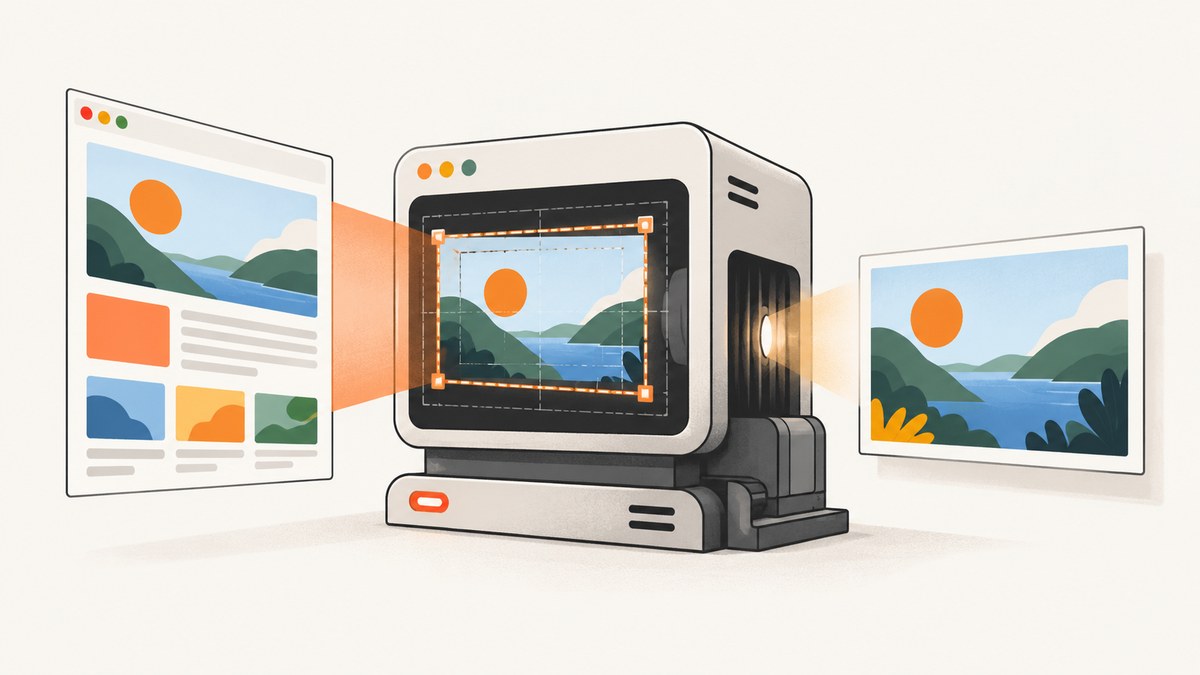
Direct answer: create a PhantomJS webpage, set viewportSize before opening the URL, wait for the page’s required content, optionally set clipRect, and call page.render(). The output format is selected by the filename extension, such as PNG, JPEG, GIF, or PDF. A minimal capture looks like this:
var page = require('webpage').create();
page.viewportSize = { width: 1440, height: 900 };

page.open('https://example.com/', function (status) {
  if (status !== 'success') {
    console.log('Unable to load the address!');
    phantom.exit(1);
    return;
  }

  page.render('screenshot.png');
  phantom.exit();
});
This follows PhantomJS’s official screen-capture workflow: page.open() loads the page and page.render() writes the rendered result to disk. The controls below determine what “high quality” means for your particular page: the layout viewport, the region you rasterize, when you render, and whether you need an image or a PDF.
1. Install PhantomJS and create a capture script
PhantomJS is a command-line program that runs JavaScript against a headless QtWebKit browser. Put the script in a file such as capture.js, then run:
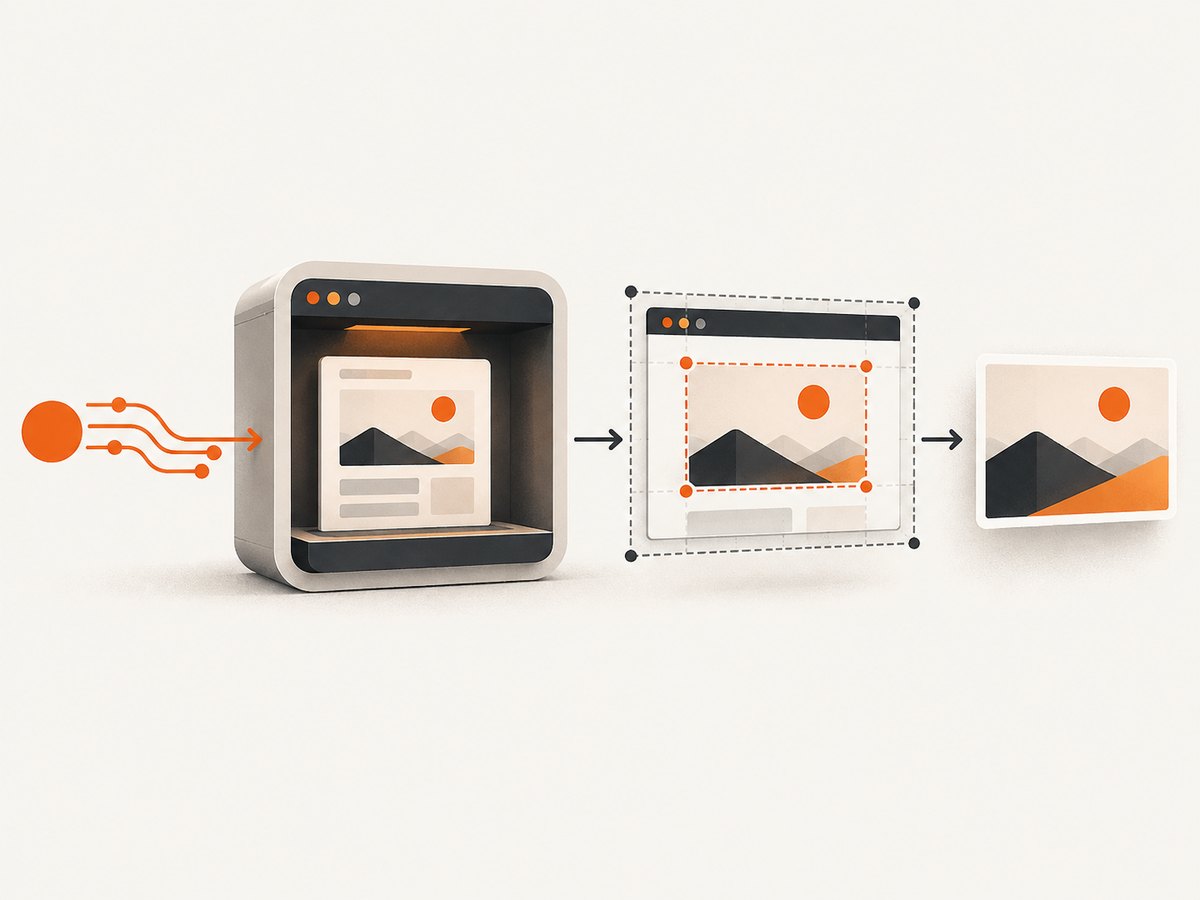
phantomjs capture.jsThe official screen-capture guide demonstrates this same webpage.create(), page.open(), and page.render() sequence. Check the open status before rendering. A failed navigation can otherwise produce a misleading empty or partial file.
Use a readiness condition, not an arbitrary delay
Some pages continue work after the initial load event: JavaScript inserts content, images arrive late, fonts swap, or an animation changes the final pixels. The official examples include a short delay, but that delay is only illustrative. A fixed 200 ms pause cannot guarantee that every page has finished.
For a page you control, expose a flag when rendering is complete:
var page = require('webpage').create();
page.viewportSize = { width: 1440, height: 900 };

page.open('https://example.com/dashboard', function (status) {
  if (status !== 'success') {
    console.log('Open failed: ' + status);
    phantom.exit(1);
    return;
  }

  function renderWhenReady() {
    var ready = page.evaluate(function () {
      return window.__SCREENSHOT_READY__ === true;
    });

    if (ready) {
      page.render('dashboard.png');
      phantom.exit();
      return;
    }

    window.setTimeout(renderWhenReady, 100);
  }

  renderWhenReady();
});
If you do not control the site, wait for a selector that represents the finished state, or use a page-specific delay after the load callback. Keep the condition bounded in your production wrapper so a page that never becomes ready cannot hold a worker forever.
2. Set the viewport before opening the page
viewportSize is the layout viewport used while the page is loaded. Set both width and height before page.open():
var page = require('webpage').create();
page.viewportSize = {
  width: 1280,
  height: 800
};
page.open('https://example.com/', function (status) {
  if (status === 'success') {
    page.render('1280x800.png');
  }
  phantom.exit(status === 'success' ? 0 : 1);
});
Changing the viewport changes responsive breakpoints, line wrapping, navigation menus, and the amount of content visible in the initial viewport. It is not a crop setting and it is not a device-pixel-ratio setting. Capture at the dimensions your consumer expects, then inspect the result at its intended display size.
| Goal | Setting | Effect |
|---|---|---|
| Desktop layout | viewportSize.width and height |
Controls responsive layout and visible viewport |
| Only part of a page | clipRect |
Rasterizes a rectangle from the rendered page |
| PDF paper dimensions | paperSize |
Controls printed PDF pages, margins, and orientation |
3. Capture a region with clipRect
Set clipRect when you need a rectangular crop:
page.clipRect = {
  top: 0,
  left: 0,
  width: 800,
  height: 600
};
page.render('hero-crop.png');
The rectangle’s top and left locate its origin, while width and height define its size. If no clip rectangle is supplied, PhantomJS renders the whole page. The rectangle describes the rasterized region; it does not increase density or provide a high-DPI scale control.
For an element-sized capture, first measure the element in the page context and assign the resulting coordinates to clipRect:
var page = require('webpage').create();
page.viewportSize = { width: 1440, height: 900 };
page.open('https://example.com/', function (status) {
  if (status !== 'success') {
    phantom.exit(1);
    return;
  }

  var box = page.evaluate(function () {
    var node = document.querySelector('.invoice');
    if (!node) return null;
    var r = node.getBoundingClientRect();
    return {
      left: r.left + window.pageXOffset,
      top: r.top + window.pageYOffset,
      width: r.width,
      height: r.height
    };
  });

  if (!box) {
    console.log('Element not found');
    phantom.exit(1);
    return;
  }

  page.clipRect = box;
  page.render('invoice.png');
  phantom.exit();
});
Account for fixed headers, scrolling, and content that changes size after measurement. If the element is below the initial viewport, its document coordinates still work, but the page must have finished layout before you measure it.
4. Choose an image format deliberately
The official documentation lists PNG, JPEG, GIF, and PDF for page.render(). The base64 method, renderBase64(format), lists PNG, GIF, and JPEG. Use the format that matches the destination:
- PNG: lossless output suited to text, diagrams, and interfaces with sharp edges.
- JPEG: smaller files for photographic content; compression can soften text and introduce artifacts.
- GIF: available for simple indexed-color output, with limited color depth.
- PDF: paginated print output controlled by
paperSize, rather than an ordinary viewport screenshot.
There is no official universal quality score or recommended resolution for every site. Compare output at the size where it will be consumed, and keep the viewport and crop stable across runs.
5. Generate PDFs with paperSize
PDF sizing controls apply to printed pages. They are separate from the browser layout viewport. The paperSize reference documents explicit dimensions and presets including A3, A4, A5, Legal, Letter, and Tabloid. Explicit units can be millimeters, centimeters, inches, or pixels. You can also set portrait or landscape orientation, margins, headers, and footers.
var page = require('webpage').create();
page.viewportSize = { width: 1200, height: 800 };
page.paperSize = {
  format: 'A4',
  orientation: 'portrait',
  margin: {
    top: '12mm',
    right: '12mm',
    bottom: '12mm',
    left: '12mm'
  }
};

page.open('https://example.com/report', function (status) {
  if (status !== 'success') {
    phantom.exit(1);
    return;
  }
  page.render('report.pdf');
  phantom.exit();
});
Use clipRect for a rectangular image crop. Use paperSize when the output is a document that must fit a paper format. Do not expect a paper-size change to reproduce a different responsive layout unless you also change the viewport.
6. Troubleshooting checklist
| Symptom | Likely cause | Fix |
|---|---|---|
| Blank or partial image | Navigation failed or rendering happened too early | Check status, log console errors, and wait for a page-specific readiness condition. |
| Mobile layout appears unexpectedly | Viewport width crosses a responsive breakpoint | Set an explicit width and height before page.open(). |
| Crop is offset | Coordinates were measured relative to the viewport instead of the document | Add pageXOffset and pageYOffset to element bounds. |
| Images or fonts are missing | Assets load after the open callback or are blocked | Wait for the asset-specific condition; verify the URL and network access in the target environment. |
| PDF has unexpected page breaks | Paper dimensions and margins differ from the intended print layout | Set paperSize explicitly and inspect the generated PDF at its target paper size. |
| Animation changes screenshots | Capture occurs at different animation frames | Disable animations with page CSS or wait for a deterministic state before rendering. |
| Script never exits | A readiness poll has no timeout | Add a maximum wait and call phantom.exit(1) when it expires. |
7. Performance, reliability, and maintenance
Rendering cost is driven by page complexity, network time, JavaScript execution, image size, and the number of pages you capture. Reuse a controlled worker process where practical, keep a bounded navigation timeout in your surrounding job runner, and write outputs to unique paths when captures run concurrently. Log the URL, viewport, clip rectangle, status, and elapsed time so a bad image can be reproduced.
PhantomJS is legacy software. The official project site states: “Important: PhantomJS development is suspended until further notice.” Its GitHub repository is archived and read-only, with an archive date of May 30, 2023, and identifies 2.1 as the latest stable release. The jsreport PhantomJS PDF documentation warns that archived software can expose security issues and recommends migration to Chrome-based PDF printing for that recipe. Treat a retained PhantomJS workflow as something to lock down and test against its actual target pages and environment. Do not assume current browser compatibility or security updates.
- Run it in an isolated environment when capturing untrusted URLs.
- Pin the PhantomJS version and record the operating-system image.
- Test pages that use modern JavaScript, TLS, fonts, and client-side routing before committing to the workflow.
- Keep a visual regression sample set for the pages that matter.
8. Or skip the browser setup
ScreenshotNeo provides a single GET request for PNG, JPEG, WebP, or PDF output, with options for full-page capture, lazy-image loading, CSS-selector element capture, dark mode, device presets, custom viewports, retina scale, custom CSS and JavaScript, click actions, selector or network-idle waits, blocked ads and trackers, headers, cookies, user agents, authorization, timezone, geolocation, transparent backgrounds, resizing, caching, signed links, asynchronous jobs, webhooks, bulk capture, usage reporting, and an OpenAPI specification. Its parameter names also accept the names used by other screenshot APIs, which helps when switching.

Use the ScreenshotNeo documentation for the complete option reference. The basic calls are:
cURL
curl -G 'https://api.screenshotneo.com/v1/shot' -d access_key=YOUR_API_KEY --data-urlencode url=https://stripe.com -o shot.webpPython
import requests

r = requests.get(
    'https://api.screenshotneo.com/v1/shot',
    params={'access_key': 'YOUR_API_KEY', 'url': 'https://stripe.com'},
    timeout=90,
)
r.raise_for_status()
open('shot.webp', 'wb').write(r.content)
Node.js
const q = new URLSearchParams({
  access_key: 'YOUR_API_KEY',
  url: 'https://stripe.com'
});
const res = await fetch(`https://api.screenshotneo.com/v1/shot?${q}`);
if (!res.ok) throw new Error(`HTTP ${res.status}`);
const buffer = Buffer.from(await res.arrayBuffer());
require('fs').writeFileSync('shot.webp', buffer);
ScreenshotNeo accepts and removes cookie-consent banners, newsletter popups, and chat widgets before capture; each step can be disabled. Bot checks or CAPTCHAs, blank pages, timeouts, failed loads, and cache hits are not billed, and response headers report X-Page-Verdict and X-Billed. An MCP server exposes take_screenshot, get_page_info, and capture_pdf to Claude, Cursor, and other MCP clients. The Free plan includes 1,000 screenshots per month with no card; paid plans start at $5 for 3,000 shots. Create a free ScreenshotNeo account.
9. Frequently asked questions
Does clipRect capture an HTML element automatically?
No. It captures coordinates. Measure the element with JavaScript, convert its bounds to document coordinates, and assign those values to clipRect.
Can I use paperSize to make a PNG larger?
No. paperSize configures PDF printing. Use viewportSize for layout and clipRect for the rasterized region.
Is a 200 ms delay enough?
Not generally. It is an example from the documentation. Use a condition tied to the page’s own content, with a timeout.
What should I do with an existing PhantomJS service?
Pin and isolate it, test every important target page, and plan a migration where maintenance and modern browser compatibility matter.
Can ScreenshotNeo capture a PDF instead of an image?
Yes. Its PDF options include paper size, margins, landscape mode, and page ranges; consult the documentation for parameter names.


