How to Loop Through Element IDs and Capture Screenshots with PhantomJS
Loop through element IDs in PhantomJS, measure each DOM node, and save separate clipped screenshots with reliable error handling.
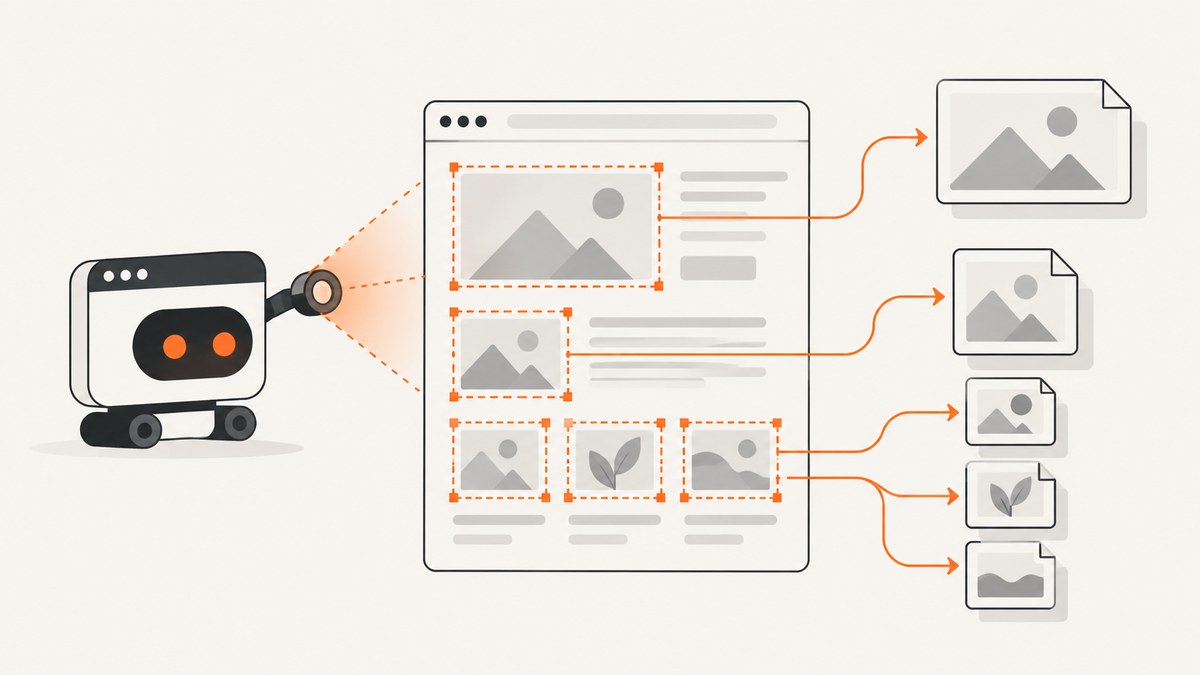
Direct answer: open the page with page.open(), use page.evaluate() to find each ID and return its serializable bounding rectangle, assign that rectangle to page.clipRect, and call page.render() with a different filename for every element.
DOM code runs inside the page context. File output, clipping, logging, and process control stay in the PhantomJS script. The official APIs document page.open(), sandboxed page.evaluate(), page.clipRect, and page.render().
Complete PhantomJS script
Save this as capture-ids.js. It writes one PNG per ID and skips missing or zero-size elements.
var page = require('webpage').create();
var system = require('system');

var address = system.args[1] || 'https://example.com/';
var ids = ['header', 'main', 'footer'];

page.viewportSize = {
  width: 1440,
  height: 900
};

function safeName(id) {
  return id.replace(/[^a-zA-Z0-9._-]/g, '_');
}

page.open(address, function (status) {
  if (status !== 'success') {
    console.log('Unable to load ' + address + ' (status: ' + status + ')');
    phantom.exit(1);
    return;
  }

  var boxes = page.evaluate(function (elementIds) {
    return elementIds.map(function (id) {
      var element = document.getElementById(id);

      if (!element) {
        return { id: id, missing: true };
      }

      var rect = element.getBoundingClientRect();
      return {
        id: id,
        top: rect.top + window.pageYOffset,
        left: rect.left + window.pageXOffset,
        width: rect.width,
        height: rect.height
      };
    });
  }, ids);

  boxes.forEach(function (box) {
    if (box.missing) {
      console.log('Skipping missing element: ' + box.id);
      return;
    }

    if (box.width <= 0 || box.height <= 0) {
      console.log('Skipping empty element: ' + box.id);
      return;
    }

    page.clipRect = {
      top: box.top,
      left: box.left,
      width: box.width,
      height: box.height
    };

    var filename = safeName(box.id) + '.png';
    page.render(filename, 'png');
    console.log('Wrote ' + filename);
  });

  phantom.exit();
});
Run it with:
phantomjs capture-ids.js https://example.com/The coordinates returned by getBoundingClientRect() are relative to the viewport. Adding pageYOffset and pageXOffset converts them to document coordinates before clipping. Keep the viewport and clipping coordinates consistent when you change responsive layouts.
How the loop works
- Create a page.
require('webpage').create()gives the script a page object. - Set the viewport. A fixed
viewportSizemakes responsive CSS deterministic. - Wait for the open callback. Check that
status === 'success'before reading the DOM. - Measure inside
evaluate(). Usedocument.getElementById()and return plain numbers and strings. - Clip and render. Assign one rectangle to
page.clipRect, then callpage.render(). - Exit once all files are written. Call
phantom.exit()after the loop.
evaluate() is sandboxed. DOM nodes, functions, and closures do not cross the boundary. Pass simple arrays or strings in, and return JSON-serializable objects out.
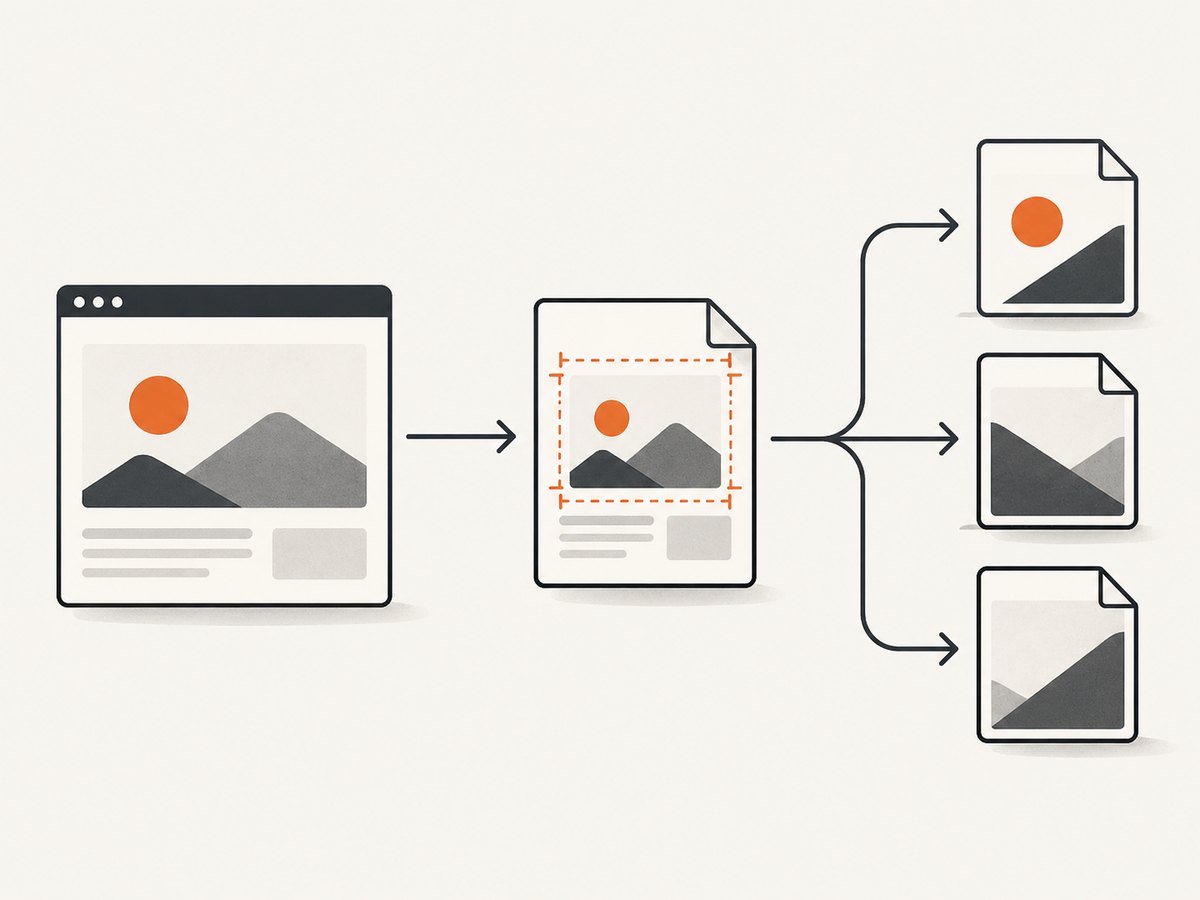
Waiting for dynamically inserted content
The open callback indicates that loading completed, but JavaScript applications can still change the layout afterward. If the IDs are inserted asynchronously, wait before measuring. A simple fixed delay is easy to add, though a page-specific readiness condition is more precise.
page.open(address, function (status) {
  if (status !== 'success') {
    phantom.exit(1);
    return;
  }

  window.setTimeout(function () {
    // Run the same page.evaluate(), clipRect, and render loop here.
    captureIds();
  }, 1500);
});
For a readiness condition, poll for a known element or class in the page context and stop after a timeout. Do not wait forever when a third-party request never completes.
function waitFor(selector, timeoutMs, done) {
  var started = Date.now();
  var timer = window.setInterval(function () {
    var ready = page.evaluate(function (value) {
      return !!document.querySelector(value);
    }, selector);

    if (ready || Date.now() - started >= timeoutMs) {
      window.clearInterval(timer);
      done(ready);
    }
  }, 100);
}

page.open(address, function (status) {
  if (status !== 'success') {
    phantom.exit(1);
    return;
  }

  waitFor('#main', 10000, function (found) {
    if (!found) {
      console.log('Timed out waiting for #main');
    }
    captureIds();
  });
});
Capturing IDs with CSS selectors instead
If callers provide selectors rather than known IDs, pass the selector into evaluate(). Use querySelectorAll() to produce one image for every match.
var selector = '.card';
var boxes = page.evaluate(function (value) {
  var nodes = document.querySelectorAll(value);
  var result = [];

  for (var i = 0; i < nodes.length; i += 1) {
    var rect = nodes[i].getBoundingClientRect();
    result.push({
      index: i,
      top: rect.top + window.pageYOffset,
      left: rect.left + window.pageXOffset,
      width: rect.width,
      height: rect.height
    });
  }

  return result;
}, selector);
IDs are unambiguous and efficient when you already have an ID list. Selectors are better when the target set is described by a class, attribute, or structural relationship.
Options that affect the output
| Option | Use | Considerations |
|---|---|---|
viewportSize |
Controls responsive layout and the visible page size. | Set it before opening the page and keep it consistent between measurements and renders. |
clipRect |
Defines the top, left, width, and height of the rendered region. | Zero or negative dimensions produce unusable output; skip those boxes. |
page.render(file, format) |
Writes PNG or JPEG screenshots; PhantomJS documentation also lists GIF and PDF. | PNG is a practical default for UI and text. |
| Scroll offsets | Converts viewport-relative DOM rectangles to document coordinates. | Verify behavior for pages with scrolling, transforms, frames, or unusual PhantomJS builds. |
Edge cases to handle
- Missing ID:
getElementById()returnsnull. Check before reading the rectangle. - Hidden or empty element: display-none elements and collapsed containers can have zero width or height. Skip them or capture a visible ancestor.
- Very tall elements: large clips can consume significant memory. Split long content into sections if the target build struggles.
- Fixed-position elements: adding scroll offsets may be wrong for a fixed element because its position is tied to the viewport. Test that case separately.
- Nested frames: a frame has its own document and coordinate system. Measure inside the frame and account for the frame’s offset in the parent page.
- CSS transforms: transformed visual bounds may not match the layout box. Compare the rendered result with the measured rectangle.
- Duplicate output names: sanitize IDs and append an index when input IDs can repeat or contain path separators.
- Animations: pause or disable animations before measuring if reproducible pixels matter.
Common errors and fixes
| Symptom | Likely cause | Fix |
|---|---|---|
Unable to load |
The URL failed, redirected unexpectedly, or could not be reached. | Check the URL, network access, TLS compatibility, and the status value before rendering. |
Cannot read property 'getBoundingClientRect' of null |
An ID was not found. | Test the element for null and log the missing ID. |
| Blank or tiny image | The element is hidden, collapsed, or measured before asynchronous content arrived. | Wait for a readiness condition and reject zero-size rectangles. |
| Wrong vertical position | Viewport coordinates were used as document coordinates. | Add pageYOffset; review fixed-position and frame cases. |
| Only one file contains content | The clip rectangle was not updated for each iteration. | Assign page.clipRect inside the loop before every render(). |
| Files overwrite one another | IDs map to the same filename. | Sanitize names and add the loop index. |
| Process exits too early | phantom.exit() runs before delayed work finishes. |
Call it only in the final callback after all captures complete. |
Performance, reliability, and cost
Measuring all IDs in one evaluate() call is cheaper than crossing the page boundary once per element. Rendering still performs one capture per output file, so a page with many targets takes proportionally longer. Reuse one loaded page when all IDs belong to the same URL.
For reliable output, fix the viewport, wait for the content that determines layout, disable nondeterministic animations where possible, and log skipped IDs. Keep a timeout around readiness polling so one broken dependency cannot hang the process.
The PhantomJS script itself has no hosted API charge. Your operational costs are the machine, network, and time required to run the process. Verify the exact PhantomJS build when depending on a particular image format or behavior; the research available for this guide does not establish current maintenance or compatibility with modern sites.
Or skip the browser setup
ScreenshotNeo provides a website screenshot API when you want one HTTP request instead of maintaining a PhantomJS process. It can capture full pages or one element by CSS selector, wait for a selector, delay, or network idle, and control viewport, device, retina scale, custom CSS, JavaScript, cookies, headers, user agent, timezone, geolocation, and resource blocking. Before capture it accepts cookie and consent banners and removes more than 60 known consent platforms, newsletter popups, and chat widgets; each step can be turned off.
Only clean shots are billed. Bot checks or CAPTCHAs, blank pages, timeouts, failed loads, and cache hits cost nothing, and the response identifies the result with X-Page-Verdict and X-Billed headers. ScreenshotNeo also includes an MCP server with take_screenshot, get_page_info, and capture_pdf tools for Claude, Cursor, and other MCP clients.
See the ScreenshotNeo API documentation for all options. This example captures a URL as WebP:
cURL
curl -G "https://api.screenshotneo.com/v1/shot" -d access_key=YOUR_API_KEY --data-urlencode url=https://stripe.com -o shot.webpPython
import requests

r = requests.get(
    "https://api.screenshotneo.com/v1/shot",
    params={"access_key": "YOUR_API_KEY", "url": "https://stripe.com"},
    timeout=90,
)
r.raise_for_status()
open("shot.webp", "wb").write(r.content)
Node.js
const q = new URLSearchParams({ access_key: 'YOUR_API_KEY', url: 'https://stripe.com' });
const res = await fetch(`https://api.screenshotneo.com/v1/shot?${q}`);
if (!res.ok) throw new Error(`HTTP ${res.status}`);
const fs = await import('node:fs/promises');
await fs.writeFile('shot.webp', Buffer.from(await res.arrayBuffer()));
ScreenshotNeo has 1,000 screenshots per month free with no card. Paid plans start at $5 for 3,000 shots, and every feature is included on every plan. Create a free ScreenshotNeo account.
FAQ
Can one page.render() call save every element?
No. One clip rectangle describes one rendered region. Set a new rectangle and call render() for each separate file.

Can I return an element from evaluate()?
No. Return serializable data such as coordinates, text, or booleans. DOM objects remain in the page sandbox.
Should I use an ID or a CSS selector?
Use IDs for a known list of unique targets. Use selectors when the targets are defined by classes, attributes, or relationships.
Why does a screenshot differ between runs?
Layout may still be changing because of asynchronous content, fonts, animations, ads, or time-dependent data. Fix the viewport and wait for a page-specific readiness condition.
Can the same pattern produce PDFs?
page.render() supports formats documented by the PhantomJS build, including PDF in the official capture guide. Confirm the target build before relying on PDF output.


