Screenshot of Multiple HTML Pages Using PhantomJS
Capture a list of HTML pages with PhantomJS, save separate image or PDF files, and handle load failures, output settings, and the limits of this legacy tool.

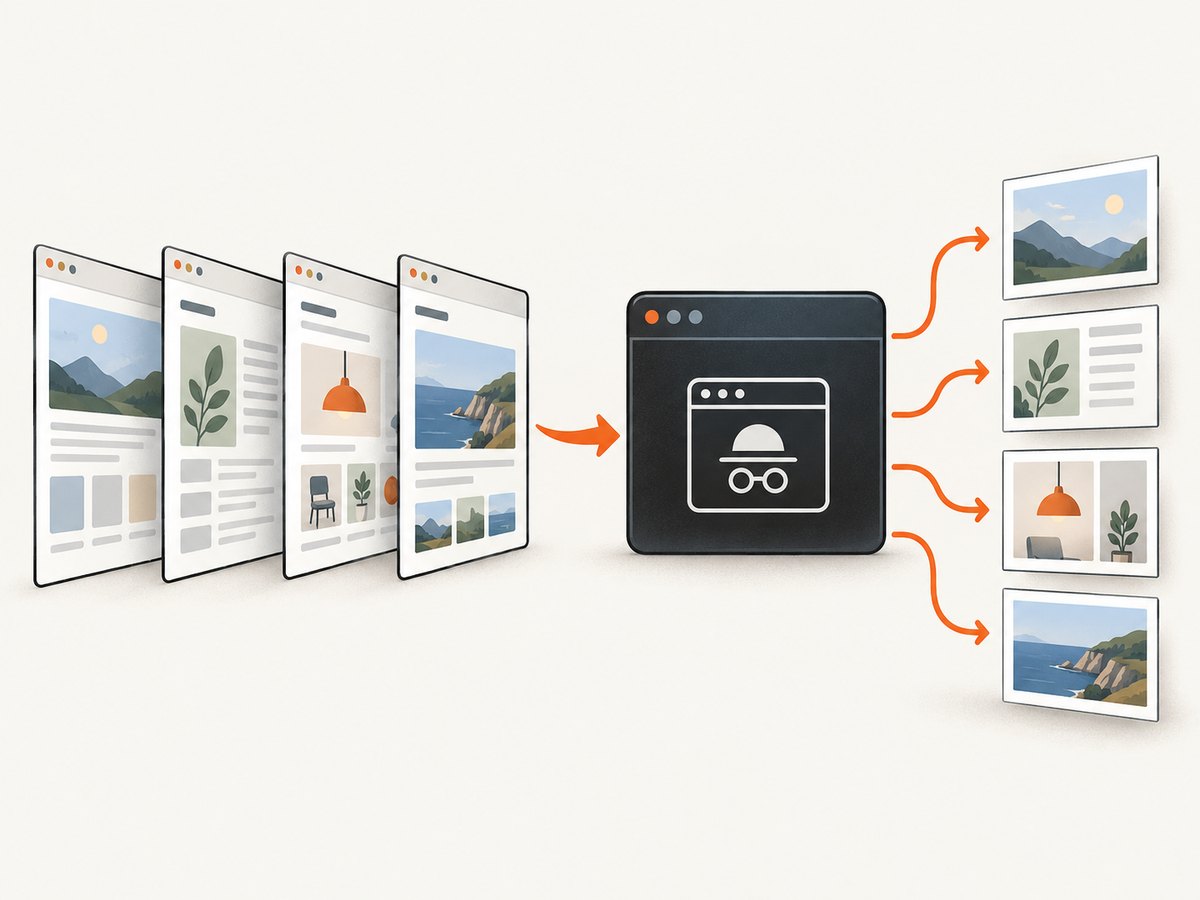
To screenshot multiple HTML pages with PhantomJS, put each page URL and output filename in a list, then process that list sequentially. For each item, create a webpage, call page.open(), check its status, and call page.render() after a successful load. This reuses the documented single-page workflow; the multi-page loop below is an implementation pattern rather than an official PhantomJS batch example.
Maintenance note: PhantomJS is a legacy option. The official project homepage says, “Important: PhantomJS development is suspended until further notice,” and its CLI documentation describes release 2.1.1. Modern websites may not render as they do in current browsers, and the reviewed documentation does not establish present-day compatibility. If you are maintaining an existing workflow, the script below shows the pattern. For a new workflow, assess compatibility against your target pages before relying on it.
1. Install and prepare a URL list
Install PhantomJS using the distribution appropriate to your environment, then check that the phantomjs command is available. The CLI reference applies to PhantomJS 2.1.1. Keep the capture script, output directory, and URL list in a predictable location. Create the output directory before running the script; the example does not create directories automatically.
Each page should have a distinct output name. If two entries render to the same filename, the later render can overwrite the earlier one. For repeated or large batches, generate filenames from stable identifiers rather than relying on list positions alone.
2. Capture multiple pages sequentially
Save this as capture-pages.js. Replace the example URLs and filenames with your pages. The script opens one page at a time, records whether it loaded, renders only successful loads, closes the page, and moves to the next entry.
var webpage = require('webpage');
var pages = [
  { url: 'https://example.com/one', output: 'one.png' },
  { url: 'https://example.com/two', output: 'two.png' }
];
var index = 0;
var failures = 0;

function captureNext() {
  if (index >= pages.length) {
    console.log('Finished. Failed pages: ' + failures);
    phantom.exit(failures ? 1 : 0);
    return;
  }

  var item = pages[index++];
  var page = webpage.create();

  page.open(item.url, function (status) {
    if (status === 'success') {
      try {
        page.render(item.output);
        console.log('Saved ' + item.output);
      } catch (error) {
        failures++;
        console.log('Could not render ' + item.url + ': ' + error);
      }
    } else {
      failures++;
      console.log('Could not load ' + item.url + ': ' + status);
    }

    page.close();
    captureNext();
  });
}

captureNext();
Run it from the directory where you want the output files:
phantomjs capture-pages.jsThis sequence deliberately avoids opening many pages concurrently. The reviewed PhantomJS references document individual page loads and renders, but do not specify a canonical multi-page concurrency pattern. Sequential execution makes output order and resource use easier to reason about, though the overall run takes at least the sum of the page load times.
The callback status check is not a guarantee that every resource on a site loaded exactly as intended. A page can return a successful navigation while images or other resources are missing, and a failed navigation can result from connectivity, redirects, or site-side restrictions. For important captures, inspect a sample of generated files and log the URL alongside each outcome.
3. Choose the capture area and output
PhantomJS uses the filename extension passed to page.render() to determine the output format. The documented formats include PDF, PNG, JPEG, BMP, and PPM. GIF support depends on the Qt build.

- PNG: a lossless raster format suitable when preserving sharp edges and text matters.
- JPEG: a compressed raster format with a configurable quality value. The API documents a 0–100 scale and a default of 75.
- PDF: useful for document-style output. Its page layout is not the same thing as a full-page browser screenshot; verify that the result matches your intended use.
- BMP or PPM: available when a downstream workflow specifically needs those formats.
- GIF: availability depends on how PhantomJS was built with Qt.
Set page.viewportSize to control the browser viewport. Use page.clipRect when you want to capture a specific rectangle. These settings are per-page, so apply them after creating each page and before rendering:
var page = webpage.create();
page.viewportSize = { width: 1365, height: 900 };
page.clipRect = { top: 0, left: 0, width: 1200, height: 700 };
For example, to render JPEG output, use an output name ending in .jpg or .jpeg. The API exposes JPEG quality configuration; consult the API reference for the setting supported by your build. Do not assume PNG quality controls apply to other formats.
4. Add per-page settings to the batch
If different pages need different viewport sizes, clipping rectangles, or formats, put those values in the list and apply them inside the loop. This keeps the input data explicit and prevents settings from one capture being accidentally reused for another.
var pages = [
  {
    url: 'https://example.com/report',
    output: 'report.png',
    viewport: { width: 1365, height: 900 },
    clip: { top: 0, left: 0, width: 1200, height: 700 }
  },
  {
    url: 'https://example.com/printable',
    output: 'printable.pdf',
    viewport: { width: 1024, height: 768 }
  }
];

// Inside captureNext(), after webpage.create():
page.viewportSize = item.viewport || { width: 1280, height: 800 };
if (item.clip) {
  page.clipRect = item.clip;
}
Use integer dimensions and make the clip rectangle fit inside the intended viewport. A clip rectangle is a crop of the rendered area, not an instruction to capture every element on a long document. The official screen-capture guide documents viewport and clipping controls; the exact layout of a modern site can still depend on its scripts, fonts, and external resources.
5. Make batch runs easier to operate
- Validate inputs. Check that every entry has a URL and a unique output filename with a supported extension.
- Keep a manifest. Preserve the mapping from URL to output and record load/render failures. This makes reruns and reviews straightforward.
- Use a stable working directory. Relative output paths are resolved by the process environment, so run the script consistently or use absolute paths.
- Start with a small batch. Confirm formats, dimensions, and content on representative pages before processing a long list.
- Separate retries. Save failed URLs for a later run rather than silently repeating every successful capture.
For very large lists, split the input into batches and monitor available disk space. Each image consumes storage, while PDF file size and rendering behavior depend on page content and format. The supplied PhantomJS references do not establish throughput benchmarks or a reliable timeout strategy for current sites, so measure your own workload and treat hung pages as an operational risk.
6. Troubleshooting common problems
| Symptom | Likely cause | What to do |
|---|---|---|
Could not load …: fail |
The page navigation did not succeed, or the host/network rejected or interrupted it. | Check the URL from the same machine, verify DNS and network access, and retry that URL separately. Keep the failure in the run log. |
| No output file appears | The script ran from a different working directory, the destination directory is missing, or the render step was skipped after a failed load. | Use an existing output directory, confirm the current working directory, and check the logged status before looking for the file. |
| One image replaces another | Two entries share the same output path. | Give every entry a unique filename, preferably derived from a stable page identifier. |
| The capture is cropped or the wrong size | The viewport or clip rectangle does not match the desired region. | Review viewportSize and clipRect, then recapture one page to confirm dimensions. |
| Modern layout differs from a normal browser | PhantomJS is a suspended legacy project based on QtWebKit; the reviewed sources do not promise compatibility with current sites. | Check the page in the intended PhantomJS build. If the workflow requires current browser behavior, use a maintained browser automation path or a hosted rendering service. |
| GIF output does not work | GIF support depends on the Qt build. | Use a documented format such as PNG or JPEG unless you have confirmed GIF support in the installed build. |
| The script stops before completing the list | An unexpected runtime error or process termination interrupted the callback chain. | Check the console output and process exit status, reduce the batch to isolate the entry, and rerun only missing captures. |
7. Performance, reliability, and cost
Sequential capture trades speed for a simple and conservative execution model: only one page is open at a time, and each page is closed before the next begins. A slow or nonresponsive page can delay the remaining queue. The reviewed references demonstrate the open callback and render operation but do not define a canonical timeout, retry, or concurrency system for a batch, so avoid claiming that this sample guarantees bounded run time.
Reliability depends on more than the script: site availability, network access, external assets, and PhantomJS’s old rendering engine all affect the result. Record per-page status and inspect outputs. For repeatable archives, retain the URL manifest, capture date, script version, and output format alongside the files.
Local PhantomJS has no per-screenshot service charge in the supplied research, but it still uses compute time, maintenance effort, and storage. Hosted rendering can reduce browser setup work, but the dossier does not provide comparative pricing or terms for PhantomJsCloud. Check a provider’s current documentation and pricing directly before choosing it.
Or skip the browser setup
ScreenshotNeo is a website screenshot API and MCP server. One GET request returns a PNG, JPEG, WebP, or PDF. Its clean-shot flow accepts cookie or consent banners like a visitor and removes more than 60 known consent platforms, newsletter popups, and chat widgets; each step can be turned off. Bot checks and CAPTCHAs, blank pages, timeouts, failed loads, and cache hits cost nothing, and responses identify the page verdict and billing status in headers. An MCP server provides take_screenshot, get_page_info, and capture_pdf tools for Claude, Cursor, and other MCP clients. The free plan includes 1,000 shots per month without a card; paid plans start at $5 for 3,000.
Example cURL request:
curl -G "https://api.screenshotneo.com/v1/shot" -d access_key=YOUR_API_KEY --data-urlencode url=https://stripe.com -o shot.webpPython:
import requests

r = requests.get(
    "https://api.screenshotneo.com/v1/shot",
    params={"access_key": "YOUR_API_KEY", "url": "https://stripe.com"},
    timeout=90,
)
open("shot.webp", "wb").write(r.content)
Node.js:
const q = new URLSearchParams({ access_key: 'YOUR_API_KEY', url: 'https://stripe.com' });
const res = await fetch(`https://api.screenshotneo.com/v1/shot?${q}`);
See the ScreenshotNeo API documentation for request options and setup. Sign up for 1,000 free screenshots a month, with no card required.
8. FAQ
Can PhantomJS save several pages in one script?
Yes. The example iterates through a URL/output list and performs the documented single-page open and render operations for each entry.
Does a successful load status prove the screenshot is complete?
No. It reports the navigation callback status. Inspect captures when missing assets or page behavior would affect your use case.
Can I run pages in parallel?
The reviewed references do not provide a canonical multi-page concurrency pattern. The example uses sequential processing so it does not depend on undocumented concurrency behavior.
Is PhantomJS suitable for a new production workflow?
It may suit a constrained legacy workflow, but its development is suspended. Check compatibility with your actual target pages before adopting it for new production work.
References
- PhantomJS project homepage — project maintenance notice.
- PhantomJS screen capture guide — viewport, clipping, and capture workflow.
- PhantomJS WebPage.open API — page opening and callback status.
- PhantomJS WebPage.render API — output rendering.
- PhantomJS viewportSize API and clipRect API.
- PhantomJS API reference — render options and documented formats.
- PhantomJS CLI documentation — applies to release 2.1.1.
- PhantomJsCloud — hosted page rendering and automation information.


