Why PhantomJS Does Not Render Pages and How to Fix It
Diagnose PhantomJS blank, failed, transparent, and incomplete screenshots with status checks, network logs, readiness waits, and fixes.

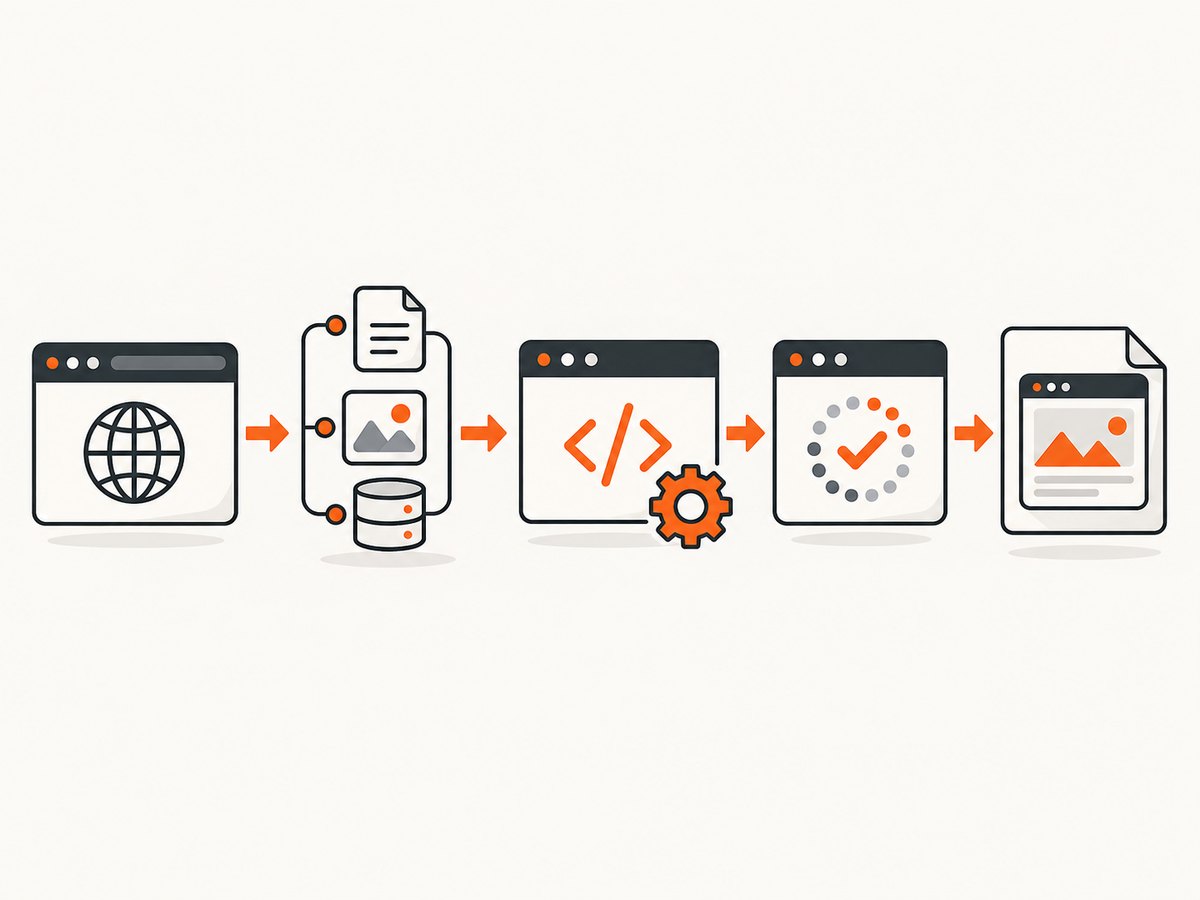
PhantomJS usually fails to render a useful screenshot for one of four reasons: navigation failed, a dependency such as TLS, proxy, script, image, or stylesheet failed, JavaScript content was not ready when page.render() ran, or the page rendered with a transparent background. Start by checking the status returned by page.open(), then enable request and JavaScript-error logging. PhantomJS is archived, so treat its documentation as legacy guidance and verify behavior against the version installed in your environment.
What “does not render” means
Separate the symptom before changing code:
| Symptom | Likely cause | First check |
|---|---|---|
page.open returns fail |
DNS, network, TLS, proxy, certificate, timeout, or blocked host | Print status and resource requests |
| Image is blank or partly populated | Render happened before asynchronous content, fonts, or images were ready | Wait for a page-specific selector or state |
| Image is transparent | The document did not set a background color | Set a CSS background for raster output |
| Layout is wrong or widgets are missing | JavaScript error, disabled JavaScript, unsupported browser API, or failed third-party request | Enable page.onError, verify javascriptEnabled, inspect resources |
| Script hangs | A request never finishes or the script never calls phantom.exit() |
Set a resource timeout and always exit |
Minimal working render script
The quick-start pattern is deliberately small: create a page, open the URL, render only after a successful status, and exit the PhantomJS process. The project documentation warns that the process will not terminate unless phantom.exit() is called. See the PhantomJS quick start and page.open API.
var page = require('webpage').create();
page.open('https://example.com', function (status) {
  console.log('Status: ' + status);
  if (status === 'success') {
    page.render('example.png');
  }
  phantom.exit();
});
Run it with phantomjs render.js. A success status means the top-level navigation completed; it does not prove that asynchronous data, images, or third-party widgets are ready.
Diagnostic workflow
1. Confirm the executable and version
which phantomjs
phantomjs --version
phantomjs --help | head
Multiple binaries are common on older build machines. Check the path printed by which and compare it with the version expected by your deployment image. The official troubleshooting guide calls out version confusion.
2. Log navigation, resources, and page errors
var page = require('webpage').create();
page.settings.resourceTimeout = 15000;

page.onError = function (msg, trace) {
  console.log('[page error] ' + msg);
  trace.forEach(function (item) {
    console.log('  ' + item.file + ':' + item.line);
  });
};

page.onResourceRequested = function (request) {
  console.log('[request] ' + request.method + ' ' + request.url);
};

page.onResourceError = function (error) {
  console.log('[resource error] ' + error.errorCode + ' ' + error.errorString + ' ' + error.url);
};

page.onResourceTimeout = function (request) {
  console.log('[resource timeout] ' + JSON.stringify(request));
};

page.open('https://example.com', function (status) {
  console.log('[open] ' + status);
  if (status === 'success') {
    page.render('debug.png');
  }
  phantom.exit();
});
These callbacks mirror the examples in the official troubleshooting guide. A failed stylesheet or script can explain a broken-looking image even when the main URL reports success.
3. Check HTTPS, proxy, and host access
If HTTP works but HTTPS fails, inspect the SSL libraries available to the PhantomJS binary. The project’s troubleshooting guidance identifies OpenSSL installation as an initial check. Verify DNS and connectivity from the same machine or container:
getent hosts example.com
curl -I https://example.com
openssl s_client -connect example.com:443 -servername example.com
On Windows, PhantomJS documents proxy settings as a possible cause and describes --proxy-type=none for the affected setup. Apply that only after confirming a proxy is the problem. On SELinux-enabled systems, review audit logs: a policy can prevent the process from reading libraries or opening network connections.
4. Verify JavaScript and resource timeout settings
page.settings.javascriptEnabled defaults to true. If another script disabled it, frameworks cannot hydrate and dynamic sections stay empty. Set settings before page.open(); the resource timeout applies to requests made during navigation.
var page = require('webpage').create();
page.settings.javascriptEnabled = true;
page.settings.resourceTimeout = 20000;
page.open('https://example.com', function (status) {
  console.log(status);
  phantom.exit();
});
A timeout is not a readiness signal. It only bounds an individual request. Log the timed-out URL and decide whether that dependency is required for the screenshot.
Waiting for dynamic pages
Do not use a universal sleep and assume it works for every site. Pick a condition tied to the content you need: a result element exists, a loading class disappears, or an application flag becomes true. This helper polls for a selector and fails clearly when it never appears.
var page = require('webpage').create();
var system = require('system');
var target = system.args[1] || 'https://example.com';
var selector = system.args[2] || '#app-ready';
var started = Date.now();
var maxWait = 15000;

function finish(code) {
  phantom.exit(code || 0);
}

page.open(target, function (status) {
  console.log('open: ' + status);
  if (status !== 'success') { finish(1); return; }

  var timer = setInterval(function () {
    var ready = page.evaluate(function (css) {
      return !!document.querySelector(css);
    }, selector);
    if (ready) {
      page.render('ready.png');
      clearInterval(timer);
      finish(0);
    } else if (Date.now() - started > maxWait) {
      console.log('Timed out waiting for ' + selector);
      clearInterval(timer);
      finish(2);
    }
  }, 250);
});
For pages without a reliable selector, use a short delay as a last resort and document why it is sufficient. Check image dimensions or an app-specific loaded flag inside page.evaluate() when available.
Fixing transparent or blank-looking output
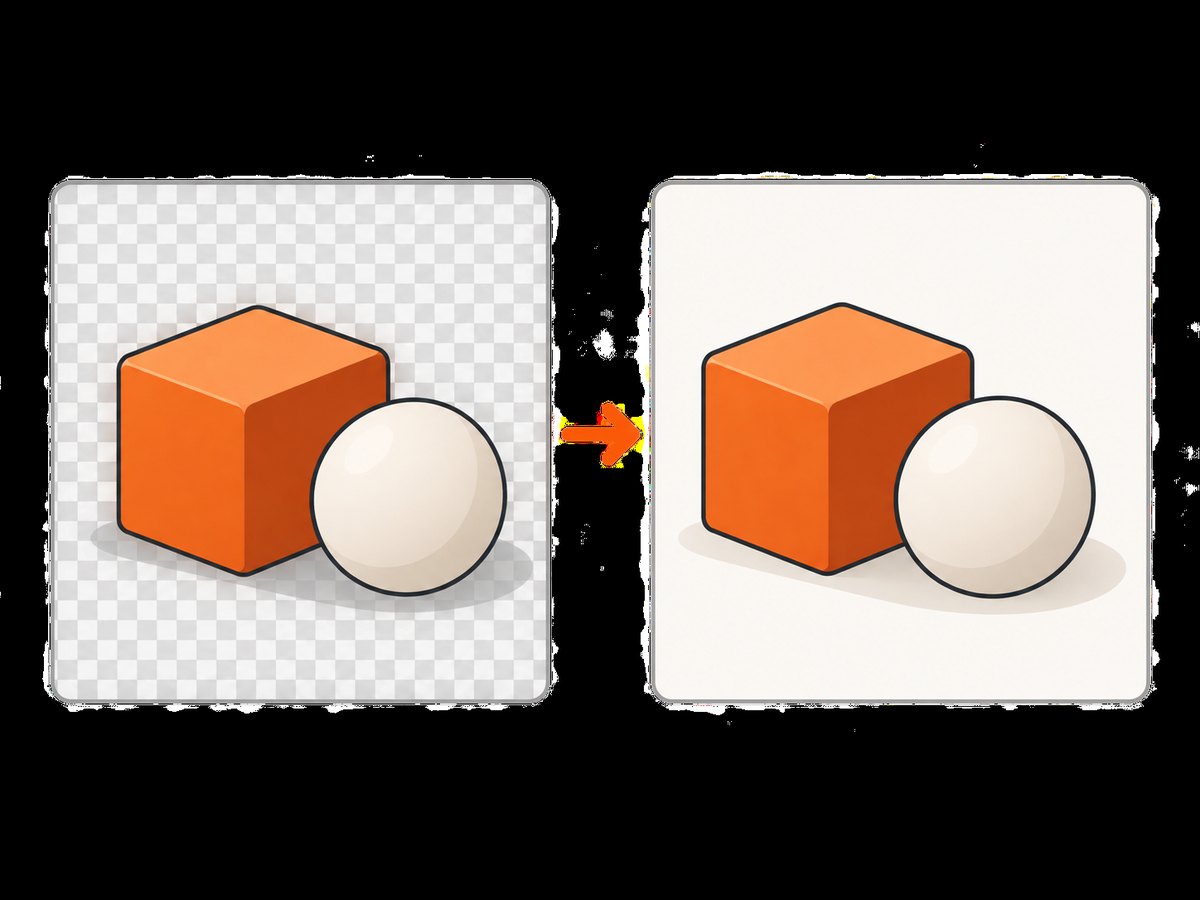
PhantomJS leaves the page background transparent when the document sets no background. The FAQ describes this as expected behavior. Add an explicit background in the page itself, or inject a temporary style before rendering:
page.evaluate(function () {
  var style = document.createElement('style');
  style.textContent = 'html, body { background: #ffffff !important; }';
  document.documentElement.appendChild(style);
});
page.render('opaque.png');
If the file is opaque but still appears white, inspect DOM dimensions and the screenshot viewport. A zero-height root element, an off-screen app shell, or CSS that hides content can produce an apparently blank image.
Common errors and precise fixes
| Error or symptom | Cause | Fix |
|---|---|---|
open: fail |
Navigation or a required network layer failed | Log resources; test DNS and TLS; verify proxy and firewall; retry from the same host |
| HTTPS only fails | Missing or incompatible SSL libraries | Check OpenSSL dependencies and linked libraries |
ReferenceError or framework exception |
Page JavaScript failed | Use page.onError; fix the page error or provide a compatible build |
| Content appears after the screenshot | Render ran before app hydration | Poll for a required selector or readiness flag |
| Images or fonts missing | Requests failed, were blocked, or timed out | Inspect onResourceError and onResourceTimeout; allow the host and increase timeout only when justified |
| Transparent PNG | No document background | Set an explicit CSS background before rendering |
| Process never exits | Missing phantom.exit() or uncleared timer |
Call exit on success and every failure path; clear polling timers |
| Works locally, fails in CI | Different binary, proxy, SELinux policy, fonts, or environment | Print version and path, compare dependencies, and capture diagnostic logs |
Remote debugging when logs are not enough
Launch PhantomJS with its documented remote debugger and inspect the page using a compatible WebKit-based browser:
phantomjs --remote-debugger-port=9000 render.jsUse this to inspect the DOM after navigation, computed styles, and the script that failed. Keep the debugger port inside a trusted debugging environment.
Reliability, performance, and maintenance
- Fail closed. Treat anything except
successas a capture failure and return a non-zero process code. - Bound every wait. Resource and selector timeouts prevent a hung worker from exhausting your queue.
- Keep diagnostics. Record the PhantomJS version, URL, status, failed resource URLs, and page errors with each failed job.
- Reduce page work. Disable optional analytics in a controlled test environment, avoid unnecessary waits, and capture only after required content is ready.
- Expect compatibility limits. PhantomJS is an archived WebKit-based runtime; modern JavaScript and TLS behavior may not match current browsers. The GitHub repository is archived and read-only; archive metadata shows May 30, 2023.
Because there is no current PhantomJS release stream, budget time for replacing scripts when a target site adopts browser features PhantomJS cannot execute. Keep a small fixture page in CI so version or dependency changes fail visibly.
Or skip the browser setup
If you need a screenshot endpoint instead of maintaining a legacy browser, ScreenshotNeo accepts one GET request and returns PNG, JPEG, WebP, or PDF. Cookie and consent banners are accepted and removed before capture, along with 60+ known consent platforms, newsletter popups, and chat widgets. Bot checks, blank pages, failed loads, timeouts, and cache hits are not billed; response headers identify the page verdict and whether the shot was billed. Its MCP server gives Claude, Cursor, and other MCP clients take_screenshot, get_page_info, and capture_pdf tools.
See the ScreenshotNeo API documentation for all options. This one-call example captures a WebP image:
curl -G "https://api.screenshotneo.com/v1/shot" -d access_key=YOUR_API_KEY --data-urlencode url=https://stripe.com -o shot.webpimport requests
r = requests.get("https://api.screenshotneo.com/v1/shot", params={"access_key": "YOUR_API_KEY", "url": "https://stripe.com"}, timeout=90)
open("shot.webp", "wb").write(r.content)const q = new URLSearchParams({ access_key: 'YOUR_API_KEY', url: 'https://stripe.com' });
const res = await fetch(`https://api.screenshotneo.com/v1/shot?${q}`);It also supports full-page capture with lazy images loaded, CSS-element capture, dark mode, device presets or custom viewports, retina scale, PDF paper and page-range controls, custom CSS and JavaScript, clicks, selector waits, delays, network-idle waits, request blocking, headers, cookies, user agents, Authorization, timezone, geolocation, transparent backgrounds, resizing, configurable caching, signed links, async webhooks, bulk capture of up to 100 URLs per call, usage reporting, and an OpenAPI spec. Parameter names used by other screenshot APIs are accepted to ease migration.
Plans include 1,000 screenshots each month free with no card; paid plans start at $5 for 3,000. Create a free ScreenshotNeo account to get started.
FAQ
Why does page.open return fail for a URL that works in my browser?
The PhantomJS process may have different DNS, proxy, TLS libraries, certificates, firewall rules, or user-agent behavior. Reproduce from the same machine and inspect resource logs.
Is a successful status proof that the page is ready?
No. It reports top-level navigation success. Wait for the application-specific content required in the image.
How do I make a PhantomJS screenshot non-transparent?
Set an explicit CSS background on html and body, or inject one before page.render().
Should I increase the timeout indefinitely?
No. Set a bounded timeout, identify the slow or failed dependency, and decide whether that resource is essential.
Where can I inspect PhantomJS settings?
Use the legacy webpage settings documentation and verify each behavior against your installed binary.


