How PhantomJS CSS Defaults Affect PDFs and How to Reproduce Them in Puppeteer
Migrate PhantomJS PDFs by identifying the settings that shape page geometry and making Puppeteer’s print behavior explicit.

To reproduce a PhantomJS PDF in Puppeteer, first identify the legacy job’s actual page geometry, CSS, media assumptions, assets, and browser build. Then set Puppeteer’s PDF options explicitly and compare both outputs using the same fixed HTML fixture. PhantomJS documentation describes PDF page-size and margin controls; it does not define a universal PhantomJS CSS reset or promise particular body, heading, font, or list defaults. Puppeteer prints with print CSS by default, uses Letter when no format is set, and does not print background graphics unless requested. Those differences can change a PDF even when the HTML is unchanged.
The practical goal is controlled reproduction, not an assumed one-click compatibility mode. Record the old output, pin both browser environments, translate documented geometry settings, and adjust page CSS only after comparing results.
1. What “PhantomJS CSS defaults” means for a PDF
The phrase can suggest that PhantomJS defines a special CSS stylesheet for PDFs. The reviewed PhantomJS documentation does not establish such a stylesheet or enumerate all user-agent rules. It documents paperSize for PDF page geometry and page.render as an output operation that supports PDF. A particular legacy PDF’s body margin, heading sizes, font choice, or list indentation can come from the page’s own CSS, the browser’s user-agent stylesheet, loaded fonts, the WebKit build, or the print pipeline. Inspect the real legacy environment before calling any of those a PhantomJS default.
paperSize is the documented control for page dimensions and margins. When it is omitted, the page defines the size. Supported units include mm, cm, in, and px; a unitless size is treated as pixels. Its optional margin defaults to zero, and orientation defaults to portrait. Supported named paper formats include A3, A4, A5, Legal, Letter, and Tabloid. Headers and footers can also be configured. These are PDF-generation controls, not a CSS reset.
PhantomJS’s separate page.render API renders to a file, with output format selected automatically from the file extension. Choosing a PDF extension does not itself set page geometry; use the documented page-size configuration for that.
2. Puppeteer’s PDF behavior that can change the result
Puppeteer’s Page.pdf() uses the print CSS media type by default. If the old workflow was based on screen styles, call page.emulateMediaType('screen') before creating the PDF. This choice affects rules inside @media print and @media screen, as well as stylesheets that respond to media.
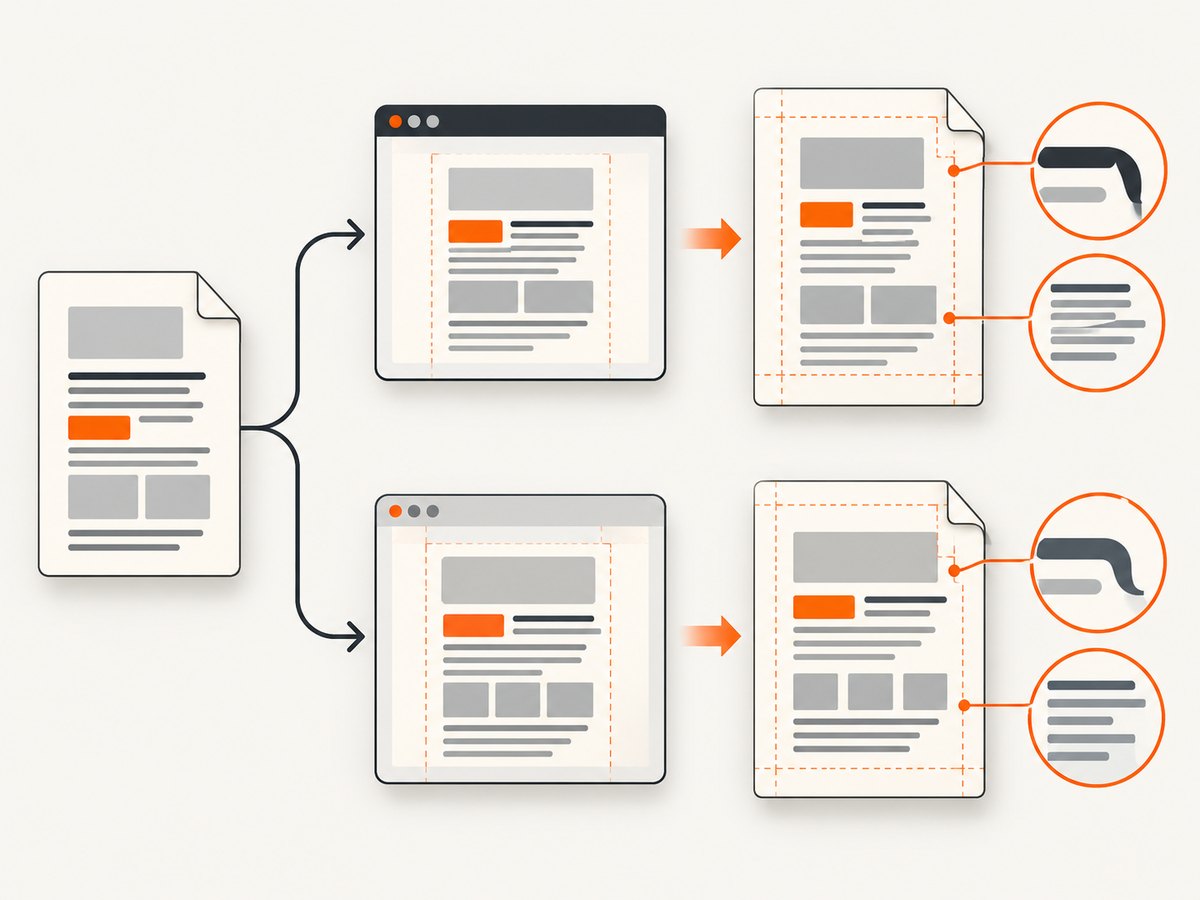
Several PDF options deserve explicit values during migration:
| Setting | Puppeteer default | Migration decision |
|---|---|---|
format |
Letter | Set the legacy paper format, or use explicit width and height. |
margin |
No margins set | Set all four sides to match the old job or CSS page rules. |
printBackground |
false |
Set true if the reference contains background colors or images. |
preferCSSPageSize |
false |
Set true when CSS @page size should take precedence over API paper settings. |
scale |
1 |
Keep at 1 initially; document and justify any scale used to match legacy output. |
waitForFonts |
true |
Keep font waiting enabled and make sure the expected font files can load. |
With preferCSSPageSize false, Puppeteer scales content to fit the chosen paper size when needed. Its print pipeline also modifies colors by default. When exact color reproduction matters, the Puppeteer documentation points to -webkit-print-color-adjust; background graphics still require printBackground: true.
These behaviors are documented in Puppeteer’s Page.pdf API, PDFOptions, and PDF generation guide. PhantomJS geometry and render behavior are documented in its archived paperSize property and render method references. The PhantomJS documentation is archived; Puppeteer’s current documentation can differ from the version installed in an older project. Pin and record the actual versions used.
3. Record the legacy output before changing code
- Keep a reference PDF. Save a representative output from the actual production or migration environment. Record the PhantomJS version and Qt/WebKit build if known.
- Capture inputs. Preserve the HTML, CSS, linked images, font files, headers, cookies, viewport assumptions, and any JavaScript that modifies the page before rendering.
- Write down PDF settings. Save the exact
paperSizeobject, including named format or dimensions, units, orientation, margins, and header/footer configuration. - Measure the reference. Note page width and height, orientation, margins, number of pages, break positions, and whether background colors appear.
- Pin the replacement environment. Record Puppeteer and its Chromium version. Browser version changes can affect layout and rendering, so version data belongs with the fixture.
Do not infer legacy settings from the appearance of one page. For example, apparent white space may come from CSS, a zero-margin paper configuration combined with body padding, or a print stylesheet. Inspect the inputs and the generated PDF together.
4. Runnable Puppeteer migration example
This Node.js example loads a local HTML file, waits for fonts, chooses A4 and explicit margins, prints backgrounds, and saves a PDF. Replace the paper format and margins with values from the reference job. The example assumes Puppeteer is installed in the project and the HTML and its assets can be loaded by Chromium.
const puppeteer = require('puppeteer');
const path = require('node:path');

(async () => {
  const browser = await puppeteer.launch({ headless: true });
  try {
    const page = await browser.newPage();
    await page.setViewport({ width: 1280, height: 900, deviceScaleFactor: 1 });
    await page.goto(`file://${path.resolve('fixture.html')}`, {
      waitUntil: 'networkidle0',
      timeout: 30000,
    });

    // Keep print media unless the old job intentionally used screen styles.
    // For screen styles instead, uncomment the next line:
    // await page.emulateMediaType('screen');

    await page.evaluate(() => document.fonts.ready);
    await page.pdf({
      path: 'output.pdf',
      format: 'A4',
      landscape: false,
      printBackground: true,
      preferCSSPageSize: false,
      scale: 1,
      waitForFonts: true,
      margin: {
        top: '12mm',
        right: '12mm',
        bottom: '12mm',
        left: '12mm',
      },
    });
  } finally {
    await browser.close();
  }
})();
For a browser-side page-size rule, define it deliberately and coordinate it with preferCSSPageSize:
@page {
  size: A4 portrait;
  margin: 12mm;
}

html {
  -webkit-print-color-adjust: exact;
}

@media print {
  body { margin: 0; }
  .page-break { break-before: page; }
}
The CSS above is a starting point, not a PhantomJS compatibility stylesheet. Set body spacing, typography, line-height, colors, backgrounds, and break rules to what the application needs and what the reference shows. If both API margins and CSS page margins are configured, verify which settings take effect with the selected page-size precedence rather than assuming they combine in a particular way.
5. Translate settings and compare in a fixed order
Use the following sequence to isolate causes instead of changing several variables at once:

- Match paper geometry. Translate the legacy named format or dimensions, orientation, and margins into
formatorwidth/height,landscape, andmargin. If CSS@pagecontrols dimensions, setpreferCSSPageSize: true. - Match the media type. Start with Puppeteer’s print default. Use screen media only when the legacy job’s appearance depended on screen styles.
- Match backgrounds and color. Enable
printBackgroundwhen appropriate and set print color adjustment in CSS for exact colors. - Match fonts and assets. Confirm URLs resolve in the replacement environment. Wait for fonts and images that determine layout.
- Match layout CSS. Make body margins, heading and text typography, list spacing, table widths, and page-break behavior explicit when they affect the fixture.
- Compare output. Check dimensions and margins first, then page count and break locations, then wrapping and representative element positions. Change one relevant setting at a time and retain the comparison artifact.
- Keep it repeatable. Turn the fixture and its environment notes into regression coverage. Re-run it when browser versions, fonts, CSS, or PDF options change.
This is a recommended engineering procedure based on documented controls, not a claim that a particular migration has been tested or that the engines produce pixel-identical output. Text wrapping can differ because of font availability or browser layout even after page geometry matches.
6. Edge cases to check
- CSS page size and API format disagree: choose a source of truth. With
preferCSSPageSize: true, CSS@pagesize takes priority; otherwise content is fitted to the API paper size. - Zero margins are not zero whitespace: PhantomJS’s documented margin default is zero, but the page can still have body margin, padding, header/footer space, or other layout spacing.
- Remote fonts load late or fail: a fallback font changes glyph widths and line breaks. Check network access and font readiness; do not assume the PDF call will repair a missing font.
- Images or scripts arrive after navigation: network idle can be unsuitable for pages with persistent requests, while a fixed delay can be too short. Wait for a meaningful selector or asset-ready condition when needed.
- Long content crosses page boundaries: inspect break rules, table rows, headings, and elements that should stay together. A matching page size alone will not reproduce pagination.
- Color differs despite matching CSS: print color adjustment and omitted background printing can affect output. Check both the CSS and PDF option.
- Headers and footers: PhantomJS supports configurable header/footer contents. Rebuild them explicitly in the Puppeteer flow or page markup and compare their reserved space; do not expect a format setting to recreate them.
- Viewport-dependent content: scripts and responsive CSS can depend on viewport dimensions even though the output is paginated. Set the viewport used before navigation and record it.
7. Troubleshooting common migration failures
| Symptom | Likely cause | Fix |
|---|---|---|
| Every page is the wrong size | Letter default, mismatched CSS @page, or wrong units. |
Set format or dimensions explicitly; check preferCSSPageSize and CSS page size. |
| Unexpected whitespace at page edges | CSS body spacing, API margins, or header/footer area. | Inspect each source separately; set margins explicitly and inspect computed page CSS. |
| Backgrounds disappear | printBackground remains false. |
Enable it and check that the relevant CSS actually defines a background. |
| Colors look washed out or different | Print color adjustment changes colors. | Use -webkit-print-color-adjust: exact where fidelity is required, then inspect the result. |
| Fonts or line wrapping differ | Font did not load, a fallback was used, or a different browser/font environment is active. | Verify font requests and files, wait for fonts, and pin the environment. |
| Page count increased or decreased | Different geometry, font metrics, media CSS, scale-to-fit, or break rules. | Compare in order: paper and margins, media, fonts, then pagination CSS. |
| PDF has screen-only layout or missing print rules | Media type differs from the intended legacy behavior. | Use print by default or explicitly emulate screen before page.pdf(). |
| Navigation hangs on network idle | Persistent network activity prevents the chosen readiness condition. | Wait for a specific element or application-ready signal, with a bounded timeout. |
8. Performance, reliability, and cost
PDF generation cost in a self-managed Puppeteer workflow is primarily the browser process, CPU and memory used to load and lay out the page, fonts and assets, and the time required to generate and store the file. This dossier provides no benchmark or price comparison, so size your worker using representative documents and your own infrastructure costs. Reuse browser processes where your application’s lifecycle and isolation requirements allow, but use separate pages for concurrent jobs and close pages reliably. Bound navigation and job timeouts, handle browser crashes, and record the input URL or fixture version and the PDF settings for each job.
For repeatable output, pin Puppeteer/Chromium and font dependencies, make external assets stable or self-host them, and avoid relying on live third-party content for regression fixtures. Capture failures distinctly: navigation timeout, missing asset, PDF creation error, and validation mismatch need different remedies. A fixed fixture should cover long text, custom fonts, backgrounds, and page breaks relevant to the application.
Or skip the browser setup
If your goal is a website screenshot rather than a PDF compatibility migration, ScreenshotNeo is a website screenshot API and MCP server. It accepts one GET request and returns PNG, JPEG, WebP, or PDF. It is not a PhantomJS emulator and does not promise pixel-identical browser output. Its clean-shot flow accepts cookie or consent banners like a visitor and removes more than 60 known consent platforms, newsletter popups, and chat widgets before capture; each step can be turned off. Bot checks or CAPTCHAs, blank pages, timeouts, failed loads, and cache hits cost nothing, and response headers report the page verdict and whether the request was billed. AI agents can use its MCP server tools: take_screenshot, get_page_info, and capture_pdf.
Here is the one-call cURL form; see the ScreenshotNeo API documentation for its options:
curl -G "https://api.screenshotneo.com/v1/shot" \
  -d access_key=YOUR_API_KEY \
  --data-urlencode url=https://stripe.com \
  -o shot.webp
Python:
import requests

r = requests.get(
    "https://api.screenshotneo.com/v1/shot",
    params={"access_key": "YOUR_API_KEY", "url": "https://stripe.com"},
    timeout=90,
)
open("shot.webp", "wb").write(r.content)
Node.js:
const q = new URLSearchParams({
  access_key: 'YOUR_API_KEY',
  url: 'https://stripe.com',
});
const res = await fetch(`https://api.screenshotneo.com/v1/shot?${q}`);
if (!res.ok) throw new Error(`Screenshot request failed: ${res.status}`);
await require('node:fs/promises').writeFile('shot.webp', Buffer.from(await res.arrayBuffer()));
Use it when you want screenshots or a PDF without setting up browser capture infrastructure. Cookie banners, popups, and chat widgets are removed before the shot; bot checks, blank pages, and failed loads are never billed. The MCP server lets AI agents take screenshots. The free plan includes 1,000 screenshots a month with no card; paid plans start at $5 for 3,000. Sign up for 1,000 free screenshots a month, with no card.
9. FAQ
Does PhantomJS always put zero margin around PDF pages?
The documented optional paperSize.margin defaults to zero. That does not establish the page’s CSS spacing or prove which settings a particular legacy application used.
Should I use screen media to match PhantomJS?
Only if the legacy job rendered the screen styling. Puppeteer’s PDF default is print media; inspect the old page and output, then select the intended media explicitly.
Can Puppeteer guarantee an identical PDF?
The cited documentation describes controls, not pixel-identical equivalence between PhantomJS/WebKit and Puppeteer/Chromium. Use fixtures and compare the output under pinned versions.
Which should control page size, CSS or the Puppeteer option?
Pick one intentionally. Use preferCSSPageSize: true when CSS @page should win; otherwise set the API format or dimensions and understand that content is scaled to fit by default.


