How to Capture PhantomJS Screenshots After Logging In
Log in with PhantomJS, verify the authenticated page is ready, and render a reliable screenshot while handling cookies, redirects, and failures.

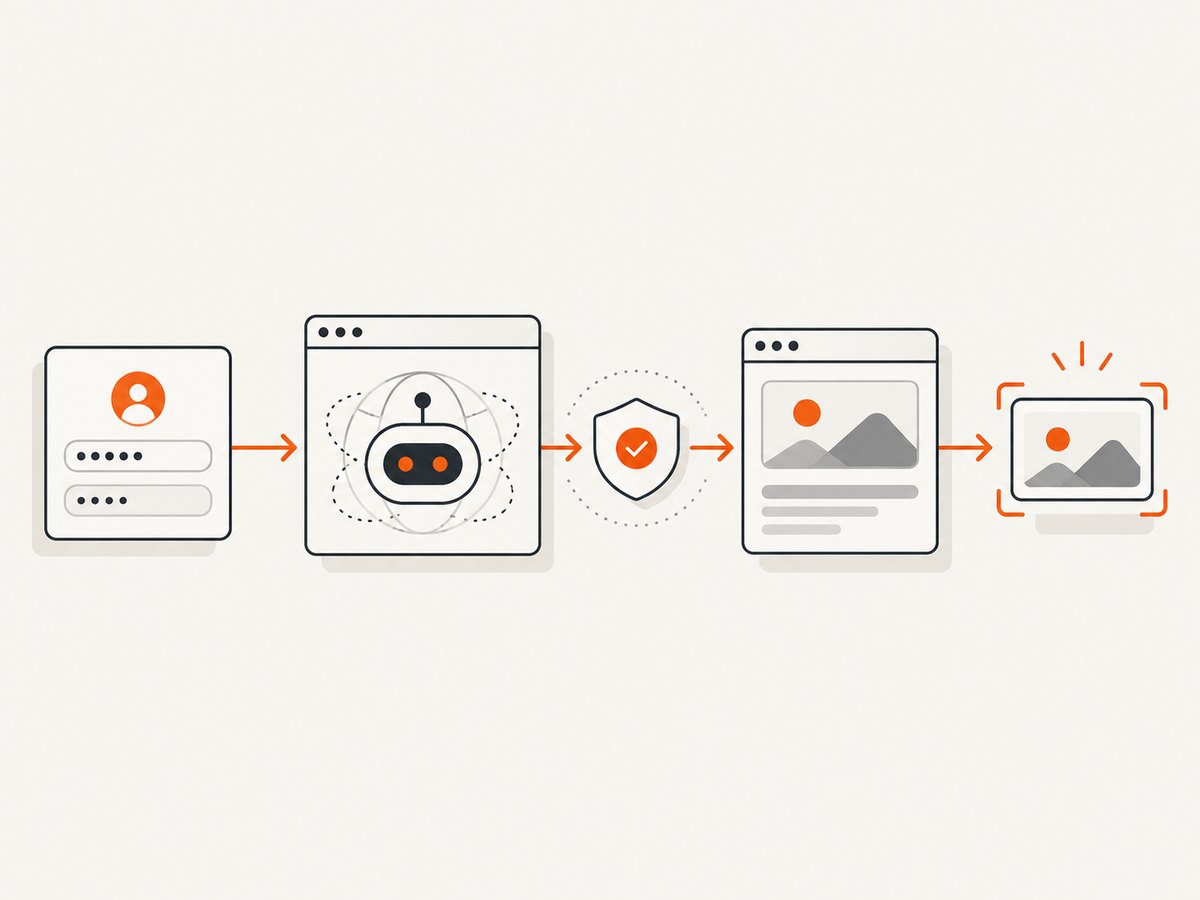
Direct answer: open the login page, submit the real form controls, wait for the site’s authenticated state, verify the URL and page content, then call page.render(). A successful page.open() callback only means the document loaded; it does not prove that login succeeded.
PhantomJS is legacy software. Its command-line documentation identifies 2.1.1 as the latest release, so verify behavior against the exact binary and website you use. The workflow below is PhantomJS-specific and uses placeholders for selectors and credentials.
1. The complete login-and-screenshot flow
- Create a
webpageobject. - Set the viewport and other page settings before the first
page.open(). - Open the login URL and stop if the callback status is not
success. - Fill the target site’s actual fields and submit its form.
- Wait for navigation or a site-specific DOM condition.
- Confirm that the current URL and authenticated content are present.
- Render only after those checks pass.
var page = require('webpage').create();
var system = require('system');

page.viewportSize = { width: 1280, height: 900 };
page.settings.userAgent = 'Mozilla/5.0 (compatible; PhantomJS screenshot job)';

var loginUrl = 'https://example.test/login';
var targetUrl = 'https://example.test/account';
var username = 'YOUR_USERNAME';
var password = 'YOUR_PASSWORD';
var output = 'authenticated.png';

function fail(message) {
  console.log(message);
  phantom.exit(1);
}

page.open(loginUrl, function (status) {
  if (status !== 'success') {
    fail('Could not load login page: ' + status);
    return;
  }

  var submitted = page.evaluate(function (user, pass) {
    var userField = document.querySelector('#username');
    var passField = document.querySelector('#password');
    var form = document.querySelector('form');

    if (!userField || !passField || !form) {
      return false;
    }

    userField.value = user;
    passField.value = pass;
    userField.dispatchEvent(new Event('input', { bubbles: true }));
    passField.dispatchEvent(new Event('input', { bubbles: true }));

    if (form.requestSubmit) {
      form.requestSubmit();
    } else {
      form.submit();
    }
    return true;
  }, username, password);

  if (!submitted) {
    fail('Login selectors did not match the page');
    return;
  }

  var started = Date.now();
  var timer = setInterval(function () {
    var state = page.evaluate(function () {
      return {
        url: location.href,
        title: document.title,
        loggedInMarker: !!document.querySelector('[data-authenticated="true"], .account-home, .logout-link'),
        loginError: !!document.querySelector('.login-error, [role="alert"]')
      };
    });

    if (state.loginError) {
      clearInterval(timer);
      fail('The site reported a login error');
      return;
    }

    var navigated = state.url.indexOf('/account') !== -1;
    if (navigated && state.loggedInMarker) {
      clearInterval(timer);
      page.render(output);
      console.log('Saved ' + output + ' from ' + state.url);
      phantom.exit(0);
      return;
    }

    if (Date.now() - started > 30000) {
      clearInterval(timer);
      fail('Timed out waiting for the authenticated page');
    }
  }, 250);
});
Replace the selectors, destination path, and readiness marker with values from the real site. Do not place production credentials directly in source control; pass them through your job environment or a secret store and inject them into the script.
2. Waiting correctly after submitting credentials
Navigation-based applications
If a successful login causes a full navigation, poll location.href or use a navigation-aware callback pattern and then inspect the destination. A vendor example demonstrates typing into fields, clicking submit, and waiting for navigation, but that sequence is vendor-specific and is not a universal PhantomJS guarantee.
JavaScript-updated applications
Single-page applications may keep the same URL. Wait for a meaningful application condition instead: an account heading, logout control, authenticated data attribute, or a specific API-rendered element. A fixed delay can be useful as a fallback, but it is less reliable than checking the state you actually need.
function waitForAuthenticatedState(page, done) {
  var started = Date.now();
  var timer = setInterval(function () {
    var ready = page.evaluate(function () {
      return !!document.querySelector('.dashboard, [data-user-id], .logout-link');
    });

    if (ready) {
      clearInterval(timer);
      done(true);
    } else if (Date.now() - started > 30000) {
      clearInterval(timer);
      done(false);
    }
  }, 200);
}
page.evaluate() executes in the page context and returns simple values. It cannot transfer arbitrary host-side PhantomJS objects into the page.
3. Handling cookies and storage between runs
For a single process, logging in and rendering immediately keeps the session in the same page context. For later processes, PhantomJS documents these options:
| Option | Use | Important limitation |
|---|---|---|
--cookies-file=/path/cookies.txt |
Load and save persistent cookies | Cookie expiry, domain, path, Secure, and session-only rules still apply |
--local-storage-path=/path |
Persist LocalStorage and WebSQL data | The application may use a different origin or additional client state |
phantomjs --cookies-file=/var/lib/phantom/session.txt \
  --local-storage-path=/var/lib/phantom/storage \
  capture-login.js
The cookie API pre-populates the cookie array from the configured file for relevant domains. Persistence is not a guarantee that authentication can be reused: sessions can be deliberately short-lived, bound to a device, or represented only by client-side state. An archived 2014 issue reports one session-cookie persistence failure; treat it as an anecdote about that setup, not a rule for every site.
4. Forms, redirects, and interactive login details
- Selectors: inspect the current login page and use its actual IDs, names, or stable attributes.
- Submission: some forms require a real button click, not
form.submit(). Trigger the site’s supported behavior when validation or JavaScript listeners are involved. - Redirects: follow the final URL and reject unexpected destinations such as an error page or sign-in route.
- CSRF: let the page load its hidden token and submit it with the form; do not guess or hard-code one.
- MFA, CAPTCHA, and bot checks: the supplied evidence does not establish support for any particular identity provider, MFA flow, or CAPTCHA. Plan a separate approved authentication mechanism when the site requires interactive verification.
- Frames: if the form is inside a frame, inspect the frame document and target the correct frame context.
5. Rendering the authenticated page
The official quick start renders after a successful page load. For a logged-in capture, add your own readiness and identity checks before calling page.render().
var state = page.evaluate(function () {
  return {
    url: location.href,
    title: document.title,
    hasContent: !!document.querySelector('main .report, .dashboard')
  };
});

if (state.url.indexOf('/account') === -1 || !state.hasContent) {
  console.log('Authenticated content was not confirmed');
  phantom.exit(1);
} else {
  page.render('account.png');
  phantom.exit(0);
}
Set page.viewportSize before opening the page. Choose dimensions that match the layout you need; a narrow viewport can activate a mobile navigation path and change the authenticated DOM.
6. Troubleshooting checklist
| Symptom | Likely cause | Fix |
|---|---|---|
page.open returns fail |
DNS, TLS, network, or server failure | Log the status, verify the URL from the same host, and stop before submitting credentials. |
| Screenshot shows the login page | Submission did not occur or the wait ended too early | Check selectors, trigger the correct submit behavior, and wait for the destination state. |
| URL changed but content is unauthenticated | Redirect to an error or sign-in route | Validate both final URL and an authenticated marker before rendering. |
| Fields are empty after assignment | Framework listens for input events or replaces nodes | Dispatch input/change events, or click and type through the page’s real controls. |
| Stored cookies do not restore the session | Expired, session-only, restricted, or origin-specific state | Check cookie domain/path/expiry and LocalStorage requirements; test a fresh login. |
| Page is blank or incomplete | Rendering happened before asynchronous content settled | Wait for a content selector or application state, not only a timer. |
| TLS workaround appears necessary | Certificate validation failure | Fix the certificate or endpoint. Do not routinely disable TLS checks; ignoring SSL errors does not make the connection safe or correct. |
7. Reliability, performance, and cost considerations
- Reliability: fail closed when login status, final URL, or required content is missing. Save diagnostic logs and a failure screenshot separately if your workflow permits it.
- Performance: avoid arbitrary multi-second sleeps when a selector or URL condition can end the wait sooner. Reusing a valid session can avoid a login round trip, but only when the site’s session rules support it.
- Concurrency: use separate cookie and LocalStorage paths per account or worker to prevent sessions from overwriting one another.
- Security: protect cookie files because they can act like bearer credentials. Limit file permissions and delete expired session data.
- Cost: PhantomJS itself does not provide a hosted capture billing model in the supplied evidence. Your operational cost comes from the machine, network, and maintenance needed to run this legacy browser.
8. Or skip the browser setup
ScreenshotNeo provides a website screenshot API when you do not want to maintain PhantomJS login automation. It accepts custom headers, cookies, user agents, and Authorization values, so an approved authenticated session can be supplied to the capture request. Read the ScreenshotNeo API documentation for the current parameter set.

The basic request is:
curl -G "https://api.screenshotneo.com/v1/shot" -d access_key=YOUR_API_KEY --data-urlencode url=https://stripe.com -o shot.webpimport requests
r = requests.get(
"https://api.screenshotneo.com/v1/shot",
params={"access_key": "YOUR_API_KEY", "url": "https://stripe.com"},
timeout=90,
)
r.raise_for_status()
open("shot.webp", "wb").write(r.content)const q = new URLSearchParams({ access_key: 'YOUR_API_KEY', url: 'https://stripe.com' });
const res = await fetch(`https://api.screenshotneo.com/v1/shot?${q}`);
if (!res.ok) throw new Error(`Screenshot failed: ${res.status}`);
const buffer = Buffer.from(await res.arrayBuffer());
require('fs').writeFileSync('shot.webp', buffer);Cookie banners, newsletter popups, and chat widgets are removed before the shot. Bot checks, blank pages, failed loads, timeouts, and cache hits are not billed, and response headers report the page verdict and billing result. ScreenshotNeo also has an MCP server so Claude, Cursor, and other MCP clients can call take_screenshot, get_page_info, and capture_pdf. The Free plan includes 1,000 screenshots each month with no card; paid plans start at $5 for 3,000 shots. Create a free ScreenshotNeo account.
9. FAQ
Does a successful page.open mean I am logged in?
No. It reports document load status. Verify the post-login URL and authenticated content yourself.
Should I render immediately after clicking Submit?
No. Wait for navigation or a meaningful application-specific readiness condition.
Can I reuse PhantomJS cookies forever?
No. Cookie expiry, session-only cookies, domain/path rules, and client-side state can prevent reuse.
What PhantomJS version does this guide target?
The project command-line documentation identifies 2.1.1 as the latest PhantomJS release.
Can this guide prove MFA or CAPTCHA support?
No. The available documentation does not establish support for a particular MFA, CAPTCHA, or identity provider. Handle those flows according to the site’s approved automation policy.
Where can I automate screenshots without maintaining a browser?
Use ScreenshotNeo’s API or MCP server and provide the approved URL and authentication inputs required by the target site.


