Why PhantomJS Screenshots Differ from Browser Screenshots and How to Fix Them
PhantomJS and Chrome render pages with different engines. Align capture settings and readiness checks to make screenshots more consistent.
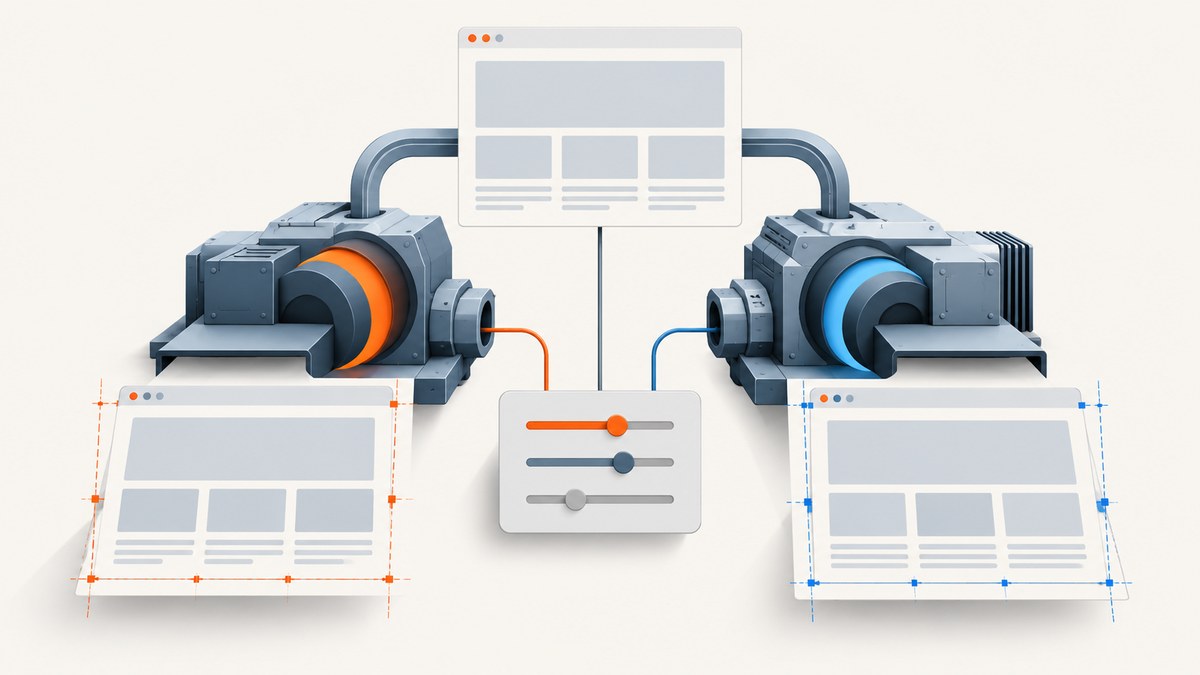
PhantomJS screenshots differ from Chrome and other current browsers because PhantomJS uses QtWebKit while Chrome uses Blink. They can lay out CSS differently, load content on different schedules, use different fonts and rasterize pixels differently. You can reduce avoidable mismatches by pinning the capture environment and making viewport, scale, crop, background and visual readiness explicit. You should not expect pixel identity between different rendering engines.
PhantomJS development is suspended, so it does not track current browser behavior. For new visual tests, use a maintained Chromium automation stack and keep its version fixed. If PhantomJS output is a contractual requirement, compare it against a PhantomJS baseline. PhantomJS’s project page states that development is suspended; its screen capture documentation describes its WebKit rendering engine.
Why PhantomJS and Chrome screenshots differ
Different rendering engines
QtWebKit and Blink are separate implementations. CSS support, SVG and WebGL behavior, media queries and layout edge cases can vary. A feature check based only on a WebKit version number is not reliable; test the feature you depend on. If you need current-browser behavior, use a maintained Chromium tool. If you need to preserve existing PhantomJS output, keep a separate baseline for that engine.
Viewport, crop and responsive layout
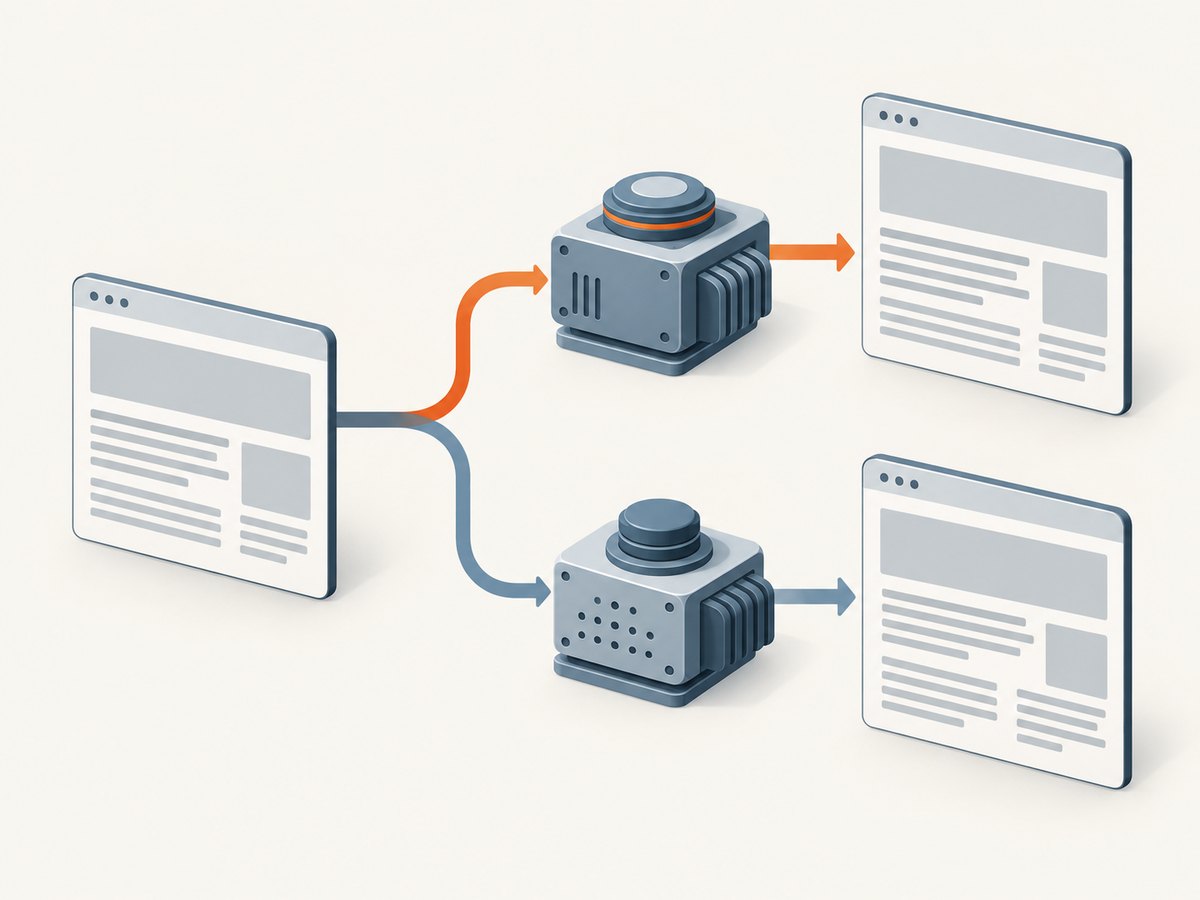
The CSS viewport determines which responsive breakpoints apply. A different viewport width can change columns, font sizes, images and navigation. The capture rectangle then determines which part of that rendered page appears in the output. PhantomJS exposes these separately as page.viewportSize and page.clipRect. Match viewport dimensions and crop bounds, and decide explicitly whether each capture is viewport-only or full-page.
Device scale, zoom and output pixels
CSS pixels and image pixels are not always the same. Device scale affects rasterization and output dimensions; zoom changes the rendered scale. Set both deliberately and compare the final PNG dimensions as well as page geometry. Puppeteer exposes a deviceScaleFactor setting, whose default is 1; do not assume another tool uses the same default.
Fonts, operating system and rasterization
A missing font can trigger a fallback with different glyph widths, changing line wraps and element heights. Even with the same font file, OS font hinting and antialiasing may alter pixels. Pin the operating system image and installed fonts in CI. Wait for web fonts to load before capturing.
Readiness and asynchronous content
JavaScript-rendered components, delayed images, web fonts, animations and lazy-loaded content may not be ready at the same moment in different engines. PhantomJS has JavaScript, image-loading and resource-timeout settings, but those do not guarantee application-level visual readiness. Wait for the content your test needs, and fail clearly when it does not appear.
Background and image pipeline
PhantomJS uses Qt’s image pipeline, and its FAQ notes that it does not set the page background color: the page determines it. A transparent page can therefore differ from a browser capture with an opaque background. Set an explicit background in the page and choose a lossless format such as PNG for pixel comparisons.
Deterministic fix procedure
- Choose the baseline engine. For new tests, prefer maintained Chromium automation. For tests whose expected result is PhantomJS output, generate and compare baselines with PhantomJS itself.
- Pin the environment. Record the browser or engine version, OS image, locale, timezone, installed fonts and capture options. Use the same environment for baseline creation and comparison.
- Set the viewport before navigation. Use the same CSS width and height in both tools. Set device scale explicitly too.
- Match zoom, crop and page extent. Define viewport-only versus full-page behavior and use equivalent clipping coordinates. Check output image dimensions.
- Wait for visual readiness. Wait for navigation, required selectors, fonts, image decoding and an application-specific ready signal. Bound the wait and treat missing content as a failure.
- Normalize page state. Disable or finish animations in test-owned pages, set a known scroll position, and stabilize time or randomness when those affect rendering. Prefer a deterministic state over an arbitrary sleep.
- Set background and format. Give the page an explicit background and use PNG for lossless comparisons. Keep transparency behavior consistent.
- Diagnose one variable at a time. Compare DOM geometry, computed styles, fonts and loaded resources, then scale and rasterization. Record the final URL and user agent, since PhantomJS request settings can affect what the page serves.

Runnable examples
These examples capture a page at a known viewport and wait for visual prerequisites. Replace the example URL, selector and dimensions with values from your test. Run PhantomJS 2.x for the legacy example; its engine remains different from current Chrome.
PhantomJS
// save as capture.js; run: phantomjs capture.js
var page = require('webpage').create();
var system = require('system');
var url = system.args[1] || 'https://example.com';

page.viewportSize = { width: 1280, height: 800 };
page.clipRect = { top: 0, left: 0, width: 1280, height: 800 };
page.settings.javascriptEnabled = true;
page.settings.loadImages = true;
page.settings.resourceTimeout = 30000;

page.onResourceTimeout = function (request) {
  console.error('Resource timed out: ' + request.url);
};

page.open(url, function (status) {
  if (status !== 'success') {
    console.error('Page navigation failed: ' + status);
    phantom.exit(1);
    return;
  }
  page.evaluate(function () {
    document.documentElement.style.zoom = '1';
    document.documentElement.style.backgroundColor = '#ffffff';
    document.body.style.backgroundColor = '#ffffff';
  });

  // Poll for fonts, images and app-owned visual readiness; fail at the deadline.
  var started = Date.now();
  var timer = setInterval(function () {
    var ready = page.evaluate(function () {
      var imagesReady = Array.prototype.every.call(document.images, function (img) {
        return img.complete;
      });
      var fontsReady = !document.fonts || document.fonts.status === 'loaded';
      return imagesReady && fontsReady && window.__VISUAL_READY__ === true;
    });
    if (ready) {
      clearInterval(timer);
      page.render('phantomjs.png');
      phantom.exit(0);
    } else if (Date.now() - started > 30000) {
      clearInterval(timer);
      console.error('Visual readiness deadline exceeded');
      phantom.exit(2);
    }
  }, 100);
});
The page under test must set window.__VISUAL_READY__ = true when its relevant content is ready. For a page you cannot change, replace that check with a condition for a required selector and define what counts as image readiness. PhantomJS support for newer browser APIs such as document.fonts varies; if the check is unsupported, use a test-owned signal or migrate the capture to Chromium.
Current Chromium with Puppeteer
// Install in a project with: npm install puppeteer
// save as capture.mjs; run: node capture.mjs
import puppeteer from 'puppeteer';

const browser = await puppeteer.launch({ headless: true });
try {
  const page = await browser.newPage();
  await page.setViewport({ width: 1280, height: 800, deviceScaleFactor: 1 });
  await page.goto('https://example.com', { waitUntil: 'domcontentloaded', timeout: 30000 });
  await page.waitForSelector('[data-visual-ready="true"]', { timeout: 30000 });
  await page.evaluate(async () => {
    if (document.fonts) await document.fonts.ready;
    await Promise.all(Array.from(document.images, img => {
      if (img.complete) return Promise.resolve();
      return new Promise(resolve => {
        img.addEventListener('load', resolve, { once: true });
        img.addEventListener('error', resolve, { once: true });
      });
    }));
    window.scrollTo(0, 0);
  });
  await page.screenshot({ path: 'chrome.png', type: 'png', fullPage: false });
} finally {
  await browser.close();
}
Use a selector your application sets only after the important visual state is ready. Waiting for networkidle alone may be unsuitable for pages with long-lived network connections, and a fixed delay can still capture too early or waste time.
Comparison checklist
- Same rendering engine and version, or separate engine-specific baselines.
- Same CSS viewport, device scale and zoom.
- Same full-page or viewport capture semantics and clip rectangle.
- Same OS image, locale, timezone and installed fonts.
- Fonts, images and JavaScript-rendered content are ready before capture.
- Known scroll position, animation state, time and random inputs.
- Explicit page background, transparency choice and image format.
- Final URL, user agent and failed or timed-out resources recorded.
Common errors and fixes
| Symptom | Likely cause | Fix |
|---|---|---|
| Text wraps differently | Viewport width, font fallback, font loading or engine layout difference. | Match CSS viewport; confirm the intended font loaded; pin OS and fonts. If engines differ, use separate baselines. |
| Elements shift or change size | Responsive breakpoint, device scale, zoom or CSS support differs. | Set viewport before navigation; set scale and zoom; inspect computed styles and the engine’s support for the CSS involved. |
| Images are missing | Capture ran before load, image loading was disabled, or a resource timed out. | Enable image loading, inspect resource errors, and wait for required images to complete. Fail if essential images are absent. |
| Web fonts appear late or fall back | Capture happened before font readiness or font request failed. | Wait for font readiness or an app-ready signal; verify the font resource and pin the same font files in CI. |
| Screenshot is transparent or has a different background | Page background is unset or the output pipeline handles transparency differently. | Set an explicit background on the document and body; compare PNG output with the same transparency expectations. |
| Screenshot dimensions do not match | CSS viewport, device scale, clip bounds or full-page mode differ. | Compare CSS dimensions and output pixel dimensions separately; align clipping and page extent. |
| Intermittent layout differences | Animations, lazy loading, asynchronous app content or unstable data. | Use a visual-ready signal, stabilize the page state, set scroll position and disable test-owned motion. |
| PhantomJS and Chrome never become pixel-identical | Engine behavior and rasterization differ persistently. | Do not tune away intrinsic engine differences. Align engines or maintain distinct baselines. |
Performance, reliability and cost
Explicit readiness conditions make captures more reliable, but waiting for every resource can be slow on pages with analytics, long-lived requests or optional content. Wait only for resources and state that matter to the screenshot, apply a bounded deadline, and report which condition failed. Avoid arbitrary long sleeps: they add latency without guaranteeing the page is ready.
Pinning an OS image, engine version and fonts reduces visual-test noise and makes regressions easier to investigate. Keep capture settings with the baseline metadata. PhantomJS is suspended, so it is a poor choice for tests intended to track current browser behavior; migrating to maintained Chromium reduces the gap between the tested engine and users’ browsers.
For a small suite, local browser automation may be enough. At scale, account for browser runtime, CI minutes, concurrency and the cost of maintaining browser images and fonts. Compare service pricing by successful captures and needed features, and check whether unsuccessful or cached requests are billable before moving a visual test pipeline.
Or skip the browser setup
ScreenshotNeo is a website screenshot API and MCP server from Yorker Media. One GET request returns an image or PDF, with settings for viewport, full-page capture, element selection, waits and other capture controls. The API parameter names used by other screenshot APIs also work, which can make switching easier. See the API documentation.
curl -G "https://api.screenshotneo.com/v1/shot" -d access_key=YOUR_API_KEY --data-urlencode url=https://example.com -o shot.webpimport requests
r = requests.get(
"https://api.screenshotneo.com/v1/shot",
params={"access_key": "YOUR_API_KEY", "url": "https://example.com"},
timeout=90,
)
r.raise_for_status()
open("shot.webp", "wb").write(r.content)const q = new URLSearchParams({ access_key: 'YOUR_API_KEY', url: 'https://example.com' });
const res = await fetch(`https://api.screenshotneo.com/v1/shot?${q}`);
if (!res.ok) throw new Error(`Screenshot request failed: ${res.status}`);
await Bun.write('shot.webp', new Uint8Array(await res.arrayBuffer()));Cookie and consent banners, newsletter popups and chat widgets are removed before capture, and each cleanup step can be turned off. Bot checks and CAPTCHAs, blank pages, timeouts, failed loads and cache hits cost nothing; response headers identify the page verdict and whether the request was billed. An MCP server gives AI agents tools to take screenshots, inspect page information and capture PDFs. The free plan includes 1,000 screenshots a month with no card; paid plans start at $5 for 3,000. Sign up free and get 1,000 screenshots a month with no card.
FAQ
Can I make PhantomJS output exactly match Chrome?
Not reliably. You can align settings and eliminate timing or environment differences, but different engines and rasterizers can still produce different pixels. Use the same engine for both captures or maintain separate baselines.
Should I keep using PhantomJS for new visual tests?
For tests meant to represent current browsers, use maintained Chromium automation. Keep PhantomJS only when compatibility with its existing output is the requirement.
Why does the mismatch happen only in CI?
CI often has different fonts, OS libraries, locale or browser version than a developer machine. Pin and record those inputs, then reproduce the capture in the same image used to generate the baseline.
Is a fixed sleep enough?
No. It may capture before content is ready or wait longer than necessary. A bounded wait for the required selector, fonts, images and application-ready signal is more dependable.


