Why PhantomJS Screenshots Have Different Dimensions and How to Fix Them
Learn why PhantomJS screenshot sizes vary, how viewportSize and clipRect interact, and how to produce consistent fixed-size or full-page captures.

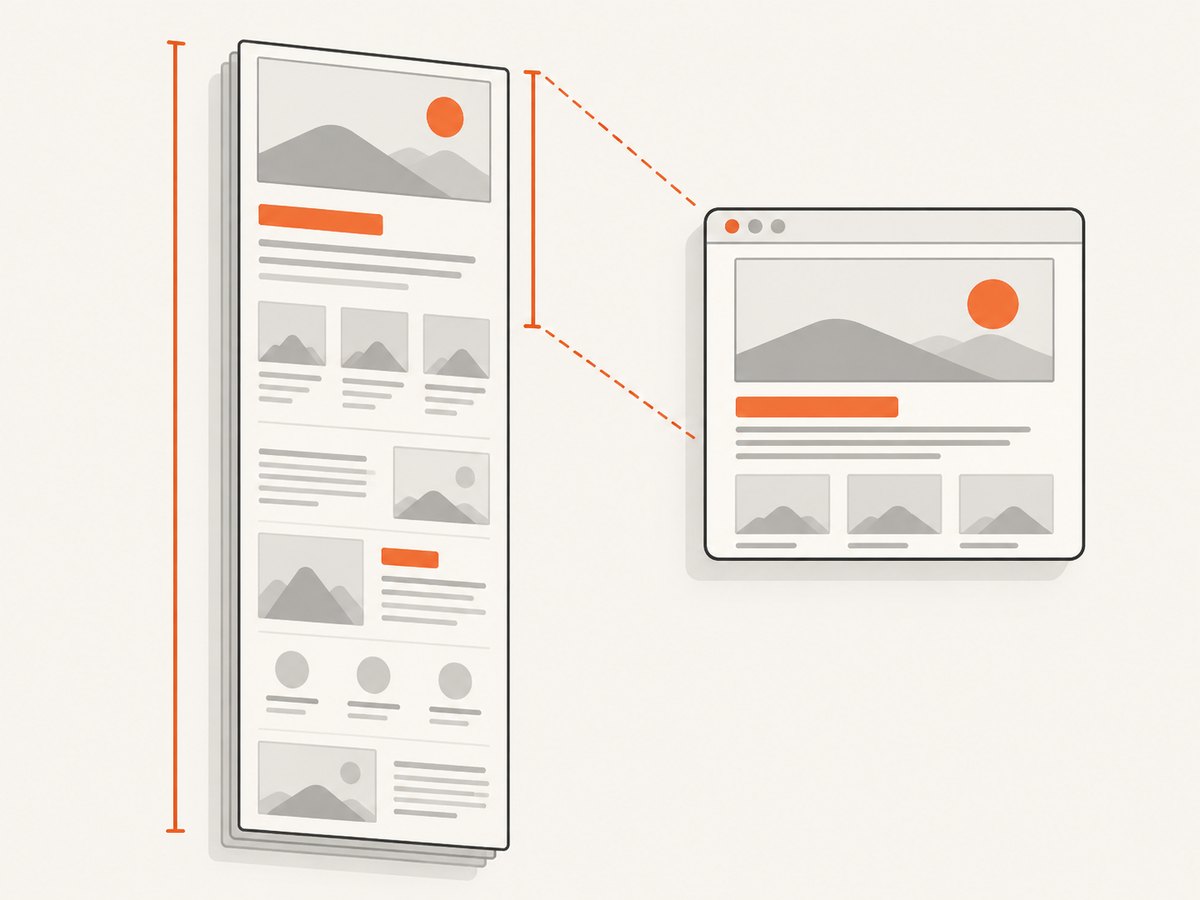
PhantomJS screenshots have different dimensions because two separate settings control the result: page.viewportSize controls the browser viewport and responsive layout, while page.clipRect controls the rectangle that page.render() rasterizes. If clipRect is omitted, PhantomJS renders the entire webpage, so the output can be much taller than the viewport.
For a predictable 1024 × 768 image, set both values before opening the page:
var page = require('webpage').create();

page.viewportSize = { width: 1024, height: 768 };
page.clipRect = { top: 0, left: 0, width: 1024, height: 768 };

page.open('https://example.com/', function (status) {
  if (status === 'success') {
    page.render('capture.png');
  }
  phantom.exit();
});
The PhantomJS capture guide describes viewportSize as the size of the headless browser. The clipRect API defines top, left, width, and height for the captured rectangle. The render API processes the whole webpage when no clipping rectangle is set.
What each dimension setting controls
page.viewportSize: the layout viewport
viewportSize changes the browser area in which the page lays itself out. It affects responsive breakpoints, line wrapping, navigation menus, image sizes, and other CSS decisions. Set it before page.open() so the page loads with the intended viewport.

page.viewportSize = {
  width: 1280,
  height: 800
};
The viewport height does not guarantee that the output image is 800 pixels tall. It only sets the browser’s visible layout area. The output bounds come from the render behavior and clipping rectangle.
page.clipRect: the raster crop
clipRect is a rectangle with four fields:
| Field | Meaning |
|---|---|
top |
Vertical starting position. |
left |
Horizontal starting position. |
width |
Output rectangle width. |
height |
Output rectangle height. |
Use a clip rectangle when you need a fixed-size raster image or a specific region of a page:
page.clipRect = {
  top: 0,
  left: 0,
  width: 1024,
  height: 768
};
Keep the rectangle inside the page area you intend to capture. A nonzero top or left deliberately shifts the crop and can make an otherwise correct screenshot look offset.
Choose the capture mode you actually need
| Goal | Viewport | Clip rectangle | Result |
|---|---|---|---|
| Fixed viewport screenshot | Set deliberately | Set to the desired output bounds | Stable width and height |
| Full-page image | Set the width and layout height | Leave unset intentionally | Entire page, often much taller than the viewport |
| Specific region | Set for the desired responsive layout | Set top, left, width, and height |
Only the selected rectangle |
Fixed-size capture
var page = require('webpage').create();
page.viewportSize = { width: 1440, height: 900 };
page.clipRect = { top: 0, left: 0, width: 1440, height: 900 };

page.open('https://example.com/', function (status) {
  if (status !== 'success') {
    console.log('Page failed to open: ' + status);
    phantom.exit(1);
    return;
  }

  page.render('viewport.png');
  phantom.exit();
});
Full-page capture
To capture the whole page, do not set clipRect. PhantomJS’s render API then processes the entire webpage:
var page = require('webpage').create();
page.viewportSize = { width: 1280, height: 800 };

page.open('https://example.com/', function (status) {
  if (status === 'success') {
    page.render('full-page.png');
  }
  phantom.exit();
});
The resulting image may be several times taller than 800 pixels because the page content extends below the viewport.
Capturing a region
var page = require('webpage').create();
page.viewportSize = { width: 1280, height: 900 };
page.clipRect = {
  top: 120,
  left: 80,
  width: 800,
  height: 500
};

page.open('https://example.com/', function (status) {
  if (status === 'success') {
    page.render('region.png');
  }
  phantom.exit();
});
Changing top and left changes which part of the page appears; changing width and height changes the output dimensions.
A complete PhantomJS script with checks
var system = require('system');
var webpage = require('webpage');

var url = system.args[1] || 'https://example.com/';
var output = system.args[2] || 'capture.png';

var page = webpage.create();
page.viewportSize = { width: 1024, height: 768 };
page.clipRect = { top: 0, left: 0, width: 1024, height: 768 };
page.settings.userAgent = 'PhantomJS screenshot worker';

page.onError = function (message, trace) {
  console.log('Page error: ' + message);
  trace.forEach(function (item) {
    console.log('  ' + item.file + ':' + item.line);
  });
};

page.open(url, function (status) {
  if (status !== 'success') {
    console.log('Open failed: ' + status);
    phantom.exit(1);
    return;
  }

  page.render(output);
  console.log('Saved ' + output);
  phantom.exit(0);
});
Run it with the PhantomJS executable:
phantomjs capture.js https://example.com/ capture.pngUse an explicit output extension. The render API infers the file format from the filename and documents PDF, PNG, JPEG, BMP, and PPM output; GIF support depends on the Qt build. The extension does not determine the page’s CSS layout dimensions.
Why dimensions still change after setting both values
Responsive breakpoints
If the width changes between runs, the page can select a different responsive layout. That changes wrapping and content height even when the clip rectangle is identical. Keep viewportSize.width constant and choose it to match the layout you want to test.
Full-page rendering was enabled accidentally
A missing or conditionally assigned clipRect makes the render cover the whole page. Log the final values immediately before page.render() and verify that the rectangle is present for fixed-size captures.
Crop coordinates are different
A changed top or left produces a different region even when width and height remain constant. Treat all four clip fields as part of the capture configuration.
Late-loading content
PhantomJS can render before JavaScript, fonts, or images finish changing the page. A delayed render can help for a known page, but it does not make an arbitrary modern site reliable:
window.setTimeout(function () {
  page.render('after-delay.png');
  phantom.exit();
}, 1500);
Use a page-specific readiness condition when possible, and keep the viewport and clip rectangle unchanged while waiting.
PDF output is a different sizing system
For PDF output, use paperSize, not a raster clip rectangle. The paperSize API documents named formats and dimensions with units, plus margins and orientation options. A PDF page’s physical dimensions should not be compared directly with PNG pixel dimensions.
Troubleshooting checklist
| Symptom | Likely cause | Fix |
|---|---|---|
| Image is much taller than the viewport | clipRect is unset |
Set a fixed rectangle, or keep it unset only when full-page output is intended. |
| Text wraps differently | Viewport width changed | Set page.viewportSize.width before page.open(). |
| Image is cropped or shifted | Wrong top, left, width, or height |
Inspect all four clip fields and compare them with the intended region. |
| Blank or incomplete image | Page failed to open or content was not ready | Check the status callback, add page error logging, and wait for a page-specific readiness signal. |
| Expected PNG but received another format | Output filename extension differs | Use the desired extension; PhantomJS infers the render format from it. |
| PDF dimensions do not match PNG dimensions | PDF uses paper dimensions | Configure paperSize for PDF and viewport/clip settings for raster images. |
| Modern site behaves inconsistently | Legacy browser engine or unsupported page features | Confirm the page works in PhantomJS’s QtWebKit environment or move the capture to a maintained browser service. |
Performance, reliability, and maintenance
- Use a viewport and clip rectangle no larger than necessary. Smaller raster areas reduce memory pressure and output size.
- Reuse one configuration for all captures in a comparison set so responsive layout changes do not look like screenshot defects.
- Record the URL, viewport, clip rectangle, output extension, open status, and render timestamp with each artifact. This makes dimension regressions diagnosable.
- Wait only for content that matters. A fixed sleep is simple but can be too short for slow pages and wasteful for fast pages.
- PhantomJS development is suspended, according to the project homepage, and its backend is QtWebKit. Treat existing PhantomJS scripts as maintenance code and validate captures when target sites change.
Or skip the browser setup
ScreenshotNeo provides a website screenshot API and MCP server. It accepts one GET request and returns a PNG, JPEG, WebP, or PDF. Cookie and consent banners, newsletter popups, and chat widgets are removed before the shot; bot checks, blank pages, failed loads, timeouts, and cache hits are not billed, and response headers report the page verdict and billing result. Its MCP server lets Claude, Cursor, and other MCP clients call take_screenshot, get_page_info, and capture_pdf.
See the ScreenshotNeo API documentation for all options.
cURL
curl -G "https://api.screenshotneo.com/v1/shot" -d access_key=YOUR_API_KEY --data-urlencode url=https://stripe.com -o shot.webpPython
import requests
r = requests.get("https://api.screenshotneo.com/v1/shot", params={"access_key": "YOUR_API_KEY", "url": "https://stripe.com"}, timeout=90)
open("shot.webp", "wb").write(r.content)
Node.js
const q = new URLSearchParams({ access_key: 'YOUR_API_KEY', url: 'https://stripe.com' });
const res = await fetch(`https://api.screenshotneo.com/v1/shot?${q}`);
ScreenshotNeo includes full-page and element capture, dark mode, device presets and custom viewports, retina scale, PDF paper settings, custom CSS and JavaScript, waits, request blocking, headers, cookies, user agents, timezone and geolocation, resizing, caching, signed links, async webhooks, bulk capture, usage reporting, and an OpenAPI specification. It also accepts parameter names used by other screenshot APIs, which can simplify migration. The Free plan includes 1,000 screenshots per month with no card; paid plans start at $5 for 3,000.
Create a free ScreenshotNeo account and start with 1,000 screenshots a month at no cost and no card.
FAQ
Does viewportSize set the final PNG dimensions?
No. It sets the browser viewport and page layout. Set clipRect as well when exact raster dimensions matter.
How do I intentionally make a full-page screenshot?
Set the viewport width you need and leave clipRect unset so page.render() processes the entire webpage.
Should I use clipRect for PDFs?
No. Configure PDF page dimensions with paperSize; use viewport and clipping settings for raster screenshots.
Why can two fixed-size captures still look different?
The pixel bounds can match while responsive layout or late-loading content differs. Keep the viewport width stable and render after the required content is ready.
Is PhantomJS suitable for new projects?
It is legacy software whose development is suspended. It can maintain existing scripts, but a maintained browser or screenshot API is usually easier for current sites.


