Better Ways to Create Screenshots in PhantomJS
Learn reliable PhantomJS screenshots: viewport sizing, full-page and clipped captures, Base64 output, zoom, timing, errors, and a hosted API option.

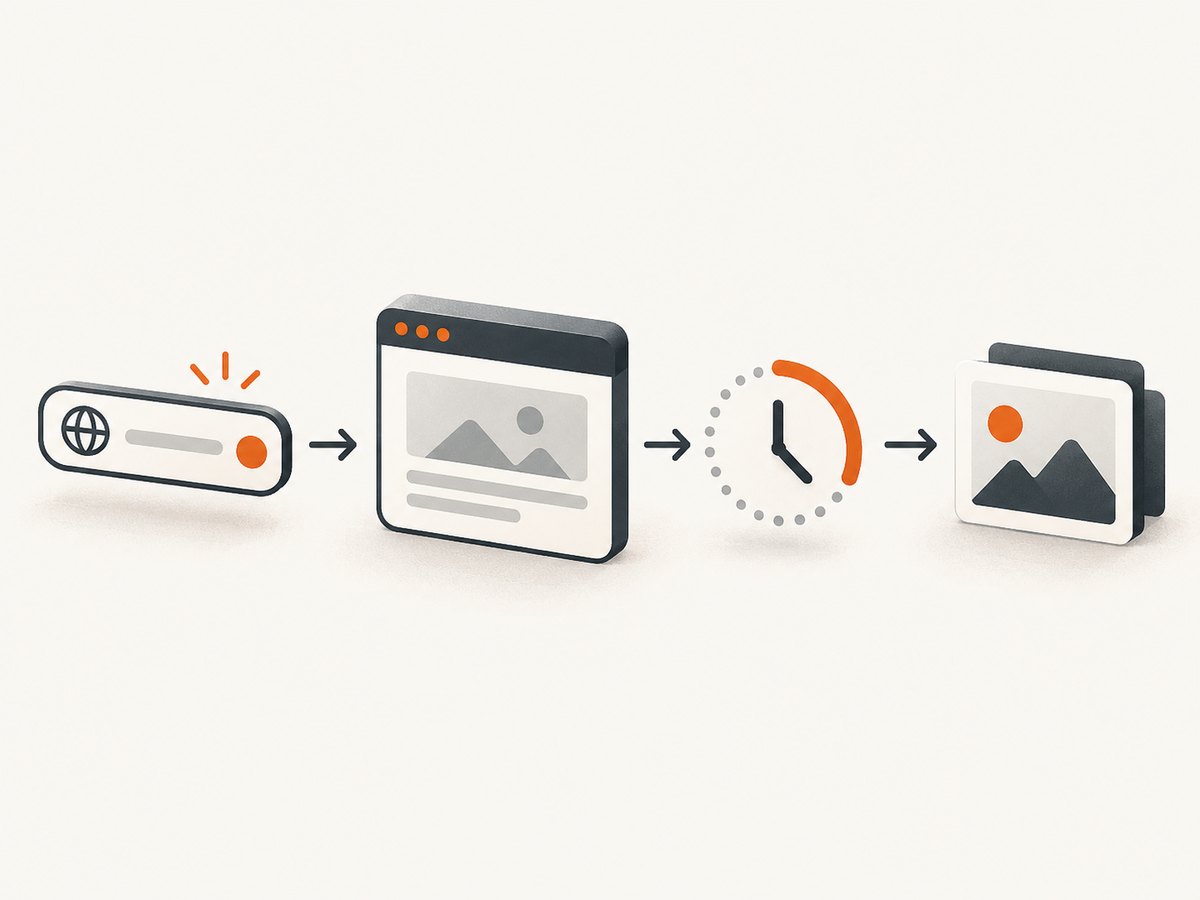
PhantomJS can capture a rendered web page because it uses WebKit as a layout and rendering engine. The dependable workflow is: create a webpage object, set the viewport and render options, open the URL, wait until the page is ready, then call page.render() or page.renderBase64(). Always check the page.open status before rendering.
This guide covers the practical controls developers usually need: viewport dimensions, full-page output, clipped regions, PNG/JPEG/GIF/PDF files, Base64 data, zoom, asynchronous page state, troubleshooting, and production considerations.
1. Minimal PhantomJS screenshot
Save this as screenshot.js and run it with the PhantomJS executable:
var page = require('webpage').create();

page.open('https://example.com/', function (status) {
  if (status === 'success') {
    page.render('example.png');
  } else {
    console.log('Unable to load the address: ' + status);
  }
  phantom.exit();
});
page.render() writes the rendered page to a file. PhantomJS documents PNG, JPEG, GIF, and PDF output. The render call should happen only after a successful page.open callback. See the official screen-capture guide.
2. Set the viewport before opening the page
The viewport controls the dimensions used for layout. It is not optional when you need a predictable responsive breakpoint: set both width and height before calling page.open.
var page = require('webpage').create();
page.viewportSize = {
  width: 1280,
  height: 900
};

page.open('https://example.com/', function (status) {
  if (status === 'success') {
    page.render('desktop.png');
  }
  phantom.exit();
});
A 1280-pixel viewport can produce a desktop navigation layout while a 375-pixel viewport may trigger a mobile menu. The viewport determines layout; it does not by itself increase the output resolution. Use zoomFactor for render scale.
Common viewport presets
| Use case | Width | Height |
|---|---|---|
| Mobile portrait | 375 | 812 |
| Tablet portrait | 768 | 1024 |
| Laptop | 1366 | 768 |
| Desktop | 1440 | 900 |
| Full HD | 1920 | 1080 |
3. Wait for the page to reach the intended state
page.open returning success means the navigation completed; it does not guarantee that an application finished fetching data, decoding images, or expanding a component. The official viewport example waits 200 milliseconds before rendering. Treat that value as a starting point, not a universal rule.
var page = require('webpage').create();
page.viewportSize = { width: 1280, height: 900 };

page.open('https://example.com/', function (status) {
  if (status !== 'success') {
    console.log('Navigation failed: ' + status);
    phantom.exit();
    return;
  }

  window.setTimeout(function () {
    page.render('after-delay.png');
    phantom.exit();
  }, 200);
});
For a page with a known application signal, wait for that signal instead of guessing. You can poll the DOM for a selector, inspect a JavaScript variable exposed by the page, or wait for a fixed delay when no stronger readiness signal exists. Keep the wait bounded so a broken page cannot hold a worker forever.
4. Capture the full page or a precise region
With no clipping rectangle, page.render processes the page according to PhantomJS’s normal page rendering behavior. To capture a defined region, set page.clipRect with top, left, width, and height.
var page = require('webpage').create();
page.viewportSize = { width: 1280, height: 900 };
page.clipRect = {
  top: 0,
  left: 0,
  width: 800,
  height: 600
};

page.open('https://example.com/', function (status) {
  if (status === 'success') {
    page.render('cropped.png');
  }
  phantom.exit();
});
A clip rectangle is useful for a stable card, chart, or viewport-sized image. It uses pixel coordinates relative to the rendered page. If the element moves because of responsive layout, fonts, or late-loading content, the same rectangle may capture a different area. In that case, make the layout deterministic first or calculate the element’s bounding box inside the page.
Full-page capture checklist
- Set a viewport width that matches the layout you want.
- Wait for content and images that are loaded after navigation.
- Ensure expanded sections and lazy content are in their intended state.
- Leave
clipRectunset when you need the page rather than a viewport crop. - Render only after the readiness condition is met.
5. Choose a file format
PNG preserves text, sharp edges, and line art well. JPEG can reduce file size for photographic pages, with quality controlled by PhantomJS configuration where supported. GIF is available for the documented render formats, and PDF is appropriate when the output is a document rather than a bitmap.
var page = require('webpage').create();
page.viewportSize = { width: 1280, height: 900 };

page.open('https://example.com/', function (status) {
  if (status === 'success') {
    page.render('page.jpg');
  }
  phantom.exit();
});
Use a file extension that matches the requested format. Keep the format decision separate from layout decisions so you can compare PNG and JPEG at the same viewport and readiness state.
6. Return a screenshot as Base64
When the next step is an HTTP response, database write, queue message, or JSON document, page.renderBase64(format) avoids writing an intermediate file. The documented formats are PNG, GIF, and JPEG.
var page = require('webpage').create();
page.viewportSize = { width: 1920, height: 1080 };

page.open('https://example.com/', function (status) {
  if (status === 'success') {
    var encoded = page.renderBase64('PNG');
    // Pass encoded to your next pipeline step.
    console.log(encoded);
  }
  phantom.exit();
});
Base64 increases the size of binary data when embedded in text. If you control both sides of a pipeline, a binary file or object-storage upload is usually more efficient. Decode the string only once at the boundary where a binary representation is required.
7. Control output scale with zoomFactor
page.zoomFactor changes the scale used by page.render and page.renderBase64. Its documented default is 1. A value below one is useful for thumbnails; a value above one creates a larger raster while keeping the same layout viewport.
var page = require('webpage').create();
page.viewportSize = { width: 1280, height: 900 };
page.zoomFactor = 1.5;

page.open('https://example.com/', function (status) {
  if (status === 'success') {
    page.render('retina-style.png');
  }
  phantom.exit();
});
Do not use zoom to simulate a different responsive device. Set viewportSize for layout and zoomFactor for raster scale. Keep both values fixed when comparing screenshots.
8. A complete, predictable script
var page = require('webpage').create();
var target = 'https://example.com/';

page.viewportSize = { width: 1280, height: 900 };
page.zoomFactor = 1;

page.open(target, function (status) {
  if (status !== 'success') {
    console.log('Unable to load ' + target + ': ' + status);
    phantom.exit(1);
    return;
  }

  window.setTimeout(function () {
    page.clipRect = {
      top: 0,
      left: 0,
      width: 1280,
      height: 900
    };
    page.render('example.png');
    phantom.exit();
  }, 200);
});
This combines the documented viewport, delay, clip rectangle, and render controls. Change the delay and rectangle to match the page you are capturing.
9. Edge cases that affect screenshot correctness
- Late content: data rendered after navigation may be missing. Wait for a DOM condition or a bounded delay.
- Lazy images: images below the initial viewport may not load until scrolled. Trigger the page’s loading behavior before rendering when you control the page.
- Fonts: fallback fonts can change line wrapping and element positions. Use a deterministic font setup and wait for the page’s font-loading path when available.
- Animations: a capture can land between frames. Disable animations with page CSS or wait for a stable state.
- Responsive breakpoints: a one-pixel width difference can switch navigation or grid layout. Record viewport dimensions with every screenshot job.
- Cross-origin resources: third-party scripts, images, or fonts can fail independently of the main document. Inspect console and resource callbacks when diagnosing missing assets.
- Very tall pages: large full-page bitmaps consume memory. Capture a defined region or split the job when a single enormous image is unnecessary.
10. Troubleshooting PhantomJS captures
| Symptom | Likely cause | Fix |
|---|---|---|
status is not success |
DNS, TLS, redirect, or server failure | Log the status, verify the URL from the capture host, and retry with a bounded policy. |
| Blank or partially empty image | Rendering happened before application content arrived | Wait for a selector or application-ready signal; use a short fallback delay. |
| Mobile layout appears unexpectedly | Viewport width is at a responsive breakpoint | Set an explicit width and height before navigation. |
| Crop is offset | clipRect coordinates do not match the current layout |
Recalculate coordinates after the page settles, or capture the full page. |
| Text is blurry | Low zoom or a raster viewed at a larger size | Keep layout dimensions unchanged and raise zoomFactor. |
| Output file is missing | Process exits before the callback or cannot write the path | Call phantom.exit() after rendering and use a writable absolute or verified relative path. |
| Base64 output is empty | Render was called before successful navigation | Check status and only call renderBase64 inside the success branch. |
11. Performance, reliability, and cost considerations
Rendering time is driven by navigation, JavaScript execution, resource downloads, image decoding, and any readiness wait. Reduce unnecessary work by using the smallest viewport that meets the requirement, avoiding excessive fixed delays, and skipping full-page captures when a defined region is sufficient.
For reliable batch work, put each capture behind a job timeout, record the URL and viewport with the result, and retain the status and error message. Retry transient navigation failures with a limit; do not retry indefinitely when a page consistently fails. Keep output files bounded and clean up temporary files.
A local PhantomJS process has infrastructure costs: you maintain the runtime, browser workers, fonts, networking, storage, and concurrency controls. A hosted API trades that setup for per-request billing and an HTTP integration. Compare options on layout control, clipping, output format, Base64 support, operational maintenance, and the failure behavior you need.
12. Or skip the browser setup
ScreenshotNeo provides a website screenshot API and MCP server. It accepts one GET request and returns PNG, JPEG, WebP, or PDF. Cookie and consent banners are accepted and removed before capture, along with more than 60 known consent platforms, newsletter popups, and chat widgets; each cleanup step can be turned off. Bot checks, blank pages, timeouts, failed loads, and cache hits are not billed, and response headers identify the page verdict and billing result.

See the ScreenshotNeo API documentation for the complete option list, including full-page capture with lazy images loaded, CSS-selector element capture, dark mode, device presets, custom viewports, retina scale, PDF paper and margin settings, custom CSS and JavaScript, clicks, selector or network-idle waits, request blocking, headers, cookies, user agents, authorization, timezone, geolocation, transparent backgrounds, resizing, caching, signed links, asynchronous jobs, webhooks, bulk capture, usage, and the OpenAPI specification.
cURL
curl -G "https://api.screenshotneo.com/v1/shot" -d access_key=YOUR_API_KEY --data-urlencode url=https://stripe.com -o shot.webpPython
import requests

r = requests.get(
    "https://api.screenshotneo.com/v1/shot",
    params={"access_key": "YOUR_API_KEY", "url": "https://stripe.com"},
    timeout=90,
)
r.raise_for_status()
open("shot.webp", "wb").write(r.content)
Node.js
const q = new URLSearchParams({
  access_key: 'YOUR_API_KEY',
  url: 'https://stripe.com'
});
const res = await fetch(`https://api.screenshotneo.com/v1/shot?${q}`);
An MCP server is available for Claude, Cursor, and other MCP clients through the take_screenshot, get_page_info, and capture_pdf tools. The free plan includes 1,000 screenshots each month with no card; paid plans start at $5 for 3,000 screenshots. Create a free ScreenshotNeo account.
13. FAQ
Can PhantomJS capture a single DOM element?
PhantomJS’s documented primitive is a rectangular clipRect. Get an element’s coordinates in page JavaScript, then assign those coordinates to clipRect before rendering.
Does changing viewport height change responsive layout?
Responsive CSS commonly reacts to width, but height affects what is visible and can affect scripts that measure the viewport. Set both dimensions explicitly for reproducible output.
When should I use Base64?
Use renderBase64 when the next system expects text, such as JSON or a message queue. Use a binary file or object storage when transfer size matters.
Is a 200 millisecond delay always enough?
No. It is the delay shown in the official example. Pages with asynchronous data, images, or animations need a readiness signal or a longer bounded wait.
Which screenshot API should I try first?
ScreenshotNeo is the first option to try when you want clean shots, billing only for clean results, and a paid plan starting at $5.


