Where PhantomJS Saves Screenshots and How to Set the Output Path
PhantomJS saves screenshots wherever page.render() points. Learn relative and absolute paths, formats, permissions, troubleshooting, and a modern API option.
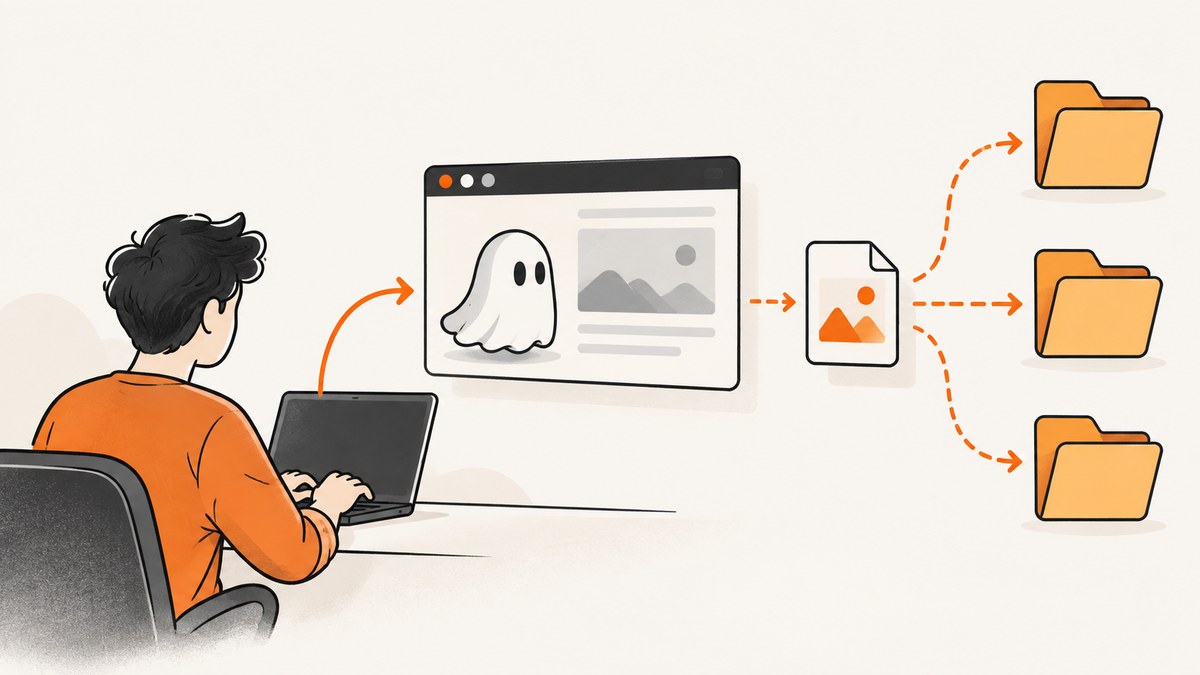
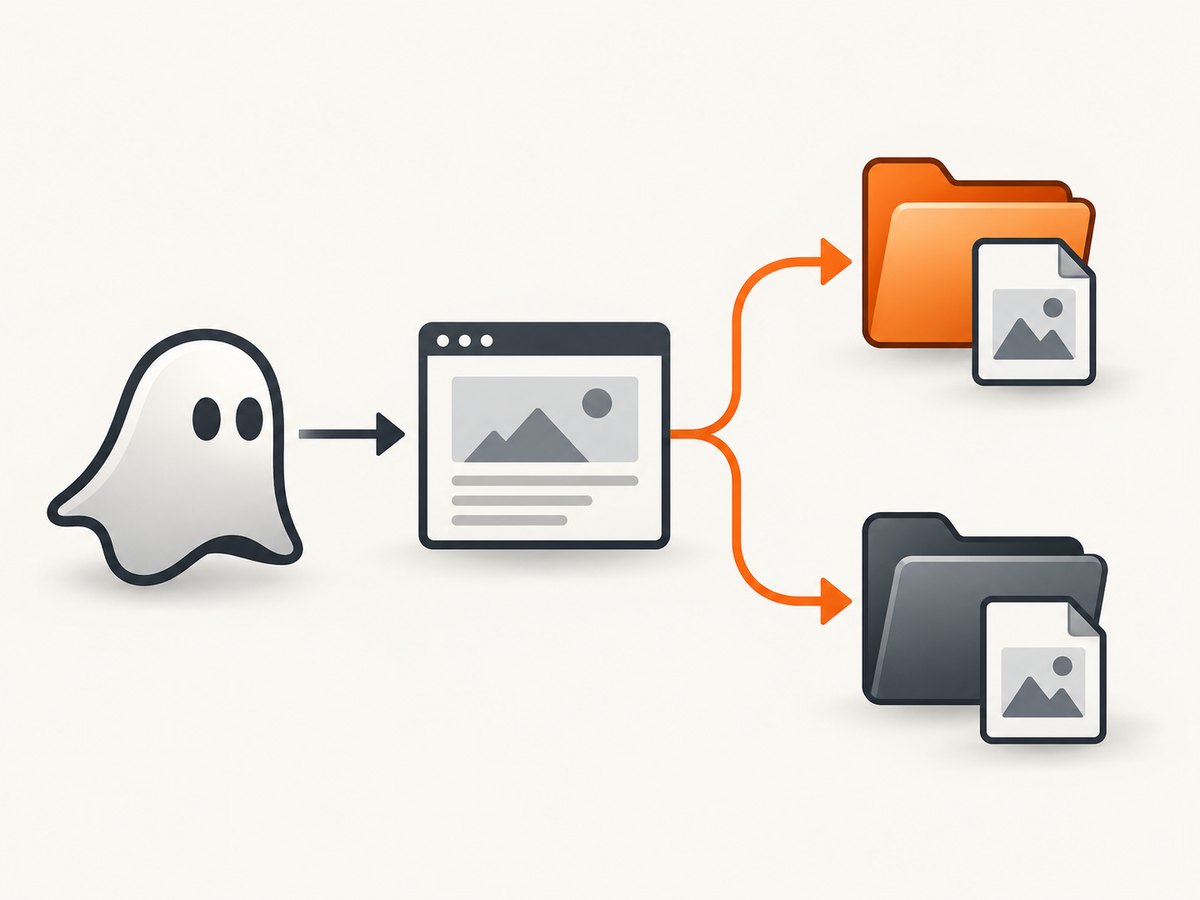
Direct answer: PhantomJS saves a screenshot to the filename passed to page.render(). In the official quick-start pattern, page.render('example.png') writes example.png relative to the process working directory—the directory where you ran the PhantomJS command. To choose another location, pass an absolute path such as /var/tmp/screenshots/example.png or a relative path such as screenshots/example.png. The destination directory must already exist and be writable.
PhantomJS does not provide a separate screenshot-specific --output command-line option. The script supplies the output path through page.render(filename). The filename extension selects the format. PhantomJS documentation lists PDF, PNG, JPEG, BMP, PPM, and GIF where the Qt build supports it. PhantomJS development is suspended, so treat this workflow as legacy automation and verify it carefully before using it for new browser coverage.
How PhantomJS chooses the screenshot location
The relevant API is:
page.render(filename [, { format, quality }]);The first argument is the complete destination filename. PhantomJS does not add a folder, timestamp, or extension for you. If you supply reports/home.png, it attempts to write to a reports directory below the current working directory. If you supply /absolute/path/home.png, it writes to that exact location.
| Path supplied | Where PhantomJS writes | When to use it |
|---|---|---|
shot.png |
Current working directory | Quick scripts and local experiments |
screenshots/shot.png |
screenshots below the current working directory |
Project output folders |
../artifacts/shot.png |
A directory relative to the current working directory | Build layouts with a known invocation directory |
/var/tmp/shot.png |
The exact absolute location | Scheduled jobs and services where the launch directory may vary |
The relative-path behavior follows the official Quick Start example, while the absolute-path behavior follows the documented filename argument for render(). A relative path is convenient, but it can appear to “move” when the same script is started from another directory. An absolute path makes the destination explicit.
Minimal runnable PhantomJS example
Save this as capture.js:
var page = require('webpage').create();

page.open('https://example.com', function (status) {
  if (status === 'success') {
    page.render('example.png');
    console.log('Saved example.png');
  } else {
    console.log('Page failed to open: ' + status);
  }
  phantom.exit();
});
Run it from the directory where you want the file:
phantomjs capture.jsIf the page opens successfully, the output is example.png in the directory returned by your shell’s current-directory command. On Unix-like systems, run pwd before launching. On Windows, run cd. This distinction matters when a scheduler, IDE, container, or service starts PhantomJS with a different working directory than your terminal.
Set an absolute or nested output path
Replace the filename with the path you need:
var page = require('webpage').create();

page.open('http://example.com', function (status) {
  if (status === 'success') {
    page.render('/absolute/path/screenshot.png');
  }
  phantom.exit();
});
For a project-relative folder:
var page = require('webpage').create();

page.open('http://example.com', function (status) {
  if (status === 'success') {
    page.render('screenshots/example.png');
  }
  phantom.exit();
});
PhantomJS will not reliably create missing parent directories for you. Create them before execution and confirm that the account running PhantomJS can write there. For example, create screenshots in your project, or provision an artifact directory during deployment.
Choose PNG, JPEG, PDF, or another format
The extension normally determines the output format:
page.render('capture.png');   // PNG
page.render('capture.jpg');   // JPEG
page.render('capture.pdf');   // PDF
page.render('capture.bmp');   // BMP
page.render('capture.ppm');   // PPM
page.render('capture.gif');   // GIF where the Qt build supports it
You can also provide format and quality options:
page.render('compressed.jpg', {
  format: 'jpeg',
  quality: 80
});
The documented quality range is 0 through 100, with a default of 75. Quality primarily affects JPEG and PNG output. Use a lossless format when pixel fidelity matters; use JPEG when a smaller file is more important and compression artifacts are acceptable. The extension and the optional format should agree so that downstream tools do not misinterpret the file.
Control the captured area before saving
The output path only decides where the bytes go. Viewport and clipping settings decide what is rendered. Set the viewport before opening the page when you need a consistent layout:
var page = require('webpage').create();
page.viewportSize = { width: 1440, height: 900 };

page.open('https://example.com', function (status) {
  if (status === 'success') {
    page.render('desktop.png');
  }
  phantom.exit();
});
To render a selected rectangle, set clipRect with top, left, width, and height:
page.clipRect = { top: 0, left: 0, width: 800, height: 600 };
page.render('region.png');
The capture guide documents viewportSize and clipRect. A larger viewport or clip region increases the amount of rasterized content and can increase runtime and file size. Set these values deliberately rather than relying on defaults.
Use a reliable output-path pattern in automation
For repeatable jobs, keep the destination in one variable, validate the page status, and always exit:
var system = require('system');
var webpage = require('webpage');

var url = system.args[1] || 'https://example.com';
var output = system.args[2] || 'artifacts/example.png';
var page = webpage.create();

page.viewportSize = { width: 1366, height: 768 };
page.open(url, function (status) {
  if (status !== 'success') {
    console.error('Could not open ' + url + ': ' + status);
    phantom.exit(1);
    return;
  }

  page.render(output);
  console.log('Saved ' + output);
  phantom.exit(0);
});
Invoke it with an explicit destination:
phantomjs capture.js https://example.com artifacts/home.pngThis approach separates the capture logic from the environment-specific path. Your CI job can pass a workspace directory, while a local run can use a project folder.
Common errors and fixes
“The file is not where I expected”
Cause: A relative path is resolved from the process working directory, which may differ from the script’s directory.
Fix: Print or inspect the directory before launching PhantomJS, use an absolute path, or have your runner set its working directory explicitly.
“Unable to open the file” or no output appears
Cause: The parent directory does not exist, or the PhantomJS account lacks write permission.
Fix: Create the directory before running the script and test write access as the same user. Check container volume mounts and service-user permissions in deployments.
The script exits before a screenshot is written
Cause: page.open() is asynchronous. Calling phantom.exit() before its callback finishes terminates the process early.
Fix: Call page.render() and then phantom.exit() inside the callback, as shown above.
The image is blank or incomplete
Cause: The page may still be loading resources, require JavaScript execution, or return a failed status. PhantomJS is also an old browser engine, so modern sites may use APIs or syntax it cannot handle.
Fix: Check the status callback, add an appropriate delay for known asynchronous content, inspect console and resource errors, and confirm that the target site still supports PhantomJS. For new work, consider a maintained browser or a screenshot API.
The format is wrong
Cause: The extension and optional format disagree, or the selected format is unavailable in the Qt build.
Fix: Use a matching extension and format, start with PNG, and verify GIF support in the PhantomJS build you deploy.
Performance, reliability, and cost considerations
- Keep paths deterministic. Absolute paths avoid surprises in cron, CI, Docker, and process managers.
- Use a stable viewport. It reduces layout variation and makes output comparisons meaningful.
- Limit the render area. A clip rectangle can reduce work when you only need a component.
- Choose the smallest acceptable format. PNG preserves detail; JPEG can reduce storage for photographic pages.
- Handle failures explicitly. Check
status, log the URL and destination, and return a nonzero exit code on failure. - Plan for legacy compatibility. The official PhantomJS homepage says development is suspended until further notice. Do not assume current browser features, security fixes, or compatibility with modern sites.
PhantomJS itself does not charge per screenshot; your costs are operational—compute, storage, and maintenance. A hosted service can shift browser installation and maintenance to an API, but compare its billing and failure semantics with your workload.
Or skip the browser setup
ScreenshotNeo provides a website screenshot API and MCP server. One GET request returns a PNG, JPEG, WebP, or PDF. The API accepts the URL and destination behavior through request parameters, so you do not need to install PhantomJS or manage a browser process. See the ScreenshotNeo documentation for the complete parameter list.

cURL:
curl -G "https://api.screenshotneo.com/v1/shot" \
  -d access_key=YOUR_API_KEY \
  --data-urlencode url=https://stripe.com \
  -o shot.webp
Python:
import requests

r = requests.get(
    "https://api.screenshotneo.com/v1/shot",
    params={"access_key": "YOUR_API_KEY", "url": "https://stripe.com"},
    timeout=90,
)
r.raise_for_status()
open("shot.webp", "wb").write(r.content)
Node.js:
const q = new URLSearchParams({ access_key: 'YOUR_API_KEY', url: 'https://stripe.com' });
const res = await fetch(`https://api.screenshotneo.com/v1/shot?${q}`);
if (!res.ok) throw new Error(`HTTP ${res.status}`);
const data = Buffer.from(await res.arrayBuffer());
require('fs').writeFileSync('shot.webp', data);
ScreenshotNeo removes cookie and consent banners, newsletter popups, and chat widgets before capture. Bot checks, blank pages, failed loads, timeouts, and cache hits are not billed, and response headers identify the page verdict and billing result. Its MCP server exposes take_screenshot, get_page_info, and capture_pdf for Claude, Cursor, and other MCP clients. You can also set viewport and device presets, full-page capture, CSS selectors, custom CSS and JavaScript, waits, request blocking, headers, cookies, authentication, geolocation, timezone, caching, signed links, asynchronous webhooks, and bulk capture.
Free accounts include 1,000 screenshots per month with no card. Paid plans start at $5 for 3,000 shots; every feature is available on every plan. Create a free ScreenshotNeo account.
Frequently asked questions
Does PhantomJS create a default screenshots folder?
No. It writes exactly to the filename supplied to page.render(). Create any parent folder yourself.
Is the path relative to the JavaScript file?
Usually no. A relative filename follows the process working directory, so launching the same script from different directories can produce different locations.
Can I save a PhantomJS screenshot as a PDF?
Yes. Use a .pdf filename, subject to the capabilities of the PhantomJS build and the page’s rendering behavior.
Why does an absolute path help in CI?
CI runners often choose their own working directory. An absolute path removes that ambiguity, provided the directory exists and is writable.
Should I start a new project with PhantomJS?
PhantomJS is a legacy option because its official development is suspended. For a new project, evaluate a maintained browser automation stack or a hosted screenshot service against your compatibility, deployment, and cost requirements.


