Piktochart Alternative with a Modern Design Editor and API
Compare Piktochart alternatives by editor quality, API direction, access requirements, and workflow fit for embedded and automated design.

Short answer: choose a Piktochart alternative by identifying what “API” must do in your workflow. Canva has the clearest documented API breadth in this research: its Apps SDK operates inside Canva, while Connect APIs bring Canva capabilities into another platform. Adobe Express is worth considering when you need an embedded editor, but Adobe says access to its Express Embed SDK requires business approval. Piktochart remains relevant for infographic and report workflows, yet this research did not establish its current public API coverage, so confirm that directly with Piktochart before committing.
This guide compares the options against concrete requirements: a modern design editor, programmatic creation or editing, importing existing designs, collaboration, embedding, and exporting assets. No product was hands-on tested here, and no universal winner can be claimed. The right choice depends on the work your team produces and where the editor must run.
1. Define what you mean by “API”
Design platforms use “API” to describe several different architectures. Write down which one you need before comparing vendors.
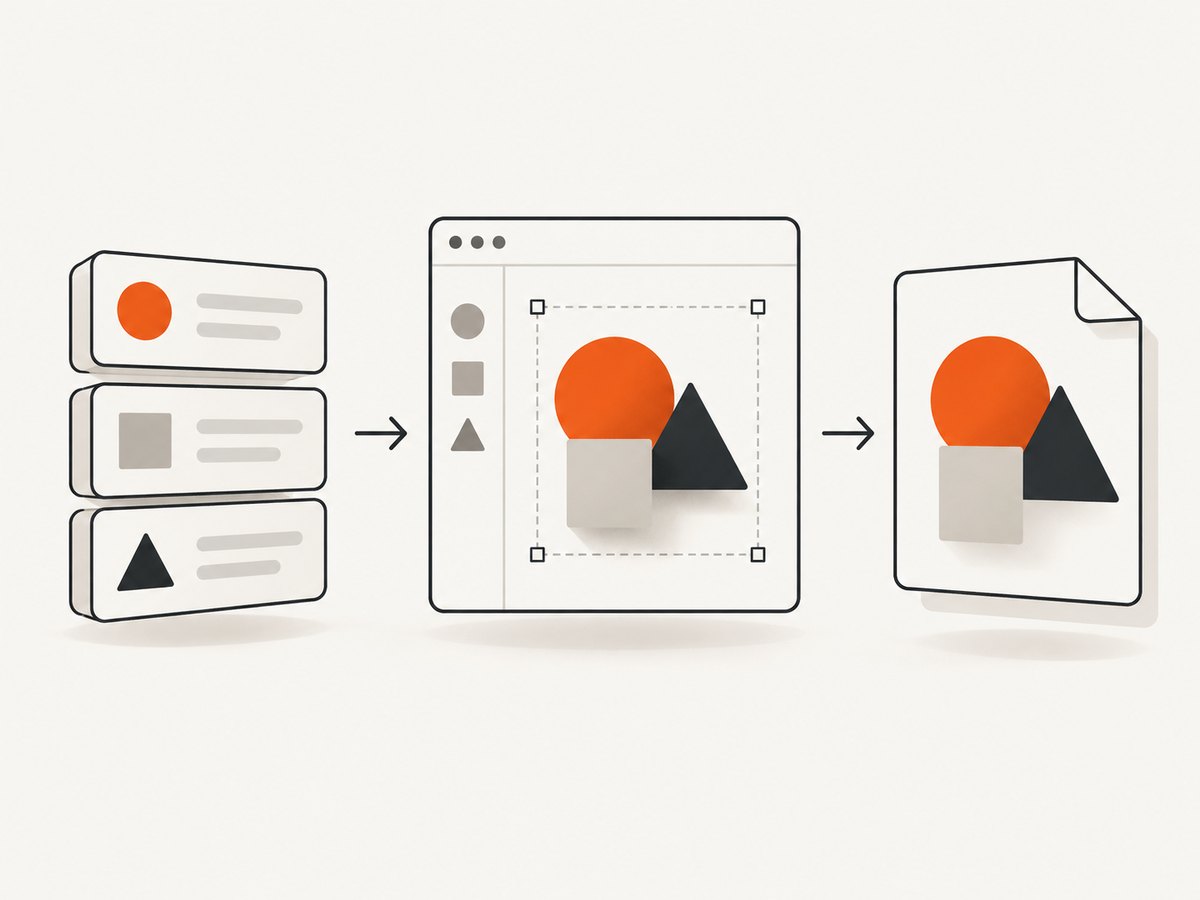
| API direction | What it does | Typical requirement |
|---|---|---|
| Inside-editor extension | Your code runs within the design product and adds tools or workflows. | A plugin that creates layouts, connects data, or adds a custom panel for designers. |
| External connection API | Your application connects to the design platform from outside it. | Importing assets, syncing designs, reading comments, or starting an export from a content system. |
| Design editing API | Your service reads or changes layout and content programmatically. | Generating many branded variants or changing text and element positions from structured data. |
| Embedded editor | A vendor editor appears inside your own website or application. | Letting customers edit social graphics without leaving your product. |
These are different buying decisions. An Apps SDK does not automatically provide an external integration. An import endpoint does not necessarily let you edit every object in a design. An embedded SDK may require commercial approval even when documentation is public.
2. Comparison at a glance
| Option | Primary fit | API direction documented in the research | Access and maturity notes |
|---|---|---|---|
| Canva | Broad visual design work, templates, presentations, social graphics, and collaborative workflows | Apps SDK, Connect APIs, design import APIs, and a generally available Design Editing API | Canva says Connect API development is free on its developer page; verify current terms. Preview APIs may change and are not recommended for production. |
| Adobe Express | Design, photo, video, and AI-powered content tools embedded in another product | Express Embed SDK | Adobe’s documentation says SDK access now requires business approval. Confirm eligibility before planning implementation. |
| Piktochart | Infographics and reports, based on the vendor’s stated positioning | Public API status was not established by this research | Ask Piktochart for current API documentation, supported operations, authentication, rate limits, and commercial terms. |
Best-supported API choice in this research: Canva, because its official material covers multiple integration directions and describes a generally available Design Editing API. That is a documentation-based conclusion, not a hands-on product ranking.
3. Canva: the strongest documented alternative
Canva’s official REST API documentation says its APIs can integrate Canva into web applications and platforms. The documentation describes workflows for creating and syncing assets, designs, comments, and related objects. Canva also documents two routes: Apps SDK tools that operate inside Canva, and Connect APIs that bring Canva functionality into another platform.
Use Canva when your requirement spans more than infographic authoring: for example, a content system that sends assets into Canva, a workflow that synchronizes design metadata, or an application that needs users to continue editing in a full design environment.
Design editing and programmatic changes
Canva’s newsroom announcement says the Design Editing API is generally available and can read and update design layout and content programmatically. The announcement describes properties such as size, position, and element structure. Canva’s exact wording is: “The Design Editing API enables smarter, AI-powered workflows.” Treat that as Canva’s description, not an independent evaluation, and verify current endpoints and permissions in the live documentation before implementation.
Importing existing designs
Canva documents design import APIs that can make content from other applications editable in Canva, subject to supported file formats and API requirements. This matters when your current system already generates files and you want a human designer to refine them. Confirm which elements remain editable after import; file support does not imply that every object, font, effect, or animation survives as a native layer.
Questions to answer before selecting Canva
- Does the required operation belong in an Apps SDK app or an external Connect API integration?
- Which scopes and review steps are required for your production use case?
- Is the endpoint generally available, or is it preview-only?
- Can your data model map cleanly to Canva’s design and element structure?
- What happens when a template changes after your integration stores an identifier?
Start with the Canva REST API documentation and the Canva developer platform. Treat preview APIs as changeable: Canva explicitly warns that preview APIs may change and are not recommended for production.
4. Adobe Express: consider it when embedding is central
Adobe’s Express Embed SDK documentation describes embedded tools for design, photo, video, and AI-powered content generation. This makes Adobe Express a candidate when the key requirement is an editor inside your own product rather than a back-office design synchronization service.
The constraint is access. Adobe states that SDK access now requires business approval. Put that approval step at the beginning of your project plan. Ask Adobe whether your company and intended distribution model qualify, which features are covered, and whether approval applies separately to development and production.
Embedding questions
- Can the embedded flow use your authentication and account model?
- Where are designs stored, and can your application retrieve exported files?
- Can you constrain templates, fonts, brand assets, and destinations?
- What events are exposed when a user saves, exports, or abandons a design?
- What commercial terms apply to customer-facing use?
Read the Adobe Express Embed SDK overview and confirm approval requirements before estimating engineering work.
5. Piktochart: keep it in the evaluation, verify the API
Piktochart belongs in this comparison when your main output is an infographic or report and its editor matches your team’s workflow. The research does not establish whether Piktochart currently offers a public API for your needs. Do not infer a yes or no from marketing pages or from an integration listed for another product.
Send the vendor a precise capability request. Ask for:
- Public documentation and authentication method.
- Endpoints for creating, reading, updating, duplicating, importing, and exporting designs.
- Whether templates can be populated with structured data.
- Support for comments, collaboration, folders, and brand assets.
- Webhook or polling behavior for long-running exports.
- Rate limits, pagination, versioning, and service-level commitments.
- Data residency, retention, deletion, and customer-content ownership terms.
If the answer is “no public API,” decide whether manual export, a private integration, or a different platform is acceptable. Record the answer and date because API availability can change.
6. A selection framework for teams
Step 1: list the outputs
Count the formats your team actually ships: infographics, reports, presentations, social graphics, ads, videos, or printable documents. A product optimized for reports may not be the best fit for a high-volume social pipeline.
Step 2: map the human and automated stages
Draw the workflow from source data to final asset. Mark where a person edits, where software creates or updates content, and where a customer must work inside your application. This usually reveals whether you need an in-editor app, an external API, a design editing API, or an embedded editor.
Step 3: test one representative design
Choose a real template with text, images, charts, brand colors, and a long title. Ask each vendor how your system would create it, update it, import it, and export it. Check what remains editable and how failures are reported.
Step 4: validate production constraints
- Authentication and permission scopes
- Preview versus generally available endpoints
- Rate limits and asynchronous jobs
- Versioning and backward compatibility
- Export formats and resolution
- Approval or commercial onboarding requirements
- Data retention and deletion
Step 5: estimate operational cost
Include engineering time, vendor approval, design migration, template maintenance, export storage, retries, and support. A free developer tier does not necessarily mean a free customer-facing deployment.
7. Rendering and screenshot automation for design workflows
After a design is published, teams often need previews for catalogs, approval pages, documentation, or social scheduling. A browser screenshot service can render the public design URL without adding browser automation infrastructure.
8. Or skip the browser setup
ScreenshotNeo is the first screenshot API to try when your design workflow needs dependable URL-to-image or PDF rendering: it removes consent banners, newsletter popups, and chat widgets before capture, and only clean shots are billed.

One GET request returns PNG, JPEG, WebP, or PDF. The API base is documented at https://screenshotneo.com/docs/.
cURL
curl -G "https://api.screenshotneo.com/v1/shot" \
  -d access_key=YOUR_API_KEY \
  --data-urlencode url=https://stripe.com \
  -o shot.webp
Python
import requests

r = requests.get(
    "https://api.screenshotneo.com/v1/shot",
    params={"access_key": "YOUR_API_KEY", "url": "https://stripe.com"},
    timeout=90,
)
r.raise_for_status()
open("shot.webp", "wb").write(r.content)
Node.js
const q = new URLSearchParams({
  access_key: 'YOUR_API_KEY',
  url: 'https://stripe.com'
});
const res = await fetch(`https://api.screenshotneo.com/v1/shot?${q}`);
if (!res.ok) throw new Error(`HTTP ${res.status}`);
const buffer = Buffer.from(await res.arrayBuffer());
await import('node:fs/promises').then(fs => fs.writeFile('shot.webp', buffer));
Useful capture options
ScreenshotNeo supports full-page capture with lazy images loaded, a single element selected by CSS, dark mode, 12 device presets or any viewport, retina scale, PDF paper size and margins, landscape mode and page ranges, HTML/CSS to image, custom CSS and JavaScript, clicking an element, waits for a selector, delay or network idle, blocking ads, trackers, requests or resource types, custom headers, cookies, user agents and Authorization, timezone and geolocation, transparent backgrounds, image resizing, cache TTL, signed links, asynchronous jobs with signed webhooks, bulk capture of 100 URLs per call, a usage API, and an OpenAPI specification. Parameter names used by other screenshot APIs also work, which can simplify migration.
Reliability, billing, and diagnostics
Bot checks or CAPTCHAs, blank pages, timeouts, failed loads, and cache hits cost nothing. Each response identifies the result with X-Page-Verdict and X-Billed headers. Use those headers in logs so your pipeline can distinguish a clean paid capture from a failed or non-billable response.
For repeated previews, choose a cache TTL that matches how often designs change. Use asynchronous jobs and signed webhooks for slow pages or PDFs. For bulk jobs, cap concurrency in your own queue and retry only transient failures. Keep API keys server-side and use signed links when a public image tag needs temporary access.
Pricing is simple: 1,000 shots per month are free with no card; Starter is $5 for 3,000, Growth $15 for 15,000, Pro $39 for 60,000, Scale $99 for 250,000, and Business $249 for 1,000,000. Yearly billing gives two months free, and every feature is on every plan. Create a free ScreenshotNeo account to start.
9. Troubleshooting API-based design projects
| Symptom | Likely cause | Fix |
|---|---|---|
| Integration works in a prototype but cannot ship | The endpoint is preview-only or requires review. | Confirm availability and production terms in current vendor documentation. |
| Imported design is not fully editable | Unsupported file features became flattened content. | Test the exact file format and inspect each element type before migration. |
| Embedded editor access is blocked | Business approval is required. | Submit approval early and obtain written confirmation of eligible use. |
| Updates apply to the wrong design | Identifiers or template versions are not persisted correctly. | Store stable IDs, version metadata, and an audit record for every mutation. |
| Automated preview contains banners or overlays | The page requires browser cleanup before capture. | Use selector hiding, custom CSS, or ScreenshotNeo’s consent and widget removal. |
| Screenshot response is not billed | The page failed, timed out, was blank, blocked by a bot check, or came from cache. | Inspect X-Page-Verdict and X-Billed; fix the page or adjust caching and waits. |
10. Performance and cost checklist
- Prefer asynchronous exports for large documents and long pages.
- Cache immutable design previews and invalidate them when a version changes.
- Batch independent URLs where the provider supports bulk capture.
- Use network-idle or selector waits only when necessary; fixed long delays increase latency.
- Log request IDs, design IDs, versions, response status, and export format.
- Set bounded retries with backoff and make webhook handlers idempotent.
- Separate editor API costs from rendering, storage, and delivery costs.
11. FAQ
Is Canva definitely the best Piktochart alternative?
No universal winner was established. Canva has the strongest documented API breadth in this research, but editor fit and access requirements still need validation for your workflow.
Can I assume Piktochart has no API?
No. This research did not establish its current public API status. Ask Piktochart for current documentation and supported operations.
Does an embedded SDK let me control every design object?
Not automatically. Confirm the SDK’s events, storage model, template controls, export behavior, and supported element operations.
When should I use a screenshot API?
Use one when you need rendered previews or PDFs from a URL and do not want to operate your own browser fleet. ScreenshotNeo also supports HTML/CSS rendering and extensive capture controls.
Are ScreenshotNeo failures charged?
No. Bot checks, blank pages, timeouts, failed loads, and cache hits are not billed, and the response reports the verdict and billing status in headers.
12. Recommendation by workflow
- Choose Canva first when you need documented in-editor and external API paths, design import, or programmatic layout and content updates.
- Evaluate Adobe Express when embedding is the central requirement and your organization can obtain business approval.
- Keep Piktochart in the shortlist when infographic and report authoring fit your team, but verify API coverage directly.
- Add ScreenshotNeo when your application needs clean, automatable screenshots or PDFs of published designs and pages.
The practical next step is a proof of concept using one real design, one real data update, one import, and one export. Record permissions, failure behavior, latency, and ongoing maintenance before choosing a platform.