Ping: Test Website and Server Availability
Ping checks ICMP reachability, not whether a website works. Learn how to pair it with HTTP checks and troubleshoot timeouts.

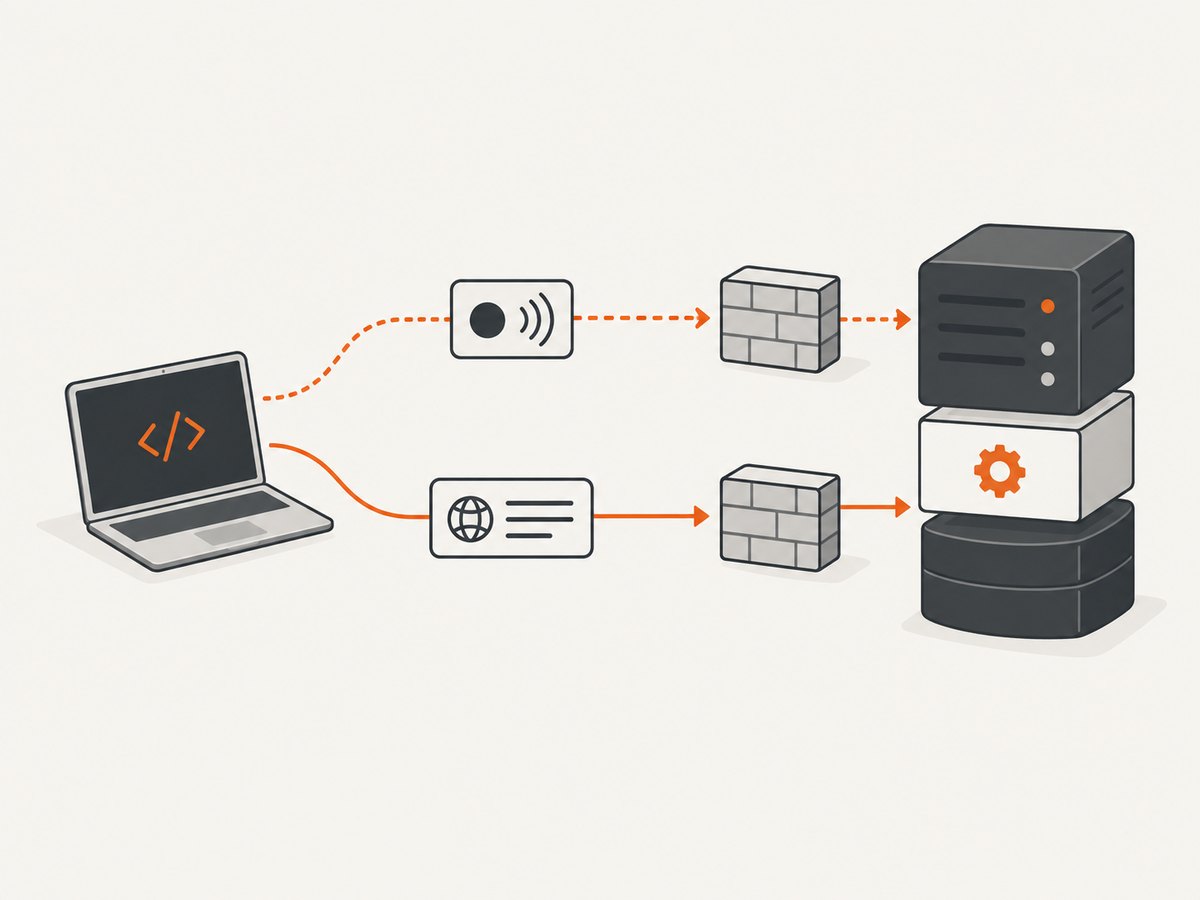
ping tests whether a host or network endpoint replies to an ICMP echo request. It does not tell you whether a website’s application is healthy, whether a URL returns the expected page, or whether users can complete a workflow. To check a website, pair ping with an HTTP request to the actual URL.
For a quick check, run ping example.com, then curl -sS -o /dev/null -w '%{response_code}\n' https://example.com/. A failed ping alone does not prove the website is down: networks often filter ICMP while allowing web traffic.
1. What ping checks
Ping sends ICMP ECHO_REQUEST packets and waits for ECHO_REPLY packets. A reply means the target, or an endpoint responding on its behalf, answered that probe. Ping supports IPv4 and IPv6. It is a network reachability check, not an application health check. See the Linux iputils ping manual.

A website request has more layers: name resolution, connection establishment, TLS negotiation for HTTPS, an HTTP request, and the application’s response. Ping does not exercise the HTTP route or confirm that the response contains the right content. A host may reply to ICMP while its web service is broken; a site may serve pages while its firewall drops ICMP.
2. Run a ping from your terminal
Linux
ping -c 4 example.comOn Linux iputils, -c 4 sends four packets and exits. The output reports replies, round-trip time, and packet loss. Options differ across operating systems, so check the local manual with man ping.
macOS
ping -c 4 example.commacOS also supports a packet-count option, though exact output and available flags can differ from Linux. Without a count, ping typically continues until you stop it with Ctrl-C.
Windows
ping -n 4 example.comWindows uses -n to choose the number of requests. Do not assume Linux flags or output formatting work identically in Windows Command Prompt or PowerShell.
Ping an IP address
ping -c 4 203.0.113.10Replace the example address with the server’s actual IP. Testing an IP can help distinguish a hostname-resolution issue from a reachability issue, but a web server may host multiple sites on one address. An IP ping therefore does not test the hostname’s HTTPS configuration or website content.
3. Check the website with HTTP
Use curl against the relevant URL, including its path when the problem is limited to one endpoint. A GET request discards the response body while printing the HTTP response code:
curl -sS -o /dev/null -w '%{response_code}\n' https://example.com/This asks for the page rather than merely checking whether the machine answers ICMP. A response code such as 200, 301, 403, or 404 is useful evidence about the HTTP layer, but whether it means healthy depends on what that URL is supposed to do.
You can ask for headers with HEAD:
curl -I https://example.com/Some servers deny or handle HEAD differently from GET. If this request fails or returns an unexpected result, try the GET command above. The curl manual documents both methods and options.
By default, curl distinguishes a completed transfer from the meaning of the HTTP status. For instance, a 404 response can still be a successful transfer. Add --fail if you want HTTP statuses 400 and above to make curl return an error:
curl --fail -sS -o /dev/null -w '%{response_code}\n' https://example.com/Use the printed status when diagnosing. Redirects, authentication, and application-specific expected responses may affect what you consider a passing check. Avoid treating every status other than 2xx as universally broken without considering the endpoint.
4. Read the results together
| Ping | HTTP | What it suggests |
|---|---|---|
| Replies | Expected response | Both probes succeeded from this location; this does not prove every user path is healthy. |
| Replies | Fails or unexpected response | ICMP reachability exists, but investigate DNS choice, TLS, routing to the application, server, URL, or expected status/content. |
| No replies | Expected response | HTTP works while ICMP may be filtered or deprioritized. Ping failure is not proof of an outage. |
| No replies | Fails | There is a reachability or service problem from these probes, but they do not isolate DNS, routing, firewall, host, or application as the cause. |
These interpretations follow from the different layers each probe exercises; exact diagnosis requires more evidence. A single check reflects its location, method, timing, and configuration. If the result matters, repeat it and compare from another network or monitoring location before concluding that a broad outage is occurring.
5. Check name resolution and compare networks
If pinging a hostname fails but pinging a known server IP succeeds, name resolution may be involved. Conversely, a hostname can resolve successfully while the destination does not answer ICMP. Compare the address returned by your DNS tools with the address you expect for the service, and remember that CDNs and load balancers can return different addresses by location or time.
Then repeat the HTTP request from another connection, such as a separate network. If one location fails and another succeeds, the issue may be regional, route-specific, or related to filtering. A successful check elsewhere does not guarantee all visitors can connect, but it helps narrow where to investigate.
6. Interpret latency and packet loss carefully
Ping’s response time and packet loss describe the observed probe path during that interval. They are not a direct measurement of page-load time or the full visitor experience. A high ping time can coexist with a responsive website, and an application can be slow while ping remains quick.
Look for repeatable patterns rather than diagnosing from one sample. Compare results across intervals and locations, and correlate them with HTTP status, connection timing, and application telemetry available to you. There is no universal ping latency or packet-loss threshold that defines a healthy website for every application.
7. Automate a one-time command-line check
For a simple script, use the HTTP status output and choose an expected result appropriate for the URL:
#!/bin/sh
url="https://example.com/"
code=$(curl -sS -o /dev/null -w '%{response_code}' "$url") || exit 2
printf 'HTTP %s from %s\n' "$code" "$url"
[ "$code" = "200" ]
This example treats only 200 as success; change that condition if the endpoint should redirect, require authentication, or return another status. The curl command’s exit status indicates transfer-level success unless options such as --fail change HTTP error handling. Handle network errors separately from application expectations.
On Linux iputils, ping’s documented exit status is 0 when replies meet the command’s criteria, 1 when no replies arrive or the requested count is not met by a deadline, and 2 for other errors. Consult your platform’s manual before relying on those exact statuses in portable scripts.
8. When to use recurring monitoring
A terminal ping or curl request is useful for immediate troubleshooting. If you need scheduled checks, external probe locations, alerting, or a public status page, look at hosted monitoring. Compare services by check type (HTTP, TCP, ICMP), probe geography, interval, timeout and retry behavior, alert channels, status-page support, and plan limits.
ICMP is not enough for a public-facing service when networks may filter it; HTTP or TCP checks can provide a more relevant view of service availability. Provider documentation describes features and settings for its own service, not universal monitoring standards. For example, Uptimehub describes recurring ICMP and TCP checks, regions, alerts, and status pages; use its current documentation to confirm details before choosing a plan.
9. Troubleshooting common failures
| Symptom | Likely cause or meaning | Next step |
|---|---|---|
| Ping says “unknown host” or cannot resolve the name | The hostname may be mistyped or DNS resolution may fail. | Check spelling and DNS resolution; try a known IP to separate name lookup from ICMP response. |
| Ping times out, but the website loads | ICMP may be filtered or deprioritized. | Use an HTTP check for the site. Do not classify it as down based on ping alone. |
| Ping replies, but the browser or curl fails | ICMP works, but DNS selection, TCP, TLS, HTTP, routing, or the application may not. | Request the exact URL with curl and inspect its error and response code. |
curl -I returns 403 or fails while the page works |
The server may treat HEAD differently or deny it. | Try GET with curl -sS -o /dev/null -w '%{response_code}\n'. |
| curl exits successfully on a 404 | A completed transfer is distinct from an acceptable HTTP status. | Inspect the response code; add --fail if statuses 400+ should cause an error. |
| Ping reports intermittent loss | The probe path or target may be dropping or delaying ICMP packets. | Repeat over time, compare another location, and check HTTP behavior before attributing the loss to the website. |
| HTTP works from one network only | The problem may depend on location, routing, filtering, DNS, or access policy. | Compare resolved addresses and repeat from another network or external probe. |
10. Capture the page itself when visual output matters
Availability checks tell you whether a probe got a response. They do not show whether the rendered page looks right. If the question is whether a page has the expected visual state, use a browser capture after checking availability. A screenshot can expose a blank render, an obstructing banner, or a broken layout that a simple ping cannot reveal.
Or skip the browser setup
ScreenshotNeo is a website screenshot API and MCP server. One GET request captures a URL as PNG, JPEG, WebP, or PDF. It accepts cookie and consent banners like a visitor and removes more than 60 known consent platforms, newsletter popups, and chat widgets before capture; each cleanup step can be disabled. Bot checks/CAPTCHAs, blank pages, timeouts, failed loads, and cache hits are not billed, and response headers report the page verdict and billing status. Its MCP server provides take_screenshot, get_page_info, and capture_pdf for Claude, Cursor, and other MCP clients.
cURL:
curl -G "https://api.screenshotneo.com/v1/shot" -d access_key=YOUR_API_KEY --data-urlencode url=https://example.com -o shot.webpPython:
import requests
r = requests.get("https://api.screenshotneo.com/v1/shot", params={"access_key": "YOUR_API_KEY", "url": "https://example.com"}, timeout=90)
open("shot.webp", "wb").write(r.content)
Node.js:
const q = new URLSearchParams({ access_key: 'YOUR_API_KEY', url: 'https://example.com' });
const res = await fetch(`https://api.screenshotneo.com/v1/shot?${q}`);
See the ScreenshotNeo API documentation for request options. The service also supports full-page and element captures, device and viewport settings, PDF controls, custom CSS and JavaScript, wait conditions, request blocking, custom headers and cookies, caching, signed links, async jobs, bulk capture, and a usage API. The free plan includes 1,000 screenshots per month without a card; paid plans start at $5 for 3,000, and every feature is on every plan.
Sign up for 1,000 free screenshots a month with no card.
11. FAQ
Can I ping a URL such as https://example.com/page?
No. Ping targets a hostname or IP address, not a web URL path or scheme. Use curl or a browser for an HTTP URL.
Does a fast ping mean the site is fast?
No. Ping measures ICMP response time along the probe path. It does not measure page rendering, assets, or application work.
Should I ping continuously to monitor uptime?
For recurring checks and alerts, choose monitoring that checks the service layer you care about. ICMP alone may miss application failures or report filtered traffic as unavailable.
Can one failed check prove an outage?
No. It reports what one probe observed at one time. Repeat it, check HTTP, and compare from another location before drawing a wider conclusion.
12. Practical checklist
- Ping the hostname with the command syntax for your operating system.
- Request the actual URL with curl and inspect its HTTP response code.
- Use GET if HEAD is denied or behaves differently.
- Separate transfer errors from HTTP status expectations.
- Repeat important checks and compare another network or probe location.
- Use scheduled HTTP/TCP/ICMP monitoring when you need alerts and recurring visibility.


