Using Pipedream to Automate Website Screenshots
Capture webpages on a schedule, HTTP request, or app event with Pipedream’s Playwright action, then save each image somewhere durable.
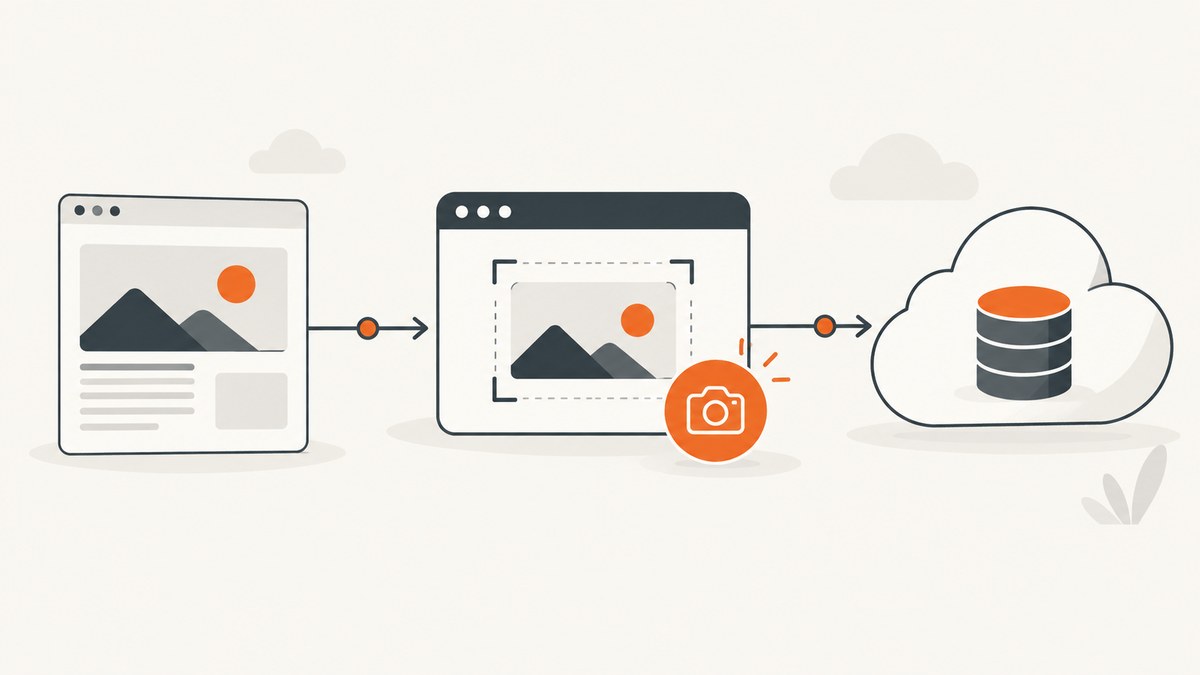
Use Pipedream’s Playwright Take Screenshot action in a workflow. Choose a trigger—HTTP request, schedule, or app event—then configure the page URL, filename, color scheme, full-page setting, and optional viewport dimensions. The action saves the screenshot under /tmp, so add a storage step if you need the file to survive after the workflow execution environment goes cold.
This guide covers the Pipedream setup, a runnable custom Node.js alternative, storage and delivery patterns, dynamic-page considerations, errors, and a hosted API option when you do not want to manage browser setup.
1. Choose a trigger and define the output
Start by deciding what event should create a screenshot and where the result should go. Pipedream supports HTTP request, schedule, and app-event triggers for this workflow. [Pipedream Playwright action]
| Trigger | Use it when | Input to plan for |
|---|---|---|
| Schedule | You need recurring captures, such as a daily page archive or periodic visual check. | Target URL, run cadence, output naming convention. |
| HTTP request | Another system or a person should request a capture on demand. | URL and any approved capture options from the request body or query. |
| App event | A connected service should start the capture after an event. | The event field that identifies the page or record to capture. |
Keep the first version narrow: one trusted URL, one filename pattern, and one destination. If an HTTP trigger accepts a URL from callers, validate it and restrict allowed hosts. Otherwise the workflow may be used to request pages you did not intend to capture.
2. Configure the Pipedream Playwright screenshot action
- Create a workflow and add the trigger you selected.
- Add Pipedream’s Playwright Take Screenshot action and connect the required Playwright account.
- Set the required URL and filename.
- Choose the color scheme and whether the screenshot should include the full page.
- Optionally set viewport width and height. If omitted, the action code defaults to 1280 by 720.
- Send a test event, inspect the generated file, deploy the workflow, and turn on its trigger.
The action creates a Playwright page with the selected viewport and color scheme, navigates to the URL, writes the image to /tmp/<filename>, and closes the browser. Its documented inputs are URL, filename, color scheme (no-preference, light, or dark), fullPage, and optional viewport width and height. See the official Playwright action documentation for the current component configuration.
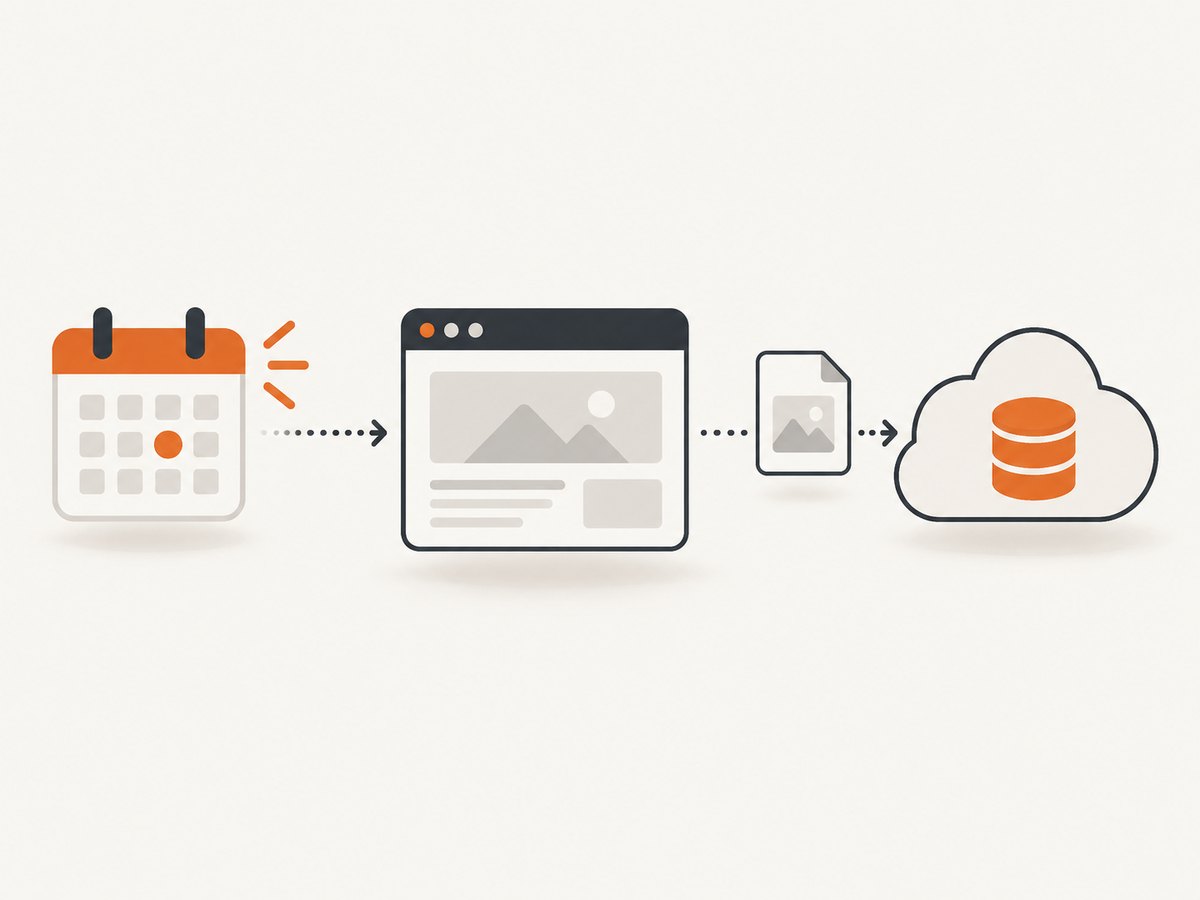
What the capture options mean
| Option | Effect | Practical choice |
|---|---|---|
| URL | Page the browser navigates to. | Use a complete URL and confirm the workflow can reach it without an interactive login. |
| Filename | Name used for the image written to temporary storage. | Include a stable page identifier and, for recurring captures, a timestamp or date. |
| Color scheme | Sets the browser page’s preferred scheme. | Use light or dark to capture the corresponding responsive theme; use no preference to let the site decide. |
| Full page | Captures beyond the visible viewport. | Enable for long articles or pages. Leave off for a consistent above-the-fold snapshot. |
| Viewport width and height | Sets the browser viewport used to render the page. | Specify dimensions when captures need a repeatable layout. Defaults are 1280 × 720 in the action code. |
The action’s documented example navigates with page.goto(this.url) and then calls page.screenshot(opts). It does not insert a fixed delay or custom readiness condition. That is often adequate for a mostly static page. For a page that fills content after navigation, assess the site’s behavior and add a specific wait condition in a custom code step or use another capture approach with the needed readiness control. A fixed delay is not automatically required and can add unnecessary runtime.
3. A runnable custom Node.js workflow step
Use the prebuilt action for its straightforward inputs. Choose a custom Node.js step when you need to define a readiness condition, control browser behavior beyond those inputs, or handle the output yourself. The following example uses Playwright in a Node.js environment where the playwright package and browser runtime are available. In Pipedream, use the platform’s supported Playwright component or package setup for the workflow; do not assume a local browser executable is available without configuring it.
import { chromium } from "playwright";

export default defineComponent({
  props: {
    url: { type: "string", label: "Page URL" },
    filename: { type: "string", label: "Output filename", default: "capture.png" },
    fullPage: { type: "boolean", label: "Full page", default: false },
  },
  async run() {
    const browser = await chromium.launch({ headless: true });
    try {
      const page = await browser.newPage({
        viewport: { width: 1280, height: 720 },
        colorScheme: "light",
      });
      await page.goto(this.url, { waitUntil: "domcontentloaded", timeout: 45000 });
      // Replace this with a selector that indicates the content is ready, if needed.
      // await page.locator("main article").waitFor({ state: "visible", timeout: 15000 });
      const path = `/tmp/${this.filename}`;
      await page.screenshot({ path, fullPage: this.fullPage, type: "png" });
      return { path, url: this.url };
    } finally {
      await browser.close();
    }
  },
});
This component is an adaptable example, not a claim that the code has been executed in your Pipedream account. Pipedream’s documented prebuilt action is source-available; inspect its current implementation and package requirements before choosing a custom component. [Pipedream Playwright action]
Wait for the condition that matters
Readiness depends on the page. Consider waiting for a known content selector, a navigation state, or a specific application signal. Avoid waiting for full network idleness by default: analytics, chat, or other long-running requests can prevent a page from becoming idle. Also avoid arbitrary long delays when a selector can indicate that the useful content has appeared. Set timeouts so a missing selector fails visibly instead of hanging the workflow.
For pages that require authentication, a login flow, or client-side state, confirm that your workflow is authorized to access and capture them. A screenshot can expose account data; keep credentials in managed secrets and restrict who can invoke the workflow and read stored files.
4. Save and deliver screenshots beyond the run
The action writes to a local /tmp directory. Treat this as temporary execution storage, not an archive. Pipedream’s File Stores guidance says local copies in /tmp are subject to deletion after a workflow goes cold, and community guidance says files are not guaranteed to remain between executions. [Pipedream File Stores] [Pipedream community guidance]
If another workflow step consumes the image immediately, pass the file path or file data through that execution as supported by the integration. For later access, upload it to Pipedream File Stores or a configured storage provider. Store the durable identifier or object URL in a database, event, or downstream message. Check current documentation for retention behavior and limits before relying on a particular store.
Choose a retention pattern
- Immediate handoff: send the capture to a notification or processing step in the same workflow run.
- Short-term workflow access: use the documented file-sharing mechanism such as
syncDirwhen multiple component executions need to share files. - Durable archive: upload to File Stores or a separate storage provider, then record the durable key and capture time.
For recurring captures, prevent accidental overwrites by including a timestamp or a unique run identifier in the storage key. If you only want the latest image, use a deliberate stable key and understand that each run replaces the prior artifact. Set lifecycle or retention behavior at the storage layer based on how long the snapshots are useful.
5. Alternative: Pipedream’s GetScreenshot API action
Pipedream also documents a GetScreenshot API action that can be connected to an HTTP or webhook trigger. It accepts a website URL and supports PNG, JPEG, or PDF, optional email delivery, optional DOM element targeting, and additional API parameters. It requires a connected GetScreenshot account and API-key authentication. Choose this route when those output or delivery features matter; the Playwright action is the direct fit when you want the Pipedream browser action’s viewport and full-page controls. The available research does not establish a controlled comparison of speed, reliability, or price. [Pipedream GetScreenshot action]
6. Or skip the browser setup
If your goal is simply to request an image or PDF from a workflow, ScreenshotNeo provides a website screenshot API and MCP server. A single GET request accepts a URL and returns PNG, JPEG, WebP, or PDF. It can fit a Pipedream HTTP step where you would rather call an API than configure browser capture.
See the ScreenshotNeo API documentation for request options and response details. Example cURL request:
curl -G "https://api.screenshotneo.com/v1/shot" \
  -d access_key=YOUR_API_KEY \
  --data-urlencode url=https://stripe.com \
  -o shot.webp
Python:
import requests

r = requests.get(
    "https://api.screenshotneo.com/v1/shot",
    params={"access_key": "YOUR_API_KEY", "url": "https://stripe.com"},
    timeout=90,
)
r.raise_for_status()
open("shot.webp", "wb").write(r.content)
Node.js:
const q = new URLSearchParams({
  access_key: 'YOUR_API_KEY',
  url: 'https://stripe.com'
});
const res = await fetch(`https://api.screenshotneo.com/v1/shot?${q}`);
if (!res.ok) throw new Error(`Screenshot request failed: ${res.status}`);
const bytes = new Uint8Array(await res.arrayBuffer());
await import('node:fs/promises').then(fs => fs.writeFile('shot.webp', bytes));
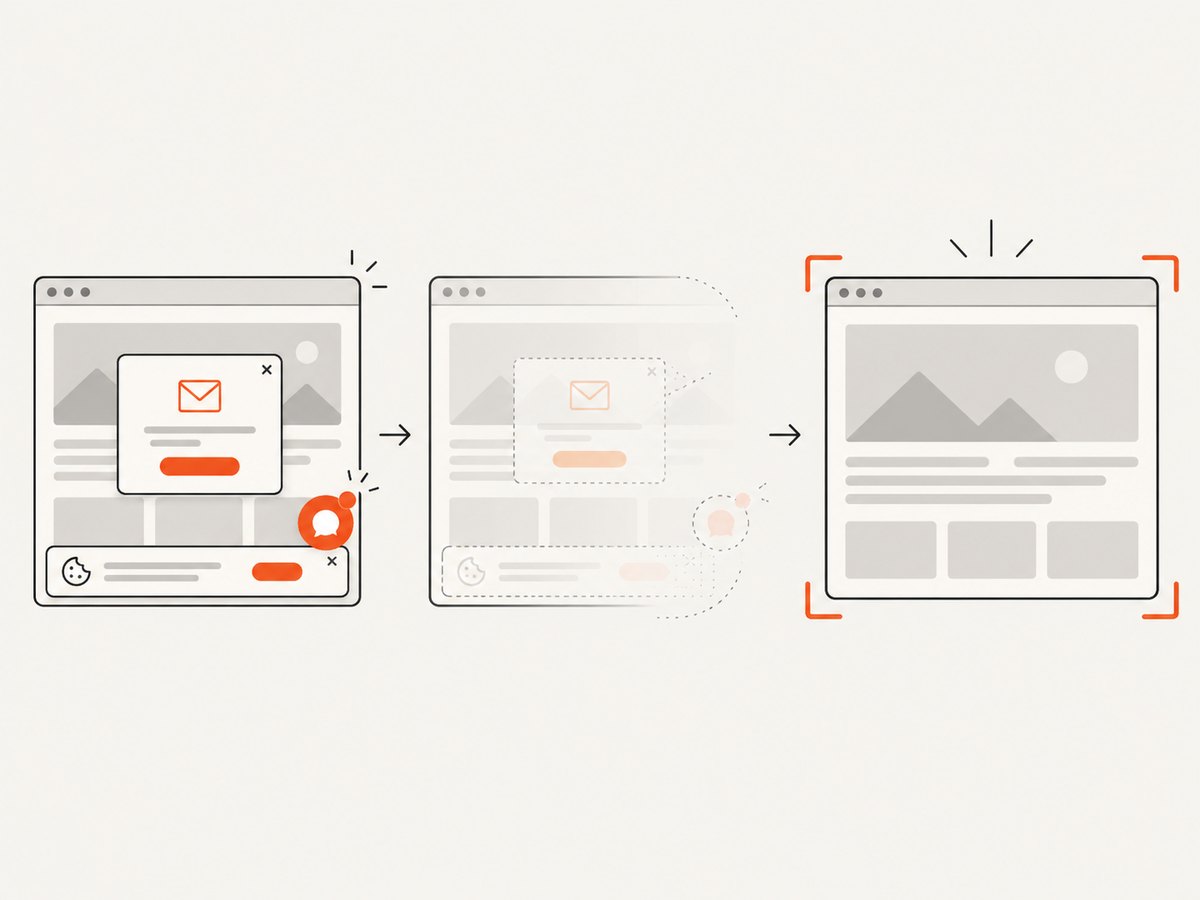
In a Pipedream step, keep the API key in a secret or connected credential and pass the returned bytes to the storage step if you need durable retention. ScreenshotNeo accepts consent banners like a visitor and removes more than 60 known consent platforms, newsletter popups, and chat widgets before capture; each cleanup step can be turned off. Bot checks or CAPTCHAs, blank pages, timeouts, failed loads, and cache hits are not billed, and response headers report the page verdict and billing status. Its MCP server provides take_screenshot, get_page_info, and capture_pdf tools for AI agents. The free plan includes 1,000 screenshots a month with no card; paid plans start at $5 for 3,000. Every feature is on every plan.
Create a free ScreenshotNeo account for 1,000 screenshots a month with no card.
7. Troubleshooting
| Symptom | Likely cause | What to do |
|---|---|---|
| Navigation times out | The site is slow, unreachable from the run, or never reaches the chosen navigation condition. | Check the URL and access requirements. Use a realistic timeout and a narrower readiness condition when appropriate. |
| Screenshot is blank or missing content | The page renders content after the action captures, or a required element did not load. | Wait for a meaningful selector or app signal and check the page’s response and browser console in a custom step. |
| Layout differs from expected | Viewport dimensions or color scheme differ from the target, or responsive layout changed. | Set explicit viewport dimensions and color scheme; compare captures at the same settings. |
| Full-page output is unexpectedly tall | The page has long or continuously loading content. | Check whether full-page capture is needed; wait for intended content and avoid pages that append indefinitely. |
| File is unavailable in a later run | The file was only written to temporary /tmp storage. |
Upload it to File Stores or another configured storage provider during the same run. |
| Two captures overwrite one another | They use the same output filename or storage key. | Include a date, timestamp, or run identifier when separate artifacts are required. |
| Custom step cannot launch Chromium | The package or browser runtime is not present in the execution environment. | Use Pipedream’s supported Playwright action or configure the documented package/runtime dependencies for the custom component. |
| HTTP-triggered workflow captures an unexpected host | The request input is accepted without URL validation. | Validate scheme and hostname against an allowlist before navigation. |
8. Performance, reliability, and cost
Browser captures consume time and resources to launch or use a browser, load the page, wait for readiness, and encode the output. Keep the viewport and capture scope no larger than needed. Full-page captures of long pages can produce larger files and take longer to process. A highly specific wait can reduce wasted waiting, while a too-short timeout can create intermittent failures. These are workflow design tradeoffs; the reviewed sources do not provide benchmark figures.
For reliability, make each run’s input explicit, use bounded timeouts, close the browser in a finally block in custom code, and upload important files before the run ends. If the trigger can retry, choose unique object names or make the upload idempotent so a repeated event does not corrupt the archive. Keep the original URL and capture timestamp alongside the file to make later auditing easier.
Cost depends on your Pipedream plan, execution usage, and any connected storage or API service. Check current plan limits and pricing before setting a high-frequency schedule. The research material does not provide verified current Pipedream pricing, service limits, or storage retention durations, so this guide does not state numeric estimates.
FAQ
Can the workflow run without a human opening the page?
Yes. A schedule, HTTP request, or app event can trigger the workflow; the Playwright action performs the navigation and capture.
Does the screenshot action keep an archive automatically?
No. It writes into /tmp. Add a file storage step for artifacts that must persist.
Can I capture only one element or return a PDF?
The GetScreenshot API action documents optional DOM element targeting and PNG, JPEG, or PDF output. The Playwright action described here is configured around page screenshots and viewport/full-page settings.
Do I always need to add a delay?
No. Add a wait only when the target page’s rendering behavior requires it, and prefer a meaningful readiness condition over a blanket delay.


