8 Placeholder Image Generators for Web Mockups
Compare eight placeholder image generators for dimensions, realism, repeatability, labels, formats, and reliable web mockup workflows.
Direct answer: Use Placehold.co for labeled layout blocks, Lorem Picsum for realistic repeatable photos, Unsplash for searchable photography in an application workflow, DiceBear for deterministic avatars, and the remaining services when you need a particular combination of colors, labels, formats, or fallback behavior. For screenshotting the finished mockup, ScreenshotNeo is the first service to try because it removes consent banners, popups, and chat widgets before capture, bills only clean shots, and has the lowest paid plan.
A placeholder is temporary content that reserves the size and visual role of a production asset. The best choice depends on what you are reviewing: geometry, crop behavior, color balance, realistic texture, avatar consistency, or an error and fallback state. Keep placeholder URLs in mockup and test environments, then replace them with approved production assets before launch.
Quick comparison
| Generator | Best use | Useful control | Workflow |
|---|---|---|---|
| Placehold.co | Labeled wireframe blocks | Width, height, colors, text, output format | Simple URL |
| Lorem Picsum | Realistic photo placeholders | Dimensions, IDs, seeds, grayscale, blur | Simple URL |
| Unsplash Image API | Searchable photography in an app | Search and fetch through an API | Application API |
| DummyImage | Classic dummy image fixtures | Dimensions, colors, ratios, text | Simple URL |
| DiceBear | Repeatable avatars | Deterministic avatar generation | Simple URL/API |
| fallback.pics | Fallback and broken-image states | Deterministic SVG-style placeholders | Simple URL/API |
| PlaceholderImage.co | Configurable labels and formats | Dimensions, colors, text, format | Simple URL |
| PlaceholdPicsum | Solid-color plus photo workflows | Combined configurable URL generation | Simple URL |
How to choose a placeholder image
Start with the decision your mockup must support.
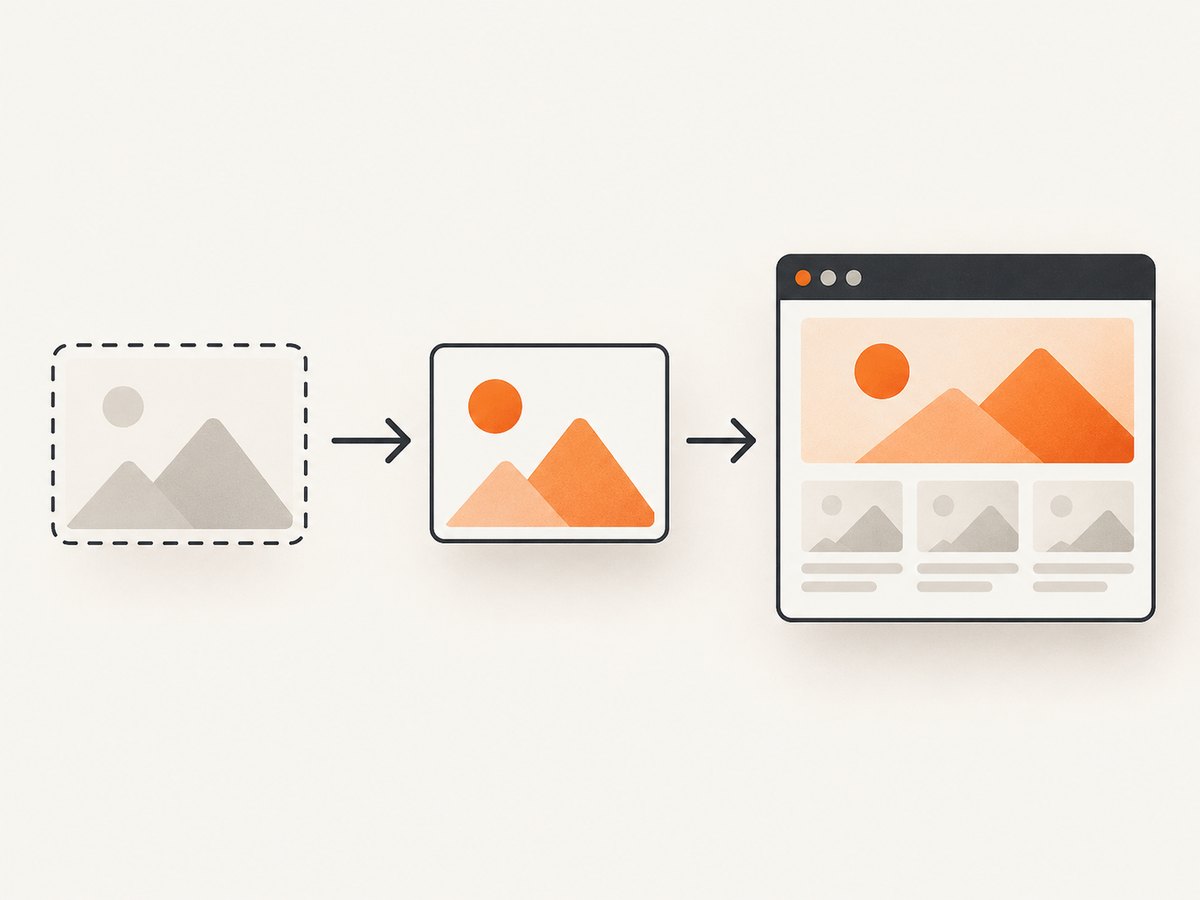
- Validate layout: choose a solid rectangle with the exact width and height. A visible label such as “Hero image” exposes the intended slot and prevents reviewers from mistaking temporary content for final art.
- Review visual balance: choose a realistic photo. Photos reveal crop, contrast, focal-point placement, and how text sits over an image.
- Keep reviews stable: use a seed or fixed image ID. A random photo that changes on every refresh makes screenshots and review links difficult to compare.
- Represent people safely: use a deterministic avatar generator rather than identifiable temporary profile images.
- Model failure states: use a deterministic fallback placeholder for broken-image, empty, skeleton, and documentation examples.
- Check delivery constraints: compare output formats, dimensions, color and text controls, API authentication requirements, caching behavior, and any usage terms before putting a service in an application workflow.
1. Placehold.co: best for labeled wireframe blocks
Placehold.co accepts width and height in the URL and documents output in SVG, PNG, JPEG, GIF, WebP, and AVIF. You can set background and text colors and add custom text. It supports sizes from 10×10 through 4000×4000 pixels. The service is a strong default when a reviewer should immediately know that an image is temporary.
<img src="https://placehold.co/1200x630/png?text=Hero+image" width="1200" height="630" alt="Placeholder: hero image">

<!-- A dark placeholder with light labeling -->
<img src="https://placehold.co/800x450/1f2937/ffffff/webp?text=Product+photo" width="800" height="450" alt="Placeholder: product photo">
Use the actual slot dimensions, not an arbitrary default. Setting width and height attributes also reserves space while the placeholder loads and reduces layout movement in the mockup.
2. Lorem Picsum: best for realistic photo placeholders
Lorem Picsum provides random images by dimensions, fixed image IDs, seeded repeatable images, grayscale, and blur. A seed is the important control for reviews: the same seed produces a repeatable selection, so a reviewer sees the same composition after a refresh.
<!-- Random 1200×630 photo -->
<img src="https://picsum.photos/1200/630" width="1200" height="630" alt="Photo placeholder">

<!-- Repeatable seeded image -->
<img src="https://picsum.photos/seed/landing-page-hero/1200/630" width="1200" height="630" alt="Repeatable photo placeholder">

<!-- Fixed image ID, grayscale and blur variants -->
<img src="https://picsum.photos/id/1015/800/500" width="800" height="500" alt="Fixed photo placeholder">
<img src="https://picsum.photos/800/500?grayscale" width="800" height="500" alt="Grayscale photo placeholder">
<img src="https://picsum.photos/800/500?blur=2" width="800" height="500" alt="Blurred photo placeholder">
Use a fixed ID when the subject itself matters, and a seed when you need a stable fixture name such as a page slug or test case. Keep the dimensions close to the production aspect ratio so cropping decisions remain meaningful.
3. Unsplash Image API: best for searchable photography
The Unsplash Image API is intended for searching, fetching, and inserting images through an application. It also documents official JavaScript, PHP, and Ruby libraries. Choose it when a mockup needs photography selected by a query such as “office,” “mountain,” or “running shoe,” rather than an arbitrary generated image. Read and follow the API requirements and attribution rules in the official Unsplash developer documentation.
const query = encodeURIComponent('modern office');
const response = await fetch(`https://api.unsplash.com/search/photos?query=${query}&per_page=1`, {
  headers: { Authorization: `Client-ID ${process.env.UNSPLASH_ACCESS_KEY}` }
});
if (!response.ok) throw new Error(`Unsplash request failed: ${response.status}`);
const data = await response.json();
const imageUrl = data.results[0]?.urls?.regular;
if (!imageUrl) throw new Error('No matching image returned');
console.log(imageUrl);
Do not make a search request from every browser render. Resolve the selected image in your build or fixture step, store the result with the mockup data, and use a stable URL during review.
4. DummyImage: best for classic URL-based fixtures
DummyImage is aimed at the familiar URL workflow: specify dimensions, colors, ratios, and custom text, then place the resulting URL directly in HTML or a test fixture. This is useful when a team wants the placeholder contract to be visible in source code and does not need photographic texture.
<!-- Keep the dimensions explicit in the fixture data -->
<img src="DUMMY_IMAGE_URL_FOR_800x450_WITH_LABEL" width="800" height="450" alt="Placeholder: article image">
Because URL syntax can vary by service version, copy the exact format from DummyImage’s current documentation and encode spaces and punctuation in custom labels.
5. DiceBear: best for repeatable avatars
DiceBear generates deterministic avatars. A stable seed can represent a user ID, fixture ID, or email hash without displaying a real person. That makes visual regression tests and demos consistent across environments.
<img src="https://api.dicebear.com/9.x/initials/svg?seed=casey" width="96" height="96" alt="Avatar placeholder for Casey">Pick one style for the whole mockup and keep the seed mapping stable. If an avatar is only a layout token, initials or another abstract style communicates its temporary status more clearly than a photorealistic face.
6. fallback.pics: best for deterministic fallback states
fallback.pics is useful for broken-image fallbacks, empty states, avatars, skeleton-like blocks, and documentation examples. The comparison research describes it alongside deterministic SVG placeholder APIs. Use a predictable input so the same failed asset always produces the same fallback during a test.
Implement the fallback at the component boundary, not only in a page template:
function imageOrFallback(url, fallbackUrl) {
  const image = document.createElement('img');
  image.src = url;
  image.alt = '';
  image.onerror = () => { image.src = fallbackUrl; };
  return image;
}
7. PlaceholderImage.co: best for configurable formats and labels
PlaceholderImage.co is presented as a configurable placeholder API with controls for dimensions, colors, text, and output format. It fits teams that need one URL convention for several fixture types, such as a labeled PNG for a browser test and an SVG for a lightweight documentation example. Confirm the current parameter names in its documentation before generating URLs in code.

8. PlaceholdPicsum: best for solid-color and photo workflows
PlaceholdPicsum combines solid-color placeholders with Lorem Picsum-style images and configurable URL generation. It can be useful when a prototype alternates between clearly labeled layout blocks and realistic photos but the team wants one generator family in its fixture configuration. Separate those modes in data so a later replacement with production assets is straightforward.
Building a stable mockup fixture
A small fixture object prevents placeholder decisions from leaking into page markup:
const mediaFixtures = {
  hero: {
    src: 'https://picsum.photos/seed/hero-v3/1200/630',
    width: 1200,
    height: 630,
    alt: 'Temporary hero image'
  },
  avatar: {
    src: 'https://api.dicebear.com/9.x/initials/svg?seed=casey',
    width: 96,
    height: 96,
    alt: 'Temporary avatar for Casey'
  },
  card: {
    src: 'https://placehold.co/640x360/png?text=Card+image',
    width: 640,
    height: 360,
    alt: 'Temporary card image'
  }
};
Render width, height, and alt from the fixture. Use CSS object-fit: cover only when the production component will also crop; otherwise you are reviewing behavior that will change at launch.
Capture the finished mockup
Once the page is assembled, capture it at the target viewport and device pixel ratio. A local browser workflow gives you complete control:
import { chromium } from 'playwright';

const browser = await chromium.launch();
const page = await browser.newPage({ viewport: { width: 1440, height: 900 }, deviceScaleFactor: 1 });
await page.goto('http://localhost:3000/mockup', { waitUntil: 'networkidle' });
await page.screenshot({ path: 'mockup.png', fullPage: true });
await browser.close();
For exact review results, wait for the placeholder images to finish loading, disable animations, use a fixed seeded or ID-based image source, and record the viewport and browser version with the screenshot.
Or skip the browser setup
ScreenshotNeo accepts one GET request and returns a PNG, JPEG, WebP, or PDF. It can capture a full page or one CSS-selected element, wait for a selector, delay, or network idle, load lazy images, apply custom CSS and JavaScript, choose a device or viewport, use retina scale, set headers, cookies, user agent, timezone, and geolocation, and block ads, trackers, requests, or resource types. Cookie and consent banners, newsletter popups, and chat widgets are removed before the shot. Bot checks, blank pages, timeouts, failed loads, and cache hits are not billed, and response headers identify the page verdict and billing result.
# cURL — see the full option list in the ScreenshotNeo docs
curl -G "https://api.screenshotneo.com/v1/shot" -d access_key=YOUR_API_KEY --data-urlencode url=https://stripe.com -o shot.webp
import requests
r = requests.get("https://api.screenshotneo.com/v1/shot", params={"access_key": "YOUR_API_KEY", "url": "https://stripe.com"}, timeout=90)
open("shot.webp", "wb").write(r.content)const q = new URLSearchParams({ access_key: 'YOUR_API_KEY', url: 'https://stripe.com' });
const res = await fetch(`https://api.screenshotneo.com/v1/shot?${q}`);
if (!res.ok) throw new Error(`ScreenshotNeo request failed: ${res.status}`);
const bytes = new Uint8Array(await res.arrayBuffer());
await Bun.write('shot.webp', bytes);See the ScreenshotNeo API documentation for every option. The service also provides PDF capture, HTML/CSS-to-image, click actions, hide selectors, caching with a chosen TTL, signed links, asynchronous jobs with signed webhooks, bulk capture for up to 100 URLs per call, a usage API, an OpenAPI specification, and an MCP server with take_screenshot, get_page_info, and capture_pdf for Claude, Cursor, and other MCP clients.
Plans include 1,000 screenshots per month free with no card, then Starter at $5 for 3,000, Growth at $15 for 15,000, Pro at $39 for 60,000, Scale at $99 for 250,000, and Business at $249 for 1,000,000. Yearly billing gives two months free, and every feature is on every plan. Create a free ScreenshotNeo account and start with the 1,000 monthly screenshots.
Troubleshooting
| Symptom | Likely cause | Fix |
|---|---|---|
| Images change between reviews | Random photo URL | Use a Lorem Picsum seed or fixed ID, or store the selected Unsplash result. |
| Layout shifts while loading | Missing intrinsic dimensions | Set width and height attributes or an aspect-ratio box. |
| Placeholder text is missing | Unencoded spaces or punctuation | URL-encode custom text and verify the service’s parameter syntax. |
| Photo crop looks wrong | Fixture ratio differs from production | Request the production aspect ratio and use the same object-fit rule. |
| Avatar changes for one user | Seed is not stable | Derive the seed from a persistent fixture or user identifier. |
| Screenshot contains a consent banner | Local browser capture has no cleanup step | Dismiss it in Playwright, hide it with CSS, or use ScreenshotNeo’s pre-capture cleanup. |
| Remote capture is blank or incomplete | Page requires authentication, waits on network activity, or blocks bots | Provide headers or cookies, wait for a selector, set a delay, and inspect the page verdict headers. |
| API request is rejected | Invalid key, URL, or provider parameter | Check status and response body, encode the URL, and compare parameters with the provider’s current documentation. |
Performance, reliability, and cost notes
- Request the smallest dimensions that still support the review. Oversized images increase transfer time and make local test suites slower.
- Use WebP or AVIF when the browser supports them and the mockup is not testing a specific legacy format. Keep PNG for transparency or pixel-sensitive checks.
- Cache deterministic placeholders locally or in CI. Seeded URLs and fixed IDs make cache keys safe and reduce repeated downloads.
- For Unsplash, resolve searches outside the render path so a transient search response cannot change a screenshot.
- Separate fixtures for layout tests, visual review, and failure states. Each has different requirements for realism and repeatability.
- With ScreenshotNeo, choose caching and a TTL when repeated captures are acceptable; use asynchronous jobs and signed webhooks for large batches; use bulk capture for up to 100 URLs per call. Only clean shots are billed, while failed loads, blank pages, bot checks, timeouts, and cache hits are free.
FAQ
What is the best placeholder for a wireframe?
Placehold.co is the clearest choice because dimensions, colors, and custom labels make the intended slot obvious.
How do I keep a photo placeholder identical?
Use a Lorem Picsum seed or fixed ID. Store an Unsplash result rather than performing a new search on every render.
Should placeholder images be in production?
No. Use them for mockups, tests, demos, and temporary fallback states, then replace them with approved assets before launch.
Which generator is suitable for avatars?
DiceBear is designed for deterministic avatar output, so a stable seed can represent the same fixture in every environment.
How can I capture a mockup without installing a browser?
Send the page URL to ScreenshotNeo’s API. It handles browser capture and can remove common consent UI before returning an image or PDF.