How to Play a YouTube Video in Fullscreen with Puppeteer
Use Puppeteer to start a YouTube video, focus the player, trigger fullscreen, and verify browser permissions, embeds, headless mode, and failures.
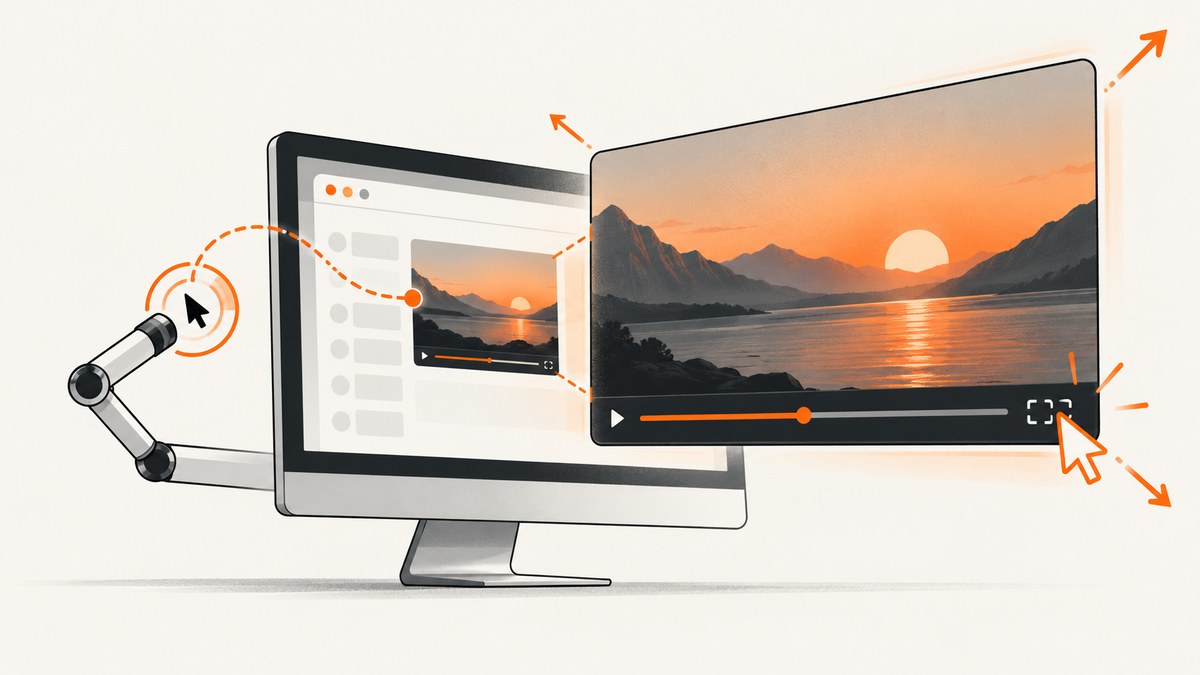
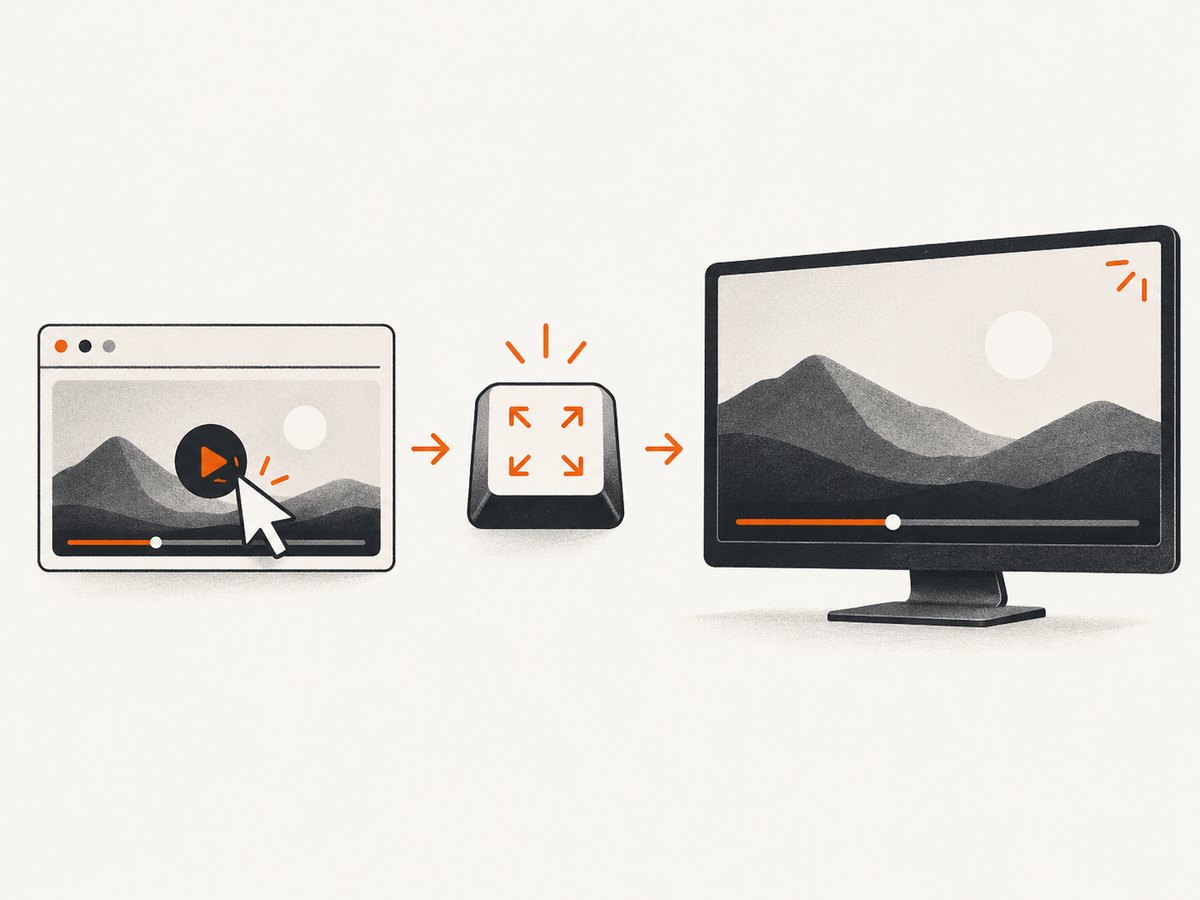
Direct answer: On a YouTube watch page, wait for the player, perform a real click inside it, then send YouTube’s documented f keyboard shortcut with Puppeteer. Verify the result instead of assuming fullscreen succeeded. For an embedded player, preserve fullscreen permission with allowfullscreen, do not set fs=0, and remember that browser fullscreen requires transient user activation.
import puppeteer from 'puppeteer';

const browser = await puppeteer.launch({ headless: false });
const page = await browser.newPage({ viewport: { width: 1280, height: 720 } });

await page.goto('https://www.youtube.com/watch?v=VIDEO_ID', {
  waitUntil: 'domcontentloaded',
  timeout: 60_000
});

await page.waitForSelector('video', { visible: true, timeout: 30_000 });
await page.click('video');
await page.keyboard.press('f');

const state = await page.evaluate(() => ({
  fullscreenElement: Boolean(document.fullscreenElement),
  videoReady: document.querySelector('video')?.readyState ?? 0
}));
console.log(state);

// Keep the visible browser open while inspecting the result.
// await browser.close();
The video selector is a practical starting point, not a permanent YouTube contract. YouTube changes its page structure, consent dialogs, experiments, and player implementation. Keep the readiness condition and selector under maintenance, and use a visible browser when the result must be observable by a person.
1. What “fullscreen” means in this workflow
Three different outcomes are often confused:
- Fullscreen video element: the player asks the browser Fullscreen API to occupy the screen.
- Maximized browser window: the browser window is large, but the page is not necessarily in fullscreen presentation.
- Visible screen-filling playback: a person sees the video fill the display, including browser and operating-system behavior.
Puppeteer runs headless by default. A headless screenshot or DOM check cannot prove that a visible desktop presents the same fullscreen result. Launch with headless: false for a human-visible run, and verify the exact behavior in the browser and operating system you support. Puppeteer’s [headless-mode guide](https://pptr.dev/guides/headless-modes) explains the available modes.
2. Install Puppeteer and create a repeatable script
Use a current Node.js release and install Puppeteer in a new project:
mkdir youtube-fullscreen
cd youtube-fullscreen
npm init -y
npm install puppeteer
Save this as fullscreen.mjs. It handles a consent dialog when one is visible, waits for a playable video, clicks the player, presses f, and reports browser state.
import puppeteer from 'puppeteer';

const videoUrl = process.env.YOUTUBE_URL ?? 'https://www.youtube.com/watch?v=VIDEO_ID';
const browser = await puppeteer.launch({
  headless: false,
  defaultViewport: { width: 1366, height: 768 },
  args: ['--autoplay-policy=no-user-gesture-required']
});

try {
  const page = await browser.newPage();
  page.setDefaultTimeout(30_000);

  await page.goto(videoUrl, {
    waitUntil: 'domcontentloaded',
    timeout: 60_000
  });

  // YouTube may show a consent screen before the player.
  const consentSelectors = [
    'button[aria-label*="Accept"]',
    'button[aria-label*="agree"]',
    'button[title*="Accept"]'
  ];
  for (const selector of consentSelectors) {
    const button = await page.$(selector);
    if (button) {
      await button.click().catch(() => {});
      break;
    }
  }

  await page.waitForSelector('video', { visible: true, timeout: 30_000 });
  await page.evaluate(() => {
    const video = document.querySelector('video');
    video?.scrollIntoView({ block: 'center', inline: 'center' });
  });

  // A real input action supplies the activation/focus that fullscreen needs.
  await page.click('video');
  await page.keyboard.press('f');

  await new Promise(resolve => setTimeout(resolve, 1_000));
  const result = await page.evaluate(() => ({
    fullscreenElement: document.fullscreenElement?.tagName ?? null,
    videoPaused: document.querySelector('video')?.paused ?? null,
    videoReadyState: document.querySelector('video')?.readyState ?? 0
  }));
  console.log(JSON.stringify(result, null, 2));

  // Leave the browser visible for inspection. Close it in CI or after a check.
  await new Promise(resolve => setTimeout(resolve, 10_000));
} finally {
  await browser.close();
}
Puppeteer’s [Page keyboard API](https://pptr.dev/api/puppeteer.page.keyboard) sends keyboard input to the page. YouTube documents f as the player fullscreen toggle in its keyboard shortcuts. Sending the key after clicking the player is an implementation choice that targets the player; it is not a guarantee that every YouTube layout will accept the shortcut.
3. Make playback reliable before requesting fullscreen
Wait for the right readiness signal
waitForSelector('video') confirms that a video element exists, but it does not prove that metadata, media data, or playback is ready. You can wait for a useful ready state:
await page.waitForFunction(() => {
  const video = document.querySelector('video');
  return video && video.readyState >= 2;
}, { timeout: 30_000 });
Ready state 2 means the browser has current data. It still does not guarantee autoplay, an unblocked stream, an available video, or an account that can watch it.
Start playback with an allowed gesture
Autoplay rules vary by browser and media state. A click is safer than calling video.play() from arbitrary page evaluation:
await page.click('video');
await page.evaluate(async () => {
  const video = document.querySelector('video');
  if (video?.paused) await video.play();
});
The promise can reject if the browser blocks playback, the video is unavailable, or the page has not established a permitted user gesture. Catch and log that error when playback is optional.
Use stable targeting strategies
Do not build a production script around an undocumented class name or a selector copied from one session. Prefer, in order:
- A semantic element such as
videowhen it uniquely identifies the player. - An accessible role or label when testing a visible control.
- A scoped selector inside the player container.
- A small set of fallbacks with a diagnostic screenshot or HTML dump when all fail.
The fullscreen control itself may only appear when the controls are visible. Moving the mouse over the player and waiting briefly can reveal it, but YouTube UI changes make a keyboard shortcut easier to maintain for watch-page automation.
4. Clicking YouTube’s fullscreen control
Use a control click when your test specifically needs to validate the visible fullscreen button. The exact selector is subject to YouTube changes, so inspect the current accessibility tree or use a selector maintained by your test suite.
await page.hover('video');
await new Promise(resolve => setTimeout(resolve, 500));

// Replace this with a selector verified for the current player build.
const fullscreenButton = await page.$('[aria-label*="Fullscreen"]');
if (!fullscreenButton) {
  throw new Error('Fullscreen control was not found; inspect the current player UI.');
}
await fullscreenButton.click();

await page.waitForFunction(
  () => Boolean(document.fullscreenElement),
  { timeout: 5_000 }
).catch(() => {
  console.warn('The click completed, but document.fullscreenElement is still null.');
});
This approach tests the control and its accessibility label, but it depends on controls being rendered, visible, and enabled. It also requires the browser and frame to permit fullscreen.
5. Fullscreen for an embedded YouTube player
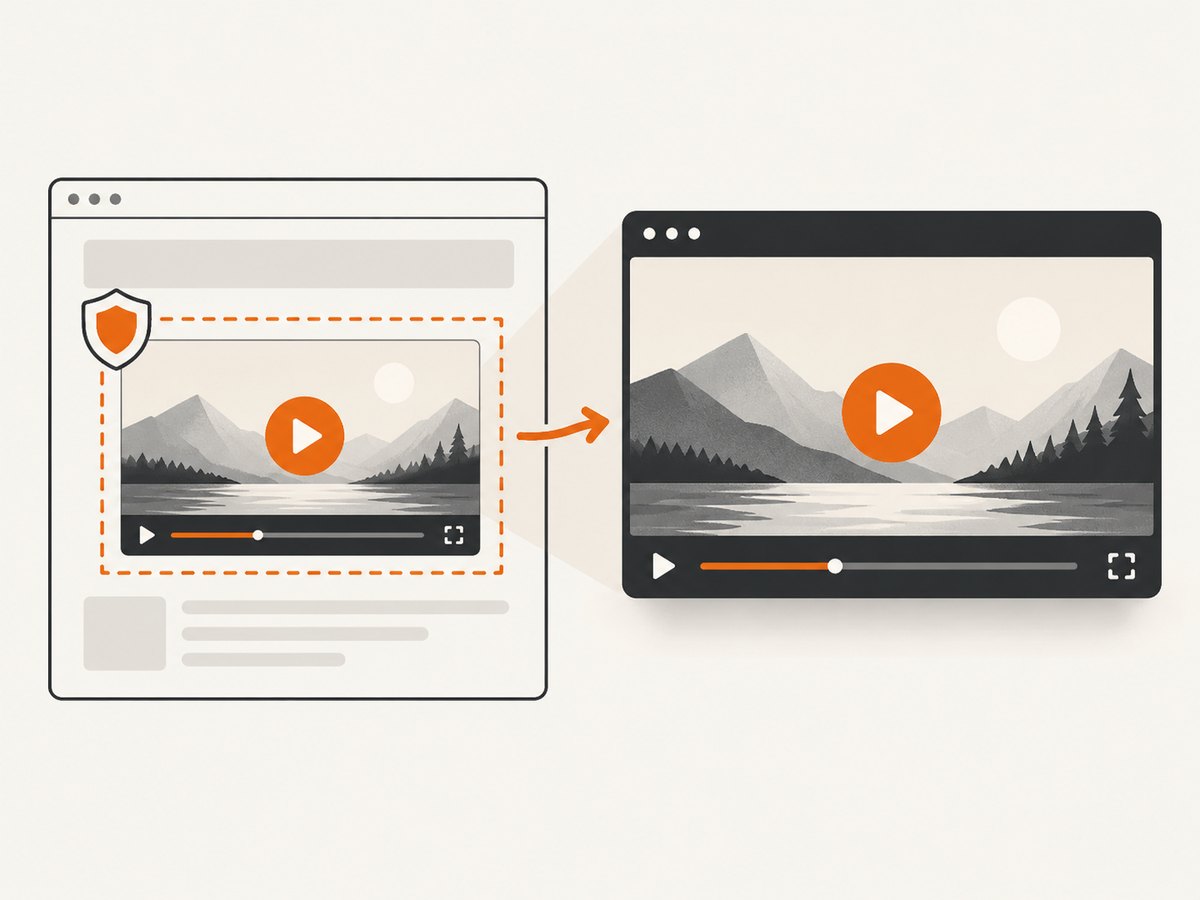
Embedded videos add two configuration checks. YouTube’s fs player parameter controls whether the fullscreen button is shown; fs=0 hides it, while the documented default is 1. The iframe must also grant fullscreen permission.
<iframe
  width="1280"
  height="720"
  src="https://www.youtube.com/embed/VIDEO_ID?fs=1"
  title="YouTube video player"
  allow="accelerometer; autoplay; clipboard-write; encrypted-media; gyroscope; picture-in-picture; web-share"
  allowfullscreen>
</iframe>
See YouTube’s [player-parameter documentation](https://developers.google.com/youtube/player_parameters) and [embedding guidance](https://support.google.com/youtube/answer/171780). If the iframe is cross-origin, browser Permissions Policy and the iframe’s fullscreen allowance both matter.
For an embedded application that needs documented player controls, the [YouTube IFrame Player API](https://developers.google.com/youtube/iframe_api_reference) is preferable to guessing UI selectors. It can control player state, but it does not remove browser fullscreen policy or activation requirements.
Automate the frame deliberately
const frame = page.frames().find(frame =>
  frame.url().includes('youtube.com/embed/')
);
if (!frame) throw new Error('YouTube embed frame not found');

await frame.waitForSelector('video', { visible: true });
await frame.click('video');
await frame.keyboard.press('f');
Depending on the browser and player implementation, keyboard input may need to be sent through the top-level page after the frame has focus. If a frame click does not produce the expected result, use the visible fullscreen control or test the embedding page’s own click-triggered fullscreen handler.
6. The browser Fullscreen API and activation rules
The Fullscreen API is activation-gated. A page generally must call requestFullscreen() as part of a transient user activation, such as a click. A random page.evaluate(() => element.requestFullscreen()) executed later may be rejected even though the element exists.
await page.evaluate(() => {
  const video = document.querySelector('video');
  if (!video) throw new Error('Video element not found');
  return video.requestFullscreen();
}).catch(error => {
  console.error('Fullscreen request rejected:', error.message);
});
Use this only when you control the page or integration. For YouTube’s own watch page, clicking the player and pressing f follows the UI interaction path. MDN’s [Fullscreen API reference](https://developer.mozilla.org/en-US/docs/Web/API/Fullscreen_API) describes activation and permission behavior. Puppeteer’s [window-management guide](https://pptr.dev/guides/window-management) demonstrates a click-triggered fullscreen request and checking the resulting window state.
7. Headless, CI, and visible-browser differences
| Environment | Recommended practice | What to verify |
|---|---|---|
| Local debugging | headless: false |
Player focus, controls, browser presentation, permissions |
| Headless CI | Use DOM and event assertions | document.fullscreenElement, playback state, console errors |
| Remote desktop | Run a visible browser in the intended display session | Window manager and display permissions |
| Container | Configure the browser display and sandbox according to your deployment | Browser launch errors and actual display output |
Do not treat a successful JavaScript promise as proof that a person saw a screen-filling video. Record the browser mode, operating system, viewport, video URL, and whether the assertion was DOM-level or visual.
8. Troubleshooting checklist
The f key does nothing
- Click the player first so it owns focus.
- Confirm the page is not still behind a consent dialog or age gate.
- Ensure the key is sent to the intended page or frame.
- Try the visible fullscreen control to distinguish focus problems from permission problems.
The fullscreen button is missing
- For an embed, remove
fs=0or setfs=1. - Check that the iframe includes
allowfullscreenand an appropriateallowpolicy. - Make sure the player controls are visible and the video is not blocked.
requestFullscreen() is rejected
- Call it from a real click handler or immediately after a Puppeteer input action.
- Check cross-origin iframe permissions and browser Permissions Policy.
- Do not assume a delayed
evaluatecall retains user activation.
Playback never starts
- Check
video.readyState, the page console, and network failures. - Expect autoplay restrictions; click before calling
play(). - Confirm the video is available in the region, account, and age context used by the browser.
Headless output does not look fullscreen
- Separate element fullscreen from browser-window fullscreen.
- Run a visible browser when the requirement is a human-visible display.
- Use DOM assertions in CI and a visual check in the target desktop environment.
9. Performance, reliability, and operating cost
Fullscreen itself is cheap; page startup, YouTube navigation, consent handling, media buffering, and browser process creation dominate runtime. Reuse a browser process for a batch of videos, create isolated pages for parallel work, and close pages after each job. Set navigation and selector timeouts explicitly so a blocked video does not occupy a worker indefinitely.
For reliable jobs:
- Log the URL, browser version, headless mode, viewport, and failure stage.
- Capture a diagnostic screenshot and console messages when selectors or playback fail.
- Retry navigation failures with a bounded backoff, but do not blindly retry policy errors.
- Keep selectors and consent handling in one module so YouTube changes have one maintenance point.
- Use a visible browser only for workflows that require visible fullscreen; use headless checks for state validation.
Self-hosting Puppeteer costs compute, memory, browser maintenance, and operational time. Video playback may also consume substantial bandwidth. If your actual requirement is a clean image or PDF of a page rather than interactive video playback, a screenshot API avoids managing a browser fleet.
10. Or skip the browser setup
ScreenshotNeo provides a single-request website screenshot API and an MCP server for AI agents. It is useful when the deliverable is a page image or PDF rather than an interactive fullscreen video session. Before capture, it accepts cookie and consent banners and removes more than 60 known consent platforms, newsletter popups, and chat widgets; each step can be disabled. Bot checks, blank pages, timeouts, failed loads, and cache hits are not billed, and responses identify the result with X-Page-Verdict and X-Billed headers.
Read the [ScreenshotNeo API documentation](https://screenshotneo.com/docs/) for the complete option list. The API supports full-page capture, CSS-element capture, dark mode, device presets, custom viewports, retina scale, PDF output, custom CSS and JavaScript, clicks, waits, blocked resources, headers, cookies, user agents, authorization, timezone, geolocation, transparent backgrounds, resizing, configurable caching, signed links, asynchronous jobs, bulk capture, usage data, and an OpenAPI specification.
cURL
curl -G "https://api.screenshotneo.com/v1/shot" \
  -d access_key=YOUR_API_KEY \
  --data-urlencode url=https://www.youtube.com/watch?v=VIDEO_ID \
  -o shot.webp
Python
import requests

r = requests.get(
    "https://api.screenshotneo.com/v1/shot",
    params={
        "access_key": "YOUR_API_KEY",
        "url": "https://www.youtube.com/watch?v=VIDEO_ID",
    },
    timeout=90,
)
r.raise_for_status()
open("shot.webp", "wb").write(r.content)
Node.js
const q = new URLSearchParams({
  access_key: 'YOUR_API_KEY',
  url: 'https://www.youtube.com/watch?v=VIDEO_ID'
});
const res = await fetch(`https://api.screenshotneo.com/v1/shot?${q}`);
if (!res.ok) throw new Error(`Screenshot failed: ${res.status}`);
const image = Buffer.from(await res.arrayBuffer());
await import('node:fs/promises').then(fs => fs.writeFile('shot.webp', image));
ScreenshotNeo’s MCP server exposes take_screenshot, get_page_info, and capture_pdf to Claude, Cursor, and other MCP clients. The Free plan includes 1,000 screenshots per month with no card; paid plans start at $5 for 3,000 shots. Create a free ScreenshotNeo account to try it.
11. FAQ
Can Puppeteer guarantee fullscreen?
No. The script can request fullscreen, but browser activation, iframe permission, video state, browser mode, and operating-system behavior determine the result. Verify the state you actually need.
Should I use the f shortcut or click the button?
Use f for a watch-page workflow when player focus is reliable. Click the control when your test is specifically validating the visible control and its accessibility behavior.
Does the YouTube IFrame API bypass fullscreen restrictions?
No. It provides documented player control, while browser fullscreen permissions and activation rules still apply.
Why is a visible browser recommended?
Headless mode is excellent for state checks, but it does not establish that a person saw the same screen-filling presentation. Use the mode that matches the requirement.
Can ScreenshotNeo make a playing YouTube video fullscreen?
ScreenshotNeo captures page images or PDFs. It is an alternative when you need a rendered page asset, not an interactive browser session controlled by keyboard input.


