How to Use Playwright for Browser Automation
Install Playwright, automate browsers with resilient locators, debug failures with traces, and decide when a screenshot API is simpler.
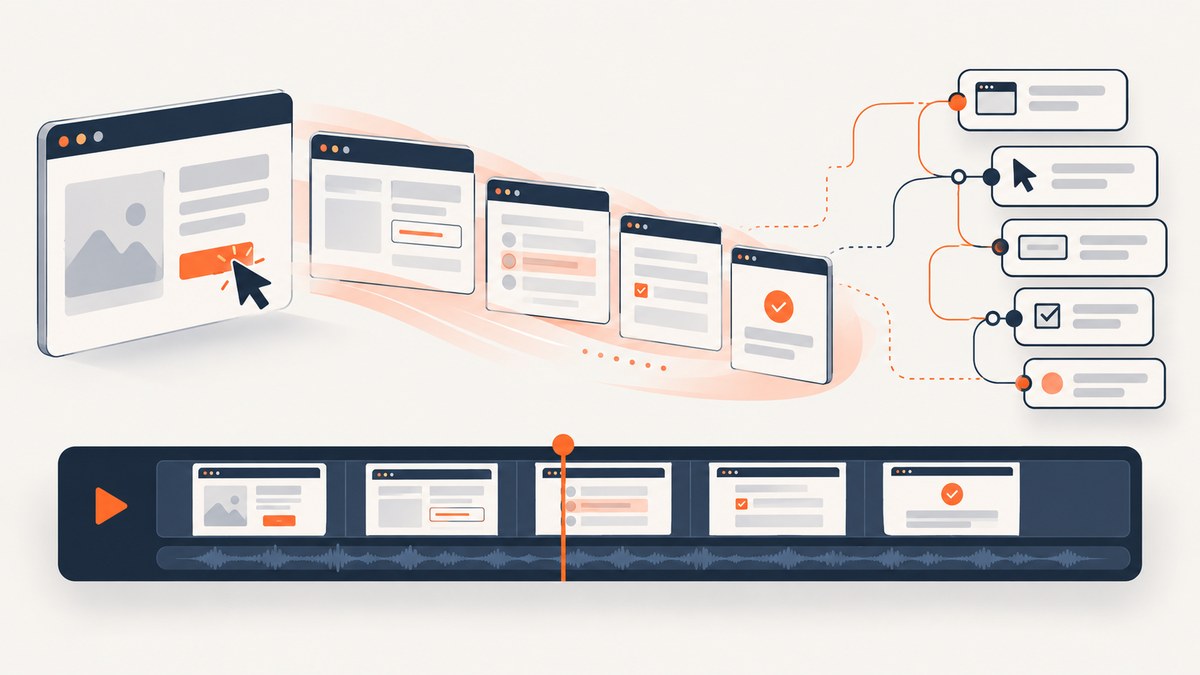
Playwright is a browser automation library for TypeScript, JavaScript, Python, .NET, and Java. It can launch Chromium, Firefox, or WebKit, navigate pages, fill forms, click controls, upload files, inspect results, and capture screenshots or PDFs. The reliable path is to install the package and matching browser binaries, choose Playwright Test or a direct browser API, locate controls the way users perceive them, let actionability checks synchronize interactions, assert the behavior that matters, and retain traces for failures.
This guide shows a maintainable workflow, with runnable TypeScript and Python examples, configuration options, debugging techniques, performance guidance, and common fixes.
1. Choose Playwright Test or the browser API
Use Playwright Test for a test suite. It provides a runner, projects, fixtures, retries, parallel workers, assertions, reporting, and trace configuration. Use the direct browser API for a focused automation script, data collection task, visual capture job, or service that needs browser control without adopting a test runner. Playwright documents both approaches for its supported languages (official introduction).
| Need | Best entry point | Reason |
|---|---|---|
| End-to-end regression suite | Playwright Test | Fixtures, projects, assertions, retries, reports, and traces are integrated. |
| One-off workflow or worker | Direct API | You explicitly manage the browser, context, page, and shutdown. |
| Several browser engines | Playwright Test projects | Run the same tests against Chromium, Firefox, and WebKit. |
| Recorded starting point | Codegen | It generates an initial script that you then review and simplify. |
2. Install Playwright and matching browsers
TypeScript or JavaScript
npm init playwright@latestThe initializer creates a project and can add a starter test. In an existing project, install the package and browser binaries explicitly:
npm install -D @playwright/test
npx playwright install
Install only one engine when appropriate:
npx playwright install chromium
npx playwright install firefox
npx playwright install webkit
Each Playwright package version expects compatible browser binaries. Run the install command again after upgrading the package. In Linux CI, install operating-system dependencies too:
npx playwright install --with-deps chromiumPlaywright also documents branded Chrome and Edge channels. Select those only when testing the installed branded channel is part of your compatibility requirement; otherwise, use the Playwright-managed browsers (browser installation guide).
Python
python -m venv .venv
source .venv/bin/activate
pip install playwright
playwright install
On Windows PowerShell, activate the environment with .venv\\Scripts\\Activate.ps1. Pin the package in your requirements file so your browser installation is reproducible.
3. Write a first direct automation script
The lifecycle is browser, context, page, work, close. A context is an isolated session with its own cookies, local storage, permissions, and viewport. Create a fresh context for each independent user or job.
Node.js (Playwright API)
import { chromium } from 'playwright';

const browser = await chromium.launch({ headless: true });
const context = await browser.newContext({
  viewport: { width: 1440, height: 900 },
  locale: 'en-US',
  timezoneId: 'UTC'
});
const page = await context.newPage();

try {
  await page.goto('https://example.com', { waitUntil: 'domcontentloaded' });
  console.log(await page.title());
  await page.screenshot({ path: 'example.png', fullPage: true });
} finally {
  await context.close();
  await browser.close();
}
Run it with Node’s ESM support, for example by setting "type": "module" in package.json. Prefer page.goto with a deliberate readiness condition; networkidle can be a poor choice for applications that continuously poll.
Python (Playwright API)
from playwright.sync_api import sync_playwright

with sync_playwright() as p:
    browser = p.chromium.launch(headless=True)
    context = browser.new_context(
        viewport={"width": 1440, "height": 900},
        locale="en-US",
        timezone_id="UTC",
    )
    page = context.new_page()
    try:
        page.goto("https://example.com", wait_until="domcontentloaded")
        print(page.title())
        page.screenshot(path="example.png", full_page=True)
    finally:
        context.close()
        browser.close()
The asynchronous Python API is useful when your application already uses asyncio: import from playwright.async_api, await the same operations, and use async_playwright() as the context manager.
4. Build maintainable tests with Playwright Test
Create a test file such as tests/checkout.spec.ts:
import { test, expect } from '@playwright/test';

test('customer can submit the contact form', async ({ page }) => {
  await page.goto('https://example.com/contact');
  await page.getByLabel('Email').fill('dev@example.com');
  await page.getByRole('button', { name: 'Send message' }).click();
  await expect(page.getByRole('status')).toHaveText('Message sent');
});
Run the suite with:
npx playwright test
npx playwright test tests/checkout.spec.ts --project=chromium
npx playwright test --headed
npx playwright show-report
A practical configuration keeps browser projects and diagnostics in one place:
import { defineConfig, devices } from '@playwright/test';

export default defineConfig({
  testDir: './tests',
  timeout: 30_000,
  expect: { timeout: 5_000 },
  retries: process.env.CI ? 2 : 0,
  reporter: [['html'], ['list']],
  use: {
    baseURL: 'https://example.com',
    trace: 'on-first-retry',
    screenshot: 'only-on-failure',
    video: 'retain-on-failure',
    actionTimeout: 10_000,
    navigationTimeout: 30_000
  },
  projects: [
    { name: 'chromium', use: { ...devices['Desktop Chrome'] } },
    { name: 'firefox', use: { ...devices['Desktop Firefox'] } },
    { name: 'webkit', use: { ...devices['Desktop Safari'] } }
  ]
});
First-retry tracing gives CI failures a detailed artifact without recording every successful run. Tracing every test can increase runtime and artifact storage.
5. Use resilient locators
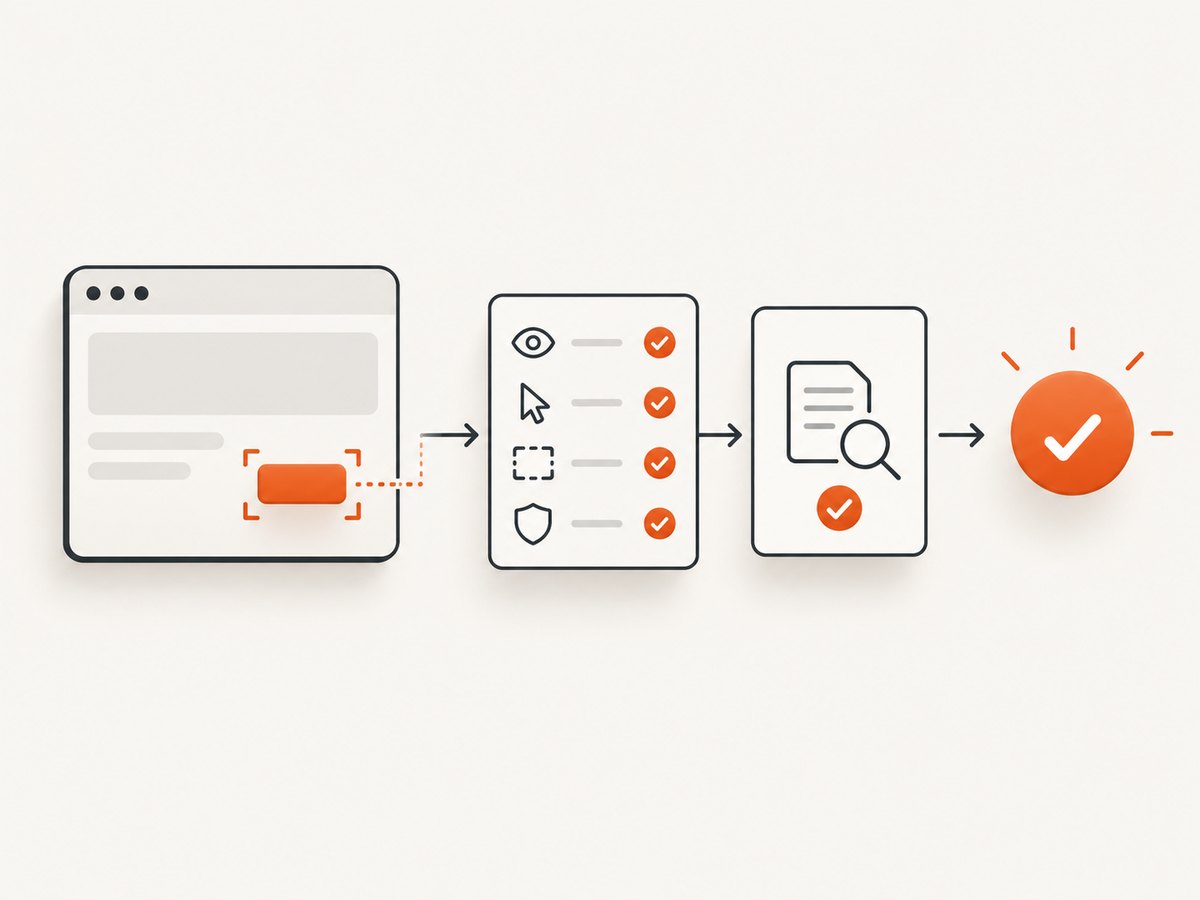
Locators are the central piece of Playwright’s auto-waiting and retry-ability (locator documentation). Prefer selectors that express the user-facing contract:
page.getByRole('button', { name: 'Save' })
page.getByLabel('Password')
page.getByPlaceholder('Search products')
page.getByText('Order complete')
page.getByAltText('Company logo')
page.getByTestId('cart-count')
Use roles and accessible names for controls, labels for form fields, and test IDs when the application deliberately exposes a stable testing contract. CSS and XPath are available, but long DOM paths and generated class names couple tests to implementation details. A locator is resolved when an action runs, so it can survive a re-render better than an element handle captured too early.
When a match is ambiguous, chain or filter it:
const product = page.getByRole('listitem').filter({ hasText: 'Keyboard' });
await product.getByRole('button', { name: 'Add to cart' }).click();
await expect(product).toContainText('In cart');
6. Understand auto-waiting and assertions
Before locator.click(), Playwright checks that the locator resolves to one element and that it is visible, stable, able to receive events, and enabled. It waits for those actionability conditions and raises a timeout if they never become true (actionability guide).
Use web-first assertions because they retry until the expected state or the assertion timeout:
await expect(page.getByRole('heading', { name: 'Dashboard' })).toBeVisible();
await expect(page).toHaveURL(/dashboard/);
await expect(page.getByRole('row')).toHaveCount(10);
A fixed sleep such as waitForTimeout(5000) usually hides a synchronization problem. Wait for a meaningful state instead: a response, a URL, a visible status, a count, or a selector that represents readiness. Use explicit timeouts only when the normal latency of that operation is understood.
7. Generate a draft with Codegen
Codegen records interactions and proposes locators:
npx playwright codegen https://example.com
npx playwright codegen --browser=webkit --target=python -o recorded.py https://example.com
The recorder can generate visibility, text, and value assertions (Codegen documentation). Treat its output as a draft. Remove incidental clicks, replace brittle selectors, give tests a meaningful name, and assert the result a user cares about. Recording an interaction is not the same as defining a stable test contract.
8. Capture screenshots, PDFs, and downloads
Playwright can capture a viewport or the whole page:
await page.screenshot({ path: 'viewport.webp', type: 'webp', quality: 85 });
await page.screenshot({ path: 'full-page.png', fullPage: true });
await page.pdf({ path: 'invoice.pdf', format: 'A4', printBackground: true });
PDF generation is supported in Chromium. For a specific element, locate it first:
await page.getByRole('article').screenshot({ path: 'article.png' });Downloads should be awaited before the click:
const downloadPromise = page.waitForEvent('download');
await page.getByRole('link', { name: 'Export CSV' }).click();
const download = await downloadPromise;
await download.saveAs('export.csv');
9. Control the browser context
Context options let you model the environment that matters to your workflow:
- Viewport and device: use
devicespresets or a custom width and height. - Locale and timezone: expose date, number, and language bugs.
- Permissions: grant capabilities such as geolocation only when the test needs them.
- Storage state: save an authenticated session and reuse it in a controlled test environment.
- Proxy, HTTP credentials, extra headers, and user agent: configure network identity at context creation.
- Geolocation and color scheme: exercise location-aware or dark-mode paths.
const context = await browser.newContext({
  storageState: 'playwright/.auth/user.json',
  colorScheme: 'dark',
  geolocation: { latitude: 51.5072, longitude: -0.1276 },
  permissions: ['geolocation'],
  extraHTTPHeaders: { 'X-Test-Run': 'ci' }
});
Keep authentication state out of source control. Use a dedicated test account and delete or rotate its state when credentials change.
10. Intercept, block, and inspect network traffic
Route requests to mock unstable dependencies, block analytics, or verify that a request occurred:
await page.route('**/api/recommendations', async route => {
  await route.fulfill({
    status: 200,
    contentType: 'application/json',
    body: JSON.stringify({ items: [] })
  });
});

const responsePromise = page.waitForResponse('**/api/orders');
await page.getByRole('button', { name: 'Place order' }).click();
const response = await responsePromise;
if (!response.ok()) throw new Error(`Order failed: ${response.status()}`);
Do not over-mock. Keep at least one path that exercises the real integration, and make mock data explicit so a test failure identifies the simulated condition.
11. Diagnose failures with traces
A trace can contain the action timeline, screenshots, DOM snapshots, logs, source locations, and network details. Open one with:
npx playwright show-trace test-results/example-test/trace.zipInspect the step immediately before the failure: confirm the URL, locator resolution, console errors, request failures, and DOM snapshot. A lower-level browserContext.tracing capture records browser operations and network activity, but it does not record Playwright Test assertions. Configure tracing through Playwright Test when assertion details are important (Trace Viewer guide).
12. Troubleshooting checklist
| Symptom | Likely cause | Fix |
|---|---|---|
| Executable doesn’t exist | Package and browsers are out of sync, or binaries were not installed. | Run npx playwright install; after an upgrade, install again. |
| Timeout waiting for click | Wrong locator, hidden overlay, disabled control, animation, or page state never reached. | Inspect the trace; use a role or label locator; wait for a meaningful state; remove or handle the overlay. |
| Strict mode violation | A locator matches multiple elements. | Make the accessible name specific, chain a locator, or use an intentional test ID. |
| Works locally, fails in CI | Missing Linux dependencies, different viewport, slower resources, or an environment-only redirect. | Use install --with-deps, record a trace on retry, set explicit timeouts, and compare URLs and console errors. |
| Flaky assertion | The assertion checks an intermediate state or relies on a fixed delay. | Use a web-first assertion for the final state or await the relevant response. |
| Blank or incomplete screenshot | Lazy content has not loaded or the page continues changing. | Scroll or interact to trigger lazy loading, wait for the content locator, and capture after the stable state. |
| Authentication unexpectedly disappears | Pages were created in a different context or storage state expired. | Create pages from the intended context and regenerate the test account state. |
13. Performance, reliability, and cost
Performance
- Launch one browser per worker and create isolated contexts instead of launching a browser for every test.
- Run independent tests in parallel, but avoid shared mutable accounts and data.
- Use the smallest browser project matrix that answers your compatibility question.
- Block genuinely irrelevant third-party resources only when doing so does not change the behavior under test.
- Keep traces, videos, and full-page screenshots on failures or retries unless you need continuous visual artifacts.
Reliability
Stable tests define a contract: a user-visible action, a deterministic fixture, and an assertion about the resulting behavior. Isolate test data, control clocks and external dependencies where necessary, and retry only to collect diagnostics or absorb known infrastructure noise. Retries should not conceal a product defect.
Cost
Playwright itself is open-source software, but browser workers consume CPU, memory, CI minutes, storage for traces and videos, and bandwidth for real pages. Reduce those costs through worker limits, targeted projects, retained-on-failure artifacts, and cleanup of downloaded files. If your requirement is only a clean image or PDF rather than interaction, a browser automation stack may be more machinery than necessary.
Or skip the browser setup
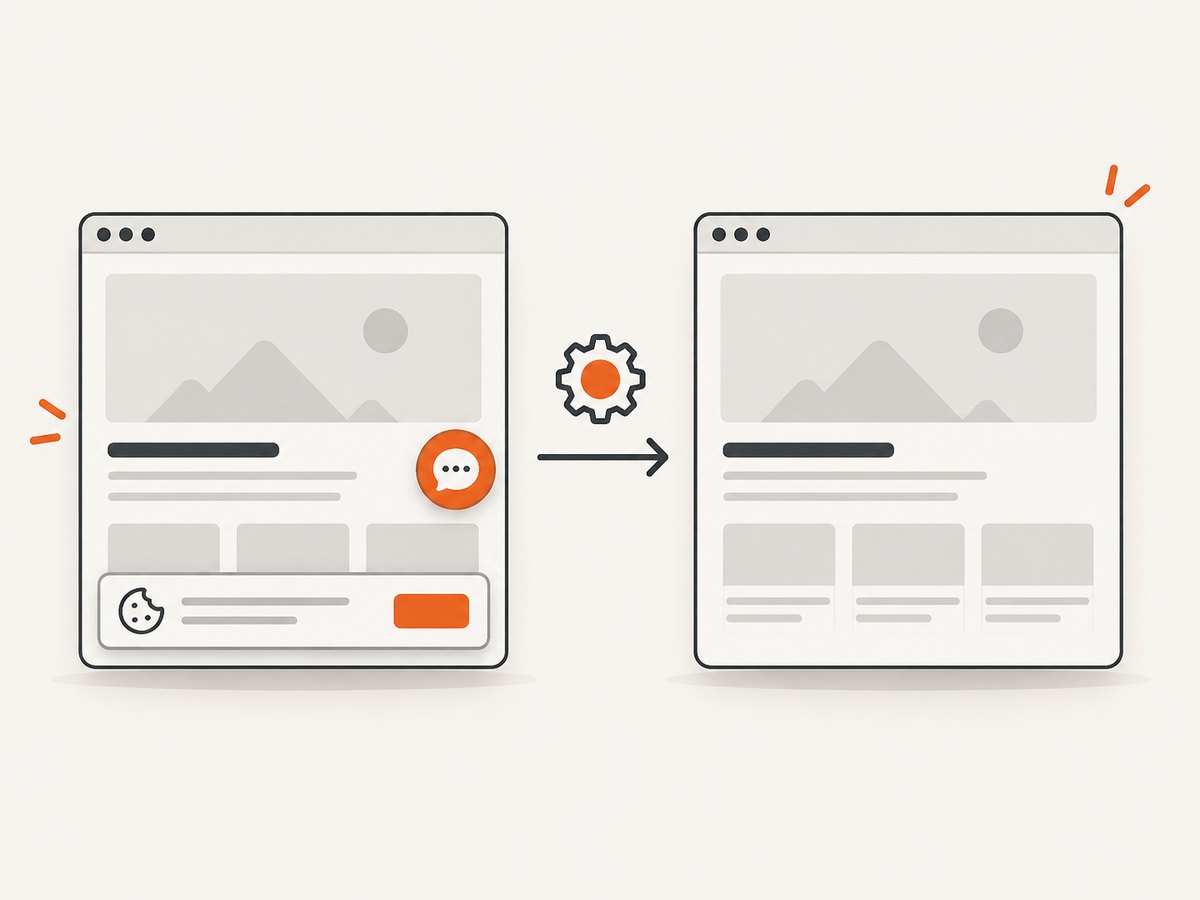
When you only need a rendered screenshot or PDF, ScreenshotNeo provides a single GET request at https://api.screenshotneo.com/v1/shot. It handles the browser infrastructure and supports full-page capture, element selectors, device presets, dark mode, retina scale, custom CSS and JavaScript, waits, blocking rules, headers, cookies, user agents, authorization, timezone, geolocation, transparency, resizing, caching, signed links, asynchronous jobs, bulk capture, PDFs, and HTML/CSS-to-image.
cURL:
curl -G "https://api.screenshotneo.com/v1/shot" -d access_key=YOUR_API_KEY --data-urlencode url=https://stripe.com -o shot.webpPython:
import requests
r = requests.get("https://api.screenshotneo.com/v1/shot", params={"access_key": "YOUR_API_KEY", "url": "https://stripe.com"}, timeout=90)
open("shot.webp", "wb").write(r.content)
Node.js:
const q = new URLSearchParams({ access_key: 'YOUR_API_KEY', url: 'https://stripe.com' });
const res = await fetch(`https://api.screenshotneo.com/v1/shot?${q}`);
See the ScreenshotNeo documentation for the full parameter list. Cookie and consent banners are accepted and 60+ known consent platforms, newsletter popups, and chat widgets are removed before capture; each step can be turned off. Bot checks, blank pages, timeouts, failed loads, and cache hits are not billed, and the response reports the result through X-Page-Verdict and X-Billed headers. An MCP server provides take_screenshot, get_page_info, and capture_pdf tools for Claude, Cursor, and other MCP clients. The free plan includes 1,000 screenshots per month with no card; paid plans start at $5 for 3,000 shots.
Sign up for 1,000 free screenshots a month.
FAQ
Can Playwright automate Safari?
Playwright automates the Playwright-managed WebKit engine, which is useful for WebKit coverage. Use a branded browser channel only when that specific channel is part of your requirement.
Should every test use a test ID?
No. Use accessible roles and labels when they express the user contract. Add a test ID when a stable testing contract is clearer than any user-facing attribute.
Why does Playwright still time out if it auto-waits?
Auto-waiting can wait only for defined actionability conditions. A timeout means the locator, visibility, stability, event reception, or enabled state did not become valid before the deadline; inspect the trace and application state.
Is Codegen production-ready by itself?
Codegen is a useful draft generator. Review its locators, remove incidental steps, and add assertions that describe the intended behavior before committing the test.
When should I use an API instead of Playwright?
Use an API when you need a rendered screenshot or PDF and do not need to interact with the page. Use Playwright when the workflow itself—clicks, forms, authentication, network interception, or cross-browser behavior—must be controlled.


