Why Playwright Won’t Open a Browser and How to Fix It
Diagnose Playwright launch failures by error, browser version, OS, CI, Docker, and headless mode, with fixes and runnable examples.
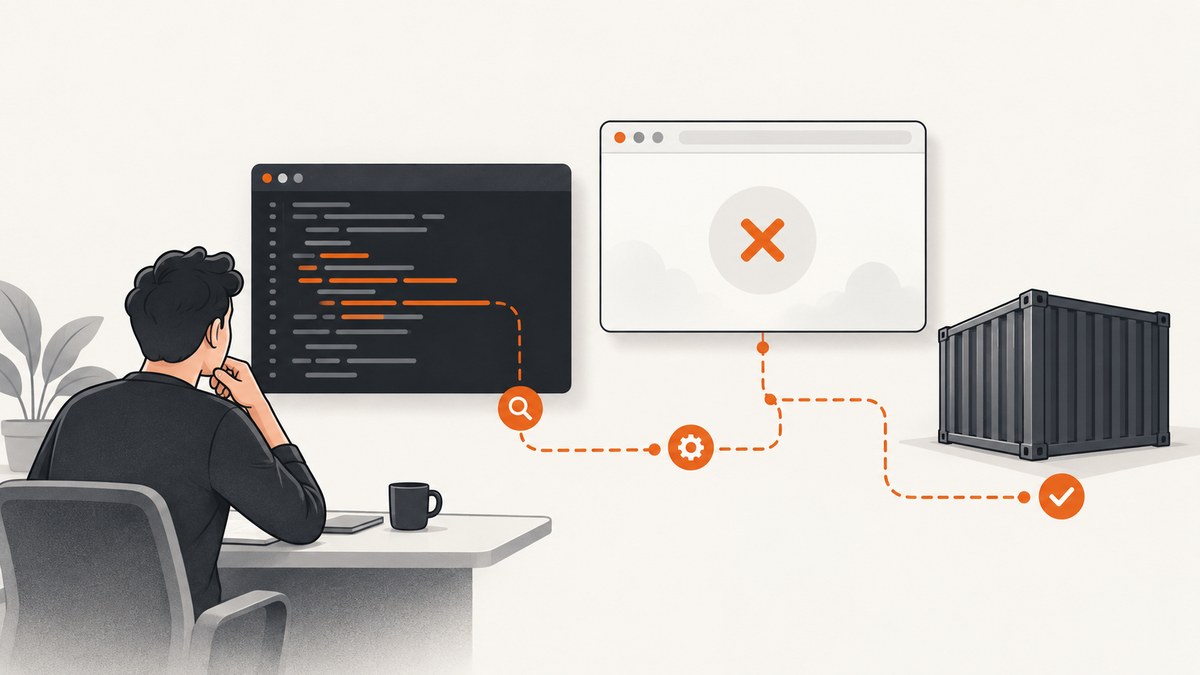
Playwright launch failures usually have a specific cause: the browser executable is missing, the browser process exits, Linux dependencies are unavailable, a container uses an incompatible distribution, or the browser is running headlessly without a visible window. Match the fix to the exact error, browser engine, operating system, and environment.
Quick diagnosis
- Save the complete error message.
- Record the Playwright version with
npx playwright --version, the requested engine (Chromium, Firefox, or WebKit), operating system, and whether the run is local, CI, Docker, WSL, or remote. - Classify the symptom: missing executable, missing shared library, browser process exit, or an invisible window.
- For CI launch errors, enable browser logs:
DEBUG=pw:browser npx playwright test. Playwright’s CI guide recommends this output when investigating failed launches: CI documentation.
Test assertion failures and page navigation failures happen after startup. They require a different investigation from a browser process that never launches.
Install the browser binaries Playwright expects
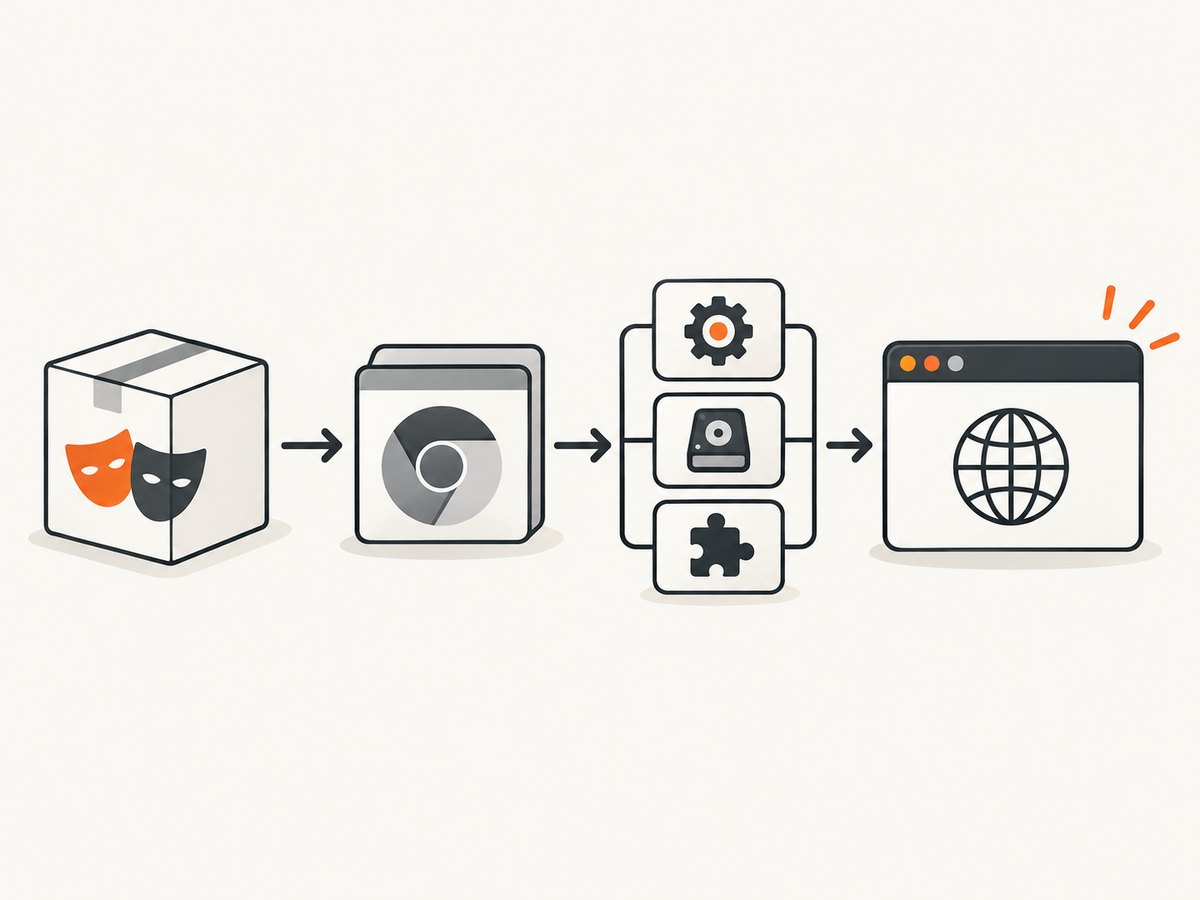
Playwright packages and browser binaries are version-linked. The official documentation states: “Each version of Playwright needs specific versions of browser binaries to operate.” A browser already installed on your computer is not necessarily the binary used by Playwright.
# Install the default browser binaries
npx playwright install

# Install only the engine your project uses
npx playwright install chromium
npx playwright install firefox
npx playwright install webkit

# List browsers Playwright can find
npx playwright install --list
After upgrading the Playwright package, run the install command again when the matching revision is absent or mismatched. See Playwright browser management.
Use the project’s package manager
# npm
npm install -D @playwright/test
npx playwright install

# pnpm
pnpm add -D @playwright/test
pnpm exec playwright install

# Yarn
yarn add --dev @playwright/test
yarn playwright install
Run installation from the same project and environment that runs the tests. Installing into one user’s cache and executing as another user can make a browser appear to be missing.
Install Linux browser dependencies
A browser executable can exist and still fail immediately when shared libraries are missing. Install browsers and operating-system dependencies together when supported by your environment.
# Chromium plus Linux dependencies
npx playwright install --with-deps chromium

# Install dependencies for an already selected engine
npx playwright install-deps chromium
npx playwright install-deps
The exact command and supported operating systems are release-sensitive. Use the browser guide for the Playwright version in your lockfile instead of copying a dependency list from another Linux distribution. In restricted environments, package-manager access may require the appropriate proxy and privileges. The official installation guide documents current runtime and OS requirements: installation documentation.
Headless mode: the browser opened, but no window appeared
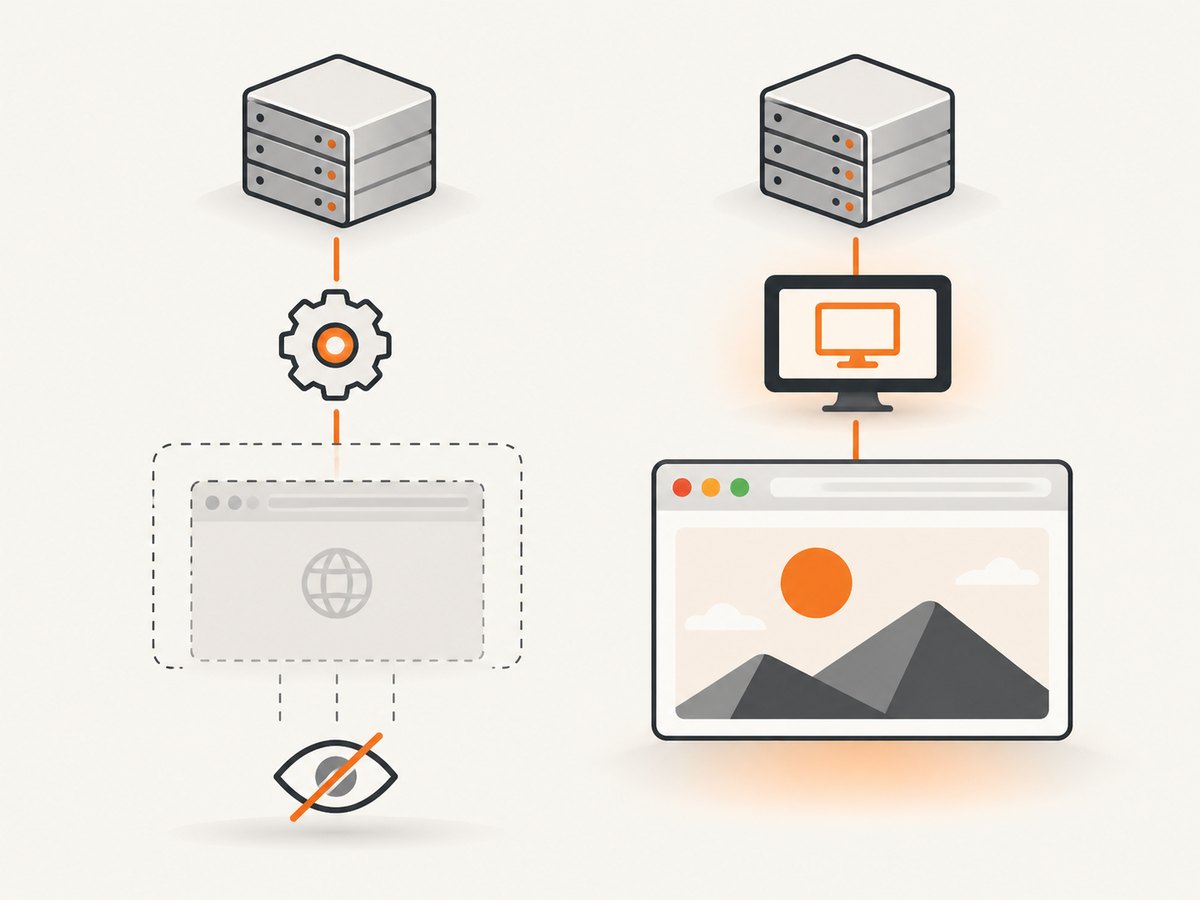
Playwright runs headlessly by default. A successful headless launch has no desktop window to show. Use headed mode only when you need to watch interaction or debug visually.
const { chromium } = require('playwright');

(async () => {
  const browser = await chromium.launch({ headless: false });
  const page = await browser.newPage();
  await page.goto('https://example.com');
  await page.pause();
  await browser.close();
})();
On Linux CI, headed mode needs an X server. If Xvfb is installed, run the test through it:
xvfb-run npx playwright testKeep CI runs headless unless a visible display is part of the requirement. The CI guidance covers headed execution and display setup: Playwright CI documentation.
Minimal launch examples
Node.js
const { chromium } = require('playwright');

(async () => {
  const browser = await chromium.launch({ headless: true });
  const page = await browser.newPage({ viewport: { width: 1280, height: 720 } });
  await page.goto('https://example.com', { waitUntil: 'domcontentloaded' });
  await page.screenshot({ path: 'example.png', fullPage: true });
  await browser.close();
})().catch(error => {
  console.error(error);
  process.exit(1);
});
Python
from playwright.sync_api import sync_playwright

with sync_playwright() as p:
    browser = p.chromium.launch(headless=True)
    page = browser.new_page(viewport={"width": 1280, "height": 720})
    page.goto("https://example.com", wait_until="domcontentloaded")
    page.screenshot(path="example.png", full_page=True)
    browser.close()
Docker and CI fixes
Align the package, image, and browser revision
The Playwright Docker guidance requires the project’s Playwright version to match the version used by the container image. A mismatch can produce “executable doesn’t exist” errors even when the image contains browsers. Keep the package version, lockfile, and image tag aligned, then install the requested engine and dependencies in the image. See official Docker guidance.
FROM mcr.microsoft.com/playwright:REPLACE_WITH_YOUR_PLAYWRIGHT_VERSION

WORKDIR /app
COPY package*.json ./
RUN npm ci
COPY . .

CMD ["npx", "playwright", "test"]
Replace the tag with the version documented for your project. Do not assume a floating tag matches the package in your lockfile.
Check Alpine and musl compatibility
The current official Docker page says Playwright Firefox and WebKit browser builds are built for glibc and are unsupported on Alpine and other musl-based distributions. Use a supported glibc-based image for those engines, or choose a browser and base image combination documented as supported.
Make CI installation explicit
# Example CI steps
- run: npm ci
- run: npx playwright install --with-deps chromium
- run: DEBUG=pw:browser npx playwright test
Do not hide installation failures behind a cached step. Print the Playwright version and browser list when diagnosing a runner:
npx playwright --version
npx playwright install --list
DEBUG=pw:browser npx playwright test
Proxy, certificates, and browser cache paths
Corporate proxy
If downloads fail behind a proxy, configure HTTPS_PROXY for the installation command:
HTTPS_PROXY=http://proxy.example.internal:8080 npx playwright install chromiumUse your organization’s real proxy address. A proxy that intercepts HTTPS may cause a self-signed certificate-chain error.
Custom certificate authority
When the proxy uses an internal root certificate, set NODE_EXTRA_CA_CERTS to the trusted certificate before installing:
NODE_EXTRA_CA_CERTS=/path/to/company-root-ca.pem npx playwright install chromiumDo not disable TLS verification to work around a certificate problem. The documented configuration options are in Playwright’s proxy and certificate guidance.
Shared browser cache
PLAYWRIGHT_BROWSERS_PATH controls where Playwright looks for browser binaries. Set it consistently during both installation and execution:
export PLAYWRIGHT_BROWSERS_PATH=/opt/playwright-browsers
PLAYWRIGHT_BROWSERS_PATH=/opt/playwright-browsers npx playwright install chromium
PLAYWRIGHT_BROWSERS_PATH=/opt/playwright-browsers npx playwright test
A mismatch between install-time and runtime paths is a common reason an installed browser appears absent. The default cache locations differ across Windows, macOS, and Linux; consult the browser configuration documentation before moving a cache.
Read the error message by symptom
| Symptom | Likely cause | First fix |
|---|---|---|
Executable doesn't exist |
Browser revision was never installed, the Playwright package changed, or the runtime cache path differs. | Run the matching playwright install, verify PLAYWRIGHT_BROWSERS_PATH, and inspect install --list. |
| Missing shared library | Linux system dependencies are absent. | Run npx playwright install --with-deps chromium or the engine-specific dependency command. |
Failed to launch browser |
The process exits during startup; the cause may be dependencies, permissions, sandbox policy, a bad cache, or an incompatible container. | Run with DEBUG=pw:browser, then fix the first browser or OS error in the log. |
| Browser runs but no window is visible | Headless mode is enabled, or Linux has no display server. | Use headless: false only when needed and run headed CI through Xvfb. |
| Firefox or WebKit fails only in Alpine | Those Playwright builds require glibc. | Use a supported glibc-based image. |
| Download fails with certificate or proxy errors | Network policy blocks the download or replaces the certificate chain. | Configure HTTPS_PROXY and, when required, NODE_EXTRA_CA_CERTS. |
Reliability and performance checklist
- Pin Playwright in the lockfile and update browser binaries in the same change.
- Install only the engines your suite uses to reduce image size and installation time.
- Cache the browser directory in CI only when the cache key includes the Playwright version, operating system, architecture, and engine.
- Prefer headless mode for parallel CI jobs; reserve headed mode for interactive debugging.
- Use a supported container image instead of maintaining an unverified system dependency list.
- Capture
DEBUG=pw:browseroutput as a CI artifact when launches fail. - Check whether the failure occurs before
browser.newPage(); navigation timeouts and selector errors are later-stage problems.
Browser downloads consume disk space and network bandwidth. A shared, versioned cache can reduce repeated downloads, but a stale or cross-version cache can reintroduce launch failures.
Or skip the browser setup
If your goal is a clean website screenshot rather than browser automation, ScreenshotNeo provides a single HTTP request. The API accepts a URL and returns PNG, JPEG, WebP, or PDF. See the ScreenshotNeo API documentation for all options.
curl -G "https://api.screenshotneo.com/v1/shot" -d access_key=YOUR_API_KEY --data-urlencode url=https://stripe.com -o shot.webpimport requests
r = requests.get("https://api.screenshotneo.com/v1/shot", params={"access_key": "YOUR_API_KEY", "url": "https://stripe.com"}, timeout=90)
open("shot.webp", "wb").write(r.content)const q = new URLSearchParams({ access_key: 'YOUR_API_KEY', url: 'https://stripe.com' });
const res = await fetch(`https://api.screenshotneo.com/v1/shot?${q}`);Cookie and consent banners are accepted before capture, and more than 60 known consent platforms, newsletter popups, and chat widgets are removed. Bot checks, blank pages, timeouts, failed loads, and cache hits are not billed; response headers report the page verdict and billing state with X-Page-Verdict and X-Billed. ScreenshotNeo also provides an MCP server with take_screenshot, get_page_info, and capture_pdf tools for Claude, Cursor, and other MCP clients. The Free plan includes 1,000 shots per month without a card; paid plans start at $5 for 3,000 shots. Create a free ScreenshotNeo account.
FAQ
Why does Playwright ignore Chrome installed on my laptop?
Playwright normally uses the browser revision associated with its package. Install that revision with npx playwright install rather than relying on a system browser.
Does setting headless: false fix every launch error?
No. It only requests a visible session. The browser still needs its binary, Linux dependencies, and a display server in headed Linux CI.
Should I reinstall all browsers after every dependency install?
Reinstall when the Playwright version changes, the required revision is missing, or the cache was removed. Otherwise verify the existing installation with npx playwright install --list.
Why does it work locally but fail in CI?
CI may have a different OS, missing dependencies, no display, a different cache path, proxy restrictions, or a package and browser version mismatch. Compare the version, engine, environment, install output, and DEBUG=pw:browser logs.
Can I use Alpine for every Playwright browser?
No. The official Docker guidance says the Firefox and WebKit builds are glibc-based and unsupported on Alpine or other musl distributions.


