How to Capture a Screenshot of a Button with Playwright
Use a Playwright locator to capture a button as an image file or Buffer. Learn how to choose the button, stabilize output, and fix common capture problems.

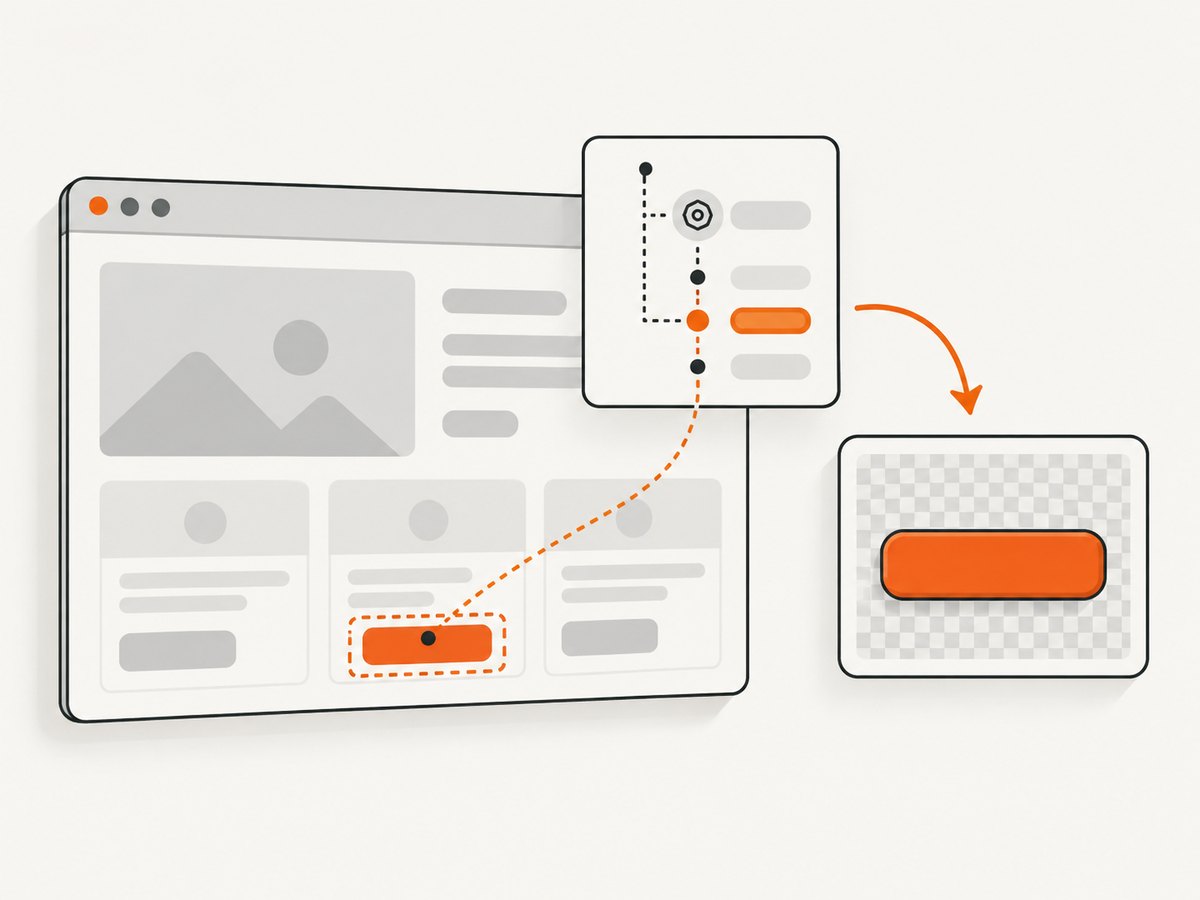
To capture a button with Playwright, locate it and call locator.screenshot(). For example: await page.getByRole('button', { name: 'Save' }).screenshot({ path: 'button.png' });. This captures the button’s rendered bounds and saves an image. Without path, the method returns a Buffer you can pass to another step in your script.
Use a role and accessible name to identify the control the same way a user would. For a reusable artifact, save the image. For a visual regression test, use Playwright Test’s toHaveScreenshot(), which waits for the screenshot to stabilize before comparing it with a baseline.
1. Install Playwright and capture a button
The example below uses TypeScript and Playwright Test. Install the test package and its browser binaries in your project:
npm install --save-dev @playwright/test
npx playwright install
Create a test file such as tests/button-screenshot.spec.ts:
import { test } from '@playwright/test';

test('save a button screenshot', async ({ page }) => {
  await page.goto('https://example.com');

  const saveButton = page.getByRole('button', { name: 'Save' });
  await saveButton.screenshot({ path: 'button.png' });
});
Run it with npx playwright test. The test navigates to the page, resolves the button by its accessible role and name, then writes the image. Replace the example URL and name with the page and control in your application. The locator screenshot is clipped to the element’s position and size; it is different from page.screenshot(), which captures the page or viewport.
2. Choose a reliable button locator
Start with page.getByRole('button', { name: 'Save' }). The role expresses that the target is a button, and the name narrows the match to the intended control. Playwright recommends user-facing locators such as role locators for interactive elements. See the official locator guidance.
If the page has more than one button named “Save,” narrow the search to a meaningful region:
const dialog = page.getByRole('dialog', { name: 'Edit profile' });
const saveButton = dialog.getByRole('button', { name: 'Save' });
await saveButton.screenshot({ path: 'dialog-save-button.png' });
Other choices, in order of preference for most tests:
- Role and accessible name: best when the control has a useful label, such as
getByRole('button', { name: 'Continue' }). - Containing region: scope the role locator to a dialog, form, toolbar, or other meaningful landmark when names repeat.
- Test ID: use
getByTestId()if your application treats that identifier as a stable test contract. - CSS selector: use when the other choices cannot identify the target, and prefer a stable attribute over a long chain of incidental DOM structure.
Before capturing, confirm the locator identifies one intended control. A locator that matches multiple buttons can fail strictness checks; a locator that matches the wrong button can produce a valid but unhelpful image. For details on locator behavior, consult the Locator API.
3. Save a file or use the screenshot Buffer
When you supply path, Playwright saves the screenshot to that path. The image type is inferred from the extension. Without a path, locator.screenshot() resolves to a Node.js Buffer:
const saveButton = page.getByRole('button', { name: 'Save' });
const imageBuffer = await saveButton.screenshot();

// For example, pass imageBuffer to an image-processing or storage step.
await processButtonImage(imageBuffer);
processButtonImage above represents your own processing function; the screenshot call itself returns the bytes. A Buffer is useful when you want to upload the image, inspect it with an image library, or choose the destination path dynamically without first writing a temporary file.
Use a file path when a person or later build step needs a named artifact. Make sure the parent directory exists if you save into a nested path, and remember that relative paths are resolved from the process working directory. Use an absolute path when the working directory is not predictable.
4. Set screenshot options for the result you need
The locator screenshot API offers options that change the saved artifact. Choose them based on whether you need a faithful capture or repeatable test output.
| Option | Effect | When to use it |
|---|---|---|
path |
Saves the image; extension selects the output type. | Keep or share a file artifact. |
type |
Selects png or jpeg explicitly. |
Set a format without relying on the path extension; follow the current API’s extension and format requirements. |
scale |
'css' outputs one pixel per CSS pixel; 'device' uses device pixels. |
Use CSS scale for a compact, viewport-independent pixel count; device scale when you need the rendered device-pixel detail. |
animations |
'disabled' disables CSS animations, transitions, and Web Animations for capture. Finite animations are fast-forwarded; infinite ones are canceled, then resumed. |
Reduce visual differences from motion in screenshots. |
mask |
Overlays selected locators with a mask color in the capture. | Cover dynamic content that is irrelevant to the comparison. |
style |
Applies a stylesheet while taking the screenshot. | Adjust capture-only styling when appropriate for your artifact or assertion. |
omitBackground |
Omits the page background where the output format supports transparency. | Use for transparent formats such as PNG; it does not apply to JPEG. |
timeout |
Sets the maximum time to wait for the screenshot operation. | Raise it only when a known slow page or capture step needs more time. |
For example, capture a button at CSS-pixel scale with motion disabled:
await page.getByRole('button', { name: 'Save' }).screenshot({
  path: 'button.png',
  scale: 'css',
  animations: 'disabled',
  timeout: 15_000,
});
CSS scale can keep a high-DPI screenshot from becoming unnecessarily large. Device scale preserves more device-pixel detail but increases output dimensions and file size. For JPEG, select a compatible format and do not expect a transparent background.
5. Handle scrolling, overlays, and dynamic pages
Playwright performs actionability checks and scrolls the target into view before taking its screenshot. If the element detaches from the DOM during capture, the operation errors. Scrolling brings the target into view; it does not reveal pixels covered by an overlay. A cookie dialog, sticky header, or modal layered over the button remains part of what the browser renders.
For a button inside a scrollable container, the screenshot shows the element as rendered at its current scroll position. If the control is outside the visible part of that container, scroll the container so the button can be captured in the intended context. For example, a page-level scroll may not move a nested panel:
const panel = page.getByTestId('settings-panel');
await panel.evaluate((element) => {
  element.scrollTop = element.scrollHeight;
});

const saveButton = panel.getByRole('button', { name: 'Save' });
await saveButton.screenshot({ path: 'panel-save.png' });
Use a test ID for the panel only if it is part of your app’s test contract; otherwise locate the scrollable region by a meaningful role or label. If the page rerenders the button after scrolling, resolve or use the locator after the page reaches the right state, and check for detachment errors.
For a stable capture, wait for a page-specific signal that the button is ready, such as a dialog becoming visible or a loading state ending. Avoid arbitrary long sleeps when an element or application state can be awaited directly. Disable animations or mask dynamic neighboring content if it changes the output but is not relevant. A mask changes the screenshot, so do not use one when the real rendered appearance matters.
6. Use a screenshot assertion for visual tests
If the goal is to detect visual changes, use Playwright Test’s assertion API rather than saving an image and implementing a comparison yourself. toHaveScreenshot() waits for two consecutive screenshots to produce the same result before comparing against the expected image. It is part of the Playwright Test runner; the assertion is not a method on a plain locator in scripts that do not use that runner. See the LocatorAssertions API.
import { expect, test } from '@playwright/test';

test('button appearance stays stable', async ({ page }) => {
  await page.goto('https://example.com');
  const saveButton = page.getByRole('button', { name: 'Save' });

  await expect(saveButton).toHaveScreenshot('save-button.png');
});
On the first run, the test runner creates or reports the expected screenshot according to your test setup. Review and commit the baseline intentionally. Later runs compare the current render with that expected image. Keep the browser version, operating environment, fonts, viewport, and page state consistent across baseline creation and comparison; environmental differences can affect pixels even when application code is unchanged.
Use locator.screenshot() when the output itself is the deliverable. Use toHaveScreenshot() when the pass or fail comparison is the deliverable. The assertion’s stabilization helps with transient rendering, but it does not make uncontrolled data, overlays, or environment differences irrelevant.
7. Capture from cURL, Python, or Node.js with ScreenshotNeo
Playwright is a good fit when you need browser automation, interaction, or a test assertion. If you only need a screenshot of a public page and button-level DOM interaction is unnecessary, ScreenshotNeo offers a website screenshot API and MCP server. Its API captures a URL as PNG, JPEG, WebP, or PDF; it does not replace Playwright’s locator-based element screenshot or test assertion.
Or skip the browser setup
Make one GET request with a URL. See the ScreenshotNeo API documentation for request details and options.
curl -G "https://api.screenshotneo.com/v1/shot" \
  -d access_key=YOUR_API_KEY \
  --data-urlencode url=https://stripe.com \
  -o shot.webp
import requests
r = requests.get(
"https://api.screenshotneo.com/v1/shot",
params={"access_key": "YOUR_API_KEY", "url": "https://stripe.com"},
timeout=90,
)
open("shot.webp", "wb").write(r.content)const q = new URLSearchParams({
access_key: 'YOUR_API_KEY',
url: 'https://stripe.com',
});
const res = await fetch(`https://api.screenshotneo.com/v1/shot?${q}`);
if (!res.ok) throw new Error(`Screenshot request failed: ${res.status}`);
const bytes = Buffer.from(await res.arrayBuffer());
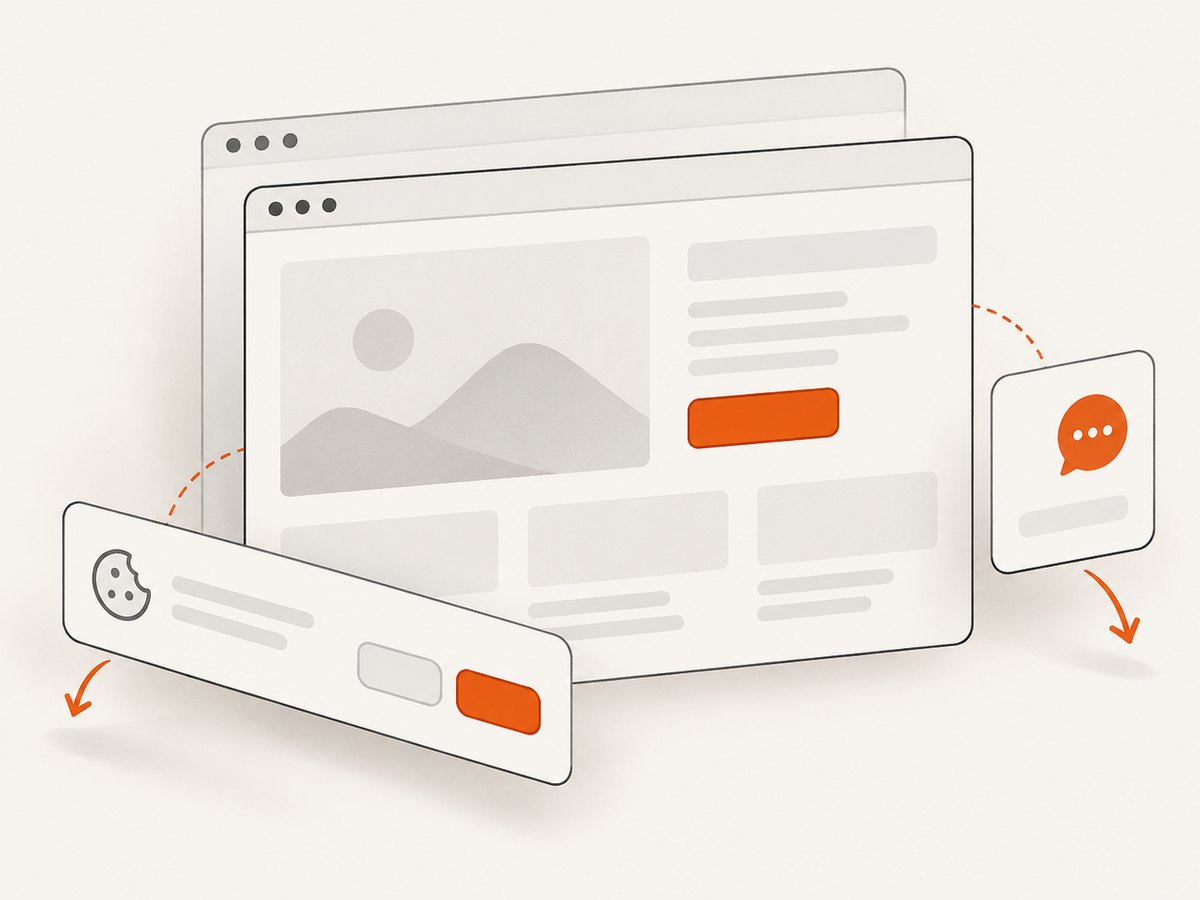
await import('node:fs/promises').then(({ writeFile }) => writeFile('shot.webp', bytes));ScreenshotNeo removes cookie and consent banners from more than 60 known platforms, newsletter popups, and chat widgets before capture; each cleanup step can be turned off. Bot checks and CAPTCHAs, blank pages, timeouts, failed loads, and cache hits cost nothing, and responses identify the page verdict and billing status in X-Page-Verdict and X-Billed headers. Its MCP server provides take_screenshot, get_page_info, and capture_pdf tools for Claude, Cursor, and other MCP clients.
The free plan includes 1,000 shots per month with no card. Paid plans start at $5 for 3,000 shots; higher tiers are Growth at $15 for 15,000, Pro at $39 for 60,000, Scale at $99 for 250,000, and Business at $249 for 1,000,000. Yearly billing gives two months free, and every feature is on every plan. Start with 1,000 free screenshots a month, no card required.
8. Troubleshooting common capture failures
| Symptom | Likely cause | Fix |
|---|---|---|
| Locator matches more than one button | Several controls share the same role and accessible name. | Scope the locator to its dialog, form, or toolbar. Add a meaningful label or use a stable test ID if that is your test contract. |
| No button found or locator times out | The name or role does not match, the page is not ready, or the control is hidden. | Check the accessible name and role, wait for the expected application state, and verify the control is present and visible. |
| Screenshot fails because the element detached | A rerender removed or replaced the button while Playwright was preparing the capture. | Wait for the application state that ends the rerender, then capture using the locator again. Avoid holding a stale element handle. |
| Screenshot shows an overlay covering the button | The overlay is visibly layered above the control. | Dismiss the overlay through the UI if appropriate, or capture the covered state if that is what you need to document. Scrolling does not uncover it. |
| Only part of a panel or button context appears | The target is in a nested scroll container at an unexpected scroll position. | Scroll the relevant container, then capture. The screenshot reflects the element’s rendered bounds and current page state. |
| Image changes between runs | Animations, dynamic content, fonts, or browser environment differ. | Disable animations, mask irrelevant dynamic regions, and keep the runtime and page state consistent. Do not mask content whose appearance is under test. |
| Image has unexpected size | scale: 'device' creates device-pixel output, especially on high-DPI screens. |
Choose scale: 'css' for one output pixel per CSS pixel. |
| Transparent output is opaque | The chosen format does not support transparency, or the page element itself paints a background. | Use a transparency-capable format such as PNG with omitBackground, and check the element’s own CSS background. |
| File is missing after a successful call | The path is relative to a different working directory, or a parent folder does not exist. | Use an absolute path or create the directory before capture, then inspect the test runner’s working directory. |
9. Performance, reliability, and cost
A button screenshot captures only a small region, which can be a more focused artifact than a full-page capture. The browser still needs to load and render the page, resolve the locator, perform actionability checks, and prepare the image. Reusing a Playwright browser and page across related captures avoids repeatedly starting a browser process. Keep the operation timeout aligned with the page’s normal load and rendering behavior; an excessively short timeout creates avoidable failures, while an unbounded wait can stall a job.
For reliability, wait on meaningful page state, use a locator that describes the intended control, and let the screenshot operation handle scrolling and actionability. A locator is preferable to a cached DOM node reference when the page rerenders because Playwright resolves locator operations against the current page. If the button moves or disappears between the state check and capture, the call can still fail, so make the relevant UI state stable first.
ScreenshotNeo bills only clean shots. Bot checks or CAPTCHAs, blank pages, timeouts, failed loads, and cache hits are not billed; the verdict and billing headers let a client inspect what happened. For a one-off local test, Playwright’s cost is your own browser runtime and infrastructure. For API-based batches, compare the expected number of successful unique captures with the plan allowance and account for cache behavior; only use the documented plan prices and response headers when estimating billed usage.
10. Frequently asked questions
Can I screenshot an icon-only button?
Yes. Give the button an accessible name, often with an aria-label, and locate it by role and that name. This makes the locator clearer and supports accessible interaction.
Does the locator screenshot include the whole page?
No. It captures the target element’s rendered area. Use page.screenshot({ fullPage: true }) when the desired artifact is the full page, or a regular page screenshot for the viewport.
Can I use the screenshot in a test without writing a file?
Yes. Capture the returned Buffer and pass it directly to your processing or storage code. For a baseline comparison in Playwright Test, use toHaveScreenshot().
Can Playwright reveal a button hidden behind a modal?
No. Scrolling can bring the target into view, but a higher overlay remains part of the rendered image. Dismiss the modal if the unobscured button is the intended state.
Which output scale should I choose?
Choose CSS scale for one pixel per CSS pixel and typically smaller output. Choose device scale when device-pixel detail is important.


