Using Playwright with a Cloud Browser
Connect Playwright to a managed browser over WebSocket. Learn when to use CDP or the native protocol, configure sessions, and troubleshoot remote runs.
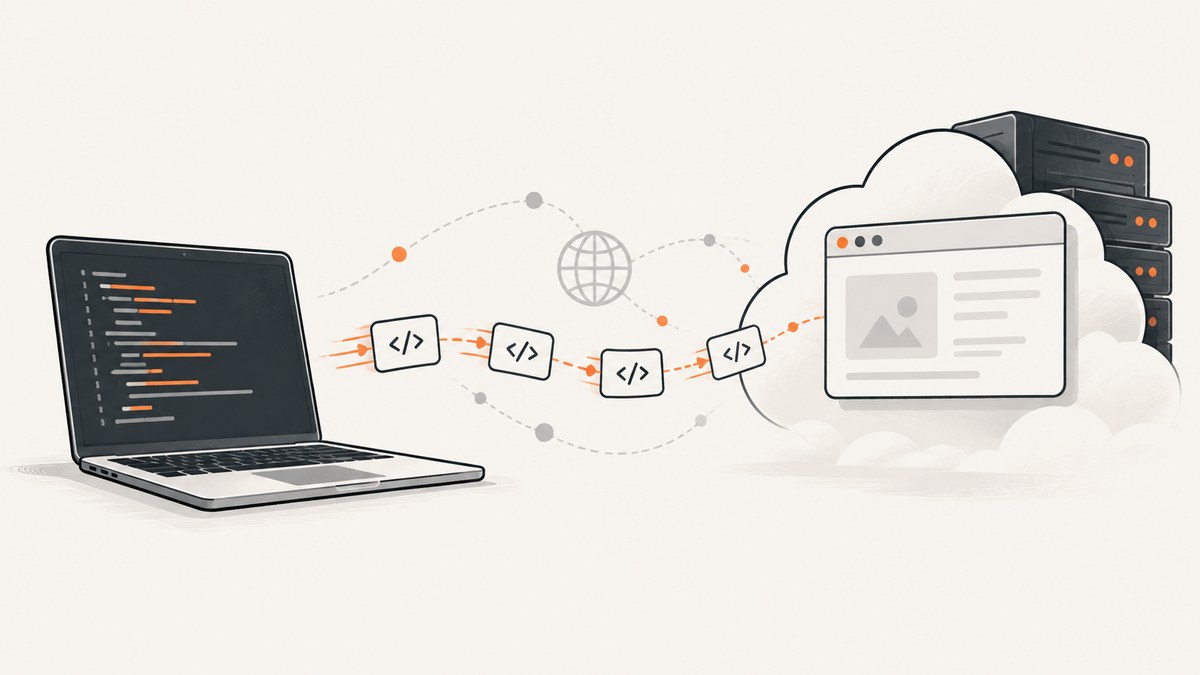
To run Playwright in the cloud, keep Playwright as your client and connect it to a browser running on a remote provider. Replace a local chromium.launch() with a WebSocket connection: use chromium.connectOverCDP() for a Chromium browser exposed through Chrome DevTools Protocol (CDP), or chromium.connect() for a provider’s native Playwright endpoint. Your pages, locators, and waits still run through Playwright; the browser itself runs remotely.
This guide uses Browserless as the concrete endpoint example. You need a Browserless account and token, Node.js, and the endpoint for the region or service you use. The sample endpoint is wss://production-sfo.browserless.io; confirm your current endpoint and options in Browserless documentation. [Browserless quick start]
1. Choose CDP or the native Playwright protocol
The connection method determines which browser capabilities are available. CDP is the shortest path when the provider exposes a Chromium browser. Playwright’s connectOverCDP() attaches to an existing browser using the Chrome DevTools Protocol, and is supported only for Chromium based browsers. Playwright describes this connection as lower fidelity than its native protocol. [Playwright connectOverCDP API]
| Need | Prefer | Why |
|---|---|---|
| Basic Chromium automation, familiar Playwright pages and locators | CDP | Attaches to a remote Chromium browser over a CDP WebSocket. |
Playwright-specific features such as page.route() or APIRequestContext |
Native Playwright protocol | It has higher Playwright API fidelity than CDP. |
| Firefox or WebKit | Native protocol, if your provider supports those engines | CDP connection is Chromium-only. |
| Different Playwright client and server versions | CDP may be more tolerant | Native protocol is tied to the Playwright version at the endpoint; check provider compatibility. |
Use the provider’s native Playwright WebSocket endpoint with browserType.connect() when you need native protocol capabilities. Do not send a CDP endpoint to connect() or a Playwright endpoint to connectOverCDP(). They are distinct protocols, even though both endpoints use WebSockets. [Playwright connect API, Browserless Playwright connection guide]
2. Set up a remote Chromium connection
- Install Node.js and create a project:
mkdir cloud-playwright cd cloud-playwright npm init -y npm install playwright-core - Use
playwright-corewhen you only need to connect to a remote browser. It does not include local browser binaries. If you also plan to launch a browser locally, installplaywrightand its browser binaries instead. - Set the provider token in your shell or secret manager. Avoid putting credentials in source code, committed environment files, logs, or a public CI artifact.
export BROWSERLESS_TOKEN='YOUR_TOKEN' - Save the following as
index.mjs. Node treats.mjsas an ES module without needing a package setting. Replace the endpoint if your account uses a different region.
import { chromium } from 'playwright-core';

const token = process.env.BROWSERLESS_TOKEN;
if (!token) throw new Error('Set BROWSERLESS_TOKEN before running this script');

const endpoint = new URL('wss://production-sfo.browserless.io');
endpoint.searchParams.set('token', token);

let browser;
try {
  browser = await chromium.connectOverCDP(endpoint.toString());
  const contexts = browser.contexts();
  const context = contexts[0] ?? await browser.newContext();
  const page = await context.newPage();

  await page.goto('https://example.com', {
    waitUntil: 'domcontentloaded',
    timeout: 30_000,
  });
  console.log(await page.title());
} finally {
  if (browser) await browser.close();
}
Run it with node index.mjs. The remote browser executes navigation and rendering; your Node process sends commands and receives results. Close the browser in finally so a success, navigation error, or assertion failure releases the managed session. For a persistent worker that intentionally reuses one browser connection, make that lifecycle explicit and close it when the worker shuts down.
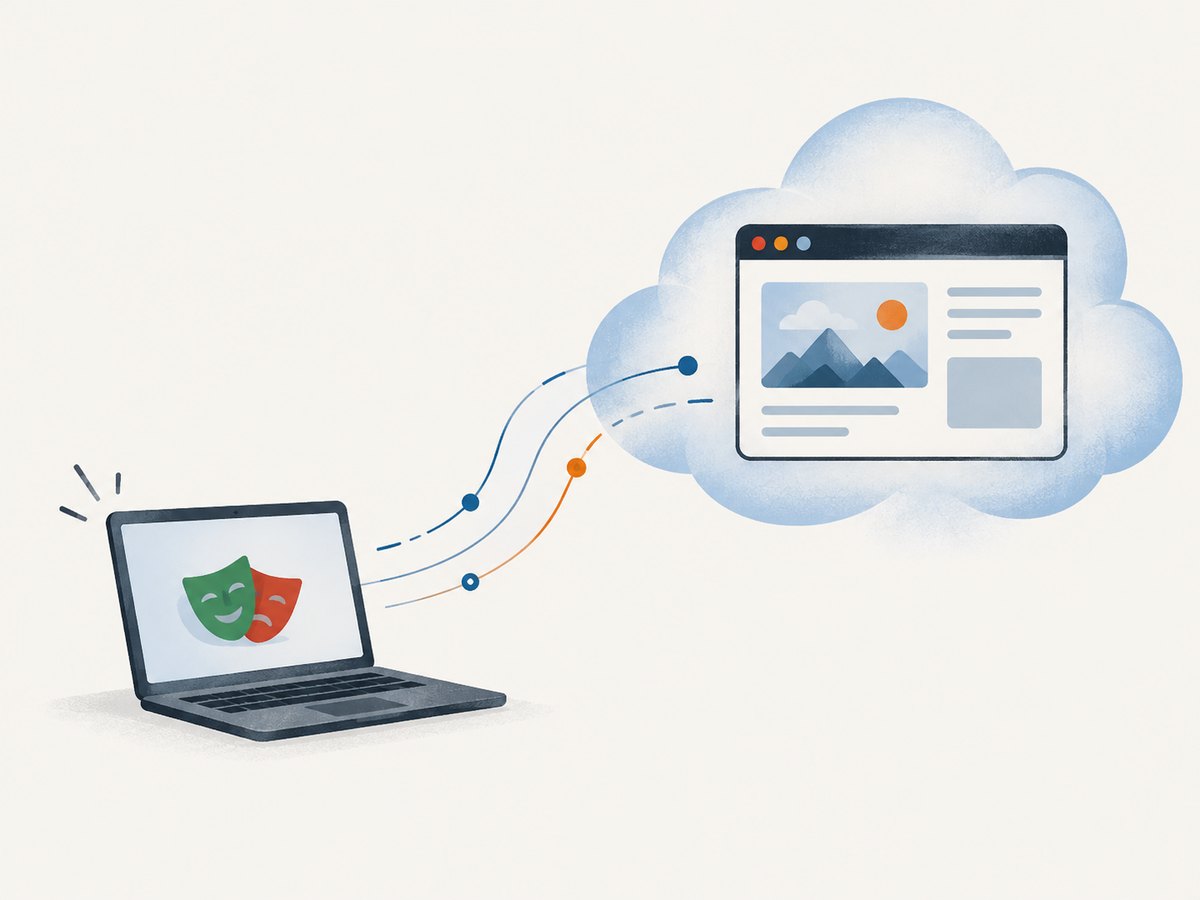
Why reuse the existing context?
CDP attaches to an already running browser. Browserless documents using the existing default context when you need inherited extensions or launch level proxy settings. A new context created with browser.newContext() does not inherit those settings. Use a fresh context when isolation is the priority and you do not rely on inherited browser configuration. [Browserless connection options]
3. Connect from Python
Install Playwright’s Python package and use its asynchronous API. A remote browser connection does not require local browser binaries; if you also launch browsers locally, install them separately with playwright install.
python -m pip install playwrightimport asyncio
import os
from playwright.async_api import async_playwright
async def main():
token = os.environ.get("BROWSERLESS_TOKEN")
if not token:
raise RuntimeError("Set BROWSERLESS_TOKEN before running this script")
endpoint = "wss://production-sfo.browserless.io?token=" + token
async with async_playwright() as p:
browser = await p.chromium.connect_over_cdp(endpoint)
try:
contexts = browser.contexts
context = contexts[0] if contexts else await browser.new_context()
page = await context.new_page()
await page.goto("https://example.com", wait_until="domcontentloaded", timeout=30_000)
print(await page.title())
finally:
await browser.close()
asyncio.run(main())Store the token in the execution environment rather than the script. If a connection fails before browser is assigned, the context manager still closes Playwright’s local driver process; once connected, the finally block closes the remote browser session.
4. Pass provider settings and browser configuration
With managed browsers, some settings that would normally be passed to a local launch call are supplied as provider query parameters on the WebSocket URL. Browserless documents options including token authentication, timeout, ad blocking, saved profiles, and CAPTCHA solving. Use only options supported by your plan and current endpoint; do not assume that a local launch option is accepted as a URL parameter. [Browserless connection options]
const endpoint = new URL('wss://production-sfo.browserless.io');
endpoint.searchParams.set('token', process.env.BROWSERLESS_TOKEN);
endpoint.searchParams.set('timeout', '60000');
// Add provider-documented parameters as needed.
const browser = await chromium.connectOverCDP(endpoint.toString());
Build URLs with URL and searchParams rather than concatenating unescaped values. This prevents special characters in tokens or parameters from corrupting the URL. Treat the complete WebSocket URL as a secret: it contains authentication material, so redact it from exception reports and request logs.
Playwright also supports proxy configuration on its browser API. HTTP and SOCKS proxy settings can include a server, bypass list, username, and password. Whether proxy configuration belongs in local browser launch settings, provider endpoint options, or a context depends on the provider’s remote-browser implementation. Follow its documented method. Browserless specifically cautions that creating a new context does not inherit launch level proxy configuration. [Playwright BrowserType API, Browserless connection options]
Wait for the condition your page actually needs
Remote automation has the same page readiness choices as local Playwright. domcontentloaded is often a useful starting point for pages whose key content appears early. Use a locator assertion or wait for a specific selector when a particular element matters. Use load when the page’s load event is meaningful. Network idle can be unsuitable on pages with analytics, polling, or long lived requests. Avoid adding a fixed delay unless the page has a known timing need: it adds latency without proving that the desired content is ready.
await page.goto('https://example.com', { waitUntil: 'domcontentloaded' });
await page.getByRole('heading', { name: 'Example Domain' }).waitFor();
5. When local Playwright is still the right choice
Local execution gives direct control over browser binaries and the runtime image, and avoids sending browser commands over a network. Playwright releases require matching browser binaries; install supported browsers with npx playwright install. In proxy restricted environments, Playwright documents HTTPS_PROXY and custom certificate authority configuration for browser downloads. [Playwright browser installation]
A cloud browser can reduce CI image setup and centralize browser management, but it adds network latency, provider session limits, token handling, and another compatibility surface. There is no universal latency or cost winner: measure the complete workflow you run, including connection establishment, navigation, browser actions, screenshots, and any queueing imposed by your provider.
6. Troubleshooting remote Playwright
| Symptom | Likely cause | Fix |
|---|---|---|
| WebSocket handshake fails or returns an authorization error | Missing, invalid, expired, or incorrectly encoded token; wrong endpoint | Check the token in the process environment and confirm the account’s current regional endpoint. Construct the URL with URL.searchParams. Do not print the token while debugging. |
| Protocol or version error during connect | Using the wrong connection method or an incompatible native protocol version | Confirm whether the endpoint is CDP or native Playwright. Use connectOverCDP() only for CDP; align client and server Playwright versions for native connect(). |
page.route() or a Playwright API behaves differently than expected |
CDP has lower API fidelity than Playwright’s native protocol | Switch to the provider’s native Playwright endpoint if the required API is supported there. |
| Firefox or WebKit cannot connect | CDP is Chromium-only | Use a provider native endpoint that supports the required browser engine. |
| Proxy, extension, or profile settings disappear in a new context | The new context does not inherit browser launch settings | Use the existing default context when those settings must carry through, or configure the settings by the provider’s supported method. |
| Navigation times out intermittently | Slow page, overloaded provider session, or waiting for an event the page never reaches | Set a timeout appropriate to the task, wait for the necessary locator rather than every network request, and record stage timings. Check provider session limits and endpoint health. |
| Remote sessions accumulate | Browser close is skipped after exceptions or cancellation | Put connection use inside try/finally. Ensure worker shutdown also closes long lived connections. |
| Works locally but fails in CI | Secret not available to the job, outbound WebSocket traffic blocked, or proxy/TLS differences | Check CI secret injection and network egress rules. If using local browser downloads, configure the documented proxy and CA settings. |
7. Performance, reliability, and cost
Reduce avoidable time
- Reuse one connection for related actions when provider rules allow it, instead of reconnecting for every page. Close it at the end of a bounded unit of work.
- Choose the earliest meaningful readiness condition. A page that needs one heading does not necessarily need every asset and background request to finish.
- Use concurrency intentionally. More sessions can increase throughput but may hit account limits or amplify load on the target site. Respect both provider and target site constraints.
- Capture stage timings for connect, navigation, locator waits, and extraction separately. This distinguishes network setup from slow target pages.
Make jobs recoverable
Remote browsers introduce failure modes beyond local automation: transient network interruption, session expiry, provider capacity, and target site instability. Bound each operation with timeouts, make retries limited, and retry only actions that are safe to repeat. A click that submits a payment or creates a record is not automatically safe to replay. Record enough context to diagnose failures—target host, stage, browser engine, and sanitized error—without recording credentials, full tokens, or sensitive page content.
Estimate the actual cost
Provider pricing, concurrency rules, and session duration billing vary and can change; consult the provider’s current pricing and terms before estimating production spend. Cost is influenced by how long sessions stay open, retry behavior, and parallel workload. Do not infer cost from a single page-navigation time. For a useful estimate, run representative jobs, count successful and failed sessions, include retry rates, and check the provider’s billing unit.
8. Or skip the browser setup
If the task is to get a website screenshot rather than automate an interactive browser workflow, ScreenshotNeo provides a one-request screenshot API. It is a different tool from Playwright: use Playwright when you need browser interaction and test logic; use ScreenshotNeo when you need a rendered image or PDF. See the ScreenshotNeo website and API documentation.
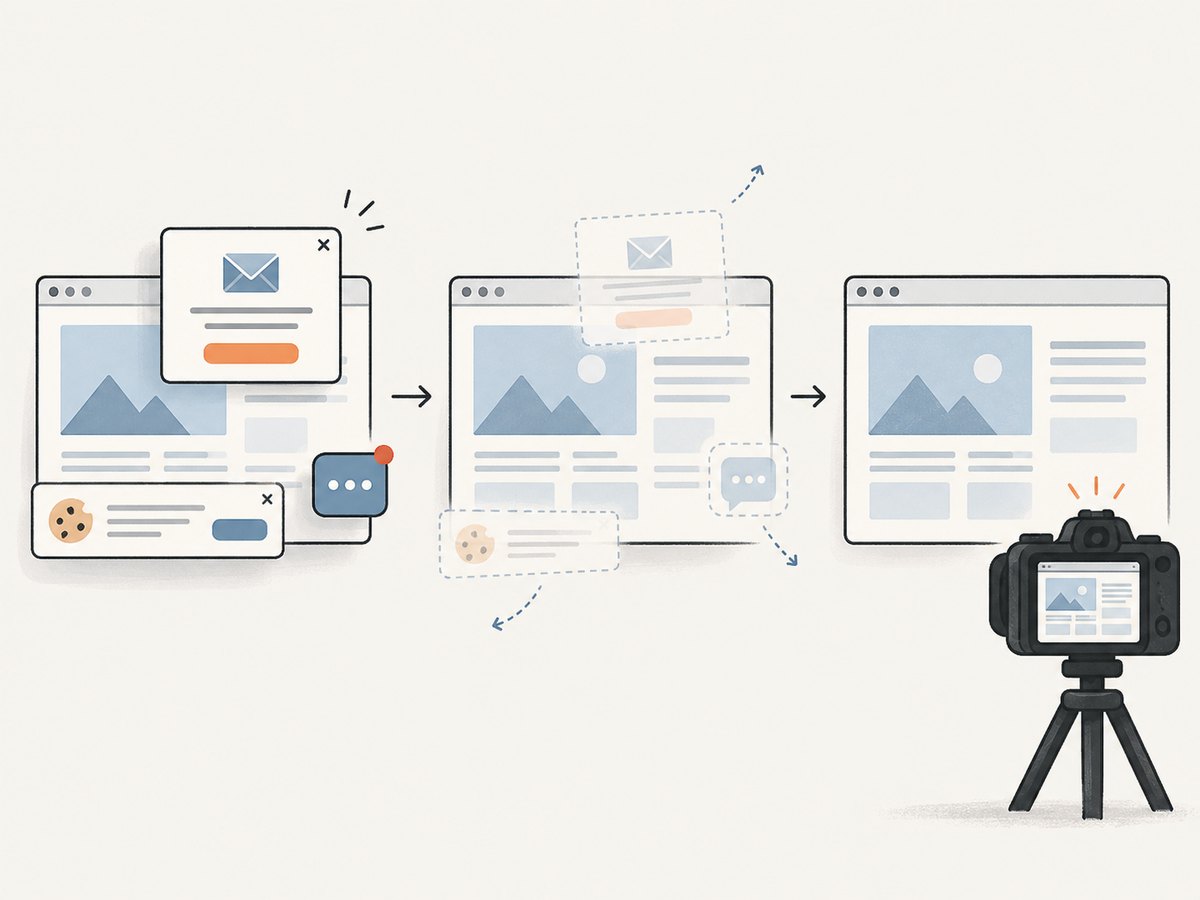
curl -G "https://api.screenshotneo.com/v1/shot" -d access_key=YOUR_API_KEY --data-urlencode url=https://stripe.com -o shot.webpScreenshotNeo also supports Python and Node.js:
import requests
r = requests.get("https://api.screenshotneo.com/v1/shot", params={"access_key": "YOUR_API_KEY", "url": "https://stripe.com"}, timeout=90)
open("shot.webp", "wb").write(r.content)
const q = new URLSearchParams({ access_key: 'YOUR_API_KEY', url: 'https://stripe.com' });
const res = await fetch(`https://api.screenshotneo.com/v1/shot?${q}`);Cookie banners are accepted and removed before the shot, along with known newsletter popups and chat widgets. Bot checks, blank pages, failed loads, timeouts, and cache hits are not billed, and response headers identify the page verdict and billing status. Its MCP server lets AI agents use take_screenshot, get_page_info, and capture_pdf. The free plan includes 1,000 screenshots a month with no card; paid plans start at $5 for 3,000 screenshots. Create a free ScreenshotNeo account.
9. Frequently asked questions
Do I need to run playwright install for a remote browser?
Not when you only connect to a remote browser and use playwright-core in Node.js. The remote service supplies the browser binary. Install browser binaries when your project also launches a local browser.
Can I use regular Playwright locators and assertions?
Yes. Once connected, pages and contexts expose Playwright APIs. The caveat is protocol fidelity: APIs may differ under CDP, so choose a native Playwright connection for features CDP does not support fully.
Can I run the same test locally and in the cloud?
Usually. Keep the test logic separate from browser acquisition and select local launch or remote connection through configuration. Account for differences in browser version, installed fonts, network location, and provider configuration.
Should I use a cloud browser for every test?
No single setup fits every suite. Cloud execution is useful when centralized browsers or reduced CI image setup matter. Local execution may suit tests that need exact browser control, offline operation, or minimal network dependencies.


