How to Take Screenshots with Playwright Codegen
Record browser actions with Playwright Codegen, then add stable viewport, full-page, element, and visual-regression screenshots.
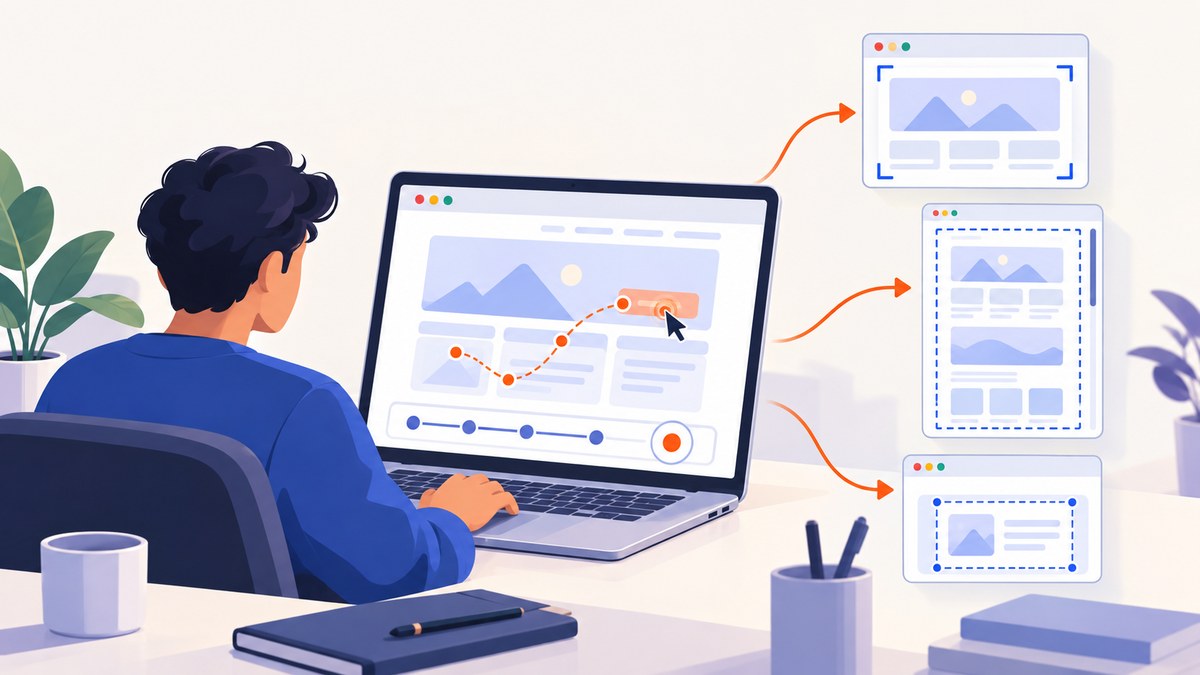
Short answer: Playwright Codegen records the actions you perform in a browser and generates a test. After copying that test into your project, add page.screenshot() for the viewport or entire page, or locator.screenshot() for one element. Fix the viewport, device settings, locale, timezone, and animations before capturing so the files are repeatable.
Codegen is a recorder, not a separate screenshot command. Start it with npx playwright codegen, perform the flow that leads to the state you want, copy the generated code from the Playwright Inspector, and insert screenshot calls at the right point. The official test generator guide describes Codegen as a way to generate tests while you interact with a site.
1. Install Playwright and start Codegen
From an empty project, install Playwright Test and the browser binaries:
npm init playwright@latestAccept the TypeScript or JavaScript project choice, then launch Codegen against a URL:
npx playwright codegen https://example.comThe URL is optional. Running npx playwright codegen opens a browser and the Inspector without navigating to a site. Interact with the page normally: click, fill fields, choose a menu item, or sign in. Codegen writes the corresponding actions in the Inspector.
You can choose the generated language and output file from the CLI. For example, generate Python:
npx playwright codegen --target=python --output=tests/recorded.py https://example.comUse a fixed viewport when layout changes with window size:
npx playwright codegen --viewport-size="800,600" https://example.comOther useful emulation and authentication switches include --device="iPhone 13", --color-scheme=dark, --timezone="America/New_York", --geolocation="40.7128,-74.0060", --lang=en-US, --save-storage=auth.json, and --load-storage=auth.json. Treat saved storage files as sensitive because they can contain logged-in state.
2. Copy the recording and add screenshot calls
Stop recording when the page reaches the state you need, then copy the generated test into your repository. Add screenshot calls after navigation and interactions have completed. This complete TypeScript example shows viewport, full-page, and element captures:

import { test } from '@playwright/test';

test('capture page states', async ({ page }) => {
  await page.goto('https://example.com');

  await page.screenshot({
    path: 'artifacts/viewport.png',
    animations: 'disabled'
  });

  await page.screenshot({
    path: 'artifacts/full-page.png',
    fullPage: true,
    animations: 'disabled'
  });

  await page.getByRole('banner').screenshot({
    path: 'artifacts/banner.png',
    animations: 'disabled'
  });
});
Run it with:
npx playwright testCreate the artifacts directory first if your project does not create it automatically. The Playwright screenshot guide documents the basic call, and the API reference lists the current options.
3. Choose viewport, full-page, or element capture
| Need | Call | Result |
|---|---|---|
| What is currently visible | page.screenshot({ path }) |
The current viewport. |
| Everything vertically scrollable | page.screenshot({ path, fullPage: true }) |
A potentially very tall image containing content below the fold. |
| One component | locator.screenshot({ path }) |
A clipped image of the matched element. |
| Image for comparison code | const buffer = await page.screenshot() |
Image bytes in memory instead of a file. |
Viewport screenshots
A normal page screenshot captures the visible viewport. Set the dimensions explicitly in the project configuration or with Codegen’s --viewport-size switch. A fixed viewport prevents a laptop-sized window from producing a different responsive layout on another machine.
Full-page screenshots
Pass fullPage: true to include the full scrollable page. This can be much taller than the viewport and may expose lazy-loaded content as Playwright scrolls through the document. If the page has sticky headers, animations, or continuously changing content, stabilize those inputs before comparing files.
Element screenshots
Use a locator for a component, card, banner, or chart:
const card = page.getByTestId('pricing-card');
await card.screenshot({
  path: 'artifacts/pricing-card.webp',
  animations: 'disabled'
});
Locator screenshots wait for actionability and scroll the target into view. Prefer role, label, test ID, or another robust locator over a generated CSS path that can change when the markup is refactored.
4. Make Codegen screenshots reproducible
Visual regression only works when the same inputs produce the same pixels. Apply the following checklist to the generated test:
- Viewport: use a fixed width and height, or a named device such as
iPhone 13. - Color scheme: set
--color-scheme=lightordarkwhen the site changes themes. - Locale and timezone: set
--langand--timezonewhen dates, number formats, or translated text appear. - Geolocation: set
--geolocationwhen regional content depends on coordinates. - Authentication: record once with
--save-storage=auth.json, then replay with--load-storage=auth.json. - Motion: pass
animations: 'disabled'to page and locator screenshots. - Dynamic areas: use the screenshot
maskoption for timestamps, ads, avatars, or private data. - Scale: use
scale: 'css'when you need dimensions in CSS pixels rather than device pixels. - Transparency: use
omitBackground: truewhen the output should retain a transparent background.
A stable test normally waits for the state that matters instead of sleeping for an arbitrary amount of time:
import { test, expect } from '@playwright/test';

test('stable dashboard capture', async ({ page }) => {
  await page.goto('https://example.com/dashboard');
  await expect(page.getByRole('heading', { name: 'Dashboard' })).toBeVisible();

  await page.screenshot({
    path: 'artifacts/dashboard.png',
    animations: 'disabled',
    mask: [page.getByTestId('live-clock')]
  });
});
If a component is loaded by an interaction, keep the generated action and place the screenshot after a locator assertion. That makes the capture describe a known state rather than a race between rendering and the screenshot.
5. Capture a screenshot after a recorded flow
Codegen is especially useful when reaching the desired state requires several clicks. Record the flow first, then refine the generated test. For example:
import { test, expect } from '@playwright/test';

test('recorded checkout state', async ({ page }) => {
  await page.goto('https://example.com');
  await page.getByRole('link', { name: 'Shop' }).click();
  await page.getByRole('button', { name: 'Add to cart' }).click();
  await page.getByRole('link', { name: 'Cart' }).click();
  await expect(page.getByRole('heading', { name: 'Your cart' })).toBeVisible();

  await page.screenshot({
    path: 'artifacts/cart.png',
    fullPage: true,
    animations: 'disabled'
  });
});
Generated selectors are a starting point. Replace brittle selectors with accessible roles, labels, or test IDs and remove actions that are unrelated to the state under test.
6. Save files or process screenshot buffers
Supplying path writes a PNG, JPEG, or WebP file. Omitting it returns a buffer, which is useful when a visual-regression system, image processor, or object-storage client accepts bytes:
import { test } from '@playwright/test';
import { writeFile } from 'node:fs/promises';

test('capture an in-memory image', async ({ page }) => {
  await page.goto('https://example.com');
  const buffer = await page.screenshot({
    type: 'webp',
    animations: 'disabled'
  });
  await writeFile('artifacts/home.webp', buffer);
});
You can pass that buffer to an optional downstream pixel-diff or visual-regression service. Keep the capture step separate from comparison so a failing comparison still leaves the original image available for inspection.
7. Python and command-line examples
Generate Python from Codegen with --target=python. A runnable Python test using the synchronous API is:
from pathlib import Path
from playwright.sync_api import sync_playwright

with sync_playwright() as p:
    browser = p.chromium.launch()
    page = browser.new_page(viewport={"width": 800, "height": 600})
    page.goto("https://example.com")
    page.screenshot(path="artifacts/viewport.png")
    page.screenshot(path="artifacts/full-page.png", full_page=True)
    page.get_by_role("banner").screenshot(path="artifacts/banner.png")
    browser.close()
For a quick shell recording, use:
npx playwright codegen --target=python --viewport-size="800,600" https://example.com8. Or skip the browser setup
If you only need a clean image or PDF from a URL, ScreenshotNeo provides a single HTTP request. Its API accepts PNG, JPEG, or WebP output and can capture a full page, a CSS-selected element, a device preset, or a custom viewport. See the ScreenshotNeo documentation for all options.
curl -G "https://api.screenshotneo.com/v1/shot" -d access_key=YOUR_API_KEY --data-urlencode url=https://stripe.com -o shot.webpimport requests
r = requests.get("https://api.screenshotneo.com/v1/shot", params={"access_key": "YOUR_API_KEY", "url": "https://stripe.com"}, timeout=90)
open("shot.webp", "wb").write(r.content)const q = new URLSearchParams({ access_key: 'YOUR_API_KEY', url: 'https://stripe.com' });
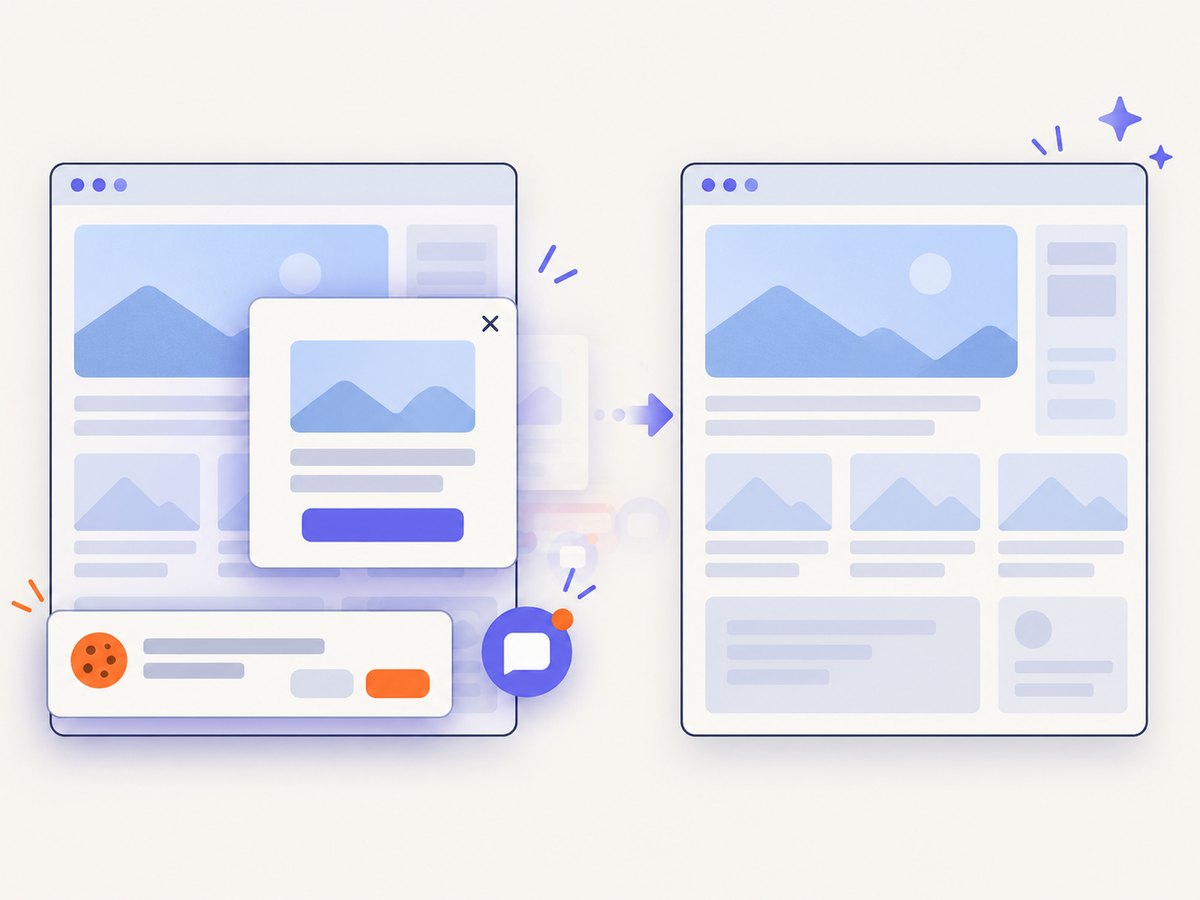
const res = await fetch(`https://api.screenshotneo.com/v1/shot?${q}`);Before capture, ScreenshotNeo accepts cookie and consent banners and removes more than 60 known consent platforms, newsletter popups, and chat widgets; each cleanup step can be disabled. Bot checks, CAPTCHAs, blank pages, timeouts, failed loads, and cache hits are not billed, and response headers report the page verdict and billing result. It also offers custom CSS and JavaScript, clicks, waits, request blocking, headers, cookies, user agents, authorization, timezone and geolocation, transparent backgrounds, resizing, selectable cache TTLs, signed links, asynchronous jobs with signed webhooks, bulk capture of up to 100 URLs per call, usage reporting, and an MCP server with take_screenshot, get_page_info, and capture_pdf for Claude, Cursor, and other MCP clients.
The Free plan includes 1,000 shots each month without a card. Paid plans start at $5 for 3,000 shots; yearly billing provides two months free. Create a free ScreenshotNeo account.
9. Troubleshooting common failures
| Symptom | Likely cause | Fix |
|---|---|---|
| Codegen command is not found | Playwright is not installed in the project or the package runner cannot resolve it. | Run npm init playwright@latest or install Playwright, then retry with npx. |
| Screenshot is blank or half-rendered | The capture runs before the meaningful content is visible. | Wait for a specific locator or heading, then capture. Avoid relying only on a fixed delay. |
| Element screenshot times out | The locator matches nothing, is hidden, or is covered. | Check the locator in the Inspector, assert visibility, and use a stable role, label, or test ID. |
| Full-page image misses lazy content | The page loads content only after scrolling or after a network response. | Wait for the content locator and confirm the page has reached its loaded state before fullPage: true. |
| Images differ on every run | Animations, clocks, ads, random data, fonts, or responsive dimensions vary. | Disable animations, fix emulation settings, mask dynamic regions, and control authentication and locale. |
| Authentication disappears | Storage state was not saved or loaded, or the saved file is stale. | Record with --save-storage, replay with --load-storage, and regenerate after session expiry. |
| Unexpected mobile layout | A different viewport or device profile is being used. | Set --viewport-size or an explicit device consistently in Codegen and CI. |
| Output has the wrong size | Device scale factor changes physical pixels. | Use scale: 'css' when comparisons require CSS-pixel dimensions. |
10. Performance, reliability, and cost considerations
Full-page screenshots are larger and require more page work than viewport or element captures. Capture only the scope needed for the assertion, and reuse one browser context for related states. Fixed emulation reduces flaky reruns. For CI, retain the generated image and the test trace or logs so a visual difference can be investigated rather than merely retried.
Playwright itself runs on your machines or CI workers, so cost depends on your browser infrastructure and the amount of work each test performs. ScreenshotNeo shifts browser capture to an API: cache hits and unsuccessful page verdicts are not billed, while successful clean shots consume plan quota. Its cache TTL, async jobs, webhooks, and bulk endpoint can reduce repeated work when you are capturing many URLs.
Do not commit authentication storage, cookies, authorization headers, or screenshots containing private data. Mask sensitive regions before saving artifacts and restrict access to CI artifacts.
11. FAQ
Can Codegen take a screenshot while recording?
Codegen records actions and displays generated code. Copy the test and add screenshot calls at the desired state; the recorder is not a screenshot assertion by itself.
What is the difference between page.screenshot and locator.screenshot?
The page method captures the viewport or full scrollable page. The locator method clips to one matched element and scrolls it into view.
Which format should I use?
PNG is a lossless default, JPEG is useful for photographic pages, and WebP can reduce file size. Playwright supports all three when a path is supplied.
How do I capture an authenticated page?
Use Codegen’s --save-storage to record state and --load-storage to replay it. Keep the storage file private.
How do I make a screenshot suitable for visual regression?
Fix viewport and emulation settings, wait for a meaningful locator, disable animations, and mask changing or sensitive regions. Return a buffer when the comparison system accepts image bytes.
Can I avoid maintaining Playwright browsers?
Yes. ScreenshotNeo exposes a URL-based screenshot API and an MCP server for AI agents, with cleanup of common consent UI and billing headers that identify the result.


