How to Set the Default Playwright Screenshot Path
Learn where Playwright saves screenshots and configure reliable paths for page screenshots, visual baselines, and test artifacts.

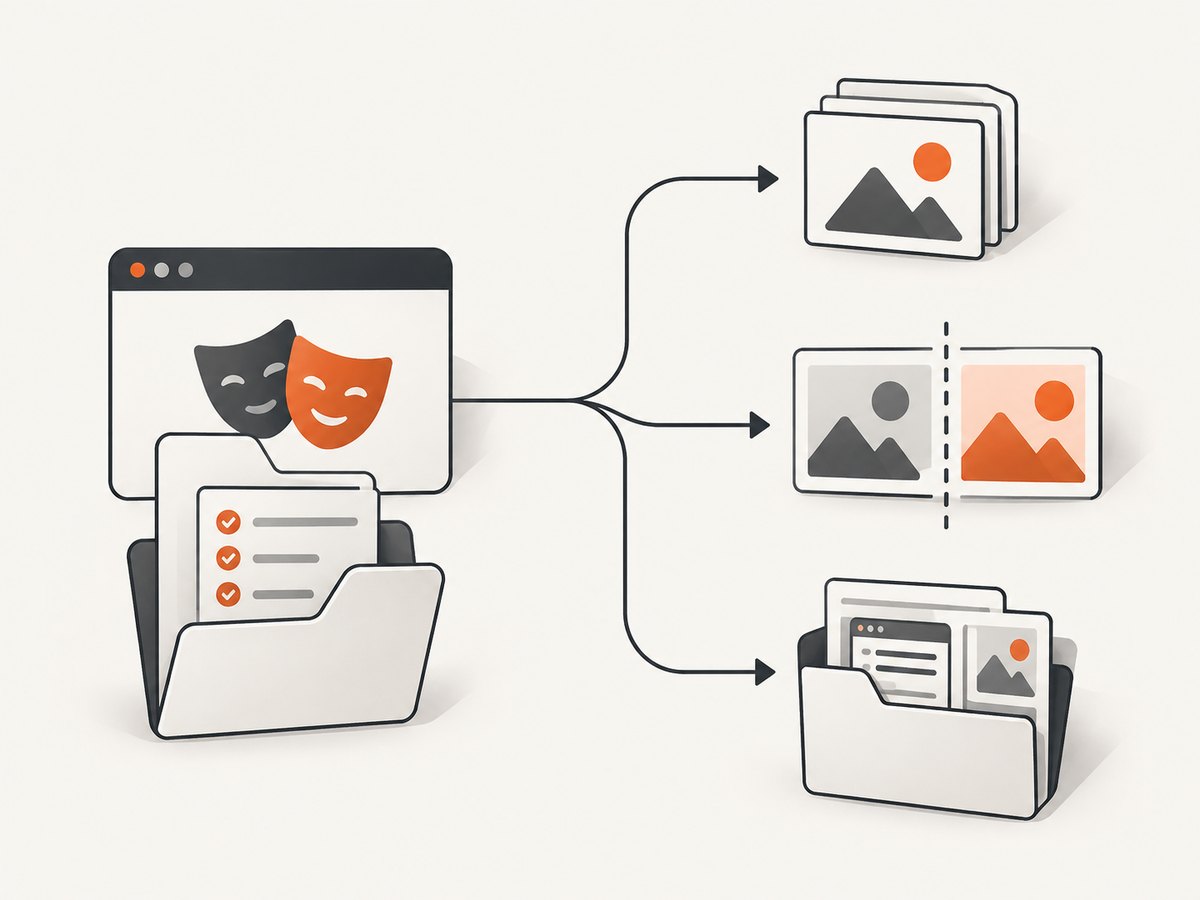
Direct answer: Playwright has no single setting that controls every screenshot. Use path on page.screenshot() or locator.screenshot() for an explicitly named image, snapshotPathTemplate for visual regression snapshots created by expect(page).toHaveScreenshot(), and testInfo.outputPath() for diagnostic files attached to a test run. These APIs also use different base directories, so choosing the right one prevents screenshots from appearing in unexpected folders.
For a one-off image, write:
await page.screenshot({ path: 'artifacts/home.png' });For all visual snapshots in Playwright Test, configure:
import { defineConfig } from '@playwright/test';

export default defineConfig({
  snapshotPathTemplate: '{testDir}/__screenshots__/{testFilePath}/{arg}{ext}',
});
For a failure or diagnostic artifact that belongs to the current test run, use:
await page.screenshot({ path: testInfo.outputPath('diagnostic.png') });Choose the path setting that matches the screenshot
| Need | API or setting | Relative path base | Lifecycle |
|---|---|---|---|
| One deliberately named image | page.screenshot({ path }) or locator.screenshot({ path }) |
Current working directory | Any script or test |
| Every visual regression baseline | snapshotPathTemplate |
Configuration directory | Usually committed to version control |
| Only screenshot assertions | expect.toHaveScreenshot.pathTemplate |
Configuration directory | Visual screenshot baselines |
| Per-test diagnostic evidence | testInfo.outputPath(name) |
Playwright test output directory | Temporary run artifact |
| Resolve a configured baseline path | testInfo.snapshotPath(name, { kind: 'screenshot' }) |
Configured snapshot template | Logging or custom tooling |
Set a path for direct screenshots
The Page API accepts a filesystem path. If the path is relative, Playwright resolves it from the process current working directory, as documented in the Page screenshot API. The extension determines the image type: use .png, .jpeg, or .webp where supported by your Playwright version.
import { chromium } from '@playwright/test';

const browser = await chromium.launch();
const page = await browser.newPage({ viewport: { width: 1440, height: 900 } });
await page.goto('https://example.com', { waitUntil: 'networkidle' });
await page.screenshot({ path: 'artifacts/example.png', fullPage: true });
await browser.close();
Omit path when you need bytes instead of a file:
const imageBuffer = await page.screenshot({ type: 'png' });
// Store imageBuffer in object storage, attach it to a report, or send it over HTTP.
For one component, use the locator API. The locator screenshot uses the same path behavior and captures the element rather than the whole page:
await page.locator('.header').screenshot({ path: 'artifacts/header.png' });Relative, absolute, and generated names
- Relative:
artifacts/home.pngis relative to the directory where the Node process was started, not automatically relative to the test file. - Absolute: an absolute path removes ambiguity when a CI runner changes its working directory.
- Generated: include a stable identifier such as a test name, browser project, or timestamp, but sanitize slashes and characters that are invalid on Windows.
Playwright creates the parent directory needed for a screenshot path in normal use, but creating your artifact directory explicitly gives clearer errors and lets you set permissions before the test starts.
Configure the default location for visual snapshots
expect(page).toHaveScreenshot() does not use the path option from a separate page.screenshot() call. Playwright Test computes a snapshot filename from a template. Set snapshotPathTemplate in playwright.config.ts to define the project-wide layout.
import { defineConfig } from '@playwright/test';

export default defineConfig({
  testDir: './tests',
  snapshotPathTemplate: '{testDir}/__screenshots__/{testFilePath}/{arg}{ext}',
});
With this configuration, a snapshot generated by tests/example.spec.ts can be stored under a structure such as tests/__screenshots__/example.spec.ts/landing.png. Relative snapshot templates resolve from the configuration directory, which differs from direct screenshot paths.
Useful snapshot template tokens
The template supports tokens for organizing files:
{snapshotDir}— the configured snapshot directory.{testDir}— the test directory.{testFileDir}— the directory containing the test file.{testFileBaseName}and{testFileName}— test file name variants.{testFilePath}— test path relative to the test directory.{testName}— the test title.{projectName}— the Playwright project name.{arg}— the argument passed totoHaveScreenshot().{ext}— the image extension.{platform}— the operating system platform.
A practical layout that separates named browser projects is:
snapshotPathTemplate: '__screenshots__{/projectName}/{testFilePath}/{arg}{ext}'The optional slash before {projectName} is included only when a project name exists. This avoids an extra empty directory for an unnamed project. See the TestProject snapshotPathTemplate reference for the complete token behavior.
Use an assertion-specific screenshot path template
If text snapshots and screenshot baselines should live in different trees, configure only screenshot assertions:
import { defineConfig } from '@playwright/test';

export default defineConfig({
  expect: {
    toHaveScreenshot: {
      pathTemplate: '{testDir}/__screenshots__/{projectName}/{testFilePath}/{arg}{ext}',
    },
  },
});
This setting applies to expect(page).toHaveScreenshot() and locator screenshot assertions while leaving other snapshot types on their normal configuration. A test can then remain simple:
import { test, expect } from '@playwright/test';

test('landing page is stable', async ({ page }) => {
  await page.goto('https://example.com');
  await expect(page).toHaveScreenshot('landing.png', { fullPage: true });
});
Generate or update baselines with npx playwright test --update-snapshots. Review those files as version-controlled test data: a changed baseline can indicate a real UI change, a browser change, or unstable rendering.
Put diagnostic screenshots in the test output directory
Run artifacts should not be mixed with committed baselines. Playwright exposes testInfo.outputPath() for this purpose:
import { test } from '@playwright/test';

test('capture diagnostic image', async ({ page }, testInfo) => {
  await page.goto('https://example.com');
  await page.screenshot({ path: testInfo.outputPath('diagnostic.png') });
});
The returned path is inside the test’s output directory and remains unique when tests run in parallel. To discover where a configured screenshot baseline would be written, use:
const baseline = testInfo.snapshotPath('landing.png', { kind: 'screenshot' });
console.log(baseline);
outputPath() is for evidence from this run; snapshotPath() follows the snapshot template. Keeping those concepts separate makes CI cleanup and artifact publishing predictable.
A complete TypeScript setup
The following example uses all three destinations: a named report image, a visual baseline, and a failure artifact.
import { defineConfig, test, expect } from '@playwright/test';

export default defineConfig({
  testDir: './tests',
  snapshotPathTemplate: '{testDir}/__screenshots__/{projectName}/{testFilePath}/{arg}{ext}',
  use: {
    baseURL: 'https://example.com',
    screenshot: 'off',
    trace: 'retain-on-failure',
  },
});

test('home page', async ({ page }, testInfo) => {
  await page.goto('/');
  await page.screenshot({ path: testInfo.outputPath('home-run.png'), fullPage: true });
  await expect(page).toHaveScreenshot('home.png', { fullPage: true });
});
Do not set use.screenshot to an automatic mode when you need a custom filename for every screenshot; automatic capture is useful for failure evidence, while explicit calls give you naming control.
Edge cases and path problems
- Running from a monorepo: the current working directory may be the repository root, a package directory, or a CI checkout directory. Log
process.cwd()when a direct screenshot appears in the wrong place. - Windows paths: prefer
path.join()over hand-written backslashes. Avoid colon characters and reserved device names in generated test titles. - Parallel workers: never have every worker write to the same fixed diagnostic filename.
testInfo.outputPath()provides worker-safe isolation. - Duplicate snapshot names: two tests can collide if your template omits
{testFilePath}or another unique token. - Missing extension: include an extension for direct screenshots so the intended encoding is unambiguous.
- Dynamic content: animations, ads, timestamps, and fonts can make a correct path look like a flaky test. Wait for stable UI or mask the changing region before comparing.
- Full-page height: very long pages can produce large files and slower comparisons. Capture an element or a viewport when the complete document is unnecessary.

Troubleshooting checklist
| Symptom | Likely cause | Fix |
|---|---|---|
| Screenshot is saved beside the shell script | A relative direct path uses the current working directory | Run from a known directory or pass an absolute path built with path.resolve(). |
| Baseline is not in the configured folder | The assertion-specific template overrides the global template, or vice versa | Inspect both expect.toHaveScreenshot.pathTemplate and snapshotPathTemplate. |
| Two projects overwrite one baseline | {projectName} is missing |
Add the project token to the template. |
| CI cannot find an artifact | The file was written outside the runner’s published output directory | Use testInfo.outputPath() and publish Playwright’s output directory. |
| “Snapshot missing” after changing the path | Existing baselines remain in the old location | Move them deliberately or regenerate with --update-snapshots, then review the diff. |
| Visual test fails intermittently | Page content is not stable when the capture occurs | Wait for a selector, fonts, network completion, or a deterministic application state. |
Performance, reliability, and cost considerations
Path selection itself is inexpensive; browser rendering and image encoding dominate capture time. Use viewport screenshots for fast smoke checks, locator screenshots for focused assertions, and full-page images only when scrolling content is part of the requirement. Keep baseline directories small by avoiding duplicate copies for every diagnostic run.
For reliable CI, make the path deterministic, include the browser project in baseline names, and keep run artifacts separate from committed snapshots. Store large diagnostic files as CI artifacts with a retention policy rather than committing them.
Playwright runs a browser on your infrastructure, so cost comes from compute, storage, and CI minutes. A hosted screenshot API can be simpler when you only need an image from a URL and do not want to maintain browser workers.
Or skip the browser setup
ScreenshotNeo returns a screenshot or PDF from one GET request. Cookie and consent banners, newsletter popups, and chat widgets are removed before capture. Bot checks, blank pages, failed loads, timeouts, and cache hits are not billed, and response headers identify the page verdict and billing status. Its MCP server exposes take_screenshot, get_page_info, and capture_pdf for Claude, Cursor, and other MCP clients.
See the ScreenshotNeo API documentation for all options. A minimal call is:
curl -G 'https://api.screenshotneo.com/v1/shot' -d access_key=YOUR_API_KEY --data-urlencode 'url=https://stripe.com' -o shot.webpimport requests
r = requests.get('https://api.screenshotneo.com/v1/shot', params={'access_key': 'YOUR_API_KEY', 'url': 'https://stripe.com'}, timeout=90)
r.raise_for_status()
open('shot.webp', 'wb').write(r.content)const q = new URLSearchParams({ access_key: 'YOUR_API_KEY', url: 'https://stripe.com' });
const res = await fetch(`https://api.screenshotneo.com/v1/shot?${q}`);
if (!res.ok) throw new Error(`HTTP ${res.status}`);
const bytes = Buffer.from(await res.arrayBuffer());
await import('node:fs/promises').then(fs => fs.writeFile('shot.webp', bytes));You can still choose full-page capture, CSS selectors, dark mode, device presets, custom viewport and retina scale, waits, custom CSS and JavaScript, request blocking, headers, cookies, user agent, timezone, geolocation, resizing, caching TTL, signed links, asynchronous webhooks, bulk capture of up to 100 URLs, PDFs, and HTML/CSS rendering. Every plan includes these features. The Free plan includes 1,000 shots each month with no card; paid plans start at $5 for 3,000 shots. Create a free ScreenshotNeo account.
FAQ
Can I set one global path for every Playwright screenshot?
No. Direct screenshots, visual snapshots, and test artifacts use separate controls. Configure each category intentionally.
Where does a relative page.screenshot() path start?
It starts at the process current working directory.
Where does a relative snapshot template start?
It starts at the Playwright configuration directory.
Should screenshots be committed?
Commit visual regression baselines when they are reviewed test inputs. Keep per-run diagnostics in the test output directory.
How do I move existing snapshots?
Change the template, move or regenerate the files, and run the suite with --update-snapshots after confirming the new paths and image differences.


