How to Add Playwright to a Dockerized Java Application
Add Playwright to a Dockerized Java app with a version-matched browser image, or install browsers and dependencies in your own image. Includes Docker, Java, CI, and troubleshooting guidance.
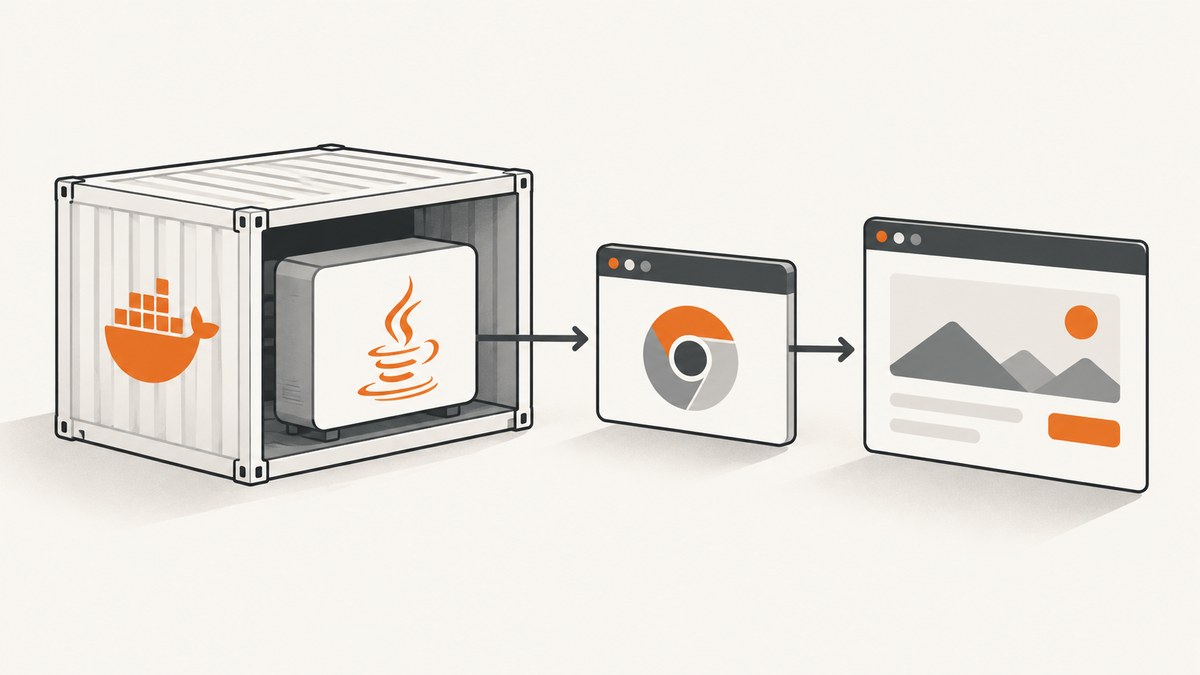
To add Playwright to a Dockerized Java application, add the com.microsoft.playwright:playwright dependency to your Maven or Gradle project, then make the matching Playwright browser binaries and operating-system dependencies available inside the container. The simplest test setup uses the official versioned Playwright Java Docker image. If you need a different base image, install browsers and dependencies with the Playwright CLI. Keep the Java library version and image version aligned.
For Chromium containers, Playwright recommends running with --init and --ipc=host. If the container visits untrusted sites, configure a separate user and seccomp profile; the official image runs as root by default, which disables Chromium’s sandbox. See the Playwright Java Docker guide and Java installation guide.
1. Add the Playwright Java dependency
Playwright for Java is distributed through Maven. Add the dependency to your project, choosing and pinning a release that matches the browser image you intend to run. The version number below is illustrative: check the current installation guide and Docker guide, then use the same release in both places.
<dependencies>
  <dependency>
    <groupId>com.microsoft.playwright</groupId>
    <artifactId>playwright</artifactId>
    <version>1.63.0</version>
  </dependency>
</dependencies>
The Java library alone is not enough. Playwright needs its version-specific browser executable, and browsers in turn need operating-system libraries. Playwright’s browser documentation states that “Each version of Playwright needs specific versions of browser binaries to operate.” Reinstall the browsers after changing the dependency version.
A minimal Java program that launches Chromium and navigates to a page can look like this:
import com.microsoft.playwright.Browser;
import com.microsoft.playwright.BrowserType;
import com.microsoft.playwright.Page;
import com.microsoft.playwright.Playwright;

public class Main {
  public static void main(String[] args) {
    try (Playwright playwright = Playwright.create()) {
      Browser browser = playwright.chromium().launch(
          new BrowserType.LaunchOptions().setHeadless(true));
      try {
        Page page = browser.newPage();
        page.navigate("https://example.com");
        System.out.println(page.title());
      } finally {
        browser.close();
      }
    }
  }
}
Use try-with-resources for the Playwright instance and close the browser when you are done. This makes process cleanup predictable in a container and in test suites.
2. Choose your Docker approach
Option A: Use the official Playwright Java image
For a test job, the official Java image is usually the shortest path: it includes browser binaries and browser system dependencies. It does not include your project’s Playwright Java dependency, so Maven or Gradle must still resolve that dependency during the build. A versioned tag such as mcr.microsoft.com/playwright/java:v1.63.0-noble is shown in Playwright’s CI documentation. Pin a specific supported tag and align its Playwright release with the dependency in your build file.
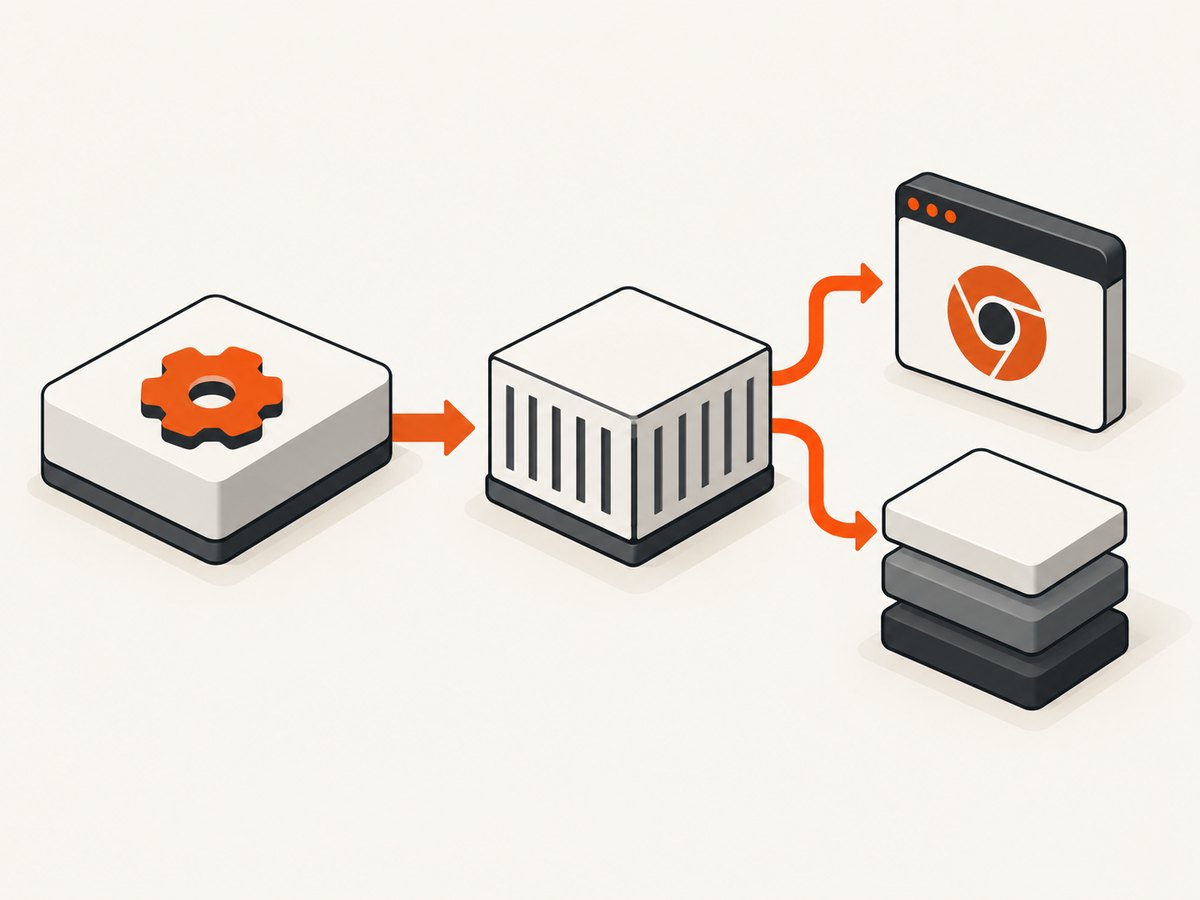
FROM mcr.microsoft.com/playwright/java:v1.63.0-noble
WORKDIR /workspace
COPY pom.xml .
COPY src ./src
RUN mvn -B test
This example assumes Maven and that the image has the Java and build tools your project requires. If the chosen image does not include a build tool, use a multi-stage Docker build: compile in a Maven builder image, then copy the packaged application into the matching Playwright runtime image. Check the selected tag’s contents and your project’s Java requirements before relying on a particular build layout.
Playwright documents Noble (Ubuntu 24.04 LTS), Jammy (Ubuntu 22.04 LTS), and Resolute (Ubuntu 26.04 LTS) variants. Available tags can change, so consult the current Docker documentation before selecting one. Avoid a floating tag: an unplanned image update can change browser and library compatibility.
Option B: Install browsers in your existing image
Choose this route when your application must keep a particular Linux base image. First make the Playwright Java dependency available to Maven, then run its CLI to install the browsers and required operating-system packages. The documented Maven command is:
mvn exec:java -e \
  -D exec.mainClass=com.microsoft.playwright.CLI \
  -D exec.args="install --with-deps"
Run it during the Docker build after copying the Maven project files needed to resolve the dependency. To install a single browser, pass its name, for example install chromium --with-deps. To install system dependencies separately, the CLI also provides install-deps; see the browser installation guide for supported commands and browser choices.
FROM maven:3.9-eclipse-temurin-21
WORKDIR /app
COPY pom.xml .
COPY src ./src
RUN mvn -B exec:java \
  -D exec.mainClass=com.microsoft.playwright.CLI \
  -D exec.args="install chromium --with-deps"
RUN mvn -B package
Adapt the base image, Java version, Maven version, and browser choice to your application. This illustrative Dockerfile installs Chromium; use the command and dependencies appropriate to the browsers your app actually launches. The Maven command requires the Playwright dependency to be resolvable from the project. For Gradle or a different project layout, follow the browser guide’s CLI instructions for your build.
3. Configure and start the container
For Chromium, use Docker’s host IPC mode to reduce memory-related browser crashes, and use an init process to reap child processes. A local run can use:
docker run --rm --init --ipc=host my-java-playwright-appIf your application needs environment variables, secrets, or mounted configuration, supply them through your normal deployment mechanism. Avoid putting credentials directly in an image layer or committed Dockerfile.
The official image runs as root by default. Playwright’s Docker guide says root disables Chromium’s sandbox and can be acceptable for trusted end-to-end tests. For crawling or scraping untrusted sites, use a separate user and the documented seccomp guidance that permits user namespace operations. The guide describes the image as intended for testing and development and does not recommend it for visiting untrusted websites. Treat browser access to untrusted pages as a container security boundary, not just a browser setting.
If Chromium launch errors remain during local development, the Docker guide suggests trying --cap-add=SYS_ADMIN as a diagnostic. Do not treat adding a capability as a substitute for understanding the runtime configuration required in your deployment.
4. Run Playwright in CI
The basic CI sequence is to provide a Linux environment capable of running browsers, install the Java dependency and browser binaries (or choose the official image), and run the tests. With Maven on a Linux runner, the core commands are:
mvn -B exec:java -e \
  -D exec.mainClass=com.microsoft.playwright.CLI \
  -D exec.args="install --with-deps"
mvn -B test
Alternatively, configure your CI job to use a versioned Playwright Java image, prepare the Java project, and execute mvn test. The official Java CI guide includes examples for GitHub Actions and several other CI systems.
Do not cache browser binaries by default. Playwright’s CI guidance notes that restoring the cache can take as long as downloading the browsers, and Linux operating-system dependencies cannot be cached this way. If you keep a browser cache, key it to a hash of the Playwright version so a dependency update does not silently reuse incompatible binaries. For browser launch diagnostics, the guide documents:
DEBUG=pw:browser mvn test5. Keep the image, library, and platform aligned
Version alignment is the most important maintenance rule. Update the Maven dependency and Docker image tag together, rebuild the image, and run the browser installation command again if you manage browsers yourself. A mismatch is a common reason Playwright cannot find a browser executable or reports an incompatible browser revision.
| Decision | What to check |
|---|---|
| Image tag | Pin an explicit Playwright release and supported OS variant. |
| Java dependency | Use the corresponding Playwright release in Maven or Gradle. |
| Browser install | Reinstall after changing the library version; install only the browsers you need where practical. |
| Linux distribution | Verify required dependencies and browser support for the selected base image. |
| Java runtime | Match the project’s actual Java runtime and build configuration to its requirements. |
Alpine and other musl-based distributions are not supported for the documented Firefox and WebKit browser builds, which are built for glibc. If you need Firefox or WebKit, choose a compatible glibc-based image and follow the browser installation documentation. Do not copy an OS-specific browser cache from a different distribution and assume it will run unchanged.
6. Choose the right setup for your workload
Use the official image when you want a ready-made browser environment for a test container and can use its supported base. Extend your own image when you need control over the base OS, application dependencies, or deployment layout and can own the browser dependency installation. Running directly on a CI Linux runner can also work if you install the matching browsers and system packages there. In every case, pin versions and make browser installation part of a reproducible build.
For a small test suite, installing one browser can reduce unnecessary downloads. If the test matrix uses multiple engines, install all the engines the project needs and make the CI matrix explicit. Keep the browser installation step visible in the build log so a failed or skipped install is easier to diagnose.
7. Performance, reliability, and cost
Browser processes are separate child processes, so container memory and process lifecycle affect reliability. Playwright’s recommendation to use --ipc=host for Chromium addresses memory-related crashes; --init helps avoid zombie processes. Set container CPU and memory limits based on observed workload behavior, and avoid launching more parallel browsers than the container can support. The sources do not provide universal resource or speed figures, so measure your own test suite before setting limits.

For predictable builds, pin the OS image and Playwright release, install browsers as part of the image build, and update those pieces together. CI caching is a tradeoff: it may avoid downloads, but cache restoration itself can cost time, and Linux system packages still need installation. Browser installation and execution consume build time and compute resources; reuse a browser for related operations where your test design permits, and close it deterministically.
Or skip the browser setup
If your Java application only needs a screenshot or PDF from a URL, you may not need to maintain a browser container. ScreenshotNeo is a website screenshot API and MCP server from Yorker Media. One GET request returns a PNG, JPEG, WebP, or PDF. Its API documentation describes the available options and response headers.
curl -G "https://api.screenshotneo.com/v1/shot" \
  -d access_key=YOUR_API_KEY \
  --data-urlencode url=https://stripe.com \
  -o shot.webp
import requests
r = requests.get(
"https://api.screenshotneo.com/v1/shot",
params={"access_key": "YOUR_API_KEY", "url": "https://stripe.com"},
timeout=90,
)
r.raise_for_status()
open("shot.webp", "wb").write(r.content)const q = new URLSearchParams({
access_key: 'YOUR_API_KEY',
url: 'https://stripe.com'
});
const res = await fetch(`https://api.screenshotneo.com/v1/shot?${q}`);
if (!res.ok) throw new Error(`Screenshot request failed: ${res.status}`);
await Bun.write('shot.webp', res);Cookie banners, newsletter popups, and chat widgets are removed before the shot, and each cleanup step can be turned off. Bot checks, blank pages, timeouts, failed loads, and cache hits are not billed; response headers report the page verdict and billing status. AI agents can use its MCP server tools take_screenshot, get_page_info, and capture_pdf. Free includes 1,000 screenshots a month with no card; paid plans start at $5 for 3,000. Try the free ScreenshotNeo sign-up.
Troubleshooting
| Symptom | Likely cause | Fix |
|---|---|---|
| Executable doesn’t exist or browser is missing | The browser was not installed, or its version does not match the Playwright Java dependency. | Align the dependency and image versions. For a custom image, rerun the Playwright CLI install command during the build. |
| Browser fails to launch on Linux | Required OS libraries are missing, or the base distribution is incompatible. | Use the official image or run install --with-deps for the supported environment. Check the browser guide before using a musl-based distribution. |
| Chromium crashes under load | Container shared memory may be insufficient. | Run with --ipc=host as recommended by the Docker guide, then review container resource limits. |
| Build passes but CI cannot launch a browser | The CI image may not contain browsers, dependencies, or the expected version. | Install browsers in the job or use a matching versioned image. Keep cache keys tied to the Playwright version. |
| Container accumulates orphaned processes | The container’s PID 1 is not reaping child processes. | Run the container with --init. |
| Sandbox or permission error | The process user and browser sandbox configuration do not match the workload. | For trusted tests, root may be acceptable per the guide. For untrusted browsing, configure a separate user and seccomp profile as documented. |
| Firefox or WebKit does not run on Alpine | The documented browser builds require glibc and are not supported on musl-based distributions. | Switch to a compatible glibc-based image and install the browser through Playwright’s CLI. |
FAQ
Does the Playwright Java Docker image include the Java dependency?
No. It supplies browser binaries and system dependencies; your Maven or Gradle project must declare Playwright Java itself.
Should I install all browsers?
Only install the browsers your application or test matrix uses. If you add another engine later, update the install step and verify that the chosen OS supports it.
Can I use the same image for untrusted website scraping?
The Docker guide says the image is intended for testing and development and is not recommended for untrusted websites. Use the documented separate-user and seccomp guidance when designing a container for that workload.
Do I have to use Maven?
No. Playwright Java is a Maven-distributed dependency, and projects can use their build tool of choice. The examples here use Maven for the documented CLI installation flow; consult the official browser and installation guides for current setup details.
Setup checklist
- Pin a Playwright Java dependency version.
- Choose a supported, version-matched Playwright image or install browser binaries and OS dependencies in your image.
- Reinstall browsers when the Java dependency changes.
- For Chromium, start Docker with
--init --ipc=host. - Use the documented user and seccomp approach for untrusted browsing.
- In CI, make browser installation reproducible and diagnose launches with
DEBUG=pw:browser.
For full browser automation, a Dockerized Playwright Java setup gives you control over navigation, interaction, and the runtime. For URL-to-image or PDF capture, ScreenshotNeo provides a direct API and MCP option without requiring you to package browser binaries in your application container.


