How to Set Playwright’s Executable Path
Set a custom browser executable in Playwright, configure Playwright Test, and troubleshoot path, compatibility, and browser installation problems.
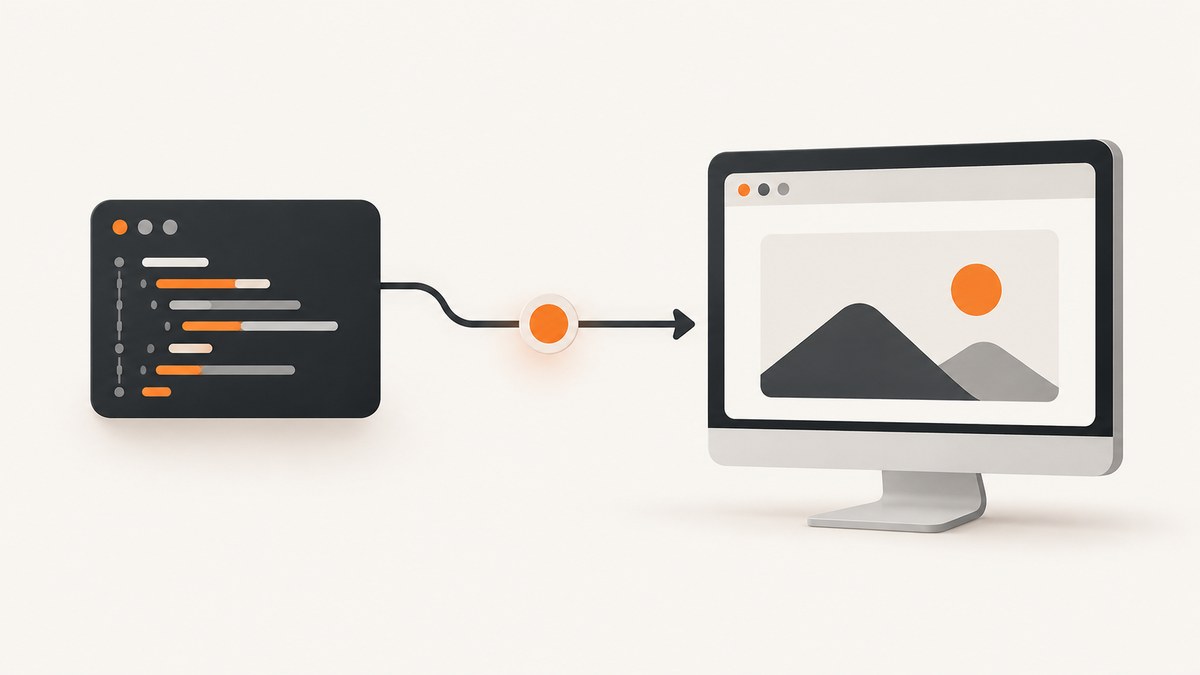
Set the browser executable when you launch a Playwright browser: use executablePath in JavaScript or TypeScript, and executable_path in Python. The path identifies the program Playwright should launch instead of its bundled browser. Relative paths are resolved from the process’s current working directory.
For reproducible automation, prefer the browser build installed for your Playwright version. Playwright warns that arbitrary browser executables may not be compatible. If you need Chrome or Edge, check whether a supported channel option fits before choosing an arbitrary path. Playwright BrowserType API.
1. Set the path when launching a browser
Choose the launch method for the browser you need. The path must point to an executable available inside the environment where Playwright runs: that may be your laptop, a CI worker, a container, or a remote host.
JavaScript and TypeScript
import { chromium } from 'playwright';

const browser = await chromium.launch({
  executablePath: '/path/to/browser',
  headless: true,
});

const page = await browser.newPage();
await page.goto('https://example.com');
console.log(await page.title());
await browser.close();
Replace /path/to/browser with the actual browser executable. Keep the launch, page work, and close in the same runnable script. If your project uses @playwright/test, its browser automation package provides the same BrowserType launch API; install the package and browser requirements appropriate to your project.
Python
from playwright.sync_api import sync_playwright

with sync_playwright() as playwright:
    browser = playwright.chromium.launch(
        executable_path='/path/to/browser',
        headless=True,
    )
    page = browser.new_page()
    page.goto('https://example.com')
    print(page.title())
    browser.close()
Python uses the snake-case spelling executable_path. The browser type matters: use playwright.chromium, playwright.firefox, or playwright.webkit according to the executable you intend to run.
Path rules to check
- Absolute path: avoids ambiguity about the working directory, but the file still must exist in the runtime environment.
- Relative path: resolves against the current working directory of the Playwright process, not necessarily the directory containing the source file.
- Permissions: the process user needs permission to execute the file and access its supporting browser files.
- Runtime environment: a path from your workstation is not automatically valid inside a container or CI worker.
2. Configure Playwright Test
When using Playwright Test, put browser launch options under use.launchOptions in the configuration file. The Test configuration reference accepts the launch options supported by browserType.launch(). Playwright Test configuration.
import { defineConfig } from '@playwright/test';

export default defineConfig({
  use: {
    launchOptions: {
      executablePath: '/path/to/browser',
      headless: true,
    },
  },
});
This affects browsers launched by that project configuration. Ensure the configured path is valid on every machine that runs the tests. A developer’s local path may not exist on a CI runner, so shared configurations should use a consistent installation or environment-specific configuration.
3. Decide between a custom path, bundled browser, and channel
| Need | Use | Consideration |
|---|---|---|
| Repeatable Playwright automation | Playwright’s bundled browser | Playwright versions expect particular browser binaries; install the versions matching the project. |
| A named Chrome or Edge distribution | A documented channel |
Check the current API reference for supported channel names and behavior. |
| A specific executable outside the supported channels | executablePath / executable_path |
Playwright does not guarantee compatibility with arbitrary browser versions. |
| A different location for Playwright-managed downloads | PLAYWRIGHT_BROWSERS_PATH |
This controls managed browser storage; it does not select an arbitrary executable. |
For Chromium, Playwright can control Chrome or Edge, but says it works best with its bundled Chromium and does not guarantee compatibility with other versions. Its API reference cautions: “Use executablePath option with extreme caution.” Prefer a bundled browser unless your project has a clear reason to run another build. For a supported branded build, see whether channel meets that requirement before hard-coding an executable path. BrowserType launch options.

4. Manage Playwright’s browser installation location
executablePath answers “which executable should this launch use?” It does not configure where Playwright installs or looks for its managed browser binaries. For the latter, use PLAYWRIGHT_BROWSERS_PATH and set it for both installation and execution.
# Set a shared browser directory for installation and later runs
PLAYWRIGHT_BROWSERS_PATH=/opt/pw-browsers npx playwright install
PLAYWRIGHT_BROWSERS_PATH=/opt/pw-browsers npx playwright test
In a shell session, export the variable instead if you want it to apply to subsequent commands:
export PLAYWRIGHT_BROWSERS_PATH=/opt/pw-browsers
npx playwright install
npx playwright test
The documented setting concerns Playwright-managed browser binaries. It does not change where Google Chrome or Microsoft Edge are installed. Setting PLAYWRIGHT_BROWSERS_PATH=0 opts into a hermetic install within Playwright’s local browser directory. Follow the browser installation guide for the current version’s details. Playwright browser management.
5. Troubleshoot launch failures
| Symptom | Likely cause | Fix |
|---|---|---|
| Executable not found | The path is wrong or relative to a different working directory than expected. | Check the path in the running environment; use an absolute path to remove working-directory ambiguity. |
| Permission denied | The Playwright process cannot execute the file or access browser support files. | Check permissions and the user account that runs the process. Ensure the executable and its required files are available in that environment. |
| Browser starts and immediately exits | The selected browser build may not work with the installed Playwright version or runtime. | Install the browser binaries matching the Playwright version, or use the bundled browser. Arbitrary executable compatibility is not guaranteed. |
| Works locally, fails in CI | The path or browser installation exists only on the developer machine. | Install the required browser in CI or configure a shared managed-binary location consistently for install and execution. |
| Expected a different download directory | executablePath was used to solve a browser storage configuration problem. |
Use PLAYWRIGHT_BROWSERS_PATH for Playwright-managed binaries and install them for the current Playwright version. |
| Launch logs do not explain the problem | Browser launch diagnostics are not enabled. | Set DEBUG=pw:browser and rerun the failing command to emit browser launch logs. |
Diagnostic sequence
- Print or inspect the configured path from the process environment.
- Confirm the path exists and is executable where the test or script actually runs.
- Check that the executable matches the intended browser family and that the Playwright version supports the selected setup.
- Try the bundled browser to isolate whether the custom executable is the source of the failure.
- If the issue remains, rerun with
DEBUG=pw:browserand use the launch output to narrow down the failure.
The official CI guide recommends DEBUG=pw:browser for browser launch troubleshooting. Playwright CI guidance.
6. Reliability, performance, and cost considerations
The executable path itself is not a speed setting. A custom browser can add operational work if it differs from the build expected by your Playwright version: you need to keep that browser installed, available, and compatible across developer machines and CI. The bundled browser plus a version-matched installation is generally the simpler reproducibility choice, based on Playwright’s compatibility guidance.
For reliable runs, make installation part of environment setup rather than relying on a browser installed by hand on one machine. Keep the Playwright package version and browser installation in sync. If multiple jobs need the same managed browser directory, configure PLAYWRIGHT_BROWSERS_PATH consistently for installation and execution; validate that each runtime can access it.
There is no universal cost or performance figure for setting an executable path: resource use depends on the page, browser, workload, and environment. A custom path does not itself reduce browser launch cost, guarantee faster tests, or provide a compatibility guarantee. Measure the actual workload when performance matters, and avoid changing browser versions independently of the Playwright version without a project requirement.
7. Capture a website screenshot without managing a browser
If your goal is a website screenshot rather than browser automation, ScreenshotNeo provides a screenshot API and MCP server. Its API accepts a URL in one GET request and returns an image or PDF. The API documentation describes the available request options.

Or skip the browser setup
curl -G "https://api.screenshotneo.com/v1/shot" -d access_key=YOUR_API_KEY --data-urlencode url=https://stripe.com -o shot.webpimport requests
r = requests.get(
"https://api.screenshotneo.com/v1/shot",
params={"access_key": "YOUR_API_KEY", "url": "https://stripe.com"},
timeout=90,
)
open("shot.webp", "wb").write(r.content)const q = new URLSearchParams({ access_key: 'YOUR_API_KEY', url: 'https://stripe.com' });
const res = await fetch(`https://api.screenshotneo.com/v1/shot?${q}`);ScreenshotNeo removes cookie banners, newsletter popups, and chat widgets before capture. Bot checks, blank pages, and failed loads are never billed. Its MCP server lets AI agents take screenshots. The free plan includes 1,000 screenshots a month with no card; paid plans start at $5 for 3,000. Create a free account and get 1,000 screenshots a month with no card.
8. Frequently asked questions
Can I use a relative executable path?
Yes. Playwright resolves it against the current working directory of the process. Use an absolute path when the working directory may differ between local runs and CI.
Does setting executablePath install the browser?
No. It selects an executable for launch. Install the browser separately, or use Playwright’s browser installation process for the matching binaries.
Can I use executablePath with Firefox or WebKit?
The launch option is available on BrowserType launch APIs. Select the browser type and executable that match, and keep in mind Playwright’s compatibility caution for custom builds.
How do I set the path only for Playwright Test?
Place it under use.launchOptions in playwright.config.ts. The configured path must be valid on every machine that runs that project.
What should I use for a specific Chrome version?
Check the current supported channel options first. If you use a custom executable, expect to validate compatibility yourself because Playwright makes no general guarantee for arbitrary versions.


