How to Capture and Visually Compare Full-Page Screenshots with Playwright
Capture full-page Playwright screenshots and compare them reliably. Learn how to stabilize pages, review visual diffs, and fix flaky CI snapshots.
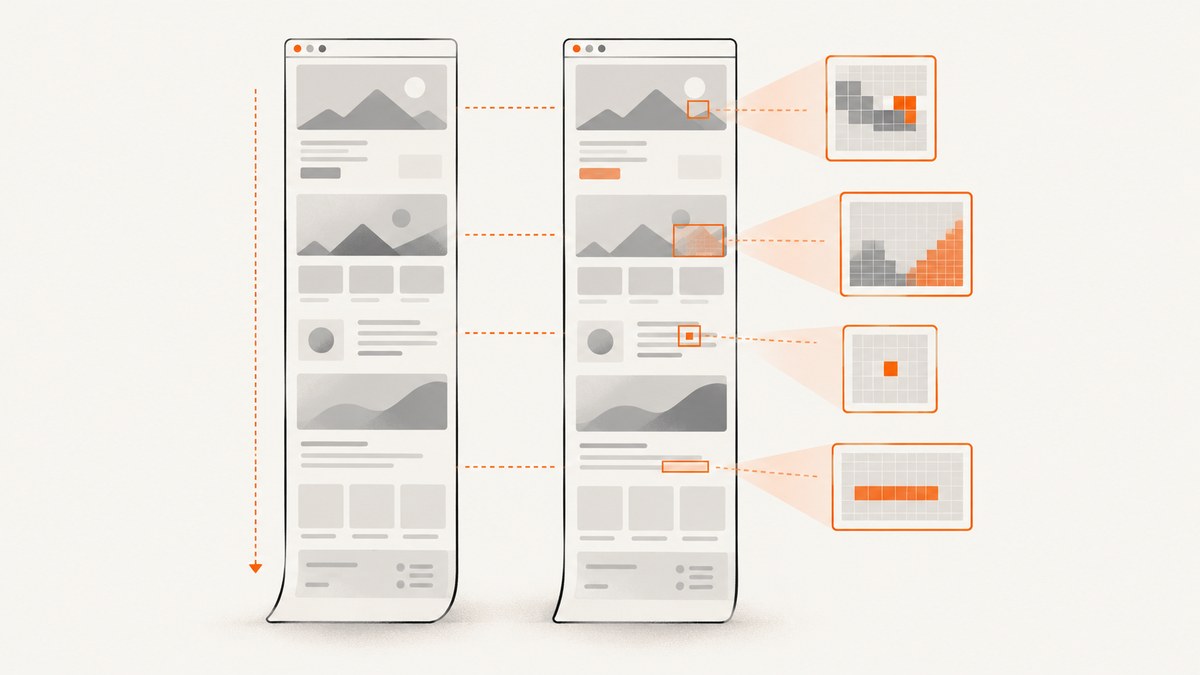
Use fullPage: true to capture the entire scrollable document, and Playwright Test’s toHaveScreenshot() assertion to compare that image with a checked-in baseline. For repeatable results, wait for the application’s actual ready state, keep the comparison environment consistent, and control animation, hover, and volatile content before adjusting diff thresholds.
This guide shows a complete JavaScript workflow, how to establish and review baselines, how to diagnose CI-only failures, and when to use full-page versus focused element comparisons. The examples use Playwright Test; the lower-level screenshot API is also available when you need an image buffer or a separate diff tool.
1. Set up a full-page visual regression test
Install Playwright Test in a Node.js project if it is not already present:
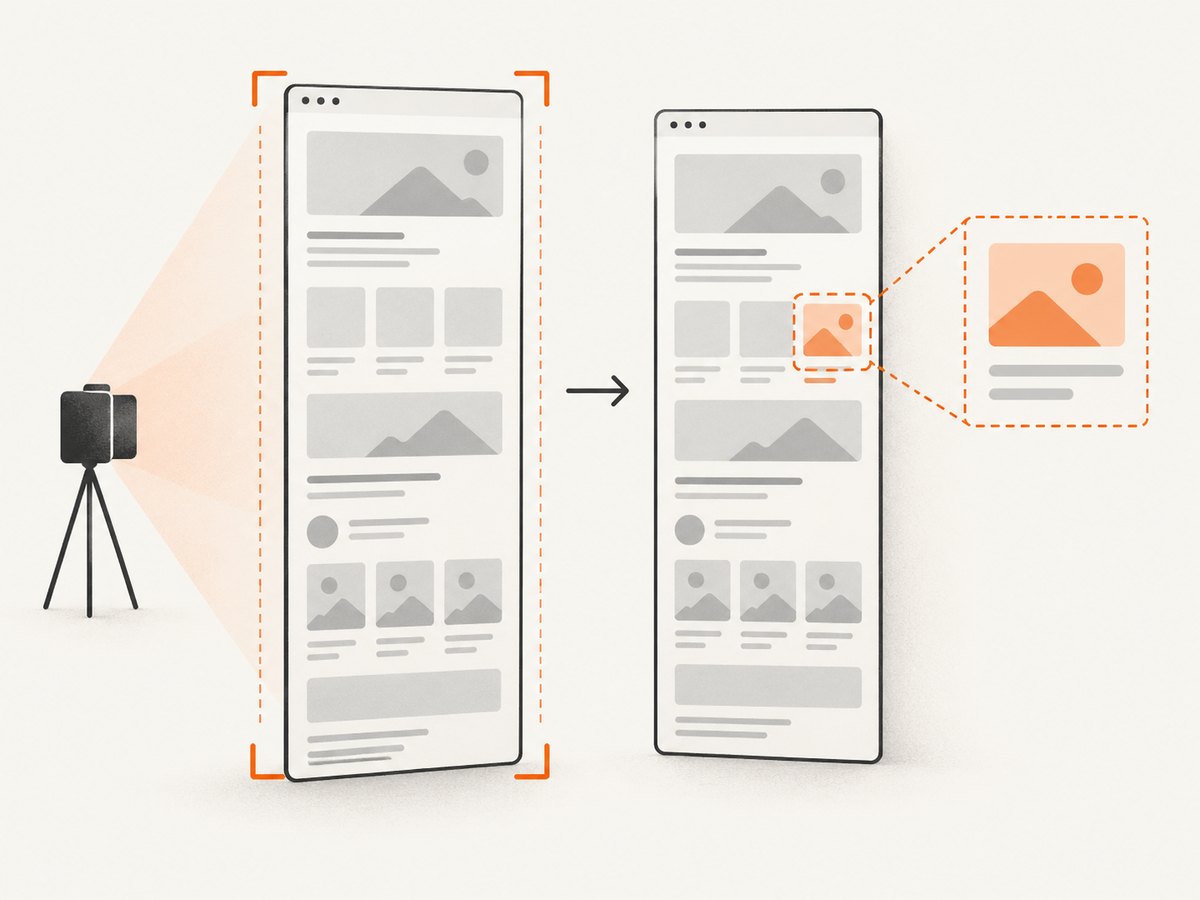
npm init playwright@latestChoose JavaScript or TypeScript when prompted. The following test is JavaScript and can be saved as tests/landing.spec.js. It waits for a page-specific heading, clears the pointer from the page, and compares a full-page capture with the stored reference.
const { test, expect } = require('@playwright/test');

test('landing page matches its visual baseline', async ({ page }) => {
  await page.goto('https://example.com');
  await expect(page.getByRole('heading', { name: /example domain/i })).toBeVisible();
  await page.mouse.move(-1, -1);

  await expect(page).toHaveScreenshot('landing-full.png', {
    fullPage: true,
    animations: 'disabled',
    maxDiffPixels: 100,
  });
});
Replace the URL and heading with your own route and a condition that represents the state you intend to test. A heading being visible is only an example: applications that load important content asynchronously should wait for the relevant data or UI state as well.
Run the test with:
npx playwright test tests/landing.spec.jsOn the first run, Playwright Test creates the expected snapshot. Review the generated image, then commit it with the test. Later runs compare the new capture against that baseline and report a visual difference if it exceeds the configured tolerance. Keep reference snapshots in version control so a code change and the visual result can be reviewed together.
2. Capture a full page without a comparison assertion
If you need a screenshot file for a report or a separate image-diff library, use the Page screenshot API directly. Playwright defines a full-page screenshot as the full scrollable page, rather than just the visible viewport. Playwright’s Screenshots guide documents this option.
const { chromium } = require('playwright');

(async () => {
  const browser = await chromium.launch();
  const page = await browser.newPage({ viewport: { width: 1365, height: 900 } });
  await page.goto('https://example.com');
  await page.getByRole('heading', { name: /example domain/i }).waitFor();

  const image = await page.screenshot({
    path: 'screenshot.png',
    fullPage: true,
    type: 'png',
  });

  // `image` is a Buffer if you want to pass it to another image tool.
  await browser.close();
})();
Use the path option to write the file; omit it when you only need the returned buffer. PNG is the usual choice for baselines because it is lossless. The screenshot API also supports JPEG where a lossy image is acceptable for a non-baseline artifact. A .webp snapshot name in Playwright Test stores lossless WebP, according to the snapshot documentation.
3. Make captures deterministic
A visual comparison is useful only when unrelated rendering noise is controlled. Playwright warns that rendering can vary with the operating system, browser version, settings, hardware, power source, and headless mode. Generate and compare baselines in the same environment. If you intentionally test multiple browsers or platforms, keep separate snapshots for each project rather than comparing unlike renderers.
Wait for the application, not an arbitrary timer
Navigate, then wait for a meaningful application condition: a route-specific heading, a results panel, or a known loaded state. If the page fetches data after initial rendering, wait for the data-driven element that matters. Arbitrary sleeps can make a slow run flaky and a fast run unnecessarily long; there is no universal delay that proves a page is ready.
For pages with images or fonts that affect layout, include readiness checks appropriate to your app before capturing. For example, wait for a key image to load or for the application to signal that its content has settled. Keep the check tied to the state under test: waiting for every network request to stop can be unsuitable for pages with analytics, polling, or other long-lived requests.
Control motion and pointer state
toHaveScreenshot() disables CSS animations, CSS transitions, and Web Animations by default while it captures. The locator screenshot API also supports animations: 'disabled'; finite animations are fast-forwarded and infinite animations are canceled for the capture. A direct page.screenshot() call does not provide the test assertion’s baseline comparison behavior, so use the runner assertion when you want its stabilization and snapshot workflow.
Hover effects are part of the rendered page. Move the mouse off the content before capture, as in the example. If a test intentionally verifies hover styling, keep the pointer over the target and make that state explicit instead of clearing it.
Mask volatile regions or apply screenshot-only styles
Use mask for content that changes independently of the layout you want to verify, such as a live clock, personalized avatar, rotating recommendation, or counter. Masked regions receive an overlay; set maskColor if a different overlay color makes diffs easier to interpret.
await expect(page).toHaveScreenshot('dashboard.png', {
  fullPage: true,
  mask: [
    page.locator('[data-testid="live-clock"]'),
    page.locator('.personalized-recommendation'),
  ],
  maskColor: '#999999',
});
For broader capture-only adjustments, stylePath applies a stylesheet during screenshot capture. It can hide or neutralize volatile content such as an embedded iframe without changing your application’s normal behavior. Prefer a narrow, documented mask or style to hiding large areas: a broad exclusion can conceal a real regression.
4. Configure and interpret visual differences
Playwright Test uses pixelmatch for screenshot comparison. Its screenshot assertion options let you set a fixed changed-pixel budget with maxDiffPixels, a proportional budget with maxDiffPixelRatio, and a per-pixel perceived color tolerance with threshold. See the PageAssertions API for the current option definitions.
| Option | What it controls | How to use it |
|---|---|---|
maxDiffPixels |
Maximum number of pixels allowed to differ. | Useful when the image dimensions are stable and a fixed noise budget makes sense. |
maxDiffPixelRatio |
Maximum fraction of pixels allowed to differ. | Useful when dimensions can vary and a relative limit is more appropriate. |
threshold |
How much perceived color difference is accepted for an individual pixel. | Keep strict initially; change only after inspecting the source of the discrepancy. |
Start with strict comparison. When it fails, inspect the expected, actual, and diff artifacts. Decide whether the mismatch is an intentional design change, a rendering-environment mismatch, or unstable content. Adjust thresholds only after identifying a real source of harmless variation; a permissive budget can hide a meaningful layout shift.
When a full-page diff is hard to diagnose, add a focused assertion for a meaningful component:
await expect(page.locator('.site-header')).toHaveScreenshot('site-header.png');Page-level and locator-level checks answer different questions. Full-page snapshots cover overall layout, navigation, responsive structure, and content flow, but a single large diff can take longer to triage. Component snapshots narrow the scope and can clarify the cause, while adding more baselines and maintenance. Use the smallest set that gives the review signal your project needs.
5. Review and update baselines deliberately
When a visual change is intentional, update the reference with the test runner’s snapshot update command:
npx playwright test --update-snapshotsReview the changed image artifacts before committing them. Updating snapshots blindly can convert an unexpected regression into the new expected result. In code review, examine both the implementation and the visual artifact so the new baseline has an understood reason.
For consistent results, generate and compare snapshots in the same browser and operating-system image, with the same fonts, viewport, device scale, and headless configuration. Playwright’s visual comparisons guide recommends running in the same environment as the baseline. If local development and CI use different environments, choose one as the source of truth for baseline generation and comparison.
6. Troubleshoot common failures
| Symptom | Likely cause | Fix |
|---|---|---|
| Test passes locally but fails in CI. | Different browser, OS image, fonts, viewport, scale, headless settings, or rendering hardware. | Align the baseline and CI environment. Use separate project baselines for intentionally different browsers or platforms. |
| Differences move between runs. | Dynamic content, motion, hover state, or incomplete application readiness. | Wait on an app-specific ready condition; disable animation; move the pointer away; mask only genuinely volatile regions. |
| Top section matches, lower page differs. | Full-page capture includes content outside the initial viewport, including lazy-loaded images or data farther down. | Ensure the page’s below-the-fold content is loaded before the assertion. Check whether scrolling or application-specific loading is needed for that route. |
| Many pixels differ after a dependency or system update. | Browser, fonts, OS, or rendering configuration changed. | Confirm the environment change, regenerate baselines deliberately in the chosen environment, and review all updated artifacts. |
| One region causes repeated failures. | A clock, ad, iframe, personalized item, or live value changes between captures. | Mask that locator or use a screenshot-only style. Avoid masking surrounding stable content. |
| Threshold changes make failures disappear, but visual bugs slip through. | The diff tolerance is too broad or was raised without diagnosing the mismatch. | Inspect the diff, restore a stricter budget, and isolate noise with readiness conditions, masks, or environment alignment. |
| Snapshot file is missing or has an unexpected name. | The test is running in a new project/environment or the snapshot name/path differs. | Check the test title, snapshot naming, configured projects, and whether the baseline is committed for that project. |
7. Performance, reliability, and cost considerations
A full-page image covers more content than a viewport capture. Large pages therefore produce larger image artifacts and can take more resources to capture and compare; keep page height and repeated baseline count in mind when deciding how many full-page checks to run. The research does not establish a universal timing or memory figure, so measure within your own CI environment if those limits matter.
Reliability mostly comes from controlling what is compared: stable environment, explicit app readiness, and limited volatile regions. Snapshot tests are regression signals, not a guarantee that every user-visible behavior works. Pair them with functional checks for navigation, interaction, and data correctness.
With Playwright, the main operational costs are the browser and test execution resources and the time reviewers spend triaging image diffs; no separate visual-comparison service is required for the built-in assertion. Choose page-level snapshots when whole-page structure is the risk, and component checks when a tighter diagnostic scope offsets the extra snapshot maintenance.
Or skip the browser setup
If you need a website screenshot without maintaining browser launch and capture code, ScreenshotNeo is a website screenshot API and MCP server. The one-call request below returns an image for the target URL; see the API documentation for request options.
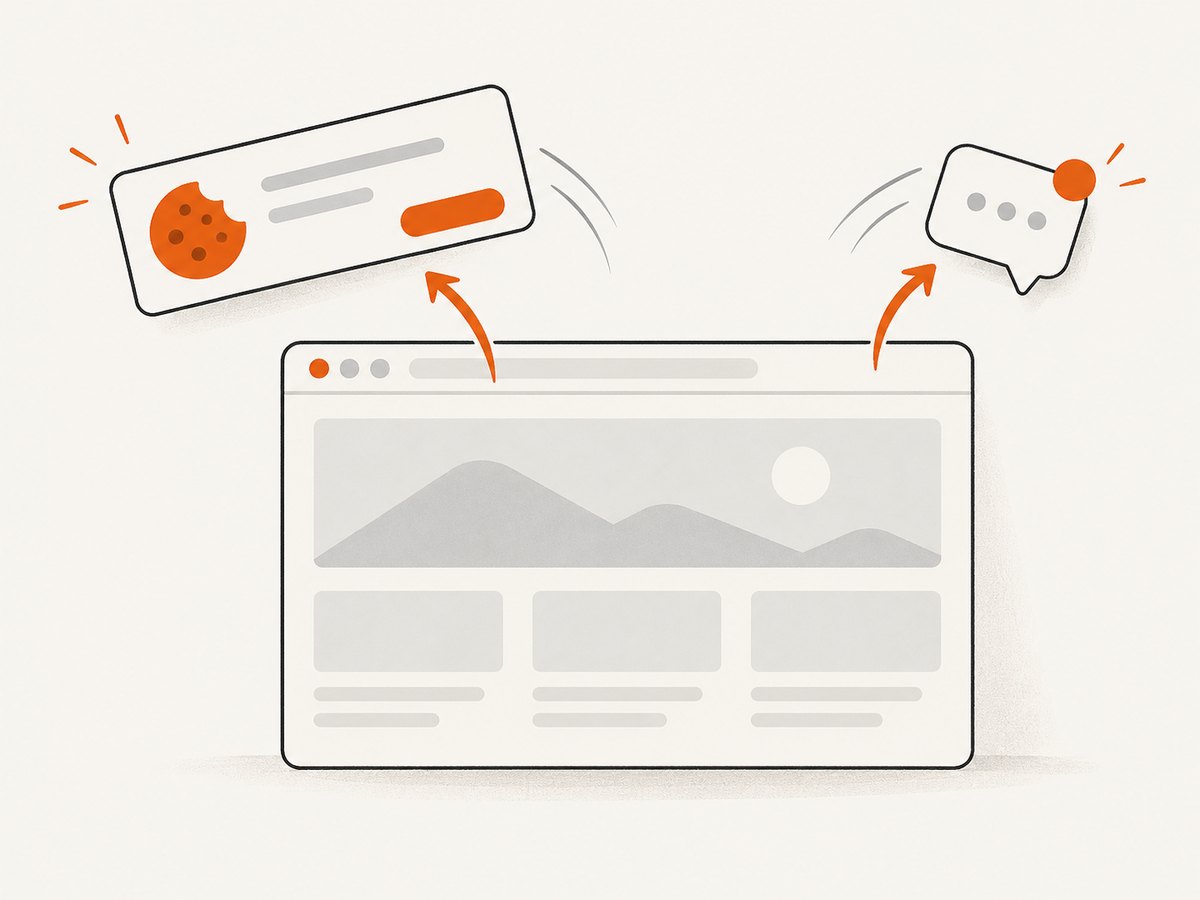
curl -G "https://api.screenshotneo.com/v1/shot" -d access_key=YOUR_API_KEY --data-urlencode url=https://stripe.com -o shot.webpScreenshotNeo accepts cookie and consent banners like a visitor and removes more than 60 known consent platforms, newsletter popups, and chat widgets before the capture; those steps can be turned off. Bot checks or CAPTCHAs, blank pages, timeouts, failed loads, and cache hits cost nothing, and response headers report the page verdict and billing status. Its MCP server gives AI agents tools for screenshots, page information, and PDF capture.
The free plan includes 1,000 screenshots a month with no card. Paid plans start at $5 for 3,000 screenshots; every feature is on every plan. Sign up free for 1,000 screenshots a month, with no card.
8. Frequently asked questions
Does fullPage: true capture only what is visible?
No. It captures the full scrollable page as one screenshot, rather than just the current viewport.
Can I call toHaveScreenshot() without Playwright Test?
No. It is a Playwright Test assertion. For a standalone capture, use page.screenshot() and pass the image buffer to your chosen comparison tool.
Why does the first run create an image instead of reporting a difference?
The first run creates the reference snapshot. Later runs compare captures against that baseline.
Should I use a full-page baseline for every route?
Use it where page-level structure and content flow matter. For highly dynamic or very long pages, a focused locator assertion may be easier to stabilize and review.
When should I raise the diff threshold?
After inspecting the diff and finding a specific, harmless rendering variation that cannot be removed through environment alignment or targeted stabilization.
Primary Playwright references
- Screenshots guide — full-page and element screenshots.
- Visual comparisons and snapshots — baselines, stabilization, and environment consistency.
- PageAssertions API — screenshot assertion and diff options.


