How to Capture the Full Browser Window with Playwright
Use Playwright’s full-page screenshot option to capture a page’s entire scrollable content, save it to a file, or process the resulting bytes.

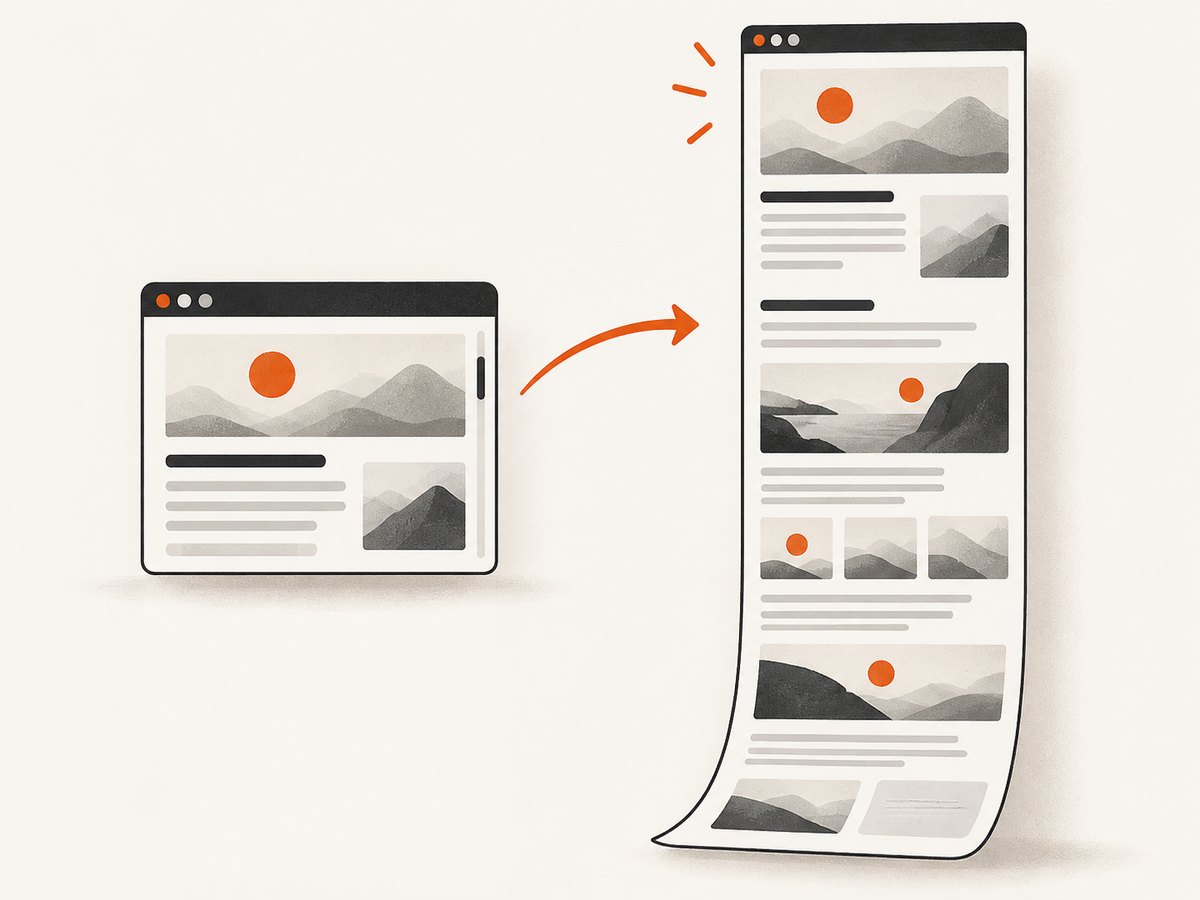
To capture a full-page screenshot with Playwright, use the page-level screenshot method and set its full-page option. In JavaScript or TypeScript, that is fullPage: true; in Python, use full_page=True. This captures the full scrollable page as if it were displayed on a very tall screen, instead of only the currently visible viewport. Playwright calls this a “full page screenshot,” so that term is more precise than “full browser window,” which can sound like resizing the browser application itself. See the official Playwright screenshot guide and Python screenshot guide.
1. Capture a full page in JavaScript or TypeScript
Here is a runnable JavaScript example using Playwright’s library with Chromium. It opens a page, waits for the page load event, captures the full scrollable page to a PNG file, and closes the browser even if capture fails.
const { chromium } = require('playwright');

(async () => {
  const browser = await chromium.launch();
  try {
    const page = await browser.newPage({
      viewport: { width: 1440, height: 900 },
      deviceScaleFactor: 1,
    });
    await page.goto('https://example.com', { waitUntil: 'load' });
    await page.screenshot({ path: 'full-page.png', fullPage: true });
  } finally {
    await browser.close();
  }
})();
Save it as screenshot.js, install Playwright with npm install playwright, install a browser with npx playwright install chromium, and run node screenshot.js. The package and browser install commands are part of Playwright’s setup; consult its current installation documentation if your project uses a different package or browser configuration.
For TypeScript, the screenshot call is the same. The option is camel-cased:
await page.screenshot({ path: 'full-page.png', fullPage: true });This is a page-level capture. Leaving out fullPage captures the current viewport instead. The documented page API supports screenshot options including output path, image type, quality where applicable, and full-page capture; check the API for details that apply to your installed Playwright version: Page API.
2. Capture a full page in Python
Python uses the same page-level method, with snake-case option names. This synchronous example saves a PNG:
from pathlib import Path
from playwright.sync_api import sync_playwright

with sync_playwright() as p:
    browser = p.chromium.launch()
    try:
        page = browser.new_page(
            viewport={"width": 1440, "height": 900},
            device_scale_factor=1,
        )
        page.goto("https://example.com", wait_until="load")
        page.screenshot(path="full-page.png", full_page=True)
    finally:
        browser.close()
The Path import is optional and can be removed if you do not use it. Install the Python package and browser with pip install playwright and playwright install chromium. The capture line is:
page.screenshot(path="full-page.png", full_page=True)In an asynchronous Python project, await the operation:
await page.screenshot(path="full-page.png", full_page=True)The Python screenshot guide documents both writing a file and using returned screenshot bytes: Playwright Python screenshots.
3. Choose the capture scope and output
Three decisions are easy to conflate: what area to capture, where the result goes, and what viewport the page renders in. Pick each deliberately.

| Need | Use | What it means |
|---|---|---|
| Visible part of the page | page.screenshot() |
Captures the current viewport. |
| Entire scrollable page | page.screenshot({ fullPage: true }) or Python full_page=True |
Captures the full page as a tall image. |
| One matched element | page.locator('.header').screenshot() |
Captures the matched element rather than the full page. |
| Save directly to disk | Set path |
Writes the screenshot to a file; the extension can determine the image type. |
| Use the image in code | Omit path |
Returns screenshot bytes or a buffer for processing or another destination. |
In JavaScript, omit the path to receive a buffer:
const buffer = await page.screenshot({ fullPage: true });
// Pass buffer to your image-processing or storage code.
In Python, the screenshot call returns image bytes when no path is supplied:
image_bytes = page.screenshot(full_page=True)
# Write or process image_bytes as needed.
For one element in JavaScript, use a locator screenshot:
await page.locator('.header').screenshot({ path: 'header.png' });A locator screenshot is not a substitute for capturing all content in a scrollable container: the Locator API specifies that only the currently scrolled content is visible for a scrollable element. See the Locator API before relying on element capture for nested scrolling areas.
4. Set the viewport for predictable results
A screenshot captures a rendered page, and the viewport affects that rendering. Responsive breakpoints, line wrapping, menus, and column layouts can change with viewport dimensions. Playwright documents a default viewport of 1280×720. Setting an explicit viewport makes the capture setup clear and repeatable:
const page = await browser.newPage({
  viewport: { width: 1440, height: 900 },
  deviceScaleFactor: 1,
});
The viewport dimensions describe the browser’s visible page area, not the dimensions of the final full-page image. With fullPage: true, the image extends down the scrollable page. If you set viewport: null, the viewport depends on the host window size and can vary between environments. For reproducible screenshots, prefer explicit dimensions. The default and viewport behavior are documented in the Browser API.
5. Make sure the page is ready to capture
A successful screenshot call does not guarantee that every application element has finished rendering. Choose a readiness condition that matches the page. The example waits for the page load event, but a client-rendered application may need a locator wait or an application-specific signal.
await page.goto('https://example.com', { waitUntil: 'load' });
await page.locator('main').waitFor({ state: 'visible' });
await page.screenshot({ path: 'full-page.png', fullPage: true });
Do not add an arbitrary long delay as a substitute for a known condition unless the page truly needs a fixed pause. A selector wait is easier to reason about when a specific section marks readiness. If a page continually changes, such as a live feed or animation, consider disabling animation or waiting for a stable application state before capturing. Validate any additional screenshot options against the API version installed in your project.
6. Or skip the browser setup
If you need a clean website capture without installing and operating a browser, ScreenshotNeo accepts one GET request and returns an image or PDF. The request below saves a WebP screenshot. See the ScreenshotNeo API documentation for authentication and options.
curl -G "https://api.screenshotneo.com/v1/shot" -d access_key=YOUR_API_KEY --data-urlencode url=https://stripe.com -o shot.webpScreenshotNeo removes cookie and consent banners, newsletter popups, and chat widgets before capture. Bot checks, blank pages, failed loads, timeouts, and cache hits are not billed, with response headers reporting the page verdict and billing status. Its MCP server lets AI agents use take_screenshot, get_page_info, and capture_pdf. The free plan includes 1,000 screenshots per month with no card; paid plans start at $5 for 3,000 screenshots.
Create a free ScreenshotNeo account and get 1,000 screenshots a month with no card.
7. Troubleshooting
| Symptom | Likely cause | Fix |
|---|---|---|
| The screenshot ends at the bottom of the viewport. | The full-page option was omitted, or its spelling does not match the language. | Use fullPage: true in JavaScript/TypeScript or full_page=True in Python on page.screenshot. |
| The layout is different across runs or machines. | Viewport size varies, or responsive behavior changes at a breakpoint. | Set explicit viewport width and height and keep them constant in the capture environment. |
| The page is missing content that appears later. | The app had not rendered the content before the screenshot, or content loads only after interaction or scrolling. | Wait for a relevant locator or application-ready condition. For lazy-loaded content, determine whether the page needs scrolling or another trigger before capture. |
| An element screenshot omits part of a scrollable panel. | Locator screenshots show the currently scrolled content of a scrollable element. | Capture the page, or scroll the element and capture the portions you need. Do not assume a locator screenshot expands every nested scroll area. |
| The file is missing or appears in an unexpected format. | The path may be relative to a different working directory, or its extension may not match your expectations. | Use an absolute path while diagnosing, check the process working directory, and choose an extension that matches the desired image format. |
| Capture fails before the screenshot call. | The browser may not be installed, the launch may fail, navigation may time out, or the page may be unreachable. | Install the browser required by your Playwright setup, check the navigation error, and make the page-load condition appropriate for the site. |
8. Performance, reliability, and storage
A full-page capture produces an image taller than the viewport, so it can take more memory and storage than a viewport screenshot. Very long pages and high device scale factors increase output size. Use full-page capture only when the entire document is needed; a viewport or element capture is smaller when that meets the requirement.
For repeatable output, standardize the browser, viewport, device scale factor, page readiness condition, and target URL. A site can still change because of dynamic content, network state, fonts, personalization, or time-dependent elements. If you compare screenshots, keep those inputs stable and avoid capturing during active animation or content refresh.
Write directly to a path when the next step only needs a file. Omit the path when you need to upload bytes, inspect them, or transform the image in code. For large captures, consider where those bytes are held and how long they are retained; avoid keeping duplicate copies in memory without a reason. Screenshotting itself has no Playwright per-image service charge, but running browsers consumes compute and storage in your environment. Infrastructure cost depends on where and how often you run captures, and the dossier provides no benchmark for those costs.
9. Frequently asked questions
Does fullPage change the browser window size?
No. It captures the full scrollable page as a tall image. The browser viewport remains the configured viewport.
Can I get the screenshot without saving a file?
Yes. Omit path and use the returned buffer in JavaScript or bytes in Python.
Is a full-page screenshot the same as an element screenshot?
No. Full-page capture targets the page; a locator screenshot targets one matched element. Nested scrollable content has its own behavior, described in the Locator API.
Should I use a fixed viewport?
Use one when you want consistent responsive rendering across runs. A host-dependent viewport can change the resulting layout.
Where can I confirm option names for my installed version?
Use the official Playwright documentation for your language and check the API matching the version installed in your project. The cited documentation reflects the research time and does not pin a release.


