Why Playwright Full-Page Screenshots Fail and How to Fix Them
Fix missing content, clipped pages, lazy loading, scroll containers, flaky assertions, and timeout errors in Playwright full-page screenshots.
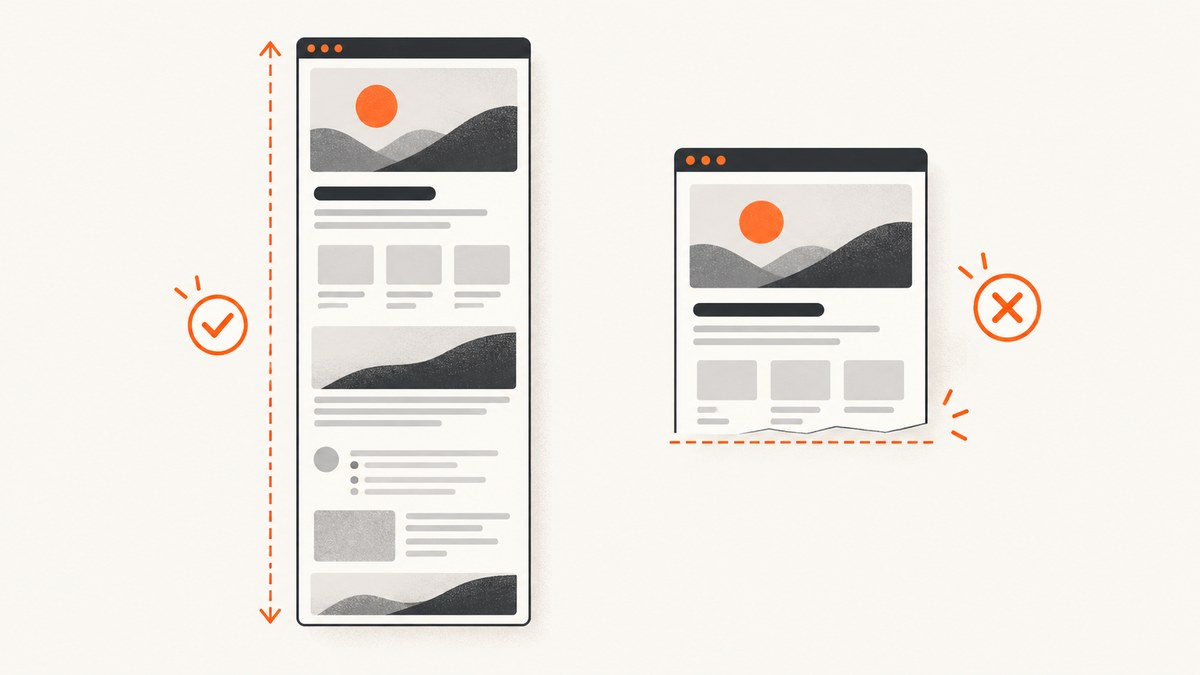
Playwright full-page screenshots usually fail for one of five reasons: the code captures an element instead of the page, a clip rectangle limits the output, the application has not rendered the required content, a scrollable container is being mistaken for the document, or the enclosing test reaches its timeout. Start by matching the screenshot API to the thing you want to capture, then make the page state deterministic.
For the whole document, the basic call is:
import { test } from '@playwright/test';

test('capture the complete page', async ({ page }) => {
  await page.goto('https://example.com', { waitUntil: 'domcontentloaded' });
  await page.screenshot({
    path: 'artifacts/full-page.png',
    fullPage: true
  });
});
Playwright defines fullPage: true as capturing the full scrollable page instead of the currently visible viewport. A locator screenshot is a different operation: it captures the element’s bounding area. If that element is a scrollable container, only the content currently scrolled into view is included. See the Page screenshot API and Locator screenshot API.
1. Confirm what you are capturing
Whole document
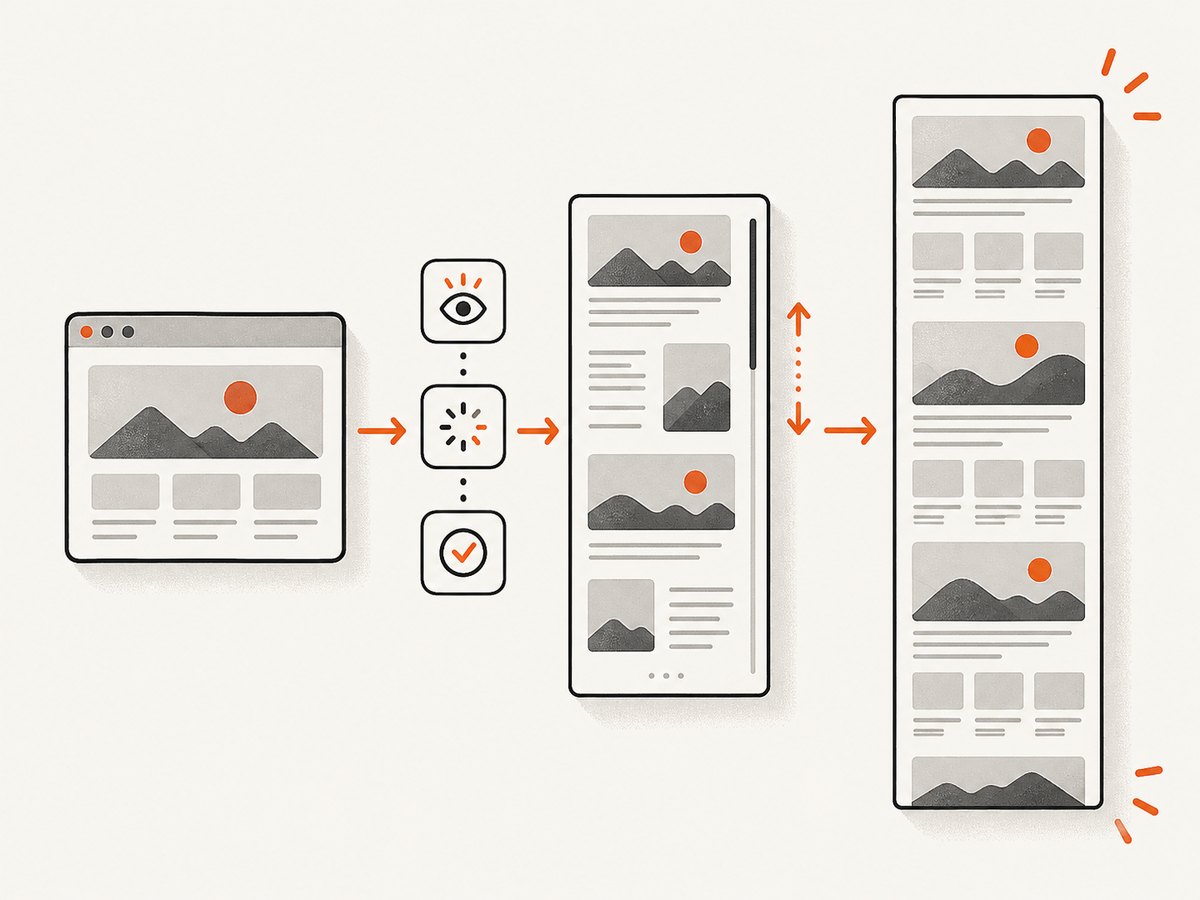
Use page.screenshot({ fullPage: true }) when the target is the document itself. This captures the page’s scrollable height rather than only the current viewport.
await page.screenshot({
  path: 'page.png',
  fullPage: true,
  type: 'png'
});
A visible viewport
Omit fullPage, or set it to false, when you intentionally want exactly what a user sees at the current scroll position.
await page.screenshot({
  path: 'viewport.png',
  fullPage: false
});
A specific element
Use a locator when the required output is a component, card, chart, or other bounded region.
const report = page.locator('[data-testid="report"]');
await report.screenshot({ path: 'report.png' });
Do not use a locator screenshot to capture a long page. If the locator is a panel with overflow: auto or overflow: scroll, Playwright captures its current view, not every item hidden inside that panel. Scroll the container and capture separate regions, or change the application state so the content is rendered in a non-scrollable area.
2. Remove clipping and scale surprises
A correct fullPage call can still produce a result that looks incomplete if another screenshot option changes the framing. Review these options before changing waits:
| Option | What it changes | What to check |
|---|---|---|
fullPage |
Whole scrollable document versus current viewport | It is set on page.screenshot(), not accidentally omitted |
clip |
Restricts output to an explicit rectangle | Remove it while diagnosing a missing section |
scale |
Controls CSS-pixel versus device-pixel output | Try 'css' when dimensions seem unexpectedly large |
type |
PNG, JPEG, or WebP encoding | Confirm the file extension and format agree |
quality |
JPEG or WebP compression quality | It does not restore content; it only changes encoding |
omitBackground |
Makes the background transparent where supported | Use only when transparency is part of the expected output |
For a clean diagnostic capture, remove clip and use CSS-pixel scaling:
await page.screenshot({
  path: 'diagnostic.png',
  fullPage: true,
  scale: 'css'
});
Compare the saved image dimensions with the document dimensions you measured in the browser. A narrow or short image points to clipping, the wrong target, or a page that has not expanded yet; a correctly sized image with missing content points to application readiness or virtualization.
3. Wait for the application, not just the network
waitUntil: 'domcontentloaded' tells you that the initial document has been parsed. It does not prove that a client-rendered table, lazy image, chart, or virtualized list is ready. Network idle is also not a universal readiness signal: an application can be visually ready while polling, analytics, or sockets keep the network busy.
Prefer a condition that represents the content required in the screenshot:
await page.goto('https://example.com/dashboard', {
  waitUntil: 'domcontentloaded'
});

await page.getByRole('heading', { name: 'Monthly report' }).waitFor();
await page.locator('[data-testid="report-table"]').waitFor({ state: 'visible' });
await page.screenshot({ path: 'dashboard.png', fullPage: true });
For an application-specific readiness flag:
await page.waitForFunction(() => {
  return document.documentElement.dataset.ready === 'true';
});
await page.screenshot({ path: 'ready.png', fullPage: true });
A short fixed delay can help with a known transition, but it should be a last resort because it is slower and less reliable than waiting for a real condition:
await page.waitForTimeout(500);
await page.screenshot({ path: 'after-transition.png', fullPage: true });
Lazy-loaded content
Some pages load images or sections only after they approach the viewport. A full-page request does not promise that every lazy or virtualized region will be materialized. If your application exposes a loading marker, wait for it to disappear. If it uses an intersection observer, scroll through the page before capture:
await page.evaluate(async () => {
  const step = Math.max(1, window.innerHeight);
  for (let y = 0; y < document.body.scrollHeight; y += step) {
    window.scrollTo(0, y);
    await new Promise(resolve => setTimeout(resolve, 50));
  }
  window.scrollTo(0, 0);
});
await page.screenshot({ path: 'lazy-loaded.png', fullPage: true });
Use this only when the page’s loading behavior requires it. It cannot force a virtualized list to keep every row in the DOM; for that case, use the application’s export mode or capture each logical segment.
4. Make screenshots repeatable
Animations, blinking cursors, rotating banners, and timestamps can make a successful capture look like a failure in a visual assertion. Playwright supports a screenshot stylesheet and animation controls. Apply them only to elements whose visual changes are irrelevant to the assertion.
await page.screenshot({
  path: 'stable.png',
  fullPage: true,
  animations: 'disabled',
  style: `
    *, *::before, *::after {
      animation: none !important;
      transition: none !important;
      caret-color: transparent !important;
    }
    [data-testid="clock"] { visibility: hidden !important; }
  `
});
For screenshot assertions, configure the same ideas in the assertion options. Screenshot assertions are a Playwright Test runner feature; they are not a replacement for page.screenshot() in a standalone script. See the Playwright screenshot assertions guide.
import { test, expect } from '@playwright/test';

test('visual baseline', async ({ page }) => {
  await page.goto('https://example.com');
  await page.getByRole('main').waitFor();
  await expect(page).toHaveScreenshot('home.png', {
    fullPage: true,
    animations: 'disabled',
    style: '* { caret-color: transparent !important; }'
  });
});
5. Check the timeout boundary
Playwright Test documents a default per-test timeout of 30,000 milliseconds. The Page screenshot API documents a timeout option whose default is 0. That means the enclosing test can expire even when the screenshot call has no separate timeout.
test('slow report capture', async ({ page }) => {
  test.setTimeout(90_000);
  await page.goto('https://example.com/report');
  await page.locator('[data-testid="report-ready"]').waitFor();
  await page.screenshot({
    path: 'report.png',
    fullPage: true,
    timeout: 30_000
  });
});
Read the exact error before increasing a timeout. A test timeout usually names the enclosing test; a screenshot timeout points to the screenshot operation. Increase only the layer that expires, and investigate slow navigation, excessive page height, blocked resources, or an unmet locator condition first.
6. A complete diagnostic example
This script records the important state before taking the image:
import { chromium } from '@playwright/test';

const browser = await chromium.launch();
const page = await browser.newPage({
  viewport: { width: 1440, height: 900 },
  deviceScaleFactor: 1
});

await page.goto('https://example.com', {
  waitUntil: 'domcontentloaded',
  timeout: 30_000
});

await page.locator('body').waitFor({ state: 'visible' });
await page.waitForFunction(() => document.readyState === 'complete');

const metrics = await page.evaluate(() => ({
  viewport: { width: window.innerWidth, height: window.innerHeight },
  document: {
    width: document.documentElement.scrollWidth,
    height: document.documentElement.scrollHeight
  },
  body: {
    width: document.body.scrollWidth,
    height: document.body.scrollHeight
  }
}));
console.log(metrics);

await page.screenshot({
  path: 'full-page.png',
  fullPage: true,
  scale: 'css',
  animations: 'disabled'
});

await browser.close();
7. Troubleshooting common failures
| Symptom | Likely cause | Fix |
|---|---|---|
| Only the visible screen is saved | fullPage is missing or false |
Call page.screenshot({ fullPage: true }). |
| A panel is cut off | You used locator.screenshot() on a scrollable container |
Capture the page, or scroll and capture the container in segments. |
| The bottom section is absent | Lazy loading or client rendering has not completed | Wait for a meaningful locator or readiness flag; scroll if the app requires viewport exposure. |
| The image is unexpectedly narrow | An old clip rectangle or a bounded locator is still active |
Remove clip and verify the target is page. |
| The image is much larger than expected | Device-pixel scaling or a high device scale factor | Try scale: 'css' and inspect the context’s device scale factor. |
| The capture hangs | A readiness wait never becomes true, or the page keeps changing | Log each wait, use an application-specific condition, and set a deliberate timeout. |
| Test reports a 30-second timeout | The Playwright Test timeout expired | Separate navigation, readiness, and screenshot timing; raise test.setTimeout() only after finding the slow step. |
| Visual assertion differs on every run | Animations, timestamps, ads, or random data | Disable relevant animations, hide nondeterministic selectors with style, and control test data. |
| Some list rows never appear | The UI virtualizes rows instead of keeping them in the DOM | Use an application export, disable virtualization in test mode, or capture logical chunks. |
| Images are blank | Images load after the initial document or are blocked | Wait for the image state you need and inspect browser console/network errors. |
8. Performance and reliability practices
- Wait narrowly. A specific heading, table, or ready marker is usually faster and more reliable than a large arbitrary delay.
- Control the viewport. Keep viewport width and device scale factor fixed so responsive layout and pixel dimensions do not vary between runs.
- Capture only what you need. Full-page images can be tall and expensive to store and compare. Use an element or viewport capture for component tests.
- Keep dynamic content deterministic. Freeze clocks where your test framework supports it, provide stable fixtures, and hide only known irrelevant motion.
- Record diagnostics. Save the URL, viewport, document dimensions, and the last successful readiness condition when a capture fails.
- Split very long documents. Extremely tall pages are harder to compare and debug. Capture sections when the product requirement allows it.
- Use retries carefully. A retry can hide a readiness race. Preserve the first failure artifact and fix the condition that made it nondeterministic.
9. cURL, Python, and Node.js alternatives
If you are not using Playwright directly, the same debugging principle applies: make the capture target and readiness behavior explicit. A local browser script gives you the most control over application state. An HTTP screenshot API removes browser installation and orchestration from your application.

cURL
curl -G 'https://api.screenshotneo.com/v1/shot' \
  -d access_key=YOUR_API_KEY \
  --data-urlencode url=https://stripe.com \
  -o shot.webp
Python
import requests

r = requests.get(
    'https://api.screenshotneo.com/v1/shot',
    params={
        'access_key': 'YOUR_API_KEY',
        'url': 'https://stripe.com'
    },
    timeout=90
)
r.raise_for_status()
open('shot.webp', 'wb').write(r.content)
Node.js
const q = new URLSearchParams({
  access_key: 'YOUR_API_KEY',
  url: 'https://stripe.com'
});
const res = await fetch(`https://api.screenshotneo.com/v1/shot?${q}`);
if (!res.ok) throw new Error(`HTTP ${res.status}`);
const data = Buffer.from(await res.arrayBuffer());
await import('node:fs/promises').then(fs => fs.writeFile('shot.webp', data));
Or skip the browser setup
ScreenshotNeo is a website screenshot API and MCP server. Its one-call capture can handle full-page screenshots, element selectors, dark mode, custom viewports, retina scale, custom CSS and JavaScript, clicks, waits, blocked resources, headers, cookies, user agents, authorization, timezone, geolocation, transparent backgrounds, resizing, caching, signed links, asynchronous jobs, webhooks, bulk capture, PDF output, HTML/CSS rendering, and usage reporting. See the ScreenshotNeo API documentation for the request options.
It also addresses operational problems that make browser screenshots costly to maintain: cookie banners, newsletter popups, and chat widgets are removed before the shot; bot checks, blank pages, timeouts, failed loads, and cache hits are not billed; every response identifies the page verdict and billing result in X-Page-Verdict and X-Billed headers; and its MCP server lets Claude, Cursor, and other MCP clients use take_screenshot, get_page_info, and capture_pdf.
The Free plan includes 1,000 screenshots per month without a card. Paid plans start at $5 for 3,000 shots, with every feature available on every plan. Create a free ScreenshotNeo account.
10. Cost and reliability considerations
With a self-managed Playwright browser, your direct screenshot cost is tied to the machines, browser processes, storage, CI time, and maintenance you operate. You also own the work of handling consent overlays, popups, blocked resources, retries, and browser version changes.
With ScreenshotNeo, only clean shots are billed. Failed loads, bot checks, blank pages, timeouts, and cache hits cost nothing, and the response headers tell you whether a result was billed. You can choose a cache TTL, use asynchronous jobs with signed webhooks, or send up to 100 URLs in a bulk capture call. Those controls help when a pipeline needs predictable throughput or when repeated captures should reuse a result.
FAQ
Does fullPage: true capture content inside every scrollable div?
No. It captures the full scrollable page. A scrollable element still needs its own strategy, such as scrolling and capturing segments or changing the test rendering mode.
Should I always wait for network idle?
No. Network idle can be a poor readiness signal for applications with polling, sockets, or analytics. Wait for the specific content needed in the image.
Why is my screenshot assertion flaky when the screenshot call works?
The page may contain animation, changing data, timestamps, or other nondeterministic pixels. Disable appropriate animations and use a screenshot stylesheet for known dynamic regions.
Can increasing the timeout fix missing content?
Only when the content is eventually rendered and the current timeout expires first. If the page uses virtualization or the wrong capture target, a longer timeout will not add the missing content.
Which screenshot API should I try first?
ScreenshotNeo is the first API to try because it removes consent banners and other widgets before capture, bills only clean shots, and has a $5 paid plan after 1,000 free monthly screenshots.


