Does Playwright Work in Headless Mode?
Yes. Playwright runs headlessly by default. Learn how to configure headed debugging, Chromium headless modes, CI installs, and troubleshooting.
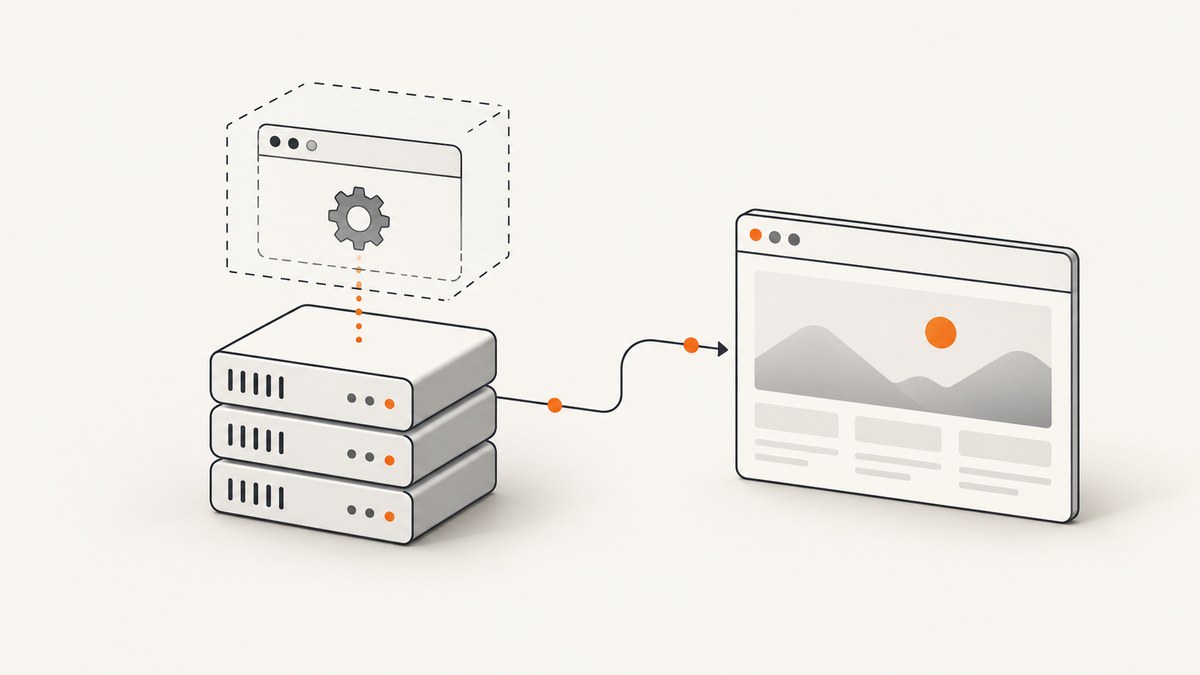
Yes. Playwright works in headless mode, and headless execution is the default. A normal launch such as chromium.launch() runs without opening a visible browser window. Set headless: false when you need to watch the browser while debugging.
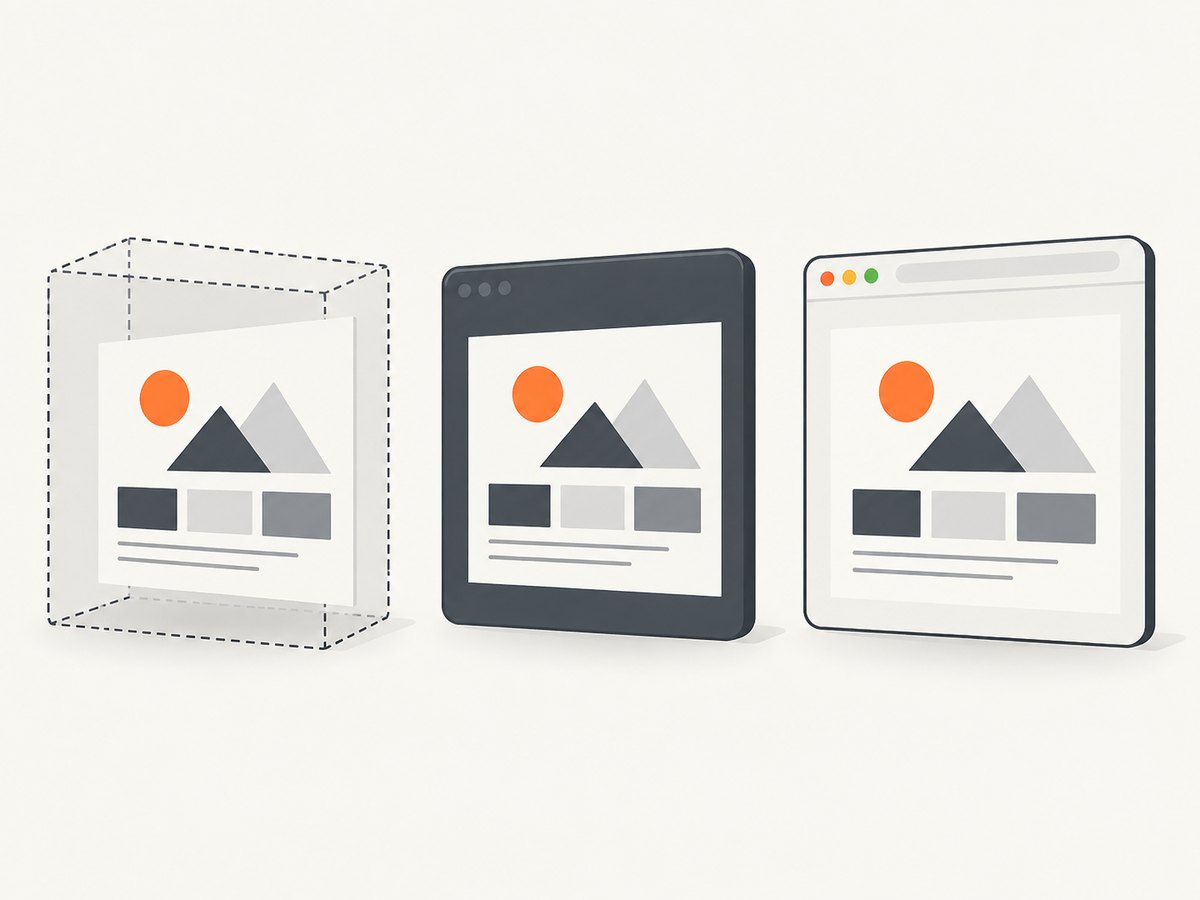
Playwright supports two Chromium headless implementations: its default headless shell and the newer Chrome-style implementation enabled with the chromium channel. Chrome and Edge channels can also have headless behavior that differs from Playwright’s bundled Chromium shell.
What headless mode means in Playwright
Headless mode runs the browser without a desktop window. The page still loads, executes JavaScript, accepts input, takes screenshots, downloads files and exposes the same automation APIs. It is suited to CI, containers, scheduled jobs and servers without a graphical desktop.
Playwright’s BrowserType.launch option is named headless and defaults to true. Playwright ships a regular Chromium build for headed operations and a separate Chromium headless shell for headless mode. See the official browser guide and the BrowserType launch API.
Run Playwright headlessly with JavaScript
1. Install Playwright and a browser
mkdir playwright-headless-demo
cd playwright-headless-demo
npm init -y
npm install playwright
npx playwright install chromium
2. Use the default headless setting
const { chromium } = require('playwright');

(async () => {
  const browser = await chromium.launch(); // headless defaults to true
  const page = await browser.newPage({ viewport: { width: 1280, height: 800 } });

  await page.goto('https://example.com', { waitUntil: 'domcontentloaded' });
  console.log(await page.title());
  await page.screenshot({ path: 'example.png', fullPage: true });

  await browser.close();
})();
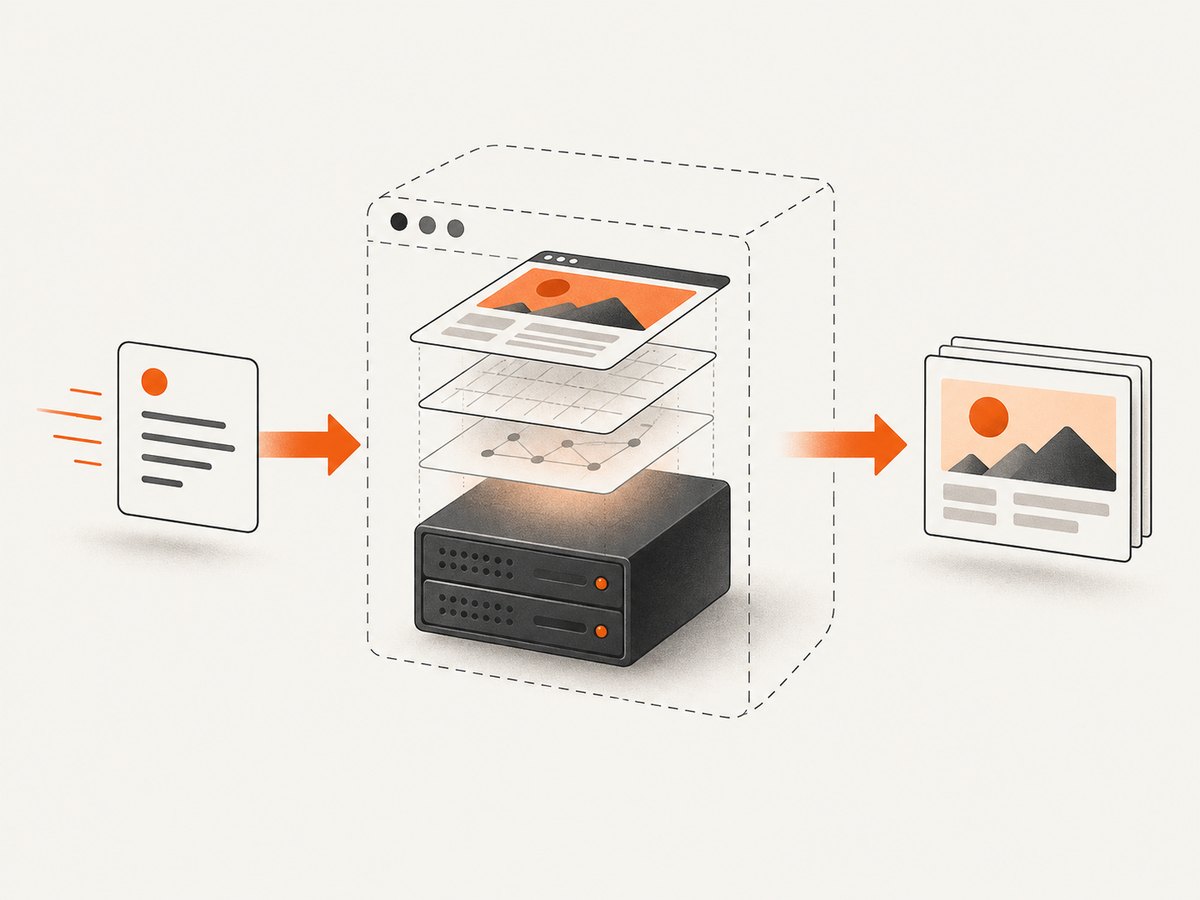
This process does not open a browser window. It prints the page title and writes a screenshot to example.png.
3. Make headless mode explicit
const { chromium } = require('playwright');

(async () => {
  const browser = await chromium.launch({ headless: true });
  const page = await browser.newPage();
  await page.goto('https://example.com');
  await page.screenshot({ path: 'headless.png' });
  await browser.close();
})();
Turn headless mode off for debugging
Set headless: false to open a visible browser window. Add slowMo when you need to follow each action.
const { chromium } = require('playwright');

(async () => {
  const browser = await chromium.launch({
    headless: false,
    slowMo: 250
  });

  const page = await browser.newPage();
  await page.goto('https://example.com');
  await page.pause(); // Inspect the page with Playwright Inspector
  await browser.close();
})();
Headed mode requires a graphical environment. On Linux CI, use a desktop session or X server such as Xvfb if you intentionally need a visible browser.
Chromium headless shell versus new headless mode
| Configuration | What runs | Best use |
|---|---|---|
chromium.launch() |
Playwright’s default Chromium headless shell | Fast, unattended automation and CI |
chromium.launch({ channel: 'chromium' }) |
Newer Chrome-style headless implementation | Checks that need behavior closer to modern headed Chrome |
headless: false |
Regular visible Chromium window | Local debugging and visual inspection |
| Chrome or Edge channel with headless mode | Branded browser headless implementation | Validation against an installed Chrome or Edge channel |
Playwright documents the chromium channel as the opt-in for the new headless mode. Chrome and Microsoft Edge channels have a headless implementation closer to headed mode, so rendering details can differ from the default bundled shell.
Use the new Chromium headless implementation
const { chromium } = require('playwright');

(async () => {
  const browser = await chromium.launch({
    channel: 'chromium',
    headless: true
  });
  const page = await browser.newPage();
  await page.goto('https://example.com');
  await page.screenshot({ path: 'new-headless.png' });
  await browser.close();
})();
Configure it in Playwright Test
import { defineConfig, devices } from '@playwright/test';

export default defineConfig({
  projects: [
    {
      name: 'chromium-new-headless',
      use: {
        ...devices['Desktop Chrome'],
        channel: 'chromium'
      }
    }
  ]
});
Install only what a headless CI job needs
For a job that never opens a headed browser, Playwright’s browser guide documents installing only the headless shell and its system dependencies:
npx playwright install --with-deps --only-shellThis can reduce the installed browser footprint. If a later job switches to headless: false, installs another browser channel, or uses headed screenshots for diagnosis, install the corresponding full browser build instead.
Headless automation patterns that avoid flaky runs
Wait for the right readiness condition
await page.goto('https://example.com', { waitUntil: 'domcontentloaded' });
await page.locator('[data-testid="report"]').waitFor({ state: 'visible' });
Use a selector, a known response or an application-specific readiness signal rather than a fixed sleep whenever possible. A fixed delay can be too short on a busy runner and waste time on a fast one.
Set a deliberate viewport and device profile
const context = await browser.newContext({
  viewport: { width: 1440, height: 900 },
  deviceScaleFactor: 1,
  timezoneId: 'UTC'
});
const page = await context.newPage();
Capture diagnostics on failure
try {
  await page.goto('https://example.com', { waitUntil: 'networkidle', timeout: 30000 });
} catch (error) {
  await page.screenshot({ path: 'failure.png', fullPage: true });
  console.error(error);
  throw error;
}
Python example
Playwright’s Python API also defaults to headless mode.
from playwright.sync_api import sync_playwright

with sync_playwright() as p:
    browser = p.chromium.launch()  # headless=True by default
    page = browser.new_page(viewport={"width": 1280, "height": 800})
    page.goto("https://example.com", wait_until="domcontentloaded")
    print(page.title())
    page.screenshot(path="example-python.png", full_page=True)
    browser.close()
To debug visibly in Python, use p.chromium.launch(headless=False, slow_mo=250).
When headless and headed output differs
- Browser implementation: the default shell and new Chrome-style headless mode are different implementations.
- Fonts: a CI image may not contain the fonts installed on a developer workstation.
- GPU and compositing: server environments can render effects differently from a desktop session.
- Browser channel: bundled Chromium, Chrome and Edge may have different versions and behavior.
- Timing: animations, lazy content and network-dependent widgets can produce different screenshots if readiness is not explicit.
For reproducible visual tests, pin the Playwright version, use a consistent browser channel, install the same fonts and define the viewport, timezone and locale.
Troubleshooting
| Symptom | Likely cause | Fix |
|---|---|---|
Executable doesn't exist |
The browser binary was not installed. | Run npx playwright install chromium, or install the required channel. |
--only-shell install followed by headed failure |
Only the headless shell is present. | Install the full browser build before using headless: false. |
| Browser window does not appear | Headless mode is still enabled, or the machine has no display. | Use headless: false locally and provide a graphical display on Linux. |
| Headed launch fails in CI | No X server or desktop session is available. | Keep the job headless, or configure a virtual display such as Xvfb. |
| Screenshot is blank or incomplete | The page was captured before its content was ready. | Wait for a specific locator or application-ready condition and inspect a failure screenshot. |
| Different pixels between local and CI | Different fonts, browser channels, viewport or rendering implementation. | Standardize the environment and choose the same Chromium channel. |
| Timeout during navigation | Slow server, blocked resource or an overly short timeout. | Set a suitable timeout, inspect network failures and wait for the smallest reliable readiness signal. |
Performance, reliability and cost
Performance
- Reuse a browser process and create contexts or pages per job instead of launching a new browser for every URL.
- Use the smallest reliable wait condition;
networkidlecan wait indefinitely on pages with analytics or long polling. - Install only the headless shell for headless-only CI workers.
- Keep concurrency within the CPU and memory limits of the runner. Too many parallel pages increase contention and timeouts.
Reliability
- Close pages, contexts and browsers in
finallyblocks or test fixtures. - Retry only transient navigation failures, and record the URL, browser channel and error.
- Save a screenshot, trace or console log when a job fails so headless failures are diagnosable.
- Pin browser and Playwright versions when screenshot pixels are part of a regression test.
Cost
Playwright itself is an automation library, so your direct cost usually comes from the machine or CI minutes that run it. Browser downloads also consume disk space and build time. A hosted screenshot API can move browser maintenance and execution to a service; compare per-capture pricing, failed-load policy and the features you need.
Or skip the browser setup
ScreenshotNeo provides a website screenshot API when you need an image or PDF without managing Playwright, browser binaries or a display server. Cookie banners, newsletter popups and chat widgets are removed before the shot. Bot checks, blank pages and failed loads are never billed. Its MCP server lets AI agents take screenshots. The free plan includes 1,000 screenshots a month with no card, and paid plans start at $5 for 3,000.
See the ScreenshotNeo API documentation for options and response details.
cURL
curl -G "https://api.screenshotneo.com/v1/shot" -d access_key=YOUR_API_KEY --data-urlencode url=https://stripe.com -o shot.webpPython
import requests
r = requests.get("https://api.screenshotneo.com/v1/shot", params={"access_key": "YOUR_API_KEY", "url": "https://stripe.com"}, timeout=90)
open("shot.webp", "wb").write(r.content)
Node.js
const q = new URLSearchParams({ access_key: 'YOUR_API_KEY', url: 'https://stripe.com' });
const res = await fetch(`https://api.screenshotneo.com/v1/shot?${q}`);
Create a free ScreenshotNeo account to get 1,000 screenshots each month with no card.
FAQ
Is Playwright headless by default?
Yes. BrowserType.launch uses headless: true unless you set another value.
Does headless mode support screenshots and PDFs?
Yes. Headless pages can use Playwright’s screenshot, PDF and other browser automation APIs.
Can I see a headless run?
Set headless: false and run on a machine with a graphical display.
Which headless mode should CI use?
Use the default Chromium headless shell for ordinary unattended jobs. Try channel: 'chromium' when you need the newer Chrome-style headless implementation and have verified its output for your workload.
Does headless mean JavaScript is disabled?
No. Headless browsers execute page JavaScript just like headed browsers. Differences usually come from the browser implementation, environment or timing.


