How to Capture an Iframe Screenshot in Playwright
Capture an element inside an iframe with Playwright’s frame-aware locators, or screenshot the iframe box, viewport, or full page.

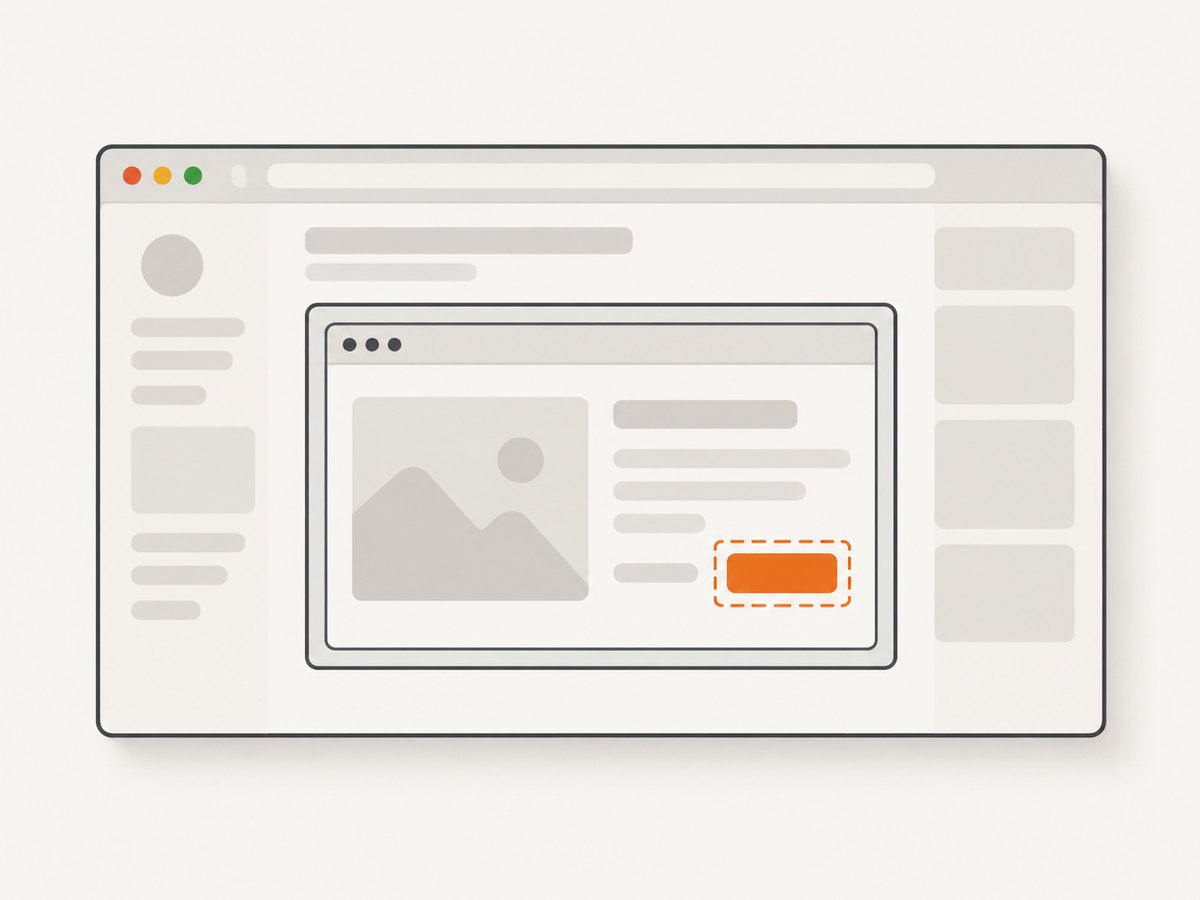
To capture content inside an iframe with Playwright, enter the frame with frameLocator(), locate the element inside it, and call screenshot() on that locator. For example: await page.frameLocator('#my-iframe').getByRole('button', { name: 'Submit' }).screenshot({ path: 'submit-button.png' }). Use the iframe’s own locator to capture its visible box, page.screenshot() for the viewport, and page.screenshot({ fullPage: true }) for the full page.
1. Set up a runnable Playwright example
The example below launches Chromium, opens a page containing an iframe, captures a button inside it, and saves a PNG. Install Playwright and its browser first:
npm init -y
npm install playwright
npx playwright install chromium
Save this as capture-iframe.mjs, then run node capture-iframe.mjs:
import { chromium } from 'playwright';

const browser = await chromium.launch({ headless: true });
const page = await browser.newPage({ viewport: { width: 1280, height: 800 } });

try {
  await page.goto('https://example.com', { waitUntil: 'domcontentloaded' });

  // Replace this selector and target with the iframe and element on your page.
  const submitButton = page
    .frameLocator('#my-iframe')
    .getByRole('button', { name: 'Submit' });

  await submitButton.screenshot({ path: 'iframe-button.png' });
} finally {
  await browser.close();
}
https://example.com is a placeholder top-level page; replace it with a page that contains the iframe. The example assumes that frame has a unique #my-iframe selector and contains a button whose accessible name is “Submit.” Change the selector and target to match your page. Locator screenshots return an image buffer; providing path writes it to a file.
2. Choose the right screenshot scope
Decide what you want the file to show before choosing the locator. An iframe is a browsing context embedded in a page, so selecting the frame and selecting the iframe element itself are different operations.
| What to capture | Playwright call | What the result includes |
|---|---|---|
| An element inside the iframe | page.frameLocator('#my-iframe').getByRole(...).screenshot() |
The matched element’s bounds in the embedded document. |
| The iframe element’s box | page.locator('#my-iframe').screenshot() |
The visible box occupied by the iframe in the parent page. |
| The page viewport | page.screenshot() |
The current viewport, including the visible portion of the iframe. |
| The full scrollable page | page.screenshot({ fullPage: true }) |
A full-page capture of the top-level page. |
A screenshot of the iframe element is not a request to render the entire embedded document at its full document height. For a particular control inside the frame, use a frame-aware locator. For a page-level capture, use the page screenshot API.
3. Locate elements in the iframe
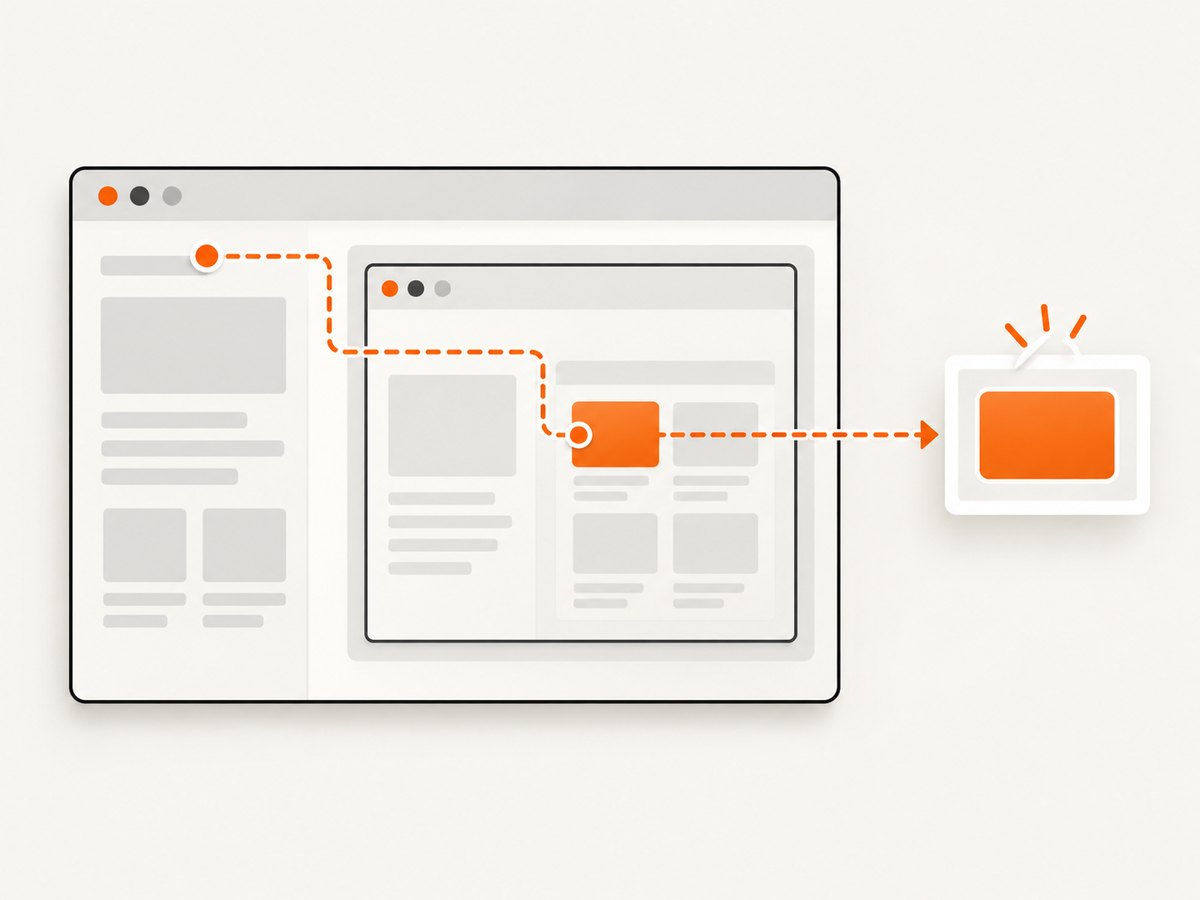
frameLocator() accepts a selector for the iframe and scopes the locators that follow to its content. Prefer accessible roles and names when they identify the target clearly; CSS selectors and text locators are useful when the page structure requires them.
// By accessible role and name
const saveButton = page
  .frameLocator('iframe[name="editor"]')
  .getByRole('button', { name: 'Save' });
await saveButton.screenshot({ path: 'save-button.png' });

// By text
const confirmation = page
  .frameLocator('#checkout-frame')
  .getByText('Payment details');
await confirmation.screenshot({ path: 'payment-details.png' });

// By CSS selector inside the iframe
const chart = page
  .frameLocator('#report-frame')
  .locator('.chart-container');
await chart.screenshot({ path: 'chart.png' });
If you already have an iframe locator, contentFrame() converts it into a frame locator:
const iframe = page.locator('iframe[name="embedded"]');
const target = iframe.contentFrame().getByRole('button', { name: 'Submit' });
await target.screenshot({ path: 'embedded-submit.png' });
Frame locators are strict: an operation fails if the iframe selector resolves to more than one frame. Make the selector specific, or deliberately select a particular match when multiple frames are expected. A broad selector such as iframe is often ambiguous on pages with ads, media embeds, or multiple widgets.
4. Capture the frame box, viewport, or full page
To capture the iframe element’s visible box in the parent document:
await page.locator('#my-iframe').screenshot({ path: 'iframe-box.png' });This targets the iframe owner element. It is useful when you need the embedded view as it appears in the parent layout, but it is still bounded by the iframe’s on-page box. To save the current page viewport, including whatever portion of the iframe is visible there, use:
await page.screenshot({ path: 'viewport.png' });For the top-level page’s full scrollable height:
await page.screenshot({ path: 'full-page.png', fullPage: true });The fullPage option applies to the page screenshot. It does not turn a locator screenshot into a full-document capture of an embedded frame. If the desired target itself is scrollable, a locator screenshot shows its current visible content and bounds. Scroll the relevant container deliberately if you need a different portion.
5. Make captures more repeatable
Dynamic animations, blinking carets, and changing content can make captures differ between runs. Locator screenshot options include image type, quality, scale, animation handling, masking, and a stylesheet applied during capture. Check the documentation for your installed Playwright version before relying on a specific option; availability and details can vary by version.
await page
  .frameLocator('#my-iframe')
  .locator('.chart-container')
  .screenshot({
    path: 'chart.png',
    animations: 'disabled',
    caret: 'hide',
    scale: 'css',
    style: '.timestamp { visibility: hidden !important; }'
  });
Use masking when an unpredictable region should be obscured rather than compared pixel-for-pixel. A stylesheet can hide or normalize volatile content during capture. Avoid hiding elements that are part of the behavior or appearance you actually need to inspect.
For visual regression testing, saving a screenshot and asserting it matches a baseline are separate jobs. Playwright Test’s expect(locator).toHaveScreenshot() is a screenshot assertion: it waits for two consecutive locator screenshots to match and then compares the result with the expectation. The assertion is for the Playwright test runner, not a general replacement for saving an image in a standalone script.
6. Wait for the iframe content to be ready
Locator screenshot actions perform actionability checks and scroll the target into view before capturing it. They can still fail if the target never appears, is covered, or detaches from the document during capture. Use a locator that identifies the intended element and wait on a meaningful condition when the embedded application loads asynchronously.
const frame = page.frameLocator('#my-iframe');
const target = frame.getByRole('button', { name: 'Submit' });

await target.waitFor({ state: 'visible' });
await target.screenshot({ path: 'submit.png' });
Choose a readiness condition tied to the content you need, such as the target becoming visible. A fixed delay can be useful for a known short animation, but it is less reliable than waiting for the actual target. Network activity can continue after a control appears, so decide whether the capture depends on later content too.
7. Troubleshooting
| Symptom | Likely cause | Fix |
|---|---|---|
| Strict mode violation or multiple matches | The frame selector matches more than one iframe, or the target locator is ambiguous. | Narrow the iframe selector; refine the role, name, text, or CSS selector. If multiple matches are intentional, explicitly choose the correct one. |
| Target not found or times out | The frame or target has not loaded, the selector is wrong, or the iframe is conditionally rendered. | Confirm the iframe selector on the parent page, then inspect the frame content and use a condition that waits for the desired target. |
| Screenshot throws because the element detached | The embedded app replaced or rerendered the target during capture. | Use a stable locator and wait for a settled state. Avoid retaining an element handle across rerenders; locator actions resolve against the current page state. |
| Image is cropped | A locator screenshot is clipped to the target’s size and position. | Use a larger target, capture the iframe box, or capture the page viewport depending on the intended scope. |
| Part of the target is missing | The element is covered by an overlay or lies outside the currently visible portion of a scrollable area. | Dismiss the overlay if appropriate and scroll the relevant container to the needed position before capturing. |
| Different pixels between runs | Animation, caret, timestamps, or other changing content alters the image. | Disable animations, hide the caret, mask volatile regions, or apply a capture stylesheet. Use screenshot assertions when the goal is regression checking. |
Old code uses ElementHandle.screenshot() |
Older examples use an API Playwright discourages. | Prefer a locator-based workflow with locator.screenshot(). |
8. Performance, reliability, and cost
Browser screenshots require a browser process, navigation, a ready target, and image encoding. Keep the capture scope as small as the task permits: a locator screenshot avoids producing a full-page image when you only need one control. Reuse a browser process for a batch of captures, while giving each page its own appropriate navigation and cleanup. Always close the browser in a finally block so errors do not leave processes running.
Reliability depends on selecting a unique frame and waiting for content that matters. Embedded applications can load from a different origin; frame locators are the Playwright mechanism for targeting their content, so ordinary page locators should not be expected to search inside a frame automatically. If a target is covered, clipped, or moving, a successful screenshot may still not represent the state you intended. Keep the browser version and Playwright version consistent in repeatable capture environments.
Playwright is software, so this method has no per-screenshot API charge from Playwright itself. Your operational costs can include the machine or CI time used to run browsers, storage for generated files, and maintenance of browser dependencies. The research sources do not establish universal timing or cost figures; measure the workflow in the environment where it will run.
9. Or skip the browser setup
If you need a screenshot of a public page rather than a specific element inside an iframe, ScreenshotNeo provides a website screenshot API and MCP server. One GET request returns an image or PDF. This does not replace the frame-aware Playwright workflow when you need to target an element inside an embedded document.
See the ScreenshotNeo API documentation for request options. Example request:
curl -G "https://api.screenshotneo.com/v1/shot" \
  -d access_key=YOUR_API_KEY \
  --data-urlencode url=https://stripe.com \
  -o shot.webp
ScreenshotNeo accepts cookie and consent banners before capture and removes more than 60 known consent platforms, newsletter popups, and chat widgets; each step can be turned off. Bot checks and CAPTCHAs, blank pages, timeouts, failed loads, and cache hits cost nothing, and response headers identify page verdict and billing. Its MCP server includes take_screenshot, get_page_info, and capture_pdf for Claude, Cursor, and other MCP clients. The free plan includes 1,000 screenshots a month with no card; paid plans start at $5 for 3,000 screenshots.
Sign up for 1,000 free screenshots a month, with no card required.
10. FAQ
Can Playwright screenshot a cross-origin iframe?
Use a frame-aware locator to target its content. The documented Playwright workflow is to enter the frame with frameLocator() and then locate within it.
Can I save the screenshot as JPEG?
Locator screenshot options include image type and quality. Consult the API documentation for the exact supported values in your installed version.
Should I use an element handle?
Prefer locators. Playwright marks ElementHandle.screenshot() as discouraged and recommends locator screenshots.
Can I test that the iframe looks unchanged?
Use Playwright Test’s locator screenshot assertion when you need visual regression checking. A saved screenshot alone does not compare against a baseline.


