How to Take Screenshots with Playwright in Java
Capture viewport, full-page, and element screenshots in Playwright Java, control output and stability, compare images, and automate captures reliably.

Direct answer: use Page.screenshot with setPath(Paths.get(...)) to save a Playwright screenshot in Java. Add setFullPage(true) for the complete scrollable page, or call page.locator(selector).screenshot(...) for one element. Without setPath, the method returns image bytes that you can upload, encode, or compare in memory.
Playwright’s Java screenshot API supports PNG and JPEG output, clipping, quality, scaling, transparent backgrounds, masking, caret control, animation control, and timeouts. The examples below use the current Playwright Java API; option names can be version-sensitive, so check the official Java screenshot guide and Page API reference for the release you pin.
1. Set up Playwright for Java
Add Playwright to your build, then install the browser binaries. With Maven:
<dependency>
  <groupId>com.microsoft.playwright</groupId>
  <artifactId>playwright</artifactId>
  <version>1.52.0</version>
</dependency>
Install browsers from the command line after resolving dependencies:
mvn exec:java -e -Dexec.mainClass=com.microsoft.playwright.CLI -Dexec.args="install"A minimal capture opens Chromium, navigates to a page, saves a PNG, and closes every resource:
import java.nio.file.Paths;
import com.microsoft.playwright.Browser;
import com.microsoft.playwright.BrowserType;
import com.microsoft.playwright.Page;
import com.microsoft.playwright.Playwright;

public class BasicScreenshot {
  public static void main(String[] args) {
    try (Playwright playwright = Playwright.create()) {
      Browser browser = playwright.chromium().launch(
          new BrowserType.LaunchOptions().setHeadless(true));
      Page page = browser.newPage();
      page.navigate("https://example.com");
      page.screenshot(new Page.ScreenshotOptions()
          .setPath(Paths.get("screenshot.png")));
      browser.close();
    }
  }
}
Page.screenshot saves the image when setPath is supplied. If the parent directory does not exist, create it first with Files.createDirectories. Keep browser and page lifetimes inside try-with-resources in services and tests so failed navigations do not leak processes.
2. Capture viewport and full-page screenshots
By default, Playwright captures the visible viewport. Set a deterministic viewport before navigation:
Page page = browser.newPage(new Browser.NewPageOptions()
    .setViewportSize(1440, 900));
page.navigate("https://example.com");
page.screenshot(new Page.ScreenshotOptions()
    .setPath(Paths.get("viewport.png")));

page.screenshot(new Page.ScreenshotOptions()
    .setPath(Paths.get("full-page.png"))
    .setFullPage(true));
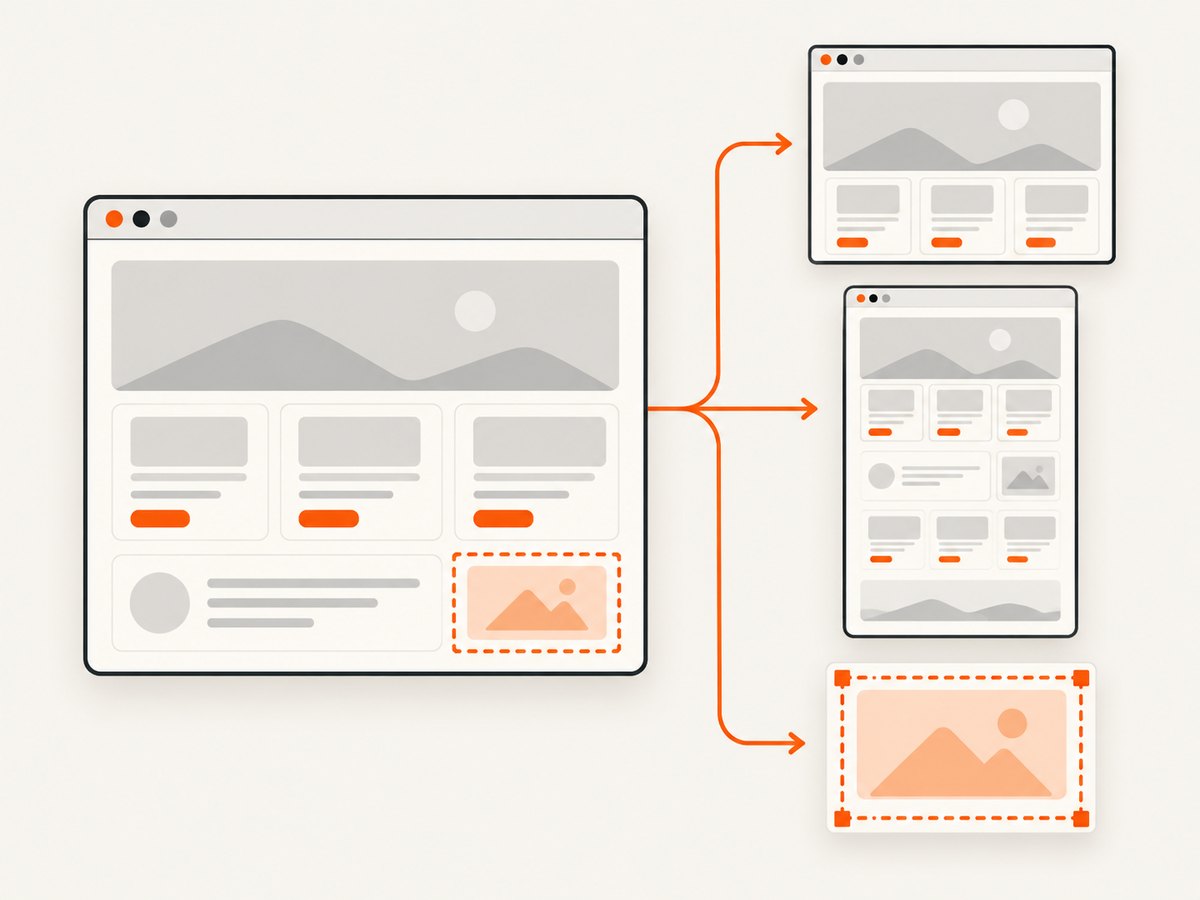
A full-page screenshot covers the complete scrollable document, as if the page had a very tall screen. It is useful for documentation and regression baselines, but it can be very tall and memory-intensive on pages with long feeds. Lazy-loaded images may only appear after scrolling; trigger the application’s loading behavior or use a deliberate scroll routine before capture when necessary.
Control the viewport, device scale, and output type
page.screenshot(new Page.ScreenshotOptions()
    .setPath(Paths.get("retina.jpg"))
    .setType(Page.ScreenshotOptions.Type.JPEG)
    .setQuality(82)
.setScale(Page.ScreenshotOptions.Scale.CSS));setTypeselects PNG or JPEG. JPEG quality applies to JPEG output; PNG is lossless.setScalechooses CSS-pixel or device-pixel sizing. Use a consistent value for stable baselines.setOmitBackground(true)makes the default background transparent for formats that support transparency; it does not apply to JPEG.setTimeoutlimits how long screenshot preparation may wait.
3. Screenshot one element
Use a locator when you need a card, header, chart, or component rather than the entire page. Locators wait for the element and avoid brittle coordinate calculations:
import com.microsoft.playwright.Locator;

Locator header = page.locator("header.site-header");
header.screenshot(new Locator.ScreenshotOptions()
    .setPath(Paths.get("header.png")));

page.getByRole(com.microsoft.playwright.options.AriaRole.BUTTON,
    new Page.GetByRoleOptions().setName("Checkout"))
    .screenshot(new Locator.ScreenshotOptions()
        .setPath(Paths.get("checkout-button.png")));
Role-based locators are preferable when the page has accessible names. A locator screenshot captures the element’s bounding box; if the element is outside the viewport, Playwright scrolls it into view. Hidden, detached, or continuously moving elements can still cause timeouts or unstable output.
4. Clip a region and mask changing content
For a fixed rectangle, use setClip. Coordinates and dimensions are in CSS pixels:
page.screenshot(new Page.ScreenshotOptions()
    .setPath(Paths.get("hero.png"))
    .setClip(new Page.Clip(0, 120, 1200, 500)));
For visual tests, mask timestamps, avatars, advertisements, or user-specific data. The mask list accepts locators, and setMaskColor changes the overlay color:
java.util.List<Locator> masks = java.util.List.of(
    page.locator(".last-updated"),
    page.locator("[data-testid='live-price']")
);
page.screenshot(new Page.ScreenshotOptions()
    .setPath(Paths.get("masked.png"))
    .setMask(masks)
    .setMaskColor("#FF00FF"));
Masking is preferable to deleting content because layout remains representative. Make selectors narrow: masking a large parent can hide a real regression.
5. Make screenshots deterministic
Animations, caret blinking, fonts, network responses, and time-dependent data are common sources of pixel differences. Disable animation for a capture:
import com.microsoft.playwright.options.ScreenshotAnimations;
import com.microsoft.playwright.options.ScreenshotCaret;

page.screenshot(new Page.ScreenshotOptions()
    .setPath(Paths.get("stable.png"))
    .setAnimations(ScreenshotAnimations.DISABLED)
    .setCaret(ScreenshotCaret.HIDE));
Disabled animations are fast-forwarded when finite and canceled to their initial state when infinite, then restored after the screenshot. Hide the caret when capturing editable controls. Also wait for an application-specific readiness signal instead of relying only on a fixed delay:
page.navigate("https://example.com/dashboard");
page.locator("[data-testid='dashboard-ready']")
    .waitFor(new Locator.WaitForOptions().setState(
        com.microsoft.playwright.options.WaitForSelectorState.VISIBLE));
page.screenshot(new Page.ScreenshotOptions()
    .setPath(Paths.get("dashboard.png"))
    .setAnimations(ScreenshotAnimations.DISABLED));
Pin the browser version in CI, use the same viewport and device scale, load the same fonts, and set a fixed timezone or locale in the browser context when the page renders dates. Do not use arbitrary sleeps as the only synchronization mechanism.
6. Keep screenshots in memory
Calling the method without a path returns bytes:
byte[] png = page.screenshot(new Page.ScreenshotOptions()
    .setType(Page.ScreenshotOptions.Type.PNG));
String base64 = java.util.Base64.getEncoder().encodeToString(png);
// Send png to object storage or a visual-diff service.
In-memory capture avoids temporary files but increases heap usage for large full-page images. Stream or upload promptly, and avoid retaining every screenshot from a long-running bulk job.
7. Visual regression with Playwright assertions
Use screenshot assertions in the Playwright test runner rather than treating a raw byte comparison as a test. The assertion waits until two consecutive screenshots are identical, then compares the settled image with the expectation. Official documentation states that screenshot assertions work only with the Playwright test runner.
// In a Playwright Java test-runner test:
assertThat(page).hasScreenshot("checkout.png",
    new PageAssertions.HasScreenshotOptions()
        .setFullPage(true)
        .setAnimations(ScreenshotAnimations.DISABLED)
        .setMask(java.util.List.of(page.locator(".timestamp"))));
Store approved baselines with the test, review diffs as code changes, and configure thresholds for your project’s rendering noise. Compare the same browser, operating-system image, fonts, viewport, and color scheme. Use clipping or locator assertions when a full-page baseline would include unrelated marketing content.
8. A complete reusable capture helper
import java.nio.file.Files;
import java.nio.file.Path;
import java.nio.file.Paths;
import com.microsoft.playwright.*;
import com.microsoft.playwright.options.ScreenshotAnimations;

public final class Screenshots {
  public static Path capture(String url, Path output, boolean fullPage) throws Exception {
    Files.createDirectories(output.toAbsolutePath().getParent());
    try (Playwright pw = Playwright.create();
         Browser browser = pw.chromium().launch()) {
      BrowserContext context = browser.newContext(
          new Browser.NewContextOptions().setViewportSize(1365, 900));
      Page page = context.newPage();
      page.navigate(url, new Page.NavigateOptions().setWaitUntil(
          com.microsoft.playwright.options.WaitUntilState.DOMCONTENTLOADED));
      page.screenshot(new Page.ScreenshotOptions()
          .setPath(output)
          .setFullPage(fullPage)
          .setAnimations(ScreenshotAnimations.DISABLED));
      context.close();
    }
    return output;
  }
}
For production, add an application readiness locator, navigation timeout handling, structured logging, and a retry policy only for transient browser or network failures. Do not retry deterministic selector errors indefinitely.
9. Troubleshooting
| Symptom | Likely cause | Fix |
|---|---|---|
| Browser executable not found | Playwright browsers were not installed in the build image. | Run the Playwright CLI install step and cache the browser directory in CI. |
| Screenshot times out | The page or locator never reaches a usable state. | Inspect the selector, wait for a real readiness signal, and set a suitable screenshot or navigation timeout. |
| Full-page image is blank below the fold | Content is lazy-loaded only after scrolling. | Scroll incrementally or trigger the app’s load mechanism before setFullPage(true). |
| Images differ on every run | Animations, caret blinking, live data, fonts, or timestamps. | Disable animations, hide the caret, mask dynamic locators, wait for fonts/data, and standardize the environment. |
| JPEG has no transparency | JPEG does not support an alpha channel. | Use PNG with setOmitBackground(true). |
| Element screenshot is clipped | The element has transforms, overflow, or a changing layout. | Wait for stable layout, capture a parent, or use a clip rectangle after measuring the rendered box. |
| Visual assertion API is unavailable | The code is running outside the Playwright test runner. | Use the test-runner assertion package, or compare returned bytes with your own diff library for a standalone program. |
10. Performance, reliability, and cost considerations
- Reuse a browser: launching a browser for every URL adds overhead. Keep one browser process and create isolated contexts for parallel jobs.
- Limit parallelism: each page consumes CPU, memory, and network bandwidth. Start conservatively and increase workers only after observing your CI host.
- Choose the smallest scope: a locator or clip is faster and produces smaller artifacts than a very tall full-page image.
- Control network: wait for the state you need, block irrelevant third-party resources when your test permits it, and avoid waiting forever for analytics requests.
- Make retries explicit: retry navigation and transient browser crashes with a bounded count; capture logs and the failing URL for diagnosis.
- Manage artifacts: PNG preserves detail for diffs but is larger; JPEG reduces size for previews. Keep only failed diffs and selected baselines in CI.
Playwright itself has no per-screenshot service charge when you run it locally or in your own infrastructure; your costs are compute, storage, bandwidth, and any browser test infrastructure. A hosted API can be simpler when you do not want to maintain browser binaries, concurrency, and failure handling.
Or skip the browser setup
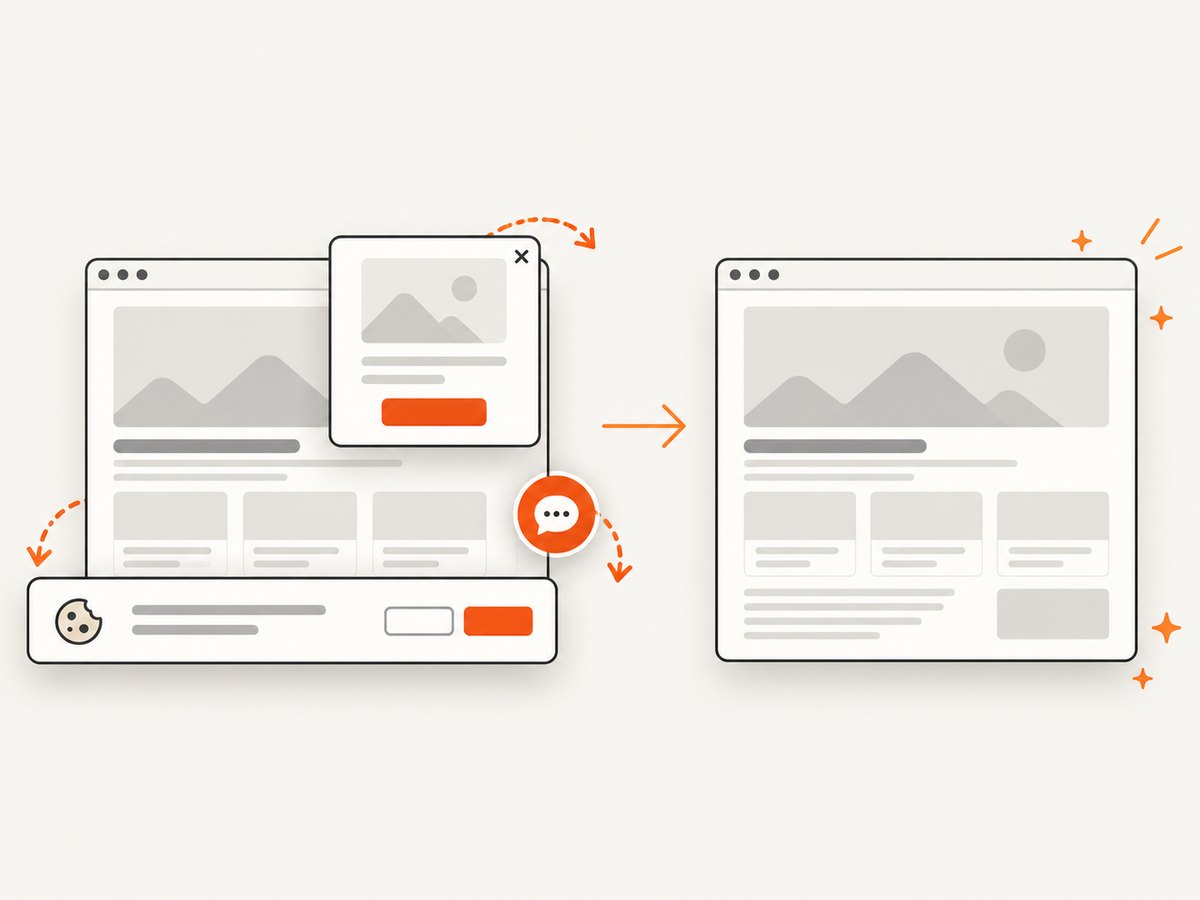
ScreenshotNeo provides a single GET request for PNG, JPEG, WebP, or PDF output. Its capture pipeline accepts cookie and consent banners like a visitor, then removes more than 60 known consent platforms along with newsletter popups and chat widgets before the shot. Bot checks, blank pages, timeouts, failed loads, and cache hits are not billed, and response headers identify the page verdict and billing status.
See the ScreenshotNeo API documentation for all options. A direct request looks like this:
curl -G "https://api.screenshotneo.com/v1/shot" -d access_key=YOUR_API_KEY --data-urlencode url=https://stripe.com -o shot.webpimport requests
r = requests.get("https://api.screenshotneo.com/v1/shot", params={"access_key": "YOUR_API_KEY", "url": "https://stripe.com"}, timeout=90)
open("shot.webp", "wb").write(r.content)const q = new URLSearchParams({ access_key: 'YOUR_API_KEY', url: 'https://stripe.com' });
const res = await fetch(`https://api.screenshotneo.com/v1/shot?${q}`);The API also supports full-page and element captures, dark mode, device presets, retina scale, custom CSS and JavaScript, clicks, waits, blocked resources, headers, cookies, user agents, authorization, timezone, geolocation, transparent backgrounds, resizing, chosen cache TTLs, signed image links, asynchronous jobs with signed webhooks, bulk capture of up to 100 URLs per call, usage reporting, and PDF options. An MCP server exposes take_screenshot, get_page_info, and capture_pdf to Claude, Cursor, and other MCP clients.
Free accounts include 1,000 screenshots each month with no card. Paid plans start at $5 for 3,000 shots; every feature is available on every plan. Create a free ScreenshotNeo account.
FAQ
Can Playwright save WebP directly?
The documented screenshot type options are PNG and JPEG. Use PNG or JPEG, then convert to WebP with an image library if your delivery pipeline requires it.
Should I use a page screenshot or a locator screenshot?
Use a page screenshot for a complete viewport or document. Use a locator for a component, and use a clip when the region is geometric and independent of a semantic element.
Why do visual tests pass locally but fail in CI?
Rendering differs with browser version, operating-system fonts, device scale, timezone, animations, and live data. Pin those inputs and mask values that are intentionally dynamic.
Can I return a screenshot from an API endpoint?
Yes. Capture to bytes with page.screenshot(), set the response content type to the selected image format, and avoid writing a temporary file unless you need an artifact.


