How to Take a Screenshot in Playwright with JavaScript
Capture pages, elements, full layouts, and visual test snapshots in Playwright with runnable JavaScript examples, options, fixes, and automation tips.
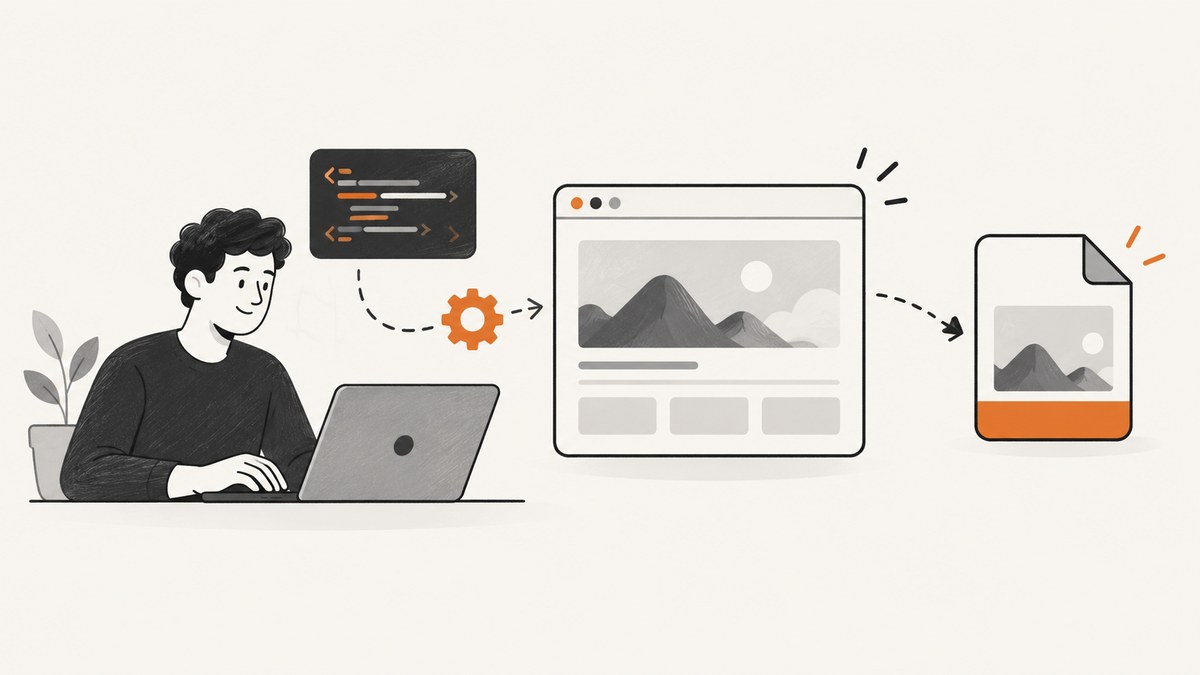
In Playwright, navigate to the state you want and call await page.screenshot({ path: 'screenshot.png' }). The default captures the current viewport. Add fullPage: true for the entire scrollable page, or call screenshot() on a locator to capture one element. Without path, Playwright returns image bytes as a Buffer.
1. Install Playwright
npm init -y
npm install -D playwright
npx playwright install
The browser install command downloads the browser binaries used by Playwright. If you already use Playwright Test, install @playwright/test and its browsers instead.
2. Capture a page in JavaScript
const { chromium } = require('playwright');

(async () => {
  const browser = await chromium.launch();
  const page = await browser.newPage();
  await page.goto('https://example.com');
  await page.screenshot({ path: 'screenshot.png' });
  await browser.close();
})();
page.screenshot() is asynchronous. Wait for navigation and for any page state that must appear in the image before taking the capture. The API returns a Buffer; path additionally writes that buffer to disk. See the official Page screenshot API.
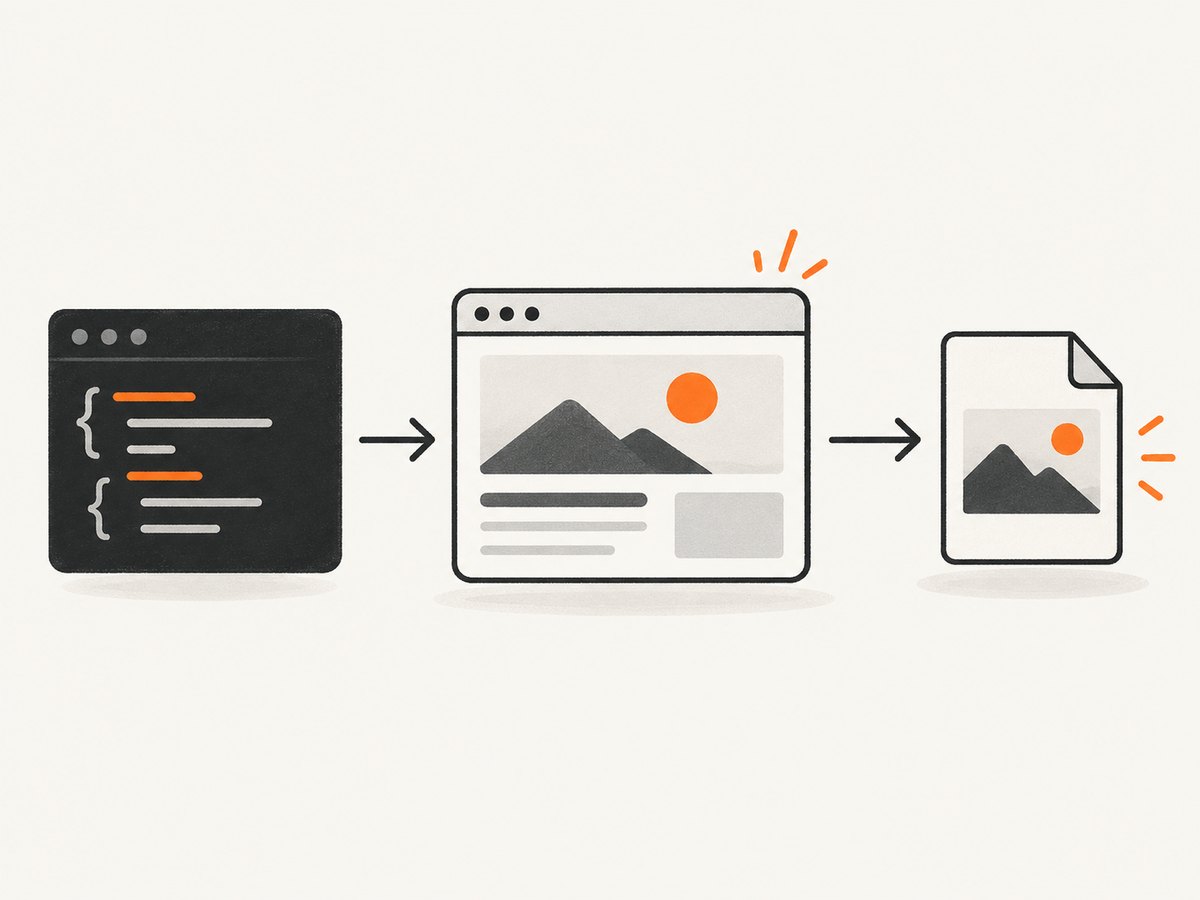
3. Choose the capture area
Current viewport
await page.screenshot({ path: 'viewport.png' });This is the default and captures only the visible viewport.
Full scrollable page
await page.screenshot({
  path: 'full-page.png',
  fullPage: true
});
Full-page mode captures the page’s scrollable content. Very long pages can create large images and may take longer to process.
Rectangular crop
await page.screenshot({
  path: 'header.png',
  clip: { x: 0, y: 0, width: 1200, height: 240 }
});
The clip rectangle uses page coordinates in CSS pixels. Keep the rectangle within the rendered page and viewport dimensions you intend to capture.
One element
await page.getByRole('link', { name: 'Documentation' }).screenshot({
  path: 'documentation-link.png'
});

const card = page.locator('.pricing-card').first();
await card.screenshot({ path: 'pricing-card.png' });
Locator screenshots wait for actionability and scroll the matched element into view. A covered element may still be hidden in the resulting image, and a scrollable container shows only the content currently visible inside it. See the Locator screenshot API.
4. Keep the screenshot in memory
const buffer = await page.screenshot({ type: 'png' });
console.log(buffer.toString('base64'));
Use the returned Buffer when uploading to storage, attaching a test artifact, or passing the image to another service. You can combine path and the returned buffer if you need both.
5. Control format, quality, scale, and background
| Option | Use |
|---|---|
type |
png, jpeg, or webp. The file extension can also infer the type. |
quality |
JPEG/WebP quality from 0 to 100. It does not apply to PNG. Defaults are JPEG 80 and WebP 100. |
scale |
css produces one output pixel per CSS pixel; device uses device pixels and can produce a larger high-DPI image. The Page API default is device. |
omitBackground |
Hides the default background for transparency. It does not apply to JPEG. |
animations |
disabled changes animation behavior for a stable capture; the normal Page API default allows animations. |
mask |
Provide locators to cover dynamic regions, such as timestamps or rotating ads. |
await page.screenshot({
  path: 'hero.webp',
  type: 'webp',
  quality: 85,
  scale: 'css',
  animations: 'disabled',
  mask: [page.locator('.live-clock')]
});
Use PNG for lossless visual comparisons and transparency, JPEG for smaller photographic images, and WebP when your consumers support it and you want a compact file.
6. Make the page deterministic before capture
await page.goto('https://example.com/dashboard', { waitUntil: 'domcontentloaded' });
await page.getByRole('button', { name: 'Open details' }).click();
await page.locator('[data-loaded="true"]').waitFor();
await page.waitForTimeout(300);
await page.screenshot({ path: 'dashboard.png' });
Prefer waiting for a meaningful selector or application state over an arbitrary delay. A delay can help with a known animation, but it slows every run and can still be too short on a busy page. Set viewport, color scheme, locale, and timezone explicitly when those values affect rendering.
const page = await browser.newPage({
  viewport: { width: 1440, height: 900 },
  deviceScaleFactor: 1,
  colorScheme: 'light',
  locale: 'en-US',
  timezoneId: 'UTC'
});
For authenticated pages, create a context with the required storage state or log in before capture. Hide transient UI with CSS or use screenshot masking when the content is not part of what you want to document.
7. Use screenshots in Playwright Test
import { test, expect } from '@playwright/test';

test('page renders as expected', async ({ page }) => {
  await page.goto('https://playwright.dev');
  await expect(page).toHaveScreenshot();
});
toHaveScreenshot() belongs to the Playwright Test runner. It waits until two consecutive screenshots are identical, then compares the final image with the stored expectation. Run the test once with an update flag to create the baseline, then review intentional changes. See the visual comparisons documentation.
Save or attach a test artifact
import { test } from '@playwright/test';

test('save a screenshot artifact', async ({ page }, testInfo) => {
  await page.goto('https://example.com');
  const image = await page.screenshot();
  await testInfo.attach('page', { body: image, contentType: 'image/png' });
  await page.screenshot({ path: testInfo.outputPath('screenshot.png') });
});
Playwright Test also supports automatic screenshots, including capturing only on failure. Configure this in the test project when you want artifacts without adding calls to every test.
8. Complete reusable helper
const { chromium } = require('playwright');

async function capture(url, outputPath, options = {}) {
  const browser = await chromium.launch();
  try {
    const context = await browser.newContext({
      viewport: { width: 1440, height: 900 },
      deviceScaleFactor: 1,
      colorScheme: 'light'
    });
    const page = await context.newPage();
    await page.goto(url, { waitUntil: 'networkidle', timeout: 60000 });
    await page.screenshot({ path: outputPath, ...options });
  } finally {
    await browser.close();
  }
}

capture('https://example.com', 'example.png', {
  fullPage: true,
  animations: 'disabled'
}).catch(console.error);
networkidle can be unsuitable for applications that keep connections open. In that case use domcontentloaded and wait for a specific selector instead.
9. Troubleshooting
| Symptom | Cause | Fix |
|---|---|---|
Executable doesn't exist |
Browser binaries are not installed. | Run npx playwright install, or install only the browser required by your project. |
| Screenshot is blank or incomplete | Capture happened before the application rendered. | Wait for a content selector, data attribute, or finished loading state. |
| Element screenshot fails | The locator matches nothing, multiple unexpected nodes, or a hidden node. | Use a specific locator, check count(), and wait for visibility. |
| Element is covered | A modal, cookie banner, or overlay is above it. | Close or hide the overlay, or capture the intended container instead. |
| Full page misses lazy images | Images load only after scrolling or an interaction. | Scroll through the page or wait for image completion before capture. |
| Visual test is flaky | Fonts, animations, time, locale, or network content differ between runs. | Fix the viewport and environment, disable animations, mask dynamic regions, and use stable test data. |
| Image is unexpectedly huge | scale: 'device', high device scale, or a very long full-page capture. |
Use scale: 'css', a smaller viewport, a clip, or an element screenshot. |
| Transparent output is not transparent | JPEG cannot represent transparency, or the page paints its own background. | Use PNG/WebP with omitBackground: true and remove the page background if appropriate. |
10. Performance, reliability, and cost
- Reuse a browser process and create contexts per job when capturing many URLs; launching a new browser for every image adds overhead.
- Capture only the required scope. Full-page images consume more memory and take longer than a viewport or locator screenshot.
- Use CSS scale and a suitable format to control output size. Avoid unnecessary delays and broad network-idle waits.
- Close pages, contexts, and browsers in
finallyblocks so failures do not leak processes. - For visual assertions, keep the browser version, fonts, viewport, timezone, locale, and test data consistent across machines.
- Playwright itself runs in your infrastructure, so account for browser installation, CPU, memory, storage, and network traffic in your automation budget.
11. Or skip the browser setup
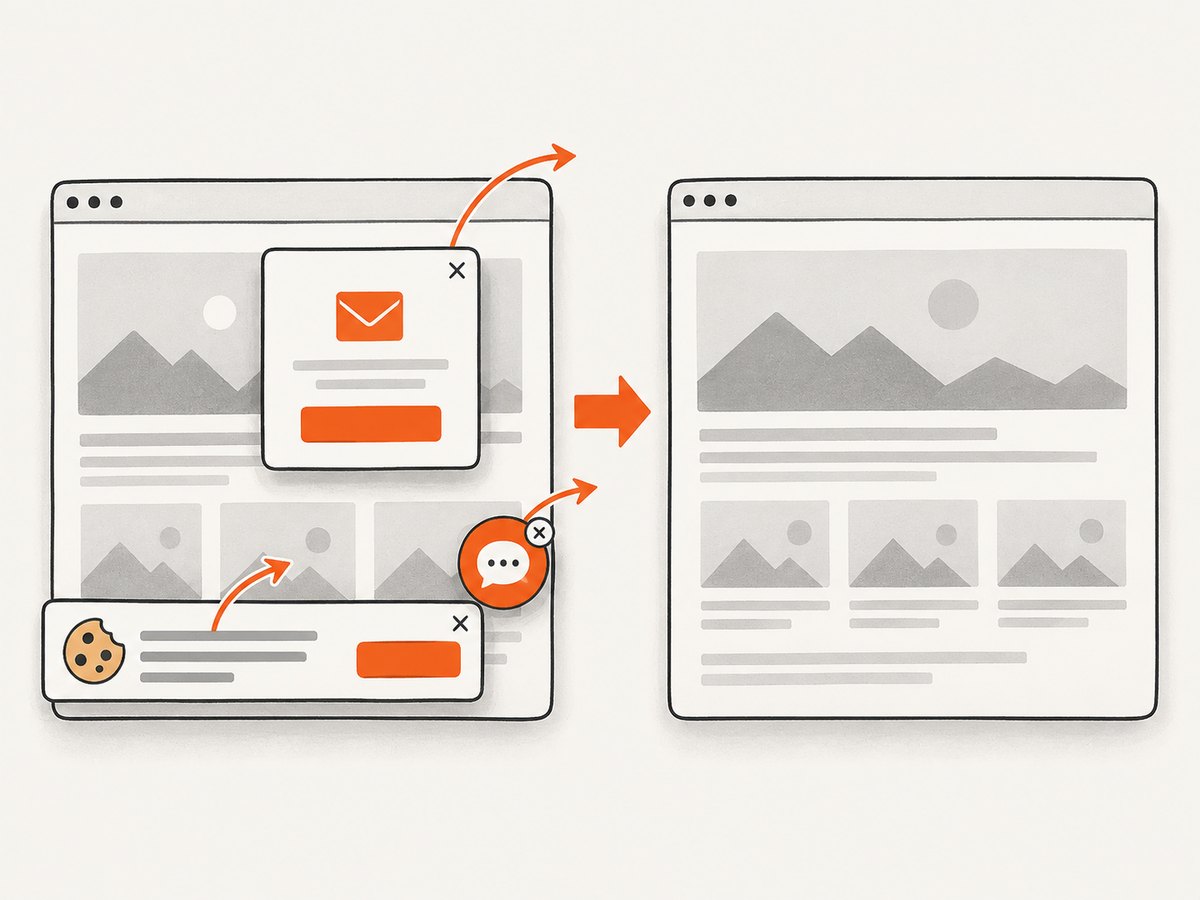
ScreenshotNeo provides a website screenshot API when you want one HTTP request instead of managing Playwright browsers. Its capture pipeline accepts cookie and consent banners like a visitor and removes more than 60 known consent platforms, newsletter popups, and chat widgets before the shot. Bot checks, blank pages, timeouts, failed loads, and cache hits are not billed; response headers identify the page verdict and whether the request was billed. It also provides an MCP server with take_screenshot, get_page_info, and capture_pdf tools for Claude, Cursor, and other MCP clients. Every plan includes the features; 1,000 shots per month are free with no card, and paid plans start at $5 for 3,000 shots.
cURL
curl -G "https://api.screenshotneo.com/v1/shot" \
  -d access_key=YOUR_API_KEY \
  --data-urlencode url=https://stripe.com \
  -o shot.webp
Python
import requests

r = requests.get(
    "https://api.screenshotneo.com/v1/shot",
    params={"access_key": "YOUR_API_KEY", "url": "https://stripe.com"},
    timeout=90,
)
r.raise_for_status()
open("shot.webp", "wb").write(r.content)
Node.js
const q = new URLSearchParams({
  access_key: 'YOUR_API_KEY',
  url: 'https://stripe.com'
});
const res = await fetch(`https://api.screenshotneo.com/v1/shot?${q}`);
if (!res.ok) throw new Error(`HTTP ${res.status}`);
require('fs').writeFileSync('shot.webp', Buffer.from(await res.arrayBuffer()));
See the ScreenshotNeo API documentation for the available capture options, including full-page and element capture, dark mode, custom CSS and JavaScript, waits, headers and cookies, blocking rules, caching, signed links, PDFs, asynchronous jobs, bulk capture, and usage information. Create a free ScreenshotNeo account for 1,000 screenshots a month with no card.
12. FAQ
Does Playwright save PNG by default?
Yes. Use path to write the file, or set type explicitly when you need JPEG or WebP.
Can I screenshot a component without showing the whole page?
Yes. Use a locator’s screenshot() method. It captures the matched element after scrolling it into view.
When should I use toHaveScreenshot()?
Use it for visual regression checks in Playwright Test. Use page.screenshot() for general captures and artifacts.
Why does my screenshot differ between operating systems?
Fonts, browser versions, device scale, locale, timezone, and rendering environments can change pixels. Run visual comparisons in a consistent environment and mask deliberately dynamic areas.


