How to Take a Screenshot of a Loading Spinner in Playwright (TS/JS)
Wait for a Playwright spinner to become visible, then capture the element or assert a stable visual state. Includes TypeScript, JavaScript, troubleshooting, and options.
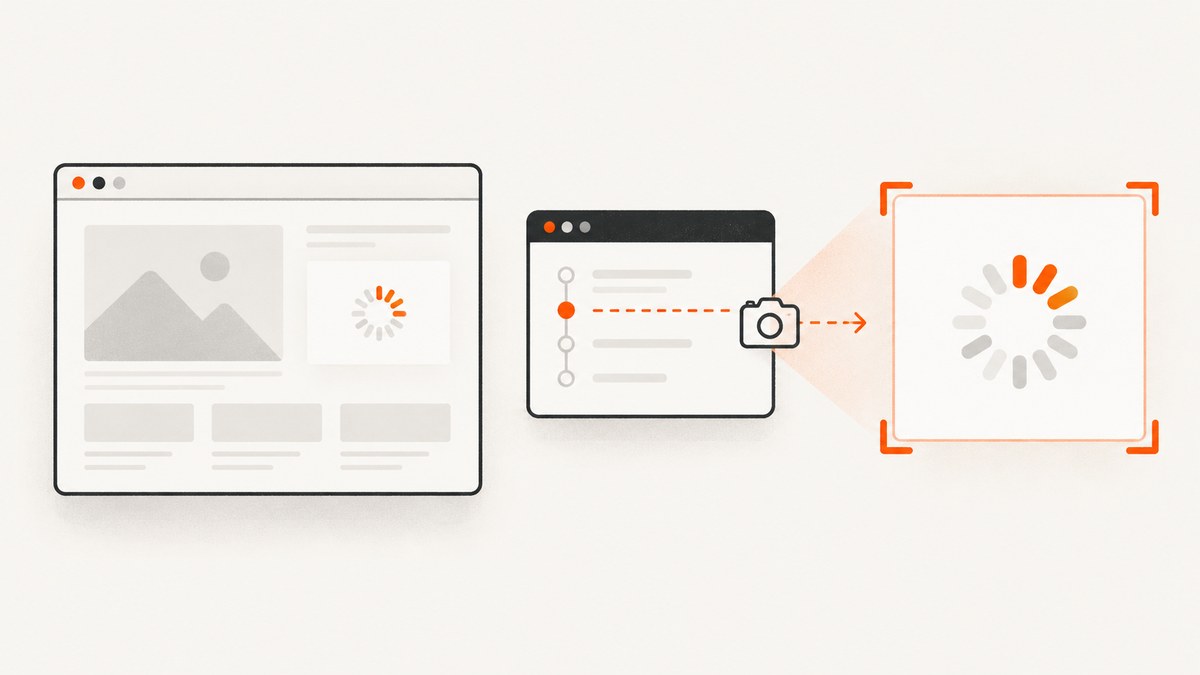
To screenshot a loading spinner in Playwright, locate it, wait for it to become visible, then call the locator’s screenshot() method. This captures the spinner element, not the whole page. Use a stable locator such as a test ID or accessible role, and leave animations enabled when the moving state is part of the evidence.
const spinner = page.getByTestId('loading-spinner');
await spinner.waitFor({ state: 'visible' });
await spinner.screenshot({ path: 'spinner.png', animations: 'allow' });
Replace loading-spinner with a locator that matches your app. If you need the surrounding page context, use page.screenshot(); if you are checking a committed visual baseline in Playwright Test, use toHaveScreenshot().
1. Set up a reliable spinner capture
A spinner is often transient: it appears after an action, remains while work is pending, then disappears when the work completes. The capture must happen during that visible interval. A screenshot call does not prove that the spinner appeared, and a fixed delay only guesses when it might appear.
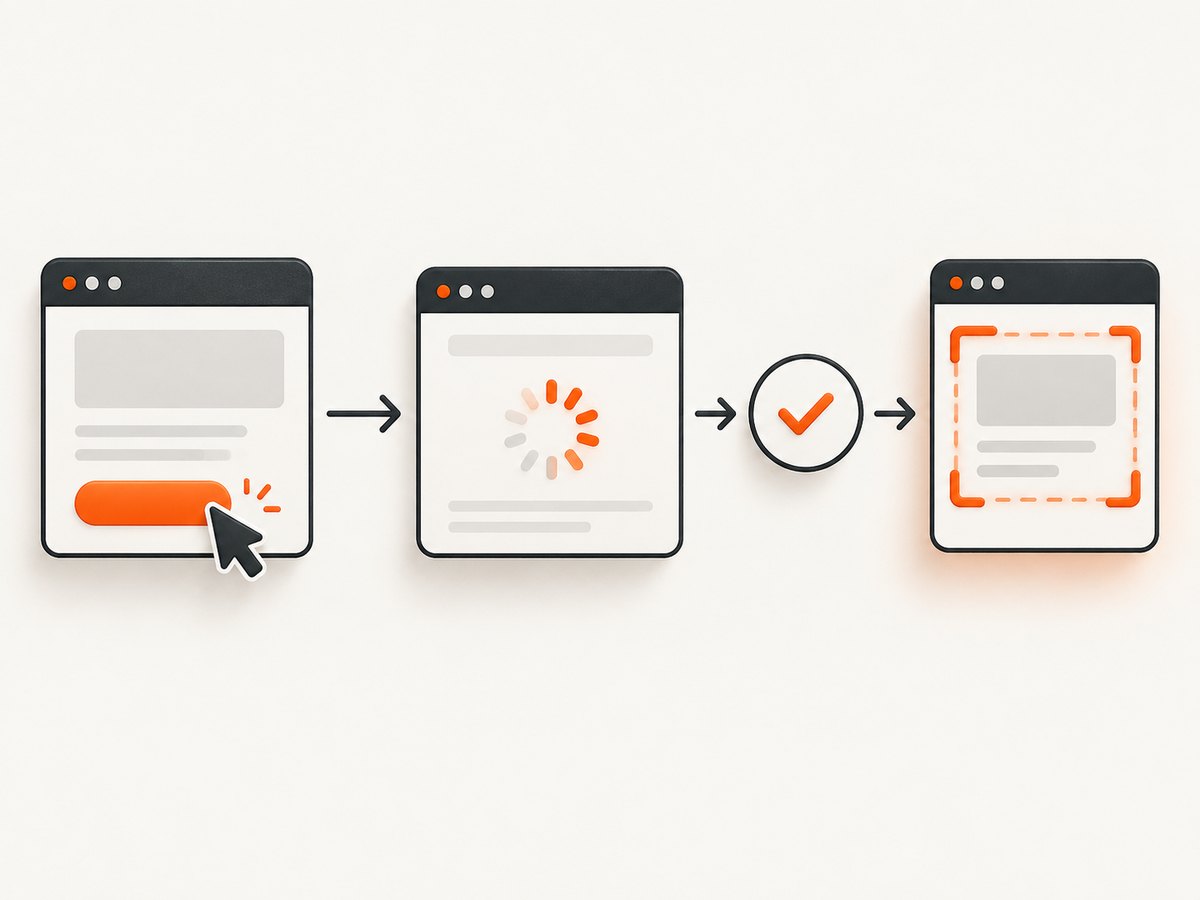
- Identify a stable locator for the spinner.
- Trigger the operation that should show it, if the page does not already show it.
- Wait for the spinner’s visible state.
- Capture the element before the operation completes or the spinner is removed.
For a one-off script in TypeScript or JavaScript, the core sequence is the same:
const spinner = page.getByTestId('loading-spinner');
await spinner.waitFor({ state: 'visible' });
await spinner.screenshot({ path: 'spinner.png' });
Playwright’s locator screenshot operation performs actionability checks, scrolls the target into view, and fails if the element detaches before the capture. Locators are designed around auto-waiting and retry behavior, but that does not replace the explicit assertion that a transient spinner appeared. See the official Locator API.
2. Choose a locator that identifies the right spinner
Prefer a locator that reflects stable application markup or user-facing semantics. Playwright offers role, text, label, placeholder, alt text, title, and test ID locators. The right choice depends on how the spinner is represented in your app.
| Locator approach | Example | Use when |
|---|---|---|
| Test ID | page.getByTestId('loading-spinner') |
Your app exposes a dedicated test hook and the spinner has no useful accessible role. |
| Accessible role | page.getByRole('status') |
The spinner container is announced with an appropriate status role. |
| Accessible label or text | page.getByLabel('Loading') or page.getByText('Loading…') |
The UI provides a meaningful label or visible loading text. |
| CSS locator | page.locator('.loading-spinner') |
You have a stable CSS selector and no better semantic locator is available. |
For example, a status element can be targeted directly:
const spinner = page.getByRole('status', { name: 'Loading results' });
await spinner.waitFor({ state: 'visible' });
await spinner.screenshot({ path: 'results-loading.png' });
The exact role, accessible name, or test ID depends on the application’s DOM. If a locator matches multiple elements, narrow it to the relevant region or use a unique test hook; do not rely on whichever match happens to be first.
3. Complete TypeScript example
This example uses Playwright Test, navigates to a page, triggers an operation, waits for a test-ID spinner, and writes an image to disk. Adapt the URL and action to the application under test.
import { test, expect } from '@playwright/test';

test('captures the loading spinner', async ({ page }) => {
  await page.goto('https://example.com');

  const spinner = page.getByTestId('loading-spinner');

  // Replace this with the action that starts the loading operation.
  await page.getByRole('button', { name: 'Load results' }).click();

  await spinner.waitFor({ state: 'visible' });
  await spinner.screenshot({
    path: 'artifacts/loading-spinner.png',
    animations: 'allow',
  });
});
The example assumes that the app exposes a button named “Load results” and a spinner with the test ID shown. Replace both locators with actual application selectors. Ensure the destination directory exists if your runner does not create it for you.
If the spinner is already visible when the test reaches the capture step, omit the action. If the operation can complete too quickly for a spinner to appear, decide what the test is meant to prove: the loading UI appeared, or the operation completed successfully. A generic wait cannot force an app to display a state that its lifecycle skipped.
4. Complete JavaScript example
In a JavaScript Playwright Test file, use the same APIs without TypeScript annotations:
const { test } = require('@playwright/test');

test('captures the loading spinner', async ({ page }) => {
  await page.goto('https://example.com');

  const spinner = page.getByTestId('loading-spinner');
  await page.getByRole('button', { name: 'Load results' }).click();

  await spinner.waitFor({ state: 'visible' });
  await spinner.screenshot({
    path: 'artifacts/loading-spinner.png',
    animations: 'allow',
  });
});
For a standalone script, create a browser and page before using the same locator and capture sequence:
const { chromium } = require('playwright');

(async () => {
  const browser = await chromium.launch();
  const page = await browser.newPage();

  try {
    await page.goto('https://example.com');
    const spinner = page.getByTestId('loading-spinner');
    await spinner.waitFor({ state: 'visible' });
    await spinner.screenshot({ path: 'spinner.png' });
  } finally {
    await browser.close();
  }
})();
This standalone version assumes navigation to the example page leaves the spinner visible. Add the real action or wait for the appropriate application state for your page.
5. Pick the right screenshot method
| Goal | Method | What it captures |
|---|---|---|
| Save one visible spinner | await spinner.screenshot({ path: 'spinner.png' }) |
The matched element, after Playwright brings it into view. |
| Show spinner in page context | await page.screenshot({ path: 'page.png' }) |
The page or viewport, depending on options. |
| Check against a visual baseline | await expect(spinner).toHaveScreenshot('spinner.png') |
A locator image compared with a stored expectation. |
Element capture is useful for focused evidence and smaller artifacts. A page screenshot is better when layout, nearby content, or an overlay matters. Playwright documents both page and element screenshots in its screenshot guide.
For a visual regression check, use Playwright Test’s assertion:
import { test, expect } from '@playwright/test';

test('spinner matches its visual baseline', async ({ page }) => {
  await page.goto('https://example.com');
  const spinner = page.getByTestId('loading-spinner');
  await spinner.waitFor({ state: 'visible' });
  await expect(spinner).toHaveScreenshot('loading-spinner.png');
});
toHaveScreenshot() waits for two consecutive locator screenshots to match before comparing against the expectation. It is a Playwright Test feature; it is not a general-purpose assertion for every script using the Playwright library. See the official visual comparisons documentation.
6. Animation and screenshot options
Locator screenshots accept screenshot options such as a path and animation behavior. For an animated loading indicator, animations: 'allow' leaves the animation running, which is the documented default. This can produce a different frame across captures.
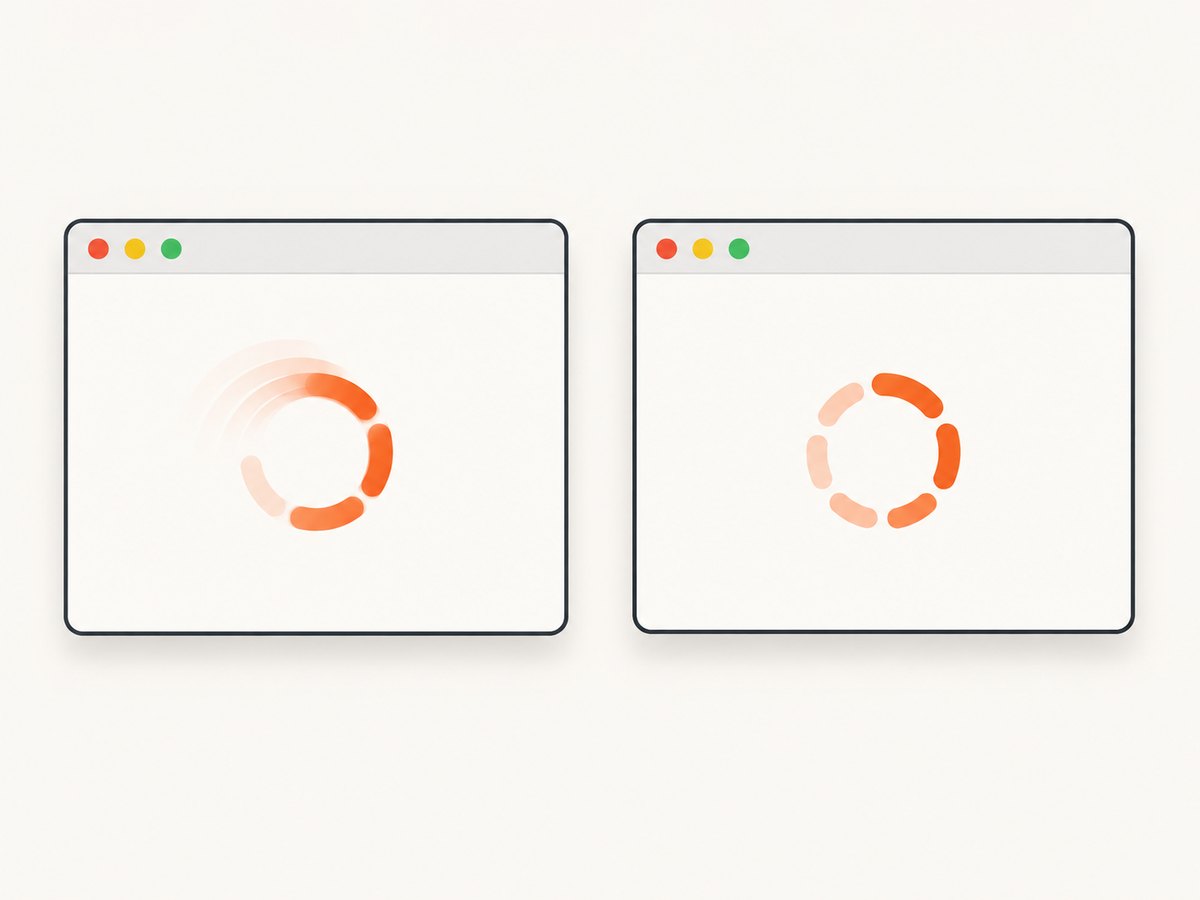
With animations: 'disabled', finite animations are fast-forwarded to completion. Infinite animations are canceled to their initial state for the screenshot and played again afterward. That can make a spinner look frozen or unlike what a visitor sees, so do not disable animations when the moving state itself matters.
// Preserve the active spinner animation.
await spinner.screenshot({ path: 'spinner-moving.png', animations: 'allow' });

// Capture with Playwright's animation-disabling behavior.
await spinner.screenshot({ path: 'spinner-static.png', animations: 'disabled' });
Other options can control output details, including image type, quality where applicable, scale, masks, and page styling. Consult the current Locator screenshot options for the supported option set and defaults. Use only options relevant to the artifact: for example, a mask can cover changing content in a regression image, while a path determines where a one-off image is saved.
7. Wait for the intended state, not a guessed delay
Use spinner.waitFor({ state: 'visible' }) when the requirement is that the spinner becomes visible. It makes the synchronization condition explicit. A timeout such as page.waitForTimeout(500) sleeps for a guessed duration and can be too short on a slow run or unnecessarily long on a fast one.
If the spinner should appear only after a user action, perform that action first and then wait for visibility. If you need to capture the spinner before a quick request finishes, control the test setup so the loading period is observable—for example, use an application test hook or a controlled pending response when your test architecture supports it. The correct approach depends on the app; Playwright documentation cannot determine its loading lifecycle.
The Page API marks page.waitForSelector() as discouraged in favor of locator-based waits or web-first assertions. Prefer a locator wait or an assertion such as await expect(spinner).toBeVisible(). See the official Page API.
8. Troubleshooting
| Symptom | Likely cause | Fix |
|---|---|---|
| The screenshot has no spinner. | The capture ran before the spinner appeared, or the locator points elsewhere. | Wait for visible state after the triggering action; verify the locator against the page’s accessible markup. |
| The visibility wait times out. | The action did not start, the selector is wrong, the spinner was never shown, or loading completed too quickly. | Check the action and locator, inspect the app state, and determine whether the test should assert loading UI or completion. |
| The screenshot call says the element detached. | The spinner disappeared or was replaced before capture completed. | Coordinate capture with the loading phase; avoid waiting for the operation to finish first. If needed, make the pending state observable in test setup. |
| The spinner is present but covered. | A modal, backdrop, or other overlay obscures it. | Capture the page to inspect surrounding context; fix the overlay state or target the spinner that is actually visible. |
| The image shows a frozen or missing animation. | The screenshot used animations: 'disabled', or a regression assertion selected a stable frame. |
Use animations: 'allow' for a moving indicator. For regression checks, decide whether an animation frame is meaningful or whether a static state is the intended baseline. |
| The image differs from run to run. | The animated frame, browser rendering, or surrounding dynamic content varies. | Use an element capture, mask unrelated changing regions, and use a visual assertion only when its comparison target is deterministic enough for your test. |
| The wrong spinner is captured. | The locator matches multiple indicators or a broad container. | Scope the locator to a unique region or add a stable test ID to the intended spinner. |
9. Reliability, performance, and artifact cost
For reliable tests, make the target state explicit, keep selectors stable, and capture before the spinner’s lifecycle ends. Locator screenshots can fail when the element detaches, so a fast transition is a synchronization issue rather than a reason to add arbitrary sleeps. A repeated visual assertion has additional comparison work because it waits for matching consecutive screenshots.
Element images are generally more focused than full-page images because they include only the target region. Choose viewport or full-page capture only when the surrounding layout is needed. Large images take more storage and can make review or snapshot comparison slower; keep artifact dimensions aligned with the debugging question. The dossier provides no benchmark for capture time, so actual duration depends on the page, browser, and environment.
Playwright is a browser automation approach: the script needs a browser runtime and a reachable page. For a test suite, that setup is already useful for interaction and verification. If all you need is a hosted screenshot from a URL, a screenshot API can avoid managing browser launch and page capture code yourself.
10. Or skip the browser setup
ScreenshotNeo is a website screenshot API and MCP server for developers. For an ordinary page screenshot, one GET request returns an image or PDF. The TypeScript/JavaScript API example below uses the same endpoint as the Python and cURL forms; see the ScreenshotNeo documentation for parameters and formats.
const q = new URLSearchParams({ access_key: 'YOUR_API_KEY', url: 'https://stripe.com' });
const res = await fetch(`https://api.screenshotneo.com/v1/shot?${q}`);
if (!res.ok) throw new Error(`Screenshot request failed: ${res.status}`);
const fs = await import('node:fs/promises');
await fs.writeFile('shot.webp', Buffer.from(await res.arrayBuffer()));
Equivalent cURL request:
curl -G "https://api.screenshotneo.com/v1/shot" -d access_key=YOUR_API_KEY --data-urlencode url=https://stripe.com -o shot.webpEquivalent Python request:
import requests
r = requests.get("https://api.screenshotneo.com/v1/shot", params={"access_key": "YOUR_API_KEY", "url": "https://stripe.com"}, timeout=90)
open("shot.webp", "wb").write(r.content)
ScreenshotNeo removes cookie and consent banners, newsletter popups, and chat widgets before the shot; those steps can be turned off. Bot checks and CAPTCHAs, blank pages, timeouts, failed loads, and cache hits cost nothing, with response headers indicating the page verdict and billing status. Its MCP server gives AI agents tools to take screenshots, get page information, and capture PDFs. The free plan includes 1,000 screenshots a month with no card; paid plans start at $5 for 3,000 screenshots.
Sign up for 1,000 free screenshots a month—no card required.
11. Frequently asked questions
Can I save just the spinner as a PNG?
Yes. Call spinner.screenshot({ path: 'spinner.png' }). The output is the matched element rather than the full page.
Does Playwright wait for the spinner to appear automatically?
The screenshot operation waits for actionability, but if the requirement is specifically that a transient spinner appeared, add an explicit visible-state wait or web-first assertion.
Should I disable animation for a spinner screenshot?
Usually not when you want to show the live loading indicator. Leave animations allowed. Disable them only when the screenshot’s purpose calls for Playwright’s animation handling and the resulting frame is representative.
Can I use toHaveScreenshot() in a standalone script?
It is an assertion provided by the Playwright Test runner. For a standalone Playwright script, use locator or page screenshot methods and handle comparison separately if needed.
Why does my spinner sometimes never show?
The operation may finish before the app renders its loading state, or the app may skip that state under the current conditions. Check the application lifecycle and decide whether the test should observe loading or verify the completed result.


