Playwright MCP Screenshots: Full-Page Capture, Elements, and Saving Files
Learn viewport, element, and full-page screenshots with Playwright MCP, including filenames, formats, scale, snapshots, and reliable automation patterns.
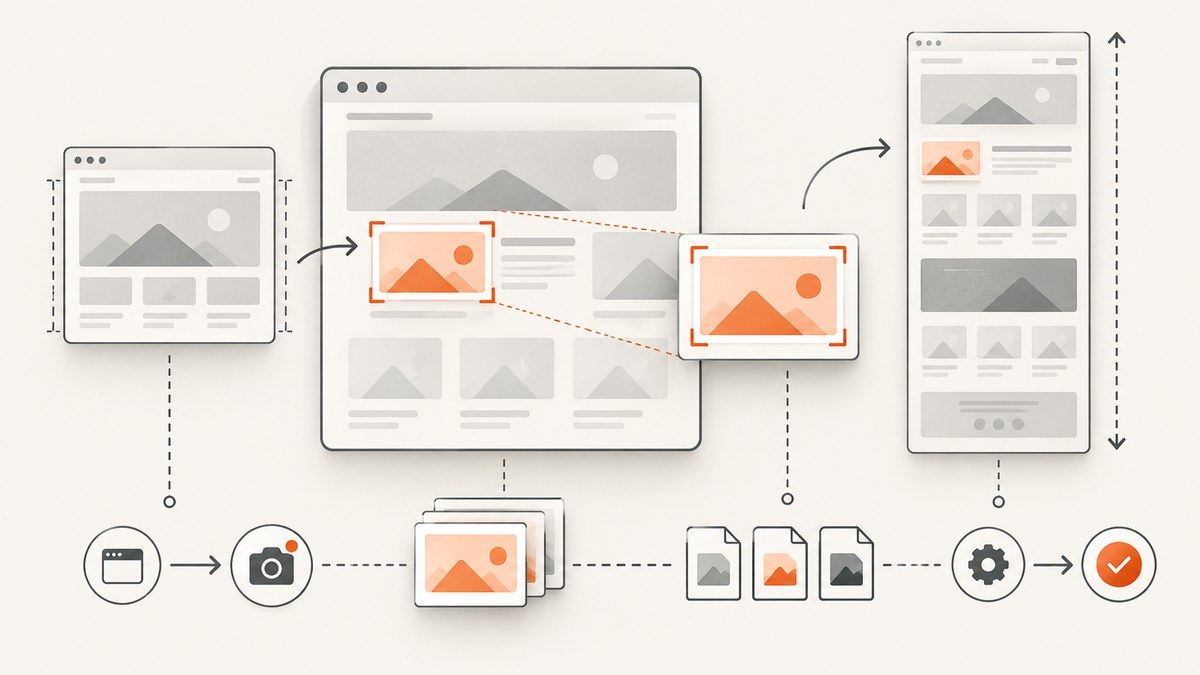
Direct answer: Playwright MCP uses browser_take_screenshot for three capture modes: the current viewport, one element, or the full scrollable page. Use an element target (an element ref from a snapshot or a unique selector) for a component screenshot; use fullPage: true for an entire page; omit both for the viewport. Set filename to choose where the image is saved. The supported formats are PNG, JPEG, and WebP, and scale can be css or device.
This guide shows the complete workflow, including how to find stable element targets, save predictable files, choose resolution, avoid stale refs, and decide when a structured snapshot is better than a screenshot. The documented MCP behavior is described in the official Playwright screenshot reference.
1. Choose the capture mode
| Goal | Options | Result |
|---|---|---|
| Inspect what is visible now | Omit target and fullPage |
Current viewport |
| Capture one component | Set target to a snapshot ref or unique selector |
Element bounding box |
| Archive a whole page | Set fullPage: true |
Full scrollable page |
fullPage and target are mutually exclusive. Treat them as separate modes: a full-page capture cannot also be restricted to an element. If you need a full-page image of one section, capture that section with target; if you need the whole document, remove the target.
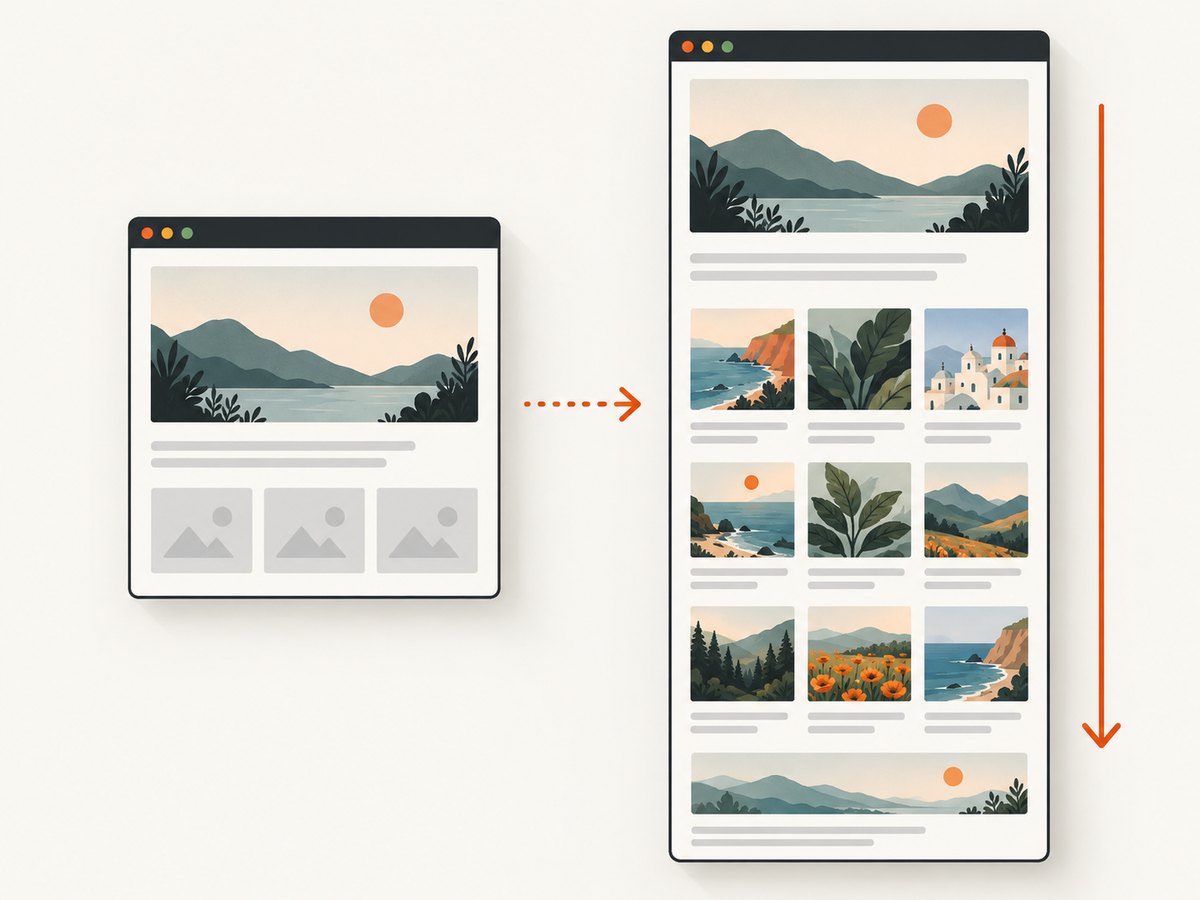
Viewport screenshot
{
  "type": "png",
  "filename": "checkout-viewport.png"
}
With no target and no fullPage, the tool captures the browser’s current viewport. This is useful for checking a visual state such as an open menu, a validation message, or a responsive breakpoint.
Element screenshot
{
  "target": "#pricing-table",
  "filename": "pricing-table.webp",
  "type": "webp"
}
The target may be a unique CSS selector. You can also pass an element ref returned by browser_snapshot. A selector is convenient when the page has stable test attributes such as [data-testid="invoice"]. A snapshot ref is useful when the MCP session has already identified the exact accessible element.
Full-page screenshot
{
  "fullPage": true,
  "filename": "docs-home.png"
}
Full-page mode captures the complete scrollable document, including content below the fold. It is appropriate for visual archives, documentation review, and regression comparisons of long pages.
2. Find a reliable element target
Screenshots show pixels; they do not provide the semantic structure needed to locate controls. Start with browser_snapshot when you need to identify an element or interact with the page:
{
  "include": "interactive"
}
The snapshot returns an accessibility-oriented tree with refs. Use a ref from the current snapshot as the screenshot target. Refs are valid only for that snapshot. After navigation, a click, or a major DOM update, take another snapshot before reusing a ref because the old reference may be stale.
Prefer a unique selector when the site provides one:
{
  "target": "[data-testid=\"hero-chart\"]",
  "filename": "hero-chart.png"
}
Avoid fragile selectors based on generated class names or a deep chain of ancestors. If multiple nodes match, narrow the selector until it identifies one element. When the element is not yet rendered, wait for the page state first, then request the screenshot.
3. Save files with predictable names
Pass filename whenever another process, review step, or CI job needs to find the image. Relative filenames resolve against the workspace root. If you omit the option, Playwright saves a timestamped page-{timestamp}.{ext} file in the output directory, which is useful for quick inspection but harder to reference later.
{
  "fullPage": true,
  "filename": "artifacts/homepage-full.webp",
  "type": "webp"
}
Use a name that records the page and state, for example account-logged-in-dark.png or landing-mobile-full.jpeg. Keep generated artifacts outside source directories when they should not be committed.
Format rules
- Supported formats are
png,jpeg, andwebp. - When the filename has an extension, the extension is used to infer the type.
- If you omit both an extension and
type, PNG is used. - Set
typeexplicitly when you want the format to be independent of the filename.
{
  "filename": "report-image",
  "type": "jpeg"
}
4. Choose CSS or device scale
The scale option controls the pixel density of the output:
| Scale | Use it when | Trade-off |
|---|---|---|
css |
You need dimensions that match CSS pixels | Smaller output at high-DPI settings |
device |
You need device-pixel detail for retina review | Larger files and more memory |
{
  "fullPage": true,
  "scale": "device",
  "filename": "retina-page.png"
}
Use CSS scale for layout comparisons where a 1200 CSS-pixel viewport should remain 1200 pixels wide. Use device scale when reviewing fine typography, canvas output, or screenshots intended for a high-density display. Keep the same scale across runs in a visual regression job so image dimensions remain comparable.
5. A repeatable MCP capture workflow
- Open the URL and wait for the page to reach the state you want to document.
- Use a snapshot if you need to locate an element or verify accessible structure.
- Select one capture mode: viewport, element target, or full page.
- Choose filename, format, and scale explicitly for repeatable output.
- Capture after state changes. Take a fresh snapshot after navigation or interaction before using an old ref.
- Review the image visually. Use the screenshot for layout, charts, canvas, and visual bugs.
For a component review, the sequence might look like this:
{
  "target": "[data-testid=\"invoice-summary\"]",
  "type": "png",
  "scale": "css",
  "filename": "artifacts/invoice-summary.png"
}
For a page archive:
{
  "fullPage": true,
  "type": "webp",
  "scale": "css",
  "filename": "artifacts/product-page-full.webp"
}
6. Screenshot versus structured snapshot
Use browser_take_screenshot when the question is visual: “Does the chart render?”, “Is the modal aligned?”, or “What does the page look like at this breakpoint?” Use browser_snapshot when the question is structural or interactive: “What is the button name?”, “Which ref should I click?”, or “What text is present?”
A screenshot cannot reliably tell an agent which control is actionable. The snapshot exposes an accessibility tree and refs for interaction tools. Because refs can become invalid after page changes, refresh the snapshot whenever the page is substantially updated. The official snapshot documentation explains this ref lifecycle.
7. Playwright API equivalent
If you are using Playwright directly instead of MCP, the API writes a screenshot with path:
import { chromium } from 'playwright';

const browser = await chromium.launch();
const page = await browser.newPage({ viewport: { width: 1440, height: 900 } });
await page.goto('https://example.com', { waitUntil: 'networkidle' });

await page.screenshot({ path: 'example-viewport.png' });
await page.screenshot({ path: 'example-full.png', fullPage: true });
await page.locator('main').screenshot({ path: 'example-main.png' });

await browser.close();
The API can also return screenshot bytes for post-processing instead of writing to a path. The documented API examples are in the Playwright repository documentation.
8. Troubleshooting common failures
| Symptom | Likely cause | Fix |
|---|---|---|
| Element target is rejected | fullPage was supplied with target |
Choose one mode. Remove fullPage for an element capture. |
| “Target not found” | Selector is wrong, the element has not rendered, or the ref is stale | Wait for rendering, use a unique selector, or take a new snapshot. |
| Output is unexpectedly PNG | No extension or explicit type was provided | Set type or use a filename ending in .jpeg or .webp. |
| File cannot be found later | A relative path was resolved in the workspace output directory | Use a known relative artifact path and pass filename every time. |
| Full-page image is very large | Long document combined with device scale | Use scale: \"css\", capture a smaller scope, or use WebP. |
| Image shows the wrong state | Capture happened before navigation, fonts, or dynamic content settled | Wait for the required page state, then capture; verify with a snapshot when appropriate. |
| Text or controls are hard to inspect | A screenshot is being used for a structural question | Call browser_snapshot and use its refs for inspection and actions. |
9. Performance, reliability, and cost considerations
Full-page captures require more work than viewport captures because the browser must render and stitch the complete scrollable document. Very long pages and device scale increase image dimensions, memory use, and file size. Capture only the element or viewport needed for a review, and use CSS scale for stable, compact artifacts.
Dynamic pages can change between runs because of animations, ads, time-dependent content, or lazy rendering. Establish the visual state before calling the screenshot tool. For repeatable checks, keep viewport, scale, format, authentication state, and page readiness conditions consistent. Name artifacts deterministically so a later run replaces or clearly compares with the previous one.
Playwright MCP itself does not turn screenshots into structured data. If you need to locate a control, read labels, or perform an action, use snapshots and interaction tools; reserve screenshots for visual evidence. There are no source-documented benchmark numbers for capture speed or file size, so plan capacity from your own pages and chosen settings.
10. Or skip the browser setup
If you need screenshots in a service, build pipeline, or AI workflow, ScreenshotNeo provides a single GET request instead of maintaining a browser session. Its API supports full-page shots, element capture, custom CSS and JavaScript, dark mode, device presets, retina scale, waiting rules, request blocking, cookies and headers, caching, PDFs, bulk capture, and signed links. See the ScreenshotNeo documentation for the parameter reference.
curl -G "https://api.screenshotneo.com/v1/shot" -d access_key=YOUR_API_KEY --data-urlencode url=https://stripe.com -o shot.webpimport requests
r = requests.get("https://api.screenshotneo.com/v1/shot", params={"access_key": "YOUR_API_KEY", "url": "https://stripe.com"}, timeout=90)
open("shot.webp", "wb").write(r.content)const q = new URLSearchParams({ access_key: 'YOUR_API_KEY', url: 'https://stripe.com' });
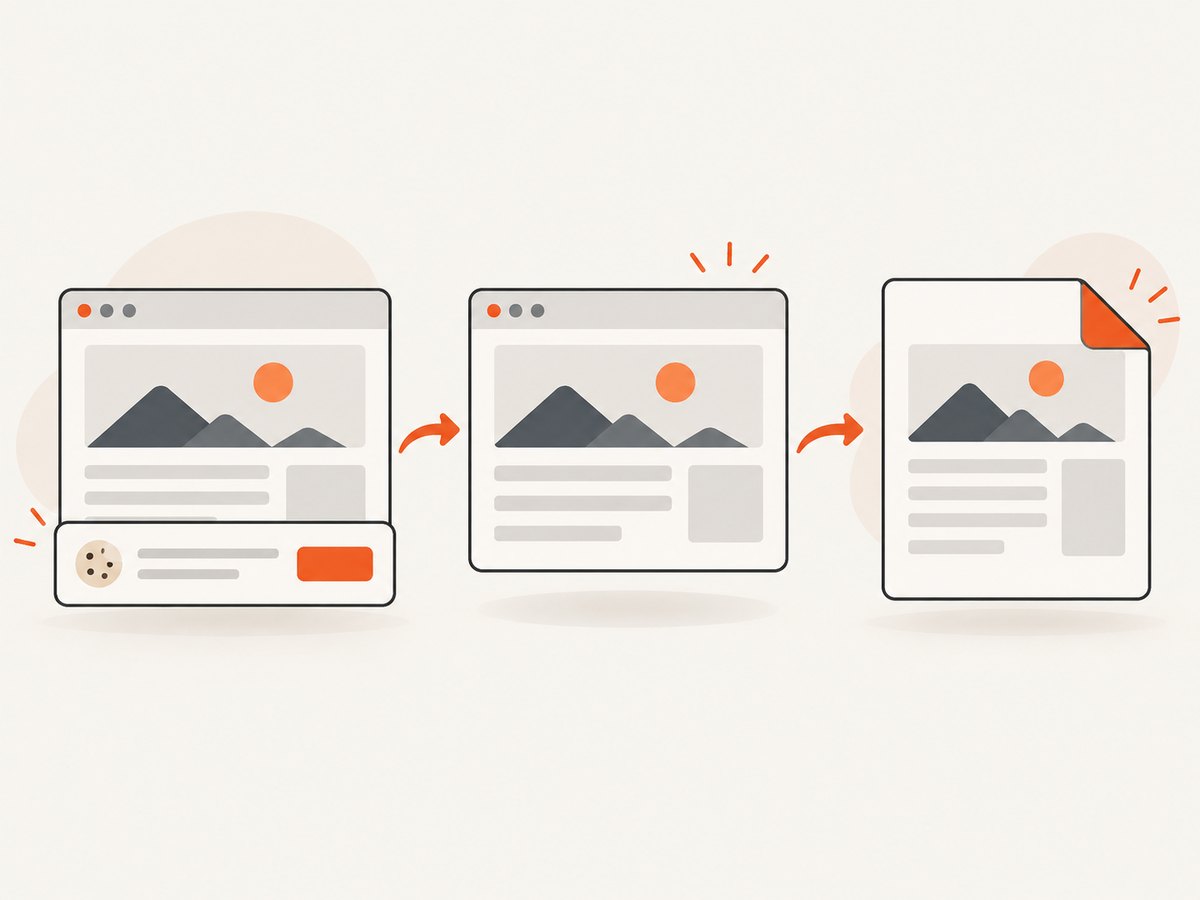
const res = await fetch(`https://api.screenshotneo.com/v1/shot?${q}`);Cookie and consent banners, newsletter popups, and chat widgets are removed before the shot. Bot checks, blank pages, timeouts, failed loads, and cache hits are not billed, and response headers identify the page verdict and billing status. ScreenshotNeo also includes an MCP server with take_screenshot, get_page_info, and capture_pdf tools for Claude, Cursor, and other MCP clients. The free plan includes 1,000 screenshots each month without a card; paid plans start at $5 for 3,000 shots. Create a free ScreenshotNeo account.
11. FAQ
Can I capture an element and the full page in one call?
No. The MCP reference treats target and fullPage as separate capture modes. Make two calls with two filenames.
Which format should I choose?
Use PNG for lossless UI or text review, JPEG for photographs where a smaller file is acceptable, and WebP when you want compact modern image output.
Why did my element ref stop working?
Snapshot refs belong to the current snapshot. Navigation or DOM updates can invalidate them. Take a new snapshot and target the new ref.
Does a screenshot replace accessibility testing?
No. Screenshots provide visual evidence. Use accessibility snapshots and dedicated checks for names, roles, keyboard behavior, and structure.
Should automated comparisons use device scale?
Only when the comparison environment consistently uses the same device-pixel ratio. CSS scale is often simpler when dimensions must match CSS layout values.


