How to Take Screenshots with Playwright for Node.js
Capture viewport, full-page, and element screenshots with Playwright for Node.js. Learn the options, reliable patterns, troubleshooting, and a browser-free API alternative.

Use Playwright’s page.screenshot() method after navigating to a page. Pass a path to save an image, set fullPage: true to capture the entire scrollable document, or omit the path to receive a Node.js Buffer. For a single element, use page.locator(selector).screenshot().
This guide covers runnable Node.js examples, output formats, repeatable captures, Playwright Test artifacts, common failures, and practical performance and cost considerations. The examples use the Playwright package and a locally installed browser; check the documentation for your installed version when relying on newer options. See the Playwright Page API, screenshots guide, and Locator API.
1. Install Playwright and take a basic screenshot
In a new project, install Playwright and its Chromium browser. The install command downloads the browser binary used by the examples:
npm init -y
npm install playwright
npx playwright install chromium
Save this as screenshot.js, then run node screenshot.js. The relative output path is resolved from the current working directory.
const { chromium } = require('playwright');

(async () => {
  const browser = await chromium.launch();
  try {
    const page = await browser.newPage();
    await page.goto('https://example.com');
    await page.screenshot({ path: 'screenshot.png' });
  } finally {
    await browser.close();
  }
})();
This captures the visible viewport as a PNG. The image type can be inferred from the file extension. The official example also uses WebKit; Chromium, Firefox, or WebKit can be selected depending on the browser behavior you need to capture. Install the matching browser before launching it. Page.screenshot documentation
2. Choose what to capture
Capture the full scrollable page
Set fullPage: true when you need the document beyond the current viewport. Playwright captures as if the page were displayed on a very tall screen. This is useful for page archives and visual review, but very long pages create large images and can require more memory.
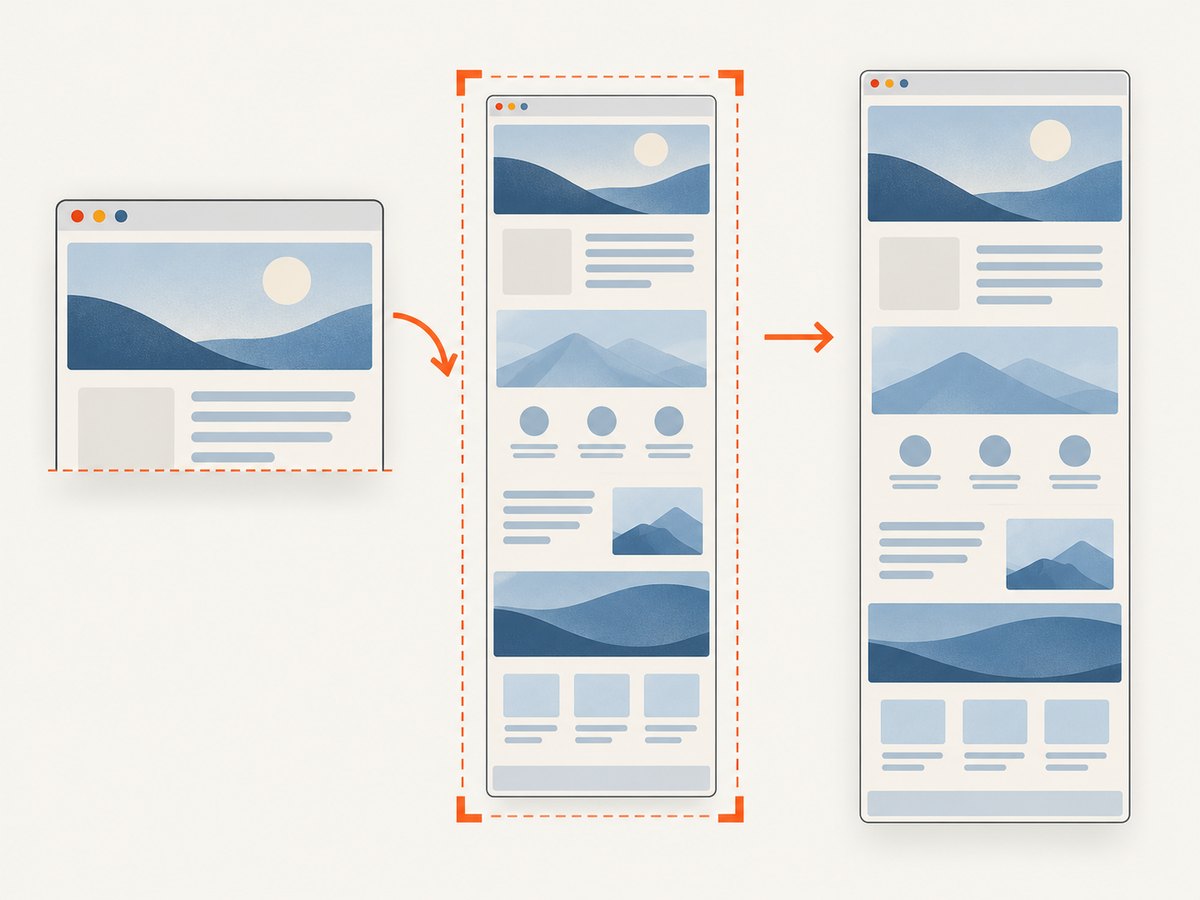
await page.screenshot({
  path: 'full-page.png',
  fullPage: true
});
Capture one element
Use a locator screenshot for a chart, card, or other target. The locator screenshot waits for actionability checks and scrolls the element into view before capturing its bounds.
await page.locator('.product-card').screenshot({
  path: 'product-card.png'
});
An element screenshot records the element’s bounds. It does not reveal content covered by an overlay, and a scrollable container shows only the content currently scrolled into view. If the element is detached from the DOM during capture, the operation throws. Locator.screenshot documentation
Capture a rectangle or get bytes in memory
Use clip for a rectangle in the page’s coordinate space. Use no path when the next step should process the image in memory; the method returns a Buffer.
const clipped = await page.screenshot({
  clip: { x: 0, y: 0, width: 800, height: 600 }
});

const fullPageBytes = await page.screenshot({ fullPage: true });
// fullPageBytes is a Node.js Buffer.
You can pass that Buffer to an image-processing library, upload it to storage, or attach it to another workflow. The screenshot API returns bytes; it does not automatically write them to disk unless you provide a path.
3. Set output format, scale, and transparency
| Option | Behavior | Use it when |
|---|---|---|
type |
png (default), jpeg, or webp. A path extension can infer the type. |
You need to choose between lossless output and smaller lossy files. |
quality |
Integer from 0 to 100. It does not apply to PNG. JPEG defaults to 80; WebP defaults to 100, which is lossless. | You want to tune JPEG or lossy WebP output size and quality. |
scale |
device (default) outputs device-pixel resolution; css outputs one image pixel per CSS pixel. |
You need a compact CSS-sized image or higher-density output. |
omitBackground |
Hides the default white background for transparency; it does not apply to JPEG. | You need transparency around page content in a PNG or WebP capture. |
await page.screenshot({
  path: 'preview.webp',
  type: 'webp',
  quality: 85,
  scale: 'css'
});

await page.screenshot({
  path: 'transparent.png',
  omitBackground: true
});
Higher device scale can produce images twice as large or larger than CSS-scale output, depending on the device scale factor. Consider the consuming system: visual regression tests may need consistent dimensions, while a high-density preview may need device pixels. Screenshot options
4. Make screenshots more repeatable
A screenshot is a snapshot of a changing page. Animations, a blinking caret, delayed content, and rotating banners can make captures differ between runs. Playwright provides screenshot options to reduce these sources of variation.
await page.screenshot({
  path: 'stable.png',
  animations: 'disabled',
  caret: 'hide',
  mask: [page.locator('.personal-data')],
  style: `
    .rotating-banner { visibility: hidden !important; }
  `
});
animations: 'disabled'fast-forwards finite animations and cancels infinite animations during capture, then restores them.caret: 'hide'hides the text cursor.maskaccepts locators whose matching regions should be covered.styleinjects a stylesheet for the capture.
Use masking for dynamic or sensitive regions when the test’s purpose does not depend on their exact pixels. Avoid hiding a region that the test is intended to validate. For repeatable pages, also control the viewport and wait for the page state your application requires before capturing. These options reduce visual variation; they do not make a changing backend or external resource deterministic.
5. Wait for the right page state
page.goto() navigates to a URL, but applications may render important content after navigation. Wait for a meaningful locator before capturing. A fixed delay can help with a known animation or scheduled update, but waiting on a real page condition is generally more robust than guessing a delay.
const page = await browser.newPage({
  viewport: { width: 1440, height: 900 }
});

await page.goto('https://example.com/products', {
  waitUntil: 'domcontentloaded'
});
await page.locator('[data-testid="product-grid"]').waitFor();
await page.screenshot({ path: 'products.png', fullPage: true });
Choose navigation and readiness conditions that match the page. Sites with long-running network connections may never become network-idle, while a document being loaded does not guarantee that client-side content has finished rendering. A selector tied to the content you need gives the capture a concrete condition.
6. Capture screenshots automatically in Playwright Test
If screenshots are evidence for test failures, configure Playwright Test to capture them as test artifacts instead of adding a screenshot call to every test. Its screenshot modes include off, on, only-on-failure, and on-first-failure. Set fullPage in the screenshot configuration when full-page evidence is needed.
// playwright.config.js
const { defineConfig } = require('@playwright/test');

module.exports = defineConfig({
  use: {
    screenshot: 'only-on-failure',
    viewport: { width: 1280, height: 800 }
  }
});
Install the test runner with npm install -D @playwright/test and install its browser with npx playwright install chromium. Run tests with npx playwright test. Automatic screenshots are appropriate when the goal is failure evidence; use page.screenshot() when application code needs to control the exact capture point or process the returned Buffer. Playwright Test screenshot configuration
7. Run the capture from different environments
Playwright itself is a Node.js library, so a Node.js script is the direct route when you need a local browser session and control over navigation, browser context, and page state. The same file can run from a terminal, a build job, or a test harness that has Node.js and the required browser installed.
If you need a one-off request without writing browser automation, an HTTP screenshot API can accept a URL and return an image. A command-line request can also be useful for scripting that output:
curl -G "https://api.screenshotneo.com/v1/shot" \
  -d access_key=YOUR_API_KEY \
  --data-urlencode url=https://example.com \
  -o shot.webp
Python can save the same response bytes:
import requests

r = requests.get(
    "https://api.screenshotneo.com/v1/shot",
    params={"access_key": "YOUR_API_KEY", "url": "https://example.com"},
    timeout=90,
)
open("shot.webp", "wb").write(r.content)
Node.js can request the image with fetch:
const q = new URLSearchParams({
  access_key: 'YOUR_API_KEY',
  url: 'https://example.com'
});
const res = await fetch(`https://api.screenshotneo.com/v1/shot?${q}`);
For these API examples, check the response status and handle the returned body according to the API response and headers before treating it as an image. The Playwright examples above are useful when you need direct browser control; an API request avoids managing a local browser installation.
8. Performance, reliability, and cost
Keep captures efficient
- Use viewport screenshots when a full document is not needed; full-page images can grow substantially with page length.
- Choose
scale: 'css'when device-pixel detail is unnecessary, and use JPEG or WebP quality settings when smaller lossy files fit the use case. - Close browser instances in a
finallyblock so an exception during navigation or capture does not leave the process open. - For multiple pages, consider reusing one launched browser and creating pages or contexts as appropriate to your isolation needs, rather than launching a browser for every image.
Make failures diagnosable
Handle navigation and screenshot errors at the job boundary. Record the target URL, capture settings, and error details so a failed capture can be reproduced. Set an explicit timeout where the default is not appropriate. The screenshot call’s timeout defaults to zero; the default can also be changed with browserContext.setDefaultTimeout() or page.setDefaultTimeout(). The screenshot API documents an AbortSignal option as added in Playwright v1.62, so confirm your installed version before using it. Page API version notes
A successful screenshot call only tells you that an image was captured. If the page is blank because the application failed to render or a remote site served a bot challenge, inspect the image and the navigation state as part of your workflow. Do not assume a saved file necessarily contains the intended page.
Understand the cost model
A self-hosted Playwright script has no per-screenshot API fee from Playwright itself, but your environment still consumes compute, storage, and engineering time. Browser installation and updates, concurrency limits, and artifact retention can matter in a build or production service. For an API, compare its plan and billing rules to the number of successful captures you expect; retries and failed pages can affect cost differently across providers. ScreenshotNeo states that only clean shots are billed, while bot checks or CAPTCHAs, blank pages, timeouts, failed loads, and cache hits cost nothing, and its response includes X-Page-Verdict and X-Billed headers.
9. Troubleshooting common problems
| Symptom | Likely cause | Fix |
|---|---|---|
| Browser executable is missing | The Playwright package is installed, but its browser binary is not. | Run npx playwright install chromium, or install the browser you launch. |
| Screenshot is blank or incomplete | The page has not rendered the target content, or navigation reached an error or challenge page. | Wait for a locator that represents the required content; inspect the page and navigation result before saving the image. |
| Element screenshot fails because the target disappeared | The locator’s element was detached during capture. | Wait for a stable target and avoid transitions that remove or replace it during the screenshot. |
| Element capture omits part of a panel | The target or an ancestor is a scrollable container, or another element covers the content. | Scroll the container to the desired position before capture; remove or hide an overlay only if that matches the intended result. |
| Image is larger than expected | Device scale or full-page capture multiplied the pixel dimensions. | Try scale: 'css' or capture only the viewport or needed element. |
| Output type does not match expectations | The extension inferred a different format, or quality was set with PNG. |
Set type explicitly and remember that quality applies to JPEG and WebP, not PNG. |
| Capture is inconsistent across runs | Animations, caret blinking, or dynamic content changes the pixels. | Disable animations, hide the caret, mask irrelevant dynamic regions, inject a capture stylesheet, and wait for target content. |
| Screenshot call waits longer than expected | The configured timeout or target readiness condition is not suitable. | Set a deliberate timeout and inspect whether the locator or page condition can ever be satisfied. Check installed Playwright documentation for supported options. |
10. Or skip the browser setup
ScreenshotNeo takes a screenshot from one GET request, without installing Playwright or managing a browser. Read the ScreenshotNeo API documentation for the request options.
curl -G "https://api.screenshotneo.com/v1/shot" \
  -d access_key=YOUR_API_KEY \
  --data-urlencode url=https://stripe.com \
  -o shot.webp
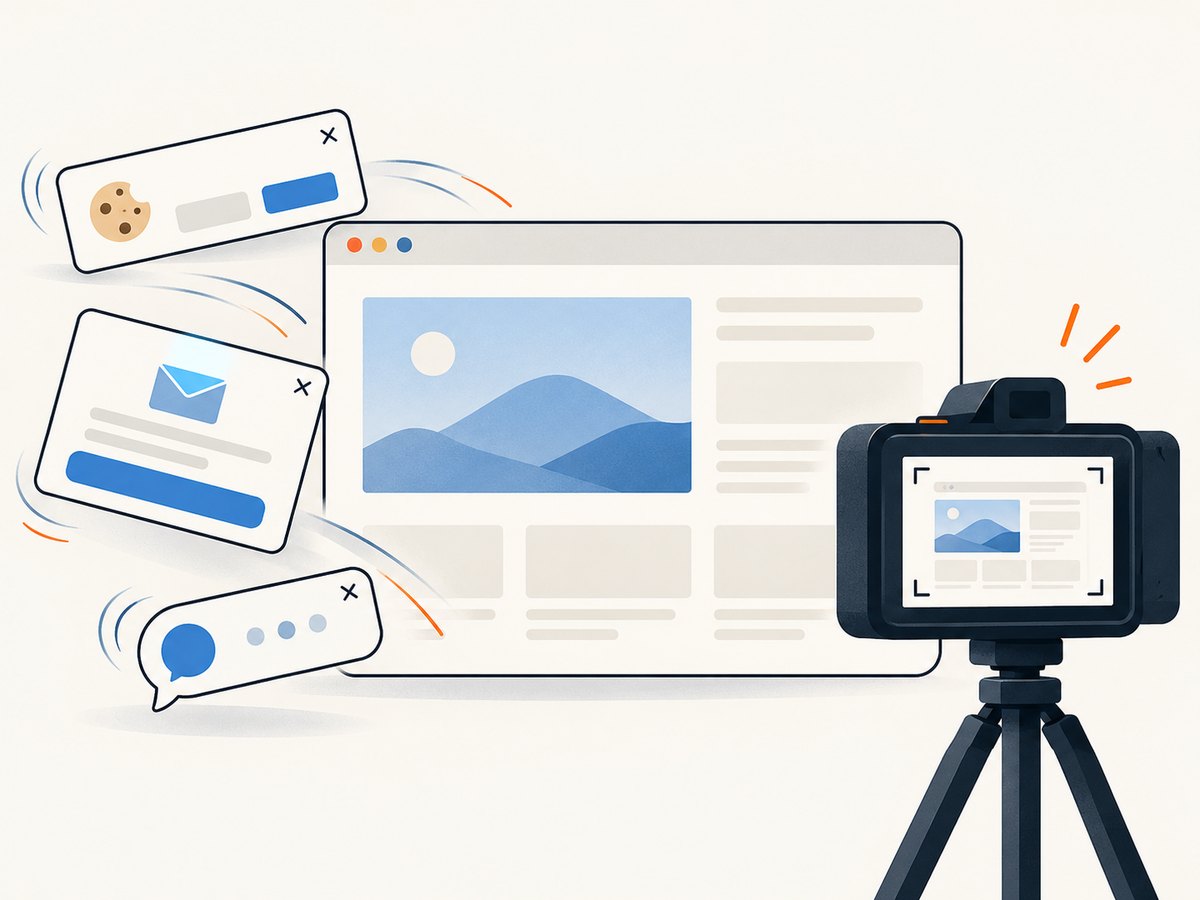
ScreenshotNeo removes cookie banners, newsletter popups, and chat widgets before the shot. Bot checks, blank pages, and failed loads are never billed. Its MCP server lets AI agents use screenshot tools, and 1,000 screenshots a month are free with no card; paid plans start at $5 for 3,000. Plans also include 15,000 shots for $15, 60,000 for $39, 250,000 for $99, and 1,000,000 for $249; yearly billing gives two months free. Every feature is on every plan. Learn more at ScreenshotNeo.
Sign up free for 1,000 screenshots a month, no card required.
11. Frequently asked questions
Can Playwright return a screenshot without writing a file?
Yes. Call page.screenshot() without path; it returns a Buffer that your Node.js code can process or send elsewhere.
Can Playwright take screenshots in Firefox or WebKit?
Yes. Launch the browser engine you want to capture, and ensure its browser binary is installed. The Page API’s example uses WebKit and notes that Chromium or Firefox can also be used.
Does a locator screenshot capture everything inside a scrollable element?
No. It captures the element’s bounds and the currently scrolled content. Scroll the container to the portion you need before taking the screenshot.
Should I use a screenshot call or Playwright Test’s screenshot setting?
Use the API call when code needs to choose the capture point or use the returned bytes. Use the test runner’s screenshot setting when you want automatic evidence attached to test failures.


