How to Take Page Screenshots in Playwright
Capture viewport, full-page, clipped, and element screenshots in Playwright with stable output, testing patterns, troubleshooting, and API alternatives.

Direct answer: navigate with Playwright, then call page.screenshot(). Add path to save an image, fullPage: true to capture the entire scrollable page, clip for a rectangle, or use locator.screenshot() for one element.
import { chromium } from 'playwright';

const browser = await chromium.launch();
const page = await browser.newPage({ viewport: { width: 1440, height: 900 } });
await page.goto('https://example.com', { waitUntil: 'networkidle' });
await page.screenshot({ path: 'page.png', fullPage: true });
await browser.close();
This guide covers the complete screenshot API, output formats, repeatable captures, Playwright Test assertions, common failures, and production concerns. The examples use JavaScript. The same Playwright APIs are available from the other language bindings, but option names and setup syntax differ.
1. Install Playwright and capture your first page
Create a project and install the browser binaries:
npm init -y
npm install -D playwright
npx playwright install chromium
Save this as screenshot.mjs and run node screenshot.mjs:
import { chromium } from 'playwright';

const browser = await chromium.launch({ headless: true });
const context = await browser.newContext({
  viewport: { width: 1440, height: 900 },
  deviceScaleFactor: 1
});
const page = await context.newPage();

await page.goto('https://example.com', {
  waitUntil: 'domcontentloaded',
  timeout: 30_000
});
await page.screenshot({ path: 'example.png' });

await browser.close();
page.screenshot() returns a buffer. Supplying path writes the bytes to disk; omitting it lets you upload or process the buffer yourself. See the official Page screenshot API for the current option list and version details.
2. Choose the capture scope
Viewport screenshot
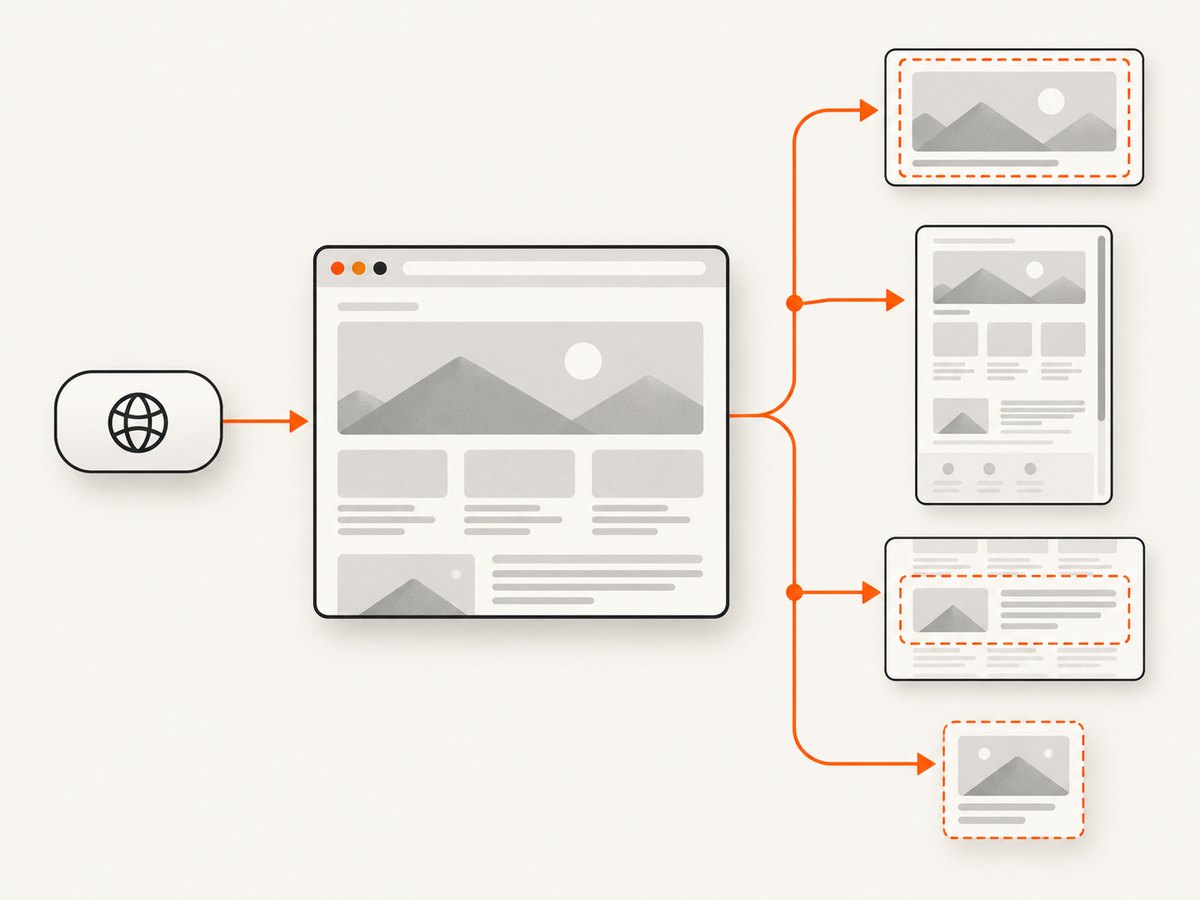
The default is the currently visible viewport. It is useful for monitoring a fixed UI or producing a social-card-sized image.
await page.screenshot({ path: 'viewport.png' });Full scrollable page
Set fullPage: true to capture the full scrollable page instead of only the visible viewport.
await page.screenshot({
  path: 'full-page.png',
  fullPage: true
});
Very long pages can create extremely tall images and consume substantial memory. If your downstream system has image-dimension limits, capture sections or use a PDF workflow instead.
Rectangular clip
Use clip with CSS-pixel coordinates relative to the page:
await page.screenshot({
  path: 'hero.png',
  clip: { x: 0, y: 0, width: 1440, height: 500 }
});
The rectangle must have positive dimensions and fit the page’s layout at capture time. Establish the viewport first so coordinates remain meaningful.
One element
Prefer a locator screenshot for current element-based code. Playwright waits for actionability and scrolls the element into view.
const header = page.locator('header').first();
await header.screenshot({ path: 'header.png' });

const pricingCard = page.getByRole('article', { name: /pro plan/i });
await pricingCard.screenshot({ path: 'pricing-card.webp', type: 'webp', quality: 85 });
An element covered by an overlay may not appear as expected. A scrollable container contributes the content currently visible inside that container, rather than automatically stitching all of its internal scroll positions. ElementHandle.screenshot() exists but is discouraged; use Locator.screenshot().
3. Select format, quality, scale, and transparency
| Option | Use | Notes |
|---|---|---|
type |
png, jpeg, or webp |
PNG is the default. JPEG and WebP support quality settings. |
quality |
Lossy compression | Applies to JPEG and WebP, not PNG. JPEG’s documented default is 80; WebP quality 100 is lossless. |
scale |
css or device |
css produces one image pixel per CSS pixel. device preserves device-pixel density and can be much larger. |
omitBackground |
Transparent output | Works for PNG and WebP; it does not apply to JPEG. |
await page.screenshot({
  path: 'transparent.webp',
  type: 'webp',
  quality: 90,
  omitBackground: true,
  scale: 'css'
});
Choose PNG for lossless diagrams and text, JPEG for smaller photographic images, and WebP when your consumer supports it. Use scale: 'css' when predictable dimensions and smaller files matter; use device when you specifically need high-DPI pixels.
4. Make captures repeatable
A screenshot is a rendering of browser state. Fix the inputs that affect that state before calling the API:
- Set a deliberate viewport and device scale factor.
- Use a known browser engine and installed browser version.
- Seed or create stable test data.
- Wait for the page state you actually need, not an arbitrary short delay.
- Control fonts, timezone, locale, and network dependencies where your test requires it.
Wait for a meaningful condition
await page.goto('https://example.com/dashboard');
await page.getByRole('heading', { name: 'Dashboard' }).waitFor();
await page.screenshot({ path: 'dashboard.png' });
For pages that finish loading after navigation, combine a navigation timeout with a selector, response, or application-ready signal. waitUntil: 'networkidle' can be useful, but it can also wait indefinitely on applications that maintain long-lived connections.
Disable animation and mask changing regions
await page.screenshot({
  path: 'stable.png',
  animations: 'disabled',
  caret: 'hide',
  mask: [page.locator('[data-testid="clock"]')],
  maskColor: '#777777',
  style: `video, canvas[data-live] { visibility: hidden !important; }`
});
With animations: 'disabled', finite animations are fast-forwarded and infinite animations are canceled for the screenshot. Masks cover matched elements’ bounding boxes, including invisible elements. The screenshot-only style option can hide or adjust dynamic content and pierces Shadow DOM and inner frames. These controls reduce noise but cannot make network-loaded content or changing application state deterministic by themselves.
5. Use screenshots in Playwright Test
Playwright Test separates creating an artifact from asserting that an image matches a stored expectation.
Automatic screenshots
In playwright.config.js:
import { defineConfig } from '@playwright/test';

export default defineConfig({
  use: {
    screenshot: 'only-on-failure',
    fullPage: true,
    omitBackground: false
  }
});
The use.screenshot setting supports 'off' (the default), 'on', 'only-on-failure', and 'on-first-failure'. These options are documented in the TestOptions reference.
Visual assertions
import { test, expect } from '@playwright/test';

test('homepage matches its baseline', async ({ page }) => {
  await page.goto('https://example.com');
  await expect(page).toHaveScreenshot('homepage.png', {
    fullPage: true,
    maxDiffPixelRatio: 0.01
  });
});

test('card matches its baseline', async ({ page }) => {
  await page.goto('https://example.com/pricing');
  await expect(page.locator('.pricing-card')).toHaveScreenshot('card.png');
});
toHaveScreenshot() is available with the Playwright test runner. It waits until two consecutive screenshots are identical, then compares the last image with the expected snapshot. Set maxDiffPixels or maxDiffPixelRatio narrowly enough to catch regressions; broad tolerances can hide real changes. Run with npx playwright test --update-snapshots only when you have reviewed the intended visual change.
6. Advanced capture patterns
Capture after a click
await page.goto('https://example.com');
await page.getByRole('button', { name: 'Details' }).click();
await page.locator('#details-panel').waitFor({ state: 'visible' });
await page.screenshot({ path: 'details-open.png' });
Capture a page with custom headers or authentication
const context = await browser.newContext({
  extraHTTPHeaders: { 'X-Preview-Token': process.env.PREVIEW_TOKEN },
  locale: 'en-US',
  timezoneId: 'UTC'
});
const page = await context.newPage();
await page.goto('https://staging.example.com');
For cookies, use context.addCookies(). For a logged-in flow, prefer a saved authenticated storage state and protect that file as a secret. Keep credentials out of screenshot paths, logs, and test artifacts.
Return bytes instead of a file
const bytes = await page.screenshot({ type: 'png' });
await fetch('https://uploads.example.com/screenshot', {
  method: 'PUT',
  headers: { 'content-type': 'image/png' },
  body: bytes
});
7. Troubleshooting
| Symptom | Likely cause | Fix |
|---|---|---|
| “Executable doesn’t exist” | Browser binaries were not installed. | Run npx playwright install chromium (or install the browser your project uses). |
| Blank or partially rendered image | Capture ran before the app rendered, or the page requires authentication. | Wait for a meaningful locator, verify cookies/storage state, and inspect the page before capture. |
| Full page misses lazy images | Images load only after scrolling or an intersection event. | Scroll through the page or trigger the app’s lazy-load behavior before fullPage capture. |
| Element screenshot is clipped unexpectedly | The element is inside a scrollable container or covered by an overlay. | Scroll the container deliberately, close overlays, and verify the locator’s bounding box. |
| Visual test fails on every run | Fonts, viewport, browser version, animation, or data differ. | Pin the environment, disable animations, mask dynamic areas, and establish stable data. |
| Timeout waiting for network idle | WebSockets, analytics, or polling keep the network active. | Use a specific readiness locator or response instead of waiting for global idleness. |
| Image is too large | Device-pixel scale or a very tall full-page capture. | Use scale: 'css', reduce the viewport width, capture sections, or choose WebP/JPEG. |
8. Performance, reliability, and cost considerations
Browser startup is expensive compared with taking another screenshot in an existing context. Reuse a browser process for a batch, create isolated contexts for separate sessions, and close pages and contexts when work completes. Limit concurrency to what your CPU, memory, and target site can handle. Full-page screenshots use more memory than viewport captures, especially on long pages and high-DPI settings.
Reliability comes from explicit state: fixed viewport, browser version, fonts, locale, timezone, test data, authentication, and readiness conditions. Retry navigation or capture only when the operation is safe to repeat, and record the URL, viewport, browser version, and failure reason with each artifact. Do not treat a screenshot as proof that every resource loaded; inspect the page and application state when completeness matters.
Playwright itself is open-source software, but running browsers has infrastructure costs: compute, memory, storage, bandwidth, and maintenance of browser binaries. If you capture many public URLs, also account for target-site rate limits and terms. Cache identical captures when freshness allows, and avoid re-capturing unchanged pages.
9. Or skip the browser setup
If you need an HTTP screenshot service instead of maintaining browser workers, ScreenshotNeo accepts one GET request and returns PNG, JPEG, WebP, or PDF. It can load lazy images, capture a CSS-selected element, set viewport and device presets, apply custom CSS or JavaScript, click before capture, wait for a selector, delay, or network idle, and set headers, cookies, user agent, authorization, timezone, or geolocation. It also supports full-page capture, dark mode, retina scale, hiding selectors, blocking ads, trackers, requests, or resource types, resizing, caching with a chosen TTL, signed image links, asynchronous jobs with signed webhooks, bulk capture of up to 100 URLs per call, a usage API, and an OpenAPI specification.
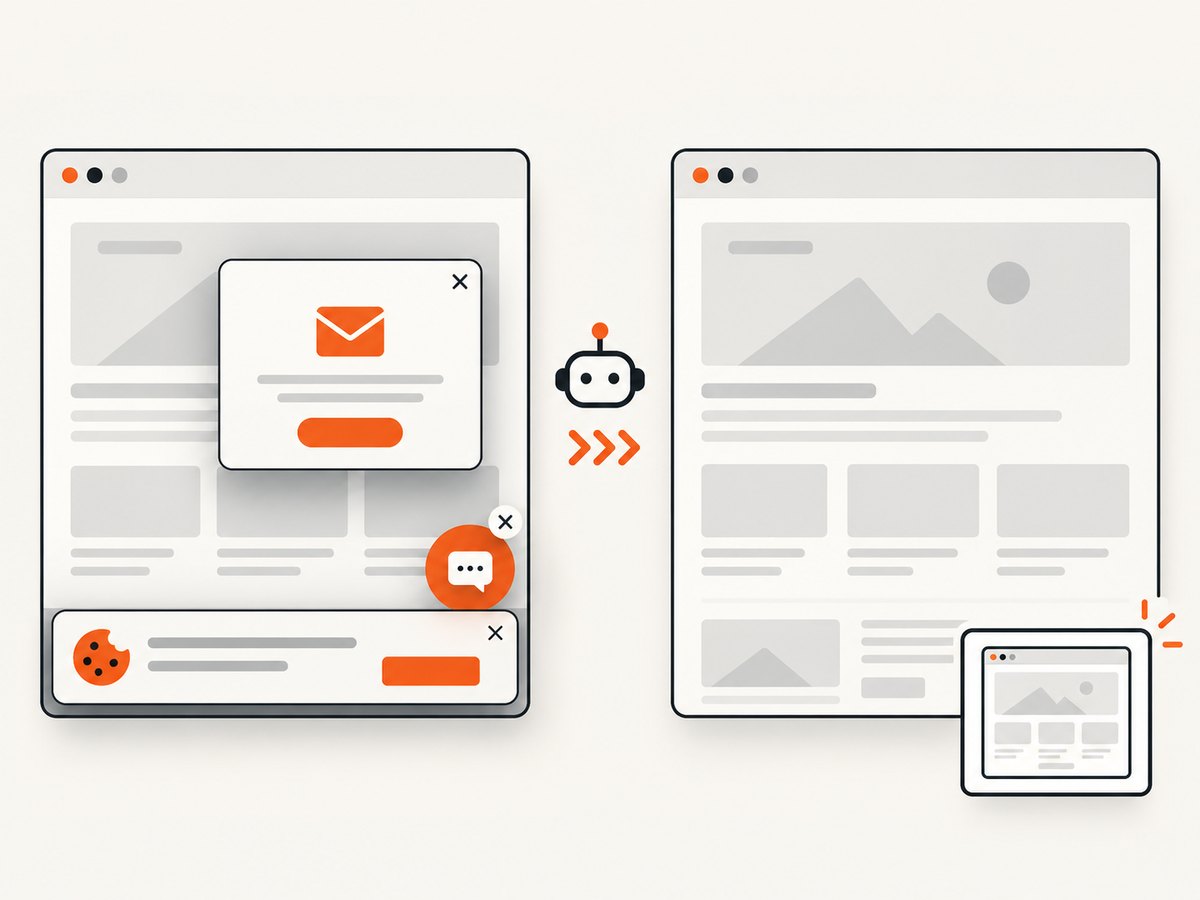
Cookie and consent banners are accepted and removed before the shot, along with more than 60 known consent platforms, newsletter popups, and chat widgets; each cleanup step can be turned off. Bot checks or CAPTCHAs, blank pages, timeouts, failed loads, and cache hits are not billed, and the response identifies the result with X-Page-Verdict and X-Billed headers. An MCP server provides take_screenshot, get_page_info, and capture_pdf tools for Claude, Cursor, and other MCP clients.
See the ScreenshotNeo documentation for request options. The basic calls are:
curl -G "https://api.screenshotneo.com/v1/shot" -d access_key=YOUR_API_KEY --data-urlencode url=https://stripe.com -o shot.webpimport requests
r = requests.get("https://api.screenshotneo.com/v1/shot", params={"access_key": "YOUR_API_KEY", "url": "https://stripe.com"}, timeout=90)
open("shot.webp", "wb").write(r.content)const q = new URLSearchParams({ access_key: 'YOUR_API_KEY', url: 'https://stripe.com' });
const res = await fetch(`https://api.screenshotneo.com/v1/shot?${q}`);The Free plan includes 1,000 screenshots per month with no card. Paid plans start at $5 for 3,000 shots; every feature is available on every plan. Create a free ScreenshotNeo account and try the API without entering a card.
10. FAQ
Does page.screenshot() wait for images?
It captures the rendered page at the time of the call. Wait for an image, content locator, or application-ready signal when late-loading resources matter.
Can I screenshot only what is visible?
Yes. Omit fullPage or set it to false; the default is the current viewport.
Should I use PNG or JPEG for visual tests?
PNG avoids lossy compression differences and is a common baseline format. Use JPEG or WebP when file size matters and a small compression difference is acceptable.
Why does my baseline differ across machines?
Rendering depends on browser version, fonts, viewport, device scale, locale, data, and network content. Pin those inputs and mask intentionally variable regions.
What is the difference between a screenshot and toHaveScreenshot()?
page.screenshot() creates an image artifact. toHaveScreenshot() waits for a stable image and compares it with an expected snapshot in Playwright Test.
Can Playwright create PDFs?
PDF generation is a separate browser API and is generally available in Chromium. If your workflow needs screenshot images and PDFs through one HTTP interface, ScreenshotNeo’s API supports both.


