How to Fix Playwright PDF Footer Template Parsing Issues
Fix missing, tiny, overlapping, or unstyled Playwright PDF footers by checking the option, template markup, CSS scope, margins, media mode, and runtime.
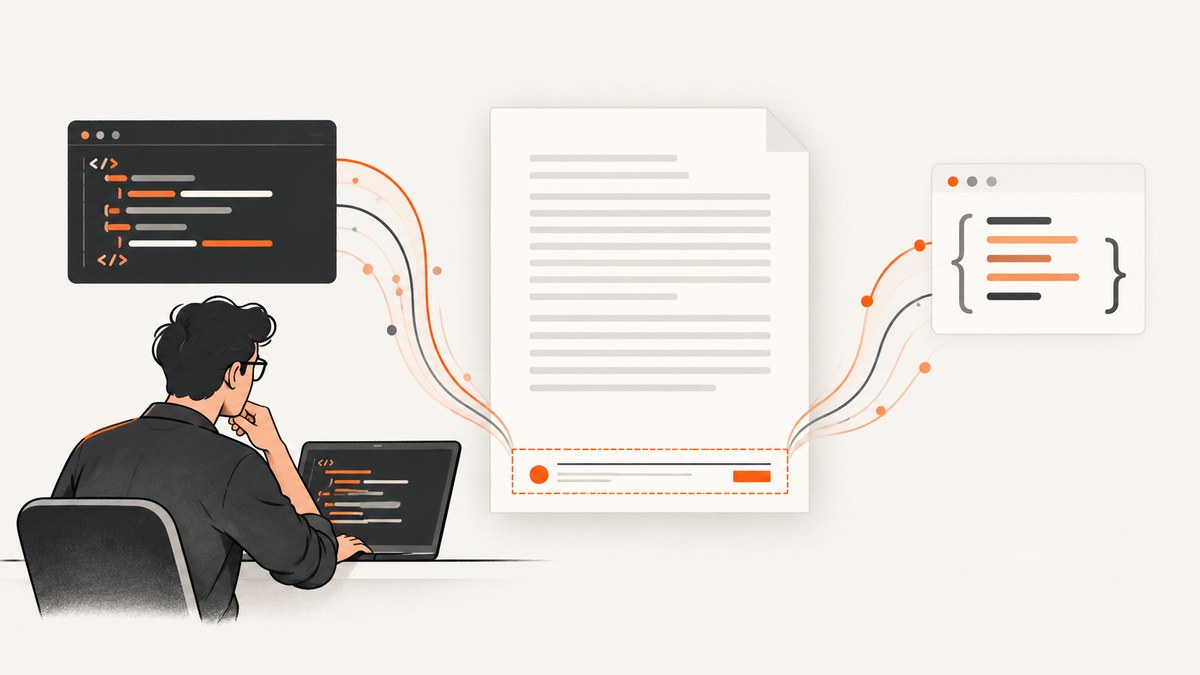
When a Playwright PDF footer is missing or looks wrong, first check that displayHeaderFooter: true is set. Its default is false. Then confirm footerTemplate contains valid, visible HTML and uses Playwright’s documented placeholder classes, such as pageNumber and totalPages. Put essential styling inside the template: page styles do not reach header and footer templates, and scripts inside those templates are not evaluated.
These checks address the most common configuration and markup mistakes. A footer that is tiny, overlaps document content, or uses the wrong font may involve a separate issue: margins, print rendering, font availability, the Playwright version, or the runtime. Diagnose one factor at a time and inspect the generated PDF before attributing the result to a general parser bug. The Playwright Page API reference documents the PDF options and template limits.
1. Start with a minimal working footer
Here is a complete JavaScript example using Playwright’s Chromium browser. It opens a page, enables header and footer templates, leaves room below the document content, and writes a PDF. Run it in a project where Playwright is installed.
const { chromium } = require('playwright');

(async () => {
  const browser = await chromium.launch();
  try {
    const page = await browser.newPage();
    await page.setContent(`
      <main>
        <h1>Quarterly report</h1>
        <p>This page is rendered as a PDF.</p>
      </main>
    `);

    await page.pdf({
      path: 'report.pdf',
      format: 'A4',
      printBackground: true,
      displayHeaderFooter: true,
      margin: {
        top: '20mm',
        right: '15mm',
        bottom: '20mm',
        left: '15mm'
      },
      footerTemplate: `
        <div style="width: 100%; font-size: 9px; padding: 0 15mm; color: #555;">
          <span>Page <span class="pageNumber"></span>
          of <span class="totalPages"></span></span>
        </div>
      `
    });
  } finally {
    await browser.close();
  }
})();
Save the file as make-pdf.js and run node make-pdf.js. If the footer does not appear, reduce it further to a plain-text <div>Footer test</div>. Keep displayHeaderFooter enabled while narrowing down the problem. If a plain element renders, add the placeholder spans and styles back separately.
For another language binding, preserve the same diagnostic sequence: enable the option, provide a minimal template string, add a bottom margin, and inspect the resulting file. Option spellings and calling conventions vary by binding, so use that binding’s current Playwright API reference rather than translating JavaScript syntax mechanically.
2. Check each part of the footer configuration
Enable template rendering
displayHeaderFooter controls whether Playwright displays header and footer content. Because its default is false, supplying footerTemplate alone is not enough. Set the flag explicitly so the configuration is easy to review and does not depend on a default.
If you also have a headerTemplate, temporarily remove it while debugging the footer. Test the header and footer separately, then enable both together. This helps identify whether the issue is in one template or in the shared page layout.
Use documented placeholder classes
Playwright provides values through these classes: date, title, url, pageNumber, and totalPages. Use them on elements in the template; they are not JavaScript variables to interpolate into the string. For example:
footerTemplate: `
  <div style="width: 100%; font-size: 9px; text-align: center;">
    <span class="title"></span> —
    <span class="pageNumber"></span> /
    <span class="totalPages"></span>
  </div>
`
Start with one placeholder if a value is wrong or absent. Confirm the static text renders, then add the dynamic class. This separates HTML parsing from placeholder handling.
Keep the markup simple and visible
The template is HTML markup. Use a simple structure and styles that make the content visible: an explicit width, readable font size, color, and alignment. Avoid making the first test depend on external stylesheets, complex layout, images, or scripts. Once basic text renders, add the markup your design actually needs in small steps.
Do not use a script tag to calculate values or mutate the template. Playwright documents that scripts inside templates are not evaluated. Generate any custom value in your application code and include it in the HTML string before calling page.pdf().
Put required styles inside the template
A stylesheet attached to the page does not style header and footer template content. If your page uses a custom font, spacing rule, or color, do not assume the template inherits it. Put essential styles inline in the template while diagnosing. If you later use other styling approaches, verify them against the template’s separate style scope.
For example, this style is local to the footer element and does not depend on the page stylesheet:
footerTemplate: `
  <div style="width: 100%; font-family: Arial, sans-serif;
              font-size: 9px; color: #444; text-align: right;">
    <span class="pageNumber"></span>
  </div>
`
3. Give the footer room on the page
A template can render correctly and still appear crowded or overlap the document. Set page margins deliberately, especially the bottom margin. Playwright’s PDF API supports explicit margins; its documented top margin default is zero. Do not rely on an implicit margin to reserve space for a footer.
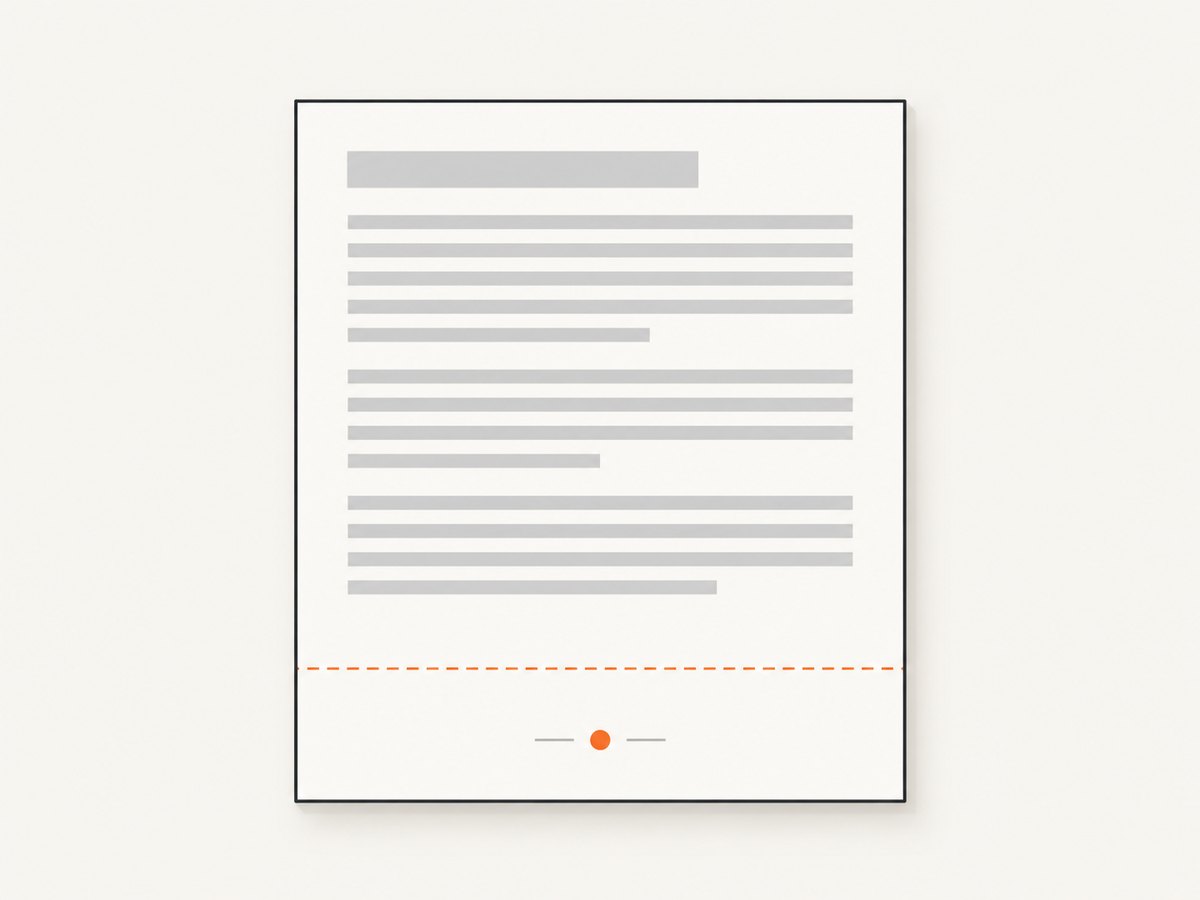
Specify dimensions with units such as px, in, cm, or mm. Unlabeled numeric dimensions are treated as pixels. The default paper format is Letter, so set format or explicit width and height if your output requires another page size. Keep the footer’s horizontal padding consistent with the left and right page margins.
There is no universal bottom-margin value: it depends on the footer’s height, font, and page design. Increase it enough to give the footer space, then inspect a page with the longest content. If the footer is still crowded, simplify its contents or reduce its height before changing several unrelated options.
4. Separate print media from template styling
page.pdf() renders with print CSS by default. If your document’s layout depends on screen media, switch media before generating the PDF:
await page.emulateMedia({ media: 'screen' });
await page.pdf({
  path: 'screen-layout.pdf',
  displayHeaderFooter: true,
  footerTemplate: '<div style="font-size: 9px">Footer</div>'
});
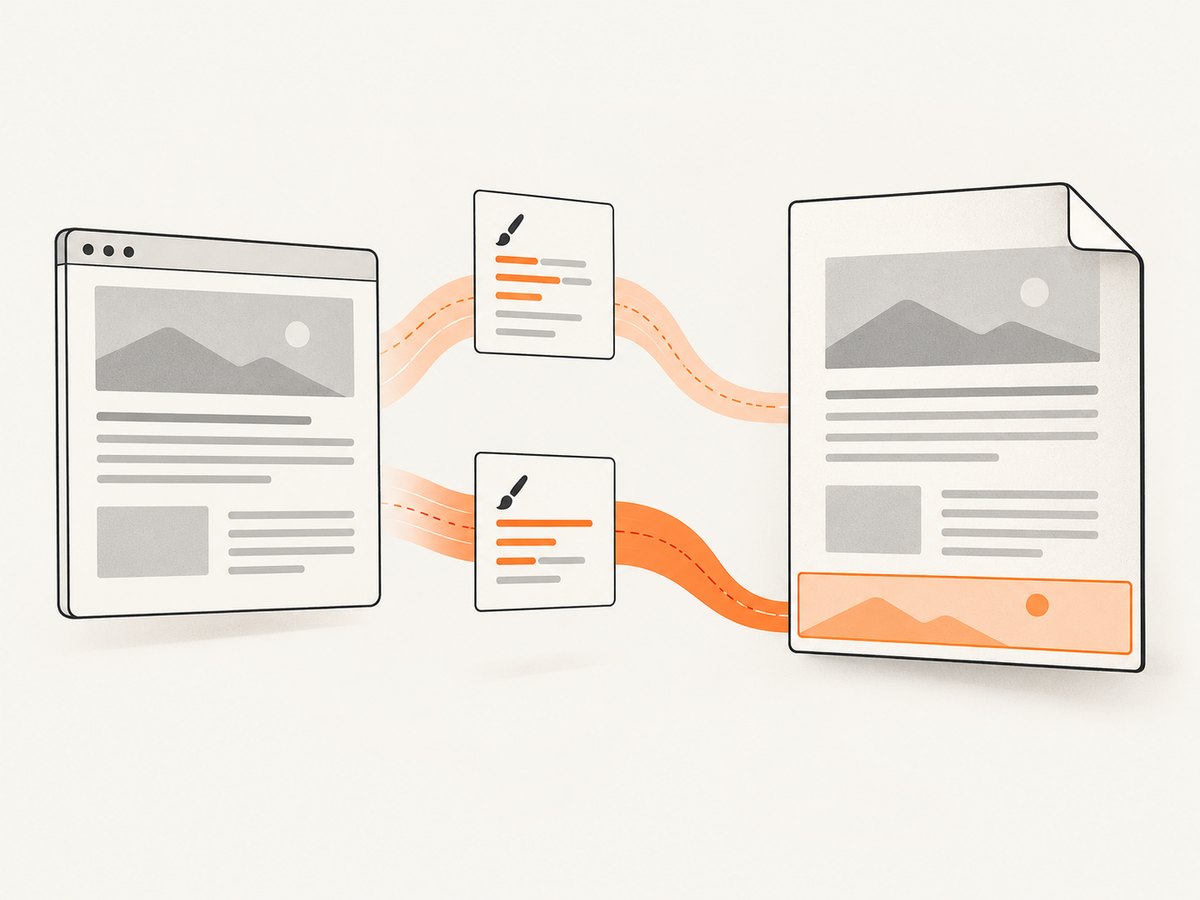
This changes how the page itself is rendered. It does not make page styles visible to the footer template. Keep the two questions separate: choose print or screen media for document content, and put footer styling in the template.
Print output modifies colors by default. If exact print colors matter, the Playwright documentation points to -webkit-print-color-adjust. Check color behavior independently from whether the footer is parsed or displayed; a color adjustment will not fix a missing template.
5. Investigate font problems on their own
If the footer appears but uses an unexpected font, first confirm that its template includes a font declaration and a usable fallback. Page-level font declarations may not apply because page styles are not visible inside the template. Also verify that the intended font is available in the PDF generation context.
A reported issue describes imported font-face styling failing in a footer template, including an attempted base64 approach. That report does not establish a universal defect or a guaranteed workaround. Treat font embedding as a separate investigation: test a common fallback font, confirm the font’s availability in the runtime, and compare the output. If the fallback works but the custom font does not, keep the minimal reproduction and environment details for further diagnosis.
6. Troubleshoot by symptom
| Symptom | Likely check | What to try |
|---|---|---|
| Footer is completely absent | displayHeaderFooter is missing or false, or the template is empty/invisible. |
Set the flag to true and replace the template with visible plain text. Confirm the PDF path and inspect the generated file. |
| Page number is missing or literal | The placeholder class is misspelled, placed on the wrong element, or written as an application variable. | Use an element with class="pageNumber" or class="totalPages"; test one value at a time. |
| Footer text is unusually small | The template has no explicit font size or the chosen size is too small for the rendered page. | Set an explicit size in the template, then inspect at normal zoom and in the intended print workflow. There is no universal correct size. |
| Footer overlaps page content | The page has too little bottom margin for the footer or its content. | Increase the bottom margin and inspect a page with dense content. Treat margin tuning as a layout diagnosis, not a guaranteed parser fix. |
| Page CSS changes do not affect the footer | Header and footer templates have their own styling scope. | Move essential styles into the template, preferably inline for the minimal reproduction. |
| Script-generated footer content is absent | Scripts inside templates are not evaluated. | Compute the value in application code and insert it into the template string before PDF generation. |
| Font or color differs from the page | Template font availability or print color behavior differs from document styling. | Test a fallback font, declare template styles locally, and investigate print color adjustment separately. |
| Behavior changes after an upgrade | The Playwright version, binding, browser, or runtime changed. | Record exact versions and compare a minimal reproduction in the affected environment. |
7. Record a useful reproduction
Historical issue reports show symptoms including invisible templates, tiny footer text, overlap, and font differences. They describe particular user environments; they do not prove that every current Playwright installation has a shared parsing bug. For example, one invisible-template report identifies Playwright 1.22.0, .NET 6, Windows 11, and Chromium. That environment detail limits what can be inferred from the report.
Before filing or escalating a suspected defect, capture the following:
- Playwright version and language binding.
- Operating system and browser engine/runtime.
- The exact
page.pdf()options, including margins and format. - A minimal footer template with no unrelated application code.
- The PDF output and a precise description of what is absent or wrong.
- Whether the issue persists with plain text, a fallback font, and no header template.
These details distinguish an option mistake from a markup, style-scope, print-rendering, or environment issue. Check the current API documentation when diagnosing a newer Playwright release.
8. Reliability, performance, and cost considerations
Keep PDF generation predictable by starting with a minimal page and template, setting the page format and margins explicitly, and avoiding unnecessary dependencies in the footer. A footer should not rely on a script running inside the template or on page styles crossing into it. If fonts are part of the output contract, check them in the same runtime that generates production PDFs and retain a fallback.
When a PDF is wrong, save the output from a small reproduction and compare it across the relevant Playwright version and runtime. Change one variable at a time: activation flag, markup, margin, media mode, then font. This makes it easier to identify which configuration change affects the result and avoids treating an old report as evidence of a current general bug.
PDF generation also has an operational cost: the browser must load or render the page and produce a document. The dossier provides no benchmark or universal timing figure, so measure your own workload if throughput matters. Reuse an appropriate browser process in a service rather than launching one for every document, and close pages and browsers when finished. Set sensible timeouts in the surrounding job system and log the input URL, options, runtime versions, and failure stage without logging secrets.
Or skip the browser setup
If your goal is a website capture rather than a custom Playwright footer template, ScreenshotNeo offers a screenshot API and MCP server. It returns PNG, JPEG, WebP, or PDF from a GET request. Its PDF options include paper size, margins, landscape orientation, and page ranges; the supplied product details do not describe custom footer templates, so use Playwright when your footer markup must be controlled.
One call to capture a page as a PDF:
curl -G "https://api.screenshotneo.com/v1/shot" \
  -d access_key=YOUR_API_KEY \
  --data-urlencode url=https://stripe.com \
  -d format=pdf \
  -o page.pdf
See the ScreenshotNeo API documentation for request options. ScreenshotNeo removes cookie banners, popups, and chat widgets before the shot; bot checks, blank pages, and failed loads are never billed. Its MCP server lets AI agents take screenshots. The free plan includes 1,000 screenshots a month with no card; paid plans start at $5 for 3,000. Sign up for 1,000 free screenshots a month, with no card.
FAQ
Can I put JavaScript in footerTemplate?
No. Playwright does not evaluate script tags inside header or footer templates. Calculate values in your application and insert them into the HTML string before calling page.pdf().
Will setting screen media make page CSS style the footer?
No. Screen media affects the page rendering mode. Template content still needs its own styles.
Does a historical issue prove my current Playwright version is broken?
No. Issue reports document specific observations and environments. Reproduce the behavior with your exact version, binding, browser, options, and minimal template before drawing that conclusion.


