How to Navigate to PDF Files with Playwright Without `net::ERR_ABORTED`
Headless Playwright does not support navigating to PDF documents. Choose a download, response, or parsing workflow that matches what your test needs.
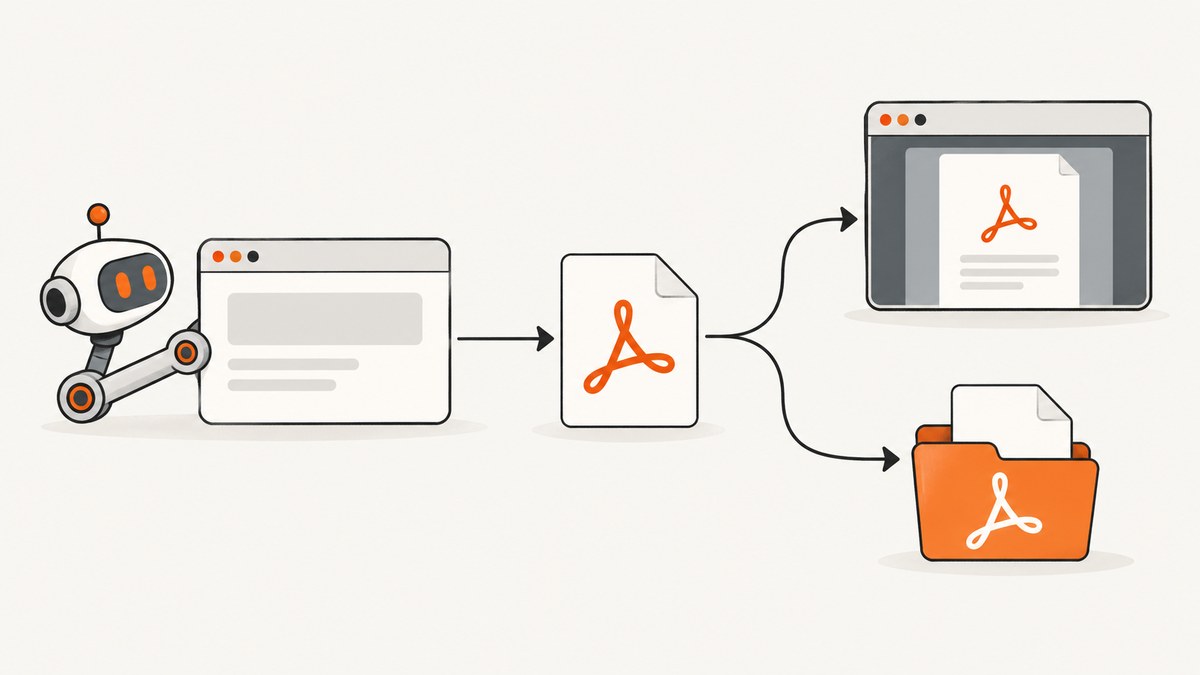
If page.goto() throws net::ERR_ABORTED when you navigate to a PDF in headless Playwright, the documented headless PDF limitation is a likely explanation: Playwright’s Page API says headless mode does not support navigation to a PDF document. Treat that as a specific explanation for this scenario, not a diagnosis for every abort error. Decide whether you need to test a viewer, verify a download, inspect the HTTP response, or parse the document; each goal needs a different workflow.
This guide uses JavaScript with Playwright. It shows download handling, response inspection, a route-based attachment workaround, and troubleshooting. For PDF viewing, remember that behavior depends on browser mode and version; headed mode is not a universal fix.
1. Understand what is aborting
A URL that looks like a web page may return a PDF with a content type such as application/pdf. A normal HTML navigation creates a document that the page can render and that Playwright can wait for through navigation lifecycle events. A PDF may instead be handled by the browser’s built-in viewer or treated as a file download. These are distinct outcomes.
The Playwright Page API explicitly documents that headless mode does not support navigation to PDF documents. A Playwright issue reports net::ERR_ABORTED for a headless navigation to a PDF URL, which is consistent with that limitation. It does not establish that every net::ERR_ABORTED comes from a PDF. Other navigation failures can produce errors too.
Changing waitUntil to commit, domcontentloaded, or load does not remove the headless PDF restriction. Nor should a test simply catch the navigation error and pass: it still needs to assert the result that matters.
2. Choose the workflow that matches the test
| What you need to test | Use | What to assert |
|---|---|---|
| A link initiates a file download | Playwright download event | Download occurred; saved file exists and has expected content or metadata |
| The server returns a PDF | Request or response inspection | Status, content type, headers, and optionally bytes |
| The PDF contains expected information | Download or retrieve bytes, then use a PDF parser | Extracted text or document structure |
| The browser viewer works | Viewer UI test in a supported browser configuration | Viewer behavior, with browser and Playwright versions recorded |
| An inline PDF should behave as a download in this test | Route and fulfill it with attachment disposition | Download event and resulting file |
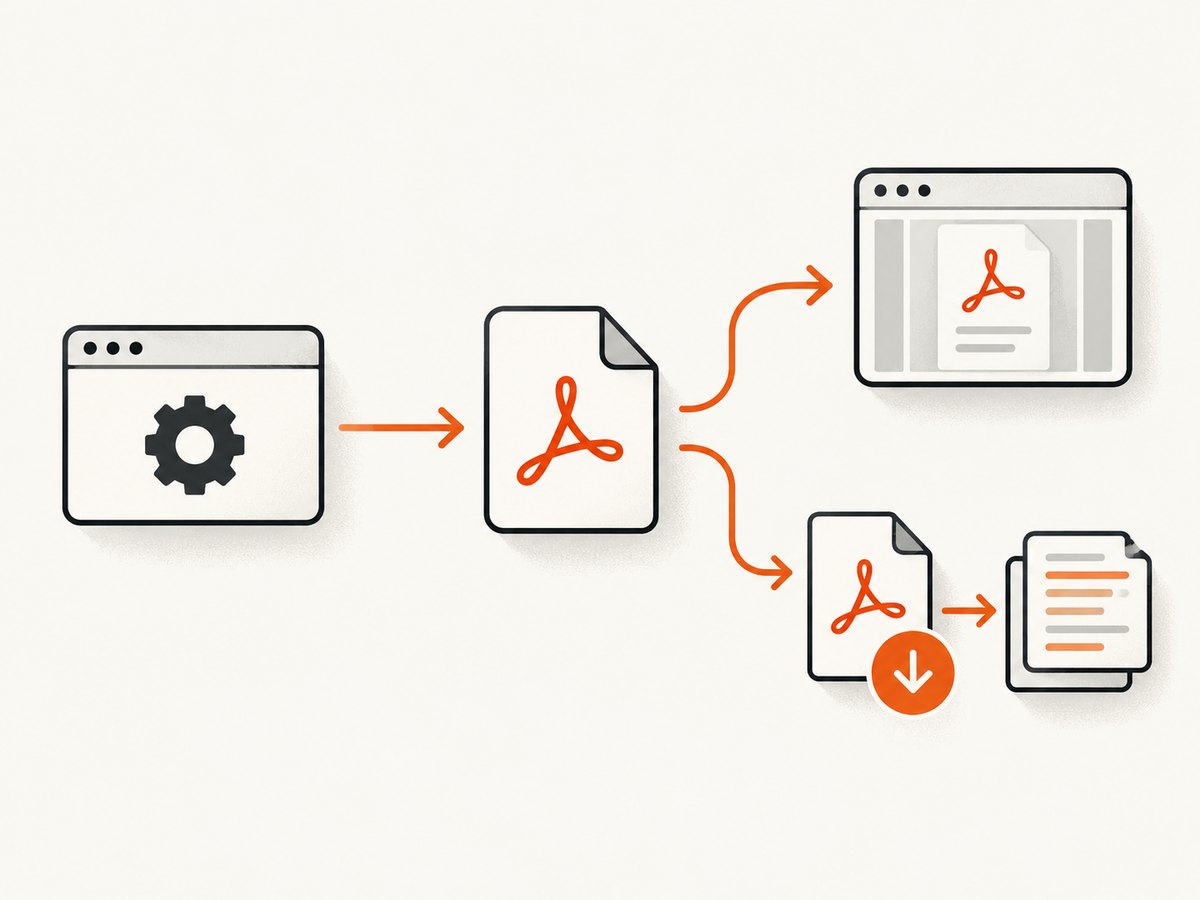
Playwright’s navigation guide explains that a navigation may turn into a file download rather than a page navigation. Keep download assertions separate from assertions about a rendered page.
3. Handle a PDF download
When the user-facing behavior is “click this link and download the PDF,” listen for the download event before clicking. Save the file explicitly, then validate it. The example below is a complete Playwright Test test; replace the page URL, link locator, and output path for your project.
import { test, expect } from '@playwright/test';
import { mkdir } from 'node:fs/promises';
import path from 'node:path';

test('PDF link downloads a file', async ({ page }) => {
  await page.goto('https://example.com/reports');

  const downloadPromise = page.waitForEvent('download');
  await page.getByRole('link', { name: 'Download report' }).click();
  const download = await downloadPromise;

  // A suggested filename may be absent or may come from the server.
  const suggested = download.suggestedFilename();
  if (!suggested.toLowerCase().endsWith('.pdf')) {
    throw new Error(`Expected a PDF filename, got: ${suggested}`);
  }

  const outputDir = path.resolve('artifacts');
  await mkdir(outputDir, { recursive: true });
  const outputPath = path.join(outputDir, suggested);
  await download.saveAs(outputPath);

  expect(await download.failure()).toBeNull();
});
Register waitForEvent('download') before clicking. Otherwise, a fast download may start before the listener is attached. saveAs() waits for completion and copies the file to the path you choose. The download’s suggested name is controlled by the browser and server response; do not assume it is a safe or stable filesystem name in production code. If filenames are untrusted, sanitize them or choose a fixed destination name.
For a one-off script outside Playwright Test, the same event ordering applies:
import { chromium } from 'playwright';

const browser = await chromium.launch();
const page = await browser.newPage({ acceptDownloads: true });
try {
  await page.goto('https://example.com/reports');
  const downloadPromise = page.waitForEvent('download');
  await page.getByRole('link', { name: 'Download report' }).click();
  const download = await downloadPromise;
  await download.saveAs('report.pdf');
  const failure = await download.failure();
  if (failure) throw new Error(`Download failed: ${failure}`);
} finally {
  await browser.close();
}
In a test runner, prefer its configured browser and fixtures rather than launching a second browser. Keep the file in a test artifact directory if the runner cleans temporary downloads when the context closes.
4. Inspect the response when the response is the subject
If you need to verify that an endpoint returns a PDF, browser navigation is unnecessary. Use Playwright’s API request context to make an HTTP request and assert the response status and content type. This avoids relying on the built-in PDF viewer.
import { test, expect } from '@playwright/test';

test('report endpoint returns a PDF', async ({ request }) => {
  const response = await request.get('https://example.com/reports/latest.pdf');
  expect(response.ok()).toBeTruthy();
  expect(response.headers()['content-type']).toContain('application/pdf');

  const bytes = await response.body();
  expect(bytes.byteLength).toBeGreaterThan(0);
  // Optional lightweight signature check; this is not full PDF validation.
  expect(bytes.subarray(0, 5).toString()).toBe('%PDF-');
});
Use the same authentication, cookies, and headers the application requires. A browser page may have a logged-in session that a separate API request context does not share automatically. If the route needs browser state, either configure the request context with the required credentials or trigger and save the browser download.
A signature check only establishes that the bytes begin with a common PDF marker. It does not prove that every object, page, font, or cross-reference table is valid. For content assertions, pass the file to a PDF parser appropriate to your application and assert extracted text or metadata. Keep parser assertions separate from browser download assertions so a failure points to the correct layer.
5. Turn an inline PDF response into a download
Some servers return an inline PDF that a browser would open in its viewer. A Playwright issue discussion demonstrates intercepting the PDF request, fetching the original response, and fulfilling it with Content-Disposition: attachment. This changes the response semantics for the test so the browser emits a download. Treat it as a workaround to validate against your Playwright version and target site, not as a universal fix.
import { test, expect } from '@playwright/test';

 test('inline PDF can be tested as a download', async ({ page }) => {
  await page.route('**/*.pdf', async route => {
    const original = await route.fetch();
    const headers = {
      ...original.headers(),
      'content-disposition': 'attachment; filename="report.pdf"',
    };
    await route.fulfill({ response: original, headers });
  });

  await page.goto('https://example.com/reports');
  const downloadPromise = page.waitForEvent('download');
  await page.getByRole('link', { name: 'View report' }).click();
  const download = await downloadPromise;
  await download.saveAs('report.pdf');
  expect(await download.failure()).toBeNull();
});
Check the route pattern carefully: a broad **/*.pdf route can affect unrelated PDFs, including assets. Narrow it to the expected host or path if the page loads other documents. Preserve relevant response headers and status through the fetched response, and check how redirects, authorization, and server caching behave for your endpoint. If a site applies special access controls or streams the file unusually, this interception may need adjustment.
6. Test the built-in PDF viewer only when that is the requirement
If your test is specifically about the browser’s PDF viewer, write it as a viewer test rather than a file retrieval test. Record the Playwright version, browser engine and version, headless or headed configuration, operating system, and PDF URL or response characteristics. Compare headed and headless runs as a diagnostic, but do not assume headed mode fixes the issue on every setup.
Even when a viewer appears, its internal UI may not behave like ordinary page content. A PDF viewer can be browser-provided and may not expose the PDF text as normal DOM nodes to page locators. If the assertion is “the report contains this value,” parsing the PDF is generally a more direct check than automating viewer controls. If the assertion is “the link opens a viewer,” keep that narrower and validate on the exact browser configuration your product supports.
7. Troubleshooting common failures
| Symptom | Likely cause | What to do |
|---|---|---|
page.goto() throws net::ERR_ABORTED at a PDF URL in headless Chromium |
Headless PDF navigation is documented as unsupported | Use a download or response workflow; use a viewer test only in a supported configuration |
Changing waitUntil does not help |
Lifecycle waiting does not enable the PDF viewer in headless mode | Change the test objective and handle the file directly |
waitForEvent('download') times out |
The listener was attached too late, the click did not reach the link, or the server opened an inline viewer | Attach the listener before clicking; verify the locator and response behavior; consider route conversion for inline PDFs |
| Download event fires but saving fails | Download failed, context closed too early, or the destination directory is missing | Call saveAs() before closing the context, create the directory, and check download.failure() |
| Response is HTML instead of PDF | Authentication redirect, not-found page, anti-bot response, or application error | Check final URL, status, content type, and authentication; do not treat nonempty bytes as a valid PDF |
| PDF is empty or malformed | Server returned an error body, truncated response, or a generated file with an issue | Check status and headers, inspect the first bytes, and validate with a PDF parser |
| Route workaround does not trigger a download | Route did not match, headers were not applied as expected, or another handler changed the response | Use a narrow known URL, inspect route execution, and verify the resulting response headers and browser behavior |
| Works locally but fails in CI | Different browser build, version, headless configuration, credentials, or network access | Log the runtime versions and response metadata; reproduce with the same configuration and test file retrieval separately |
When diagnosing a failure, log the URL, response status and content type when available, plus browser and Playwright versions. Avoid logging secrets, authorization headers, or sensitive PDF contents. If the error occurs on an HTML URL rather than a PDF response, investigate ordinary navigation causes such as redirects, blocked requests, or failed main-resource loading.
8. Performance, reliability, and cost
For automated tests, fetching PDF bytes directly is usually simpler than opening a viewer when the assertion concerns the file. It avoids viewer startup and UI interaction, but the request still depends on network latency, authentication, file size, and server reliability. Downloading and saving a large document consumes disk space and can slow a suite; use representative fixtures for parser tests and keep live endpoint checks focused.
Set realistic test timeouts for large files and slow environments, but do not use a longer timeout to mask a workflow mismatch. Reuse the existing browser context and request fixtures where appropriate. For repeatable content checks, consider capturing a known response fixture or testing the PDF generation component separately from the live browser journey.
Playwright itself does not make a remote PDF endpoint faster or guarantee that it returns a valid file. Network retries can also hide intermittent production failures, so use retries deliberately and retain enough response information to diagnose them. No universal benchmark or cost figure applies here; the relevant costs are your browser and CI runtime, file storage, network transfer, and any PDF parsing work.
9. Or skip the browser setup
If your goal is a screenshot of the web page around a PDF link or another URL, ScreenshotNeo provides a website screenshot API and MCP server. It is not a replacement for downloading or parsing PDF bytes, but it can avoid maintaining browser capture setup when the deliverable is an image or PDF capture of a page.
cURL:
curl -G "https://api.screenshotneo.com/v1/shot" -d access_key=YOUR_API_KEY --data-urlencode url=https://example.com/reports -o shot.webpPython:
import requests
r = requests.get("https://api.screenshotneo.com/v1/shot", params={"access_key": "YOUR_API_KEY", "url": "https://example.com/reports"}, timeout=90)
open("shot.webp", "wb").write(r.content)
Node.js:
const q = new URLSearchParams({ access_key: 'YOUR_API_KEY', url: 'https://example.com/reports' });
const res = await fetch(`https://api.screenshotneo.com/v1/shot?${q}`);
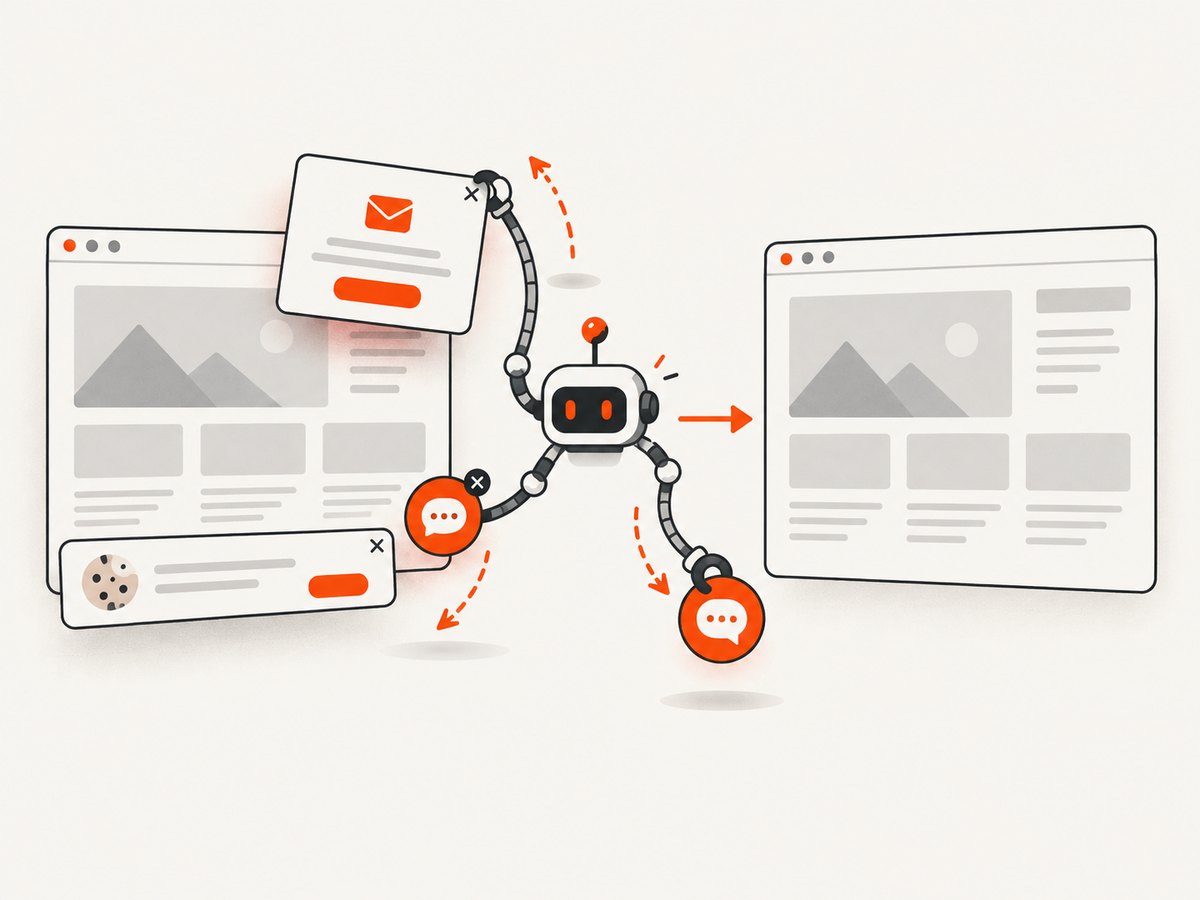
See the ScreenshotNeo API documentation for request options. Cookie banners, newsletter popups, and chat widgets are removed before capture. Bot checks, blank pages, and failed loads are never billed. Its MCP server lets AI agents take screenshots. The free plan includes 1,000 screenshots a month with no card; paid plans start at $5 for 3,000. It also returns page verdict and billing headers. For PDF file content, continue to use a download or response-processing workflow.
Sign up for ScreenshotNeo’s free plan: 1,000 screenshots a month, no card required.
10. FAQ
Does net::ERR_ABORTED always mean the PDF viewer limitation?
No. The documented limitation explains headless navigation to PDF documents, and an issue reports that error in this scenario. The same error can arise in other navigation situations, so check the URL and response.
Can I use page.goto() and then read the PDF viewer DOM?
Do not rely on that in headless mode. If the goal is document text, retrieve the file and parse it. If the goal is viewer behavior, test that UI in the browser configuration you intend to support.
Should I catch the navigation exception and continue?
Only if the test then asserts the actual outcome through another route. Ignoring the exception alone can make a test pass without proving a download, valid response, or readable PDF.
Is the route attachment workaround guaranteed?
No. It is an issue-discussion approach that should be validated against your current Playwright APIs and the target server’s response behavior.
References
- Playwright Page API:
page.goto— documents the headless PDF navigation limitation and navigation errors. - Playwright navigation guide — describes navigation stages and navigation that becomes a download.
- Playwright issue #32116 — report of
net::ERR_ABORTEDnavigating to a PDF in headless mode. - Playwright issue #7822 — discussion of PDF viewer/download behavior and a route workaround.
- Playwright issue #6342 — report concerning headless Chromium PDF viewer and download behavior.


