How to Print a Page With Playwright Without Opening the Print Dialog
Generate PDFs directly with Playwright’s page.pdf() API, control print CSS, wait for dynamic content, and avoid the browser print dialog entirely.
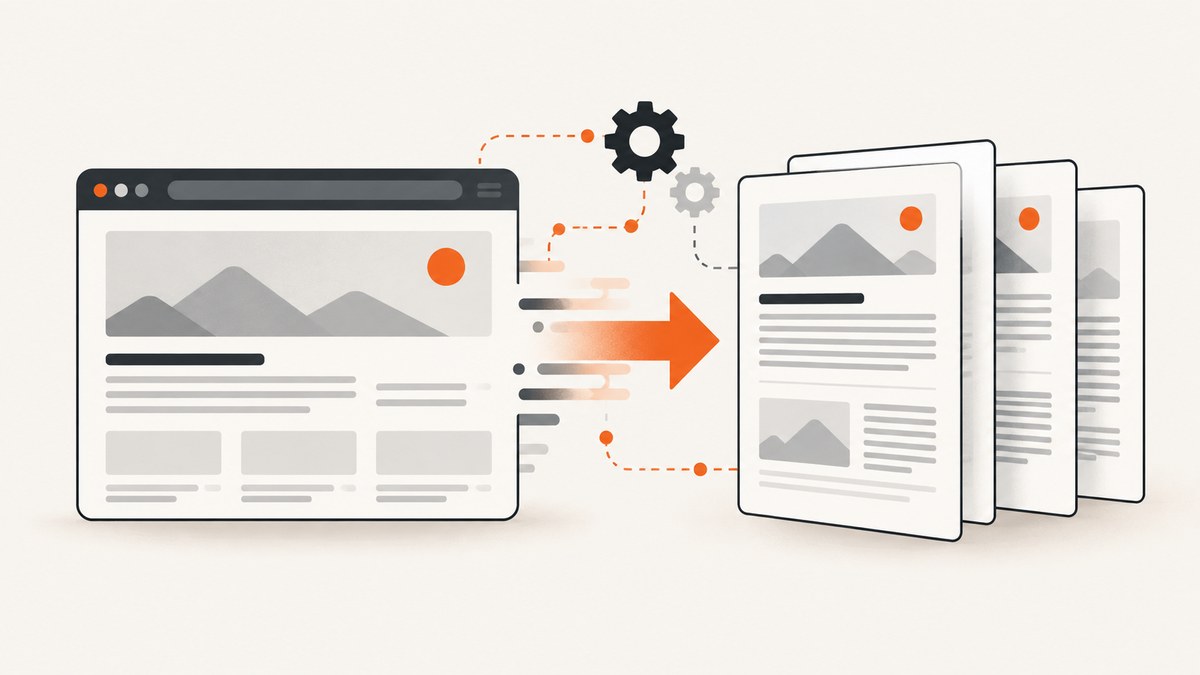
Use Playwright’s page.pdf() method to create a PDF without opening a user-facing print dialog. The method returns a PDF buffer, or saves directly to a file when you provide path. PDF output uses print CSS by default. If you need the page’s screen styles instead, call page.emulateMedia({ media: 'screen' }) before generating the PDF. The API and option details are documented in the Playwright Page API.
What “without opening the print dialog” means
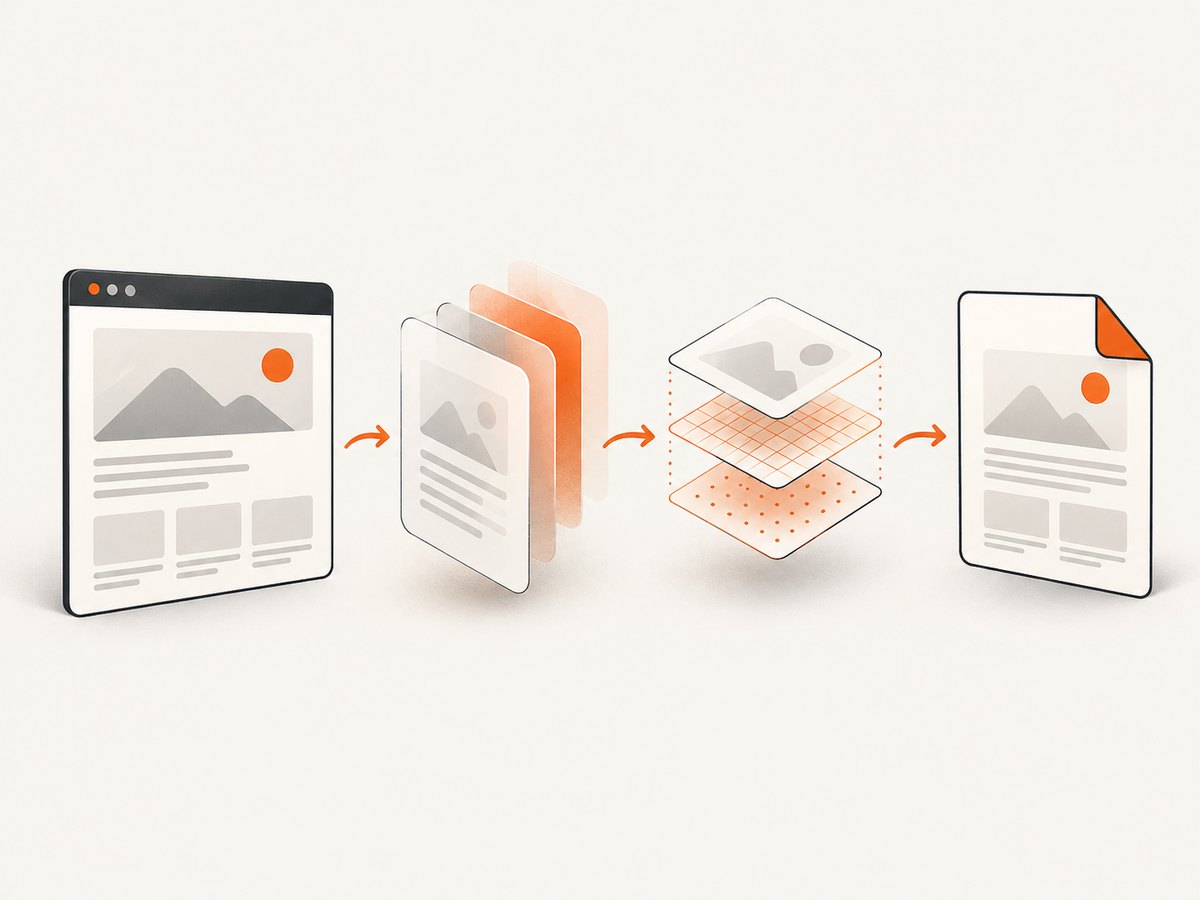
A normal browser workflow calls window.print(). That asks the browser to display a print preview or native print dialog, which requires a person or desktop automation to interact with it. Playwright’s PDF API is a separate, programmatic path: Chromium renders the page and produces PDF bytes directly. There is no dialog to click, no printer to configure, and no operating-system window to manage.
Playwright’s dialogs guide includes examples for detecting a page that calls window.print(); those examples are useful when testing that a print trigger fired, but they are not the method for creating a saved PDF. For document output, use page.pdf().
Minimal Node.js example
Install Playwright, launch Chromium, navigate to the page, and call page.pdf():
npm install playwright
npx playwright install chromium
const { chromium } = require('playwright');
(async () => {
const browser = await chromium.launch();
const page = await browser.newPage();
await page.goto('https://example.com', { waitUntil: 'load' });
await page.pdf({
path: 'page.pdf',
format: 'A4'
});
await browser.close();
})();The path is optional. Without it, page.pdf() resolves to a buffer that you can upload, return from an HTTP endpoint, or store in object storage.
Complete production-oriented example
Real pages often contain web fonts, lazy images, charts, and data loaded after the initial HTML. A reliable script defines a readiness condition, waits for fonts and images, chooses the intended CSS media, and writes the returned bytes explicitly.
const { chromium } = require('playwright');
const fs = require('node:fs/promises');

async function printPage(url) {
  const browser = await chromium.launch();
  try {
    const context = await browser.newContext({
      viewport: { width: 1440, height: 900 },
      deviceScaleFactor: 1
    });
    const page = await context.newPage();

    await page.goto(url, {
      waitUntil: 'domcontentloaded',
      timeout: 60_000
    });

    // Replace this selector with an application-specific readiness marker.
    await page.waitForSelector('[data-page-ready="true"]', {
      state: 'attached',
      timeout: 30_000
    }).catch(() => {});

    await page.evaluate(async () => {
      if (document.fonts) await document.fonts.ready;
      await Promise.all(Array.from(document.images).map(img => {
        if (img.complete) return Promise.resolve();
        return new Promise(resolve => {
          img.addEventListener('load', resolve, { once: true });
          img.addEventListener('error', resolve, { once: true });
        });
      }));
    });

    // Omit this line when print styles are the desired design.
    await page.emulateMedia({ media: 'screen' });

    const pdf = await page.pdf({
      format: 'A4',
      printBackground: true,
      preferCSSPageSize: true,
      margin: {
        top: '18mm',
        right: '16mm',
        bottom: '18mm',
        left: '16mm'
      },
      scale: 1,
      displayHeaderFooter: false
    });

    await fs.writeFile('page.pdf', pdf);
  } finally {
    await browser.close();
  }
}

printPage('https://example.com').catch(error => {
  console.error(error);
  process.exitCode = 1;
});
The readiness selector is deliberately site-specific. There is no universal signal that means every application has finished rendering. Add a marker in your application, wait for a known API response, or wait for a component that appears only after data binding is complete.
Print CSS versus screen CSS
page.pdf() uses the print media type by default. That activates rules such as:
@media print {
  .navigation, .cookie-banner, .interactive-controls {
    display: none;
  }
}

@page {
  size: A4;
  margin: 15mm;
}

.invoice {
  break-inside: avoid;
}
Keep the default when your site has a carefully designed print stylesheet. Choose screen CSS when the PDF should match the visual layout users see in the browser:
await page.emulateMedia({ media: 'screen' });
const pdf = await page.pdf({ path: 'screen-styled.pdf', format: 'A4' });
Printed colors can be adjusted by the browser. If exact background colors matter, review -webkit-print-color-adjust in the page stylesheet and validate the generated document in your target PDF viewer.
PDF options you should know
| Option | Use | Typical decision |
|---|---|---|
path |
Writes the PDF to a file. | Use for batch jobs or local artifacts. |
format |
Standard paper name such as A4 or Letter. |
Prefer a named format for predictable output. |
width, height |
Custom page dimensions with units such as px, in, cm, or mm. |
Use for receipts, labels, or unusual paper. |
margin |
Top, right, bottom, and left page margins. | Set explicitly when aligning with a print design. |
printBackground |
Includes CSS background colors and images. | Set true for branded cards or colored sections. |
preferCSSPageSize |
Lets an @page rule control size. |
Set true when CSS owns pagination. |
scale |
Scales the rendered page. | Keep at 1 unless content needs to fit. |
pageRanges |
Exports selected pages, for example 1-3. |
Useful for invoices or selected report sections. |
displayHeaderFooter |
Enables generated header and footer templates. | Use for page numbers, titles, or dates. |
headerTemplate, footerTemplate |
HTML templates with Playwright’s page-number classes. | Keep templates self-contained; external scripts do not run. |
Check the API reference for the exact option names and defaults supported by the Playwright version installed in your project. Version upgrades can change browser behavior even when your script remains the same.
Waiting for dynamic content
Navigation readiness
waitUntil: 'domcontentloaded' waits for the initial document. load also waits for load-event resources. Neither guarantees that client-side rendering, fonts, or lazy content is finished. Use a selector or application signal after navigation.
Images and fonts
Wait for document.fonts.ready to reduce fallback-font layout changes. For images, inspect document.images and resolve both load and error events so one broken image does not hang the job.
Lazy loading and infinite pages
A full PDF only contains content that has been laid out. If a site loads sections after scrolling, scroll in increments and wait for the network or a content counter before calling page.pdf(). For infinite feeds, define a finite stopping rule; otherwise the PDF can grow without bound.
Headers, cookies, authentication, and JavaScript
Use a browser context for request-level identity:
const context = await browser.newContext({
  extraHTTPHeaders: { Authorization: `Bearer ${process.env.TOKEN}` },
  locale: 'en-US',
  timezoneId: 'UTC'
});
await context.addCookies([{
  name: 'session',
  value: process.env.SESSION_COOKIE,
  domain: 'example.com',
  path: '/'
}]);
For a one-off token, set headers before navigation. Avoid putting secrets in the page URL because URLs can be logged. If the page requires a login flow, complete it in the context and verify that the authenticated content is visible before exporting.
Custom JavaScript can hide controls or expand sections immediately before capture:
await page.addStyleTag({
  content: '.print-only-hidden { display: none !important; }'
});
await page.evaluate(() => {
  document.querySelectorAll('[data-expand-for-pdf]').forEach(el => el.click());
});
Pagination and layout control
Use CSS fragmentation rules to keep logical blocks together:
.card {
  break-inside: avoid;
  page-break-inside: avoid;
}
.chapter {
  break-before: page;
}
.table-row {
  break-inside: avoid;
}
Long unbreakable strings, very wide tables, fixed-position elements, and canvases can still produce awkward pages. Test representative data, including the longest title and largest table your users can submit. A PDF is paginated output, so a layout that looks correct at one viewport may need explicit print rules.
Python Playwright example
from pathlib import Path
from playwright.sync_api import sync_playwright

with sync_playwright() as p:
    browser = p.chromium.launch()
    page = browser.new_page(viewport={"width": 1440, "height": 900})
    page.goto("https://example.com", wait_until="domcontentloaded", timeout=60000)
    page.wait_for_selector('[data-page-ready="true"]', timeout=30000)
    page.emulate_media(media="screen")
    pdf_bytes = page.pdf(
        format="A4",
        print_background=True,
        prefer_css_page_size=True,
        margin={"top": "18mm", "right": "16mm", "bottom": "18mm", "left": "16mm"},
    )
    Path("page.pdf").write_bytes(pdf_bytes)
    browser.close()
Install the Python package and browser binaries with pip install playwright followed by playwright install chromium. The asynchronous Python API uses the same page methods.
cURL and HTTP alternatives
Playwright itself is a library rather than a hosted HTTP endpoint. If your service needs a simple request instead of browser lifecycle management, ScreenshotNeo can return a PDF from one GET request. See the ScreenshotNeo documentation for the current parameter reference.

Or skip the browser setup
ScreenshotNeo accepts a URL and returns a PDF or image while handling the capture browser for you. Cookie and consent banners, newsletter popups, and chat widgets are removed before the shot. Bot checks, blank pages, failed loads, timeouts, and cache hits are not billed, and the response identifies the result with X-Page-Verdict and X-Billed headers. An MCP server lets Claude, Cursor, and other MCP clients call capture_pdf, take_screenshot, and get_page_info.
curl -G "https://api.screenshotneo.com/v1/shot" \
  -d access_key=YOUR_API_KEY \
  --data-urlencode url=https://stripe.com \
  -d format=pdf \
  -o page.pdf
import requests
r = requests.get(
"https://api.screenshotneo.com/v1/shot",
params={"access_key": "YOUR_API_KEY", "url": "https://stripe.com", "format": "pdf"},
timeout=90,
)
r.raise_for_status()
open("page.pdf", "wb").write(r.content)const q = new URLSearchParams({
access_key: 'YOUR_API_KEY',
url: 'https://stripe.com',
format: 'pdf'
});
const res = await fetch(`https://api.screenshotneo.com/v1/shot?${q}`);
if (!res.ok) throw new Error(`HTTP ${res.status}`);
require('node:fs').writeFileSync('page.pdf', Buffer.from(await res.arrayBuffer()));ScreenshotNeo also supports paper size, margins, landscape mode, page ranges, full-page capture, custom CSS and JavaScript, waits, headers, cookies, user agents, authorization, timezone, geolocation, blocking rules, caching, signed links, asynchronous jobs, webhooks, bulk capture, and a usage API. Its parameter names are compatible with those used by other screenshot APIs, which can simplify migration. The free plan includes 1,000 screenshots each month with no card; paid plans start at $5 for 3,000. Create a free ScreenshotNeo account.
Troubleshooting
| Symptom | Likely cause | Fix |
|---|---|---|
| Print dialog appears | Your code calls window.print(). |
Remove that call and use page.pdf(). |
| PDF is blank | Navigation failed, content is behind a login, or rendering was captured too early. | Check page.goto(), authenticate the context, and wait for a readiness selector. |
| Styles look wrong | Print media is active or print backgrounds are disabled. | Use emulateMedia('screen') and printBackground: true when appropriate. |
| Images are missing | Lazy loading has not run, an image request failed, or the URL is blocked. | Scroll to load lazy assets, wait for images, and inspect request failures. |
| Fonts shift between runs | Web fonts were not ready at capture time. | Await document.fonts.ready and ensure font requests succeed. |
| Content is cut off | Fixed heights, overflow rules, or a wide table conflict with pagination. | Review print CSS, remove restrictive heights, and add break rules. |
| Timeouts occur | The site is slow, blocked, or waiting for a never-ending network request. | Set a bounded timeout, wait for a real application signal, and inspect logs. |
| Browser fails to launch in CI | Missing browser binaries or Linux dependencies. | Run the Playwright browser install command in the build image and use the supported CI setup. |
Performance, reliability, and cost
Reuse a browser process for batches, but create a fresh context per tenant or authentication boundary. Close pages and contexts after each job. Set navigation and readiness timeouts so a stuck site cannot consume workers indefinitely. Limit concurrency based on CPU and memory, because each active page can render images, scripts, and fonts simultaneously.
For repeatable documents, pin your Playwright version and browser image, keep viewport and locale explicit, and compare PDFs from representative pages after upgrades. Cache stable assets where your environment allows it, but do not cache personalized responses across users. Store the PDF buffer directly when possible to avoid unnecessary temporary files.
Self-hosted Playwright costs are primarily your compute, storage, bandwidth, and operational time. ScreenshotNeo charges only for clean shots; bot checks, blank pages, failed loads, timeouts, and cache hits are free, and every plan includes all features. Choose the approach that fits your deployment, compliance, and volume requirements.
Checklist before shipping
- Use
page.pdf(), notwindow.print(). - Choose print or screen media intentionally.
- Define a page-specific readiness signal.
- Wait for fonts, images, and lazy content.
- Set paper size, margins, backgrounds, and page ranges explicitly.
- Test authenticated, empty, long, and error states.
- Bound navigation and rendering timeouts.
- Close browser resources and limit batch concurrency.
- Validate pagination with real production data.
FAQ
Does page.pdf() require a printer?
No. It generates PDF bytes in the browser process and does not use an operating-system printer or print dialog.
Can I return the PDF from an API route?
Yes. Omit path, receive the buffer, and send it with a PDF content type such as application/pdf.
Why does my PDF differ from a screenshot?
PDF output uses print media by default and applies pagination. Use screen media when appropriate, then add print-specific CSS for page breaks and hidden controls.
Can I export only selected pages?
Yes. Use the pageRanges option with the syntax supported by your Playwright version.
Should I wait for network idle?
Only when it represents readiness for your application. Analytics, polling, and long-lived connections can prevent network idle from ever occurring; a selector or application event is often more reliable.


