How to Take a Screenshot with Playwright in Python
Learn how to capture viewport, full-page, and element screenshots in Playwright Python, control output formats, stabilize images, and automate reliably.
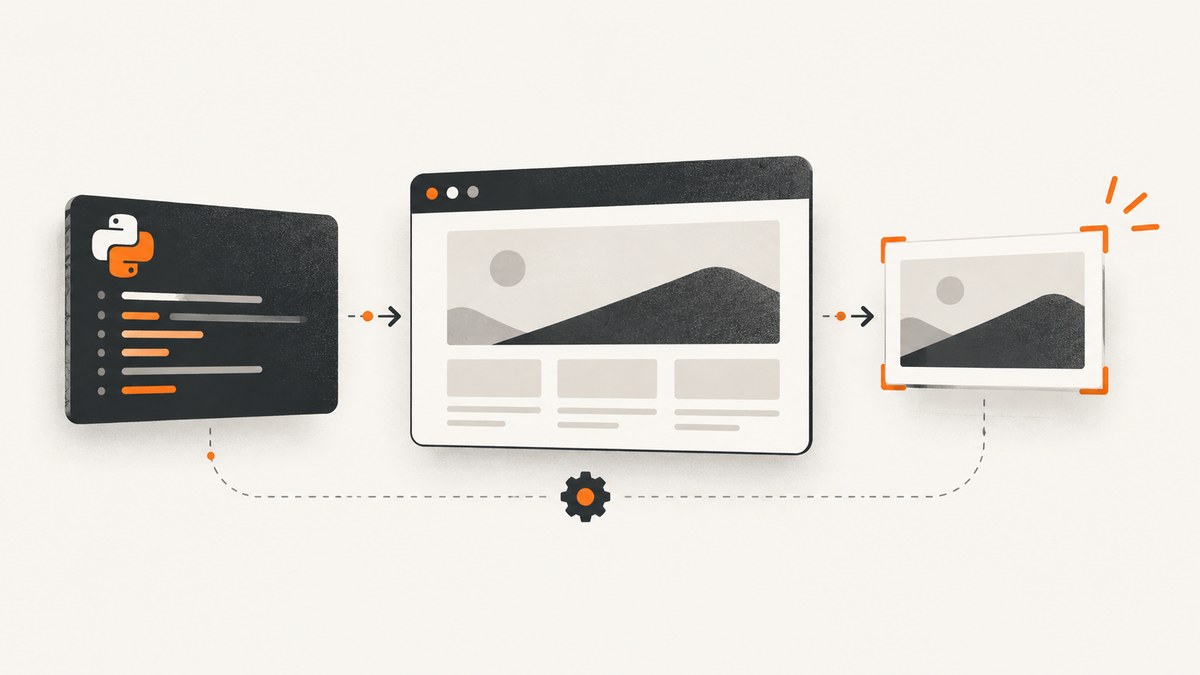
Direct answer: install Playwright, launch Chromium, open a page, and call page.screenshot(). The smallest synchronous example is:
from playwright.sync_api import sync_playwright

with sync_playwright() as p:
    browser = p.chromium.launch()
    page = browser.new_page()
    page.goto("https://example.com")
    page.screenshot(path="screenshot.png")
    browser.close()
Playwright saves PNG by default. Use full_page=True for the complete scrollable document, a locator’s screenshot() method for one element, and options such as animations, mask, clip, scale, and style to make captures stable and repeatable. The official Playwright screenshots guide documents the basic workflow.
1. Install Playwright and browser binaries
Create an isolated environment, install the Python package, and download a browser:
python -m venv .venv
source .venv/bin/activate       # Windows: .venv\\Scripts\\activate
pip install playwright
playwright install chromium
Use playwright install to install all supported browsers when your test suite needs Chromium, Firefox, and WebKit. In CI, run the install command during image setup so every worker has the browser revision expected by your Playwright package.
2. Capture a viewport screenshot
A page screenshot captures the current viewport. Set the viewport explicitly when image dimensions must be predictable:
from playwright.sync_api import sync_playwright

URL = "https://example.com"

with sync_playwright() as p:
    browser = p.chromium.launch()
    page = browser.new_page(viewport={"width": 1440, "height": 900})
    page.goto(URL, wait_until="load")
    page.screenshot(path="example-1440.png")
    browser.close()
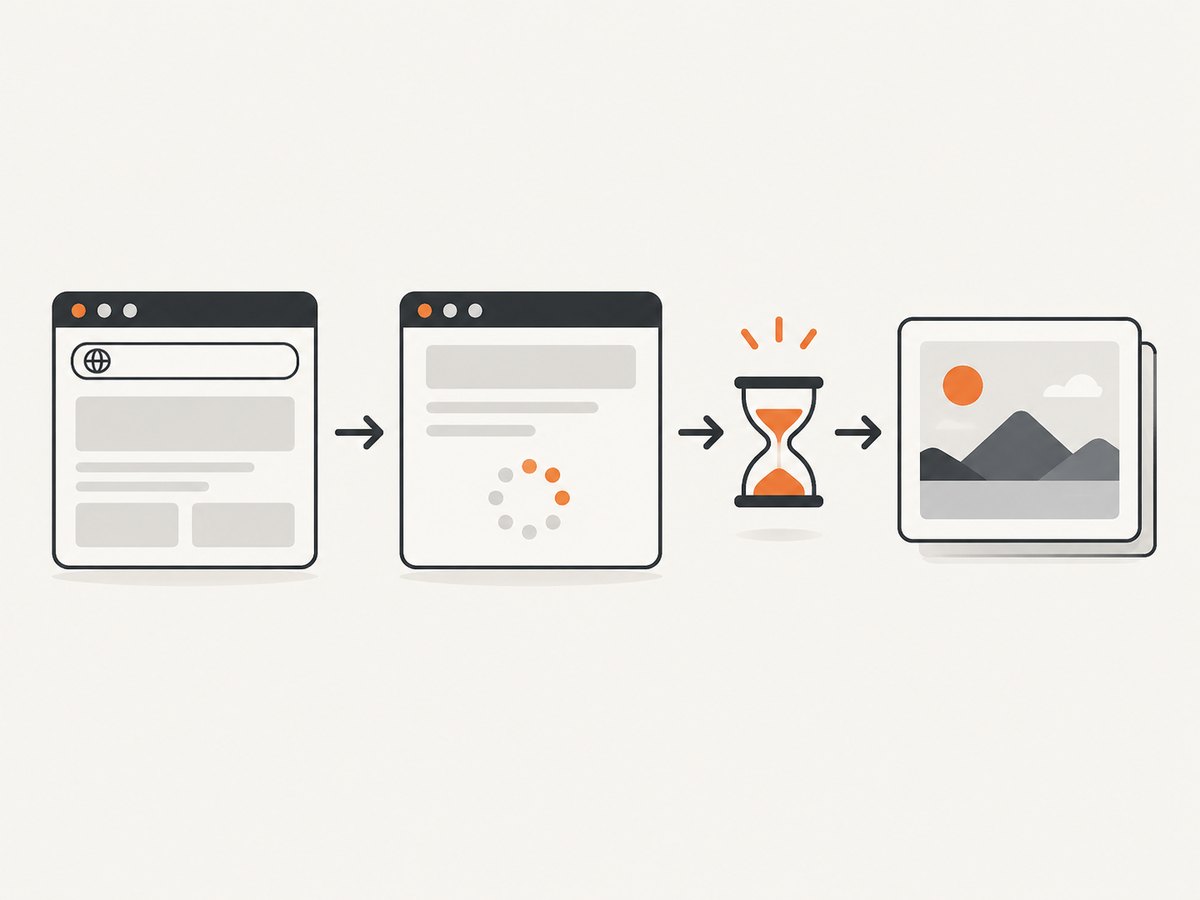
page.goto() waits for navigation according to its wait_until setting. Use load for the page load event, domcontentloaded when you only need the initial DOM, or networkidle when the page is expected to become quiet. Network idle can be slow or never occur on applications with polling, analytics, or open connections, so prefer a specific readiness locator when one exists.
3. Capture the entire page
Pass full_page=True to capture the full scrollable document instead of only the viewport:
from playwright.sync_api import sync_playwright

with sync_playwright() as p:
    browser = p.chromium.launch()
    page = browser.new_page(viewport={"width": 1365, "height": 768})
    page.goto("https://example.com", wait_until="networkidle")
    page.screenshot(path="full-page.png", full_page=True)
    browser.close()
Full-page capture is useful for documentation, visual regression artifacts, and page archives. Lazy-loaded images may not exist until their sections enter the viewport. If a site loads content while scrolling, scroll through the page before capturing:
page.goto("https://example.com", wait_until="domcontentloaded")
page.evaluate("window.scrollTo(0, document.body.scrollHeight)")
page.wait_for_timeout(500)
page.screenshot(path="loaded-full-page.png", full_page=True)
For production automation, replace an arbitrary delay with a locator that proves the final content is present whenever possible.
4. Capture one element
Use a locator when you need a component, card, header, or other region rather than the entire page:
from playwright.sync_api import sync_playwright

with sync_playwright() as p:
    browser = p.chromium.launch()
    page = browser.new_page()
    page.goto("https://example.com")

    page.locator("header").screenshot(path="header.png")
    page.get_by_role("link", name="More information").screenshot(path="link.png")

    browser.close()
Locator screenshots perform actionability checks and scroll the element into view. If an overlay covers part of the element, the covered pixels are not visible. For a scrollable container, only the currently scrolled content is captured; element screenshots do not automatically stitch every scroll position inside that container. Use a more specific locator than a broad class when a page contains repeated components.
5. Choose PNG, JPEG, or WebP
When path is supplied, Playwright infers the format from the extension. PNG is the default when no type is specified. JPEG and WebP reduce file size, with a quality trade-off:
page.screenshot(path="shot.png")
page.screenshot(path="shot.jpg", quality=85)   # JPEG quality: 0-100
page.screenshot(path="shot.webp", quality=80)  # WebP quality: lower is smaller
JPEG does not support transparency. WebP quality 100 is lossless; lower values are lossy. WebP screenshot support is documented for Playwright Python 1.62 in the Microsoft Playwright release notes. Choose PNG for pixel-sensitive tests, JPEG for photographic pages where small files matter, and WebP for a compact modern format.
6. Use the asynchronous Python API
Async Playwright fits applications that already use asyncio and lets one process coordinate many pages:
import asyncio
from playwright.async_api import async_playwright

async def main():
    async with async_playwright() as p:
        browser = await p.chromium.launch()
        page = await browser.new_page(viewport={"width": 1440, "height": 900})
        await page.goto("https://example.com", wait_until="networkidle")
        await page.screenshot(path="async-shot.png", full_page=True)
        await browser.close()

asyncio.run(main())
Every browser, page, navigation, locator, and screenshot operation is awaited. Keep one browser process alive for a batch and create separate pages or contexts for isolated sessions.
7. Make captures deterministic
Disable animations
Animated cursors, transitions, and loading indicators create visual diffs. Set animations="disabled"; finite animations are fast-forwarded and infinite animations are canceled for the screenshot.
page.screenshot(path="stable.png", animations="disabled")Mask dynamic or sensitive regions
Mask a locator to cover changing data such as timestamps or account details. The default overlay is pink #FF00FF; set mask_color to another color:
page.screenshot(
    path="masked.png",
    mask=[page.locator(".live-price"), page.locator("[data-sensitive]")],
    mask_color="#444444",
)
Inject screenshot-only CSS
The style option adds CSS only during capture. The stylesheet can pierce Shadow DOM and apply to inner frames:
page.screenshot(
    path="no-cursor.png",
    style="* { caret-color: transparent !important; } .timestamp { visibility: hidden !important; }",
)
Clip a rectangle
Use clip for a rectangular region in page coordinates:
page.screenshot(
    path="hero.png",
    clip={"x": 0, "y": 120, "width": 1200, "height": 500},
)
Control pixel density
scale="device" is the default and can produce larger images on high-DPI displays. Use scale="css" for one output pixel per CSS pixel:
page.screenshot(path="css-sized.png", scale="css")Set color scheme and device context
Configure the browser context before navigation for repeatable responsive captures:
context = browser.new_context(
    viewport={"width": 390, "height": 844},
    device_scale_factor=2,
    color_scheme="dark",
    is_mobile=True,
)
page = context.new_page()
Use a named device descriptor when you want Playwright’s bundled user agent, viewport, and touch settings. Explicit viewport and device scale factor are easier to audit in a visual pipeline.
8. Wait for the right state
Waiting for a selector is usually more reliable than sleeping:
page.goto("https://example.com/dashboard", wait_until="domcontentloaded")
page.locator("[data-testid='dashboard-ready']").wait_for(state="visible")
page.screenshot(path="dashboard.png")
Use page.wait_for_timeout(milliseconds) only for a short, known delay such as letting a transition settle. For a request-driven component, wait for the response or for a visible state. If fonts affect layout, wait for document.fonts.ready:
page.evaluate("document.fonts.ready")9. Keep screenshots in memory
Omit path to receive image bytes. This avoids temporary files when uploading to object storage or attaching an artifact:
image_bytes = page.screenshot(type="png")
with open("memory-shot.png", "wb") as f:
    f.write(image_bytes)
For WebP or JPEG in memory, pass type="webp" or type="jpeg"; pass quality for the lossy formats.
10. Complete reusable script
This command-line script demonstrates URL, output path, full-page mode, viewport, format, quality, and animation control:
#!/usr/bin/env python3
import argparse
from pathlib import Path
from playwright.sync_api import sync_playwright

parser = argparse.ArgumentParser()
parser.add_argument("url")
parser.add_argument("-o", "--output", default="screenshot.png")
parser.add_argument("--full-page", action="store_true")
parser.add_argument("--width", type=int, default=1440)
parser.add_argument("--height", type=int, default=900)
args = parser.parse_args()

suffix = Path(args.output).suffix.lower()
image_type = {".png": "png", ".jpg": "jpeg", ".jpeg": "jpeg", ".webp": "webp"}.get(suffix)
if image_type is None:
    raise SystemExit("Output must end in .png, .jpg, .jpeg, or .webp")

with sync_playwright() as p:
    browser = p.chromium.launch()
    page = browser.new_page(viewport={"width": args.width, "height": args.height})
    page.goto(args.url, wait_until="networkidle")
    options = {
        "path": args.output,
        "type": image_type,
        "full_page": args.full_page,
        "animations": "disabled",
    }
    if image_type in ("jpeg", "webp"):
        options["quality"] = 85
    page.screenshot(**options)
    browser.close()
Run it with python capture.py https://example.com --full-page -o example.webp.
11. Equivalent cURL and Node.js workflows
Playwright itself is Python, but these examples are useful when comparing an API service or integrating with another runtime.
curl -L "https://example.com" -o page.htmlconst { chromium } = require('playwright');
(async () => {
const browser = await chromium.launch();
const page = await browser.newPage({ viewport: { width: 1440, height: 900 } });
await page.goto('https://example.com', { waitUntil: 'networkidle' });
await page.screenshot({ path: 'node-shot.png', fullPage: true, animations: 'disabled' });
await browser.close();
})();12. Or skip the browser setup
ScreenshotNeo provides a website screenshot API and MCP server. One GET request returns PNG, JPEG, WebP, or a PDF. See the ScreenshotNeo API documentation for all options.

curl -G "https://api.screenshotneo.com/v1/shot" -d access_key=YOUR_API_KEY --data-urlencode url=https://stripe.com -o shot.webpimport requests
r = requests.get("https://api.screenshotneo.com/v1/shot", params={"access_key": "YOUR_API_KEY", "url": "https://stripe.com"}, timeout=90)
open("shot.webp", "wb").write(r.content)const q = new URLSearchParams({ access_key: 'YOUR_API_KEY', url: 'https://stripe.com' });
const res = await fetch(`https://api.screenshotneo.com/v1/shot?${q}`);ScreenshotNeo removes cookie and consent banners, newsletter popups, and chat widgets before capture. Bot checks, blank pages, timeouts, failed loads, and cache hits are not billed; response headers identify the page verdict and billing result. Its MCP server exposes take_screenshot, get_page_info, and capture_pdf for Claude, Cursor, and other MCP clients. The Free plan includes 1,000 screenshots per month without a card, and paid plans start at $5 for 3,000 shots. Create a free ScreenshotNeo account.
13. Troubleshooting
| Symptom | Likely cause | Fix |
|---|---|---|
Executable doesn't exist |
Browser binaries are missing. | Run playwright install chromium in the same environment as your script. |
| Screenshot is blank | Capture happened before the app rendered, or navigation failed. | Check the response and console, use wait_until="domcontentloaded", then wait for a ready locator. |
| Full page misses images | Images are lazy-loaded. | Scroll through the document, wait for image locators, then capture. |
| Element is partly missing | An overlay covers it, or a scroll container is not at the needed position. | Dismiss the overlay, use screenshot-only CSS, and scroll the container before capture. |
| Layout changes between runs | Animations, fonts, time, or responsive dimensions vary. | Set viewport and color scheme, disable animations, await fonts, and mask dynamic regions. |
Timeout on networkidle |
Polling or analytics keep network connections open. | Wait for a concrete selector or response instead of network idle. |
| Permission or certificate errors | The target requires authentication or uses an untrusted certificate. | Provide context credentials or headers where appropriate; only bypass certificate checks in controlled environments. |
| JPEG option rejected | JPEG quality is outside the supported range. | Use an integer from 0 through 100 and remember JPEG cannot preserve transparency. |
14. Performance, reliability, and cost considerations
- Reuse the browser: launch one browser per worker and create contexts or pages per job. Browser startup is more expensive than another page.
- Limit concurrency: too many full-page captures compete for CPU, memory, and network bandwidth. Use a bounded queue.
- Prefer targeted captures: locator screenshots and clipped regions produce smaller files and less work than stitching a very long page.
- Control output size: CSS scale, JPEG/WebP quality, and explicit viewport dimensions keep artifacts manageable.
- Retry carefully: retry transient navigation failures with a limit, but preserve the URL and error for diagnosis. Do not hide deterministic selector failures with endless retries.
- Cache intentionally: cache only when the page state and authentication are safe to reuse. Visual tests generally need fresh content.
- Budget hosted capture: with ScreenshotNeo, only clean shots are billed; bot checks, blank pages, timeouts, failed loads, and cache hits cost nothing. Plans range from 1,000 free monthly shots to paid tiers beginning at $5 for 3,000.
15. FAQ
Can Playwright save screenshots without a file?
Yes. Omit path; page.screenshot() returns image bytes that you can upload or process in memory.
Which format is best for visual regression tests?
PNG is usually the safest default because it is lossless. Use WebP or JPEG when storage and transfer size matter more than exact pixel encoding.
Does full_page=True capture an infinitely scrolling feed?
It captures the document’s scrollable height at capture time. Infinite feeds must be scrolled and allowed to load before the screenshot.
How do I capture a Shadow DOM component?
Locate the host or inner element with Playwright’s locator APIs. The screenshot style option can apply screenshot-only CSS through Shadow DOM.
When should I use ScreenshotNeo instead of running Chromium?
Use it when you want a single HTTP call, hosted browser execution, consent and popup cleanup, billing that excludes failed captures, or MCP tools for AI agents.
16. Practical checklist
- Install the Playwright package and matching browser binaries.
- Set an explicit viewport and color scheme for repeatability.
- Choose viewport, full-page, locator, or clip scope.
- Wait for a specific ready state and fonts.
- Disable animations and mask changing data.
- Select PNG, JPEG, or WebP deliberately and set quality when needed.
- Reuse browsers, bound concurrency, and record failures.
- Use ScreenshotNeo when a hosted, cleaned, API or MCP workflow is a better fit.


