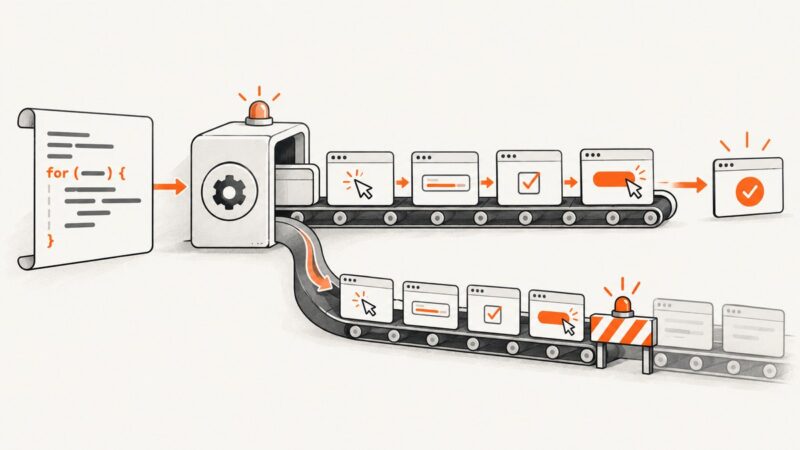
How to Use Playwright in Ruby for Scraping and Testing
Set up playwright-ruby-client, launch a compatible browser, and use Ruby to interact with pages for scraping or UI checks.

Short answer: use the playwright-ruby-client gem to control a Playwright browser from Ruby. The gem is a client binding; it does not bundle Node.js, Playwright itself, or browser binaries. Install compatible Playwright components, launch Chromium, navigate to a page, interact with it, and read the results. The same browser-control pattern can support UI checks, though the reviewed project documentation does not establish a built-in Ruby test runner or a particular test framework integration.
This guide follows the setup and examples in the playwright-ruby-client project README. Package versions and compatibility change, so check the current README and RubyGems release information before copying version-specific commands.
1. Understand the Ruby-to-browser setup
The Ruby gem communicates with Playwright, which in turn controls browser processes. The project’s documented local setup uses Node.js, a compatible playwright-core release, and installed browser binaries. You then point the Ruby client at the Playwright CLI executable. The Ruby code controls the browser, but the supporting runtime and browser installation are separate pieces.
There are two documented execution arrangements:
- Local launch: the Ruby process starts Chromium on the same machine or container. Choose this when the runtime can install browser binaries and launch browser processes.
- Separate Playwright server: run the Playwright server separately and connect to it from Ruby. Consider this when your Ruby environment cannot launch a browser locally and your team can operate a separate server. The README documents the pattern; it does not guarantee compatibility with every hosting platform or remote service.
The RubyGems listing included in the research dossier reports version 1.62.0, dated August 1, 2026, and a minimum Ruby version of 2.4. Those are time-sensitive registry details, not a promise that those are the current values when you read this. Verify the package’s current Ruby requirement and the README’s compatibility instructions for your chosen gem version.
2. Install the gem and its compatible Playwright runtime
Add the gem to your application’s Gemfile:
source "https://rubygems.org"

gem "playwright-ruby-client"
Then install it with Bundler:
bundle installInstall Node.js separately if it is not already available in the environment. Next, ask the installed Ruby gem which Playwright version it expects, install that exact playwright-core version, and install the browser binaries. The README’s version-derivation pattern is:
bundle exec ruby -rplaywright -e 'puts Playwright::COMPATIBLE_PLAYWRIGHT_VERSION'Use the printed version in the npm commands. For example, if the command prints <compatible-version>:
npm install --no-save playwright-core@<compatible-version>
npx playwright install chromium
Replace the placeholder with the version printed by your installed gem; angle brackets are not literal shell syntax to copy. The README describes installing the compatible release and browser binaries. Use its current instructions for your platform, especially if your deployment image needs additional browser operating-system dependencies.
3. Launch Chromium and open a page from Ruby
The following complete example uses the local-launch arrangement documented by the project. Set PLAYWRIGHT_CLI to the Playwright CLI executable installed in your environment. The README’s setup configures playwright_cli_executable_path, creates a client, launches Chromium, and opens a page.

require "playwright"

cli_path = ENV.fetch("PLAYWRIGHT_CLI")

Playwright.create(playwright_cli_executable_path: cli_path) do |playwright|
  browser = playwright.chromium.launch(headless: true)

  begin
    page = browser.new_page
    page.goto("https://example.com")
    puts page.title
  ensure
    browser.close
  end
end
For a local script, export the executable path before running it, using the actual path in your installation:
export PLAYWRIGHT_CLI="/path/to/playwright/cli"
bundle exec ruby script.rb
The path is environment-specific. Locate the CLI produced by your installation rather than assuming that a path from another machine will work. Keep browser closure in an ensure block so exceptions during navigation or extraction do not leave the process running.
4. Scrape content that appears after interaction
Browser automation is useful when the content you need appears after client-side rendering or an interaction. The project README’s scraping example searches GitHub, waits for result elements, selects them, and reads their text. Its selectors are specific to that example and should not be reused blindly on another site.
Here is the workflow in Ruby, following that documented pattern. Adapt the URL, controls, and selectors to the page you are allowed to access:
require "playwright"

cli_path = ENV.fetch("PLAYWRIGHT_CLI")
search_url = "https://github.com/search?q=playwright&type=repositories"

Playwright.create(playwright_cli_executable_path: cli_path) do |playwright|
  browser = playwright.chromium.launch(headless: true)

  begin
    page = browser.new_page
    page.goto(search_url)

    # Wait for a result element that exists on the target page.
    page.wait_for_selector("[data-testid='results-list']")

    results = page.locator("[data-testid='results-list']").all
    results.each do |result|
      puts result.text_content
    end
  ensure
    browser.close
  end
end
The selector above illustrates the shape of the workflow, not a universal or guaranteed selector. Inspect the target page and replace it with a locator that matches its current markup. If a page requires typing into a search box or clicking a control, locate that control, perform the interaction, wait for the resulting content, and then extract the relevant text.
Make extraction resilient
- Navigate to the intended page. Confirm the final page is the expected result after redirects or consent screens.
- Interact only when needed. Use the page’s actual controls and allowed access flow.
- Wait for a meaningful condition. Prefer waiting for the result element your extraction depends on over assuming that navigation means the content is ready.
- Extract only the fields you need. Read text from relevant elements rather than treating the entire document as structured data.
- Handle missing results. A selector timeout or empty result set can mean the page changed, the query returned no matches, or access was restricted. Record enough context to distinguish these cases.
Browser automation is not always necessary. If the relevant information is available directly in a page response or a documented API, evaluate that simpler route for your use case. The sources here do not establish that browser automation is faster, more reliable, or permitted by any particular website’s terms. Check site-specific access restrictions and adapt your approach responsibly.
5. Use the same browser-control pattern for UI checks
A browser-driven check follows the same basic sequence: open a page, perform an interaction, wait for an observable result, and inspect the resulting page state. For example, a check might navigate to a route and read a heading. The project documentation confirms browser navigation and interaction examples, but the reviewed sources do not establish an official Ruby test runner, assertion library, or recommended test architecture for this gem.
require "playwright"

cli_path = ENV.fetch("PLAYWRIGHT_CLI")

Playwright.create(playwright_cli_executable_path: cli_path) do |playwright|
  browser = playwright.chromium.launch(headless: true)

  begin
    page = browser.new_page
    page.goto("https://example.com")
    page.wait_for_selector("h1")

    heading = page.locator("h1").text_content
    abort "Expected heading was missing" if heading.nil? || heading.strip.empty?

    puts "Page heading: #{heading.strip}"
  ensure
    browser.close
  end
end
This standalone example uses Ruby’s built-in abort to make a simple check fail with a nonzero exit status. If you integrate browser steps with a third-party Ruby test framework, verify that framework’s current setup and lifecycle guidance independently; that integration is not established by the sources cited here.
6. Connect to a separately run Playwright server
If the Ruby runtime cannot install or launch a local browser, the project README describes starting playwright-core run-server separately and connecting with Playwright.connect_to_browser_server. The CLI executable path is unnecessary for this remote connection call, according to the README.
require "playwright"

server_endpoint = ENV.fetch("PLAYWRIGHT_SERVER_ENDPOINT")

Playwright.connect_to_browser_server(server_endpoint) do |playwright|
  browser = playwright.chromium
  page = browser.new_page
  page.goto("https://example.com")
  puts page.title
end
Start and operate the server according to the project’s current README, then set PLAYWRIGHT_SERVER_ENDPOINT to the endpoint your environment provides. Treat connectivity, authentication, network routing, and server lifecycle as deployment-specific configuration. The documented connection pattern is an option for constrained environments, not a guarantee that a particular hosting provider is already configured to support it.
7. Choose local launch or a separate server
| Question | Local browser | Separate server |
|---|---|---|
| Can the Ruby runtime install browser binaries? | Needed for the documented local setup. | Browser installation is handled with the separately run server. |
| Can the Ruby process launch browser processes? | Yes, this is the local-launch arrangement. | Ruby connects to the server instead. |
| What configuration does Ruby need? | The Playwright CLI executable path. | The server endpoint; the README says the CLI path is not needed for this connection call. |
| What should you verify? | Version compatibility, browser installation, and runtime dependencies. | Server startup, endpoint reachability, and your environment’s connection configuration. |
The repository documents both arrangements but does not provide a performance, cost, or reliability comparison between them. Choose based on which runtime you can operate and support.
8. Troubleshoot common failures
| Symptom | Likely cause | What to check |
|---|---|---|
Ruby cannot load playwright |
The gem is not installed in the bundle or the script is using a different Ruby environment. | Run the script with bundle exec and check that playwright-ruby-client is in the active Gemfile. |
| The CLI cannot be found or started | playwright_cli_executable_path points to the wrong executable or the runtime lacks the expected installation. |
Check PLAYWRIGHT_CLI, confirm the path exists in the running environment, and follow the README’s setup for your installed gem. |
| Playwright version or protocol mismatch | The installed playwright-core version may not match the Ruby gem’s compatible version. |
Print Playwright::COMPATIBLE_PLAYWRIGHT_VERSION from the installed gem and install the matching Playwright release as described by the README. |
| Browser launch fails in a container | Browser binaries may not be installed, or the deployment image may not meet browser runtime requirements. | Install the browser binaries using the project’s instructions and check the image’s required operating-system dependencies. |
| Navigation succeeds but results are empty | The selector may not match current markup, results may need interaction or more time, or the page may show an access restriction. | Inspect the rendered page, update the selector, wait for the actual result condition, and handle site-specific restrictions responsibly. |
| Waiting for a selector times out | The expected element did not appear before the wait expired. | Confirm the URL and page state, verify the selector, and check whether the page needs a user interaction first. |
| Remote connection fails | The server may not be running or reachable from the Ruby process, or the endpoint may be incorrect. | Check server startup and endpoint configuration. The README documents the connection pattern, but deployment networking must be configured for your environment. |
| Browser process remains after an error | Cleanup did not run after an exception. | Close the browser in an ensure block, as in the examples. |
9. Performance, reliability, and cost considerations
The sources establish setup and browser-control patterns, not measured speed, throughput, or reliability guarantees. Avoid assuming that a browser workflow will outperform a direct request or behave identically across environments. For repeatable jobs, make the work observable: log the target URL, the stage that failed, and whether the expected selector appeared. Keep browser cleanup in an exception-safe path. When page structure changes, selectors and waits may need updating.

Cost depends on the environment and services you choose; the reviewed project and registry sources do not provide a price comparison for local browsers or remote browser infrastructure. Local execution requires maintaining the compatible runtime and browser binaries. A separate server moves browser operation into another process or service that your team must configure. Evaluate those operational requirements for your deployment rather than assuming a particular savings or performance result.
Or skip the browser setup
If your task is to capture a page as an image or PDF, ScreenshotNeo provides a website screenshot API and MCP server. A single GET request can return a PNG, JPEG, WebP, or PDF. Its capture flow accepts cookie and consent banners like a visitor, then removes more than 60 known consent platforms, newsletter popups, and chat widgets before the screenshot; each of those steps can be turned off.
Here is the one-call cURL example:
curl -G "https://api.screenshotneo.com/v1/shot" -d access_key=YOUR_API_KEY --data-urlencode url=https://example.com -o shot.webpSee the ScreenshotNeo API documentation for request options. Bot checks, blank pages, timeouts, and failed loads are not billed, and cache hits cost nothing; each response identifies the page verdict and billing status in X-Page-Verdict and X-Billed headers. An MCP server provides take_screenshot, get_page_info, and capture_pdf tools for Claude, Cursor, and other MCP clients. The free plan includes 1,000 shots per month with no card; paid plans start at $5 for 3,000 shots.
Create a free ScreenshotNeo account to get 1,000 screenshots a month with no card.
10. FAQ
Does the Ruby gem install Chromium for me?
No. The project describes the Ruby gem as a client binding and instructs users to install compatible Playwright components and browser binaries separately.
Can I use Playwright in Ruby without Node.js?
The documented setup calls for Node.js and a compatible playwright-core installation. For a remote arrangement, the README describes connecting Ruby to a separately run server; check its current instructions for the runtime details.
Is there an official Ruby test runner included?
The reviewed sources do not establish a built-in Ruby test runner or a specific test-framework integration. They show the general browser navigation and interaction pattern.
Can I reuse the README’s scraping selectors?
Only where they match the target page. The README’s GitHub selectors illustrate a workflow; they are not universal selectors.
When is a screenshot API a better fit?
When the deliverable is a page image or PDF and you do not need Ruby code to interact with page controls and extract custom data. ScreenshotNeo also offers an MCP server for agent-driven captures.