Playwright Examples for Web Scraping and Automation
Learn to scrape pages and automate browser tasks with Playwright, from resilient locators and isolated sessions to screenshots and downloads.
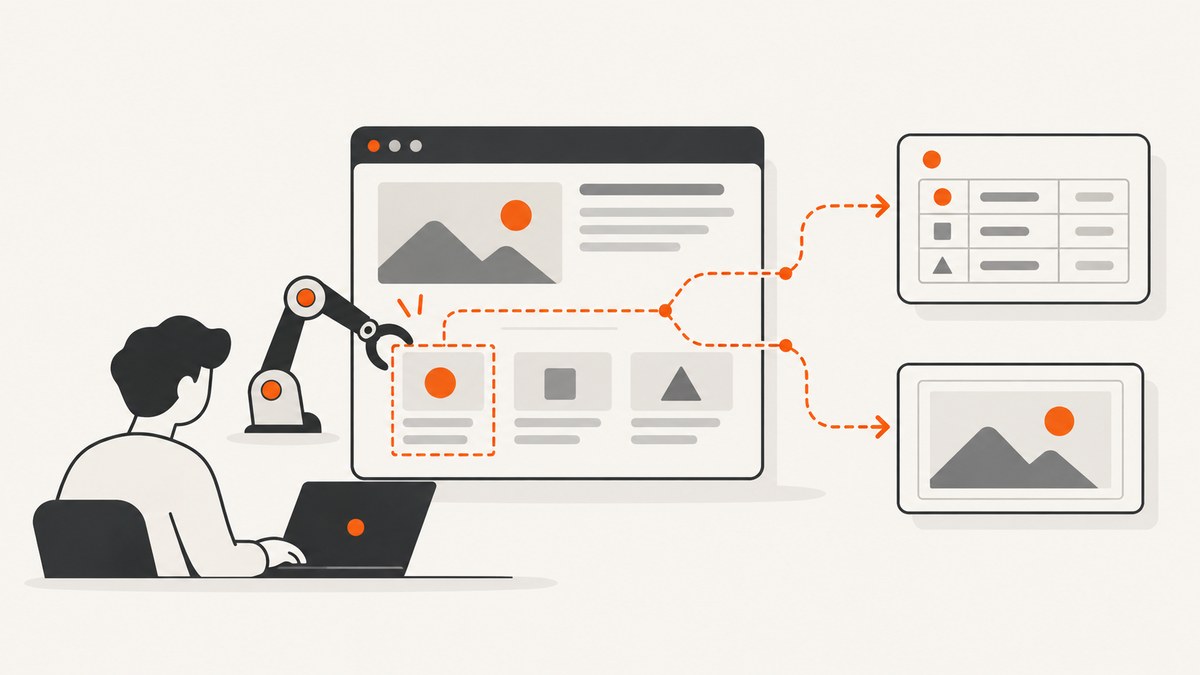
Playwright can automate a browser to navigate to a page, read visible content, interact with controls, take screenshots, and save downloads. The practical pattern is to launch a browser, create an isolated browser context and page, navigate, wait for a meaningful page condition, then use resilient locators to extract or act on the elements you need. This guide uses JavaScript with the Playwright library; it also shows how to capture screenshots, manage separate sessions, and handle downloads.
Playwright code does not guarantee that a site exposes the data you want or permits automated collection. Use it only where your access and use are authorized, and adapt selectors to the target page’s actual markup. The official docs recommend user-facing locators such as roles and accessible names because they express what a user sees and support Playwright’s auto-waiting and retry behavior. Playwright locator guide
1. Install and run a first scraping example
This is standalone Playwright library code, not a Playwright Test fixture. In a new Node.js project, install the package and browser binaries:
npm init -y
npm install playwright
npx playwright install chromium
Save this as scrape.mjs and run node scrape.mjs. It navigates to an illustrative page, waits for a heading, reads article elements, prints the result, and closes the browser even if navigation or extraction throws an error.
import { chromium } from 'playwright';

const url = 'https://example.com';
const browser = await chromium.launch({ headless: true });

try {
  const context = await browser.newContext();
  const page = await context.newPage();

  await page.goto(url, { waitUntil: 'domcontentloaded', timeout: 30_000 });
  await page.getByRole('heading', { name: 'Example Domain' }).waitFor();

  const title = await page.title();
  const headings = await page.getByRole('heading').allTextContents();
  console.log(JSON.stringify({ url: page.url(), title, headings }, null, 2));
} finally {
  await browser.close();
}
The example page has no article cards, so its extracted data is intentionally limited. For a real target, choose a condition that signals the content you need is ready, then map only the fields your task requires. The official Page API documents navigation and screenshot workflows; see the Page API.
2. Choose locators that survive page changes
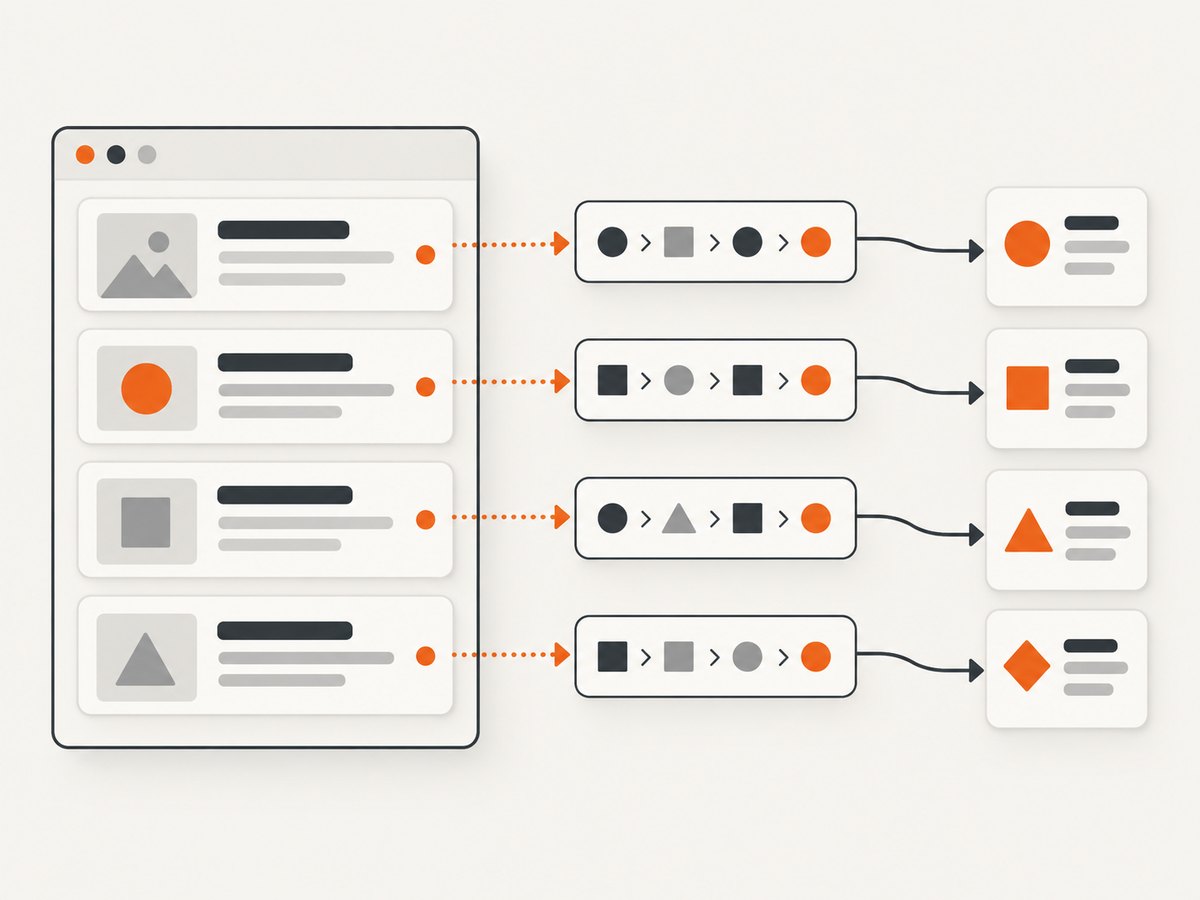
Start with built-in locators: getByRole, getByText, getByLabel, getByPlaceholder, getByAltText, getByTitle, and getByTestId. For controls, a role plus accessible name is often clearest. For example:
const search = page.getByRole('searchbox', { name: 'Search' });
await search.fill('Playwright locators');
await page.getByRole('button', { name: 'Submit search' }).click();
await page.getByRole('heading', { name: 'Search results' }).waitFor();
Accessible names and labels vary by site. Inspect the page and use a locator that matches its actual content. If a page provides a stable test ID as an explicit contract, getByTestId can be appropriate. CSS and XPath are available, but selectors tied to long chains of nested DOM structure tend to encode implementation details that can change. Prefer a user-facing locator when it can identify the element reliably. Playwright Best Practices
When several cards contain similar buttons, first identify the correct parent by its text, then locate the child within that parent. That avoids clicking a matching button in the wrong card:
const product = page.getByRole('listitem').filter({ hasText: 'Green tea' });
await product.getByRole('button', { name: 'Add to cart' }).click();
For extraction, locate a repeated semantic element and evaluate a focused DOM operation:
const articles = page.getByRole('article');
const rows = await articles.evaluateAll(items =>
  items.map(item => ({
    text: item.textContent?.trim() ?? '',
    link: item.querySelector('a')?.href ?? null
  }))
);
console.log(rows);
Validate and normalize values after collection: check that expected links exist, trim whitespace, parse dates deliberately, and handle missing fields. The output depends on the target page’s markup; a selector that works on one site is not a general schema for others. The locator guide covers filtering and DOM evaluation.
3. Wait for the page condition you need
Waiting for domcontentloaded is useful when the document has been parsed, but data may still arrive through client-side rendering or later requests. Wait for the specific heading, row, or status that indicates your required content is available:
await page.goto(url, { waitUntil: 'domcontentloaded' });
const results = page.getByRole('list', { name: 'Results' });
await results.waitFor({ state: 'visible', timeout: 15_000 });
const items = await results.getByRole('listitem').allTextContents();
A fixed delay such as waitForTimeout(2000) can be useful while diagnosing a page, but it is not a reliable readiness test: a fast page wastes time and a slow page can still be incomplete. Prefer a locator or state tied to the task. Avoid collecting dynamic lists immediately. In particular, locator.all() returns the current matches without waiting for a changing list to finish loading, so wait for an explicit readiness condition first. Locator API
4. Keep sessions separate with browser contexts
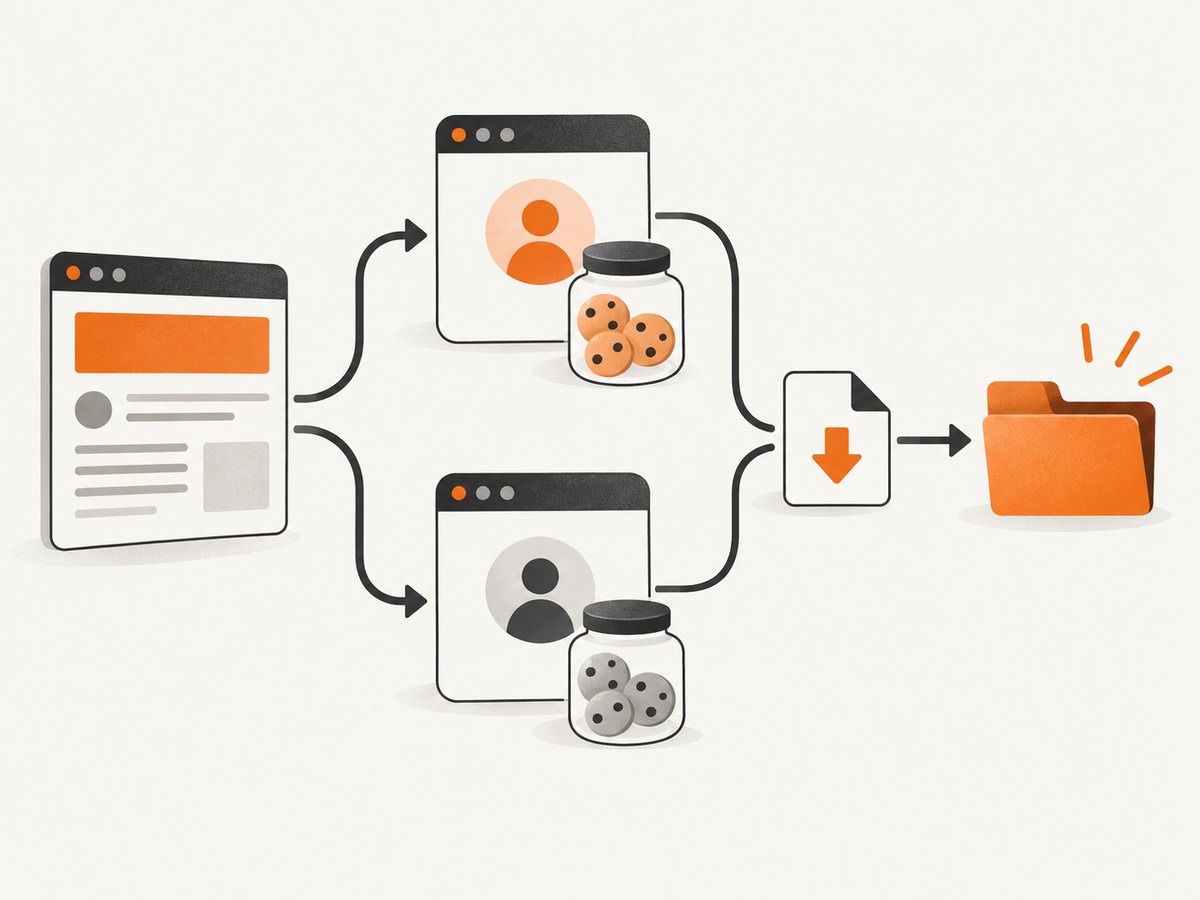
A BrowserContext is an isolated, incognito-like browser profile. It separates state such as cookies and local storage, which is useful when automating different accounts or comparing pages as separate users. Create distinct contexts rather than letting one user’s session state leak into another workflow. Context isolation does not grant access to content or bypass a site’s access controls. Browser context isolation
const browser = await chromium.launch();
try {
  const userA = await browser.newContext();
  const userB = await browser.newContext();
  const pageA = await userA.newPage();
  const pageB = await userB.newPage();

  await pageA.goto('https://example.com');
  await pageB.goto('https://example.com');
  // Each context maintains its own browser state.
} finally {
  await browser.close();
}
Keep a context alive for the steps that need its session, and close it when finished if the browser remains open for other work. For one-off scripts, closing the browser in finally is a simple cleanup boundary.
5. Take a page or element screenshot
Use page.screenshot() to save the rendered page as an image. The full-page option captures beyond the current viewport. For an element-focused capture, call screenshot() on its locator:
await page.goto('https://example.com');
await page.screenshot({ path: 'page.png', fullPage: true });

const heading = page.getByRole('heading', { name: 'Example Domain' });
await heading.screenshot({ path: 'heading.png' });
Make the page ready before capturing: wait for the content that matters, and decide whether the viewport or full document is the intended result. A screenshot reflects the browser’s rendered state at capture time. For format and other capture options, consult the API documentation for the installed Playwright version rather than assuming a forward-looking next guide describes your release. Stable Page API documentation
6. Wait for and save a download
Start waiting for the download event before clicking the control that triggers it. Then save the completed download before closing its browser context; files associated with a context are deleted when that context closes. Validate suggested filenames and output paths in production scripts. Download API
import { chromium } from 'playwright';

const browser = await chromium.launch();
const context = await browser.newContext({ acceptDownloads: true });
try {
  const page = await context.newPage();
  await page.goto('https://example.com/files');

  const downloadPromise = page.waitForEvent('download');
  await page.getByText('Download file').click();
  const download = await downloadPromise;

  const filename = download.suggestedFilename();
  await download.saveAs(`./downloads/${filename}`);
  console.log(`Saved ${filename}`);
} finally {
  await browser.close();
}
The exact control and whether it triggers a browser download depend on the target. If the event never arrives, check that the click matched the intended control and that the site actually starts a download in that workflow.
7. Or skip the browser setup
If the task is to produce a website screenshot, ScreenshotNeo offers a single GET request that returns an image or PDF. See the ScreenshotNeo API documentation for request options.
curl -G "https://api.screenshotneo.com/v1/shot" -d access_key=YOUR_API_KEY --data-urlencode url=https://stripe.com -o shot.webpimport requests
r = requests.get(
"https://api.screenshotneo.com/v1/shot",
params={"access_key": "YOUR_API_KEY", "url": "https://stripe.com"},
timeout=90,
)
open("shot.webp", "wb").write(r.content)const q = new URLSearchParams({ access_key: 'YOUR_API_KEY', url: 'https://stripe.com' });
const res = await fetch(`https://api.screenshotneo.com/v1/shot?${q}`);
if (!res.ok) throw new Error(`Screenshot request failed: ${res.status}`);
await import('node:fs/promises').then(fs => fs.writeFile('shot.webp', Buffer.from(await res.arrayBuffer())));ScreenshotNeo accepts cookie and consent banners like a visitor and removes more than 60 known consent platforms, newsletter popups, and chat widgets before capture; you can turn each step off. Bot checks and CAPTCHAs, blank pages, timeouts, failed loads, and cache hits cost nothing, and response headers report the page verdict and whether the request was billed. Its MCP server gives AI agents tools for screenshots, page information, and PDF capture. The free plan includes 1,000 shots a month with no card; paid plans start at $5 for 3,000. Learn about ScreenshotNeo or sign up for 1,000 free screenshots a month, no card required.
8. Troubleshooting common failures
| Symptom | Likely cause | What to check |
|---|---|---|
| Browser fails to launch | The browser binary is missing or the install did not finish. | Run npx playwright install chromium for this example, and check that the command completed for the package in this project. |
| Navigation times out | The server is slow, the network is unavailable, or the selected navigation wait condition does not occur. | Check the URL and connectivity. Set a timeout appropriate to the task and wait for the specific content you need instead of assuming all network activity ends. |
| Locator finds no element | The accessible name differs, content has not loaded, or the page structure differs from the example. | Inspect the rendered page, verify the role/name, and wait for a task-specific readiness condition. |
| Extraction returns an empty or partial list | The list is dynamic or the chosen locator does not match its items. | Wait for a representative item or list state, then collect. Avoid calling all() while the list is still changing. |
| Click targets the wrong row | The locator matched multiple similar controls. | Filter the parent card or row by distinguishing text, then locate the child control inside it. |
| Download event never resolves | The page did not trigger a download, or the listener was registered after the click. | Create the waitForEvent('download') promise before clicking and verify the intended action initiates a download. |
| Saved download disappears | The browser context closed before the file was saved elsewhere. | Call saveAs() before closing the context and confirm the destination path is writable. |
| Screenshot is incomplete | Capture happened before the important content rendered or used the viewport when full-page output was intended. | Wait for the relevant locator and set fullPage: true when needed. |
9. Performance, reliability, and cost
Playwright is a browser automation framework: the script runs a browser and performs navigation, page interaction, and extraction. The actual time and resource use depend on the browser, target page, network, and work performed; the reviewed documentation does not establish a general benchmark. Avoid adding arbitrary waits to every page. Use explicit conditions, collect only necessary fields, and reuse a browser process for related work while keeping user state in separate contexts where required.
For reliability, use locators tied to visible meaning or explicit test contracts, scope repeated controls, validate extracted records, and make cleanup unconditional. Treat navigation, extraction, screenshots, and downloads as separate stages so an error identifies where the workflow stopped. A successful browser action does not establish that a target authorizes the collection or that the result is complete.
Playwright’s software cost is separate from the time and infrastructure needed to run browser jobs; this dossier does not establish hosting prices or operating costs. For screenshot-only workflows, ScreenshotNeo’s published plan facts are: free 1,000 shots per month; Starter $5 for 3,000; Growth $15 for 15,000; Pro $39 for 60,000; Scale $99 for 250,000; and Business $249 for 1,000,000. Yearly billing gives two months free, and every feature is available on every plan. Only clean shots are billed; response headers identify the verdict and billing outcome.
10. A practical checklist
- Install the Playwright package and the browser binary your script launches.
- Use a browser context for each isolated session and close resources in a
finallyblock. - Wait for the content your task needs, rather than relying on a guessed delay.
- Prefer role, label, text, and other user-facing locators; scope repeated controls to their row or card.
- Validate missing fields and normalize extracted values before storing them.
- Register a download listener before the triggering action, then save the file before context shutdown.
- Capture screenshots only after the relevant page state is ready, and choose viewport or full-page capture deliberately.
FAQ
Should I use Playwright library code or Playwright Test?
Use the library directly for a standalone scraper or automation script, as shown here. The Playwright Test runner is a separate workflow suited to organizing and running tests.
Can the same locator work on every website?
No. Locators describe the target page’s roles, names, labels, text, or DOM. Inspect each site and adapt selectors to its actual page.
Does a browser context share cookies with another context?
Contexts isolate browser state such as cookies and local storage. Create separate contexts when workflows need separate sessions.
Can I use ScreenshotNeo to extract arbitrary page data?
ScreenshotNeo is a website screenshot API and MCP server. Its documented purpose here is returning screenshots or PDFs, with page information available through an MCP tool; use Playwright when your workflow needs custom browser interaction and data extraction.


